Page 3 - Contents
3 English EN 6 Adjust settings 12 General setup 12 Audio setup 12 Video setup 13 Preferences 14 7 Additional information 15 Update software 15 Care 15Specifi cations 15 8 Troubleshooting 17 9 Glossary 18 Contents 1 Important 4 Safety and impor tant notice 4 Trademark notice 4 2 Your product 5 Feature...
Page 4 - Copyright notice; Trademark notice; Important; Safety and important notice
4 because cor rec t disposal helps to prevent negative consequences for the environmental and human health. Copyright notice This produc t incor por ates copyright protec tion technolog y that is protec ted by method claims of cer tain U. S. patents and other intellec tual proper ty rights owned by ...
Page 5 - Feature highlights; Region codes; Product overview; Main unit
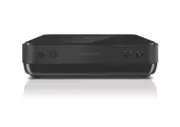
5 2 Your product Congratulations on your purchase, and welcome to Philips! To fully benefi t from the suppor t that Philips offers, register your product at www.philips.com/welcome. Feature highlights Screen Fit View the movie in full screen display on any T V. Hi-speed USB link Plug a USB fl ash driv...
Page 6 - Connect; Connect video cables; Connect to AV OUT jack
6 3 Connect Make the following connections to use this product. Basic connections: Video • Audio • Optional connections: Route audio to other devices: • Digital amplifi er/receiver • Analog stereo system • Note Refer to the t ype plate at the back or bot tom of the • produc t for identifi cation and s...
Page 7 - Route audio to other devices; Connect to digital amplifi er/receiver; Connect analogue stereo system; Option 2: Connect to scart jack; Connect audio cables
7 Route audio to other devices Route the audio from this product to other devices to enhance audio play. Connect to digital amplifi er/receiver DIGITAL IN 1 Connec t a coaxial cable (not supplied) to: the • COA XIAL jack on this produc t. the COA XIAL /DIGITAL input jack on • the device. Connect anal...
Page 8 - Connect power; started; Prepare the remote control
8 Select menu display language 1 Press SETUP . » [General Setup] menu is displayed. 2 Selec t [OSD Language] , then press . 3 Press to selec t a language, then press OK . 5 Play Play a disc Caution Do not place any objec ts other than discs into the disc • compar tment .Do not touch the disc optical...
Page 9 - Access VCD menu; Play video
9 Access VCD menu The PBC (playback control) feature is available for VCD/SVCD, which can display the contents menu for you to selec t a play option. The PBC is on by default in the fac tor y. Note See “Adjus t set tings” > • [Preferences] > [PBC] on how to tur n PBC on or of f. 1 Display the ...
Page 10 - Play music; Play DivX® video
10 Play music Control a track1 Play a tr ack . 2 Use the remote control to control the play. Button Action Star t, pause or resume disc play. Stop disc play. , Skip to a previous/nex t tr ack . Selec t an item to play. , Searches fast-back ward or fast-for ward. Press repeatedly to change the search...
Page 11 - Play musical slideshow; Play from USB device; Play photo as slideshow
11 Play musical slideshow Create a musical slideshow to play MP3/ WMA music fi les and JPEG photo fi les simultaneously. Note To create a musical slideshow, you mus t s tore the MP3/ • WMA and JPEG fi les on the same disc /USB device. 1 Play MP3/ WMA music. 2 Press BACK to retur n to the main menu. 3 N...
Page 12 - Audio setup; Adjust; General setup
12 [Auto standby] Tur n on or of f automatically standby.• [On] - Switch to standby 15 minutes of inac tivity (for example, in pause or stop mode). • [Off ] - Disable the auto standby mode. [DivX(R) VOD Code] Display the DivX® registr ation code. Tip Use this player’s DivX regis tr ation code when y...
Page 13 - Video setup
13 Note Applicable only to Dolby Digital encoded DVD. • Video setup 1 Press SETUP . » [General Setup] menu is displayed. 2 Press to selec t [ Video Setup] , then press . 3 Selec t an option, then press OK . 4 Selec t a set ting, then press OK . To retur n to the previous menu, press • . To exit the ...
Page 14 - Preferences
14 [Parental] Restric t access to discs that are unsuitable for children. These types of discs must be recorded with r atings. 1. Press OK . 2. Selec t a r ating level, then press OK . 3. Press the numeric buttons to enter the password. Note Rated DVDs above the level you set in • [Parental control]...
Page 15 - Update software; Care
15 7 Additional information Update software For software updates, check the current software version of this product to compare with the latest software (if available) at the Philips website. Caution Power supply mus t not be inter r upted dur ing sof t ware • upgr ade. 1 Press SETUP . 2 Selec t [Pr...
Page 16 - Specifi cations
16 Dynamic r ange (1 kHz): > 80 dB (A-weighted) • Crosstalk (1 kHz): > 70 dB • Distor tion/noise (1 kHz): > 65 dB • MPEG MP3: MPEG Audio L3 • Audio format Digital: • MPEG/AC-3/PCM: Compressed digital • (16 , 20, 24 bits fs, 44.1, 48, 96 kHz) MP3 (ISO 9660): 96 , 112, 128, 256 kbps • & v...
Page 17 - Troubleshooting
17 Sound No audio output from the T V. Ensure that the audio cables are connec ted to • the audio input of the T V. Assign the audio input of the T V to the • cor responding video input. See the T V user manual for details. No audio output from the loudspeakers of the audio device (stereo system/amp...
Page 18 - Glossary
18 P PBC Playback Control. A system where you navigate through a Video CD/Super VCD with on-screen menus that are recorded onto the disc. You can enjoy inter ac tive playback and search. W WMA Windows Media™ Audio. Refer s to an audio compression technolog y developed by Microsof t Cor por ation. WM...
Page 19 - Language Co
124 Abkhazian 6566 Afar 6565 Afrikaans 6570 Amharic 6577 Arabic 6582 Armenian 7289 Assamese 6583 Avestan 6569 Aymara 6589 Azerhaijani 6590 Bahasa Melayu 7783 Bashkir 6665 Belarusian 6669 Bengali 6678 Bihari 6672 Bislama 6673 Bokmål, Norwegian 7866 Bosanski 6683 Brezhoneg 6682 Bulgarian 6671 Burmese ...