Page 3 - Contents; Specifications
1 EN Contents 1 Important 2 Safety 2 2 Your micro system 4 Introduction 4 What's in the box 4 Over view of the main unit 5 Over view of the remote control 6 3 Get started 7 Connect speakers 7 Connect FM antenna 7 Connect power 7 Prepare the remote control 8 Demonstrate the features 8 Set clock 8 Tur...
Page 4 - Important; Safety; Important Safety Instructions
2 EN 1 Important Safety This 'bolt of lightning' indicates uninsulated material within the device may cause an electrical shock. For the safety of ever yone in your household, please do not remove the covering. The 'exclamation mark' calls attention to features for which you should read the enclosed...
Page 5 - Warning; Hearing safety; Caution; Listen at a moderate volume:
3 EN • Where the MAINS plug or an appliance coupler is used as the disconnect device, the disconnect device shall remain readily operable. Warning • Never remove the casing of this device. • Never lubricate any par t of this device. • Never place this device on other electrical equipment. • Keep thi...
Page 6 - welcome to Philips! To fully benefit from the; Introduction; You can enrich sound output with below
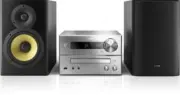
4 EN 2 Your micro system Congratulations on your purchase, and welcome to Philips! To fully benefit from the suppor t that Philips offers, register your product at www.philips.com/welcome. Before using your product, read all accompanying safety information. To download the full user manual, visit ww...
Page 7 - Overview of the main unit
5 EN Overview of the main unit a • Turn the unit on or off. • Switch to standby mode or Eco standby mode. • Bluetooth indicator. b Disc compartment c • USB socket. d AUDIO IN • Audio input jack (3.5mm) for an external audio device. e SRC • Select a source: DISC, USB, DAB, TUNER, BT, AUDIO IN. f • St...
Page 8 - Select repeat or shuffle play mode.
6 EN Overview of the remote control a • Turn the unit on or off. • Switch to standby mode or Eco power standby mode. b SOURCE • Select a source: DISC, USB, DAB, TUNER, BT, AUDIO IN. c INFO/RDS • Display current status or the disc information. • For selected FM radio stations, display RDS information...
Page 9 - Get started; Connect speakers; Note; Connect FM antenna
7 EN 3 Get started Caution • Use of controls or adjustments or performance of procedures other than herein may result in hazardous radiation exposure or other unsafe operation. Always follow the instructions in this chapter in sequence. If you contact Philips, you will be asked for the model and ser...
Page 10 - Prepare the remote control; To insert the remote control battery:; Demonstrate the features; Turn on; Switch to standby mode; Switch to ECO standby mode:; Switch between standby mode and ECO
8 EN Prepare the remote control Caution • Risk of explosion! Keep batteries away from heat, sunshine or fire. Never discard batteries in fire. • Risk of decreased batter y life! Never mix different brands or types of batteries. • Risk of product damage! When the remote control is not used for long p...
Page 11 - Play from disc; Play from USB; SOURCE; Charge your device
9 EN 4 Play Play from disc 1 Press SOURCE repeatedly to select DISC source. 2 Press to open the disc compar tment. 3 Inser t a disc with printed side facing upward. 4 Press to close the disc compar tment. » Play star ts automatically. If not, press . Play from USB Note • Make sure that the USB devic...
Page 12 - Control play; Select an audio file.; Skip to a track; to select a track or a file.; Program tracks
10 EN Control play / Select a folder. / Select an audio file. Pause or resume play.Stop play. REPEAT/ SHUFFLE Select an available play mode. • [REPEAT ONE] (repeat one): repeat the current track • [REPEAT ALB] (repeat album): repeat the current album • [REPEAT ALL] (repeat all): repeat all tracks • ...
Page 13 - Pair and connect; Option 1: Pair and connect through NFC; Option 2: Pair and connect manually; Stream music through Bluetooth; To disconnect the Bluetooth-enabled device:
11 EN Pair and connect Option 1: Pair and connect through NFC Near Field Communication (NFC) is a technology that enables short-range wireless communication between various NFC compatible devices, such as mobile phones and IC tags. With the NFC function, data communication can be achieved easily jus...
Page 14 - Play from Philips DigitalRadio application; Listen to the; Tip; more choice, better sound quality, and more; Tune to DAB+ radio stations; automatically and broadcasts the first
12 EN To clear Bluetooth pairing history: • Pressand hold on the main set for eight seconds. » After successful clearing, beep sounds. Play from Philips DigitalRadio application An application Philips DigitalRadio is available on Apple App Store and Google Play. To fully enjoy features of this produ...
Page 15 - first available station.; Store DAB+ radio stations manually; Select a preset DAB+ radio station; Frequency
13 EN To tune to a station from the available station list : In DAB+ mode, press / repeatedly to navigate through the available DAB+ stations. Store DAB+ radio stations automatically Note • New stations and ser vices will be added in DAB+ broadcast from time to time. To make new DAB+ stations and se...
Page 16 - Listen to FM radio; Tune to a radio station; repeatedly until you find optimal; Store FM radio stations automatically; The unit broadcasts the first scanned; Store FM radio stations manually; The frequency of the preset station is; Select a preset radio station
14 EN • [BT UPGRADE] (Bluetooth upgrade): upgrade Bluetooth software if available. • [SW VER] (software version): show the software version of this unit. Note • If no button is pressed within 30 seconds, the menu exits. Listen to FM radio Tune to a radio station 1 Press SOURCE repeatedly to select t...
Page 17 - Other features; Set the alarm timer; Set the sleep timer
15 EN 6 Other features Set the alarm timer This unit can be used as an alarm clock. You can select DISC , TUNER , DAB , or USB as alarm source. Note • Make sure that you have set the clock correctly. 1 In standby mode, press and hold SLEEP/ TIMER for three seconds. » [SET TIMER] is displayed, and th...
Page 18 - Amplifier; Speakers; Frequency Response; USB; Frequency band; General information
16 EN 7 Product information Note • Product information is subject to change without prior notice. Specifications Amplifier Maximum Output Power 150 W Frequency Response 60 Hz - 16 kHz; ±3 dB Signal to Noise Ratio ≥70 dBA Total Harmonic Distor tion <1% Aux Input 600 mV RMS Speakers Speaker Impedan...
Page 19 - USB playability information; Compatible USB devices:; Supported MP3 disc formats
17 EN USB playability information Compatible USB devices: • USB flash memor y (USB2.0 or USB1.1) • USB flash players (USB2.0 or USB1.1) • memor y cards (requires an additional card reader to work with this unit) Supported USB formats: • USB or memor y file format: FAT12, FAT16, FAT32 (sector size: 5...
Page 20 - Troubleshooting; Cannot display some files in USB device
18 EN 8 Troubleshooting Warning • Never remove the casing of this device. To keep the warranty valid, never tr y to repair the system yourself. If you encounter problems when using this device, check the following points before requesting ser vice. If the problem remains unsolved, go to the Philips ...
Page 21 - Notice; authority to operate the equipment.
19 EN • you have enabled both the Bluetooth and NFC features on your device. • you have kept the NFC area of the device in touch with that of the speaker until you heard a beep. The paired mobile device connects and disconnects constantly. • The Bluetooth reception is poor. Move the device closer to...