Page 2 - CONTENTS
2 CONTENTS INTRODUCTION ................................................. 3 Safety instruction ...........................................................3Included accessories .................................................... 6 FEATURES ........................................................... ...
Page 3 - safety; symbols; CAUTION; RISK OF ELECTRIC SHOCK; TO REDUCE THE RISK OF ELECTRIC; * Additional Benefits; today to get the most benefits from your purchase.; The symbol for CLASS ll (Double Insulation); For Customer Use; Please write the model and serial number of your
EN 3 For fastest support visit us online at www.philips.com/support for chat and self service solutions. The lightning flash with arrowhead symbol, within an equilateral triangle, is intended to alert the user to the presence of uninsulated “dangerous voltage” within the product’s enclosure that may...
Page 4 - IMPORTANT SAFETY INSTRUCTIONS; point where they exit from the apparatus.; FCC WARNING
EN 4 IMPORTANT SAFETY INSTRUCTIONS 1. Read these instructions.2. Keep these instructions.3. Heed all warnings.4. Follow all instructions.5. Do not use this apparatus near water.6. Clean only with dry cloth.7. Do not block any ventilation openings. Install in accordance with the manufacturer’s instru...
Page 5 - IMPORTANT COPYRIGHT INFORMATION; To avoid the hazards of electrical shock and fire; – The unit is moved from a cold place to a warm place.; Notice for progressive scan use
EN 5 IMPORTANT COPYRIGHT INFORMATION Unauthorized copying, broadcasting, public performance and lending of discs are prohibited. This item incorporates copy protection technology that is protected by U.S. patents and other intellectual property rights of Rovi Corporation. Reverse engineering and dis...
Page 8 - Symbols used in this owner’s manual; Symbol; Description refers to BD-video
EN 8 2.2. Version info ˝Version Info˝ screen provides information about this unit’s software version.You can also download the latest software from the Philips website and update it yourself if it is newer than the version currently on your unit. The current version of software on your unit can be s...
Page 9 - FUNCTIONAL OVERVIEW; CCautio
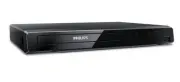
EN 9 3. FUNCTIONAL OVERVIEW 3.1. Front panel 1 3 4* 2 5 6 * The unit can also be turned on by pressing this button. 1. Disc tray2. Power-On indicator – Blinks when the unit is starting up. – Lights up if the unit is turned On and the Home Menu will be displayed on the TV screen. 3. Infrared sensor w...
Page 10 - buttons
EN 10 3.3. Remote control 1 16 17 19 18* 20 12 2 3 4 14 13 11 6 7 8 9* 10 5 15 * The unit can also be turned on by pressing these buttons. 1. (POWER) button • Press to turn on the unit, or to switch the unit into standby mode. (To completely turn off the unit, you must unplug the AC power cord.) 2. ...
Page 11 - Niut; Installing the batteries in the remote control; Using the remote control
EN 11 Niut D • Use the included remote control. Remote-control operation on any other remote control, such as a universal remote control, is not guaranteed. C Installing the batteries in the remote control Install 2 AAA (1.5V) batteries matching the polarity indicated inside battery compartment of t...
Page 12 - Home menu; To access the Setup Menu; Setup menu; Play Menu; During playback, press; BDMV
EN 12 3.4. Guide to on-screen display C Home menu When you Turn On the unit, Home Menu will appear automatically. Otherwise, press [ (HOME)] . Setup Browse USB Play Disc 1 2 3 1. ˝Play Disc˝: Initiates playback of inserted disc, displays a list of Tracks / Files or the Media Filter Menu 2. ˝Browse U...
Page 13 - Outputs video data with a frame rate of 60 frames per second.; may be the TV. Please refer to the TV’s user’s manual.; HDMI audio connection; HDMI IN; AV receiver / amplifier with
EN 13 4. CONNECTIONS 4.1. Connection to a TV C HDMI connection (Supports up to 4K(*1), 4K/24(*2) resolution.) HDMI IN Your TV HDMI cable (not included) (*1) 4K: Outputs video data with a frame rate of 60 frames per second. (*2) 4K/24: Outputs video data with a frame rate of 24 frames per second. • D...
Page 15 - Finding a viewing video source input on your TV; How to reset the OSD language; You can reset the OSD language if you selected the wrong language.
EN 15 5. BEFORE YOU START 5.1. Finding a viewing video source input on your TV after you have completed all of the connections to your TV, review the steps below. 1. Press [ (POWER)] to Turn On the unit. 2. Turn On your TV. • If the TV is connected by an HDMI cable, it may take a few moments for the...
Page 16 - INFORMATION ON PLAYBACK; Playable discs and files; AVCHD
EN 16 6. INFORMATION ON PLAYBACK 6.1. Information on playback C Playable discs and files Playable discs Logos Blu-ray Disc™- BD-video- BD-RE* (ver. 2.1)(Recorded in BDMV format)- BD-R* (ver. 1.1 / 1.2 / 1.3)(Recorded in BDMV format)(Unfinalized disc may not be played back.) DVD-video DVD-RW(finalize...
Page 17 - Recommended specifications; • Maximum file size of a picture:; Folder / file number limitations; CD
EN 17 C Recommended specifications AVCHD This unit cannot play back stand-alone AVCHD files (*.m2ts, *.mts or *.m2t) written to a DVD or copied to an SD memory card. The DVD or SD memory card containing AVCHD files must have a proper file and folder structure meeting AVCHD format specifications. Ple...
Page 19 - Description for icons; ̋Folders ̋ refers to the group of files.; Photo file list; How to navigate through the file list; Press
EN 19 C Description for icons [ ] : group (folder) icon [ ] : music file icon [ ] : photo file icon - ˝Folders˝ refers to the group of files. - ˝Track˝ refers to the contents recorded on the audio CD. - ˝Files˝ refers to the contents on a disc which are recorded in AVCHD or JPEG file format. Niut D ...
Page 20 - Select the type of the file you want to play back, then press; ̋Photo file list ̋; To return to normal playback:; Audio CD
EN 20 7. BASIC PLAYBACK 7.1. Playing back a disc [BD Video] [DVD Video] [CD] [AVCHD] [JPEG] 1. Insert a disc (refer to ˝How to insert a disc˝ on page 19). • For Blu-ray Disc™ / DVD / audio CD or a disc containing only one type of file, playback will start automatically. If not, press [ (PLAY/PAUSE)]...
Page 21 - Playing back contents from a USB memory stick; Connect a USB memory stick.
EN 21 Niut D fir JPEG plCybCck • Every press of [ ] will turn the image by 90 degrees when an image is displayed. • During playback, press [TOP MENU] to display thumbnail screen. • Some unplayable folders or files may be listed due to the recording status.• High-resolution JPEG files take longer to ...
Page 22 - or
EN 22 7.3. Using the title / disc / pop menu [BD Video] [DVD Video] [AVCHD] Some BD-videos, DVD-videos or AVCHD files may contain a title menu which describes the contents of the disc, or a Disc Menu which guides you through the available functions on the disc.• With such discs, a title menu or a di...
Page 23 - • Slow reverse is not available.; • Step by step reverse is not available.
EN 23 8. SPECIAL PLAYBACK 8.1. Fast forward / Fast reverse [BD Video] [DVD Video] [CD] [AVCHD] 1. During playback, press [ (FORWARD)] repeatedly for fast forward. During playback, press [ (REVERSE)] repeatedly for fast reverse. 2. Press [ (PLAY/PAUSE)] to return to normal playback. Niut D • For Blu-...
Page 26 - Playback will start from the beginning of the title / chapter.; while in Stop mode or; Using ̋Search ̋; Playback will start from the beginning of the track.
EN 26 8.7. Title / chapter search [BD Video] [DVD Video] [AVCHD] C Using [ (SKIP)] / [ (SKIP)] 1. During playback, press [ (SKIP)] to skip the current title or chapter and move to the next. The title or chapter will move forward one at a time.• If there is no chapter in a title, the current title ma...
Page 28 - “Secondary Subtitle”:
EN 28 8.11. Switching subtitles Some video materials may have subtitles in one or more languages. For commercially available discs, the supported languages can be found on the disc case. Follow the steps below to switch the subtitle language during playback. [BD Video] C Using [SUBTITLE] 1. During p...
Page 30 - appears on the TV screen.; • If “Angle Icon” setting is set to “Off”,; Shows the original picture as recorded.; ̋Picture Enhancement ̋ Off.
EN 30 8.13. Switching camera angles [BD Video] [DVD Video] Some BD-videos and DVD-videos contain scenes which have been shot simultaneously from various angles. You can change the camera angle when appears on the TV screen. 1. During playback, press [OPTIONS] to display the play menu. 2. Use [ ] to ...
Page 31 - Category
EN 31 In ˝Setup˝, you can customize various kinds of settings as you prefer.Refer to the following instructions to navigate through the setup menu. 1. Press [ (HOME)] to access the home menu. 2. Use [ ] to select ˝Setup˝, then press [OK] . 3. Use [ ] to select the desired category, then press [OK] ....
Page 33 - HOME; One touch play; Buttons for one touch play:; One touch standby; Get & set menu language
EN 33 10. SETUPS 10.1. EasyLink (HDMI CEC) HOME A ˝Setup˝ A ˝EasyLink Setup˝ A ˝EasyLink˝ EasyLink(HDMI CEC) allows integrated system control over HDMI and is part of the HDMI standard. This function may not work properly depending on the device connected to the unit. When ˝EasyLink˝ setting is set ...
Page 35 - For the first time use:; Rating level; Password change; To temporarily disable parental lock:
EN 35 10.3. Parental control Some BD-videos or DVD-videos feature parental lock levels. Playback will stop if the ratings of the content exceed the levels you set on the player, it will require you to enter a password before the disc will play back. This feature prevents your children from viewing i...
Page 36 - Disc / USB memory stick update
EN 36 10.4. Software update HOME A “Setup” A “Advanced Setup” A “Software Update” This unit lets you update the software yourself using a software update disc or USB memory stick.The available discs are below:• BD-RE/-R• DVD-RW/-R• CD-RW/-R C Disc / USB memory stick update You can update the softwar...
Page 38 - TROUBLESHOOTING; Problems; No reaction to the remote control.
EN 38 11. TROUBLESHOOTING Problems T ips No power. Check the AC power cord, if it is properly connected.Try another power outlet.Unplug the AC power cord, and wait for about 5-10 seconds. Plug it back in and attempt to power on the unit. No sound or picture. Make sure both the TV and Blu-ray Disc™ p...
Page 40 - Cannot find a JPEG file.; your Blu-ray DiscTM Player and void your warranty.
EN 40 Problems T ips Cannot find a JPEG file. Make sure that the selected group (folder) does not contain more than 9,999 files for Blu-ray Disc™ / DVD / USB memory stick and 999 files for CD.Make sure that the file extension is .jpg / .JPG / .jpeg / or .JPEG. No Audio signal from Surround system of...
Page 41 - LANGUAGE CODE LIST
EN 41 12. LANGUAGE CODE LIST Language Code Language Code Language Code Language Code A-B French [ FRE ] 5264 Macedonian 5957 Siswat 6565 Abkhazian 4748 Frisian 5271 Malagasy 5953 Slovak [ SLO ] 6557 Afar 4747 Galician 5358 Malay 5965 Slovenian 6558 Afrikaans 4752 Georgian 5747 Malayalam 5958 Somali ...
Page 43 - Turn on the digital camera.; • Some cameras have an IR filter and will not display the IR signal.
EN 43 14. MAINTENANCE C Servicing • Please refer to relevant topics in ˝TROUBLESHOOTING˝ on page 38 before returning the product.• If this unit becomes inoperative, do not try to correct the problem by yourself. There are no user-serviceable parts inside. Eject the disc (if possible), disconnect the...
Page 44 - TRADEMARK INFORMATION; is a trademark of DVD Format/Logo Licensing
EN 44 15. TRADEMARK INFORMATION ˝Blu-ray Disc™˝, ˝Blu-ray˝ and ˝Blu-ray Disc™˝ logo are trademarks of the Blu-ray Disc Association. ˝BONUSVIEW™˝ and ˝BONUSVIEW™˝ logo are trademarks of the Blu-ray Disc Association. Manufactured under license from Dolby Laboratories. Dolby and the double-D symbol are...
Page 47 - LIMITED WARRANTY; back cover; WHAT IS NOT COVERED - EXCLUSIONS AND LIMITATIONS:
17. LIMITED WARRANTY back cover NINETY (90) DAY LIMITED WARRANTY WARRANTY COVERAGE: This warranty obligation is limited to the terms as set forth below. WHO IS COVERED: This product is warranted to the original purchaser or the person receiving the product as a gift against defects in materials and ...
Page 48 - ECS2AUL
P&F USA, Inc.1880 Braselton Hwy, Suite 118 #5012 Lawrenceville, GA 30043 P&F Mexicana, S.A. de C.V.Av. La Palma No. 6, Col. San Fernando La Herradura.Huixquilucan, Edo. de México. C.P. 52787 This product has been manufactured by and is sold under the responsibility of P&F USA, Inc., and ...