Page 2 - Important; Contents
1 EN Contents 1 Important 2 Safety 2 Care for your product 3 Care of the environment 3 Compliance 3 Help and support 3 2 Your product 4 What’s in the box 4 Main unit 4 Remote control 5 Detachable wireless surround speakers 6 Wireless subwoofer 6 Connectors 7 3 Connect and set up 8 Placement 8 Connec...
Page 3 - Safety
2 EN 1 Important Read and understand all instructions before you use your product. If damage is caused by failure to follow instructions, the warranty does not apply. Safety Risk of electric shock or fire! • Before you make or change any connections, make sure that all devices are disconnected from ...
Page 4 - Compliance
3 EN • If the battery compartment cannot be completely secured, discontinue use of the product. Keep out of reach of children and contact the manufacturer. This is CLASS II apparatus with double insulation, and no protective earth provided. ~ AC voltage Use only the power supplies listed in the user...
Page 5 - Your product; What’s in the box
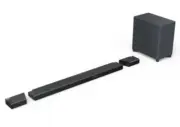
4 EN 2 Your product Congratulations on your purchase, and of product software upgrade), register your product at www.philips.com/support . What’s in the box Check and identify the items in the package:• Soundbar x1• Detachable wireless surround speaker x2• Wireless subwoofer x1• Remote control x1• A...
Page 6 - Remote control
5 EN Remote control This section includes an overview of the remote control. 3 4 2 1 5 6 8 9 7 a (Standby-On) • Short press: Switch On / Off (Semi- standby) • Long press(5 sec): Switch Off (Eco standby) b (Source) Select an input source for this product.• HDMI 1 : Switch your source to the HDMI IN 1...
Page 7 - Wireless subwoofer
6 EN g (Sound) Select sound settings (Surround/DRC/IMAX/Dialogue/Bass/Treble/Sync). SUR Surround sound options DRC Dynamic Range control IMAX IMAX mode options DLG CTRL Adjust dialogue level (for DTS-X only) BASS Adjust bass level for preset EQ TREBLE Adjust treble level for preset EQ SYNC Adjust au...
Page 8 - Connectors
7 EN Connectors This section includes an overview of the connectors available on the main unit. 4 1 23 5 6 a DC IN Connect to the power supply. b AUDIO IN Connect to an audio output (3.5mm jack) on a device. c OPTICAL IN Connect to an optical audio output on the TV or a digital device. d USB (For se...
Page 9 - Placement
8 EN 3 Connect and set up This section helps you connect this product to a TV and other devices, and then set it up. For information about the basic connections of this product and accessories, see the quick start guide. Caution • For identification and supply ratings, see the type plate at the back...
Page 10 - Connect TV or digital; Connect to TV
9 EN 3 Repeatedly press the source button until E-ARC displays on the display panel. Note • Your TV must support the HDMI-CEC and ARC function and you must enable them. • 100% interoperability with all HDMI-CEC devices is not guaranteed. • Only HDMI 2.1 compatible cables can support the eARC functio...
Page 11 - Automatic pairing; Connect audio from TV or
10 EN 1 Using an analog cable, connect the AUDIO IN connector on this product to the AUDIO OUT connector or analog audio output connectors (red and white) on TV or other devices. 2 Repeatedly press the source button until AUDIO IN displays on the display panel. Connect to power • Before connecting t...
Page 15 - Insert batteries before; Preset EQ modes
14 EN 4 Use your product This section helps you use this product to play media contents from all sources. Before you start • Make the necessary connections described in the quick start guide and the user manual. • Switch this product to the correct source for other devices. Insert batteries before u...
Page 16 - Dolby Atmos
15 EN Surround mode (SURR) Repeatedly press to select SURR , then press the left and right navigation buttons to select surround mode options.• UPMX : Up-mixing mode for driving output to all speakers even when content with audio channels lesser than the 5.1.2 (B95) or 7.1.2 (B97) speaker configurat...
Page 17 - Enjoy Dolby Atmos sound; Play audio through
16 EN From your Blu-ray disc player: • Movie with Dolby Atmos.• Your Blu-ray disc player is connected to this product via HDMI IN 1/2 connector. • On your Blu-ray disc player, enable bitstream/raw audio format for HDMI sound output. • A high-speed HDMI cable. From your TV: • Movie with Dolby Atmos.•...
Page 18 - MP3 player; AirPlay2 / Alexa 3PDA
17 EN MP3 player Connect your MP3 player to play your audio files or music. What you need • An MP3 player.• A 3.5mm stereo audio cable. 1 Using the 3.5mm stereo audio cable, connect the MP3 player to the AUDIO IN connector on this product. 2 Repeatedly press the source button until AUDIO IN displays...
Page 19 - Settings; Adjust speaker level
18 EN 5 Settings Adjust speaker level Repeatedly press to enter the settings menu, select the speakers below and press the left and right navigation buttons to adjust the speaker level • SUB (subwoofer) • CTR XX (center speaker) • SIDE L XX (side left speaker) • SIDE R XX (side right speaker) Set di...
Page 20 - Update software via Wi-
19 EN 6 Update software To get the best features and support, update your product with the latest software. Update software via Wi- Fi Two parts in this product can be updated via Wi-Fi & Philips Sound App. 1 Play-Fi system 2 Audio system (Firmware) – handles all control and sound features Play-...
Page 21 - Wall mount the main unit
20 EN 1 ~50mm/2.0" 3 3.5-4mm/0.14”-0.16” 4mm/ 0.16” >25mm/0.98” 1 790mm/31.1" ~50mm/2.0 " 3 3.5-4mm/0.14”-0.16” 4mm/ 0.16” >25mm/0.98” 22 Mount the detachable wireless surround speakers (Optional) The detachable wireless surround speakers can be mounted on the wall with the provide...
Page 22 - Product; Audio
21 EN • Audio channel: 7.1.2• Built-in speakers:• Central: 2 racetracks full range drivers• Front speaker: 4 full range drivers + 2 tweeters + 2 tweeters • • • Rear: 2 racetrack full range drivers (wireless) • Dimensions (W x H x D): 1312 x 55.6 x 120 mm • Weight: 5.97 kg• Operating temperature: 0°C...
Page 23 - Warning; Main unit; Sound; Troubleshooting
22 EN Bluetooth A device cannot connect with the soundbar. • The device does not support the compatible profiles required for the soundbar. • You have not enabled the Bluetooth function of the device. See the user manual of the device on how to enable the function. • The device is not correctly conn...