Page 2 - Contents
Contents 1 Home Screen 4 1.1 Home Screen and Channels 4 1.2 Home Screen Update 4 1.3 Apps and Smart TV Collection 4 1.4 Open the Home Screen 5 2 Setting Up 6 2.1 Read Safety 6 2.2 TV Stand and Wall Mounting 6 2.3 Tips on Placement 6 2.4 Power Cable 6 2.5 Antenna Cable 7 2.6 Satellite Dish 7 3 Remote...
Page 4 - Home Screen; Home Screen and Channels
1 Home Screen 1.1 Home Screen and Channels To enjoy the benefits of your Android TV, connect theTV to the Internet. Press HOME on your remote control to get your Android Home screen. Like onyour Android smartphone or tablet, the Home screenis the centre of your TV. From the Home sreen youcan decid...
Page 5 - Open the Home Screen
Store. You can also install and add more apps asfavourite from the Apps tab. Smart TV Collection All your premium apps are available within the SmartTV Collection app. Launch it using the banner on the Favourite apps row. The Smart TV Collection app will also contain recommendations for new Apps and...
Page 6 - Setting Up; Read Safety; Tips on Placement
2 Setting Up 2.1 Read Safety Read the safety instructions first before you use theTV. To read the instructions, in Help , press the colour key Keywords and look up Safety Instructions . 2.2 TV Stand and Wall Mounting TV Stand You can find the instructions for mounting the TVstand in the Quick Star...
Page 7 - Antenna Cable; Satellite Dish
consumption, unplug the power cable to save energyif you do not use the TV for a long period of time. For more information, in Help , press the colour key Keywords and look up Switching On for more information on switching the TV on or off. 2.5 Antenna Cable Insert the antenna plug firmly intothe ...
Page 8 - Remote Control; Key Overview
3 Remote Control 3.1 Key Overview Top 1 - Standby / On To switch the TV on or back to Standby. 2 - VOICE microphone 3 - To select one of the Ambilight style. Long press tolaunch the Aurora App. 4 - To launch the Amazon prime video App. 5 - To open the Netflix App directly. With the TV switch...
Page 13 - Channels; Install Channels
5 Channels 5.1 Install Channels For more information, in Help , press the colour key Keywords and look up Channel, Antenna Installation or Channel, Installation . 5.2 Channel Lists About Channel Lists After a channel installation, all channels appear onthe All channel list. The channels displayed ...
Page 16 - Favourite Channels
To select an audio language when none of yourpreferred languages are available… 1 - Press OPTIONS . 2 - Select Audio Language and select one of the languages as audio temporarily. Common Interface If you installed a CAM in one of the CommonInterface slots, you can view the CAM and operatorinformat...
Page 19 - Interactive TV
Text Setup Text language Some digital TV broadcasters have several Textlanguages available.To set your primary and secondary Text language . . . 1 - Select Settings > Region and language and press (right) to enter the menu. 2 - Select Language > Primary Text or Secondary Text and press OK ...
Page 20 - Channel Installation; Satellite Installation
6 Channel Installation 6.1 Satellite Installation About Installing Satellites Up to 4 Satellites You can install up to 4 satellites (4 LNBs) on this TV.Select the exact number of satellites you wish toinstall at the start of the installation. This will speed upthe installation. Unicable You can use ...
Page 22 - Antenna Installation
all its channels - the former and the new ones - aremoved to the end of the channel list All.You cannot use Manual installation if you need tochange the number of satellites. If this is needed, youhave to do a complete installation with InstallSatellites. To install a transponder… 1 - Select Setti...
Page 25 - Channel List Copy
press OK . You can enter a frequency yourself to find a channel or let the TV search for a channel.Press (right) to select Search and press OK to search for a channel automatically. The foundchannel is shown on screen and if the reception ispoor, press Search again. If you want to store the channe...
Page 27 - Connect Devices; About Connections
7 Connect Devices 7.1 About Connections Connectivity Guide Always connect a device to the TV with the highestquality connection available. Also, use good qualitycables to ensure a good transfer of picture andsound. When you connect a device, the TV recognizes itstype and gives each device a correct ...
Page 29 - Home Theatre System - HTS
When you switch on the TV, it may take a few minutesbefore the CAM is activated. If a CAM is inserted andsubscription fees are paid (subscription methods candiffer), you can watch the scrambled channelssupported by the CAM smart card. The CAM and smart card are exclusively for your TV. Ifyou remove ...
Page 30 - Headphones
7.4 Smartphones and Tablets To connect a smartphone or tablet to the TV, you canuse a wireless connection. For a wireless connection,on your smartphone or tablet download the PhilipsTV Remote App from your favourite app store. 7.5 Blu-ray Disc Player Use a High speed HDMI cable to connect the Blu- r...
Page 31 - Game Console; USB Hard Drive
7.8 Game Console HDMI For best quality, connect the game console with aHigh speed HDMI cable to the TV. 7.9 USB Hard Drive What You Need If you connect a USB Hard Drive, you can pause orrecord digital TV broadcasts (DVB broadcasts orsimilar). Minimum Disk Space • To PauseTo pause a broadcast, you ne...
Page 32 - USB Keyboard; USB Flash Drive
connected permanently. For more information, in Help , press the colour key Keywords and look up Pause TV , Recording , or Apps . 7.10 USB Keyboard Connect Connect a USB keyboard (USB-HID type) to enter texton your TV. Use one of the USB connections to connect. Configure Install the keyboard To in...
Page 34 - Network and Internet
8 Connect yourAndroid TV 8.1 Network and Internet Home Network To enjoy the full capabilities of your Philips AndroidTV, your TV must be connected to the Internet. Connect the TV to a home network with a high-speedInternet connection. You can connect your TVwirelessly or wired to your network router...
Page 35 - Google Account
Make the Connection Settings > Wireless and Networks > Wired or Wi- Fi > Connect to Network > Wired. 1 - Connect the router to the TV with a network cable (Ethernet cable**). 2 - Make sure that the router is switched on. 3 - The TV constantly searches for the network connection. 4 - A ...
Page 36 - Smart TV Collection App
email address and a password. If you don't have anGoogle Account yet, use your computer or tablet tocreate one (accounts.google.com). To play gameswith Google Play, you need a Google+ profile. If youdid not sign in during the first TV installation, you canalways sign in later. To sign in after you d...
Page 37 - Apps; About Apps
9 Apps 9.1 About Apps You can find your favourite Apps on Apps row in the Home menu. Like apps on your smartphone or tablet, the apps onyour TV offer specific functions for an enriched TVexperience. Apps like YouTube, games, video storesor weather forecasts (a.o.). You can use the InternetBrowser ap...
Page 38 - Start or Stop an App
via the Apps page or by the Add app to favourites item on the Apps row. Some Google Play products and features aren't available in all countries. Find more informationon www.support.google.com/androidtv Google Play Store From the Google Play Store you can download andinstall new apps. Some apps are ...
Page 39 - Manage Apps
Lock 18+ rated apps You can lock 18+ rated apps from the Philips apps.This setting controls the 18+ setting in the Philips appsPrivacy Settings. To lock 18+ rated apps… 1 - Select Settings > Child Lock , select App Lock and press OK . 2 - Select On and press OK . 3 - Press (left) repeatedly i...
Page 40 - Storage
a particular app to optimise the overall performanceof apps and to keep memory usage low on yourAndroid TV. Also, it is best to uninstall apps that youare not using anymore. 9.6 Storage You can see how much storage space - the internalTV memory - you are using for your apps, videos,music, etc. You c...
Page 41 - Internet; Start Internet
10 Internet 10.1 Start Internet You can browse the Internet on your TV. You canview any Internet website but most of them are notprepared for a TV screen. • Some plug-ins (e.g. to view pages or videos) are notavailable on your TV.• You cannot send or download files.• Internet pages are shown one pag...
Page 43 - Sources; Switch to a device
12 Sources 12.1 Switch to a device From the list of Sources, you can switch to any of theconnected devices. You can switch to a tuner towatch TV, open the content of a connected USB FlashDrive or see the recordings you made on a connectedUSB Hard Drive. You can switch to your connecteddevices to wat...
Page 45 - Networks; Network
13 Networks 13.1 Network For more information, in Help , press the colour key Keywords and look up Network , for more information on connecting the TV to a network. 13.2 Bluetooth Pairing a Device For more information, in Help , press the colour key Keywords and look up Bluetooth, Pairing for mo...
Page 46 - Settings; Picture
14 Settings 14.1 Picture Picture Settings Picture Style Select a style Quick Menu > Frequent Settings > Picture style. For easy picture adjustment, you can select a presetpicture style. • Personal - The picture preferences you set duringthe first start up.• Vivid - Ideal for daylight viewing...
Page 49 - Sound
Picture Format If the picture is not filling the whole screen, if blackbars are showing on the top or bottom or at bothsides, you can adjust the picture to fill the screencompletely. To select one of the basic settings to fill the screen… 1 - Press Quick Menu > Frequent Settings > Picture Fo...
Page 53 - Ambilight Settings
sound. When a USB audio device connected with your TV,you can select USB audio device to play TV sound with the device. If there is a Bluetooth speaker already paired withyour TV, it will be available on the audio out devicelist with its device name. When the DTS Play-Fi compatible device isconfigur...
Page 54 - Eco Settings
• Vivid - Ideal for daylight conditions• Game - Ideal for gaming Follow audio Quick Menu > Frequent Settings > Ambilight style > Follow audio. Select one of the styles that follow the dynamics ofthe sound. • Lumina - Mixes audio dynamics with video colours• Retro - Based on audio dynamics...
Page 55 - General Settings
Select Switch off timer, the TV switches offautomatically to save energy.* TV switches off if receiving a TV signal but you don'tpress a key on the remote control during a 4 hourperiod. * TV switches off if not receiving a TV signal nor aremote control command for 10 minutes. * If you use the TV as ...
Page 61 - Play your Videos; View your Photos
15.5 Play your Videos Play Videos Open video folder 1 - Press SOURCES , select USB and press OK . 2 - Select USB Devices and press (right) to select the USB device you need. 3 - Select Videos , you can press Mark favourite to add the video folder to favourite menu - Favourites . Play a v...
Page 63 - Play your Music
360 Photo Options Browse 360 photo files... • List/Thumbnails – List or thumbnails views • Shuffle – Play your files in a random order • Repeat – Play your files once or continuously • Stop music – Stop background music playing • All settings – Launch the Settings menu Playing 360 photo files... • R...
Page 64 - TV Guide
16 TV Guide 16.1 What You Need With the TV Guide you can view a list of the currentand scheduled TV programmes of your channels.Depending on where the TV guide information (data)is coming from, analogue and digital channels or onlydigital channels are shown. Not all channels offer TVGuide informatio...
Page 66 - Recording
17 Recording andPause TV 17.1 Recording What You Need You can record a digital TV broadcast and watch itlater. To record a TV programme you need… • a connected USB Hard Drive formatted on this TV• digital TV channels installed on this TV• to receive channel information for the on screen TVGuide• a r...
Page 67 - Pause TV
5 - Press Back to close the menu. Broadcasters can limit the number of days a recordingcan be viewed. When this period expires, therecording will be marked as expired. A recording inthe list can show the number of days before it expires. When a scheduled recording was prevented by thebroadcaster o...
Page 69 - Google Cast
18 Smartphones andTablets 18.1 Philips TV Remote App The new Philips TV Remote App on your smartphone or tablet is your new TV buddy. Download the Philips TV Remote App from yourfavourite app store today. The Philips TV Remote App is available for iOS andAndroid and is free of charge. 18.2 Google Ca...
Page 70 - Games
19 Games 19.1 What You Need On this TV, you can play games… • from the Smart TV Collection in the Home menu• from the Google Play Store in the Home menu• from a connected Game Console Games from the Smart TV Collection or the GooglePlay Store must be downloaded and installed on TVbefore you can play...
Page 71 - Ambilight; Ambilight Style; Ambilight Off
20 Ambilight 20.1 Ambilight Style Follow Video You can set Ambilight to follow the video or the audiodynamics of a TV programme. Alternatively, you canset Ambilight to show a preset colour style or you canswitch Ambilight off. If you select Follow Video , you can select one of the styles that follow...
Page 73 - Ambilight Extension
• Tropical beach • Waterfall • Silent 20.7 Ambilight Extension Ambilight+Hue Configure Settings > Ambilight > Ambilight extension > Ambilight+hue > Configure. Setup your Philips Hue bulbs to follow the colours ofAmbilight. * Note: Ambilight+Hue feature will work with Huelamp type of &#...
Page 74 - Aurora
Settings > Ambilight > Ambilight extension > Ambilight+Philips Wireless Home Speakers > Resetconfiguration. Reset current setup of the Ambilight+Philips WirelessHome Speakers. 20.8 Aurora Aurora App is an application that enhances ambienceof the TV living space with showpieces and colo...
Page 75 - Top Picks; About Top Picks; Video on Demand
21 Top Picks 21.1 About Top Picks With Top Picks your TV recommends… • current TV programmes in Now on TV • the latest rental videos in Video on Demand • online TV services (Catch Up TV) from Freeview in Freeview Play* To enjoy Top Picks, connect your TV to theInternet. Make sure you agree to the ...
Page 77 - Freeview Play; About Freeview Play
22 Freeview Play 22.1 About Freeview Play To enjoy Freeview Play* , you need to connect your TV to Internet first. Freeview Play offers: • Watch TV programmes you missed from the lastseven days.• Watch live TV and on demand, all in one placewithout entering an app, you can search FreeviewPlay progra...
Page 78 - Netflix
23 Netflix If you have a Netflix membership subscription, youcan enjoy Netflix on this TV. Your TV must beconnected to the Internet. In your region, Netflixmight only come available with future softwareupdates. To open Netflix, press to open the Netflix App. You can open Netflix immediately from a...
Page 79 - Alexa; About Alexa
24 Alexa 24.1 About Alexa Your TV supports Amazon Alexa* voice controloperations. About Alexa Alexa is a cloud-based voice service available onAlexa Echo devices from Amazon and devicemanufacturers. With Alexa working on your TV, youcan switch on/off TV, change channels, changevolume and more. To co...
Page 80 - Software; Update Software; Software Version
25 Software 25.1 Update Software Update from Internet If the TV is connected to the Internet, you may receivea message to update the TV software. You need ahigh-speed (broadband) Internet connection. If youreceive this message, we recommend you to carry outthe update. With the message on screen, sel...
Page 82 - Specifications; Environmental
26 Specifications 26.1 Environmental European Energy Label The European Energy Label informs you on the energy efficiency class of this product. The greenerthe energy efficiency class of this product is, thelower the energy it consumes.On the label, you can find the energy efficiency class,the avera...
Page 85 - Help and Support; Register your TV
27 Help and Support 27.1 Register your TV Register your TV and enjoy a range of benefitsincluding full support (including downloads),privileged access to information about new products,exclusive offers and discounts, the chance to winprizes and even participate in special surveys aboutnew releases. ...
Page 86 - Troubleshooting
configurations.• Check the TV - You can check if the picture, sound and other settings are working fine..• Check the network - Check the network connection.• Check the remote control - Perform the test to verify the TV bundled remote control functionality.• View weak signal history - Display the lis...
Page 88 - Online Help
- 4K/Ultra HD (UHD): 25 Mbps Bluetooth Unable to pair • Make sure the device is in pairing mode. Read theuser manual of the device.• Keep the wireless speaker as close to the TV aspossible.• Trying to pair several devices with the TV at thesame time, may not work. Bluetooth lost connection • Always ...
Page 89 - Safety and Care; Safety
28 Safety and Care 28.1 Safety Important Read and understand all safety instructions beforeyou use the TV. If damage is caused by failure tofollow instructions, the warranty does not apply. Risk of Electric Shock or Fire • Never expose the TV to rain or water. Never placeliquid containers, such as v...
Page 90 - Screen Care
some lithium battery types).• Disposal of a battery into fire or a hot oven, ormechanically crushing or cutting of a battery, that canresult in an explosion.• Leaving a battery in an extremely high temperaturesurrounding environment that can result in anexplosion or the leakage of flammable liquid o...
Page 91 - Terms of Use; Terms of Use - Smart TV
29 Terms of Use 29.1 Terms of Use - TV 2022 © TP Vision Europe B.V. All rights reserved. This product was brought to the market by TP VisionEurope B.V. or one of its affiliates, hereinafter referredto as TP Vision, which is the manufacturer of theproduct. TP Vision is the warrantor in relation to th...
Page 92 - Copyrights; AMD FreeSync Premium
30 Copyrights 30.1 HDMI HDMI The terms HDMI, HDMI High-Definition MultimediaInterface, and the HDMI Logo are trademarks orregistered trademarks of HDMI LicensingAdministrator, Inc. 30.2 HEVC Advance HEVC Advance Covered by one or more claims of the HEVC patentslisted at patentlist.accessadvance.com....
Page 93 - Other Trademarks
30.7 Wi-Fi Alliance Wi-Fi The Wi-Fi CERTIFIED® Logo is a registered trademarkof Wi-Fi Alliance®. 30.8 Kensington Kensington (If applicable) Kensington and Micro Saver are registered UStrademarks of ACCO World Corporation with issuedregistrations and pending applications in othercountries throughout ...
Page 95 - Index
Index A Advanced Colour Settings 47 Age Rating 14 Alexa 79 Ambilight Extension 73 Ambilight Style 71 Ambilight+Hue 73 Ambilight+hue, configuration 73 Ambilight+hue, Immersion 73 Ambilight+hue, on or off 73 Ambilight+Philips Wireless Home Speakers 73 Ambilight, Custom Colour 54 Ambilight, Settings 53...
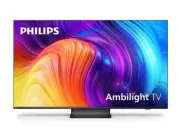


 Philips 50PFL5907/F7
User Manual
Philips 50PFL5907/F7
User Manual
 Philips 32PFL4508/F7
User Manual
Philips 32PFL4508/F7
User Manual
 Philips 39PFL2908/F7
User Manual
Philips 39PFL2908/F7
User Manual
 Philips 32PFL5708/F7
User Manual
Philips 32PFL5708/F7
User Manual