Page 2 - Contents
Contents 1 What's new 4 1.1 Home and channels 4 1.2 Apps and Philips TV Collection 4 2 Setting Up 5 2.1 Read Safety 5 2.2 TV Stand and Wall Mounting 5 2.3 Tips on Placement 5 2.4 Power Cable 5 2.5 Antenna Cable 6 2.6 Satellite Dish 6 3 Remote Control 7 3.1 Key Overview 7 3.2 Pair Your Remote Control...
Page 4 - Home and channels
1 What's new 1.1 Home and channels The new Home launcher Press HOME on your remote control to get your new Android Home screen. From here you can decidewhat to watch by browsing entertainment optionsfrom app and live TV. Your Home has channels to letyou discover great contents from your favourite ...
Page 5 - Setting Up; Read Safety; Tips on Placement
2 Setting Up 2.1 Read Safety Read the safety instructions first before you use theTV. To read the instructions, in Help , press the colour key Keywords and look up Safety Instructions . 2.2 TV Stand and Wall Mounting TV Stand You can find the instructions for mounting the TVstand in the Quick Star...
Page 6 - Antenna Cable; Satellite Dish
key Keywords and look up Switching On for more information on switching the TV on or off. 2.5 Antenna Cable Insert the antenna plug firmly intothe Antenna socket at the back of the TV. You can connect your own antenna or an antennasignal from an antenna distribution system. Use anIEC Coax 75 Ohm R...
Page 7 - Remote Control; Key Overview
3 Remote Control 3.1 Key Overview Top 1 - Standby / On To switch the TV on or back to Standby. 2 - VOICE microphone 3 - To select one of the Ambilight style. 4 - Philips TV Collection To launch Philips TV Collection App. 5 - To open the Rakuten TV App directly. 6 - Quick Menu To open the Q...
Page 12 - Channels; Install Channels; Channel List sorting
5 Channels 5.1 Install Channels For more information, in Help , press the colour key Keywords and look up Channel, Antenna Installation or Channel, Installation . 5.2 Channel Lists About Channel Lists After a channel installation, all channels appear onthe channel list. Channels are shown with the...
Page 13 - Watching channels
5.4 Watching channels Tune to a Channel To start watching TV channels, press . The TV tunes to the channel you last watched. Switch Channels To switch channels, press or . If you know the channel number, type in the numberwith the number keys. Press OK after you entered the number to switc...
Page 15 - Favourite Channels
HbbTV on this Channel If you want to avoid access to HbbTV pages on aspecific channel, you can block the HbbTV pages forthis channel only. Switch on HbbTV Select Settings > General settings > Advanced > HbbTV settings > HbbTV > On . Programme Info View programme details To call up t...
Page 18 - Interactive TV
setting.To switch off Text 2.5… 1 - Press TEXT . 2 - With Text/Teletext open on screen, press OPTIONS . 3 - Select Text 2.5 > Off and press OK . 4 - Press (left) repeatedly if necessary, to close the menu. 5.7 Interactive TV About iTV With interactive TV, some digital broadcasterscombine thei...
Page 19 - Channel Installation; Satellite Installation
6 Channel Installation 6.1 Satellite Installation About Installing Satellites Up to 4 Satellites You can install up to 4 satellites (4 LNBs) on this TV.Select the exact number of satellites you wish toinstall at the start of the installation. This will speed upthe installation. Unicable You can use ...
Page 22 - Antenna Installation
the channel package. I cannot remove a satellite • Subscription packages do not allow removing asatellite. To remove the satellite, you have to do acomplete installation again and select anotherpackage. Sometimes the reception is poor • Check if the satellite dish is solidly mounted. Strongwinds can...
Page 24 - Channel List Copy
3 - Select Digital: Reception Test and press OK . 4 - Select Search and press OK . The digital frequency is shown for this channel. 5 - Select Search again and press OK to check the signal quality of this frequency. The test result isshown on screen. You can reposition the antenna orcheck the connec...
Page 26 - Connect Devices; About Connections
7 Connect Devices 7.1 About Connections Connectivity Guide Always connect a device to the TV with the highestquality connection available. Also, use good qualitycables to ensure a good transfer of picture andsound. When you connect a device, the TV recognizes itstype and gives each device a correct ...
Page 27 - Home Theatre System - HTS
• EasyLink might not work with devices from otherbrands.• The HDMI CEC functionality has different names ondifferent brands. Some examples are: Anynet, AquosLink, Bravia Theatre Sync, Kuro Link, Simplink andViera Link. Not all brands are fully compatible withEasyLink. Example HDMI CEC branding names...
Page 28 - Smartphones and Tablets
connection combines both signals.All HDMI connections on the TV can offer the AudioReturn Channel (ARC) signal. But once you haveconnected the Home Theatre System, the TV canonly send the ARC signal to this HDMI connection. Audio to video synchronisation (sync) If the sound does not match the video ...
Page 29 - Headphones; USB Hard Drive
Remove a Device You can connect or disconnect a wireless Bluetoothdevice. You can also remove a wireless Bluetoothdevice. If you remove a Bluetooth device, the devicewill be unpaired. To remove or disconnect a wireless device… 1 - Select Settings > Wireless and Networks and press OK . 2 - Selec...
Page 30 - USB Keyboard
press (Pause). Trying to pause will start the formatting. Follow the instructions on screen. When the USB Hard Drive is formatted, leave itconnected permanently. Warning The USB Hard Drive is formatted exclusively for thisTV, you cannot use the stored recordings on anotherTV or PC. Do not copy or ...
Page 32 - Computer
7.14 Computer You can connect your computer to the TV and usethe TV as a PC monitor. Use an HDMI cable toconnect the computer to the TV. 32
Page 33 - Network and Internet
8 Connect yourAndroid TV 8.1 Network and Internet Home Network To enjoy the full capabilities of your Philips AndroidTV, your TV must be connected to the Internet. Connect the TV to a home network with a high-speedInternet connection. You can connect your TVwirelessly or wired to your network router...
Page 34 - Google Account
Make the Connection Settings > Wireless and Networks > Wired or Wi- Fi > Connect to Network > Wired. 1 - Connect the router to the TV with a network cable (Ethernet cable**). 2 - Make sure that the router is switched on. 3 - The TV constantly searches for the network connection. 4 - A ...
Page 35 - Home Screen
your TV home screen as well as access to YouTube,Google Play and other apps. Sign In Use your existing Google Account to sign in to Google on your TV. A Google Account consists of anemail address and a password. If you don't have anGoogle Account yet, use your computer or tablet tocreate one (accoun...
Page 36 - Philips TV Collection App
screen to resume. 8.4 Philips TV Collection App Featured Apps page All your premium apps are available within the PhilipsTV Collection app, under Featured apps section.Launch it using the banner on the Apps row. Philips TV Collection apps are made specially for TV.Downloading and installing Philips ...
Page 37 - Apps; About Apps
9 Apps 9.1 About Apps You can find your favourite Apps on Apps row in the Home menu. Like apps on your smartphone or tablet, the apps onyour TV offer specific functions for an enriched TVexperience. Apps like YouTube, games, video storesor weather forecasts (a.o.). You can use the InternetBrowser ap...
Page 38 - Start or Stop an App
1 - Press HOME . 2 - Select Google Play Games . 3 - Select a game to play or select a new game to install and press OK . 4 - When done, press BACK repeatedly or press EXIT or stop the app with its dedicated exit/stop button. If the App is not on you Home screen, you can addvia the Apps page or...
Page 39 - Manage Apps
according to users/buyers maturity. You need to entera PIN code to select or change the level of maturity.The level of maturity will determine which apps areavailable for instalation. Lock 18+ rated apps You can lock 18+ rated apps from the Philips apps.This setting controls the 18+ setting in the P...
Page 40 - Storage
9.6 Storage You can see how much storage space - the internalTV memory - you are using for your apps, videos,music, etc. You can see how much free space you stillhave available for installing new apps. Check yourstorage if apps start to run slow or in case of apptrouble. To see how much storage you ...
Page 41 - Internet; Start Internet
10 Internet 10.1 Start Internet You can browse the Internet on your TV. You canview any Internet website but most of them are notprepared for a TV screen. • Some plug-ins (e.g. to view pages or videos) are notavailable on your TV.• You cannot send or download files.• Internet pages are shown one pag...
Page 43 - Sources; Switch to a device
12 Sources 12.1 Switch to a device From the list of Sources, you can switch to any of theconnected devices. You can switch to a tuner towatch TV, open the content of a connected USB FlashDrive or see the recordings you made on a connectedUSB Hard Drive. You can switch to your connecteddevices to wat...
Page 45 - Networks; Network
13 Networks 13.1 Network For more information, in Help , press the colour key Keywords and look up Network , for more information on connecting the TV to a network. 13.2 Bluetooth Pairing a Device For more information, in Help , press the colour key Keywords and look up Bluetooth, Pairing for mo...
Page 46 - Settings; Picture
14 Settings 14.1 Picture Picture Settings Picture Style Select a style Quick Menu > Frequent Settings > Picture > Picture style. For easy picture adjustment, you can select a presetpicture style. • AI - All picture settings will be automaticallyadjusted based on AI algorithms.• Personal -...
Page 50 - Sound
14.2 Sound Sound Style Select a style Settings > Sound > Sound style. For easy sound adjustment, you can select a presetsetting with sound style. • AI mode - Automatic surround optimisation byDolby.• Original - General-purpose mode for everydaylistening.• Movie - Cinematic sound with Dolby A...
Page 51 - Ambilight Settings
balance the sound level difference between the TVchannel and the HDMI source input. Press thearrows (up) or (down) to adjust the delta value for TV speaker volume. * Note: Delta volume is available when the inputsource is set to HDMI or Analogue sources and theAudio out is set to TV speakers or ...
Page 53 - Eco Settings
Switch Off Switch on/off Ambilight+hue Settings > Ambilight > Ambilight+hue > Switch on/off. Immersion Settings > Ambilight > Ambilight+hue > Immersion. Press the arrows (up) or (down) to adjust how accurate the Hue bulbs follow the Ambilight. Lounge Light+hue If you instal...
Page 54 - General Settings
Press the arrows (up) or (down) to adjust the value. The value 0 (Off) deactivates the automaticswitch off. Select Switch off timer, the TV switches offautomatically to save energy.* TV switches off if receiving a TV signal but you don'tpress a key on the remote control during a 4 hourperiod. * ...
Page 61 - Play your Videos; View your Photos
15.5 Play your Videos Play Videos Open video folder 1 - Press SOURCES , select USB and press OK . 2 - Select USB Devices and press (right) to select the USB device you need. 3 - Select Videos , you can press Mark favourite to add the video folder to favourite menu - Favourites . Play a v...
Page 63 - Play your Music
360 Photo Options Browse 360 photo files... • List/Thumbnails – List or thumbnails views • Shuffle – Play your files in a random order • Repeat – Play your files once or continuously • Stop music – Stop background music playing Playing 360 photo files... • Reset view – Reset the angle of view • Info...
Page 64 - TV Guide
16 TV Guide 16.1 What You Need With the TV Guide you can view a list of the currentand scheduled TV programmes of your channels.Depending on where the TV guide information (data)is coming from, analogue and digital channels or onlydigital channels are shown. Not all channels offer TVGuide informatio...
Page 66 - Recording
17 Recording andPause TV 17.1 Recording What You Need You can record a digital TV broadcast and watch itlater. To record a TV programme you need… • a connected USB Hard Drive formatted on this TV• digital TV channels installed on this TV• to receive channel information for the on screen TVGuide• a r...
Page 67 - Pause TV
or both scheduled recordings. To adjust the start or end time of a scheduledrecording… 1 - Press TV GUIDE . 2 - Press the colour key Recordings . 3 - At the top of the screen, select Scheduled and press OK . 4 - In the list of scheduled recordings and reminders, select the tab Recordings and p...
Page 69 - Google Cast
18 Smartphones andTablets 18.1 Philips TV Remote App The new Philips TV Remote App on your smartphone or tablet is your new TV buddy. With the TV Remote App, you master your mediaaround you. Send photos, music or videos to your bigTV screen. Look up what you want to watch on the TVGuide and watch it...
Page 70 - Games
19 Games 19.1 What You Need On this TV, you can play games… • from the Philips TV Collection in the Home menu• from the Google Play Store in the Home menu• from a connected Game Console Games from the Philips TV Collection or the GooglePlay Store must be downloaded and installed on TVbefore you can ...
Page 71 - Ambilight; Ambilight Style; Ambilight Off
20 Ambilight 20.1 Ambilight Style Follow Video You can set Ambilight to follow the video or the audiodynamics of a TV programme. Alternatively, you canset Ambilight to show a preset colour style or you canswitch Ambilight off. If you select Follow Video , you can select one of the styles that follow...
Page 72 - Lounge Light Mode
20.4 Lounge Light Mode The lounge light mode of your TV allows you toswitch on the Ambilight when the TV is in standby. Soyou can light up your room with Ambilight. After you have switched your TV to standby and wishto switch on the Ambilight lounge light, follow thesesteps: 1 - Press . 2 - After ...
Page 73 - Top Picks; About Top Picks; TV on Demand
21 Top Picks 21.1 About Top Picks With Top Picks your TV recommends… • current TV programmes in Now on TV • online TV services (Catch Up TV) in TV on Demand • the latest rental videos in Video on Demand • online TV services (Catch Up TV) from Freeview in Freeview Play* To enjoy Top Picks, connect ...
Page 74 - Video on Demand
Using TV on Demand To open TV on Demand… 1 - Press to open Quick Menu . 2 - Select Top Picks to open the Top Picks menu. 3 - Select TV on Demand at the top of the screen and press OK . 4 - Press (down) to open the page full screen. 5 - You can select a specific broadcaster if more than one i...
Page 75 - Freeview Play; About Freeview Play
22 Freeview Play 22.1 About Freeview Play To enjoy Freeview Play* , you need to connect your TV to Internet first. Freeview Play offers: • Watch TV programmes you missed from the lastseven days.• Watch live TV and on demand, all in one placewithout entering an app, you can search FreeviewPlay progra...
Page 76 - Netflix
23 Netflix If you have a Netflix membership subscription, youcan enjoy Netflix on this TV. Your TV must beconnected to the Internet. In your region, Netflixmight only come available with future softwareupdates. To open Netflix, press to open the Netflix App. You can open Netflix immediately from a...
Page 77 - Alexa; About Alexa
24 Alexa 24.1 About Alexa Your TV supports Amazon Alexa* voice controloperations. About Alexa Alexa is a cloud-based voice service available onAlexa Echo devices from Amazon and devicemanufacturers. With Alexa working on your TV, youcan switch on/off TV, change channels, changevolume and more. To co...
Page 78 - Sunrise Alarm
25 Sunrise Alarm Sunrise alarm uses Ambilight, music and weatherinformation for a new wake up experience. • TV wakes up at selected time and day set by you.• Lights up Ambilight with fade-in colored screen andmusic.• Slowly transit to weather forecast with matchingbackdrop. To enter the Sunrise alar...
Page 79 - Software; Update Software; Software Version
26 Software 26.1 Update Software Update from Internet If the TV is connected to the Internet, you may receivea message to update the TV software. You need ahigh-speed (broadband) Internet connection. If youreceive this message, we recommend you to carry outthe update. With the message on screen, sel...
Page 80 - Announcements
26.3 Automatic Software Update To switch on Automatic software update to updateyour TV software automatically. Leave the TV instandby. 1 - Select Settings > Update Software > Automatic Software Update > On , and press OK . 2 - Follow the on-screen instruction. 3 - Press (left) repeatedl...
Page 81 - Specifications; Environmental; Power; Reception
27 Specifications 27.1 Environmental European Energy Label The European Energy Label informs you on the energy efficiency class of this product. The greenerthe energy efficiency class of this product is, thelower the energy it consumes.On the label, you can find the energy efficiency class,the avera...
Page 82 - Display Input Resolution; Connectivity
27.6 Display Input Resolution Supported input resolution - Video Resolution — Refresh rate • 480i - 60 Hz• 480p - 60 Hz• 576i - 50 Hz• 576p - 50 Hz• 720p - 24 Hz, 25 Hz, 30 Hz, 50 Hz, 60 Hz, 100 Hz,120 Hz• 1080i - 50 Hz, 60 Hz• 1080p - 24 Hz, 25 Hz, 30 Hz, 50 Hz, 60 Hz, 100 Hz,120 Hz• 2160p - 24 Hz,...
Page 83 - Help and Support; Register your TV
28 Help and Support 28.1 Register your TV Register your TV and enjoy a range of benefitsincluding full support (including downloads),privileged access to information about new products,exclusive offers and discounts, the chance to winprizes and even participate in special surveys aboutnew releases. ...
Page 87 - Online Help; Support and Repair
28.4 Online Help To solve any Philips TV related problem, you canconsult our online support. You can select yourlanguage and enter your product model number. Go to www.philips.com/TVsupport On the support site you can find your country'stelephone number to contact us as well as answers tofrequently ...
Page 88 - Safety and Care; Safety
29 Safety and Care 29.1 Safety Important Read and understand all safety instructions beforeyou use the TV. If damage is caused by failure tofollow instructions, the warranty does not apply. Risk of Electric Shock or Fire • Never expose the TV to rain or water. Never placeliquid containers, such as v...
Page 89 - Screen Care
times. Risk of Overheating Never install the TV in a confined space. Always leavea space of at least 10 cm or 4 inches around the TVfor ventilation. Ensure curtains or other objects nevercover the ventilation slots on the TV. Lightning Storms Disconnect the TV from the power outlet and antennabefore...
Page 90 - Terms of Use; Terms of Use - Smart TV
30 Terms of Use 30.1 Terms of Use - TV 2020 © TP Vision Europe B.V. All rights reserved. This product was brought to the market by TP VisionEurope B.V. or one of its affiliates, hereinafter referredto as TP Vision, which is the manufacturer of theproduct. TP Vision is the warrantor in relation to th...
Page 91 - Copyrights
31 Copyrights 31.1 HDMI HDMI The terms HDMI and HDMI High-DefinitionMultimedia Interface, and the HDMI Logo aretrademarks or registered trademarks of HDMILicensing LLC in the United States and othercountries. 31.2 Dolby Audio Dolby Audio Dolby, Dolby Audio, and the double-D symbol aretrademarks of D...
Page 92 - Other Trademarks
31.6 Wi-Fi Alliance Wi-Fi Wi-Fi® , the Wi-Fi CERTIFIED logo, the Wi-Fi logo are registered trademarks of the Wi-Fi Alliance. 31.7 Kensington Kensington (If applicable) Kensington and Micro Saver are registered UStrademarks of ACCO World Corporation with issuedregistrations and pending applications i...
Page 94 - Index
Index A Advanced AI settings 49 Age Rating 13 Alexa 77 Ambilight Style 71 Ambilight+hue, configuration 52 Ambilight+hue, Immersion 53 Ambilight+hue, on or off 53 Ambilight, Settings 51 Ambisleep 52 Android Settings 35 Announcements 80 Antenna, Manual Installation 24 APP lock 38 Apps 37 Audio Languag...
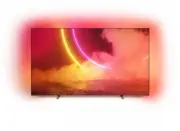


 Philips 50PFL5907/F7
User Manual
Philips 50PFL5907/F7
User Manual
 Philips 39PFL2908/F7
User Manual
Philips 39PFL2908/F7
User Manual
 Philips 55PFL5907/F7
Quick Guide
Philips 55PFL5907/F7
Quick Guide
 Philips 29PFL4908/F7
User Manual
Philips 29PFL4908/F7
User Manual
 Philips 32PFL5708/F7
Manual
Philips 32PFL5708/F7
Manual
 Philips 50PFL5708/F7
User Manual
Philips 50PFL5708/F7
User Manual
 Philips 20PT643R
User Manual
Philips 20PT643R
User Manual
 Philips 30PW862H
Manual
Philips 30PW862H
Manual
 Philips 30PW850H
Manual
Philips 30PW850H
Manual
 Philips HTS6500
User Manual
Philips HTS6500
User Manual
 Philips 37PF9631D/37
User Manual
Philips 37PF9631D/37
User Manual