Page 2 - Contents
Contents 1 Notice ....................................................................................... 5 2 Important ............................................................................... 7 Positioning the TV 7 Regulatory notices 7 Environmental care 7 Batteries usage 7 Preparing to move...
Page 3 - Know these; safety; symbols; RISK OF ELECTRIC SHOCK; CAUTION; to get the most benefits from your purchase.; *Product safety notification; PROPER TELEVISION PLACEMENT MATTERS; THE CONSUMER ELECTRONICS INDUSTRY CARES
Know these safety symbols The lightning flash with arrowhead symbol, within an equilateral triangle, is intended to alert the user to the presence of uninsulated “dangerous voltage” within the apparatus’s enclosure that may be of sufficient magnitude to constitute a risk of electric shock to persons...
Page 4 - Important safety instructions; Note to the CATV system installer:; Wall mount bracket kit; When installing the unit on the wall, allow this much space.
Important safety instructions Read these instructions.Keep these instructions.Heed all warnings.Follow all instructions.Do not use this apparatus near water.Clean only with dry cloth.Do not block any ventilation openings. Install in accordance with the manufacturer’s instructions.Do not install near...
Page 5 - Notice; Pixel characteristics; No components are user serviceable. Do not open or; Federal Communications Commission Notice; Reorient or relocate the receiving antenna.; Modifications; FCC statutory notice for Wireless LAN adapter.; Country Code Statement; 1 can be operated. Selection of other channels is not
1 Notice Trademarks are the property of Koninklijke Philips N.V. or their respective owners.Funai Corporation reserves the right to change products at any time without being obliged to adjust earlier supplies accordingly.The material in this Owner’s Manual is believed adequate for the intended use o...
Page 6 - Copyright; VUDU; is a trademark of
Copyright All other registered and unregistered trademarks are the property of their respective owners. The terms HDMI and HDMI High-Definition Multimedia Interface, and the HDMI Logo are trademarks or registered trademarks of HDMI Licensing Administrator, Inc. in the United States and other countri...
Page 7 - Important; Positioning the TV; AC power plug; Environmental care; End of life directives; Disposal of Used Batteries; Batteries usage; Preparing to move / ship the unit; To avoid damage to the Screen, do not pack the Stand
2 Important Positioning the TV • Large screen TVs are heavy. 2 people are required to carry and handle a large screen TV. • Make sure to hold the upper and bottom frames of the unit firmly as illustrated. • Install the unit in a horizontal and stable position. • Do not install the unit in direct sun...
Page 8 - Getting started; Features; Symbols used in this User manual
2 Getting started Features • DTV / Analog TV / CATV You can use your remote control to select channels which are broadcast in digital format and conventional analog format. Also, cable and satellite subscribers can access their TV channels. • Information display You can display on the TV screen the ...
Page 9 - Unpacking; Installing the stands
Unpacking It is recommended that two or more people remove the TV set from thebox. Be careful not to injure your fingers and keep children away duringassembly. 1 Open the top flaps of the box. 2 Remove all accessories. 3 Prepare a table and cover the top of it with a table cloth, blanket orsuch to a...
Page 11 - Remote control
Remote control p q s r o n b a c d f e g k l m i j h (POWER) Turns the TV on from standby or off to standby. VUDU Access directly to VUDU. EasyLink buttons / : Searches backward or forward through the disc. . : Starts, pauses or resumes playback. . : Stops the disc playback. Note(s) • Pause may not ...
Page 13 - If connecting to an antenna through an RF cable; Plugging in the AC power cord
Connecting Antenna or Cable / Satellite /IPTV set-top box Be sure your antenna or another device is connected properly beforeplugging in the AC power cord. If connecting to an antenna through an RF cable Any DTV programs that are broadcast in your area can be received forfree through an antenna conn...
Page 14 - No supplied cables are used with these connections:; Selecting your connection quality; HDMI - Highest quality; Connecting your devices; HDMI digital connection
No supplied cables are used with these connections: • Please purchase the necessary cables at your local store. B Before you connect the AC power cord: Be sure other devices are connected properly before plugging in the ACpower cord. Selecting your connection quality HDMI - Highest quality Supports ...
Page 15 - Composite analog video connection; Connecting the TV to the internet using a wireless LAN; Digital audio output connection
HDMI-ARC connection HDMI-ARC allows you to use EasyLink to output TV audio directly to aconnected audio device, without the need for an additional digital audiocable. OUT HDMI cable HDMI cable HDMI cable HDMI 1 IN only HDMI 1 IN only HDMI 1 IN only Digital home theater amplifier that supports HDMI-A...
Page 16 - PC connection; HDMI connection; USB memory stick
PC connection HDMI connection This unit can be connected to your PC that has an HDMI terminal. Use anHDMI cable for this digital connection. PC PC OUT OUT OUT HDMI cable HDMI cable HDMI cable IN IN HDMI-DVI connection This unit can be connected to your PC that has a DVI terminal.Use an HDMI-DVI conv...
Page 17 - Initial setup; Installation
These operations are accessible by remote control. Some may also be accessible by the main unit's control panel. Initial setup This section will guide you through the unit’s Initial setting which includesselecting a language for your on-screen menu, country, location andAutoprogram, which automatica...
Page 19 - Use your TV; Adjusting volume; Switching channels
3 Use your TV Switching on your TV and putting it instandby mode Remote Control TV To turn the TV on from standby or off to standby • Press on the TV or the remote control. Note(s) • Energy consumption contributes to air and water pollution. When the AC power cord is pluggedin, your TV consumes ener...
Page 20 - Access the Home menu; Guide to Home menu; Lock or unlock your device from the Home menu; Scan connections
Watching channels from an externaldevice Switching each input mode can easily switch with the remote controlbetween TV and external devices when they are connected to the unit. 1 Turn on the set-top box or the connected device. Press SOURCE and use to select the set-top box or the connected device a...
Page 21 - Create a list of favorite channels; Display the list of favorite channels; Changing Picture format
Create a list of favorite channels You can create lists of your preferred TV channels so that you can findthose channels easily. 1 Press OK while viewing a TV program. 2 Use to select the desired channel, then press yellow button. 3 Use to select the desired favorite list ( Favorites 1 - Favorites 4...
Page 22 - For PC input signal; TV screen information; 1.1 KABC A Day of Memories
For 4:3 video signal Wide screen Movie expand 16:9 Movie expand 14:9 4:3 Super zoom Automatic Automatic Other than DTV and HDMI connected devices,enlarges the picture to best fit the screen.DTV and HDMI connected devices display thepicture at its original size. The subtitles may remainvisible. Super...
Page 23 - Using options menu; Options
Using options menu You can access to some TV settings directly by using OPTIONS . 1 Press OPTIONS to display options menu, then press OK . 2 Use to select a desired setting, then press OK . a b c d Options Options Following settings can be configured. Closed captions To choose the Closed captions di...
Page 24 - Photo
USB Your TV is fitted with a USB connection that enables you to view photos,listen to music or watch video files stored on a USB memory stick. 1 Press SOURCE and use to select USB , then press OK . 2 Use to select the desired file, then press OK . Sample picture.jpg folder_A folder_B folder_C folder...
Page 26 - Playing movies
Playing movies 1 Use to select Movie , then press OK . 2 Use to select the desired item, then press OK . 3 Press OK or . to play the selected files. • Press OK or . to pause, then press OK or . again to resume. • Press to fast-forward search. • Press to fast-backward search. • Press . to stop playba...
Page 27 - Setup
4 Getting more from your TV This section describes the overview of the Setup menu displayed when you press and use to Select Setup . The Setup menu consists of the function setting items below. 1 Press to display the Home menu. 2 Use to select Setup , then press OK . Setup Net TV Source Home Network...
Page 28 - Picture
Picture and sound setup B Before you begin: You must set Home in Location . p. 33 Otherwise, personalized picture and sound settings will not bememorized after the unit goes into standby mode. 1 Press and use to select Setup then press OK . 2 Use to select Picture and sound setup , then press OK . 3...
Page 30 - Sound
Sound B Before you begin: You must set Home in Location . p. 33 Otherwise, personalized picture and sound settings will not bememorized after the unit goes into standby mode. 1 Press and use to select Setup then press OK . 2 Use to select TV settings , then press OK . 3 Use to select Sound , then pr...
Page 31 - Caption settings; I ’ m p l e a s e d t o m e e t y o u .
Features 1 Press and use to select Setup then press OK . 2 Use to select TV settings , then press OK . 3 Use to select Features , then press OK . Power indicator Digital audio preferences Sleeptimer Caption settings Installation Features Sound Picture 4 Adjust the following items. Caption settings C...
Page 32 - Sleeptimer
Note(s) • Digital caption service that you can switch differs depending on the broadcast description. • Closed captioning service may not be controlled by this unit’s menu options if you are watching television through an external cable or satellite set-top box. In which case you will need to use th...
Page 33 - Setting your location to home
Language You can set the language for the on-screen display. 1 Use to select Language , then press OK . Installation Features Sound Picture Español Français English Restore default settings Preferences Language 2 Use to select English , Español or Français , then press OK . Note(s) • If you need the...
Page 34 - Use Philips EasyLink; System audio control; Return your settings to default values
Use Philips EasyLink Your TV supports Philips EasyLink, which enables one-touch play andone-touch standby between EasyLink-compliant devices. Compliantdevices must be connected via an HDMI connector. O One-touch play When you connect your TV to devices that support one-touch play, youcan control you...
Page 35 - Channel installation; Installation mode
Search for channels Be sure the RF cable is correctly connected to this unit and you areregistered with your cable TV provider when you install cable channels. 1 Press and use to select Setup , then press OK . 2 Use to select Search for channels , then press OK . 3 Use to select Start , then press O...
Page 36 - Child lock; Setting TV and movie ratings; TV ratings lock
Child lock You can prevent your children from watching certain programs or certainchannels by locking the TV controls and by using ratings. 1 Use to select Child lock , then press OK . Mono/Stereo Digital audio language Change PIN Child lock Channel installation Region ratings lock Canadian French r...
Page 37 - Canadian English or Canadian French ratings; Change PIN
US TV ratings Sub rating TV-Y7 Fantasy Violence TV-PG ViolenceSexLanguageDialog TV-14 TV-MA ViolenceSexLanguage Note(s) • Blocked sub rating's will appear beside the main rating category in TV ratings lock menu. • You cannot block a sub rating if the main rating is set to . • Changing the category t...
Page 38 - Network settings; Wireless setting
Connect to network Setup network connection settings in order to use Net TV or networkupgrade functions. • The meanings of abbreviations are defined as below. AP : Wireless LAN access point SSID : Wireless network name • The key entry screen will appear when you select SSID, WEP /others or proxy add...
Page 39 - Network selection
Network settings 1 Press and use to select Setup , then press OK . 2 Use to select Network settings , then press OK . 3 Adjust the following items. Manual network settings 1 Use to select Manual network settings , then press OK . Proxy configuration IP configuration Wireless network setting Network ...
Page 40 - IIP configuration
Manually enter your SSID Set up the connection to the AP (e.g. wireless router) manually by enteringthe SSID. 3 Use to select Manually enter your SSID , then press OK . • AP (e.g. wireless router) SSID entry screen will appear. Enter the SSID using , then press OK . 4 Use to select the authenticatio...
Page 41 - Proxy configuration; Connection test
P Proxy configuration 2 Use to select Proxy configuration , then press OK . 3 Use to select a setting, then press OK . Do not use Proxy setting Proxy configuration IP configuration Wireless network setting Network selection Use Proxy port Proxy address • Do not use is selected for default settings. ...
Page 42 - Netflix deactivation; Reset network settings
Home network You can turn your TV into a Digital Media Renderer (DMR), which can playvideo, music and photo files stored on certified home media serversconnected to your home network. 1 Use to select Home network , then press OK . 2 Use to select the item you want to adjust, then press OK . Renderer...
Page 43 - Downloading the software
Update software Philips continuously tries to improve its products and we stronglyrecommend that you upgrade the TV software when upgrades areavailable.New software can be downloaded from our website at www.philips.com/support using the model number of your TV to find information.You can update the ...
Page 44 - Network updates; Software settings; Checking your current software version number
Network updates You can update the software by connecting the unit to the internet. 1 Press and use to select Setup , then press OK . 2 Use to select Update software , then press OK . 3 Use to select Network , then press OK . 4 Use to select Yes , then press OK . • This unit will then start checking...
Page 45 - Wireless Screencasting; Using Wireless Screencasting; Using Wireless Screencasting device list
Wireless Screencasting You can wirelessly cast or mirror the screen of your Smartphone, Tabletor PC to the TV directly using Wireless Screencasting. Using Wireless Screencasting 1 Press Q and use J K to select Wireless Screencasting , then press OK . • Wireless Screencasting mode screen appears. PHI...
Page 46 - View your pictures using home network
Before using home network Follow the procedure below before using home network. 1 Connect this unit to the internet. Connecting the TV to the internet using an Ethernet cable p. 15 or Connecting the TV to the internet using a wireless LAN p. 15 • Broadband internet connection of 8Mbps or faster is r...
Page 48 - Net TV; Remove App
Net TV Net TV offers internet services for your TV. Use the TV remote control tobrowse the Net TV pages. You can play movies, listen to music and muchmore, all from your TV screen. – Because Net TV is an online system, it can be modified over time to better serve its purpose. – Some Net TV services ...
Page 49 - Activating Pandora; Creating a new station; Guide to the player screen
Pandora operations With this unit, you can instantly listen to personalized radio stationsstreamed over the internet from Pandora.To learn more about Pandora, please visit www.pandora.com Activating Pandora In order to listen to internet radio streamed from Pandora via the internet,you must create a...
Page 50 - Useful tips; FAQ
5 Useful tips FAQ Question Answer My remote control does notwork.What should I do? • Check the antenna or cable connection to the main unit. • Check the batteries on the remote control. • Check if there is an obstacle between the infrared sensor window and the remote control. • Test the IR signal ou...
Page 51 - Troubleshooting tips
Troubleshooting tips If the unit does not perform properly when operated as instructed in this manual, P Please check the following Troubleshooting tips and all connections once before calling for service. Power No power • Make sure the AC power cord is plugged in. • Make sure that the AC outlet sup...
Page 53 - Information; Glossary; Aspect ratio; Maintenance; Cleaning
6 Information Glossary Analog TV (NTSC) Acronym that stands for National Television Systems Committee and the name of analog broadcasting standards. Off the air analog TV signals are no longer being sent by major broadcasting stations in the USA. ARC (Audio Return Channel) (HDMI 1 only) HDMI-ARC all...
Page 54 - Specifications
7 Specifications Model # 50PFL5601 49.5”/ 16:9 178° (V) by 178° (H) Picture Type Diagonal screen size / Aspect ratio Viewing angles Built-in digital / analog tuner Sound Mono / Stereo Power output (RMS watts) Equalizer Ease of use Picture format HD UHD Photo slide show Music playback Video playback ...
Page 55 - Warranty; Limited warranty; What is not covered - Exclusions and limitations:
8 Warranty This warranty gives you specific legal rights. You may have other rights which vary from state/province to state/province. Funai Service Corporation, 2425 Spiegel Drive, Groveport, OH 43125, USA Limited warranty one (1) year Warranty coverage : This warranty obligation is limited to the t...
Page 56 - License
License Funai Corporation, Inc. hereby offers to deliver, upon request, a copy ofthe complete corresponding source code for the copyrighted opensource code packages, on an “AS IS” basis, used in this product for whichsuch offer is requested by the respective licenses. This offer is valid up tothree ...
Page 58 - Register your product and get suppor t at; EN; Televisions
EN For further assistance, call the customer support service in your country. • To obtain assistance, contact Philips Customer Care Center;In the U.S.A., Canada, Puerto Rico, or the U.S. Virgin Islands 1 866 202 5960 México D.F. and Área Metropolitana; 58 87 97 36 Interior de la Republica; 01 800 83...
Page 65 - Supplied accessories
2 Getting started Features • DTV / Analog TV / CATV You can use your remote control to select channels which are broadcast in digital format andconventional analog format. Also, cable and satellite subscribers can access their TV channels. • Information display You can display on the TV screen the t...
Page 88 - Language
Features 1 Press and use to select Setup then press OK . 2 Use to select TV settings , then press OK . 3 Use to select Features , then press OK . Power indicator Sleeptimer Installation Features Sound Picture Accessibility 4 Adjust the following items. Sleeptimer Sleep timer can set the unit to go i...
Page 89 - Preferences
Preferences You can set the unit to reduce the power consumption or adjust thebacklight brightness in Location setting. EasyLink allows you to operate your connected EasyLink device. S Setting your location to home Choosing Home gives you full flexibility to change predefined settings for picture an...
Page 90 - Voice guide
E EasyLink (HDMI CEC) This function allows you to operate the linked functions between ourbrand devices with a EasyLink feature and this unit connecting throughan HDMI cable. You must connect this unit to our brand EasyLink devicesand be sure its EasyLink (HDMI CEC) setting is also set to on. 1 Use ...
Page 92 - Search for channels
Digital audio preferences You can set the interpretive broadcasting by an audio explanation. 1 Use to select Digital audio preferences , then press OK . Primary audio selection criteria Audio language Audio accessibility Digital audio preferences Caption settings Voice guide Audio accessibility To p...
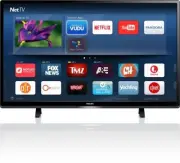


 Philips 50PFL5907/F7
User Manual
Philips 50PFL5907/F7
User Manual
 Philips 39PFL2908/F7
User Manual
Philips 39PFL2908/F7
User Manual
 Philips 55PFL5907/F7
Quick Guide
Philips 55PFL5907/F7
Quick Guide
 Philips 29PFL4908/F7
User Manual
Philips 29PFL4908/F7
User Manual
 Philips 32PFL5708/F7
Manual
Philips 32PFL5708/F7
Manual
 Philips 50PFL5708/F7
User Manual
Philips 50PFL5708/F7
User Manual
 Philips 20PT643R
User Manual
Philips 20PT643R
User Manual
 Philips 30PW862H
Manual
Philips 30PW862H
Manual
 Philips 30PW850H
Manual
Philips 30PW850H
Manual
 Philips HTS6500
User Manual
Philips HTS6500
User Manual
 Philips 37PF9631D/37
User Manual
Philips 37PF9631D/37
User Manual