Page 2 - Table of Contents; Safety precautions and; Docking through Thunderbolt; Technical Specifications; Philips’ Flat Panel Displays Pixel
Table of Contents 1. Important ����������������������������������������� 1 1.1 Safety precautions and maintenance ...................................1 1.2 Notational Descriptions ................3 1.3 Disposal of product and packing material .............................................4 2� Setting ...
Page 3 - procedures other than those specified
1 1. Important This electronic user’s guide is intended for anyone who uses the Philips monitor. Take time to read this user manual before you use your monitor. It contains important information and notes regarding the operation of your monitor.The Philips guarantee applies provided that the product...
Page 5 - Notational Descriptions
3 • Temperature: 0°C-40°C 32°F-104°F• Humidity: 20%-80% RH Important information for Burn-in/ Ghost image • Always activate a moving screen saver program when you leave your monitor unattended. Always activate a periodic screen refresh application if your monitor will display unchanging static conte...
Page 6 - Waste Electrical and Electronic
4 1.3 Disposal of product and packing material Waste Electrical and Electronic Equipment-WEEE This marking on the product or its packaging illustrates that, under European Directive 2012/19/EU governing used electrical and electronic appliances, this product may not be disposed with normal household...
Page 7 - monitor; Package contents; Install the base
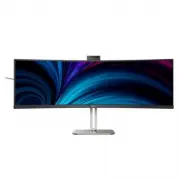
5 2. Setting up the monitor 2.1 Installation 1 Package contents Quick start Register your product and get support at www.philips.com/welcome 49B2U6903CH Curved Business Monitor 5000 Series * HDMI * DP Power *Thunderbolt TM 4 *Different according to region. 2 Install the base 1. To well protect this ...
Page 8 - Power Switch; Thunderbolt daisy chain: first plug in
6 3 Connecting to your PC Fast Charger or RJ45 HDMI 1 HDMI 2 USB C1 (DATA) USB (15W) (96W) USB Type-A DP HDMI OR USBC1 (96W) a b c 30° -30° Thunderbolt (96W) USB-C HDR Game HDR Game 13 14 1 2 11 1...
Page 10 - Operating the monitor; Confirm the OSD
8 2.2 Operating the monitor 1 Description of the control buttons 5 4 3 2 1 7 6 8 10 9 1 Switch monitor’s power ON or OFF . 2 Access the OSD menu. Confirm the OSD adjustment. 3 Adjust the OSD menu. 4 User preference key. Customize your own preference function from OSD to become the “user key”. 5 Chan...
Page 11 - Webcam autoframing; or a fist to activate and deactivate; Mode
9 3 Webcam autoframing 1. What is it? The webcam is equipped with a zoom in and out function within a limited distance when Webcam Autoframing feature is on.2. Why do I need it? The Webcam Autoframing feature is ideal for dynamic video calls and long meetings as well as calls involving multiple team...
Page 14 - button to confirm your
12 7 Customize your own “USER” key This hot key allows you to setup your favorite function key. 1. Press button on the front bezel to enter OSD Menu Screen. ...
Page 16 - Tilt
14 9 Resolution notification This monitor is designed for optimal performance at its native resolution, 5120 x 1440. When the monitor is powered on at a different resolution, an alert is displayed on screen: Use 5120 x 1440 for best results. Display of the native resolution alert can be switched off...
Page 20 - MultiClient Integrated KVM; Source; Users are now able to switch between
18 2.4 MultiClient Integrated KVM 1 What is it? With the Multiclient Integrated Keyboard Video Mouse (KVM) switch feature, it is possible to control two separate PCs with a one monitor/ keyboard/mouse setup. 2 How to Enable Multiclient Integrated KVMWith the built-in Multiclient Integrated KVM featu...
Page 21 - Note
19 it to the HDMI or DP port on the monitor for viewing video and audio content. PC2: You can use a USB-C/A cable in direction upstream and a HDMI cable or a DP cable and connect it to the HDMI or DP port on the monitor for viewing video and audio content. For your convenience. Please use the table ...
Page 22 - Noise Cancelling; This monitor has Noise Cancelling
20 2.5 Noise Cancelling This monitor has Noise Cancelling functionality. When connected via Thunderbolt input /USB-C1 during video conferencing, the monitor will automatically filter for human sounds. This function can be turned off in the OSD menu, under Noise Cancelling (default=ON). ...
Page 23 - PIP
21 2.6 MultiView 1 What is it? Multiview enables active variety to connect and view so that you can work with multiple devices like PC and Notebook side-by-side simultaneously, thereby making complex multitasking work a breeze. 2 Why do I need it? With the ultra-high-resolution Philips MultiView dis...
Page 24 - Inputs; MAIN
22 [PBP]: Picture by Picture Open up a sub-window side-by-side of another signal source. A (main) B When the sub source is not detected: A (main) B Note The black strip located on the top and the bottom of the screen is for measuring the correct aspect ratio when in the PBP mode. If you expect to se...
Page 25 - Before you start disassembling
23 2.7 Remove the Base Assembly for VESA Mounting Before you start disassembling the display base, please follow the instructions below to avoid any possible damage or injury. 1. Place the monitor face down on a smooth surface. Pay attention not to scratch or damage the screen. 2. Press the release ...
Page 26 - Image Optimization; optimize display for different types
24 3. Image Optimization 3.1 SmartImage What is it? SmartImage provides presets that optimize display for different types of content, dynamically adjusting brightness, contrast, color, and sharpness in real-time. Whether you're working with text applications, displaying images, or watching a video, ...
Page 28 - Because SmartContrast offers the best; OK; button to turn on or off
26 3.2 SmartContrast 1 What is it? It is a unique technology that dynamically analyzes displayed content and automatically optimizes a monitor's contrast ratio for maximum visual clarity and viewing enjoyment. 2 Why do I need it? Because SmartContrast offers the best visual clarity and viewing comfo...
Page 30 - docking display; bolt
28 4. Thunderbolt TM docking display introduction Philips Thunderbolt TM docking monitors deliver universal port replication, for a simple, clutter-free, notebook connection. Securely connect to networks, transmit data, video and audio from laptop only using a single cable. 4.1 Docking through Thund...
Page 32 - the main difference is; in the OSD; ability to detect users within a defined; PowerSensor Sub menu’s; five degrees from the left or right of the; Landscape/Portrait mode; The selection of OSD PowerSensor Sub
30 6. PowerSensor 2 This monitor is equipped with the PowerSensor 2 feature that reduces energy consumption by detecting when users move closer and further away from the screen. As both the PowerSensor and PowerSensor 2 aim to save energy, the main difference is in the OSD PowerSensor Sub menu’s “Us...
Page 33 - the PowerSensor; For
31 User present in front User not present t t a W Power consumption as illustrated above is for reference purpose only How to I adjust the settings? The PowerSensor 2 features is designed to detect the presence of the user lo- cated between 30 and 100 cm (12 and 40 inches) from the display and withi...
Page 34 - Thunderbolt 4 input Link Rate*1
32 7. Daisy-chain function Thunderbolt™ 4 supports Daisy Chain. If your laptop /Desktop/Display Monitor supports Thunderbolt™ 4, you can use Thunderbolt™ 4 for multi-screen connections (Daisy Chain). To daisy-chain monitors, first to check below: 1. Connect the Thunderbolt™ 4 cable to the Thunderbol...
Page 35 - Adaptive Sync; update at different rates. Sometimes
33 8. Adaptive Sync Adaptive Sync PC gaming has long been an imperfect experience because GPUs and monitors update at different rates. Sometimes a GPU can render many new pictures during a single update of the monitor, and the monitor will show pieces of each picture as a single image. This is calle...
Page 36 - VESA Certified DisplayHDRTM 400; x Thunderbolt; jack
34 9. Technical Specifications Picture/Display Display Panel Type VA Backlight W-LED Panel Size 48.8" W ( 124 cm ) Aspect Ratio 32:9 Pixel Pitch 0.2328(W) x 0.2328(H) mm Contrast ratio(typical) 3000:1 Native Resolution 5120 x 1440 @ 60 Hz (HDMI/Thunderbolt TM 4/DP) Maximum Resolution 5120 x 1440...
Page 37 - Power supply up to 45W(
35 USB Thunderbolt TM Thunderbolt TM 4 (input) (upstream, DisplayPort Alt mode, HDCP 2.2/ HDCP 1.4, PD 96W) Thunderbolt TM 4 (output) (downstream, PD 15W) USB Ports USB-C1 x1 (upstream, DATA) 3 USB-C2 x1 ( downstream, PD 45W ) 4 USB-A x4 (downstream with x1 fast charge B.C 1.2) Power Delivery Thunde...
Page 43 - Power Management; Power Management Definition
41 10. Power Management If you have a VESA DPM compliance display card or software installed on your PC, the monitor can automatically reduce its power consumption when not in use. If an input from a keyboard, mouse, or other input device is detected, the monitor will 'wake up' automatically. The fo...
Page 44 - Philips’ Flat Panel Displays; in flat panel monitors are sometimes; subpixel; Pixels and Sub pixels
42 11. Customer care and warranty 11.1 Philips’ Flat Panel Displays Pixel Defect Policy Philips strives to deliver the highest quality products. We use some of the industry's most advanced manufacturing processes and practice stringent quality control. However, pixel or sub-pixel defects on the TFT ...
Page 48 - FAQs; Troubleshooting; Common Problems
46 12. Troubleshooting & FAQs 12.1 Troubleshooting This page deals with problems that can be corrected by a user. If the problem persists after you have tried these solutions, contact a Philips customer service representative. Common Problems No Picture (Power LED not lit) • Make sure the power ...
Page 52 - click to stop the service first, then
50 2. Select ‘Services’ tag. 3. Scroll down and select ‘WbioSrvc’ (Windows Biometric Service). If the status shows ‘Running’, right click to stop the service first, then restart the service manually. 4. Then go back to sign-in options menu to set up Window Hello Webcam. 12.3 Multiview FAQs Q1: Can I...