Page 2 - Contents
Contents 1 Get Support 3 1.1 Identify and Register your TV 3 1.2 TV Help and User Manual 3 1.3 On-line Help and User Manual 3 1.4 Consumer Care / Repair 3 2 Software 4 2.1 Update Software 4 2.2 Software Version 4 3 Quick Guide 5 3.1 Remote Control 5 3.2 IR sensor 6 3.3 Joystick - Local Control 6 4 S...
Page 3 - Get Support; Identify and Register your TV
1 Get Support 1.1 Identify and Register your TV Identify your TV - TV model number and serial number You might be asked to provide the TV product modelnumber and serial number. Find these numbers onthe packaging label or on the type label on the backor bottom of the TV. Register your TV Register you...
Page 4 - Software; Update Software; Software Version
2 Software 2.1 Update Software Search for Updates Update from Internet (Home) > Settings > Update software > Search for updates > Internet (Recommended) Look for a software update yourself. • If the TV is connected to the Internet, you mayreceive a message to update the TV software. Yo...
Page 5 - Quick Guide; Remote Control
3 Quick Guide 3.1 Remote Control Batteries and Cleaning Replace batteries If the TV does not react on a key press on the remotecontrol, the batteries might be empty. To replace the batteries, open the batterycompartment on the back of the remote control. 1 - Slide the battery door in the direction s...
Page 8 - Setting Up; Read Safety; Turn on TV
4 Setting Up 4.1 Read Safety Read the safety instructions first before you use theTV. To read the instructions, in Help > User manual , press the colour key Keywords and look up Safety and Care . 4.2 TV Placement Tips on Placement • Position the TV where light does not shine directlyon the scre...
Page 10 - Connections; Connectivity guide; Satellite; Video Device
5 Connections 5.1 Connectivity guide Always connect a device to the TV with the highestquality connection available. Also, use good qualitycables to ensure a good transfer of picture andsound. When you connect a device, the TV recognizes itstype and gives each device a correct type name. Youcan chan...
Page 11 - Audio Device
Match the YPbPr (green, blue, red) connector colourswith the cable plugs when you connect.Use an Audio L/R cinch cable if your device also hassound. Composite CVBS - Composite Video is a standard quality connection. Next to the CVBS signal adds the AudioLeft and Right signals for sound. • Y shares t...
Page 12 - Mobile Device
5.6 Mobile Device Wi-Fi Direct / Miracast About Wi-Fi Miracast You can view your photos or play your music andvideos from a mobile device on your TV with Wi-FiMiracast™. The mobile device and the TV should bewithin range, which usually means being in the sameroom. Check if your mobile device is read...
Page 13 - Other Device
MHL, Mobile High-Definition Link and the MHL Logoare trademarks or registered trademarks of the MHL,LLC. Apps - Philips TV Remote App The new Philips TV Remote App on your smartphone or tablet is your new TV buddy. With the TV Remote App, you master your mediaaround you. Send photos, music or videos...
Page 16 - Switch Source; Source List
6 Switch Source 6.1 Source List • To open the sources menu, press SOURCES . • To switch to a connected device, select the devicewith the arrows (Right) or (Left) and press OK . • To close the source menu without switching to adevice, press SOURCES again. 6.2 Rename Device • Only CVBS, YPbPr,...
Page 17 - Channels; Install Channel
7 Channels 7.1 About Channels and SwitchChannels To watch TV channels • Press . The TV tunes to the TV channel you last watched.• Press (Home) > TV > Channels and press OK . • Press + or - to switch channels. • If you know the channel number, type in the numberwith the number keys. Pre...
Page 22 - Channel List
Subtitles Language If none of the preferred subtitle languages areavailable, you can select another subtitle language ifavailable. If no subtitle languages are available, youcannot select this option. To read more information, in Help, press the colourkey Keywords and look up Subtitle Language . A...
Page 23 - Favourite Channels
Rename Channel 1 - Press , to switch to TV. 2 - Press LIST to open the current channel list. 3 - Select one channel you want to rename. 4 - Press OPTIONS > Rename channel , and press OK . 5 - In the typing field, press OK to open on-screen keyboard, or press BACK to hide the on-screen key...
Page 26 - TV Guide; What You Need
8 TV Guide 8.1 What You Need With the TV guide you can view a list of the currentand scheduled TV programmes of your channels.Depending on where the TV guide information (data)is coming from, analogue and digital channels or onlydigital channels are shown. Not all channels offer TVguide information....
Page 27 - Freeview Play
Set a Recording You can set a recording in the TV Guide. In the TV Guide, a programme set to be recorded ismarked with . To see the recording list, press Recordings , a programme set to be recorded is marked witha (red dot) on the front of the programme name. To record a programme… 1 - Press ...
Page 28 - Recording
9 Recording andPause TV 9.1 Recording What You Need You can record a digital TV broadcast and watch itlater. To record a TV programme you need… • a connected USB Hard Drive formatted on this TV• digital TV channels installed on this TV• to receive channel information for the on screen TVGuide• a rel...
Page 29 - Pause TV
press OK . 5 - Select the tuner from where you want to record and press OK . 6 - Select the channel to record from and press OK . 7 - Select the day of the recording and press OK . 8 - Set the start and end time of the recording. Select a button and use the (up) or (down) keys to set the hours a...
Page 30 - Videos
10 Videos, Photos andMusic 10.1 From a USB Connection You can view your photos or play your music andvideos from a connected USB flash drive or USB HardDrive. With the TV switched on, plug in a USB flash drive or aUSB Hard Drive to one of the USB connections. Press SOURCES , then select USB, you...
Page 31 - Music
Video Options During the video playback, press OPTIONS to… Subtitles Display the subtitles if available, select On , Off , or On during mute . Charater set Select one of system for charater. Audio language Play the audio language if available. Status Display file information, like sound mode. Repe...
Page 41 - Network; Home Network
12 Network 12.1 Home Network To enjoy the full capabilities of your Philips Smart TV,your TV must be connected to the Internet. Connect the TV to a home network with a high-speedInternet connection. You can connect your TVwirelessly or wired to your network router. 12.2 Connect to Network Wireless C...
Page 42 - Network Settings
Make the Connection (Home) > Settings > All settings > Network > Connect to network > Wired 1 - Connect the router to the TV with a network cable (Ethernet cable**). 2 - Make sure that the router is switched on. 3 - The TV constantly searches for the network connection. 4 - A messag...
Page 43 - Smart TV; Setup Smart TV
13 Smart TV 13.1 Setup Smart TV The first time you open Smart TV, you need toconfigure your connection. Read and agree to theterms and conditions to continue. The Smart TV start page is your link to the Internet.You can rent movies online, read newspapers, watchvideos and listen to music, also shop ...
Page 45 - Ambilight; Ambilight Style
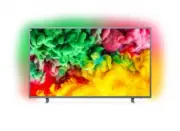
15 Ambilight 15.1 Ambilight Style (Home) > Settings > All settings > Ambilight > Ambilight style You can select the way Ambilight follows. Follow Video (Home) > Settings > Ambilight > Ambilight style > Follow video Select one of the styles that follow the dynamics ofthe p...
Page 47 - Advanced Ambilight Settings
Press the arrows (up) or (down) to adjust how accurate the Hue bulbs follow the Ambilight. (Home) > Settings > All settings > Ambilight > Ambilight + hue > Lounge light+hue If you installed Ambilight+hue, you can let the huebulbs follow Lounge light from Ambilight. The Philipshu...
Page 48 - Netflix
16 Netflix If you have a Netflix menbership subscription, youcan enjoy Netflix on this TV. Your TV must beconnected to the Internet. To open Netflix, press to open the Netflix App. You can open Netflix immediately from a TV instandby. www.netflix.com 48
Page 49 - Environmental; European Energy Label; Product Fiche
17 Environmental 17.1 European Energy Label The European Energy Label informs you on the energy efficiency class of this product. The greenerthe energy efficiency class of this product is, thelower the energy it consumes.On the label, you can find the energy efficiency class,the average power consum...
Page 50 - Specifications; Power
18 Specifications 18.1 Power Product specifications are subject to change withoutnotice. For more specification details of this product,see www.philips.com/TVsupport Power • Mains power : AC 220-240V +/-10%• Ambient temperature : 5°C to 35°C For power consumption information, seechapter Product Fich...
Page 51 - Connectivity
• 1080i - 50Hz, 60Hz• 1080p - 50Hz, 60Hz 18.5 Supported Input Resolution -Computer • 640 x 480 - 60Hz, 72Hz, 75Hz, 85Hz• 800 x 600 - 60Hz, 72Hz, 75Hz, 85Hz• 1024 x 768 - 60Hz, 70Hz, 75Hz• 1280 x 768 - 60Hz• 1280 x 800 - 60Hz• 1280 x 960 - 60Hz• 1280 x 1024 - 60Hz• 1360 x 768 - 60Hz• 1366 x 768 - 60H...
Page 52 - Troubleshooting; Tips
19 Troubleshooting 19.1 Tips If you can't find a solution for your TV problem in Troubleshooting , you can use Keywords in Help > User manual to find the information you are looking for. Select a keyword to go the most relevant page inthe User manual. If the User manual doen't answer your quest...
Page 56 - Safety and Care; Safety
20 Safety and Care 20.1 Safety Important Read and understand all safety instructions beforeyou use the TV. If damage is caused by failure tofollow instructions, the warranty does not apply. Risk of Electric Shock or Fire • Never expose the TV to rain or water. Never placeliquid containers, such as v...
Page 57 - Screen Care
Humidity In rare occasions, depending on temperature andhumidity, minor condensation can occur on the insideof the TV glass front (on some models). To preventthis, do not expose the TV to direct sunlight, heat orextreme humidity. If condensation occurs, it willdisappear spontaneously while the TV is...
Page 58 - Terms of Use
21 Terms of Use 2018 © TP Vision Europe B.V. All rights reserved. This product was brought to the market by TP VisionEurope B.V. or one of its affiliates, hereinafter referredto as TP Vision, which is the manufacturer of theproduct. TP Vision is the warrantor in relation to theTV with which this boo...
Page 59 - Copyrights; Other Trademarks
22 Copyrights 22.1 MHL MHL, Mobile High-Definition Link and the MHL Logoare trademarks or registered trademarks of the MHL,LLC. 22.2 HDMI The terms HDMI and HDMI High-DefinitionMultimedia Interface, and the HDMI Logo aretrademarks or registered trademarks of HDMILicensing Administrator, Inc. in the ...
Page 60 - Open Source; Open Source Software
23 Open Source 23.1 Open Source Software This television contains open source software. TPVision Europe B.V. hereby offers to deliver, uponrequest, a copy of the complete correspondingsource code for the copyrighted open sourcesoftware packages used in this product for which suchoffer is requested b...
Page 65 - Index
Index A Advanced Ambilight Settings 47 Advanced Picture Settings 33 Advanced Sound Settings 36 Ambilight 45 Ambilight Style 45 Ambilight+hue 46 Ambilight+hue, Hue Bulbs 46 Ambilight, Brightness 45 Ambilight, Saturation 45 Antenna 10 App Gallery 43 Audio Language 39 Audio Out Menu 36 Auto Clock Mode ...