Page 2 - Contents
Contents 1 Notice ....................................................................................... 5 2 Getting started ................................................................... 8 Features 8 Included accessories 8 Symbols used in this User manual 8 Unpacking 9 Installing the stands 1...
Page 3 - Know these; safety; symbols; RISK OF ELECTRIC SHOCK; CAUTION; to get the most benefits from your purchase.; *Product safety notification; PROPER TELEVISION PLACEMENT MATTERS; THE CONSUMER ELECTRONICS INDUSTRY CARES
Know these safety symbols The lightning flash with arrowhead symbol, within an equilateral triangle, is intended to alert the user to the presence of uninsulated “dangerous voltage” within the apparatus’s enclosure that may be of sufficient magnitude to constitute a risk of electric shock to persons...
Page 4 - Important safety instructions; Note to the CATV system installer:; Wall mount bracket kit; When installing the unit on the wall, allow this much space.
Important safety instructions Read these instructions.Keep these instructions.Heed all warnings.Follow all instructions.Do not use this apparatus near water.Clean only with dry cloth.Do not block any ventilation openings. Install in accordance with the manufacturer’s instructions.Do not install near...
Page 5 - Notice
1 Notice Trademarks are the property of Koninklijke Philips N.V. or their respective owners.Funai Corporation reserves the right to change products at any time without being obliged to adjust earlier supplies accordingly. The material in this Owner’s manual is believed adequate for the intended use ...
Page 6 - AC power plug
Positioning the TV • Large screen TVs are heavy. 2 people are required to carry and handlea large screen TV. • Make sure to hold the upper and bottomframes of the unit firmly as illustrated. • Install the unit in a horizontal and stableposition. • Do not install the unit in direct sunlight or in apl...
Page 7 - Copyright
Copyright All other registered and unregistered trademarks are the property of their respective owners. The terms HDMI and HDMI High- Definition Multimedia Interface, and the HDMI Logo are trademarks or registered trademarks of HDMI Licensing Administrator, Inc. in the United States and other countr...
Page 8 - Getting started; Features; Included accessories; Symbols used in this User manual
2 Getting started Features • DTV / Analog TV / CATV You can use your remote control to select channels which are broadcast in digital format andconventional analog format. Also, cable and satellite subscribers can access their TV channels. • Information display You can display on the TV screen the t...
Page 9 - Unpacking
Unpacking It is recommended that two or more people remove the TV set from thebox. Be careful not to injure your fingers and keep children away duringassembly. (65PFL5602) 1 Open the top flaps of the box. 2 Remove all accessories. Caution(s) • DO NOT take the TV set out of the box yet. 3 Remove the ...
Page 10 - Protect; Installing the stands
(55PFL5602, 50PFL5602) 1 Open the top flaps of the box. 2 Remove all accessories. 3 Prepare a table and cover the top of it with a table cloth, blanket orsuch to avoid damage to the TV set. Support both sides of the TV setand, move it onto the table. 4 Carefully lay the TV set, with the screen side ...
Page 12 - Lifting the TV set
(43PFL5602) 1 Protect the plate with care 2 × 4 3 Note(s) • A wide open space is recommended for assembly. • A Phillips-head screwdriver is required to fasten the stands to the TV set. • When attaching the stand, ensure that all screws are tightly fastened. If the stand is not properlyattached, it c...
Page 13 - Remote control
Remote control q r u ts p o b a c d g e h l m n j k f i (POWER) Turns the TV on from standby or off to standby. VUDU Access directly to VUDU. EasyLink buttons / : Searches backward or forward through the disc. . : Starts, pauses or resumes playback. . : Stops the disc playback. Note(s) • Pause may n...
Page 14 - Control panel; c d e; Terminals
Control panel f c d e a b Remote control sensor Receives IR signal from remote control. CH + / – Selects a channel. In the menu screen, moves the cursorup (+) / down (–). (POWER) Turns the TV on or switches the TV into standby mode. MENU Opens the main on-screen menu. SOURCE Selects connected device...
Page 15 - If connecting to an antenna through an RF cable; Plugging in the AC power cord
Connecting Antenna or Cable / Satellite /IPTV set-top box Be sure your antenna or another device is connected properly beforeplugging in the AC power cord. If connecting to an antenna through an RF cable Any DTV programs that are broadcast in your area can be received forfree through an antenna conn...
Page 16 - No included cables are used with these connections:; Selecting your connection quality; HDMI - Highest quality; Connecting your devices; HDMI digital connection
No included cables are used with these connections: • Please purchase the necessary cables at your local store. B Before you connect the AC power cord: Be sure other devices are connected properly before plugging in the ACpower cord. Selecting your connection quality HDMI - Highest quality Supports ...
Page 18 - Connecting the TV to the internet using a wireless LAN; Digital audio output connection; HDMI connection
Connecting the TV to the internet using a wireless LAN WLAN LAN Network provisioning equipment Ethernet cable Broadband router Broadband router Broadband router Internet Internet Internet Note(s) • After you make the wireless connection, set up the necessary network settings. Connect to network p. 4...
Page 19 - USB memory stick
The following PC-input video signals can be displayed: Format Resolution Refresh rate VGA 640 x 480 60Hz SVGA 800 x 600 XGA 1,024 x 768 WXGA 1,280 x 768 1,360 x 768 FHD 1,920 x 1,080 24/30/60Hz UHD 3,840 x 2,160 4,096 x 2,160 Other formats or non-standard signals will not be displayed correctly. Not...
Page 20 - Initial setup; Installation
These operations are accessible by remote control. Some may also be accessible by the main unit's control panel. Initial setup This section will guide you through the unit’s Initial setting which includesselecting a language for your on-screen menu, country, location andAutoprogram, which automatica...
Page 22 - Use your TV; Adjusting volume; Switching channels
3 Use your TV Switching on your TV and putting it instandby mode Remote control TV To turn the TV on from standby or off to standby • Press on the TV or the remote control. Note(s) • Energy consumption contributes to air and water pollution. When the AC power cord is pluggedin, your TV consumes ener...
Page 23 - Access the Home menu; Guide to Home menu; Lock or unlock your device from the Home menu; Scan connections
Watching channels from an externaldevice Switching each input mode can easily switch with the remote controlbetween TV and external devices when they are connected to the unit. 1 Turn on the set-top box or the connected device. Press SOURCE and use to select the set-top box or the connected device a...
Page 24 - Create a list of favorite channels; Display the list of favorite channels; Changing Picture format
Create a list of favorite channels You can create lists of your preferred TV channels so that you can findthose channels easily. 1 Press OK while viewing a TV program. 2 Use to select the desired channel, then press yellow button. 3 Use to select the desired favorite list ( Favorites 1 - Favorites 4...
Page 25 - For PC input signal; TV screen information; 1.1 KABC A Day of Memories
For 4:3 video signal Wide screen Movie expand 16:9 Movie expand 14:9 4:3 Super zoom Automatic Manual Zoom * Automatic Other than DTV and HDMI connected devices,enlarges the picture to best fit the screen.DTV and HDMI connected devices display thepicture at its original size. The subtitles may remain...
Page 26 - Using options menu; Options
Using options menu You can access to some TV settings directly by using OPTIONS . 1 Press OPTIONS to display options menu, then press OK . 2 Use to select a desired setting, then press OK . a b c d Options Options Following settings can be configured. Voice guide toggle To set Voice guide on or off....
Page 27 - Photo
USB Your TV is fitted with a USB connection that enables you to view photos,listen to music or watch video files stored on a USB memory stick. 1 Press SOURCE and use to select USB , then press OK . 2 Use to select the desired file, then press OK . USB DISK 2016_12_24 folder_A folder_B folder_C Photo...
Page 29 - Playing movies
Playing movies 1 Use to select Movie , then press OK . 2 Use to select the desired item, then press OK . 3 Press OK or . to play the selected files. • Press OK or . to pause, then press OK or . again to resume. • Press to fast-forward search. • Press to fast-backward search. • Press . to stop playba...
Page 31 - Picture
Picture and sound setup B Before you begin: You must set Home in Location . p. 35 Otherwise, personalized picture and sound settings will not bememorized after the unit goes into standby mode. 1 Press and use to select Setup then press OK . 2 Use to select Picture and sound setup , then press OK . 3...
Page 33 - Sound
Sound B Before you begin: You must set Home in Location . p. 35 Otherwise, personalized picture and sound settings will not bememorized after the unit goes into standby mode. 1 Press and use to select Setup then press OK . 2 Use to select TV settings , then press OK . 3 Use to select Sound , then pr...
Page 34 - Sleeptimer; Language
Features 1 Press and use to select Setup then press OK . 2 Use to select TV settings , then press OK . 3 Use to select Features , then press OK . Sleeptimer Installation Features Sound Picture Accessibility 4 Adjust the following items. Sleeptimer Sleep timer can set the unit to go into standby mode...
Page 35 - Preferences; Setting your location to home; TV placement; Use Philips EasyLink; System audio control
Preferences You can set the unit to reduce the power consumption or adjust thebacklight brightness in Location setting. EasyLink allows you to operate your connected EasyLink device. S Setting your location to home Choosing Home gives you full flexibility to change predefined settings for picture an...
Page 36 - Return your settings to default values; Voice guide
E EasyLink (HDMI CEC) This function allows you to operate the linked functions between ourbrand devices with a EasyLink feature and this unit connecting throughan HDMI cable. You must connect this unit to our brand EasyLink devicesand be sure its EasyLink (HDMI CEC) setting is also set to on. 1 Use ...
Page 37 - Caption settings; I ’ m p l e a s e d t o m e e t y o u .
Caption settings Closed captions displays the audio portion of the program assuperimposed text over the video. 1 Use to select Caption settings , then press OK . CC w/ mute On Off Digital caption options Digital caption service Caption service Closed captions Digital audio preferences Caption settin...
Page 38 - Search for channels; Installation mode
Digital audio preferences You can set the interpretive broadcasting by an audio explanation. 1 Use to select Digital audio preferences , then press OK . Primary audio selection criteria Audio language Audio accessibility Digital audio preferences Caption settings Voice guide Audio accessibility To p...
Page 39 - Child lock; Setting TV and movie ratings; TV ratings lock
Child lock You can prevent your children from watching certain programs or certainchannels by locking the TV controls and by using ratings. 1 Use to select Child lock , then press OK . Mono/Stereo Digital audio language Change PIN Child lock Channel installation Region ratings lock Canadian French r...
Page 40 - Canadian English or Canadian French ratings; Change PIN
US TV ratings Sub rating TV-Y7 Fantasy Violence TV-PG ViolenceSexLanguageDialog TV-14 TV-MA ViolenceSexLanguage Note(s) • Blocked sub rating's will appear beside the main rating category in TV ratings lock menu. • You cannot block a sub rating if the main rating is set to . • Changing the category t...
Page 41 - Network settings; Wireless setting
Connect to network Setup network connection settings in order to use Net TV or networkupgrade functions. • The meanings of abbreviations are defined as below. AP : Wireless LAN access point SSID : Wireless network name • The key entry screen will appear when you select SSID, WEP /others or proxy add...
Page 42 - Network selection
Network settings 1 Press and use to select Setup , then press OK . 2 Use to select Network settings , then press OK . 3 Adjust the following items. Manual network settings 1 Use to select Manual network settings , then press OK . Proxy configuration IP configuration Wireless network setting Network ...
Page 43 - IIP configuration
Manually enter your SSID Set up the connection to the AP (e.g. wireless router) manually by enteringthe SSID. 3 Use to select Manually enter your SSID , then press OK . • AP (e.g. wireless router) SSID entry screen will appear. Enter the SSID using , then press OK . 4 Use to select the authenticatio...
Page 44 - Proxy configuration; Connection test
P Proxy configuration 2 Use to select Proxy configuration , then press OK . 3 Use to select a setting, then press OK . Do not use Proxy setting Proxy configuration IP configuration Wireless network setting Network selection Use Proxy port Proxy address • Do not use is selected for default settings. ...
Page 45 - Netflix deactivation; Reset network settings
Home network You can turn your TV into a Digital Media Renderer (DMR), which can playvideo, music and photo files stored on certified home media serversconnected to your home network. 1 Use to select Home network , then press OK . 2 Use to select the item you want to adjust, then press OK . Renderer...
Page 46 - Downloading the software
Update software Philips continuously tries to improve its products and we stronglyrecommend that you upgrade the TV software when upgrades areavailable. New software can be downloaded from our website at www.philips.com/support using the model number of your TV to find information. You can update th...
Page 47 - Network updates; Software settings; Checking your current software version number
Network updates You can update the software by connecting the unit to the internet. 1 Press and use to select Setup , then press OK . 2 Use to select Update software , then press OK . 3 Use to select Network , then press OK . 4 Use to select Yes , then press OK . • This unit will then start checking...
Page 48 - Wireless Screencasting; Using Wireless Screencasting; Using Wireless Screencasting device list; View photos, play music and watch videos
Wireless Screencasting You can wirelessly cast or mirror the screen of your Smartphone, Tablet or PC to the TV directly using Wireless Screencasting. Using Wireless Screencasting 1 Press Q and use J K to select Wireless Screencasting , then press OK . • Wireless Screencasting mode screen appears. PH...
Page 49 - View your pictures using home network
Before using home network Follow the procedure below before using home network. 1 Connect this unit to the internet. Connecting the TV to the internet using an Ethernet cable p. 17 or Connecting the TV to the internet using a wireless LAN p. 18 • Broadband internet connection of 8Mbps or faster is r...
Page 51 - Net TV; Remove App
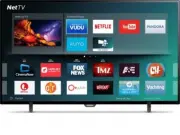
Net TV Net TV offers internet services for your TV. Use the TV remote control tobrowse the Net TV pages. You can play movies, listen to music and muchmore, all from your TV screen. – Because Net TV is an online system, it can be modified over time to better serve its purpose. – Some Net TV services ...
Page 52 - Activating Pandora; Creating a new station; Guide to the player screen
Pandora operations With this unit, you can instantly listen to personalized radio stationsstreamed over the internet from Pandora. To learn more about Pandora, please visit www.pandora.com Activating Pandora In order to listen to internet radio streamed from Pandora via the internet,you must create ...
Page 53 - Useful tips; FAQ
5 Useful tips FAQ Question Answer My remote control does notwork.What should I do? • Check the antenna or cable connection to the main unit. • Check the batteries on the remote control. • Check if there is an obstacle between the infrared sensor window and the remote control. • Test the IR signal ou...
Page 54 - Troubleshooting tips
Troubleshooting tips If the unit does not perform properly when operated as instructed in this manual, P Please check the following Troubleshooting tips and all connections once before calling for service. Power No power • Make sure the AC power cord is plugged in. • Make sure that the AC outlet sup...
Page 56 - Information; Glossary; Cleaning
6 Information Glossary Analog TV (NTSC) Acronym that stands for National Television Systems Committee and thename of analog broadcasting standards.Off the air analog TV signals are no longer being sent by major broadcastingstations in the USA. ARC (Audio Return Channel) (HDMI 2 only) HDMI-ARC allows...
Page 57 - Specifications
7 Specifications 178° (V) by 178° (H) ATSC (digital) / NTSC (analog) Mono, Stereo, Sonic Emotion Premium 10W x 2 5 Band Automatic / Super zoom / 4:3 / Movie expand 14:9 / Movie expand 16:9 / Wide screen / Manual Zoom Automatic / 4:3 / Wide screen / Full / Unscaled / Manual Zoom Full / Unscaled / Man...
Page 58 - Warranty; Limited warranty; What is not covered - Exclusions and limitations:
8 Warranty This warranty gives you specific legal rights. You may have other rights which vary from state/province to state/province. Funai Service Corporation, 2425 Spiegel Drive, Groveport, OH 43125, USA Limited warranty one (1) year Warranty coverage : This warranty obligation is limited to the t...
Page 59 - License
License Funai Corporation, Inc. hereby offers to deliver, upon request, a copy of the complete corresponding source code for the copyrighted open source code packages, on an “AS IS” basis, used in this product for whichsuch offer is requested by the respective licenses. This offer is valid up tothre...


 Philips 50PFL5907/F7
User Manual
Philips 50PFL5907/F7
User Manual
 Philips 32PFL4508/F7
User Manual
Philips 32PFL4508/F7
User Manual
 Philips 39PFL2908/F7
User Manual
Philips 39PFL2908/F7
User Manual
 Philips 32PFL5708/F7
User Manual
Philips 32PFL5708/F7
User Manual