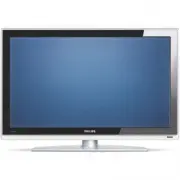
Page 3 - Important; Safety
ENGLISH Impor tant 3 1 Important Read this user manual before you star t to use thisproduct. Pay attention to this section and closely follow theinstr uctions. The warranty does not apply todamage caused by not taking into account theinstr uctions. 1.1 Safety • To avoid shor t circuit, do not expose...
Page 4 - Television over view; Side controls; Remote control; OK
2 Your TV This section gives you an over view of the controlsand functions of this TV. 2.1 Television over view Side controls 1 Volume up and down 2 Menu 3 Program or Channel up and down 4 Power switch 5 Led indicator (Blue: On; Red: Standby) 6 Remote control sensor Side connectors To connect a came...
Page 5 - Product highlights; Offer s perfect picture quality from any source.; Getting started; Position the TV
ENGLISH 2.2 Product highlights Your new TV is equipped with some of the mostmodern audio or video innovations.Your TV offer s the following advantages ... Full High Definition LCD display A full HD resolution of 1920x1080p, the highestresolution HD broadcast can transmit. It offer s abrilliant flick...
Page 6 - Warning; Koninklijke Philips Electronics N.V. bears
3.2 Wall mounting - VESA Your TV is prepared for VESA compliant wallmounting. This bracket is not included.Use a VESA compliant bracket with code VESA MIS-F, 600, 400 M8 . ç Warning Consider the TV’s weight if you wall mount it.Improper mounting could result in severe injur y ordamage. Koninklijke P...
Page 7 - Remote control batteries; and; Note; Antenna cable; Antenna; Connect the mains cord; Inser t the mains cord tightly.; First time installation; Tips; • If you notice you have selected a wrong language,
ENGLISH 3.3 Remote control batteries ‡ Open the batter y cover on the back of theremote control. ® Inser t the 2 batteries supplied (Type AA-R6-1,5V). Make sure the + and - ends of the batteries line up correctly (inside of case ismar ked.) Ò Close the cover. r Note Remove the batteries if you don’t...
Page 8 - Switch on or off - Standby; Power
4 Use your TV Learn how to operate your TV for daily use. 4.1 Switch on or off - Standby To switch on the TV:• Press B Power at the right side of the TV if the standby led is off. • Press B on the remote control if the standby led in on. To switch to standby:• Press B on the remote control. To switc...
Page 9 - Watch TV; Adjust volume; Volume; Watch connected devices
ENGLISH 4.2 Watch TV 4.2.1 Switch channels ‡ To switch TV channels:• Press a number (1 to 999) or press P+ or P- on your remote control. • Press Program/Channel - or + on the side controls of the TV. ® Press R to return to the previously viewed TV channel . 4.2.2 Adjust volume ‡ To adjust the volume...
Page 10 - Watch a DVD; Play; Select a Teletext page; Tip
10 Use your TV 4.5 Watch a DVD ‡ Inser t a DVD disc in your player. ® Press Play π . The picture from your player appear sautomatically on your screen. If the picture does not appear : ‡ Press v on the remote control. ® Press v repeatedly to select the DVD player. Wait a few seconds until the pictur...
Page 11 - Change Ambilight mode
ENGLISH Use your TV 11 4.7 Change Ambilight mode You can choose among four Ambilight modes:• Colour Sets Ambilight to a constant colour. • Relaxed Sets Ambilight to change soft and smoothly withthe images on screen. • Moderate Sets Ambilight between Relaxed and Dynamic. • Dynamic Sets Ambilight to c...
Page 12 - Ò‡π†®; Use more of your TV
Use more of your TV 5.1 Remote control 5.1.1 Remote control overview 1 Standby B To switch the TV on or back to standby. 2 Input v To select a connected device or to return toTV. 3 TV DVD STB HTS To control connected Philips devices. 4 Colour keys • Easy selection of teletext pages.• Easy selection ...
Page 13 - MHEG; Operate Philips Audio/Video devices
ENGLISH Use more of your TV 17 Subtitles j To activate or deactivate the subtitle mode. 18 ‡ MHEG cancel (only for UK) To cancel only Digital text or Interactiveser vices. 19 Ambilight To switch Ambilight on or off. 20 On screen information i To show channel or programme information ifavailable. 21 ...
Page 14 - Device functions overview; TV menu over view; The menu
5.1.4 Set to operate a particular STB You may need to switch the factor y setting for STBon the remote control to fit your par ticular Digitalor Satellite receiver. ‡ Press the STB key and the appropriate number key at the same time. • STB and number key 1 (factor y setting) • STB and 2 All Philips ...
Page 16 - Quick access menu; Display the clock; Picture and Sound settings; Settings assistant; Reset to standards
5.2.3 Quick access menu The Quick access menu gives direct access to someoften needed menu items.When digital channels are installed and broadcastedthe relevant digital options are shown in the menu. ‡ Press Option on the remote control. ® Press navigation key up or down to select anoption. Ò Press ...
Page 17 - Picture settings
5.3.3 Picture settings This section describes how to adjust all picturesettings. ‡ Press Menu on the remote control and select TV menu > TV settings > Picture and press navigation key right to enter the list. ® Press navigation key up or down to select asetting. • Contrast Changes the level of...
Page 19 - Ambilight
• Audio language A list of audio languages for the currentprogramme may be available when digitalchannels are installed and broadcasted.See also section 5.2.3 Quick access menu.To permanently change the audio language, seesection 6 Channel installation . • Dual I/II If broadcasted, you can choose be...
Page 20 - Teletext; Teletext page; Select pagenumber subpages; Dual screen teletext
ç Caution To avoid bad infrared remote control reception,place your devices out of sight of Ambilight. TV standby with Ambilight When the TV is standby, you can switch Ambilighton. In this case Ambilight is only available asconstant colour. ‡ Press Ambilight on the remote control when the TV is in s...
Page 21 - Search teletext; Enlarge teletext pages; Digital text services; Caution
5.5.4 Search teletext Quickly jump to a subject linked to a series ofpagenumber s or search for specific words inteletext pages. ‡ Press b . ® Press OK to highlight the fir st word or number. Ò Press navigation key left, right or up, down tojump to the next word or number on the page. † Press OK the...
Page 24 - Timers and locks; Automatically switch to standby
5.8 Timers and locks This section describes how to switch the TV on oroff at a specified time and to lock or unlock the TV. 5.8.1 Automatically switch to standby Sleeptimer switches the TV to standby after a time. ‡ Press Menu on the remote control and select TV menu > Features > Sleeptimer an...
Page 25 - Subtitles
Lock one or more channels and connected devices ‡ Select Custom lock . ® Press navigation key right to enter. Ò Press navigation key up or down to select Channel lock . † Press navigation key right. º Press navigation key up or down to select thechannel(s) you want to lock or unlock. ◊ Each time pre...
Page 26 - Multimedia; card; Menu
5.10 View and play: photos, MP3, ... Watch pictures or listen to music stored on amemor y card or USB device (not supplied with theTV). Watch your pictures as a slideshow or listen toa self made music playlist. r Note Philips can not be held responsible if your memor ycard or USB device is not suppo...
Page 28 - Listen to radio channels; All channels
5.11 Listen to radio channels If digital broadcasting is available, digital radiochannels will be installed during installation.To listen to a digital radio channel: ‡ Press OK on the remote control. The All channels menu is displayed. ® Use the number keys to select a radio channelavailable from ch...
Page 29 - the USB device; Send; Transfer of the downloaded software; Operation successful
5.12.2 Software download from the PC to the USB device ‡ Inser t the USB memor y device into a PC linkedto the internet. ® Locate and open the file “update.htm” on yourUSB device. Ò Read the instr uctions on screen and click onthe Send ID button. The software update is downloaded on theUSB memor y d...
Page 30 - Verify the current software version; Software update; Software update by digital broadcast; Now
◊ The TV switches off. The screen stays black for about 10 seconds. Please, wait. ‹ The TV switches back on again. The update is done. 5.12.4 Verify the current software version Updating software is only possible if the version ofthe new available software is different from thecurrent one. You can v...
Page 31 - Channel installation; Automatic installation; Step 1 Menu language; Step 2 Select your country
6 Channel installation The fir st time you switched on your TV you’veselected the language of the TV menus and all theavailable channels have been installed.This chapter will help you if you find it necessar y tore-do the initial installation or if you want to tune ina new analogue TV channel. r Not...
Page 32 - Rearrange stored channels
6.2 Analogue: Manual installation You can tune-in analogue TV channels channel bychannel manually with Manual installation. 6.2.1 Select the system ‡ Press Menu on the remote control and select TV menu > Installation > Channel installation > Analogue: Manual installation . ® Press navigatio...
Page 33 - Digital reception test; Factor y settings
6.3.2 Uninstall or reinstall a channel To uninstall a stored channel so that it is no longerpossible to tune to.Reinstall an ear lier uninstalled channel. ‡ Press Menu on the remote control and select TV menu > Installation > Channel installation > Rearrange . ® Press navigation key right t...
Page 34 - Digital Audio In; Second HDMI in connector.; Connections; Connection over view
Back connectors 1 EXT1 Scar t connector for DVD, VCR, digital receiver,game console, etc. 2 EXT2 Second scar t connector. 3 EXT3 Component Video Y Pb Pr and Audio L/Rconnectors for DVD, digital receiver or gameconsole, etc. 4 Common Interface Slot for Conditional Access Modules (C AM) 5 Audio Out L/...
Page 35 - About connecting; HDMI
7.2 About connecting Learn here how to make the best connection foryour device.Six connections are ready to use at the back of theTV - EXT1, EXT2, EXT3, HDMI1, HDMI2 andHDMI3. Connect your device with the highestpossible quality connection. Look for the highestquality connection on your device. Use ...
Page 36 - Scart; Scar t cable; Video
7.2.4 Scart - Good quality ★★★ One cable combines video and audio signals.Scar t connector s can handle RGB video but no HDTV signals. Scar t cable 7.2.5 S-Video - Good quality ★★ Use a S-Video cable together with an Audio L/R(cinch) cable. Match the cable colour s when youconnect. An S-Video cable ...
Page 37 - Connect your devices; DVD player; Use a scar t cable to connect the device to the; DVD Recorder or Digital Receiver; Use a scar t cable and 2 antenna cables.; DVD Recorder and Digital Receiver; Use 3 scar t cables and 3 antenna cables.
7.3 Connect your devices The connections shown in this section arerecommendations for the most used cases.Other solutions may be possible. 7.3.1 DVD player Use a scar t cable to connect the device to the EXT1 input at the back of the TV. 7.3.2 DVD Recorder or Digital Receiver Use a scar t cable and ...
Page 38 - Satellite receiver
7.3.4 DVD Recorder and Home TheatreSystem Use a scar t cable, 2 antenna cables and 1 digitalaudio (cinch) cable. 7.3.5 DVD Recorder and DVD HomeTheatre System Use 2 scar t cables, 2 antenna cables and 1 digitalaudio (cinch) cable. 7.3.6 Satellite receiver Use a scar t cable and 2 antenna cables. 38 ...
Page 39 - Use a HDMI cable and 2 antenna cables.
7.3.7 HD Digital receiver / HD satellitereceiver Use a HDMI cable and 2 antenna cables. 7.3.8 DVD-R, Home Theatre System andDigital receiver Use 3 scar t cables, 3 antenna cables and 1 audio(cinch) cable. 7.3.9 Blu-ray Disc player Use a HDMI cable. Connections 39 ENGLISH EXT 3 Y Pb Pr AUDIOL / R HDM...
Page 41 - Connections setup
7.4 Connections setup When all devices have been connected the TVneeds to know what connections you have made,which device is connected to which connector. 7.4.1 Digital Audio In (if present) If you use the Digital Audio In connection,assign this connection, in the menu, to the devicefrom where the ...
Page 42 - Gently inser t the C AM into the; Common interface menu; Press
7.5 Preparing for digitalser vices Scrambled digital TV channels can be decoded witha Conditional Access Module (C AM) and a Smar tcard provided by a digital TV ser vice operator. TheC AM may enable several ser vices depending on theoperator you choose (e.g. Pay TV).Contact your digital TV ser vice ...
Page 44 - Troubleshooting; Television and remote control; TV channels
9 Troubleshooting Television and remote control The TV does not switch on • Verify the mains cord connection.• Verify if the batteries of the remote control are flat or weak. Verify their + / - orientation.You can use the keys on the TV to switch the TVon. • Unplug the mains cord, wait for one minut...