Page 2 - Table of Contents; Safety precautions and; Power Delivery and Smart; Philips’ Flat Panel Monitors Pixel
Table of Contents 1. Important ...................................... 1 1.1 Safety precautions and maintenance ..................................1 1.2 Notational Descriptions ..............3 1.3 Disposal of product and packing material ............................................4 2. Setting up the ...
Page 3 - procedures other than those specified
1 1. Important This electronic user’s guide is intended for anyone who uses the Philips monitor. Take time to read this user manual before you use your monitor. It contains important information and notes regarding operating your monitor.The Philips guarantee applies provided the product is handled ...
Page 5 - Notational Descriptions
3 Uninterrupted display of still or static images over an extended period may cause “burn-in”, also known as “after-imaging” or “ghost imaging”, on your screen. • “Burn-in”, “after-imaging”, or “ghost imaging” is a well-known phenomenon in LCD panel technology. In most cases, the “burn- in” or “afte...
Page 6 - locations for dropping off such waste
4 1.3 Disposal of product and packing material Waste Electrical and Electronic Equipment-WEEE This marking on the product or on its packaging illustrates that, under European Directive 2012/19/EU governing used electrical and electronic appliances, this product may not be disposed of with normal hou...
Page 7 - monitor; Package contents; *Different according to region
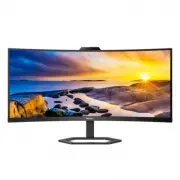
5 2. Setting up the monitor 2.1 Installation 1 Package contents *DP *HDMI *USB C-C/A *USB C-C *USB C-A Power 5000 Series Curved Monitor Quick start Register your product and get support at www.philips.com/welcome 34E1C5600HE *Different according to region Note 2 Install the base 1. In order to well ...
Page 8 - of the monitor firmly.
6 3 Connecting to your PC USB C-C 1 2 a-1 a-2 c OR USB Type-C USB C a USB b USB A-C a-1 a-2 1 2 c OR USB C USB Type-A USB a b 1 2 3 5 7 9 10 4 6 8 Fast Charger 1 AC power input 2 HDMI input 3 DisplayPort input 4 USB C 5 USB downstream/USB fast charger 6 USB downstream 7 USB downstream 8 USB downstre...
Page 9 - efficiency of the radio transmission.; Operating the monitor; Confirm the OSD adjustment.
7 4 USB charging This display has USB ports capable of standard power output including some with USB charging function (identifiable with power icon USB ). You can use these ports to charge your Smart phone or power your external HDD, for example. The display must be powered ON at all times to be ab...
Page 10 - work your way around the different
8 2 Description of the On Screen Display What is On-Screen Display (OSD)?On-Screen Display (OSD) is a feature in all Philips LCD monitors. It allows an end user to adjust screen performance or select functions of the monitors directly through an on-screen instruction window. A user friendly on scree...
Page 11 - Physical Function
9 Note • MPRT: To reduce motion blur, LED backlight will strobe synchronously with screen refresh, which may cause noticeable brightness change. • 75Hz refresh rate or higher is re- quired for MPRT. • Adaptive Sync and MPRT cannot be enabled simultaneously. • MPRT is to adjust brightness for blur re...
Page 13 - are available to set up under
11 d. You'll now see which options are available to set up under Windows Hello. e. Click on "Get started." The setting is complete. Note 1. Please always go to Windows official website to access the latest information, the information in EDFU is subject to change without further notice. 2. T...
Page 14 - Noise Cancelling; monitor will automatically filter for; Remove the Base Assembly
12 2.4 Noise Cancelling This monitor has Noise Cancelling functionality. When connected via USB-C during video conferencing, the monitor will automatically filter for human sounds. This function can be turned off in the OSD menu, under Noise Cancelling (default=ON). ...
Page 18 - Image Optimization; optimize display for different types
16 3. Image Optimization 3.1 SmartImage 1 What is it? SmartImage provides presets that optimize display for different types of content, dynamically adjusting brightness, contrast, color and sharpness in real time. Whether you're working with text applications, displaying images or watching a video, ...
Page 20 - Adaptive Sync; update at different rates. Sometimes
18 4. Adaptive Sync Adaptive Sync PC gaming has long been an imperfect experience because GPUs and monitors update at different rates. Sometimes a GPU can render many new pictures during a single update of the monitor, and the monitor will show pieces of each picture as a single image. This is calle...
Page 21 - technology that provides flexible power
19 5. Power Delivery and Smart Power You can power your compatible device with up to 65 Watts of power from this monitor. 1 What is it? Smart Power is an exclusive Philips technology that provides flexible power delivery options for various devices. This is useful for recharging high performance lap...
Page 22 - Technical Specifications; Connectivity
20 6. Technical Specifications Picture/Display Monitor Panel Type VA Backlight W-LED system Panel Size 34" W (86.36 cm) Aspect Ratio 21:9 Pixel Pitch 0.23175 (H) mm x 0.23175 (V) mm Contrast Ratio (typ.) 3000:1 Optimum Resolution 3440 x 1440 @ 60 Hz Viewing Angle 178° (H) / 178° (V) @ C/R > 1...
Page 26 - Power Management Definition; Note
24 7. Power Management If you have VESA DPM compliance display card or software installed in your PC, the monitor can automatically reduce its power consumption when not in use. If an input from a keyboard, mouse or other input device is detected, the monitor will 'wake up' automatically. The follow...
Page 27 - Philips’ Flat Panel Monitors; in flat panel m; Pixels and Sub pixels
25 8. Customer care and warranty 8.1 Philips’ Flat Panel Monitors Pixel Defect Policy Philips strives to deliver the highest quality products. We use some of the industry's most advanced manufacturing processes and practice stringent quality control. However, pixel or sub pixel defects on the TFT Mo...
Page 31 - FAQs; Common Problems
29 9. Troubleshooting & FAQs 9.1 Troubleshooting This page deals with problems that can be corrected by a user. If the problem still persists after you have tried these solutions, contact Philips customer service representative. 1 Common Problems No Picture (Power LED not lit) • Make sure the po...
Page 34 - colors between different device
32 • Press button to select the option [Color] then press button to enter color setting, there are three settings as below.1. Color Temperature: The settings are Native, 5000K, 6500K, 7500K, 8200K, 9300K and 11500K. With settings in the 5000K range the panel appears "warm, with a red-white color...