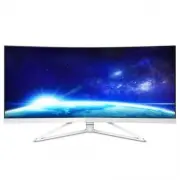
Page 2 - Table of Contents; Safety precautions and
Table of Contents 1. Important ....................................... 1 1.1 Safety precautions and maintenance .................................. 1 1.2 Notational Descriptions ............. 31.3 Disposal of product and packing material ........................................... 3 2. Setting up the...
Page 3 - Warnings
1 1. Important 1. Important This electronic user’s guide is intended for anyone who uses the Philips monitor. Take time to read this user's manual before you use your monitor. It contains important information and notes regarding the operation of your monitor. The Philips guarantee applies provided ...
Page 5 - Notational Descriptions; Notes, Cautions and Warnings; Disposal of product and
3 1. Important 1.2 Notational Descriptions The following subsections describe notational conventions used in this document. Notes, Cautions and Warnings Throughout this guide, blocks of text may be accompanied by an icon and printed in bold or italic type. These blocks contain notes, cautions or war...
Page 7 - Setting up the monitor; monitor; Package contents; * Different according to region
5 2. Setting up the monitor 2. Setting up the monitor 2.1 Installation Package contents 349X7F * DP cable AC/DC Adapter 2015 使用 产 品前 请阅读 使用 说 明 保留备用 user s manual * HDMI cable * CD *Audio *USB * Different according to region Note Use only AC/DC adapter model: Philips ADPC20120 Install base stand 1. ...
Page 8 - Note; Operating the monitor
6 2. Setting up the monitor Connecting to your computer 7 6 5 4 3 2 1 8 9 2.0 1 Earphone jack 2 Audio input 3 Display port input 4 HDMI2.0 input 5 AC/DC power input 6 HDMI input 7 USB upstream 8 USB fast charger 9 USB downtream Note USB 2.4Ghz wireless devices, such as, wireless mouse, keyboard, and...
Page 9 - Customize your own “USER” key
7 2. Setting up the monitor Customize your own “USER” key “USER” allows you to setup your favorite function buttons. 1. Toggle to the right to enter OSD menu screen. 2. Toggle to ...
Page 11 - Resolution notification; Height adjustment
9 2. Setting up the monitor Main menu Sub menu Picture OSD Settings Setup Language Color Input Audio LowBlue Mode Horizontal Vertical Transparency OSD Time Out English, Deutsch, Español, Ελληνική , Français, Italiano, Maryar, Nederlands, Português, Português do Brasil, Polski, Русский , Svenska , Su...
Page 12 - Why do I need it?; How to enable MultiView by OSD
10 2. Setting up the monitor 2.3 MultiView What is it? Multiview enables active variety connect and view so that you can work with multiple devices like PC and Notebook side-by-side simultaneously, making complex multi-tasking work a breeze. Why do I need it? With the ultra high resolution Philips M...
Page 13 - MultiView in OSD menu; Swap A and B source in [
11 2. Setting up the monitor MultiView in OSD menu • PIP / PBP Mode : There are two modes for MultiView: [ PIP ] and [ PBP ]. [ PIP ]: Picture in Picture Open up a sub-window of another signal source. B A (main) When the sub source is not detected: B A (main) [ PBP ]: Picture by Picture Open up a su...
Page 14 - Remove the Base Assembly; Place the monitor face down on soft
12 2. Setting up the monitor 2.4 Remove the Base Assembly for VESA Mounting Before you start disassembling the Display base, please follow the instructions below to avoid any possible damage or injury. 1. Place the monitor face down on soft and smooth surface taking care to avoid scratching or damag...
Page 15 - Image Optimization
13 3. Image Optimization 3. Image Optimization 3.1 SmartImage What is it? SmartImage provides presets that optimize display for different types of content, dynamically adjusting brightness, contrast, color and sharpness in real time. Whether you're working with text applications, displaying images o...
Page 16 - No optimization by
14 3. Image Optimization rays from LED displays can cause eye damage and affect vision over time. Developed for wellbeing, Philips LowBlue Mode setting uses a smart software technology to reduce harmful shortwave blue light. • Off: No optimization by SmartImage GAME . 3.2 SmartContrast What is it? U...
Page 17 - Operating system
15 4. FreeSync 4. FreeSync PC gaming has long been an imperfect experience because GPUs and monitors update at different rates. Sometimes a GPU can render many new pictures during a single update of the monitor, and the monitor will show pieces of each picture as a single image. This is called “tear...
Page 18 - Technical Specifications; Connectivity
16 5. Technical Specifications 5. Technical Specifications Picture/Display Monitor Panel Type MVA Backlight LED Panel Size 34" W (86.7 cm) Aspect Ratio 21:9 Pixel Pitch 0.232 x 0.232 mm SmartContrast 50,000,000:1 Response Time (typ.) 16 ms(GtG) SmartResponse 4 ms (GtG) Optimum Resolution HDMI 1....
Page 19 - Power; Dimension
17 5. Technical Specifications Power Consumption AC Input Voltage at 100VAC , 50Hz AC Input Voltage at 115VAC , 60Hz AC Input Voltage at 230VAC, 50Hz Normal Operation 69.45 W (typ.) 69.55 W (typ.) 69.65 W (typ.) Sleep (Standby) 0.3 W (typ.) 0.3 W (typ.) 0.3 W (typ.) Off 0.3 W (typ.) 0.3 W (typ.) 0.3...
Page 20 - Compliance and standards; download the latest version of leaflet.
18 5. Technical Specifications ROHS YES Packaging 100 % recyclable Specific Substances 100 % PVC BFR free housing Compliance and standards Regulatory Approvals CE Mark, FCC Class B, CU-EAC, RCM, CCC Cabinet Color White Finish Glossy Note 1. This data is subject to change without notice. Go to www.ph...
Page 21 - Maximum Resolution
19 5. Technical Specifications 5.1 Resolution & Preset Modes Maximum Resolution 3440x1440@100Hz (DP/HDMI 2.0) 3440x1440@60Hz (HDMI 1.4) Recommended Resolution 3440x1440@60Hz (HDMI/DP) H. freq (kHz) Resolution V. freq (Hz) 31.47 720 x 400 70.09 31.47 640 x 480 59.94 35.00 640 x 480 66.67 37.86 64...
Page 23 - Customer care and warranty; Types of Pixel Defects; Customer care and; Philips’ Flat Panel Monitors; subpixel; Pixels and Sub pixels
21 7. Customer care and warranty of red, green and blue. Many pixels together form an image. When all sub pixels of a pixel are lit, the three colored sub pixels together appear as a single white pixel. When all are dark, the three colored sub pixels together appear as a single black pixel. Other co...
Page 26 - Philips Customer Care Center number listed below.
24 7. Customer care and warranty 7.2 Customer Care & Warranty For warranty coverage information and additional support requirements valid for your region, please visit www.philips.com/support website for details or contact your local Philips Customer Care Center.For extended warranty, if you wou...
Page 28 - Contact Information for CENTRAL AND EASTERN EUROPE region:
26 7. Customer care and warranty Contact Information for CENTRAL AND EASTERN EUROPE region: Country Call center CSP Consumer care number Belarus N/A IBA +375 17 217 3386 +375 17 217 3389 Bulgaria N/A LAN Service +359 2 960 2360 Croatia N/A MR Service Ltd +385 (01) 640 1111 Czech Rep. N/A Asupport 42...
Page 29 - Contact Information for China:; Country; Contact Information for APMEA region:
27 7. Customer care and warranty Contact Information for China: Country Call center Consumer care number China PCCW Limited 4008 800 008 Contact Information for NORTH AMERICA : Country Call center Consumer care number U.S.A. EPI - e-center (877) 835-1838 Canada EPI - e-center (800)479-6696 Contact I...
Page 31 - FAQs; Common Problems; Visible signs of smoke or sparks
29 8. Troubleshooting & FAQs 8. Troubleshooting & FAQs 8.1 Troubleshooting This page deals with problems that can be corrected by a user. If the problem still persists after you have tried these solutions, contact Philips customer service representative. Common Problems No Picture (Power LED...