Page 2 - Contents
Contents 1 TV Tour 4 1.1 Philips Android TV 4 1.2 Using Apps 4 1.3 Playing Games 4 1.4 Movies and missed programmes 4 1.5 Pause TV and Recordings 4 1.6 Smartphones and Tablets 4 1.7 Social Networks 5 1.8 Bluetooth Connection 5 2 Setting Up 6 2.1 Read Safety 6 2.2 TV Stand and Wall Mounting 6 2.3 Tip...
Page 4 - TV Tour; Philips Android TV
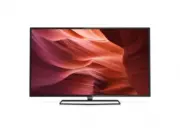
1 TV Tour 1.1 Philips Android TV This a Philips Android TV™ . Android TV offers thousands of movies, shows andgames from Google Play, YouTube and your favouriteapps.*Voice search and personalised recommendationsmean more time being entertained and less timehunting for something good. With Google Cas...
Page 6 - Setting Up; Read Safety; Tips on Placement
2 Setting Up 2.1 Read Safety Read the safety instructions first before you use theTV. To read the instructions, in Help , press the colour key Keywords and look up Safety Instructions . 2.2 TV Stand and Wall Mounting TV Stand You can find the instructions for mounting the TVstand in the Quick Star...
Page 7 - Antenna Cable
2.5 Antenna Cable Insert the antenna plug firmly intothe Antenna socket at the back of the TV. You can connect your own antenna or an antennasignal from an antenna distribution system. Use anIEC Coax 75 Ohm RF antenna connector. Use this antenna connection for DVB-T and DVB-Cinput signals. 7
Page 8 - Network and Internet
3 Connect yourAndroid TV 3.1 Network and Internet Home Network To enjoy the full capabilities of your Philips AndroidTV, your TV must be connected to the Internet. Connect the TV to a home network with a high-speedInternet connection. You can connect your TVwirelessly or wired to your network router...
Page 11 - Google Account; Philips App Gallery
File Sharing The TV can connect to other devices in your wirelessnetwork, like your computer or smartphone. You canuse a computer with Microsoft Windows or Apple OSX. On this TV, you can open photos, music and videosstored on your computer. 3.2 Google Account Sign In To enjoy the full capabilities o...
Page 13 - Connect Devices; About Connections
4 Connect Devices 4.1 About Connections Connectivity Guide Always connect a device to the TV with the highestquality connection available. Also, use good qualitycables to ensure a good transfer of picture andsound. When you connect a device, the TV recognizes itstype and gives each device a correct ...
Page 17 - Home Theatre System - HTS
Switch Off Timer Switch off this automatic timer, if you only use theremote control of the Set-top box. Switch this timeroff to prevent the TV from switching off automaticallyafter a 4 hour period without a key press on theremote control of the TV. For more information, in Help , press the colour ke...
Page 18 - Smartphones and Tablets
4 - Select Off . 5 - Press (left) repeatedly if necessary, to close the menu. Audio Out Offset If you cannot set a delay on the Home TheatreSystem, you can set the TV to sync the sound. Youcan set an offset that compensates for the timenecessary for the Home Theatre System to processthe sound of t...
Page 19 - DVD Player
4.6 Blu-ray Disc Player Use a High speed HDMI cable to connect the Blu- ray Disc player to the TV. If the Blu-ray Disc player has EasyLink HDMI CEC,you can operate the player with the TV remotecontrol. 4.7 DVD Player Use an HDMI cable to connect the DVD player to theTV.Alternatively, you can use a S...
Page 20 - Headphones
speaker, in Help , press the colour key Keywords and look up Speakers, Select . For more information on the Bluetooth On or Offsetting, in Help , press the colour key Keywords and look up Bluetooth, On or Off . Select a Device Once a wireless Bluetooth speaker is paired, you canselect it to play...
Page 21 - Gamepad; USB Hard Drive
Best Setting Before you start playing a game from a connectedgame console, we advice you to set the TV in theideal setting Game . When you finish playing a game and start watchingTV again, remember to switch the Game or Computer setting back to Off . To set the TV to the ideal setting… 1 - Press ,...
Page 22 - USB Keyboard
Installation Before you can pause or record a broadcast, youmust connect and format a USB Hard Drive.Formatting removes all files from the USB Hard Drive. 1 - Connect the USB Hard Drive to one of the USB connections on the TV. Do not connect another USB device to the other USB ports whenformatting. ...
Page 23 - USB Flash Drive
start the keyboard setup. Special Keys Keys for entering text • Enter key = OK• Backspace = delete character before cursor• Arrow keys = navigate within a text field• To switch between keyboard layouts, if a secondarylayout is set, press the Ctrl + Spacebar keys simultaneously. Keys for apps and Int...
Page 24 - Computer
4.17 Computer Connect You can connect your computer to the TV and usethe TV as a PC monitor. With HDMI Use an HDMI cable to connect the computer to theTV. With DVI to HDMI Alternatively, you can use a DVI to HDMI adapter(sold separately) to connect the PC to HDMI and anaudio L/R cable (mini-jack 3.5...
Page 26 - Remote Control; Key overview
6 Remote Control 6.1 Key overview Top 1 - Standby / On To switch the TV on or back to Standby. 2 - Playback and Record • Play , to playback. • Pause , to pause playback • Stop , to stop playback • Rewind , to rewind • Fast forward , to go fast forward • Record , to start recording 3 - ...
Page 27 - Voice search
1 - Mute To mute the sound or to restore it. 2 - Volume To adjust the volume level. 3 - Number keys To select a channel directly. 4 - SUBTITLE To switch subtitles on, off or to show automatically. 5 - Channel To switch to the next or previous channel in thechannel list. To open the next or pre...
Page 29 - Channels; Install Channels
7 Channels 7.1 Install Channels For more information, in Help , press the colour key Keywords and look up Channel, Antenna Installation or Channel, Cable Installation . 7.2 Channel Lists About Channel Lists After a channel installation, all channels appear onthe channel list. Channels are shown wi...
Page 30 - Watching channels
Channels and press OK . 6 - Select Search Channel and press OK to open a text field.You can use the remote control keyboard(if available) or the on-screen keyboard to enter text. 7 - Enter a number, a name or part of a name and select Apply and press OK . The TV will search for matching channel name...
Page 32 - Favourite Channels
Common Interface If you installed a CAM in one of the CommonInterface slots, you can view the CAM and operatorinformation or do some CAM related settings. To view the CAM information… 1 - Press SOURCES . 2 - Select the channel type you are using the CAM for Watch TV . 3 - Press OPTIONS and selec...
Page 35 - Interactive TV
3 - Select Text 2.5 > Off . 4 - Press (left) repeatedly if necessary, to close the menu. 7.6 Interactive TV About iTV With interactive TV, some digital broadcasterscombine their normal TV programme with informationor entertainment pages. On some pages, you canrespond to a programme or vote, do ...
Page 36 - TV Guide
8 TV Guide 8.1 What You Need With the TV Guide you can view a list of the currentand scheduled TV programmes of your channels.Depending on where the TV guide information (data)is coming from, analogue and digital channels or onlydigital channels are shown. Not all channels offer TVGuide information....
Page 38 - Recording
9 Recording andPause TV 9.1 Recording What You Need You can record a digital TV broadcast and watch itlater. To record a TV programme you need… • a connected USB Hard Drive formatted on this TV• digital TV channels installed on this TV• to receive channel information for the on screen TVGuide• a rel...
Page 39 - Pause TV
or both scheduled recordings. To adjust the start or end time of a scheduledrecording… 1 - Press TV GUIDE . 2 - Press the colour key Recordings . 3 - At the top of the screen, select Scheduled and press OK . 4 - In the list of scheduled recordings and reminders, select the tab Recordings and p...
Page 41 - Top Picks; About Top Picks; TV on Demand
10 Top Picks 10.1 About Top Picks With TOP PICKS your TV recommends current TV programmes, the latest rental videos and Online TVservices for you to watch. Make sure you agree to theTerms of Use. To enjoy Top Picks connect your TV tothe Internet. The Top Picks information and services are onlyavai...
Page 42 - Video on Demand
one is available. 5 - Select a programme icon and press OK to start watching. 6 - Press BACK to close. When you open TV on Demand , the TV may need a few seconds to refresh the page information. Once a programme started, you can usethe (Play) and (Pause) keys. 10.4 Video on Demand About Video ...
Page 43 - Home Menu; About the Home Menu
11 Home Menu 11.1 About the Home Menu To enjoy the benefits of your Android TV, connect theTV to the Internet. Like on your Android smartphone or tablet, the Homemenu is the centre of your TV. From the Home menuyou can start any application, switch to a TV channel,rent a movie, open a website or swi...
Page 44 - About TV Menu; Open TV Menu
12 TV Menu 12.1 About TV Menu If the TV cannot be connected with the Internet, youcan use the TV Menu as your Home menu. In the TV Menu, you will find every TV function. 12.2 Open TV Menu To open TV Menu and open an item… 1 - Press to open TV Menu. 2 - Select an item and press OK to open or start ...
Page 45 - Netflix
13 Netflix If you have a Netflix menbership subscription, youcan enjoy Netflix on this TV. Your TV must beconnected to the Internet. To open Netflix, press to open the Netflix App. You can open Netflix immediately from a TV instandby. www.netflix.com 45
Page 46 - Sources; Switch to a device
14 Sources 14.1 Switch to a device From the list of Sources, you can switch to any of theconnected devices. You can switch to a tuner towatch TV, open the content of a connected USB FlashDrive or see the recordings you made on a connectedUSB Hard Drive. You can switch to your connecteddevices to wat...
Page 47 - Rescan Connections
ideal settings for a connected computer. You can only use the setting Game or Computer when you switch to a connected device in the Sources menu. The Game or Computer setting isstored for the selected device. To switch to the ideal settings for gaming or computermanually… 1 - Press SETTINGS , sele...
Page 48 - Apps; About Apps
15 Apps 15.1 About Apps You can find all installed apps inthe Apps section of the Home menu. Like apps on your smartphone or tablet, the apps onyour TV offer specific functions for an enriched TVexperience. Apps like YouTube, games, video storesor weather forecasts (a.o.). You can use the Internet...
Page 49 - App Gallery
new game apps on your TV. Some games are free ofcharge. A message appears if a particular game needsa gamepad to play the game. To start or stop a Google Play Game… 1 - Press HOME . 2 - Scroll down and select Apps > Google Play Games and press OK . 3 - Select a game to play or select a new ga...
Page 50 - Lock Apps
15.5 Lock Apps About App Locks You can lock apps unsuited for children. You can lock18+ rated apps from the App Gallery or set up arestricted profile in the Home menu. 18+ The 18+ app lock will ask for a PIN code when you tryto start an 18+ rated app. This lock is only valid for 18+rated apps from t...
Page 52 - Games
16 Games 16.1 What You Need On this TV, you can play games… • from the App Gallery in the Home menu• from the Google Play Store in the Home menu• from a connected Game Console Games from the App Gallery or the Google Play Storemust be downloaded and installed on TV before youcan play them. Some game...
Page 53 - Internet; Start Internet
17 Internet 17.1 Start Internet You can browse the Internet on your TV. You canview any Internet website but most of them are notprepared for a TV screen. • Some plug-ins (e.g. to view pages or videos) are notavailable on your TV.• You cannot send or download files.• Internet pages are shown one pag...
Page 55 - View your Photos; Play your Music
Video Options During the video playback, press OPTIONS to… • Mark as Favourite – Set the selected video as favourite.• Play All – Play all video files in this folder. • Play One – Play this video only. • Subtitles – If available, you can switch subtitles On , Off or On During Mute . • Audio Langua...
Page 57 - Miracast
19 Smartphones andTablets 19.1 Philips TV Remote App The new Philips TV Remote App on your smartphone or tablet is your new TV buddy. With the TV Remote App, you master your mediaaround you. Send photos, music or videos to your bigTV screen or watch any of your TV channels live onyour tablet or phon...
Page 58 - AirPlay
Share a Screen on TV To share the screen of your smartphone, tablet orcomputer on the TV… 1 - Switch on the TV. 2 - On the device, in the settings menu, set the device to cast or mirror its display. Miracast uses Wi-FiDirect™. 3 - On the device scan for the available Miracast devices and select the ...
Page 60 - Multi View; About Multi View
20 Multi View 20.1 About Multi View The Multi View screen cannot display video in 3D orin Ultra HD. Multi View is not available for analogueTV channels. Not all Apps support Multi View. 20.2 Text and TV You can watch a TV channel in the small screen ofMulti View when you're watching Text. To watch a...
Page 61 - Settings; Picture
21 Settings 21.1 Picture Picture Style Select a Style For easy picture adjustment, you can select a presetPicture Style. 1 - While watching a TV channel, press . 2 - Select Picture Style , and select one of the styles in the list. 3 - Press (left) repeatedly if necessary, to close the menu. The ...
Page 64 - Sound
the menu. MPEG Artefact Reduction With MPEG Artefact Reduction , you can smoothen the digital transitions in the picture. MPEG artefactsare mostly visible as small blocks or jagged edges inimages. To reduce the MPEG artefacts… 1 - Press , select All Settings and press OK . 2 - Select Picture and p...
Page 67 - Eco Settings
Select a Speaker To connect a wireless speaker… 1 - Press , select All Settings and press OK . 2 - Select Sound and press (right) to enter the menu. 3 - Select Wireless Speakers > Connect a Speaker and press OK . 4 - Press (left) repeatedly if necessary, to close the menu. Remove a Speaker ...
Page 68 - General Settings
Switch Off Timer If the TV receives a TV signal but you don't press akey on the remote control during a 4 hour period, theTV switches off automatically to save energy. Also, ifthe TV does not receive a TV signal nor a remotecontrol command for 10 minutes, the TV switches offautomatically. If you use...
Page 70 - Clock, Region and Language
App Lock For more information, in Help , press the colour key Keywords and look up APP loc k for more information. Set Code / Change Code The Child Lock PIN code is used to lock or unlockchannels or programmes. To set the lock code or to change the current code… 1 - Press , select All Settings a...
Page 73 - Universal Access
Remote Control Keyboard To set the keyboard layout to Azerty… 1 - Press , select All Settings and press OK . 2 - Select Region and Language and press (right) to enter the menu. 3 - Select Remote Control Keyboard and press OK . 4 - Select Azerty or Qwerty and press OK . 5 - Press (left) repeate...
Page 76 - Android Settings
23 Android Settings You can set or view several Android specific settingsor information. You can find the list of apps installedon your TV and the storage space they need. You canset the language you like to use with VoiceSearch. You can configure the onscreen keyboard orallow apps to use your locat...
Page 77 - Channel Installation; Antenna/Cable Installation
24 Channel Installation 24.1 Antenna/Cable Installation Update Channels Automatic Channel Update If you receive digital channels, you can set the TV toautomatically update these channels. Once a day, at 6 AM, the TV updates the channelsand stores new channels. New channels are stored inthe Channels ...
Page 79 - Channel List Copy
yourself. Select the frequency number one by oneand use the (up) or (down) keys to change the value. Select Search and press OK to test the reception again. 8 - Press (left) repeatedly if necessary, to close the menu. Manual Installation Analogue TV channels can be manually installed,channel b...
Page 81 - Software; Update Software; Software Version
25 Software 25.1 Update Software Update from Internet If the TV is connected to the Internet, you may receivea message to update the TV software. You need ahigh-speed (broadband) Internet connection. If youreceive this message, we recommend you to carry outthe update. With the message on screen, sel...
Page 82 - Open Source License
The Netherlands 25.4 Open Source License README for the source code of the parts of TP VisionNetherlands B.V. TV software that fall under opensource licenses. This is a document describing the distribution of thesource code used on the TP Vision Netherlands B.V.TV, which fall either under the GNU Ge...
Page 115 - Announcements
25.5 Announcements You can receive an announcement on new TVsoftware available for download or other softwarerelated issues. To read these announcements… 1 - Press , select All Settings and press OK . 2 - Select Update Software > Announcements , and press OK . 3 - If there is an announcement, y...
Page 116 - Specifications; Environmental
26 Specifications 26.1 Environmental European Energy Label The European Energy Label informs you on the energy efficiency class of this product. The greenerthe energy efficiency class of this product is, thelower the energy it consumes.On the label, you can find the energy efficiency class,the avera...
Page 119 - Help and Support; Register your TV
27 Help and Support 27.1 Register your TV Register your TV and enjoy a range of benefitsincluding full support (including downloads),privileged access to information about new products,exclusive offers and discounts, the chance to winprizes and even participate in special surveys aboutnew releases. ...
Page 121 - Online Help
Wi-Fi, Internet and Bluetooth Wi-Fi network not found or distorted • Microwave ovens, DECT phones or other Wi-Fi802.11b/g/n devices in your proximity might disturbthe wireless network.• Make sure that the firewalls in your network allowaccess to the TV's wireless connection.• If the wireless network...
Page 122 - Safety and Care; Safety
28 Safety and Care 28.1 Safety Important Read and understand all safety instructions beforeyou use the TV. If damage is caused by failure tofollow instructions, the warranty does not apply. Risk of Electric Shock or Fire • Never expose the TV to rain or water. Never placeliquid containers, such as v...
Page 123 - Screen Care
Humidity In rare occasions, depending on temperature andhumidity, minor condensation can occur on the insideof the TV glass front (on some models). To preventthis, do not expose the TV to direct sunlight, heat orextreme humidity. If condensation occurs, it willdisappear spontaneously while the TV is...
Page 124 - Terms of Use; Terms of Use - Smart TV
29 Terms of Use 29.1 Terms of Use - TV 2015 © TP Vision Europe B.V. All rights reserved. This product was brought to the market by TP VisionEurope B.V. or one of its affiliates, hereinafter referredto as TP Vision, which is the manufacturer of theproduct. TP Vision is the warrantor in relation to th...
Page 125 - Copyrights; MHL; Dolby Digital Plus; Microsoft
30 Copyrights 30.1 MHL MHL, Mobile High-Definition Link and the MHL Logoare trademarks or registered trademarks of the MHL,LLC. 30.2 HDMI HDMI® The terms HDMI and HDMI High-DefinitionMultimedia Interface, and the HDMI Logo aretrademarks or registered trademarks of HDMILicensing LLC in the United Sta...
Page 126 - Kensington
30.6 Wi-Fi Alliance Wi-Fi® , the Wi-Fi CERTIFIED logo, the Wi-Fi logo are registered trademarks of the Wi-Fi Alliance. 30.7 Kensington (If applicable) Kensington and Micro Saver are registered UStrademarks of ACCO World Corporation with issuedregistrations and pending applications in othercountries ...
Page 127 - Index
Index A Age Rating 30 Android Settings 11 Announcements 115 Antenna connection 7 Antenna, Manual Installation 79 APP lock 50 Apps 48 Audio commentary 73 Audio Description 73 Audio Language 31 Audio Language, Primary 31 Audio Language, Secondary 31 Audio Out - Optical, tips 15 Audio Out Delay 17 Audi...