Page 2 - Contents
Contents 1 Notice ......................................................................................................................... 5 2 Important ................................................................................................................ 7 Positioning the TV 7 Regulatory...
Page 3 - Know these; safety; symbols; RISK OF ELECTRIC SHOCK; CAUTION; to get the very most from your purchase.; *Product Safety Notification; PROPER TELEVISION PLACEMENT MATTERS
Know these safety symbols The lightning flash with arrowhead symbol, within an equilateral triangle, is intended to aler t the user to the presence of uninsulated “dangerous voltage” within the apparatus’s enclosure that may be of sufficient magnitude to constitute a risk ofelectric shock to persons...
Page 4 - Important Safety Instructions; Note to the CATV system installer:; This reminder is provided to call the CATV system installer’s; Example of Antenna Grounding as per NEC - National; Wall Mount Bracket Kit; Brand; The Wall Mount Bracket must be installed by exper ts.; Left and right side:
Important Safety Instructions 1. 1. Read these instructions. Read these instructions. 2. 2. Keep these instructions. Keep these instructions. 3. 3. Heed all warnings. Heed all warnings. 4. 4. Follow all instructions. Follow all instructions. 5. 5. Do not use this apparatus near water. Do not use thi...
Page 5 - Notice; Declaration of Conformity; The following FCC/IC RSS-Gen is description of; Country Code Statement
1 Notice Trademarks are the proper ty of Koninklijke Philips N.V. or their respective owners.Funai Corporation reser ves the right to change products at any time without being obliged to adjust earlier supplies accordingly.The material in this manual is believed adequate for the intended use of the ...
Page 6 - Copyright
Copyright All other registered and unregistered trademarks are the proper ty of their respective owners. The terms HDMI and HDMI High-Definition Multimedia Interface, and the HDMI Logo are trademarks or registered trademarks of HDMI Licensing LLC in the United States and other countries. Manufacture...
Page 7 - Important; Positioning the TV; Regulatory Notices; Environmental Care; End of Life Directives; Disposal of Used Batteries; Preparing to Move / Ship the Unit
2 Important Positioning the TV • Large screen TVs are heavy. 2 people are required to carr y and handle a large screen TV. • Make sure to hold the upper and bottomframes of the Unit firmly as illustrated. • Install the Unit in a horizontal and stableposition. • Do not install the Unit in direct sunl...
Page 8 - Getting Started; Features; Symbols used in this User Manual
3 Getting Started Features ● DTV / Analog TV / CATV You can use your Remote Control to select channels which are Broadcast in Digital format and conventional Analog format. Also, Cable and Satellite subscribers can access their TV channels. ● Information display You can display on the TV screen the ...
Page 9 - Stand Assembly
Stand Assembly 65PFL4909 × 2 × 2 55PFL4909 / 50PFL4909 / 49PFL4909 1 2 × 4 55PFL4609 / 49PFL4609 1 2 3 × 4 9 . English Continued on next page.
Page 10 - Attaching the Base
Attaching the Base You must attach the base to the Unit to have it as a table top Unit.Be sure the front and rear of the base match the proper direction. For large screen TVs, at least 2 people are required for these steps. 65PFL4909 1 2 × 4 55PFL4909 / 55PFL4609 / 50PFL4909 / 49PFL4909 / 49PFL4609 ...
Page 13 - Remote Control
Remote Control p q s r o n b a c d f e g k l m i j h a B (POWER) Turns the TV On from Standby or Off to Standby. b VUDU Access directly to VUDU. c EasyLink (HDMI CEC) buttons JJ / KK : Searches Backward or Forward through the disc. K F : Starts, pauses or resumes playback. C : Stops the Disc playbac...
Page 15 - If connecting to an Antenna through an RF cable; If connecting Cable / Satellite / IPTV Set-top box using an RF cable; Component Video Input; Plugging in the AC Power Cord
Connecting Antenna or Cable / Satellite / IPTV Box Be sure your Antenna or another Device is connected properly before plugging in the AC Power Cord. If connecting to an Antenna through an RF cable Any DTV Programs that are Broadcast in your area can be received for free through an Antenna Connectio...
Page 16 - No supplied cables are used with these connections:; Selecting your Connection quality; HDMI - Highest quality; Connecting your Devices; HDMI Digital Connection
No supplied cables are used with these connections: ● Please purchase the Necessary Cables at your local store. Before you connect the AC Power Cord: Be sure other Devices are connected properly before plugging in the ACPower Cord. Selecting your Connection quality HDMI - Highest quality Supports hi...
Page 18 - Connecting the TV to the Internet using a Wireless LAN; Digital Audio Output Connection; HDMI Connection
Connecting the TV to the Internet using a Wireless LAN WLAN LAN Network provisioning equipment Ethernet cable Broadband router Broadband router Broadband router Internet Note(s) ● After you make the wireless connection, set up the necessary network settings. Network L p. 40 ● Use a Wireless LAN Acce...
Page 19 - USB Memory Stick
The following Video signals can be displayed: Format Resolution Refresh rate VGA 640 x 480 60Hz SVGA 800 x 600 XGA 1,024 x 768 WXGA 1,280 x 7681,360 x 768 FHD * 1,920 x 1,080 Other formats or non-standard signals will not be displayed correctly. * 65PFL4909 / 55PFL4909 / 55PFL4609 / 50PFL4909 / 49PF...
Page 20 - Initial Setup
These Operations are accessible by Remote Control. Some may also be accessible by the Main Unit's Control Panel. Initial Setup This section will guide you through the Unit’s Initial setting which includesselecting a Language for your On-screen Menu, country, location andAutoprogram, which Automatica...
Page 22 - Use your TV; To Turn the TV On from Standby or Off to Standby; Adjusting Volume; To decrease or increase Volume; To mute or unmute sound; Switching Channels; To select Channels by using CH; To select Channels by using the NUMBER buttons
4 Use your TV Switching on your TV and putting it in Standbymode Remote Control TV To Turn the TV On from Standby or Off to Standby ● Press B on the Side panel or the Remote Control. Note(s) ● Energy Consumption contributes to air and water pollution. When the AC Power Cordis plugged in, your TV con...
Page 23 - Watching Channels from an External Device; Guide to Home menu; Lock or unlock your device from the Home menu
Watching Channels from an External Device Switching Each Input Mode can easily switch with the Remote Control between TV (DTV or Analog TV) and External Devices when they are connected to the Unit. 1 Turn On the Set-top Box or the Connected Device. ● The picture from the Set-top Box or the Connected...
Page 24 - Create and use lists of favorite channels; Select a list of favorite channels
Using auto mode1 Press U OPTIONS and select Auto picture or Auto sound to set your TV to a predefined picture and sound setting. 2 Use H I to select one of the following settings: Auto picture Auto sound Description Personal The customized settings you definedusing the Picture and Sound menu Standar...
Page 25 - Changing Picture Format; For 16:9 Video signal
Changing Picture Format Display Modes can be Selected when your TV receives a 16:9 or 4:3 VideoSignal.Three types of Display Modes can be Selected for a PC Input Signal.Press R FORMAT Repeatedly to Switch the TV Aspect Ratio. For 16:9 Video signal Wide screen Unscaled or Full*(1080i/p only) 4:3 Auto...
Page 26 - TV Screen information; A Day of Memories
TV Screen information You can display the currently selected channel or other information suchas the aspect ratio on the TV screen.In the Digital mode, the detailed broadcasting information for the currentoff-the-air channel such as program title and program guides are displayed. 1 Press T INFO . c ...
Page 28 - Video
Video 1 Use H I to select a file or a folder. avi jpg mp3 Duration: Date: Director: Title: Movie8.avi Movie7.avi Movie6.avi Movie5.avi Movie4.avi Movie3.avi Movie2.avi Movie1.avi 2 Press OK or K F to play the selected files. ● Press OK or K F to pause, then press OK or K F again to resume. ● Press K...
Page 29 - Making more use with your TV; Start now
5 Making more use with your TV This section describes the overview of the Setup menu displayed when you press Q ( MENU ) and use H I J K to select Setup . The Setup menu consists of the function setting items below. 1 Press Q ( MENU ) to display the Home menu. 2 Use H I J K to select Setup , then pr...
Page 30 - Settings assistant; Picture
Settings assistant Before you begin: You must set Home in Location . L p. 38 Otherwise, personalized Picture and Sound settings will not beMemorized after the unit goes into Standby mode. 1 Press Q ( MENU ) and use H I J K to select Setup then press OK . 2 Use H I to select Settings assistant , then...
Page 31 - Advanced settings
Mode selection PC to Turn Off imageenhancement featureswhich makes the TV toact purely as a monitor HDTV to enable imageenhancement featuresto improve picturequality Auto adjustment to adjust the Horizontal / Vertical position, Clockand Phase of the PC screen automatically J Cursor Cursor K Clock to...
Page 32 - Sound; Software
Sound Before you begin: You must set Home in Location . L p. 38 Otherwise, personalized Picture and Sound settings will not bememorized after the Unit goes into Standby Mode. 1 Press Q ( MENU ) and use H I J K to select Setup then press OK . 2 Use H I to select Sound , then press OK . Software Insta...
Page 33 - Caption settings; Change PIN; I ’m p l e a s e d t o m e e t y o u .
Features 1 Press Q ( MENU ) and use H I J K to select Setup then press OK . 2 Use H I to select Features , then press OK . Start now Channel lock Closed captions Change PIN Child lock Sleep timer Caption settings Software Installation Features Sound Picture Settings assistant 3 Adjust the following ...
Page 35 - Channel lock; Setting TV and movie ratings
Channel lock Particular Channels or External Input modes can be invisible in thisfunction. 3 Use H I to select Channel lock , then press OK . 4 Use H I to Select the Particular Channels or External Input, then press OK Repeatedly to Switch between Block and View. ● G indicates that the Channel or In...
Page 36 - Canadian English or Canadian French Ratings; Installation; Restore default settings
Canadian English or Canadian French Ratings You can select the Rating for Canadian English or Canadian Frenchbroadcasting. 3 Use H I to select Canadian English rating or Canadian French rating , then press OK . 4 Use H I to select the Desired Rating, then press OK Repeatedly to Switch between Block ...
Page 37 - Channel installation; Autoprogram; Weak channel installation
Channel installation Be sure the RF cable is correctly connected to this Unit and you areregistered with your Cable TV provider when you Install Cable channels. Autoprogram If you switch wires (e.g. between antenna and CATV) or if you move theunit to a different area after the initial setting, or if...
Page 38 - Setting your location to home; Preferences; TV placement; Use Philips EasyLink; System audio control
Preferences You can set the unit to reduce the power consumption or adjust thebacklight brightness in Location setting. In TV placement setting, you can set the unit placement in order to obtain the best sound effect. EasyLink allows you to operate your connected EasyLink device. Setting your locati...
Page 39 - Device List
EasyLink (HDMI CEC) This function allows you to operate the linked functions between ourbrand Devices with a EasyLink feature and this unit connecting throughan HDMI cable. You must connect this unit to our brand EasyLink devicesand be sure its EasyLink (HDMI CEC) setting is also set to On. 1 Use H ...
Page 40 - Network settings assistant; Wireless setting; Wired setting
Network Set up Network connection settings in order to use Net TV or NetworkUpgrade function. ● The meanings of abbreviations are defined as below. AP : Wireless LAN Access Point WPS : Wi-Fi protected Setup SSID : Wireless network name ● The key entry screen will appear when you select SSID, WEP /WP...
Page 41 - Manual network settings; Network selection
Manual network settings 2 Use H I to select Manual network settings , then press OK . Proxy setting IP setting mode Auto Wireless Proxy configuration IP configuration Wireless network setting Network selection Reset network settings Home network Setting status Connection test Manual network settings...
Page 42 - IP configuration
Manually enter your SSID Set up the connection to the AP (e.g. wireless router) manually by enteringthe SSID. 4 Use H I to select Manually enter your SSID , then press OK . ● AP (e.g. wireless router) SSID entry screen will appear. Enter the SSID using H I J K , then press OK . 5 Use H I to select t...
Page 43 - Proxy configuration; Connection test
Note(s) ● The range of input numbers is between 0 and 255. ● If you enter a number larger than 255, the number will automatically be 255. ● The manually entered number will be saved even if you change the setting to Auto . ● If you want to enter 1 or 2 digit number in one cell, press OK to move on t...
Page 44 - Return your settings to default values
Home network You can turn your TV into Digital Media Renderer (DMR), which can playvideo, music and photo files stored on DLNA certified home mediaservers connected to your home network by using Digital MediaControllers (DMC). 2 Use H I to select Home network , then press OK . 3 Use H I J K to selec...
Page 45 - Preparing for the software upgrade; Downloading the software; Upgrading the software; USB upgrade
Preparing for the software upgrade You require the following equipment: – A PC with web browsing capability – An archive utility that supports the ZIP-format(e.g. WinZip for Windows or StuffIt for Mac OS) – An empty clean formatted USB Memory Stick Note(s) ● Only FAT / DOS-formatted portable memory ...
Page 46 - Network updates
Network updates You can update the software by connecting the unit to the Internet. 1 Use H I to select Software update , then press OK . 2 Use H I to select Network , then press OK . 3 Use J K to select Yes , then press OK . ● This unit will then start checking for the latest FirmWare (software)ver...
Page 47 - Philips Wirelessconnect; Install Philips Wirelessconnect; Philips Wirelessconnect Help
Philips Wirelessconnect You can enjoy your TV as a PC monitor wirelessly using your HomeNetwork. Make sure you download the Philips Wirelessconnect Softwareand install it on your PC before you perform the steps below. Install Philips Wirelessconnect 1 Display Setup using Home Menu and use H I to sel...
Page 48 - Before using DLNA
View photos, play music and watch videosusing DLNA On your TV you can play video, music and photo files stored on DLNAcertified home media servers connected to your home network. In orderto use this feature, you must connect this unit to the Internet. It is recommended that files to be played back i...
Page 49 - Watch videos using DLNA
View your pictures using DLNA 1 Press H I to select a file or a folder. 2 Press OK or K F to start a Slide show of the files. ● Press OK or K F to pause the Slide show. The F icon appears. ● Press E or D to move between images. ● Press Y BACK or C to stop the Slide show. ● Press U OPTIONS to display...
Page 50 - Net TV; Remove App
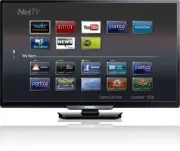
Net TV Net TV offers Internet services for your TV. Use the TV Remote Controlto browse the Net TV pages. You can play movies, listen to music andmuch more, all from your TV screen. – Because Net TV is an online system, it can be modified over time tobetter serve its purpose. – Some Net TV services c...
Page 51 - Activating Pandora; Creating a New Station; Guide to the Player Screen
Pandora N operations With this Unit, you can instantly listen to personalized radio stationsstreamed over the Internet from Pandora.To learn more about Pandora, please visit www.pandora.com Activating Pandora In order to listen to Internet radio streamed from Pandora via the Internet,you must create...
Page 52 - Useful tips; FAQ
6 Useful tips FAQ Question Answer My Remote Control doesnot work.What should I do? ● Check the Antenna or Cable Connection to the Main Unit. ● Check the Batteries on the Remote Control. ● Check if there is an obstacle between the infrared sensor window and the Remote Control. ● Test the IR Signal Ou...
Page 53 - Troubleshooting
Troubleshooting If the Unit does not perform properly when operated as instructed in this User Manual, check the following Troubleshooting tips and all connections once before calling for service. Power No Power ● Make sure the AC Power Cord is plugged in. ● Make sure that the AC outlet supplies the...
Page 55 - Information; Glossary; Aspect ratio; Maintenance; Cabinet Cleaning
7 Information Glossary Analog TV (NTSC) Acronym that stands for National Television Systems Committee and the name of Analog broadcasting standards. Off the air Analog TV signals are no longer being sent by major broadcasting stations in the USA. ARC (Audio Return Channel) (HDMI 1 only) HDMI-ARC all...
Page 56 - Specifications
8 Specifications Model # 65PFL4909 55PFL4909 / 55PFL4609 50PFL4909 49PFL4909 / 49PFL4609 43PFL4909 / 43PFL4609 40PFL4909 / 40PFL4609 32PFL4909 / 32PFL4609 28PFL4909 / 28PFL4609 Picture Type FHD(1920 x 1080 pixels 120Hz) FHD (1920 x 1080 pixels 60Hz) WXGA(1366 x 768 pixels 60Hz) Diagonal screen size ...
Page 57 - Warranty; PHILIPS LIMITED WARRANTY
9 Warranty PHILIPS LIMITED WARRANTY ONE (1) YEAR WARRANTY COVERAGE: PHILIPS warranty obligation is limited to the terms set forthbelow. WHO IS COVERED: Philips warrants the product to the original purchaser or the per-son receiving the product as a gift against defects in materials andworkmanship as...
Page 58 - License
License Funai Corporation, Inc. hereby offers to deliver, upon request, a copy ofthe complete corresponding source code for the copyrighted opensource code packages, on an “AS IS” basis, used in this product for whichsuch offer is requested by the respective licenses. This offer is valid up tothree ...


 Philips 50PFL5907/F7
User Manual
Philips 50PFL5907/F7
User Manual
 Philips 39PFL2908/F7
User Manual
Philips 39PFL2908/F7
User Manual
 Philips 55PFL5907/F7
Quick Guide
Philips 55PFL5907/F7
Quick Guide
 Philips 29PFL4908/F7
User Manual
Philips 29PFL4908/F7
User Manual
 Philips 32PFL5708/F7
Manual
Philips 32PFL5708/F7
Manual
 Philips 50PFL5708/F7
User Manual
Philips 50PFL5708/F7
User Manual
 Philips 20PT643R
User Manual
Philips 20PT643R
User Manual
 Philips 30PW862H
Manual
Philips 30PW862H
Manual
 Philips 30PW850H
Manual
Philips 30PW850H
Manual
 Philips HTS6500
User Manual
Philips HTS6500
User Manual
 Philips 37PF9631D/37
User Manual
Philips 37PF9631D/37
User Manual