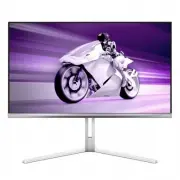
Page 2 - Table of Contents; Safety precautions and; Designs to prevent computer; Philips’ Panel Monitors Pixel
Table of Contents 1. Important ...................................... 1 1.1 Safety precautions and maintenance ..................................1 1.2 Notational Descriptions ..............3 1.3 Disposal of product and packing material ............................................4 2. Setting up the ...
Page 5 - Notational Descriptions
3 • “Burn-in”, “after-imaging”, or “ghost imaging” is a well-known phenomenon in QD OLED panel technology. In most cases, the “burn-in”, “after-imaging” or “ghost imaging” will disappear gradually over some time after the power has been switched off. Warning It is highly recommended that you always ...
Page 7 - monitor; Package contents; *Different according to region
5 2. Setting up the monitor 2.1 Installation 1 Package contents DP HDMI USB A-B Screw M4 x 4 VESA Bracket Power Quick Start 27M2N8500AM Register your product and get support at www.philips.com/welcome *Different according to region 2 Install the base 1. Place the monitor face down on a smooth surfac...
Page 10 - Operating the monitor
8 2.2 Operating the monitor 1 Description of the control buttons Press to switch power on. Press more than 3 seconds to switch power off. Access the OSD menu. Confirm the OSD adjustment.Adjust the Game Setting.Adjust the OSD menu. Change the signal input source.Adjust the OSD menu.SmartImage Game me...
Page 12 - OLED
10 Note Game mode: This model is equipped with new features in OSD which gives you high-quality visual experience.• Stark Shadow Boost This feature enhances dark scenes without overexposing lightened areas. The Stark Shadow Boost feature has three selectable levels that offer texturized images with ...
Page 13 - Swivel; Height adjustment
11 3 Resolution notification This monitor is designed for optimal performance at its native resolution:2560 x 1440.When the monitor is powered on at a different resolution, an alert is displayed on the screen as follows: Use 2560 x 1440 for best results.Display of the native resolution alert can be ...
Page 17 - Image Optimization; Illustrator
15 3. Image Optimization 3.1 SmartImage 1 What is it? SmartImage provides presets that optimize display for different types of content, dynamically adjusting brightness, contrast, color, and sharpness in real-time. Whether you're working with text applications, displaying images, or watching a video...
Page 19 - Customize color space
17 Note To switch off the HDR function, please disable the Input device and its content.Inconsistent HDR settings between the input device and monitor may cause unsatisfying images. 3.2 SmartContrast 1 What is it? It is a unique technology that dynamically analyzes displayed content and automaticall...
Page 20 - Premium Pro; Operating system
18 4. AMD FreeSync Premium Pro PC gaming has long been an imperfect experience because GPUs and monitors update at different rates. Sometimes a GPU can render many new pictures during a single update of the monitor, and the monitor will show pieces of each picture as a single image. This is called “...
Page 21 - Compatible
19 5. NVIDIA® G-SYNC® Compatible When playing intense games with high refresh rates, screen tearing may appear without optimal graphics synchronization. Certified as NVIDIA® G-SYNC® Compatible, variable refresh rate (VRR) reducing screen tearing and syncing your monitor’s refresh rate with your grap...
Page 22 - Ambiglow; How to enable Ambiglow
20 6. Ambiglow Ambiglow Ambiglow What is it? Ambiglow adds a new dimension to your viewing experience. The innovative and exclusive Ambiglow processor continuously adjusts the overall color and brightness of the gamer's surroundings to match the on-screen image. User options like Auto mode and 3-ste...
Page 23 - Rearrange your displays.
21 7. HDR HDR Settings in Windows11/10 system.Steps 1. Right-click on the desktop, and enter Display settings. 2. Select the display/monitor.3. Select an HDR-capable display under Rearrange your displays. 4. Select Windows HD Color settings.5. Adjust Brightness for SDR content. Note Windows 11/10 ed...
Page 24 - Screen maintenance; • Screen Saver; that you always turn on Pixel Orbiting to protect the screen.
22 8. Screen maintenance Following the characteristics of QD OLED displays, there are automatic mechanisms used to protect the screen and reduce image sticking which may request an opportunity to run the refresh process. These mechanism settings may be adjusted in the On-Screen Display (OSD) menu un...
Page 25 - reaches 16 hours, the screen will refresh automatically.; Compulsory execution message; • Multi-Logo Protection; sticking where logos are detected.; • Boundary Dimmer; of specific areas with a large difference in brightness levels.
23 reaches 16 hours, the screen will refresh automatically. A reminder message that pops up after 4 hours of continuous use, and will then appear every 2 hours after. To maintain the panel quality, Pixel Refresh will automatically run after in use for a periods of time. Pixel Refresh will take few m...
Page 26 - • Taskbar Dimmer
24 • Taskbar Dimmer The Taskbar Dimmer technology will dim the brightness of the taskbar area on the screen. No brightness changes will be noticeable in the areas other than in the taskbar.
Page 27 - • Thermal Protection; Note; LED Indicator; Status
25 • Thermal Protection When the temperature of the monitor is over 60 degrees Celsius, the Thermal Protection feature will automatically dim the brightness of the screen in order to ensure heat dissipation properly. It is recommended that you turn on the feature for the monitor. Note Please note th...
Page 28 - Ideal working posture
26 9. Designs to prevent computer vision syndrome (CVS) Philips monitor is designed to prevent eye strain caused by prolonged computer use. Follow the below instructions and use a Philips monitor to efficiently reduce fatigue and maximize working productivity. 1. Appropriate environment lighting: • ...
Page 29 - Technical Specifications; Connectivity
27 10. Technical Specifications Picture/Display Monitor Panel Type QD OLED Panel Size 26.5" W (67.3 cm) Aspect Ratio 16:9 Pixel Pitch 0.2292 (H) mm x 0.2292 (V) mm Contrast Ratio (typ.) 1.5M:1 Recommended Resolution 2560 x 1440 @ 60 Hz Maximum Resolution 2560 x 1440 @ 360 Hz Viewing Angle 178° (...
Page 34 - Power Management; Power Management Definition
32 11. Power Management If you have a VESA DPM compliance display card or software installed on your PC, the monitor can automatically reduce its power consumption when not in use. If an input from a keyboard, mouse, or other input device is detected, the monitor will 'wake up' automatically. The fo...
Page 35 - Philips’ Panel Monitors; Sub pixels; Pixels and Sub pixels
33 12. Customer care and warranty 12.1 Philips’ Panel Monitors Pixel Defect Policy Philips strives to deliver the highest quality products. We use some of the industry's most advanced manufacturing processes and practice stringent quality control. However, pixel or sub-pixel defects on the TFT Monit...
Page 39 - FAQs; Troubleshooting; Common Problems
37 13. Troubleshooting & FAQs 13.1 Troubleshooting This page deals with problems that can be corrected by a user. If the problem persists after you have tried these solutions, contact a Philips customer service representative. 1 Common Problems No Picture (Power LED not lit) • Make sure the powe...