Page 2 - Table of Contents; Safety precautions and; AMD FreeSyncTM Premium; Philips’ Flat Panel Monitors
Table of Contents 1. Important ....................................1 1.1 Safety precautions and maintenance ................................. 1 1.2 Notational Descriptions ............ 31.3 Disposal of product and packing material .......................................... 4 2. Setting up the monito...
Page 5 - �2 Notational Descriptions
3 Important information for Burn-in/ Ghost image • Always activate a moving screen saver program when you leave your monitor unattended� Always activate a periodic screen refresh application if your monitor will display unchanging static content� Uninterrupted display of still or static images over ...
Page 7 - monitor; �1 Installation; Package contents; *Different according to region
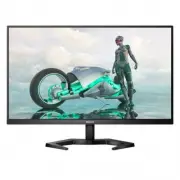
5 2. Setting up the monitor 2�1 Installation 1 Package contents *Earphone-Hang *DP *HDMI Power * USB A-B 27M1N3500LS Quick start Register your product and get support at www.philips.com/welcome *Different according to region 2 Install the base 1. Place the monitor face down on soft and smooth surfac...
Page 8 - �2 Operating the monitor
6 3 Connecting to your PC Earphone-Hang 1 2 5 6 3 4 1 Kensington anti-theft lock 2 HDMI 1 input 3 HDMI 2 input 4 DisplayPort input 5 Audio out 6 AC power input Connect to PC1� Connect the power cord to the back of the monitor firmly. 2� Turn off your computer and unplug its power cable� 3� Connect t...
Page 9 - Note
7 2 Description of the On Screen Display What is On-Screen Display (OSD)?On-Screen Display (OSD) is a feature in all Philips LCD monitors� It allows an end user to adjust screen performance or select functions of the monitors directly through an on-screen instruction window� A user friendly on scree...
Page 10 - Physical Function
8 • This Philips monitor is certified with AMD FreeSync™ only. The technology is used to match the refresh rate of the monitor to the graphic cards. Providing the smoothest gaming experience by reducing or eliminating judder, tearing, and stuttering. Enabling Adaptive-Sync from the On-Screen Display...
Page 12 - Image Optimization; �1 SmartImage
10 3. Image Optimization 3�1 SmartImage 1 What is it? SmartImage provides presets that optimize display for different types of content, dynamically adjusting brightness, contrast, color and sharpness in real time� Whether you're working with text applications, displaying images or watching a video, ...
Page 14 - �2 SmartContrast
12 3�2 SmartContrast 1 What is it? Unique technology that dynamically analyzes displayed content and automatically optimizes a Monitor's contrast ratio for maximum visual clarity and viewing enjoyment, stepping up backlighting for clearer, crisper and brighter images or dimming backlighting for clea...
Page 15 - Premium; Operating system
13 4. AMD FreeSync™ Premium PC gaming has long been an imperfect experience because GPUs and monitors update at different rates. Sometimes a GPU can render many new pictures during a single update of the monitor, and the monitor will show pieces of each picture as a single image. This is called “tea...
Page 17 - Technical Specifications; AMD FreeSync
15 6. Technical Specifications Picture/Display Monitor Panel Type VA Technology Backlight W-LED Panel Size 27" W (68.5 cm) Aspect Ratio 16:9 Pixel Pitch 0.2331 (H) mm x 0.2331 (V) mm Contrast Ratio (typ.) 4000:1 Recommended Resolution 2560 x 1440 @ 60Hz Maximum Resolution 2560 x 1440 @ 144Hz (HD...
Page 19 - �1 Resolution & Preset Modes; H� freq
17 6�1 Resolution & Preset Modes H� freq (kHz) Resolution V� freq (Hz) 31�47 720 x 400 70�00 31�47 640 x 480 60�00 35�00 640 x 480 67�00 37�86 640 x 480 72�00 37�50 640 x 480 75�00 35�16 800 x 600 56�00 37�88 800 x 600 60�00 48�08 800 x 600 72�00 46�88 800 x 600 75�00 47�73 832 x 624 75�00 48�36...
Page 21 - �1 Philips’ Flat Panel Monitors; Pixels and Sub pixels
19 8. Customer care and warranty 8�1 Philips’ Flat Panel Monitors Pixel Defect Policy Philips strives to deliver the highest quality products� We use some of the industry's most advanced manufacturing processes and practice stringent quality control� However, pixel or sub pixel defects on the TFT Mo...
Page 24 - �2 Customer Care & Warranty
22 8�2 Customer Care & Warranty For warranty coverage information and additional support requirements valid for your region, please visit www�philips�com/support website for details or contact your local Philips Customer Care Center�For Warranty Period please refer to Warranty Statement in Impor...
Page 25 - FAQs; �1 Troubleshooting; Common Problems
23 9. Troubleshooting & FAQs 9�1 Troubleshooting This page deals with problems that can be corrected by a user� If the problem still persists after you have tried these solutions, contact Philips customer service representative� 1 Common Problems No Picture (Power LED not lit) • Make sure the po...
Page 26 - �2 General FAQs
24 “after-imaging” or “ghost imaging” symptoms that will not disappear and cannot be repaired� The damage mentioned above is not covered under your warranty� Image appears distorted� Text is fuzzy or blurred� • Set the PC’s display resolution to the same mode as monitor’s recommended screen native r...
Page 28 - or Ghost Image in LCD panels?; Q14: Where can I find Important
26 Q10: Are Philips LCD monitors Plug- and- Play? Ans�: Yes, the monitors are Plug-and- Play compatible with Windows 10/8�1/8/7, Mac OSX� Q11: What is Image Sticking, or Image Burn-in, or After Image, or Ghost Image in LCD panels? Ans�: Uninterrupted display of still or static images over an extende...