Page 2 - Table of Contents; Safety precautions and; docking display; Docking through Thunderbolt; Designs to prevent computer; Philips’ Flat Panel Monitors
Table of Contents 1. Important ...................................... 1 1.1 Safety precautions and maintenance ................................. 1 1.2 Notational Descriptions ............ 31.3 Disposal of product and packing material .......................................... 4 2. Setting up the mon...
Page 3 - Warnings
1 1. Important This electronic user’s guide is intended for anyone who uses the Philips monitor. Take time to read this user manual before you use your monitor. It contains important information and notes regarding operating your monitor. The Philips guarantee applies provided the product is handled...
Page 5 - Notational Descriptions; Note
3 • Temperature: 0-35°C 32-95°F (HDR) 0-40°C 32-104°F (SDR) • Humidity: 20-80% RH Important information for Burn-in/Ghost image • Always activate a moving screen saver program when you leave your monitor unattended. Always activate a periodic screen refresh application if your monitor will display u...
Page 7 - monitor; Package contents; *Different according to region
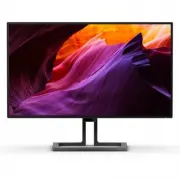
5 2. Setting up the monitor 2.1 Installation 1 Package contents *DP *HDMI Power *Thunderbolt TM 4 *USB C-A Quick start Register your product and get support at www.philips.com/welcome 27B1U7903 Business Monitor 7000 Series *Different according to region 2 Install the base 1. Hold the stand with both...
Page 10 - Operating the monitor; Description of the control buttons
8 2.2 Operating the monitor 1 Description of the control buttons 7 6 2 5 4 3 1 Switch monitor’s power ON and OFF. Access the OSD menu. Confirm the OSD adjustment.Adjust the OSD menu. USER User preference key. Customize your own preference function from OSD to become the “user key”.Change the signal ...
Page 12 - Resolution notification; Physical Function; Warning
10 3 Resolution notification This monitor is designed for optimal performance at its native resolution, 3840 x 2160. When the monitor is powered on at a different resolution, an alert is displayed on screen: Use 3840 x 2160 for best results. Display of the native resolution alert can be switched off...
Page 13 - Extend the monitor base to its
11 2.3 Remove the Base Assembly for VESA Mounting Before you start disassembling the monitor base, please follow the instructions below to avoid any possible damage or injury. 1. Extend the monitor base to its maximum height. 2. Place the monitor face down on a smooth surface. Pay attention not to s...
Page 15 - There are different video; The main picture source and
13 • PBP Input: There are different video inputs to choose as the sub display source: [1 HDMI 2.0], [2 HDMI 2.0], [DisplayPort] and [Thunderbolt]. Please refer below table for compatibility of main/sub input source. SUB SOURCE POSSIBILITY (xl) Inputs 1 HDMI 2.0 2 HDMI 2.0 DisplayPort Thunderbolt TM ...
Page 16 - Image Optimization; OK
14 3. Image Optimization 3.1 SmartImage 1 What is it? SmartImage provides presets that optimize display for different types of content, dynamically adjusting brightness, contrast, color and sharpness in real time. Whether you're working with text applications, displaying images or watching a video, ...
Page 19 - Adaptive Sync
17 • D-mode: DICOM mode, enhance greyscale level performance Note HDR and color space mode cannot be enabled simultaneously. Please disable HDR before you select one of color space modes. 3.4 LightSensor 1 What is it? LightSensor is a unique and intelligent way of optimizing picture quality by measu...
Page 21 - docking; Docking through
19 4. Thunderbolt TM docking display introduction Philips Thunderbolt TM docking monitors deliver universal port replication, for a simple, clutter-free, notebook connection. Securely connect to networks, transmit data, video and audio from laptop only using a single cable. 4.1 Docking through Thund...
Page 23 - Unfold PowerSensor
21 • PowerSensor function is designed to work in Landscape mode (horizontal position) only. After PowerSensor turn on it, it will automatically turn Off if the monitor is used in Portrait mode (90 degree/vertical position); it will automatically turn ON if monitor is returned to its default Landscap...
Page 26 - Technical Specifications; Connectivity
24 8. Technical Specifications Picture/Display Monitor Panel Type IPS Technology Backlight Mini LED backlight Panel Size 27" W (68.6 cm) Aspect Ratio 16:9 Pixel Pitch 0.1554 (H) mm x 0.1554 (V) mm Display Screen Coating Anti-Glare, 3H, Haze 25% Contrast Ratio(typ.) 1300:1 Optimum Resolution 3840...
Page 27 - Convenience
25 Thunderbolt TM Thunderbolt TM 4 (input) (upstream, DisplayPort Alt mode, HDCP 2.2/ HDCP 1.4, PD 90W)Thunderbolt TM 4 (output) (downstream, PD 15W) Power Delivery • Thunderbolt TM 4 (input): USB PD version 3.0, up to 90W (5V/3A, 7V/3A, 9V/3A, 10V/3A, 12V/3A, 15V/3A, 20V/4.5A) • Thunderbolt TM 4 (o...
Page 34 - Philips’ Flat Panel Monitors; subpixel; Pixels and Sub pixels
32 10. Customer care and warranty 10.1 Philips’ Flat Panel Monitors Pixel Defect Policy Philips strives to deliver the highest quality products. We use some of the industry's most advanced manufacturing processes and practice stringent quality control. However, pixel or sub pixel defects on the TFT ...
Page 38 - FAQs; Troubleshooting; Common Problems
36 11. Troubleshooting & FAQs 11.1 Troubleshooting This page deals with problems that can be corrected by a user. If the problem still persists after you have tried these solutions, contact Philips customer service representative. 1 Common Problems No Picture (Power LED not lit) • Make sure the ...
Page 42 - Q14: Where can I find Important
40 Q14: Where can I find Important Information manual mentioned in EDFU? Ans.: Important Information manual can be download on the Philips website support page.