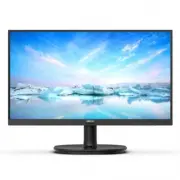
Page 2 - Table of Contents; Safety precautions and; Technical Specifications; Philips’ Flat Panel Monitors Pixel
Table of Contents 1. Important ���������������������������������������� 1 1.1 Safety precautions and maintenance ...................................1 1.2 Notational Descriptions ................3 1.3 Disposal of product and packing material .............................................4 2� Setting u...
Page 3 - � Important; �1 Safety precautions and; Warnings
1 1. Important 1� Important This electronic user’s guide is intended for anyone who uses the Philips monitor. Take time to read this user manual before you use your monitor. It contains important information and notes regarding operating your monitor.The Philips guarantee applies provided the produc...
Page 5 - �2 Notational Descriptions; Note
3 1. Important phenomenon in LCD panel technology. In most cases, the “burn- in” or “after-imaging” or “ghost imaging” will disappear gradually over a period of time after the power has been switched off. Warning Failure to activate a screen saver, or a periodic screen refresh application may result...
Page 6 - off such waste electrical and electronic,
4 1. Important 1�3 Disposal of product and packing material Waste Electrical and Electronic Equipment- WEEE This marking on the product or on its packaging illustrates that, under European Directive 2012/19/EU governing used electrical and electronic appliances, this product may not be disposed of w...
Page 7 - � Setting up the monitor; �1 Installation; Package contents; Start; Install the base
5 2. Setting up the monitor 2� Setting up the monitor 2�1 Installation Package contents * VGA * HDMI Power V Line 221V8 Register your product and get support at www.philips.com/welcome Quick Start *Different according to region. Install the base 1. Place the monitor face down on soft and smooth surf...
Page 8 - Connecting to your PC; �2 Operating the monitor; Description of the control buttons
6 2. Setting up the monitor Connecting to your PC 1 5 2 3 4 1 AC power input 2 HDMI input 3 VGA input 4 Audio out 5 Kensington anti-theft lock Connect to PC 1. Connect the power cord to the back of the monitor firmly. 2. Turn off your computer and unplug its power cable. 3. Connect the monitor signa...
Page 9 - Description of the On Screen Display
7 2. Setting up the monitor Description of the On Screen Display What is On-Screen Display (OSD)? On-Screen Display (OSD) is a feature in all Philips LCD monitors. It allows an end user to adjust screen performance or select functions of the monitors directly through an on-screen instruction window....
Page 10 - Resolution notification; Physical Function; Warning; �3 Remove the Base Assembly
8 2. Setting up the monitor Resolution notification This monitor is designed for optimal performance at its native resolution, 1920 × 1080. When the monitor is powered on at a different resolution, an alert is displayed on screen: Use 1920 × 1080 for best results.Display of the native resolution ale...
Page 12 - � Image Optimization; �1 SmartImage; display for different types of content,
10 3. Image Optimization 3� Image Optimization 3�1 SmartImage What is it? SmartImage provides presets that optimize display for different types of content, dynamically adjusting brightness, contrast, color and sharpness in real time. Whether you're working with text applications, displaying images o...
Page 13 - �2 SmartContrast; or displays clear, readable text for office
11 3. Image Optimization ebooks. By using a special algorithm which increases the contrast and boundary sharpness of text content, the display is optimized for a stress-free reading by adjusting the brightness, contrast and color temperature of the monitor. • LowBlue Mode: LowBlue Mode for easy on-t...
Page 14 - � Adaptive Sync; Adaptive Sync; update at different rates. Sometimes a
12 4. Adaptive Sync 4� Adaptive Sync Adaptive Sync PC gaming has long been an imperfect experience because GPUs and monitors update at different rates. Sometimes a GPU can render many new pictures during a single update of the monitor, and the monitor will show pieces of each picture as a single ima...
Page 15 - � Technical Specifications; Connectivity
13 5.Technical Specifications 5� Technical Specifications Picture/Display Monitor Panel Type VA Backlight W-LED Panel Size 21.5" W (54.6 cm) Aspect Ratio 16:9 Pixel Pitch 0.2493 (H) mm x 0.241 (V) mm Contrast Ratio (typ.) 3000:1 Optimum Resolution 1920 x 1080 @ 60 Hz Viewing Angle 178° (H) / 178...
Page 16 - Off mode
14 5.Technical Specifications Heat Dissipation* AC Input Voltage at 100VAC , 60Hz AC Input Voltage at 115VAC , 60Hz AC Input Voltage at 230VAC , 50Hz Normal Operation 62.12 BTU/hr (typ.) 60.41 BTU/hr (typ.) 60.41 BTU/hr (typ.) Sleep (Standby mode) 1.71 BTU/hr (typ.) 1.71 BTU/hr (typ.) 1.71 BTU/hr (t...
Page 18 - �1 Resolution & Preset Modes; Maximum Resolution
16 5.Technical Specifications 5�1 Resolution & Preset Modes Maximum Resolution 1920 x 1080 @ 60 Hz (VGA) 1920 x 1080 @ 75 Hz (HDMI) Recommended Resolution 1920 x 1080 @ 60 Hz H� freq (kHz) Resolution V� freq (Hz) 31.47 720x400 70.09 31.47 640x480 59.94 35.00 640x480 66.67 37.86 640x480 72.81 37....
Page 19 - � Power Management; Power Management Definition
17 6.Power Management 6� Power Management If you have VESA DPM compliance display card or software installed in your PC, the monitor can automatically reduce its power consumption when not in use. If an input from a keyboard, mouse or other input device is detected, the monitor will 'wake up' automa...
Page 20 - � Customer care and; �1 Philips’ Flat Panel Monitors; the TFT Monitor panels used in flat panel; screen in different ways. There are two
18 7.Customer care and warranty 7� Customer care and warranty 7�1 Philips’ Flat Panel Monitors Pixel Defect Policy Philips strives to deliver the highest quality products. We use some of the industry's most advanced manufacturing processes and practice stringent quality control. However, pixel or su...
Page 21 - specifies tolerances for the proximity of
19 7.Customer care and warranty Proximity of Pixel Defects Because pixel and sub pixels defects of the same type that are near to one another may be more noticeable, Philips also specifies tolerances for the proximity of pixel defects. Pixel Defect TolerancesIn order to qualify for repair or replace...
Page 23 - �2 Customer Care & Warranty; different Regions
21 7.Customer care and warranty 7�2 Customer Care & Warranty For warranty coverage information and additional support requirements valid for your region, please visit www.philips.com/support website for details or contact your local Philips Customer Care Center.For Warranty Period please refer t...
Page 24 - �1 Troubleshooting; Common Problems
22 8.Troubleshooting & FAQs 8� Troubleshooting & FAQs 8�1 Troubleshooting This page deals with problems that can be corrected by a user. If the problem still persists after you have tried these solutions, contact Philips customer service representative. Common Problems No Picture (Power LED ...
Page 25 - * Functionality different according to
23 8.Troubleshooting & FAQs • Adjust the image using the “Auto” function in OSD Main Controls. • Eliminate the vertical bars using the Phase/Clock of Setup in OSD Main Controls. It is valid only in VGA mode. Image appears blurred, indistinct or too dark • Adjust the contrast and brightness on On...
Page 26 - �2 General FAQs; Ans.: These are the driver files for your
24 8.Troubleshooting & FAQs 8�2 General FAQs Q1: When I install my monitor what should I do if the screen shows 'Cannot display this video mode'? Ans.: Recommended resolution for this monitor: 1920 x 1080. • Unplug all cables, then connect your PC to the monitor that you used previously. • In th...