Page 2 - Table of Contents; Safety precautions and; Technical Specifications; Philips’ Flat Panel Monitors Pixel
Table of Contents 1. Important ���������������������������������������� 1 1.1 Safety precautions and maintenance ...................................1 1.2 Notational Descriptions ................3 1.3 Disposal of product and packing material .............................................4 2� Setting u...
Page 3 - Warning
1 1. Important This electronic user’s guide is intended for anyone who uses the Philips monitor. Take time to read this user manual before you use your monitor. It contains important information and notes regarding operating your monitor.The Philips guarantee applies provided the product is handled ...
Page 5 - Notational Descriptions; Note
3 Uninterrupted display of still or static images over an extended period may cause “burn-in”, also known as “after- imaging” or “ghost imaging”, on your screen. • “Burn-in”, “after-imaging”, or “ghost imaging” is a well-known phenomenon in LCD panel technology. In most cases, the “burn- in” or “aft...
Page 6 - dropping off such waste electrical and
4 1.3 Disposal of product and packing material Waste Electrical and Electronic Equipment-WEEE This marking on the product or on its packaging illustrates that, under European Directive 2012/19/EU governing used electrical and electronic appliances, this product may not be disposed of with normal hou...
Page 7 - tor; Package contents; *Different according to region; Audio out
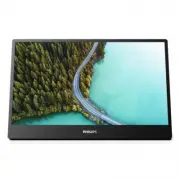
5 2. Setting up the moni- tor 2.1 Installation 1 Package contents *Protective case 16B1P3302D Quick start Register your product and get support at www.philips.com/welcome Portable Monitor 3000 Series *USB C-C/A *Different according to region 2 Install the base Caution Place the monitor face down on ...
Page 10 - Operating the monitor; Switch monitor’s power ON
8 Basic and simple instruction on the control keysIn the OSD shown above, you can press buttons at the base of the monitor to move the cursor, and press OK button to confirm the choice or change. The OSD MenuBelow is an overall view of the struct...
Page 13 - Image Optimization; optimize display for different types
11 3. Image Optimization 3.1 SmartImage What is it? SmartImage provides presets that optimize display for different types of content, dynamically adjusting brightness, contrast, color and sharpness in real time. Whether you're working with text applications, displaying images or watching a video, Ph...
Page 15 - Philips USB-docking monitors deliver; How to operate USB docking; USB-C port on the monitor and to
13 4. USB docking display introduction Philips USB-docking monitors deliver universal port replication, for a simple, clutter-free, notebook connection. Securely connect to transmit data, video and audio from laptop only using a single USB cable. 4.1 How to operate USB docking display through USB-C ...
Page 16 - Connectivity
14 5. Technical Specifications Picture/Display Monitor Panel Type IPS Technology Backlight W-LED Panel Size 15.6" (39.6 cm) Aspect Ratio 16:9 Pixel Pitch 0.17925 (H) mm x 0.17925 (V) mm Contrast Ratio(typ.) 700:1 Optimum Resolution 1920 x 1080 @ 60 Hz Display Screen Coating Anti-Glare 3H, Haze 2...
Page 20 - Philips’ Flat Panel Monitors; in flat panel m; Pixels and Sub pixels
18 6. Customer care and warranty 6.1 Philips’ Flat Panel Monitors Pixel Defect Policy Philips strives to deliver the highest quality products. We use some of the industry's most advanced manufacturing processes and practice stringent quality control. However, pixel or sub pixel defects on the TFT Mo...
Page 24 - FAQs; Common Problems; AUTO button doesn't function
22 7. Troubleshooting & FAQs 7.1 Troubleshooting This page deals with problems that can be corrected by a user. If the problem still persists after you have tried these solutions, contact Philips customer service representative. Common Problems No Picture (Power LED not lit) • Make sure the powe...
Page 25 - * Functionality different according to
23 • Adjust the image using the “Auto” function in OSD Main Controls. • Eliminate the vertical bars using the Phase/Clock of Setup in OSD Main Controls. It is valid only in VGA mode. Image appears blurred, indistinct or too dark • Adjust the contrast and brightness on On-Screen Display. An "afte...
Page 28 - then press button to turn the; Q14: Where can I find Important
26 then press button to turn the monitor on. Display controls locked Q14: Where can I find Important Information manual mentioned in EDFU? Ans.: Important Information manual can be download on the Philips website support page.