Page 2 - Table of Contents; Technical Specifications
Table of Contents 1. Important ���������������������������������������� 1 1.1 Safety precautions and maintenance ...................................1 1.2 Notational Descriptions ................3 1.3 Disposal of product and packing material .............................................4 2� Setting u...
Page 3 - Warning
1 1. Important This electronic user’s guide is intended for anyone who uses the Philips monitor. Take time to read this user manual before you use your monitor. It contains important information and notes regarding operating your monitor.The Philips guarantee applies provided the product is handled ...
Page 5 - Notational Descriptions; Note
3 Uninterrupted display of still or static images over an extended period may cause “burn-in”, also known as “after- imaging” or “ghost imaging”, on your screen. • “Burn-in”, “after-imaging”, or “ghost imaging” is a well-known phenomenon in LCD panel technology. In most cases, the “burn- in” or “aft...
Page 7 - tor; Package contents; *Different according to region; Audio out
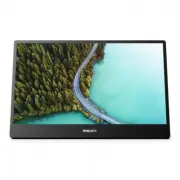
5 2. Setting up the moni- tor 2.1 Installation 1 Package contents 16B1P3302 Quick start Register your product and get support at www.philips.com/welcome Portable Monitor 3000 Series *USB C-C/A *Protective case *Different according to region 2 Install the base Caution Place the monitor face down on a...
Page 9 - Operating the monitor
7 Basic and simple instruction on the control keysIn the OSD shown above, you can press buttons at the base of the monitor to move the cursor, and press OK button to confirm the choice or change.The OSD MenuBelow is an overall view of the s...
Page 12 - Image Optimization
10 3. Image Optimization 3.1 SmartImage What is it? SmartImage provides presets that optimize display for different types of content, dynamically adjusting brightness, contrast, color and sharpness in real time. Whether you're working with text applications, displaying images or watching a video, Ph...
Page 14 - USB-C port on the monitor and to; How to operate USB docking
12 4. USB docking display introduction Philips USB-docking monitors deliver universal port replication, for a simple, clutter-free, notebook connection. Securely connect to networks, transmit data, video and audio from laptop only using a single USB cable. Even more, dock with USB Type-C port for ex...
Page 15 - Controlling the display
13 2. User Account Control panel will pop out, click “Yes” to install DisplayLink software for DisplayLink Graphics. 3. Click “Install”, then DisplayLink start to install, once it complete, click “Finish” 4. After the installation has completed, your laptop will be required to reboot in order to sta...
Page 16 - Connectivity
14 5. Technical Specifications Picture/Display Monitor Panel Type IPS Technology Backlight W-LED Panel Size 15.6" (39.6 cm) Aspect Ratio 16:9 Pixel Pitch 0.17925 (H) mm x 0.17925 (V) mm Contrast Ratio(typ.) 700:1 Optimum Resolution 1920 x 1080 @ 60 Hz Display Screen Coating Anti-Glare 3H, Haze 2...
Page 19 - Philips’ Flat Panel Monitors; Pixels and Sub pixels
17 6. Customer care and warranty 6.1 Philips’ Flat Panel Monitors Pixel Defect Policy Philips strives to deliver the highest quality products. We use some of the industry's most advanced manufacturing processes and practice stringent quality control. However, pixel or sub pixel defects on the TFT Mo...
Page 23 - FAQs; Common Problems
21 7. Troubleshooting & FAQs 7.1 Troubleshooting This page deals with problems that can be corrected by a user. If the problem still persists after you have tried these solutions, contact Philips customer service representative. Common Problems No Picture (Power LED not lit) • Make sure the powe...
Page 24 - * Functionality different according to
22 • Adjust the image using the “Auto” function in OSD Main Controls. • Eliminate the vertical bars using the Phase/Clock of Setup in OSD Main Controls. It is valid only in VGA mode. Image appears blurred, indistinct or too dark • Adjust the contrast and brightness on On-Screen Display. An "afte...
Page 27 - Q14: Why is the brightness of monitor
25 then press button to turn the monitor on. Display controls locked Q14: Why is the brightness of monitor can’t be increased? Ans.: Please ensure the USB port of your device comply the specification below. • If you are connect the USB-C port of notebook and the monitor with a USB type-C cable, the ...