Page 2 - Information for Your Safety; Digital camera
2 VQT5E64 (ENG) Dear Customer, We would like to take this opportunity to thank you for purchasing this Panasonic Digital Camera. Please read these Operating Instructions carefully and keep them handy for future reference. Please note that the actual controls and components, menu items, etc. of your ...
Page 3 - About the battery pack; CAUTION
(ENG) VQT5E64 3 ■ About the battery pack CAUTION • Danger of explosion if battery is incorrectly replaced. Replace only with the type recommended by the manufacturer. • When disposing the batteries, please contact your local authorities or dealer and ask for the correct method of disposal. • Do not ...
Page 4 - Cautions for Use; unit may be disrupted by electromagnetic wave radiation.; Do not use this unit near radio transmitters or high-voltage lines.; pictures and/or sound may be adversely affected.
4 VQT5E64 (ENG) ■ Cautions for Use • Do not use any other USB connection cables except the supplied one or a genuine Panasonic USB connection cable (DMW-USBC1: optional). • Always use a genuine Panasonic AV cable (DMW-AVC1: optional). • Use a “High Speed HDMI micro cable” with the HDMI logo. Cables ...
Page 6 - Contents
6 VQT5E64 (ENG) Contents Information for Your Safety .... 2Before use ................................ 7Standard accessories ............. 8Names and Functions of Main Parts .............................. 10Inserting and removing the battery or SD memory card (optional) ................................
Page 7 - Before use; Camera handling; Keep the camera away from excessive vibration, force, or pressure.; Caring for your camera; Do not press the LCD monitor with excessive force.
(ENG) VQT5E64 7 Before use ■ Camera handling ● Keep the camera away from excessive vibration, force, or pressure. ● The camera is not dust resistant, splash resistant, or waterproof.Avoid using the camera in places with excessive dust or sand, or where water can come into contact with the camera. ● ...
Page 8 - Standard accessories; Battery pack
8 VQT5E64 (ENG) Standard accessories Check that all the accessories are supplied before using the camera. Part numbers are as of January 2014. These may be subject to change. Battery pack DMW-BCM13E • Charge the battery before use. Battery pack is indicated as battery pack or battery in the text. AC...
Page 9 - Optional Accessories; Sales and Support Information; Customer Communications Centre
(ENG) VQT5E64 9 ■ Optional Accessories Battery pack DMW-BCM13 USB connection cable DMW-USBC1 AV cable DMW-AVC1 • Some optional accessories may not be available in some countries. Sales and Support Information Customer Communications Centre • For customers within the U.K.: 0844 844 3899 • For custome...
Page 10 - Names and Functions of Main Parts
10 VQT5E64 (ENG) Names and Functions of Main Parts 1 2 3 4 5 6 7 8 11 12 13 9 10 11 26 24 25 28 34 30 33 31 27 (Top) 15 16 17 19 (Bottom) 21 22 23 14 20 18 32 29
Page 12 - Cursor button
12 VQT5E64 (ENG) Names and Functions of Main Parts [MENU/SET] button / Cursor button [MENU/SET] button • Use this button to display the menus, enter the settings, etc. Cursor button • This button is used to move the cursor on the menu screens and for other functions. • In this manual, the button tha...
Page 13 - Close the door; To remove
(ENG) VQT5E64 13 Inserting and removing the battery or SD memory card (optional) Make sure that the camera is turned off. Slide the release lever ( ) to the [OPEN] position and open the card/battery door Insert the battery and card, making sure that their orientation is correct • Battery: Insert the...
Page 14 - Charging the battery; The battery that can be used with this unit is DMW-BCM13E.; Make sure that the camera is turned off.
14 VQT5E64 (ENG) Charging the battery • The battery that can be used with this unit is DMW-BCM13E. • The battery is not charged when the camera is shipped. Charge the battery before use. Make sure that the camera is turned off. Insert the battery to this unit, and then connect this unit to the AC ad...
Page 15 - Notes on charging time; Do not store the battery for a long time while fully charged.
(ENG) VQT5E64 15 ■ Charging lamp (Red) On: Charging in progress Off: Charging stops (After charging stops, disconnect the camera from the electrical outlet or your computer.) Flashing: Charging error (For instructions on correcting the problem, refer to “Troubleshooting” ( → 34).) ■ Notes on chargin...
Page 16 - Setting the clock; • To cancel
16 VQT5E64 (ENG) Setting the clock The clock is not set when the camera is shipped.Disconnect the unit from the AC adaptor (supplied). Press the Camera [ON/OFF] button ( ) Press [MENU/SET] ( ) Press to select the items (year, month, day, hour, minute, display order or time display format), and press...
Page 17 - ] will be displayed next to the; Changing time settings
(ENG) VQT5E64 17 Press to set your home area and press [MENU/SET] City or area name Current time Difference from GMT (Greenwich Mean Time) • If the time zone of your current location is different from that of [Home], [World Time] is set to [Destination]. ([ ] will be displayed next to the time and d...
Page 18 - Setting the menu; Refer to the following procedures to operate the menus.; Menu types
18 VQT5E64 (ENG) Setting the menu Refer to the following procedures to operate the menus. Example: Setting [AF Mode] from [ ] to [ ] in the [Program AE] Mode Press [MENU/SET] to display the menu Press or turn the control dial to select the [Rec] menu, and press [MENU/SET] Press or turn the control d...
Page 19 - Take a picture; Automatic Scene Detection
(ENG) VQT5E64 19 Taking pictures with automatic settings [Intelligent Auto] Mode This mode is recommended for those who want to point and shoot or beginners as the camera optimises settings to match the subject and recording environment. Set mode dial to [ ] ([Intelligent Auto] Mode) Align the mode ...
Page 20 - Taking pictures with automatic settings [Intelligent Auto] Mode; Recording modes; Do not touch the lens.
20 VQT5E64 (ENG) Taking pictures with automatic settings [Intelligent Auto] Mode ■ Recording modes [Intelligent Auto] Mode Take pictures with automatic settings. You can switch to the [Intelligent Auto Plus] Mode on the menu to adjust the brightness and colour settings to your liking. [Program AE] M...
Page 21 - Zoom types; You can adjust the area of a picture to be taken using zoom.; Optical Zoom
(ENG) VQT5E64 21 ■ Zoom types You can adjust the area of a picture to be taken using zoom. Capture a wider area (wide-angle) Enlarge the subject(telephoto) • Optical Zoom Zooming in up to 30x is possible if pictures without [ ] have been selected by [Picture Size] on the [Rec] menu. • Extra optical ...
Page 22 - Recording motion pictures; Press the motion picture button ( ) again to end recording
22 VQT5E64 (ENG) Recording motion pictures You can record motion pictures with audio (stereo). • You can record motion pictures fitting each recording mode. • Motion pictures cannot be recorded in the built-in memory. Press the motion picture button ( ) to start recording ● Do not block the micropho...
Page 23 - and place name information.; About motion picture icon
(ENG) VQT5E64 23 ■ About the recording format for recording motion pictures This unit can record motion pictures in either AVCHD or MP4 formats.The recording format for motion pictures can be changed in [Rec Format] of the [Motion Picture] menu. ■ About the recording quality setting The recording qu...
Page 24 - Using the control ring/control dial; Recording mode
24 VQT5E64 (ENG) Using the control ring/control dial You can use the control ring/control dial to perform frequently used operations and settings directly. Control ring Control dial Items that can be set by the control ring/control dial vary depending on recording modes. Following are the pre-assign...
Page 25 - To change the settings assigned to the control ring/control dial; Changes the settings assigned to the control ring/control dial.; Using Quick menu
(ENG) VQT5E64 25 ■ To change the settings assigned to the control ring/control dial Changes the settings assigned to the control ring/control dial. Press [MENU/SET] Press to select [Setup] menu and press [MENU/SET] Press to select [Ring/Dial Set] and press [MENU/SET] Press to select [ ] (control rin...
Page 26 - Registering preferred functions to the [Fn] button
26 VQT5E64 (ENG) Registering preferred functions to the [Fn] button Taking pictures with the composition determined [Composition Guide] It is set to [Composition Guide] at the time of purchase. Press [MENU/SET] Press to select [Setup] menu and press [MENU/SET] Press to select [Fn Button Set] and pre...
Page 27 - Viewing your pictures; • By holding down the Playback button while; Deleting pictures; Deleted pictures cannot be recovered.
(ENG) VQT5E64 27 Viewing your pictures Press the Playback button ( ) • By holding down the Playback button while the camera is off, you can turn the camera on in playback mode. Press or turn the control dial to select the picture to be displayed Folder/File number Picture number/Total pictures Locat...
Page 28 - Using a smartphone/tablet as a camera remote control
28 VQT5E64 (ENG) What you can do with the Wi-Fi ® function ■ Using a smartphone/tablet as a camera remote control By installing the “Panasonic Image App” on your smartphone/tablet, you can operate the camera remotely and use the smartphone/tablet to record and play back. In addition, you can copy pi...
Page 29 - Using WEB services; LUMIX CLUB; may be incurred depending on the details of your contract.
(ENG) VQT5E64 29 ■ Using WEB services Through “LUMIX CLUB”, you can send still pictures and motion pictures to social networking services, etc. To upload recorded pictures to a social networking service right away, we recommend that you first send the pictures to your smartphone/tablet and then uplo...
Page 30 - GPS functions; Using the GPS function to execute positioning; About the GPS function; not use for professional applications.; When using in another country; • The GPS function may not work in China or in the border regions of
30 VQT5E64 (ENG) GPS functions Before using the camera, be sure to read “User Licence Agreement for Location Name Data” (Operating Instructions for advanced features). This camera can record the location information of a place where a picture was taken on the pictures. The camera can also automatica...
Page 31 - Reading the Operating Instructions (PDF format); For Windows; To return to the install menu.; When the Operating Instructions (PDF format) will not open; Turn the PC on and insert the CD-ROM containing the Operating
(ENG) VQT5E64 31 Reading the Operating Instructions (PDF format) More detailed instructions on the operation of this camera are contained in “Operating Instructions for advanced features (PDF format)” in the supplied CD-ROM. Install it on your PC to read it. ■ For Windows Turn the PC on and insert t...
Page 32 - Supplied software; • PHOTOfunSTUDIO / LoiLoScope are not compatible with Mac.; Installing supplied software; Insert the supplied CD-ROM with the supplied software; The software compatible with your PC will be installed.
32 VQT5E64 (ENG) Supplied software The supplied CD-ROM contains the following software.Install the software on your computer to use. For details about operating environment and usage, please read “Operating Instructions for advanced features” (PDF format) or the manuals for each software. • PHOTOfun...
Page 33 - Downloading SILKYPIX Developer Studio SE; “Help” or the Ichikawa Soft Laboratory’s support website.; Copying still pictures and motion pictures; Copy pictures to your computer
(ENG) VQT5E64 33 Downloading SILKYPIX Developer Studio SE This software develops and edits RAW file pictures. Edited pictures can be saved in a file format such as JPEG or TIFF that can be displayed on a PC, etc. Download SILKYPIX Developer Studio SE from the following site and install it on your co...
Page 34 - Troubleshooting; First, try out the following procedures.
34 VQT5E64 (ENG) Troubleshooting First, try out the following procedures. If the problem persists, performing [Reset] in the [Setup] menu may resolve the issue. The charging lamp blinks. ● Charging is being performed in a place with extremely high or low temperature. → Reconnect the USB connection c...
Page 36 - Specifications; Information for your safety
36 VQT5E64 (ENG) Specifications Digital Camera: Information for your safety Power Source DC 5 V Power Consumption 1.7 W (When recording with LCD Monitor)1.1 W (When playing back with LCD Monitor) Camera effective pixels 18,100,000 pixels Image sensor 1/2.3 ″ MOS sensor, total pixel number 18,900,000...
Page 38 - Infrastructure mode
38 VQT5E64 (ENG) Specifications Mass With card and battery: Approx. 240 (0.529 lb)Excluding card and battery: Approx. 214 (0.472 lb) Operating temperature 0 °C to 40 °C (32 °F to 104 °F) Operating humidity 10%RH to 80%RH Wi-Fi Compliance standard IEEE 802.11b/g/n (standard wireless LAN protocol) Fre...
Page 40 - © Panasonic Corporation 2014; EU
Web Site: http://panasonic.net © Panasonic Corporation 2014 EU Manufactured by: Panasonic Corporation Kadoma, Osaka, Japan Importer for Europe: Panasonic Marketing Europe GmbH Panasonic Testing CentreWinsbergring 15, 22525 Hamburg, Germany


 Panasonic DC-FZ1000M2
User Manual
Panasonic DC-FZ1000M2
User Manual
 Panasonic DC-S5M2X
User Manual
Panasonic DC-S5M2X
User Manual
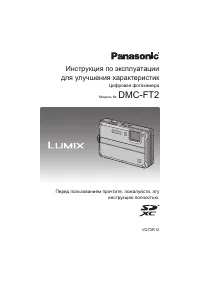 Panasonic DMC-FT2
User Manual
Panasonic DMC-FT2
User Manual
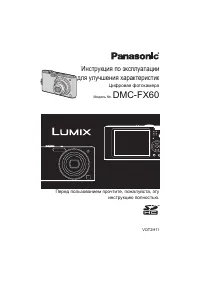 Panasonic DMC-FX60
User Manual
Panasonic DMC-FX60
User Manual
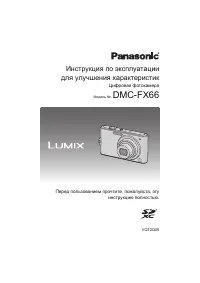 Panasonic DMC-FX66
User Manual
Panasonic DMC-FX66
User Manual
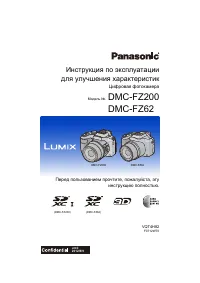 Panasonic DMC-FZ200
Manual
Panasonic DMC-FZ200
Manual
 Panasonic DMC-FZ2500
User Manual
Panasonic DMC-FZ2500
User Manual
 Panasonic DMC-FZ62
User Manual
Panasonic DMC-FZ62
User Manual
 Panasonic DMC-GH2
User Manual
Panasonic DMC-GH2
User Manual
 Panasonic DMC-LS60
User Manual
Panasonic DMC-LS60
User Manual
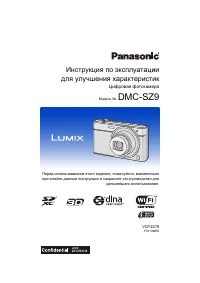 Panasonic DMC-SZ9
Manual
Panasonic DMC-SZ9
Manual
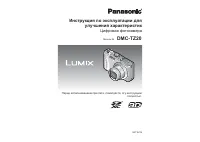 Panasonic DMC-TZ20
Manual
Panasonic DMC-TZ20
Manual
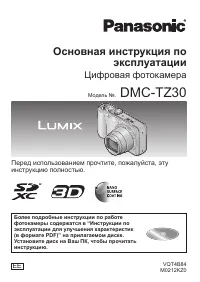 Panasonic DMC-TZ30
Manual
Panasonic DMC-TZ30
Manual
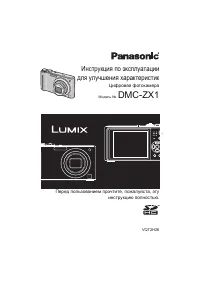 Panasonic DMC-ZX1
User Manual
Panasonic DMC-ZX1
User Manual
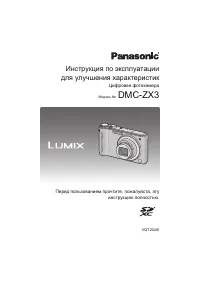 Panasonic DMC-ZX3
User Manual
Panasonic DMC-ZX3
User Manual