Page 2 - Introduction; Terms and illustrations in these instructions; Click
2 G e tt in g S ta rt e d Introduction Thank you for purchasing this Panasonic product. For optimum performance and safety, please read these instructions carefully. In these instructions, the names are referred as follows. “Windows ® 7 Professional” as “Windows” or “Windows 7” “Microsoft ® Windows ...
Page 3 - Disclaimer
3 G e tt in g S ta rt e d [start] - [All Programs] : Click [start], and then click [All Programs]. You may need to double-click in some cases. Some illustrations are simpli fi ed to help your understanding and may look different from the actual unit. If you do not log on as an administrator, you can...
Page 4 - Read Me First; Federal Communications Commis-
4 G e tt in g S ta rt e d Read Me First Models for U.S.A. Federal Communications Commis- sion Radio Frequency Interference Statement Note: This equipment has been tested and found to comply with the limits for a Class B digital device, pursuant to Part 15 of the FCC Rules. These limits are designed ...
Page 5 - Models for Canada; Industry Canada
5 G e tt in g S ta rt e d <Only for model with wireless LAN> This product is restricted to indoor use due to its operation in the 5.15 to 5.25 GHz frequency range. FCC requires this product to be used indoors for the frequency range 5.15 to 5.25 GHz to reduce the potential for harmful interfer...
Page 6 - Information to the User; This product and your Health; Regulatory Information
6 G e tt in g S ta rt e d Read Me First Information to the User <Only for model with wireless LAN/ Bluetooth> This product and your Health This product, like other radio devices, emits radio frequency electromagnetic energy. The level of energy emitted by this product however is far much less ...
Page 7 - Informations destinées aux utilisateurs; Ce produit et votre santé; Informations concernant la; Safety Precautions
7 G e tt in g S ta rt e d Informations destinées aux utilisateurs <Uniquement les modèles avec réseau local sans fi l et/ou Bluetooth> Ce produit et votre santé Ce produit et votre santé Ce produit, comme tout autre appareil radio, émet de l’énergie radioélectrique. Toutefois, la quantité d’én...
Page 9 - Lithium Battery / Pile au lithium
9 G e tt in g S ta rt e d Lithium Battery / Pile au lithium Lithium Battery! This computer contains a lithium battery to enable the date, time, and other data to be stored. The battery should only be exchanged by authorized service personnel. Warning! A risk of explosion from incorrect installation ...
Page 11 - Laser Devices; Top
11 G e tt in g S ta rt e d Laser Devices This equipment is using lasers that comply with US21CFR1040.10, 1040.11, EN 60825-1:1994+A2:2001+A1:2002 and IEC60825-1:1993+A1:1997+A2:2001 regulations. The laser is a “Class 2” laser which is indicated on the label for this product.” Class 2 laser readers u...
Page 12 - Precautions
12 G e tt in g S ta rt e d Precautions THIS PRODUCT IS NOT INTENDED FOR USE AS, OR AS PART OF, NUCLEAR EQUIPMENT/SYSTEMS, AIR TRAFFIC CONTROL EQUIPMENT/SYSTEMS, AIR- CRAFT COCKPIT EQUIPMENT/SYSTEMS *1 , MEDICAL DEVICES OR ACCESSO- RIES *2 , LIFE SUPPORT SYSTEMS OR OTHER EQUIPMENTS/DEVICES/SYS- TEMS ...
Page 16 - Description of Parts; F: Ambient Light Sensor
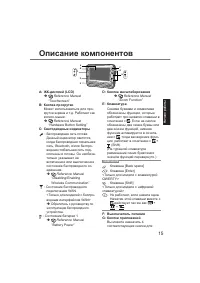
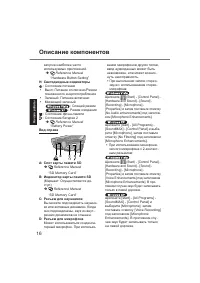
16 G e tt in g S ta rt e d Description of Parts A: LCD Reference Manual “Touchscreen” B: Scroll Button You can scroll the screen, etc. This works as a mouse wheel. Reference Manual “Hardware Button Setting” C: LED Indicator : Wireless ready This indicator lights when Wire- less LAN, Bluetooth, and/o...
Page 17 - A B; B: SD Memory Card Indicator
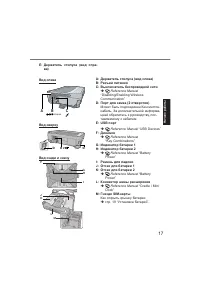
17 G e tt in g S ta rt e d A B D E C Right side A: SD Memory Card Slot Reference Manual “SD Memory Card” B: SD Memory Card Indicator (Blinking: During access) Reference Manual “SD Memory Card” C: Headphone Jack You can connect headphones or ampli fi ed speakers. When they are connected, audio from t...
Page 18 - Rear and Bottom
18 G e tt in g S ta rt e d N K F G H I L J M Rear and Bottom D E D Top C B A DC IN 16V Left side A: Stylus Holder (left side)B: DC-IN JackC: Wireless Switch Reference Manual “Disabling/Enabling Wireless Communication” D: Security Lock (2 holes) A Kensington cable can be con-nected. For further infor...
Page 19 - Inside
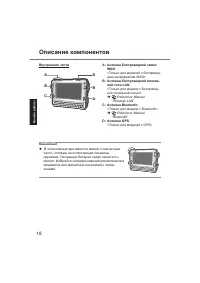
19 G e tt in g S ta rt e d NOTE This computer contains a magnet and magnetic products at the locations circled in the illustration.The battery cover also has the magnet on the back side.Avoid leaving metallic object or magnetic media in contact with these areas. Inside D B A A B C A: Wireless WAN an...
Page 20 - Preparation; Con; • Product Recovery DVD-ROM Windows; Inserting the Battery Packs
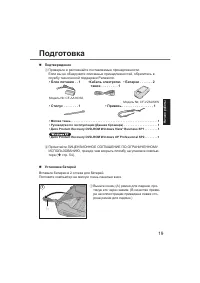
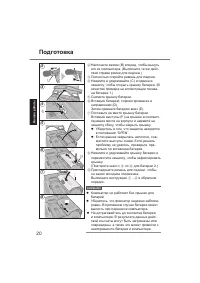
20 G e tt in g S ta rt e d Preparation Con fi rmation A Check and identify the supplied accessories. If you do not fi nd the described accessories, contact Panasonic Technical Support ( page 55). • AC Adaptor . . . . . 1 Model No: CF-AA1633A • AC Cord . . . . . . . 1 • Battery Packs . . . 2 Model No...
Page 22 - About the battery for this computer
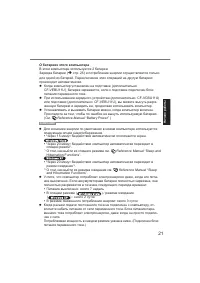
22 G e tt in g S ta rt e d NOTE To conserve power, the following power saving methods are set at the time of purchase. The screen automatically turns off after 15 minutes of inactivity. The computer automatically enters sleep *1 after 20 minutes of inactivity. *1 Reference Manual “Sleep and Hibernat...
Page 23 - Attaching the stylus to the computer
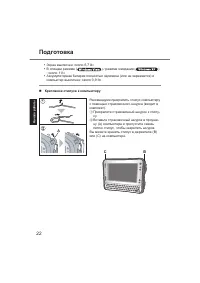
23 G e tt in g S ta rt e d We recommend you fi x the stylus in safe to the computer using the tether (supplied). A Attach the tether to the stylus. B Insert the tether to (A) of computer and pass the stylus to fi x. You can store the stylus at (B) or (C) of the computer. Attaching the stylus to the ...
Page 24 - Adjusting the hand strap; Using the hand strap
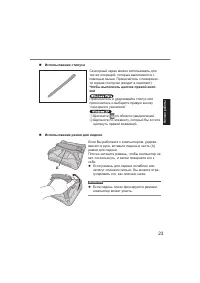
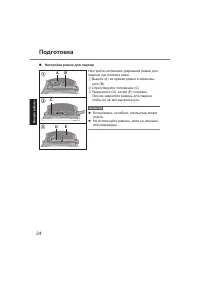
24 G e tt in g S ta rt e d Adjusting the hand strap Adjust the fastening strength of hand strap as below. A Remove (A) from the strap joint and next remove (B). B Adjust the position (C). C Attach (D), then (E) to the joint. Attach the hand strap fi rmly so that the strap does not come off. CAUTION ...
Page 25 - Handling the AC adaptor; Turn on the computer.; Setting up the computer
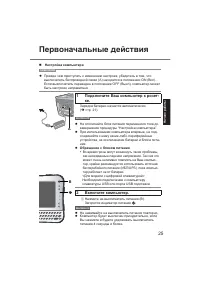
25 G e tt in g S ta rt e d 1 Connect your computer to a power outlet. The battery charging starts automatically. ( page 22). CAUTION Do not disconnect the AC adaptor until the “Setting up the computer” procedure is completed. When using the computer for the fi rst time, do not connect any peripheral...
Page 26 - Setup
26 G e tt in g S ta rt e d CAUTION Do not press the power switch repeatedly. The computer will forcibly be turned off if you press and hold the power switch for 4 seconds or longer. Once you turn off the computer, wait for 10 seconds or more before you turn on the computer again. Do not perform the ...
Page 28 - Perform the touchscreen calibration.
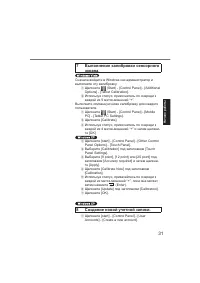
28 G e tt in g S ta rt e d 4 Perform the touchscreen calibration. At fi rst, log on to Windows as an administrator, and per- form this calibration. A Click (Start) - [Control Panel] - [Hardware and Sound] - [Tablet PC Setting]. B Click [Calibrate]. C Select [Touch input]. D Using the stylus, touch e...
Page 29 - PC Information Viewer; Precaution against Starting Up/Shutting Down; To set the screen saver
29 G e tt in g S ta rt e d NOTE PC Information Viewer This computer periodically records the management information of the fl ash memory, etc. The maximum data volume for each record is 2048 bytes. This information is only used for estimating the cause when the fl ash memory goes down by any possibi...
Page 30 - Flash Memory Backup/Restore
30 G e tt in g S ta rt e d B Click [Disk Management]. C Right-click the partition for Windows (“c” drive in the default setting), and click [Shrink Volume]. z The partition size depends on the computer speci fi cations. z If the size of Windows partition is set to smaller than 30,000 MB, data partit...
Page 32 - Handling and Maintenance; Operation environment; Handling cautions
32 Useful Information Handling and Maintenance Operation environment Temperature: Operation : 5 °C to 35 °C {41 °F to 95 °F} Storage : -20°C to 60 °C {- 4 °F to 140 °F} Humidity: Operation : 30% to 80% RH (No condensation) Storage : 30% to 90% RH (No condensation) Even within the above temperature/h...
Page 33 - When using peripheral devices; Maintenance; To clean the LCD panel
33 Useful Information When using peripheral devices Follow these instructions and the Reference Manual to avoid any damage to the devices. Carefully read the instruction manuals of the peripheral devices. Use the peripheral devices conforming to the computer’s speci fi cations. Connect to the connec...
Page 34 - Turn on the computer, and press; Reinstalling Software
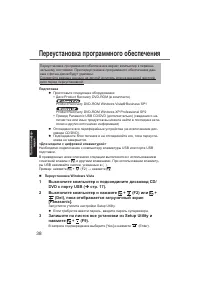
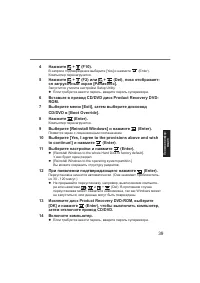
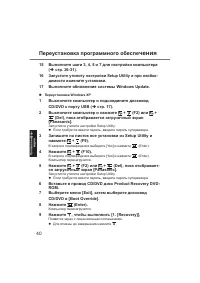
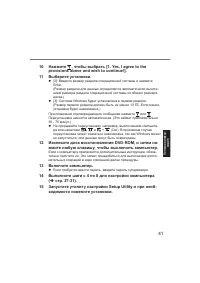
34 Useful Information Reinstalling software will return the computer to the default condition. When you reinstall the software, the fl ash memory data will be erased. Back up important data to other media or an external hard disk before reinstallation. Preparation Prepare the following items: The Pr...
Page 37 - Starting
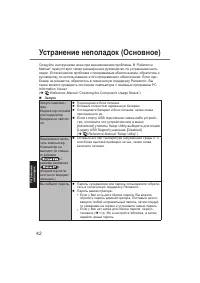
37 Troubleshooting Troubleshooting (Basic) Follow the instructions below when a problem has occurred. There is also an advanced troubleshooting guide in the “Reference Manual”. For a software prob-lem, refer to the software’s instruction manual. If the problem persists, contact Panasonic Technical S...
Page 42 - Shutting
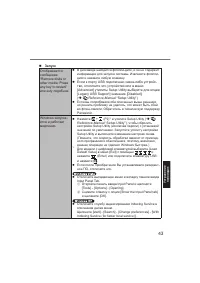
42 Troubleshooting Troubleshooting (Basic) Starting Up Other startup problems. Press + (F9) in the Setup Utility ( Reference Manual “Setup Utility”) to return the Setup Utility set- tings (excluding the passwords) to the default values. Start the Setup Utility and make the settings again. Remove all...
Page 43 - Display
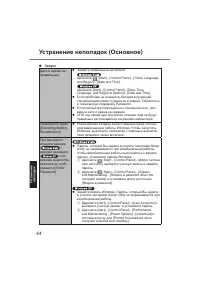
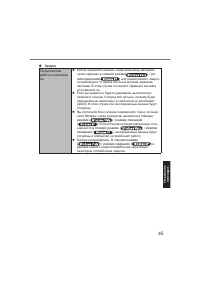
43 Troubleshooting Display No display. The external display is selected. Press + ( ) to switch the display. Wait until the display has been switched completely before pressing + ( ) again. When using an external display, Check the cable connection. Turn on the display. Check the settings of external...
Page 47 - LIMITED USE LICENSE AGREEMENT; LICENSE
47 47 Appendix LIMITED USE LICENSE AGREEMENT THE SOFTWARE PROGRAM(S) (“PROGRAMS”) FURNISHED WITH THIS PANASONIC PRODUCT (“PRODUCT”) ARE LICENSED ONLY TO THE END- USER (“YOU”), AND MAY BE USED BY YOU ONLY IN ACCORDANCE WITH THE LICENSE TERMS DESCRIBED BELOW. YOUR USE OF THE PROGRAMS SHALL BE CONCLUSI...
Page 48 - TERM
48 48 Appendix YOU MAY NOT REVERSE ASSEMBLE, REVERSE COMPILE, OR MECHANI- CALLY OR ELECTRONICALLY TRACE THE PROGRAMS, OR ANY COPY THEREOF, IN WHOLE OR IN PART. YOU MAY NOT USE, COPY, MODIFY, ALTER, OR TRANSFER THE PRO- GRAMS OR ANY COPY THEREOF, IN WHOLE OR IN PART, EXCEPT AS EXPRESSLY PROVIDED IN T...
Page 49 - Contrat de licence d’usage limité; Licence
49 49 Appendix Contrat de licence d’usage limité Le(s) logiciel(s) (les “Logiciels”) fournis avec ce produit Panasonic (le “Produit”) sont exclusivement concédés en licence à l’utilisateur ultime (“vous”), et ils ne peuvent être utilisés que conformément aux clauses contractuelles cidessous. En util...
Page 50 - Termes, clauses et conditions
50 50 Appendix F. Vous ne pouvez retirer aucune marque de droits d’auteur, marque de com- merce ou autre ni aucune identi fi cation de produit des Logiciels et vous devez reproduire et inclure toutes ces notices ou identi fi cations de produit sur toutes les copies des Logiciels. Vous ne pouvez asse...
Page 51 - Speci; Main
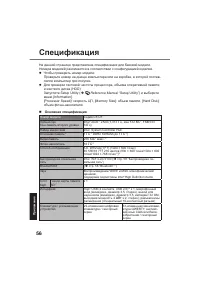
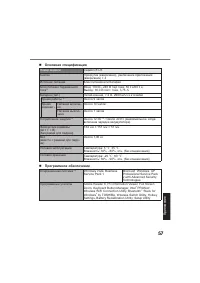
51 51 Appendix Speci fi cations This page provides the speci fi cations for the basic model. The model number is different according to the unit con fi guration. To check the model number: Check the bottom of the computer or the box the computer came in at the time of purchase. To check CPU speed, m...
Page 53 - Wireless LAN
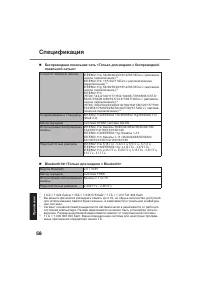
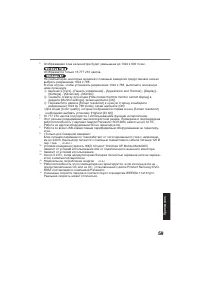
53 53 Appendix Wireless LAN <Only for model with wireless LAN> Data Transfer Rates IEEE802.11a: 54/48/36/24/18/12/9/6 Mbps (automati- cally switched) *18 IEEE802.11b: 11/5.5/2/1 Mbps (automatically switched) *18 IEEE802.11g: 54/48/36/24/18/12/9/6 Mbps (automati- cally switched) *18 IEEE802.11n...
Page 55 - LIMITED WARRANTY
55 55 Appendix For U.S.A. Panasonic Computer Solutions Company - Worldwide Product Warranties Section 1 - Limited Warranty - Hardware Panasonic Computer Solutions Company (referred to as “Panasonic”) will repair the products listed below with new or rebuilt parts, free of charge in the U.S.A. or oth...
Page 58 - For Canada; PANASONIC COMPUTER AND PERIPHERALS LIMITED WARRANTY; Scope of Coverage
58 58 Appendix LIMITED WARRANTY For Canada PANASONIC COMPUTER AND PERIPHERALS LIMITED WARRANTY Coverage – Panasonic Canada Inc. (“PCI”) warrants to you, the fi rst end user customer, this computer product (excluding software media), when purchased from PCI or from a PCI authorized reseller, to be fr...
Page 59 - IF YOU SHIP THE PRODUCT FOR WARRANTY SERVICE; GENERAL
59 59 Appendix *2 AIRCRAFT COCKPIT EQUIPMENT/SYSTEMS include Class2 Electrical Flight Bag (EFB) Systems and Class1 EFB Systems when used during critical phases of fl ight (e. g., during take-off and landing) and/or mounted on to the aircraft. Class1 EFB Systems and 2 EFB Systems are de fi ned by FA ...
Page 60 - Pour le Canada; GARANTIE LIMITÉE – ORDINATEURS ET PÉRIPHÉRIQUES PANASONIC; Éléments couverts; GARANTIE LIMITÉE
60 60 Appendix Pour le Canada GARANTIE LIMITÉE – ORDINATEURS ET PÉRIPHÉRIQUES PANASONIC Couverture – Panasonic Canada Inc. (« PCI ») garantit à l’acheteur original que ce produit informatique (à l’exclusion des supports des logiciels) est, au moment de sa vente par PCI ou d’un revendeur agréé par PC...
Page 61 - EXPÉDITION DU PRODUIT POUR SERVICE SOUS GARANTIE
61 61 Appendix utilisation anormale ou abusive, de la négligence, un accident, un déversement ou la pénétration d’un objet étranger, une modi fi cation, un cas fortuit ou une réparation effec- tuée par une personne non agréée par PCI. CE PRODUIT N’EST PAS DESTINÉ À ÊTRE UTILISÉ, EN TOUT OU EN PARTIE...
Page 62 - GÉNÉRALITÉS
62 62 Appendix GÉNÉRALITÉS PCI NE RECONNAÎT AUCUNE AUTRE GARANTIE, EXPLICITE OU IMPLICITE, Y COMPRIS, MAIS NON EXCLUSIVEMENT, LES GARANTIES IMPLICITES DE VALEUR COMMERCIALE ET D’UTILITÉ À UNE FIN QUELCONQUE, À L’ÉGARD DU LOGICIEL, SUPPORTS DE LOGICIELS, PRODUITS INFORMATIQUES, PÉRIPHÉRIQUES ET ACCES...
Page 63 - MEMO
63 63 MEMO U1mk2̲OI̲XP7.indb 63 U1mk2̲OI̲XP7.indb 63 2010/01/14 16:36:45 2010/01/14 16:36:45