Page 2 - Important Safety Instructions; WARNING; AVIS
2 Important Safety Instructions 1. Read these instructions.2. Keep these instructions.3. Heed all warnings.4. Follow all instructions.5. Do not use this apparatus near water.6. Clean only with dry cloth.7. Do not block any ventilation openings. Install in accordance with the manufacturer’s instructi...
Page 3 - Precautions; Note to CATV system installer:; For Canadian model; Recording Copyright
3 Precautions For U.S. Models Note to CATV system installer: This reminder is provided to call the CATV system installer’s attention to Section 820-40 of the NEC which provides guidelines for proper grounding and, in partic-ular, specifies that the cable ground shall be connected to the grounding sy...
Page 4 - —Continued; For British models; IMPORTANT; For European Models; Supplied Accessories; Make sure you have the following accessories:; Declaration of Conformity; Speaker setup microphone
4 Precautions —Continued For British models Replacement and mounting of an AC plug on the power supply cord of this unit should be performed only by qualified service personnel. IMPORTANT The wires in the mains lead are coloured in accordance with the following code: Blue: NeutralBrown: Live As the ...
Page 5 - Features; Amplifier; THX Select
5 Features Amplifier • 7-channel amplifier • Optimum Gain Volume Circuitry • Zone 2 capability • 24-bit/192 kHz D/A converters • WRAT (Wide Range Amplifier Technology) • Color-coded speaker terminal posts Audio/Video • Dolby *1 Digital, Dolby Digital EX, Dolby Pro Logic IIx • DTS *2 , DTS-ES Discret...
Page 6 - Table of Contents; Basic; Introduction
6 Table of Contents Basic Introduction Important Safety Instructions .......................................................................................... 2Precautions ....................................................................................................................... 3Suppli...
Page 7 - Advanced; Controlling Other Components
7 Table of Contents —Continued Advanced Controlling Other Components Entering a Remote Control Codes ................................................................................ 80Learning Commands from Another Remote Controller ............................................. 88Using Macros .........
Page 8 - Front Panel; N O; Not American and Australian models
8 Front & Rear Panels Front Panel B Z Y W V U X 6 7 8 J K L N O R T P Q S M 1 C 4 5 9 B Z Y W V U X 6 7 8 J K L N O R T P Q S M 1 C 4 5 9 TX-SR702/702E TX-SR602/602E, TX-SR8260 ← Not American and Australian models ← Not American and Australian models ↑ Not American model TX-NR702,602̲En.book Pag...
Page 9 - Display
9 Front & Rear Panels —Continued For detailed information, see the pages in parentheses. A POWER switch (38) American and Australian models don’t have this switch. This is the main power switch. When set to OFF, the AV receiver is completely shutdown. When set to ON, it’s in Standby mode and the...
Page 10 - Listening mode & format indicators; B C D
10 Front & Rear Panels —Continued For detailed information, see the pages in parentheses. 1 MUTING indicator (54) This indicator flashes while the AV receiver is muted. 2 REC OUT indicator (66) This indicator lights up when the REC OUT is selected. 3 ZONE 2 indicator (78) This indicator lights u...
Page 11 - For detailed information, see the pages in parentheses.
11 Front & Rear Panels —Continued For detailed information, see the pages in parentheses. A COMPONENT VIDEO IN 1, 2, 3 (28, 30, 32) These component video inputs can be used to con-nect AV components with component video outputs, such as DVD players. B AM ANTENNA (24) These push terminals are for...
Page 12 - This analog input is for connecting a turntable.
12 Front & Rear Panels —Continued M AC OUTLETS (38) These switched AC outlets can be used to supply power to other AV components. The type of outlet depends on the country in which you purchased your AV receiver. Some models have a single outlet. N Grounding screw (TX-SR702/702E only) (36) This ...
Page 13 - Remote Controller; Installing the Batteries
13 Remote Controller Notes: • The batteries should last for about six months, although this will vary with usage. • If the remote controller doesn’t work reliably, try replacing the batteries. • Don’t mix new and old batteries or different types of batteries. • If you intend not to use the remote co...
Page 14 - . Modes are selected by using; Receiver Mode; RECEIVER
14 Remote Controller —Continued In addition to controlling the AV receiver, the remote controller has several operating modes for controlling your other AV components, including Onkyo compo-nents connected via . Modes are selected by using the remote controller’s REMOTE MODE buttons.For detailed inf...
Page 16 - This button is used to select a DVD’s top menu.; DVD; DVD Mode
16 Remote Controller —Continued DVD mode is used to control an Onkyo DVD player con-nected to the AV receiver via . To set the remote controller to DVD mode, press the [DVD] REMOTE MODE button. A STANDBY button This button is used to set the DVD player to Standby. B ON button This button is used to ...
Page 17 - CD Mode
17 Remote Controller —Continued N A-B button This button is used to set the A–B repeat playback function. O OPEN/CLOSE [ ] button This button is used to open and close the disc tray. P VIDEO OFF button This button is used to turn off the internal video cir-cuitry, eliminating any possibility of inte...
Page 18 - This button is used to start playback.; TAPE
18 Remote Controller —Continued MD/CDR mode is used to control an Onkyo MiniDisc recorder or CD recorder connected to the AV receiver via . To select MD/CDR mode, press the [MD/CDR] REMOTE MODE button. By default, this button is set to control a MiniDisc recorder. To control a CD recorder, it must b...
Page 19 - RANDOM button; TAPE Mode
19 Remote Controller —Continued M FR & FF [ ]/[ ] buttons The FR [ ] button is used to start fast reverse. The FF [ ] button is used to start fast forward. N Stop [ ] button This button is used to stop playback. O RANDOM button This button is used with the random playback func-tion. P MEMORY but...
Page 20 - About Home Theater; Enjoying Home Theater; Front left and right speakers; Surround back left and right speakers
20 About Home Theater Thanks to the AV receiver’s superb capabilities, you can enjoy surround sound with a real sense of movement in your own home—just like being in a movie theater or concert hall. With DVDs you can enjoy DTS and Dolby Digital. With analog and digital TV you can enjoy Dolby Pro Log...
Page 21 - Connecting the AV receiver; Optical Digital Jacks; About AV Connections; Analog audio
21 Connecting the AV receiver • Before making any AV connections, read the manuals supplied with your other AV components. • Don’t connect the power cord until you’ve completed and double-checked all AV connections. Optical Digital Jacks The AV receiver’s optical digital jacks have shutter-type cove...
Page 22 - Speaker Configuration; Connecting Your Speakers; Dipole speakers
22 Connecting the AV receiver —Continued Speaker Configuration For the best surround-sound experience, you should con-nect seven speakers and a powered subwoofer. The following table indicates the channels you should use depending on the number of speakers that you have. *If you’re using only one su...
Page 23 - Speaker Connection Precautions; Unscrew the terminal.
23 Connecting the AV receiver —Continued Speaker Connection Precautions Read the following before connecting your speakers:• American model only: Only connect speakers with an impedance of 6 ohms or higher. If you use speakers with a lower impedance, and use the amplifier at high volume levels for a...
Page 24 - Connecting the Indoor FM Antenna; The supplied indoor FM antenna is for indoor use only.; Connecting the AM Loop Antenna; Connecting Antenna; American Model; Be careful that you don’t injure yourself
24 Connecting the AV receiver —Continued This section explains how to connect the supplied indoor FM antenna and AM loop antenna, and how to connect commercially available outdoor FM and AM antennas.The AV receiver won’t pick up any radio signals without any antenna connected, so you must connect th...
Page 25 - Connecting an Outdoor FM Antenna; • Outdoor FM antennas work best outside, but usable; Using a TV/FM Antenna Splitter; Connecting an Outdoor AM Antenna
25 Connecting the AV receiver —Continued Connecting an Outdoor FM Antenna If you cannot achieve good reception with the supplied indoor FM antenna, try a commercially available out-door FM antenna instead. Notes: • Outdoor FM antennas work best outside, but usable results can sometimes be obtained w...
Page 26 - Video Connection Formats; Connecting Both Audio & Video; Speakers; Which Connections Should I Use?; AV Receiver
26 Connecting the AV receiver —Continued By connecting both the audio and video outputs of your DVD player and other AV components to the AV receiver, you can select both the audio and video simultaneously simply by selecting the appropriate input source on the AV receiver. The AV receiver supports ...
Page 27 - Monitor Out; Using Composite Video; Audio Connections; Using Coaxial or Optical Connections; Connecting Your TV or Projector
27 Connecting the AV receiver —Continued Monitor Out ■ Using Composite Video Use a composite video cable to connect the AV receiver’s V MONITOR OUT jack to a composite video input on your TV, as shown. ■ Using S-Video Use an S-Video cable to connect the AV receiver’s S MONITOR OUT jack to an S-Video...
Page 28 - Video Connections; • Use an optical digital audio cable to connect one of the; Using Analog Connections; , or to record audio from your; Connecting a DVD Player; DVD player
28 Connecting the AV receiver —Continued Video Connections You only need to use one of the following connection methods. ■ Using Composite Video Use a composite video cable to connect the AV receiver’s V DVD IN jack to the composite video output on your DVD player, as shown. ■ Using S-Video Use an S...
Page 29 - Using a Multichannel Connection
29 Connecting the AV receiver —Continued ■ Using a Multichannel Connection If your DVD player supports multichannel audio formats such as DVD-Audio, and it has a 5.1-channel analog audio output, you can enjoy DVD-Audio playback.Use a multichannel analog audio cable to connect the AV receiver’s DVD I...
Page 30 - • Use an S-Video cable to connect the AV receiver’s; • Use an analog audio cable to connect the AV receiver’s; Connecting a VCR for Playback; VCR; Connecting a D-VHS VCR for Playback
30 Connecting the AV receiver —Continued This section shows how to connect a VCR for playback so that you can watch videos via the AV receiver. Video Connections • Use an S-Video cable to connect the AV receiver’s S VIDEO 1 IN jack to a S-Video output on your VCR, as shown. OR• Use a composite video...
Page 31 - Connecting a VCR for Recording; TV
31 Connecting the AV receiver —Continued This section explains how to connect a VCR for recording from a TV or another VCR. Video Connections • Use an S-Video cable to connect the AV receiver’s S VIDEO 1 OUT jack to an S-Video input on the recording VCR. Use another S-Video cable to connect the AV r...
Page 32 - Using Optical or Coaxial Connections; • To connect the AV receiver to an LD player’s AC-3RF
32 Connecting the AV receiver —Continued Video Connections You only need to use one of the following connection methods. ■ Using Composite Video Use a composite video cable to connect the AV receiver’s V VIDEO 3 IN jack to a composite video output on your video source, as shown. ■ Using S-Video Use ...
Page 34 - , or to record audio from your CD; Analog Connections; Connecting a CD Player; CD player; Connecting a Cassette Recorder; Cassette recorder
34 Connecting the AV receiver —Continued ■ Using Optical or Coaxial Connections If you connect to a digital audio input, you’ll need to assign it (see page 42).• Use an optical digital audio cable to connect one of the AV receiver’s OPTICAL DIGITAL IN jacks to the optical output on your CD player, a...
Page 35 - Digital Recording
35 Connecting the AV receiver —Continued ■ Using Optical or Coaxial Connections (playback only) If you connect to a digital audio input, you’ll need to assign it (see page 42).• Use an optical digital audio cable to connect one of the AV receiver’s OPTICAL DIGITAL IN jacks to the optical output on y...
Page 36 - • If your turntable has a ground wire, connect it to the; Turntable with a Built-in Phono Preamp; Connecting a Turntable; Phono preamp
36 Connecting the AV receiver —Continued For the TX-SR702/702E The AV receiver’s PHONO IN is designed for use with a moving magnet (MM) type cartridge. Use an analog audio cable to connect the AV receiver’s PHONO IN L/R jacks to the audio output on your turn-table, as shown. Notes: • If your turntab...
Page 37 - • To use; Auto Power On/Standby; Power amplifier; Connecting
37 Connecting the AV receiver —Continued If you want to connect a more powerful power amplifier and use the AV receiver as a preamp, you can connect one to the PRE OUT jacks. In this case, you should con-nect all speakers and the subwoofer to that power ampli-fier. However, if you have a powered sub...
Page 38 - Not for the American and Australian models:; Connecting the RS232 Port; American model; Turning On the AV receiver; POWER
38 Connecting the AV receiver —Continued The AV receiver has AC outlets on its rear panel that can be used to connect the power cords of AV other compo-nents that you intend to use with the AV receiver. These components can then be left turned on so that they turn on and off as and when the AV recei...
Page 39 - First Time Setup; Automatic Speaker Setup
39 First Time Setup This chapter explains the settings that you need to make before using the AV receiver. With the supplied speaker setup microphone, the Auto-matic Speaker Setup function can measure the test tone output by each speaker and automatically determine the number of speakers connected, ...
Page 40 - The Setup Result menu appears.; Use the Up and Down [; That completes the setup.
40 First Time Setup —Continued 3 Press [ENTER]. The automatic speaker setup starts.The test tone is output by each speaker in turn, measured by the microphone, and the speaker settings set accord-ingly. The whole process takes about 90 seconds. If any extraneous noise is picked up by the microphone,...
Page 41 - Basic Setup; About the Onscreen Setup Menus; Main menus
41 First Time Setup —Continued The AV receiver is configured using onscreen setup menus, which are displayed on the TV that’s connected to either of the MONITOR OUT jacks. Because they appear on your TV, they’re large and clear, making setup a breeze.Settings are divided into two groups: Basic Setup...
Page 42 - Digital Input; Initial Setup
42 First Time Setup —Continued Digital Input If you connect a component to a digital input jack, you must assign that jack to an input selector. For example, if you connect your CD player to the OPTICAL IN2 jack, you should assign that jack to the CD input selector. By default, the OPTICAL IN1 jack ...
Page 43 - Component Video Setup; Input
43 First Time Setup —Continued Component Video Setup If you connect to a COMPONENT VIDEO IN, you must assign it to an input selector. For example, if you connect your DVD player to COMPONENT IN 3, you should assign it to the DVD input selector. For the TX-SR702/702E, TX-SR602E, and Australian TX-SR6...
Page 44 - Minimum Speaker Impedance
44 First Time Setup —Continued Minimum Speaker Impedance (not American models) If the impedance of any of the connected speakers is 4 ohms or more, but less than 6 ohms, set the Minimum Speaker Impedance to “4 ohms.” Note: Before you change this setting, turn down the volume. Notes: • This procedure...
Page 45 - AM Frequency Step Setup
45 First Time Setup —Continued TV Format Setup (not American models) Here you can specify the TV format used in your area. Note: • This procedure can also be performed on the AV receiver by using its [SETUP] button, arrow buttons, and [ENTER] button. AM Frequency Step Setup (some models only) Here y...
Page 46 - and for those with a diameter; Speaker Setup; The main menu appears onscreen.; The Speaker Setup menu appears.; The Speaker Config menu appears.; • If the Subwoofer setting in step 4 is
46 First Time Setup —Continued Some of the settings in this section are set automatically by the Automatic Speaker Setup function (see page 39).Here you can check the settings made by the Automatic Speaker Setup function, or set them manually, which is useful if you change one of the connected speak...
Page 47 - Crossover; Speaker cone
47 First Time Setup —Continued Crossover Notes: • If the crossover frequency is set to a low value, and the program material doesn’t contain any sounds below that frequency, the subwoofer will not output much sound. 6 Use the Up and Down [ ]/[ ] buttons to select “c. Center,” and then use the Left a...
Page 48 - Double Bass
48 First Time Setup —Continued Double Bass With the Double Bass function, you can boost bass out-put by feeding bass sounds from the front left and right channels to the subwoofer. This function can be set only if the Subwoofer setting in step 4 is set to Yes, and the Front setting in step 5 is set ...
Page 49 - • This procedure can also be performed on the AV; The setup menu closes.
49 First Time Setup —Continued Notes: • On the TX-SR702/702E, if the distance between the furthest and nearest speakers is greater than 20 feet (6 meters), corrected values suitable for home theater use will be set automatically. • On the TX-SR602/602E and TX-SR8260, the Center and Subwoofer distanc...
Page 50 - Speaker Level Calibration; • The speakers cannot be calibrated while the output of
50 First Time Setup —Continued Speaker Level Calibration Here you can adjust the level of each speaker with the built-in test tone so that the volume of each speaker is the same at the listening position. Notes: • The speakers cannot be calibrated while the output of the AV receiver is muted, while ...
Page 51 - Equalizer Setting
51 First Time Setup —Continued Equalizer Setting Here you can adjust the EQ of individual speakers. The volume of individual speakers can be set on page 50. Notes: • This procedure can also be performed on the AV receiver by using its [SETUP] button, arrow buttons, and [ENTER] button. 1 Press the [R...
Page 52 - If you connect an
52 First Time Setup —Continued If you connect an -compatible Onkyo MiniDisc recorder or CD recorder to the TAPE IN/OUT jacks, for to work properly, you must change this setting. This setting can only be changed on the AV receiver. Changing the TAPE/MD/CDR Display 1 Press the [TAPE] input selector bu...
Page 53 - Basic Operation; Selecting the Input Source; Start playback on the source component.; or
53 Basic Operation This section explains how to select the input source (i.e., the AV component that you want to listen to or watch). Selecting the Input Source 1 3 3 1 1 1 Use the AV receiver’s input selector buttons to select the input source. To select the input source with the remote controller,...
Page 54 - Setting the Display Brightness; DIMMER; Using the Sleep Timer
54 Basic Operation —Continued You can adjust the brightness of the display. You can temporarily mute the output of the AV receiver. With the sleep timer, you can set the AV receiver to auto-matically turn off after a specified period. If you need to cancel the sleep timer, press the [SLEEP] button r...
Page 55 - Interpreting Surround Channel Values; B: The number of surround channels (2 means surround; Displaying Source Information; volume
55 Basic Operation —Continued You can display various information about the current input source as follows. The following information can typically be displayed for input sources. *If the input signal is analog, no format information is displayed. If the input signal is PCM, the sampling fre-quency...
Page 56 - Listening to the Radio; Auto Tuning Mode; Using the Tuner
56 Basic Operation —Continued With the built-in tuner you can enjoy AM and FM radio stations. You can store your favorite stations as presets for quick selection. Listening to the Radio Tuning into Radio Stations ■ Auto Tuning Mode When tuned into a station, the TUNED indicator appears. When tuned i...
Page 57 - Presetting Radio Stations; select a preset from 1 through 40.; See the previous section.; Listening mode
57 Basic Operation —Continued Presetting Radio Stations You can store up to 40 of your favorite radio stations as presets. Selecting Preset Stations Deleting Presets Displaying Radio Information 1 Tune into the station that you want to store as a preset. 2 Press the [MEMORY] button. The MEMORY indic...
Page 58 - RDS stands for; Type
58 Basic Operation —Continued Using RDS (European models only) RDS only works with European models and only in areas where RDS broadcasts are available. ■ What is RDS? RDS stands for Radio Data System and it’s a method of transmitting data in FM radio signals. It was developed by the European Broadc...
Page 60 - Selecting on the AV receiver; Selecting Listening Modes; • The Dolby Digital and DTS listening modes
60 Basic Operation —Continued See “About the Listening Modes” on page 62 for detailed information about the listening modes. Selecting on the AV receiver ■ [PURE AUDIO] button (not American TX-SR602) This button selects the Pure Audio listening mode. While this mode is selected, the AV receiver outp...
Page 61 - Multich
61 Basic Operation —Continued The following table lists all the listening modes and shows which modes can be selected for each input signal format. Input signal format Analog, PCM*1 1. In the Pure Audio and Direct listening modes, PCM signals at 32 kHz, 44.1 kHz, and 48 kHz are processed at 64 kHz, ...
Page 62 - About the Listening Modes
62 Basic Operation —Continued About the Listening Modes With its built-in surround-sound decoders and DSP pro-grams, the AV receiver can transform your home listen-ing room into a movie theater or concert hall. If you connect two surround back speakers (i.e., left and right), both will be used for 6...
Page 63 - Onkyo Original DSP Modes
63 Basic Operation —Continued DTS-ES Matrix This is DTS with an added surround back channel for 6.1 surround sound. Use it to provide 6.1 channel surround playback with program material recorded in DTS 5.1 format. Since DTS 5.1 program material contains surround back channel informa-tion, all channe...
Page 64 - Advanced Operation; • The effect of the Late Night function depends on the
64 Advanced Operation With the Late Night function, you can reduce the dynamic range of Dolby Digital material so that you can still hear quiet parts even when listening at low volume levels—ideal for watching movies late at night when you don’t want to disturb anyone. Notes: • The effect of the Lat...
Page 65 - Adjusting Individual Speaker Levels
65 Advanced Operation —Continued You can adjust the level of individual speakers during playback. These adjustments are temporary and will be cancelled when the AV receiver is set to Standby. Notes: • You cannot use this function while the AV receiver is muted. • Speakers that are set to No or None ...
Page 66 - Recording Audio; Recording; REC OUT; Start recording on the recorder.
66 Advanced Operation —Continued This section explains how to record the current input source, how to record one input source while enjoying another, and how to dub audio onto your video record-ings. Unless you have the full consent of the copyright holder, copyright laws prohibit using your recordi...
Page 67 - AV Recording; Prepare the VCR for recording.; Camcorder
67 Advanced Operation —Continued AV Recording You can record AV input sources to an AV recording component (VCR, etc) connected to the VIDEO 1 OUT or VIDEO 2 OUT. See pages 27–38 for information on connecting components. Recording Separate AV Sources Here you can record audio and video from complete...
Page 68 - Advanced Setup; Decoder Setup
68 Advanced Setup Here are surround-related settings for PCM, Dolby Dig-ital, multichannel, and other input signal formats. Note: • This procedure can also be performed on the AV receiver by using its [SETUP] button, arrow buttons, and [ENTER] button. 3-1. Analog/PCM These settings apply to PCM inpu...
Page 69 - a. Subwoofer Sensitivity
69 Advanced Setup —Continued ■ c. SurrBack Mode This setting determines which surround mode is used for Dolby Digital input signals that don’t contain a Dolby Digital EX flag, or when the b. Dolby EX setting is set to Manual. This setting is unavailable if no surround back speakers are connected.You...
Page 70 - Bass; Adjusting the Bass & Treble; The Audio Adjust menu appears.; The settings are explained below.
70 Advanced Setup —Continued You can adjust the bass and treble for the front speakers, except when the Direct, Pure Audio (not American TX-SR602), or THX listening mode is selected. ■ Bass You can boost or cut low-frequency sounds output by the front speakers from –10 dB to +10 dB in 2 dB steps. ■ ...
Page 71 - Mono audio is output from the center speaker.
71 Advanced Setup —Continued 4-1. Mono ■ a. Output Channel This setting determines which speakers are used to out-put mono audio when the Mono listening mode is used. L/R: Mono audio is output from the front left and right speakers (default). Center: Mono audio is output from the center speaker. ■ b...
Page 72 - Select if the listening angle is 20 degrees.; e. Virtual Surr Level
72 Advanced Setup —Continued 4-9. Theater-Dimensional These settings apply to the Theater-Dimensional listen-ing mode. ■ a. Listening Angle With this setting, you can specify the angle of the front left and right speakers relative to the listening position.Processing for the Theater-Dimensional list...
Page 74 - Setting Preferences
74 Advanced Setup —Continued This section explains the items on the Preference menu. Note: • This procedure can also be performed on the AV receiver by using its [SETUP] button, arrow buttons, and [ENTER] button. 6-1. IntelliVolume With this preference, you can set the input level for each input sou...
Page 75 - Actions not displayed.; Changing the Remote Controller’s ID
75 Advanced Setup —Continued 6-3. OSD Setup ■ a. Immediate Display This preference determines whether or not actions, such as selecting an input source, are displayed onscreen. Normal: Select if your TV is 4:3. Wide: Select if your TV is 16:9. Off: Actions not displayed. Even if this preference is s...
Page 76 - Zone 2; Using a Receiver/Integrated Amp in Zone 2; • Connect the Zone 2 speakers to the speaker terminals; Using Only Speakers in Zone 2; • Set the Powered Zone 2 setting to Activated (see; Connecting Zone 2; Main room
76 Zone 2 With the Zone 2 function, you can enjoy one input source in the main room and a different source in another room.There are two connection methods: using a receiver/inte-grated amp in Zone 2 or using only a pair of speakers in Zone 2. Using a Receiver/Integrated Amp in Zone 2 With this conn...
Page 77 - Setting the Powered Zone 2
77 Zone 2 —Continued To use Zone 2, you must make this setting. It enables the speakers connected to the ZONE 2 SPEAKERS termi-nals so that they produce sound when Zone 2 is used. Note: • This procedure can also be performed on the AV receiver by using its [SETUP] button, arrow buttons, and [ENTER] ...
Page 78 - Using Zone 2; ] buttons within five; buttons to select OFF.
78 Zone 2 —Continued Here you can turn on Zone 2, select an input source, and adjust the volume. Note: To control Zone 2 with the remote controller, you must press the [ZONE 2] button first. Notes: • If the Sleep function has been set, the Zone 2 compo- nent will turn off along with the AV receiver ...
Page 79 - Using the 12V Trigger; Using the Remote Control in Zone 2
79 Zone 2 —Continued Using the 12V Trigger When Zone 2 is turned on, the ZONE 2 12V TRIGGER OUT outputs 12 volts (100 milliamperes max). By con-necting this jack to the 12-volt trigger input on, say, a power amp in Zone 2, that power amp will turn on and off automatically as and when Zone 2 is turne...
Page 80 - Codes for Onkyo DVD Players; Entering Remote Control Codes
80 Controlling Other Components You can use the AV Receiver’s remote controller (RC-588M/RC-590M/RC-591M) to control your other com-ponents, including those made by other manufacturers. This chapter explains how to:• Enter the remote control code for a component that you want to control (e.g., DVD, ...
Page 81 - Resetting REMOTE MODE Buttons; The REMOTE MODE button is reset.; The remote controller is reset.
81 Controlling Other Components —Continued Resetting REMOTE MODE Buttons If you’ve entered another code for one of these button and now want to return to the default, perform the fol-lowing procedure.By default, some REMOTE MODE buttons are prepro-grammed with remote control codes for controlling On...
Page 82 - Remote Control Codes
82 Controlling Other Components —Continued Remote Control Codes When two or more codes are given, try each one in turn, and choose the one that works best.Depending on the manufacturer and component, the remote controller may not work as expected. DVD (DVD player) Manufacturer Control code Aiwa 5010...
Page 86 - Controlling a TV; Buttons marked with an asterisk can always be used to; Controlling a Cable Receiver
86 Controlling Other Components —Continued To control another component, point the remote control-ler at it and use the buttons as explained below (you must select the appropriate remote control mode first). Controlling a TV Buttons marked with an asterisk can always be used to control a TV regardle...
Page 87 - Controlling a VCR; Press
87 Controlling Other Components —Continued Controlling a VCR The following buttons control the AV Receiver.[VOL]: Adjusts the volume of the AV receiver.[MUTING]: Mutes the AV Receiver. Controlling a Satellite Receiver The following buttons control the AV Receiver.[VOL]: Adjusts the volume of the AV ...
Page 89 - Making Macros; Using Macros
89 Controlling Other Components —Continued With the Macro function, you can program the remote controller’s MACRO buttons to perform a sequence of actions with just one button press. For example, nor-mally you need to perform the following actions to play a CD: 1. Press the REMOTE MODE [[[[R R R RE ...
Page 90 - Troubleshooting; Can’t turn on the AV receiver?; Power
90 Troubleshooting If you have any trouble using the AV receiver, look for a solution in this section. If you can’t resolve the issue yourself, contact your Onkyo dealer. Can’t turn on the AV receiver? • Make sure that the power cord is properly plugged into the wall outlet. • Unplug the power cord ...
Page 92 - The remote controller doesn’t work?; Tuner
92 Troubleshooting —Continued Reception is noisy, FM stereo reception is noisy, or the FM STEREO indicator doesn’t appear? • Relocate your antenna.• Move the AV receiver away from your TV or com- puter. • Listen to the station in mono (page 56).• When listening to an AM station, operating the remote...
Page 93 - The speaker volume cannot be set as required?; Others
93 Troubleshooting —Continued The sound changes when I connect my head-phones? • When a pair of headphones is connected, the listening mode is set to Stereo, unless it’s already set to Stereo, Direct, or Pure Audio (not all models). When you dis-connect the headphones, the previous listening mode wi...
Page 96 - MEMO
96 MEMO SN 29343831C I0409-4 (C) Copyright 2004 ONKYO CORPORATION Japan. All rights reserved. http://www.onkyo.com/ HOMEPAGE Sales & Product Planning Div. : 2-1, Nisshin-cho, Neyagawa-shi, OSAKA 572-8540, JAPANTel: 072-831-8023 Fax: 072-831-8124 ONKYO U.S.A. CORPORATION 18 Park Way, Upper Saddle...


 Onkyo M5010
User Manual
Onkyo M5010
User Manual
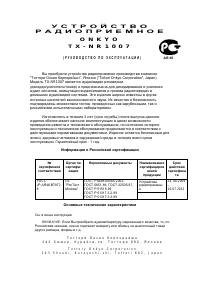 Onkyo TX-NR1007
Manual
Onkyo TX-NR1007
Manual
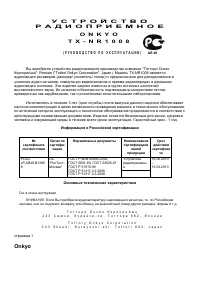 Onkyo TX-NR1008
Manual
Onkyo TX-NR1008
Manual
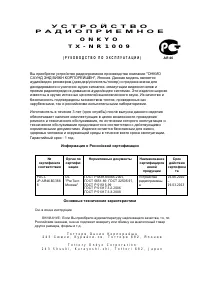 Onkyo TX-NR1009
Manual
Onkyo TX-NR1009
Manual
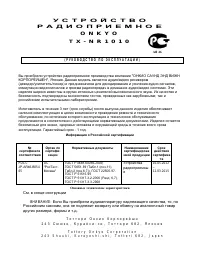 Onkyo TX-NR1010
Manual
Onkyo TX-NR1010
Manual
 Onkyo TX-NR1030
Manual
Onkyo TX-NR1030
Manual
 Onkyo TX-NR3007
Manual
Onkyo TX-NR3007
Manual
 Onkyo TX-NR3008
Manual
Onkyo TX-NR3008
Manual
 Onkyo TX-NR3009
Manual
Onkyo TX-NR3009
Manual
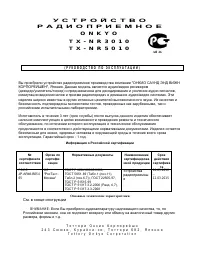 Onkyo TX-NR3010
Manual
Onkyo TX-NR3010
Manual
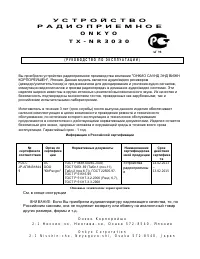 Onkyo TX-NR3030
Manual
Onkyo TX-NR3030
Manual
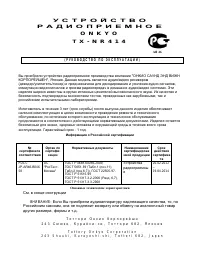 Onkyo TX-NR414
Manual
Onkyo TX-NR414
Manual
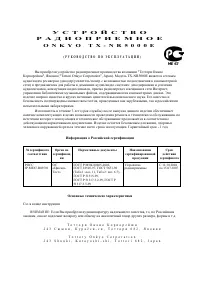 Onkyo TX-NR5000E
Manual
Onkyo TX-NR5000E
Manual
 Onkyo TX-NR5007
Manual
Onkyo TX-NR5007
Manual
 Onkyo TX-NR5008
Manual
Onkyo TX-NR5008
Manual
 Onkyo TX-NR5009
Manual
Onkyo TX-NR5009
Manual
 Onkyo TX-NR515
Manual
Onkyo TX-NR515
Manual
 Onkyo TX-NR525
Manual
Onkyo TX-NR525
Manual
 Onkyo TX-NR535
Manual
Onkyo TX-NR535
Manual
 Onkyo TX-NR579
Manual
Onkyo TX-NR579
Manual