Page 2 - Important Safety Instructions; WARNING; AVIS
2 Important Safety Instructions 1. Read these instructions.2. Keep these instructions.3. Heed all warnings.4. Follow all instructions.5. Do not use this apparatus near water.6. Clean only with dry cloth.7. Do not block any ventilation openings. Install in accordance with the manufacturer’s instructi...
Page 3 - Precautions; Recording Copyright; For Canadian Models
3 Precautions 1. Recording Copyright —Unless it’s for personal use only, recording copyrighted material is illegal with-out the permission of the copyright holder. 2. AC Fuse —The AC fuse inside the unit is not user- serviceable. If you cannot turn on the unit, contact your Onkyo dealer. 3. Care —Oc...
Page 4 - —Continued; For British models; IMPORTANT; For European Models; Supplied Accessories; Make sure you have the following accessories:; Declaration of Conformity; Speaker setup microphone
4 Precautions —Continued For British models Replacement and mounting of an AC plug on the power supply cord of this unit should be performed only by qualified service personnel. IMPORTANT The wires in the mains lead are coloured in accordance with the following code: Blue: NeutralBrown: Live As the ...
Page 5 - Contents; AM Frequency Step Setup
5 Contents Important Safety Instructions .......................... 2 Precautions ....................................................... 3 Supplied Accessories ...................................... 4 Features ............................................................ 6 Multiroom Capability ........
Page 6 - Features; Amplifier
6 Features Amplifier • 75 Watts/Channel @ 8 ohms (FTC) (TX-SR506)• 80 Watts/Channel @ 8 ohms (FTC) (TX-SR576)• 130 Watts/Channel @ 6 ohms (IEC)• 160 Watts/Channel @ 6 ohms (JEITA)• WRAT-Wide Range Amplifier Technology (5Hz–100kHz bandwidth) • High-Current Low-Impedance Drive (TX-SR506)• Optimum Gain...
Page 7 - Multiroom Capability; You can use two speaker systems with this AV receiver; *The listening modes cannot be used with Zone 2.; Main Room; Front left and right speakers; Zone 2 Room
7 Multiroom Capability You can use two speaker systems with this AV receiver —a surround-sound speaker system (up to 7.1 channels) in your main listening room, a stereo speaker system in a second room, or Zone 2, as we call it. And, you can select a dif-ferent audio source for each room. Main Room: ...
Page 8 - Getting to Know the AV Receiver; Sets the AV receiver to On or Standby.; Display; See “Display” on page 9.; SETUP button; Opens and closes the setup menus.; RETURN button; Selects the previously displayed setup menu.; Front Panel; O P Q R S TU V; Other models
8 Getting to Know the AV Receiver The actual front panel has various logos printed on it. They are not shown here for clarity. The page numbers in parentheses show where you can find the main explanation for each item. A ON/STANDBY button (35) Sets the AV receiver to On or Standby. B STANDBY indicat...
Page 9 - Listening mode and format indicators (55)
9 Getting to Know the AV Receiver —Continued For detailed information, see the pages in parentheses. J MASTER VOLUME control (45) Sets the volume of the AV receiver to Min, 1 through 79, or Max. K PHONES jack (47) This 1/4-inch phone jack is for connecting a stan-dard pair of stereo headphones for p...
Page 10 - This; Rear Panel; K L
10 Getting to Know the AV Receiver —Continued A DIGITAL IN OPTICAL 1 and 2 These optical digital audio inputs are for connecting components with an optical digital audio output, such as a CD player or DVD player. They’re assign-able, which means you can assign each one to an input selector to suit y...
Page 11 - DVD IN; See pages 14–34 for hookup information.
11 Getting to Know the AV Receiver —Continued M CBL/SAT IN A cable or satellite receiver can be connected here. There are S-Video and composite video input jacks for connecting the video signal, and there are analog audio input jacks for connecting the audio signal. N VCR/DVR IN/OUT A video componen...
Page 12 - Remote Controller; Controlling the AV Receiver; REMOTE MODE button
12 Remote Controller For detailed information, see the pages in parentheses. A ON/STANDBY button (35) Sets the AV receiver to On or Standby. B REMOTE MODE/INPUT SELECTOR buttons (45, 83–89) Selects the remote controller modes and the input sources. C MULTI CH button (45) Selects the multichannel DVD...
Page 13 - Installing the Batteries; Replace the cover and push it shut.; Using the Remote Controller
13 Remote Controller —Continued Notes: • If the remote controller doesn’t work reliably, try replacing the batteries. • Don’t mix new and old batteries or different types of batteries. • If you intend not to use the remote controller for a long time, remove the batteries to prevent damage from leaka...
Page 14 - Connecting Your Speakers; Enjoying Home Theater; Surround back left and right speakers
14 Connecting Your Speakers Thanks to the AV receiver’s superb capabilities, you can enjoy surround sound with a real sense of movement in your own home—just like being in a movie theater or concert hall. You can enjoy DVDs featuring Dolby Digital or DTS. With analog or digital TV, you can enjoy Dol...
Page 15 - Speaker Configuration; Using Dipole Speakers; Dipole speakers
15 Connecting Your Speakers —Continued Speaker Configuration For 7.1-channel surround-sound playback, you need seven speakers and a powered subwoofer. The following table shows which channels you should use based on the number of speakers you have. * If you’re using only one surround back speaker, c...
Page 16 - Speaker Connection Precautions; North American models:; Connecting the Speaker Cables; Unscrew the terminal.
16 Connecting Your Speakers —Continued Speaker Connection Precautions Read the following before connecting your speakers: • North American models: You can connect speakers with an impedance of between 6 and 16 ohms. If you use speakers with a lower impedance, and use the amplifier at high volume lev...
Page 17 - • When bi-amping is used, the AV receiver is able to; Bi-amping Speaker Hookup; Bi-amping Front Speakers
17 Connecting Your Speakers —Continued The FRONT L/R and SURR BACK L/R terminal posts can be used with front speakers and surround back speakers respectively, or bi-amped to provide separate tweeter and woofer feeds for front speakers, providing improved bass and treble performance. • When bi-amping...
Page 18 - Connecting Antennas; The supplied indoor FM antenna is for indoor use only.; Connecting the Indoor FM Antenna; American Model; Be careful that you don’t injure yourself; AM antenna push terminals; Connecting the AM Loop Antenna
18 Connecting Antennas This section explains how to connect the supplied indoor FM antenna and AM loop antenna, and how to connect commercially available outdoor FM and AM antennas. The AV receiver won’t pick up any radio signals without any antenna connected, so you must connect the antenna to use ...
Page 19 - • Outdoor FM antennas work best outside, but usable; Using a TV/FM Antenna Splitter; Connecting an Outdoor FM Antenna; Connecting an Outdoor AM Antenna
19 Connecting Antennas —Continued If you cannot achieve good reception with the supplied indoor FM antenna, try a commercially available out-door FM antenna instead. Notes: • Outdoor FM antennas work best outside, but usable results can sometimes be obtained when installed in an attic or loft. • For...
Page 20 - Connecting Your Components; Optical Digital Jacks; About AV Connections; Analog audio
20 Connecting Your Components • Before making any AV connections, read the manuals supplied with your other AV components. • Don’t connect the power cord until you’ve completed and double-checked all AV connections. Optical Digital Jacks The AV receiver’s optical digital jacks have shutter-type cove...
Page 21 - Video Connection Formats; Connecting Audio and Video Signals to the AV Receiver; Speakers; Which Connections Should I Use?; IN
21 Connecting Your Components —Continued By connecting both the audio and video outputs of your DVD player and other AV components to the AV receiver, you can switch the audio and video signals simultaneously simply by changing the input source on the AV receiver. The AV receiver supports several co...
Page 22 - Connecting a TV or Projector; Connection; Step 1: Video Connection; A B; Step 2: Audio Connection
22 Connecting Your Components —Continued • With connection , you can listen to and record audio from your TV or listen in Zone 2. • To enjoy Dolby Digital and DTS, use connection or . (To record or listen in Zone 2 as well, use and , or and .) If your TV has no audio outputs, connect an audio output...
Page 23 - Connecting a DVD player
23 Connecting Your Components —Continued • With connection , you can listen to and record audio from a DVD or listen in Zone 2. • To enjoy Dolby Digital and DTS, use connection or . (To record or listen in Zone 2 as well, use and , or and .) • If your DVD player has main left and right outputs and m...
Page 24 - Hooking Up the Multichannel Input; DVD player
24 Connecting Your Components —Continued Hooking Up the Multichannel Input If your DVD player supports multichannel audio formats such as DVD-Audio and SACD, and it has a multichannel analog audio output, you can connect it to the AV receiver’s multichannel input. Use a multichannel analog audio cab...
Page 25 - Connecting a VCR or DVR for Playback
25 Connecting Your Components —Continued With this hookup, you can use the tuner in your VCR or DVR to listen to your favorite TV programs via the AV receiver, which is useful if your TV has no audio outputs. • With connection , you can listen to the VCR or DVR in Zone 2. • To enjoy Dolby Digital an...
Page 26 - Connecting a VCR or DVR for Recording; Choose a video connection that matches your VCR or DVR (; Make the audio connection
26 Connecting Your Components —Continued Notes: • The AV receiver must be turned on for recording. Recording is not possible while it’s on Standby. • If you want to record directly from your TV or another video source without going through the AV receiver, connect the audio and video outputs from yo...
Page 28 - About HDMI; so TVs and displays; Supported Audio Formats; a copy-protection system for digital; Connecting Components with HDMI
28 Connecting Your Components —Continued About HDMI Designed to meet the increased demands of digital TV, HDMI (High Definition Multimedia Interface) is a new digital interface standard for connecting TVs, projectors, DVD players, set-top boxes, and other video components. Until now, several separat...
Page 29 - Audio Signals; on, otherwise no HDMI signal will be output.
29 Connecting Your Components —Continued ■ Audio Signals For TX-SR506 • Audio and video signals received via inputs other than the HDMI IN jacks are not output by the HDMI OUT.• Audio and video signals received via the HDMI IN jacks are output only by the HDMI OUT. • To watch an HDMI source that’s c...
Page 30 - Connecting a Camcorder, Game Console, or Other Device; Step 1: Make the video connection
30 Connecting Your Components —Continued Connecting a Camcorder, Game Console, or Other Device Connection AV receiver Signal flow Camcorder or console AUX INPUT VIDEO ⇐ Composite video output AUX INPUT L-AUDIO-R ⇐ Analog audio L/R output SETUP SETUP MIC VIDEO L AUDIO R AUX INPUT ENTER RETURN TUNING ...
Page 31 - Turntable with an MC (Moving Coil) Cartridge; Connecting a CD Player or Turntable
31 Connecting Your Components —Continued ■ CD Player or Turntable (MM) with Built-in Phono Preamp • With connection , you can listen to and record audio from the CD player or listen in Zone 2. • To connect the CD player digitally, use connection or . (To record or listen in Zone 2 as well, use and ,...
Page 33 - If Your iPod Supports Video:; Connecting an RI Dock; Not all iPod models output video.; • Connect the RI Dock to the AV receiver with an
33 Connecting Your Components —Continued ■ If Your iPod Supports Video: Connect your RI Dock’s audio output jacks to the AV receiver’s CBL/SAT IN L/R jacks, and connect its video output jack to the AV receiver’s CBL/SAT IN V jack. If you have an Onkyo DS-A1 RI Dock, connect its video output jack to ...
Page 34 - Auto Power On/Standby; Connecting Onkyo; Connecting the Power Cord
34 Connecting Your Components —Continued With (Remote Interactive), you can use the following special functions: Auto Power On/Standby When you start playback on a component connected via , if the AV receiver is on Standby, it will automatically turn on and select that component as the input source....
Page 35 - Turning On the AV Receiver; Turning On and Standby; or; Up and Running in a Few Easy Steps; Do the automatic speaker setup—this is essential!; If you did, see “Changing the Input Display” on page 43.
35 Turning On the AV Receiver STANDBY/ON STANDBY PURE AUDIO ZONE 2 MOVIE/TV MUSIC GAME TONE DISPLAY DIGITAL INPUT RT/PTY/TP MEMORY CLEAR TUNING MODE ZONE 2 OFF PHONES MULTI CH PURE AUDIO DVD VCR/DVR CBL/SAT AUX TAPE TUNER CD SETUP MIC VIDEO L AUDIO R AUX INPUT ENTER SETUP RETURN TUNING PRESET MASTER...
Page 36 - First Time Setup; Measurement Positions; First measurement point; Using Audyssey 2EQ; Turn on the AV receiver.
36 First Time Setup This section explains the settings that you need to make before using the AV receiver for the very first time. With the supplied calibrated microphone, Audyssey 2EQ automatically determines the number of speakers con-nected, their size for purposes of bass management, optimum cro...
Page 37 - Error Messages; Ambient noise is too high
37 First Time Setup —Continued • Do not attempt to hold the microphone in your hand during measurements as this will produce incorrect results. Note: • When the automatic speaker setup is complete, the Equalizer Settings (page 71) will be set to “Audyssey.” Error Messages While the automatic speaker...
Page 38 - Changing the Speaker Settings Manually; Speaker Settings; To Retry the Automatic Speaker Setup; SETUP; Use the Up and Down [
38 First Time Setup —Continued Changing the Speaker Settings Manually If you wish to make changes to the settings found during the automatic speaker setup, follow the directions on pages 67–71. Using a Powered Subwoofer If you’re using a powered subwoofer, as it outputs very low-frequency sound and ...
Page 39 - • This procedure can also be performed on the AV; HDMI Input Setup; Select if you’re not using the
39 First Time Setup —Continued For TX-SR576 Note: • This procedure can also be performed on the AV receiver by using its [SETUP], [ENTER], and arrow buttons. If you connect a video component to an HDMI IN, you must assign that input to an input selector. For example, if you connect your DVD player t...
Page 41 - Component Video Input Setup
41 First Time Setup —Continued If you connect a video component to a COMPONENT VIDEO IN, you must assign that input to an input selector. For example, if you connect your DVD player to COMPONENT VIDEO IN 2, you must assign COM-PONENT VIDEO IN 2 to the DVD input selector. By default, the DVD input se...
Page 42 - Digital Input Setup; Input selector
42 First Time Setup —Continued If you connect a component to a digital audio input, you must assign that input to an input selector. For example, if you connect your CD player to OPTICAL IN 1, you must assign OPTICAL IN 1 to the CD input selector. These are the default assignments. For TX-SR506 For ...
Page 43 - Changing the Input Display
43 First Time Setup —Continued Notes: • When an HDMI IN is assigned to an input selector in “HDMI Input Setup” on page 39, this input assign-ment is automatically set to the same HDMI IN. And in addition to the usual inputs (e.g., COAX1, COAX2, etc.), you can also select HDMI inputs. • This procedur...
Page 44 - • You can select a different option for each input selec-; Analog
44 First Time Setup —Continued When an input source is selected, the AV receiver checks the relevant audio inputs for the presence of an audio signal and automatically selects an input. With this set-ting, you can specify which audio inputs the AV receiver will check for signals. Note: • You can sel...
Page 45 - Playing Your AV Components; Basic AV Receiver Operation; Start playback on the source component.; See “Using the Listening Modes” on page 55.
45 Playing Your AV Components Basic AV Receiver Operation STANDBY/ON STANDBY PURE AUDIO ZONE 2 MOVIE/TV MUSIC GAME TONE DISPLAY DIGITAL INPUT RT/PTY/TP MEMORY CLEAR TUNING MODE ZONE 2 OFF PHONES MULTI CH PURE AUDIO DVD VCR/DVR CBL/SAT AUX TAPE TUNER CD SETUP MIC VIDEO L AUDIO R AUX INPUT ENTER SETUP...
Page 46 - Common Functions; You can adjust the brightness of the display.; To unmute the AV receiver,; press the remote control-; To cancel the sleep timer,; repeatedly until the SLEEP indicator disappears.; To check the remaining sleep time,; Setting the Display Brightness; MUTING; PHONES; Muting the AV Receiver
46 Common Functions This section explains functions that can be used with any input source. You can adjust the brightness of the display. You can temporarily mute the output of the AV receiver. To unmute the AV receiver, press the remote control- ler’s [MUTING] button again, or adjust the volume. Th...
Page 47 - Using Headphones; Displaying Source Information; or sampling
47 Common Functions —Continued 7 For private listening, you can connect a pair of stereo headphones (1/4-inch phone plug) to the AV receiver’s PHONES jack. Notes: • Always turn down the volume before connecting your headphones. • While the headphones plug is inserted in the PHONES jack, the speakers...
Page 48 - • If noise is produced when fast forwarding or rewind-; Specifying the Digital Signal Format; Only 2-channel PCM format
48 Common Functions —Continued The following table shows the display indicator for each digital signal format. Normally, the AV receiver detects the format of digital input signals automatically. However, if you experience either of the following issues when playing PCM or DTS sources, you can speci...
Page 49 - Listening to the Radio; To change the frequency step on the TX-SR576,; follow the procedure below.
49 Listening to the Radio For AM tuning to work properly, you must specify the AM frequency step used in your area. Note that when this setting is changed, all radio presets are deleted. To change the frequency step on the TX-SR576, see page 74. To change the frequency step on the TX-SR506, follow t...
Page 50 - Tuning into AM/FM Radio Stations; Auto Tuning Mode; • You can also use the remote controller’s Up and Down; Listening to AM/FM Stations
50 Listening to the Radio —Continued With the built-in tuner, you can enjoy AM and FM radio stations and store your favorite stations as presets for easy selection. Tuning into AM/FM Radio Stations ■ Auto Tuning Mode When tuned into a station, the TUNED indicator appears. When tuned into a stereo FM...
Page 51 - Tuning into Stations by Frequency; Displaying AM/FM Radio Information
51 Listening to the Radio —Continued ■ Tuning into Stations by Frequency You can tune into AM and FM stations directly by enter-ing the appropriate frequency. Displaying AM/FM Radio Information 1 Press the [TUNER] button repeat-edly to select AM or FM, followed by the [D.TUN] button. (Actual display...
Page 52 - Deleting Presets; Presetting AM/FM Stations; The preset number flashes.; select a preset from 1 through 40.; See the next section.; PRESET
52 Listening to the Radio —Continued You can store a combination of up to 40 of your favorite AM and FM radio stations. Deleting Presets Selecting Presets Presetting AM/FM Stations 1 Tune into the AM or FM station you want to store as a preset. 2 Press the [MEMORY] button. The preset number flashes....
Page 53 - RDS stands for; Type
53 Listening to the Radio —Continued RDS only works in areas where RDS broadcasts are available. When tuned to an RDS station, the RDS indi-cator appears. ■ What is RDS? RDS stands for Radio Data System and is a method of transmitting data in FM radio signals. It was developed by the European Broadc...
Page 55 - Using the Listening Modes; Selecting on the AV Receiver; Selecting the Listening Modes; • The Dolby Digital and DTS listening modes
55 Using the Listening Modes For a description of each listening mode, see “About the Listening Modes” on page 59. Selecting on the AV Receiver ■ [PURE AUDIO] button (not North American model) This button selects the Pure Audio listening mode.When this mode is selected, the AV receiver’s dis-play is...
Page 56 - Analog and PCM Sources; Listening Modes Available for Each Source Format
56 Using the Listening Modes —Continued Analog and PCM Sources Requires 6.1/7.1 speakers. Not available while Powered Zone 2 is being used. Requires 7.1 speakers. Not available while Powered Zone 2 is being used. Listening Modes Available for Each Source Format Button Source format PCM Multi channel...
Page 57 - Dolby Digital and Dolby Digital Plus Sources; changes during playback. It is not a malfunction.
57 Using the Listening Modes —Continued Dolby Digital and Dolby Digital Plus Sources Requires 6.1/7.1 speakers. Not available while Powered Zone 2 is being used. Requires 7.1 speakers. Not available while Powered Zone 2 is being used. Note: • With some HD DVD and Blu-ray discs, a noise may be heard ...
Page 58 - DTS Sources
58 Using the Listening Modes —Continued DTS Sources Requires 6.1/7.1 speakers. Not available while Powered Zone 2 is being used. Requires 7.1 speakers. Not available while Powered Zone 2 is being used. Button Source format DTS, DTS 96/24 DTS Discrete/Matrix Multichannel 2ch Mono Media Listening Mode...
Page 59 - Dolby Pro Logic IIx; expands any 2-channel source for; Dolby Pro Logic II; will be used instead of; About the Listening Modes
59 Using the Listening Modes —Continued The AV receiver’s listening modes can transform your listening room into a movie theater or concert hall, with high fidelity and stunning surround sound. Pure Audio (not North American models) In this mode, the display and video circuitry are turned off, minim...
Page 60 - Onkyo Original DSP Modes
60 Using the Listening Modes —Continued DTS-ES Discrete This mode is for use with DTS-ES Discrete soundtracks, that use a discrete surround back channel for true 6.1/7.1-channel playback. The seven totally separate audio channels provide better spatial imaging and 360-degree sound localization, perf...
Page 61 - Recording; Recording the Input Source; Recording from Different AV Sources; Prepare the VCR for recording.; Camcorder
61 Recording This section explains how to record the input source and how to record audio and video from separate sources. Notes: • The surround sound and DSP listening modes cannot be recorded. • Copy-protected DVDs cannot be recorded. • Sources connected to the analog multichannel input cannot be ...
Page 62 - Adjusting the Listening Modes; Using the Audio Adjust Settings; Repeat this step for the other settings.
62 Adjusting the Listening Modes With the Audio Adjust functions and settings, you can adjust the sound and listening modes as you like. For TX-SR506 For TX-SR576 Using the Audio Adjust Settings 1 Press the [RECEIVER] button fol-lowed by the [SETUP] button. 2 Use the Up and Down [ ]/[ ] buttons to s...
Page 63 - Multiplex/Mono Settings; Panorama; Dolby Digital Settings; Dolby EX
63 Adjusting the Listening Modes —Continued The Audio Adjust settings are explained below. Multiplex/Mono Settings Multiplex ■ Input (Mux) This setting determines which channel of a stereo multi-plex source is output. Use it to select audio channels or languages with multiplex sources, multilingual ...
Page 64 - Multichannel Subwoofer Setting; Using the Audio Settings
64 Adjusting the Listening Modes —Continued T–D (Theater-Dimensional) Setting ■ LstnAngl (Listening Angle) With this setting, you can optimize the Theater-Dimen-sional listening mode by specifying the angle of the front left and right speakers relative to the listening position. Ideally, the front l...
Page 65 - CinemaFILTER; Cinema Fltr; Audyssey Dynamic EQ; DynamicEQ; Music Optimizer; Center
65 Adjusting the Listening Modes —Continued • The effect of the Late Night function depends on the material that you are playing and the intention of the original sound designer, and with some material there will be little or no effect when you select the different options. • The Late Night function...
Page 67 - Advanced Setup; Large; Speaker Setup; • If the Subwoofer setting in step 4 is
67 Advanced Setup This section explains how to check the speaker settings and how to set them manually, which is useful if you change a speaker after performing the automatic speaker setup.Some of the speaker settings are set automatically by the Automatic Speaker Setup function (see page 36). Speak...
Page 68 - Crossover Frequency; Small; buttons to select; Speaker cone
68 Advanced Setup —Continued Note: • These settings cannot be changed while headphones are connected or the multichannel DVD input is being used. Crossover Frequency This setting only applies to the speakers that you speci-fied as Small in the “Speaker Configuration” on page 67. To get the best bass...
Page 69 - Double Bass; • These settings cannot be changed while headphones; Speaker Distance; Double Bass function on.; not; set automatically by the Automatic
69 Advanced Setup —Continued Double Bass With the Double Bass function, you can boost bass out-put by feeding bass sounds from the front left, right, and center to the subwoofer. This function can be set only if the Subwoofer setting (step 3) is set to Yes, and the Front setting (step 4) is set to L...
Page 70 - • The Center and Subwoofer distances can be set up to; Speaker Levels; • The speaker levels cannot be adjusted while a pair of
70 Advanced Setup —Continued Notes: • The Center and Subwoofer distances can be set up to 5 ft. (1.5 m) more or less than the Left distance. For example, if the Left distance is set to 20 ft. (6 m), the Center and Subwoofer distances can be set between 15 and 25 ft. (4.5 and 7.5 m). • The Surround a...
Page 71 - Equalizer Settings; back speakers can be adjusted at; The setup menu closes.
71 Advanced Setup —Continued Equalizer Settings Here you can adjust the tone of individual speakers. To set the volume of individual speakers, see page 70. Notes: • (TX-SR506) The front, center, surround, and surround back speakers can be adjusted at 80 Hz, 250Hz, 800Hz, 2500Hz, and 8000Hz. The subw...
Page 72 - IntelliVolume
72 Advanced Setup —Continued • This procedure can also be performed on the AV receiver by using its [SETUP], [ENTER], and arrow buttons. This section explains items on the Source Setup menu. Items can be set individually for each input selector. IntelliVolume With IntelliVolume, you can set the inpu...
Page 73 - Volume Setup
73 Advanced Setup —Continued This section explains items on the Miscellaneous menu. Note: • This procedure can also be performed on the AV receiver by using its [SETUP], [ENTER], and arrow buttons. Volume Setup ■ MaxVolume With this setting, you can limit the maximum volume. The Maximum Volume range...
Page 74 - Remote Ctrl; Remote ID; Zone 2
74 Advanced Setup —Continued This section explains items on the Hardware menu. Note: • This procedure can also be performed on the AV receiver by using its [SETUP], [ENTER], and arrow buttons. Remote Ctrl ■ Remote ID When several Onkyo components are used in the same room, their remote ID codes may ...
Page 75 - Tuner; SW In Sens; AudioTVOut
75 Advanced Setup —Continued Tuner ■ AM Freq (on some models) See “AM Frequency Step Setup (on some models)” on page 49. AnalogMulti ■ SW In Sens Some DVD players output the LFE channel from their analog subwoofer output at 15 dB higher than normal. With this setting, you can change the AV receiver’...
Page 77 - Connecting Your Zone 2 Speakers to an; Hookup; Connecting Zone 2; Main room
77 Zone 2 In addition to your main listening room, you can also enjoy playback in the other room, or as we call Zone 2. And, you can select a different source for each room. There are two ways you can connect Zone 2 speakers:1. Connect them directly to the AV receiver.2. Connect them to an amp in Zo...
Page 78 - • When Act is selected and Zone 2 turned on, the Zone 2; Powered Zone 2 Setting; ZONE 2 SPEAKERS L/R
78 Zone 2 —Continued If you’ve connected your Zone 2 speakers to the AV receiver, as explained in “Connecting Your Zone 2 Speakers Directly to the AV receiver” on page 77, you must set the Powered Zone 2 setting to Act (Activated). Notes: • When Act is selected and Zone 2 turned on, the Zone 2 speak...
Page 79 - Controlling Zone 2 from the AV receiver; Using Zone 2; INPUT
79 Zone 2 —Continued This section explains how to turn Zone 2 on and off, howto select an input source for Zone 2, and how to adjust the volume for Zone 2. Controlling Zone 2 from the AV receiver Notes: • To select AM or FM, press the [TUNER] input selec- tor button repeatedly. • Only analog input s...
Page 80 - Adjusting the Volume of Zones
80 Zone 2 —Continued Adjusting the Volume of Zones Muting Zones On the remote controller, press the [ZONE 2] REMOTE MODE button, and then use the VOL [ ]/[ ] button. On the remote controller, press the [ZONE 2] REMOTE MODE button, and then press the [MUT-ING] button. To unmute a zone, on the remote ...
Page 81 - Controlling Other Components; Entering Remote Control Codes
81 Controlling Other Components You can control your DVD player, CD player, and other components with the AV receiver’s remote controller.To control another component, you must first enter that component’s remote control code to a REMOTE MODE button.This section explains how to enter remote control ...
Page 82 - Remote Control Codes for Onkyo; cable and an analog; Resetting the Remote Controller
82 Controlling Other Components —Continued Remote Control Codes for Onkyo Components Connected via Onkyo components that are connected via are con- trolled by pointing the remote controller at the AV receiver, not the component. This allows you to control components that are out of view, in a rack, ...
Page 83 - Controlling a DVD Player, or DVD Recorder
83 Controlling Other Components —Continued By pressing the REMOTE MODE button that’s been programmed with the remote control code for your DVD player (HD DVD, Blu-ray, or TV/DVD combination), you can control your player with the following buttons. The [DVD] REMOTE MODE button is preprogrammed with t...
Page 84 - Controlling a VCR or PVR
84 Controlling Other Components —Continued T PLAY MODE button Selects play modes on components with selectable play modes. U CLR button Cancels functions and clears entered numbers. Note: • If you enter the remote control code for a HD DVD or Blu-ray player that has A, B, C, and D buttons, the [SEAR...
Page 85 - Controlling a Satellite Receiver or Cable Receiver
85 Controlling Other Components —Continued By pressing the REMOTE MODE button that’s been programmed with the remote control code for your sat-ellite receiver, cable receiver, or DVD recorder (DBS/PVR combination or cable/PVR combination), you can control your player with the following buttons. For ...
Page 86 - Controlling a CD Player, CD Recorder, or MD Player
86 Controlling Other Components —Continued By pressing the REMOTE MODE button that’s been programmed with the remote control code for your CD player, CD recorder, or MD player, you can control your player with the following buttons. The [CD] REMOTE MODE button is preprogrammed with the remote contro...
Page 87 - When Using an RI Dock:; Controlling an RI Dock
87 Controlling Other Components —Continued By pressing the REMOTE MODE button that’s been programmed with the remote control code for your RI Dock, you can control your iPod in the RI Dock with the following buttons. The [DOCK] REMOTE MODE button is prepro-grammed with the remote control code for co...
Page 88 - PLAY MODE button; Controlling a Cassette Recorder
88 Controlling Other Components —Continued P Fast Forward [ ] button Press and hold to fast forward. Q Stop [ ] button Stops playback and displays a menu. R PLAY MODE button Selects play modes on components with selectable play modes. Works as a Resume button when used with a DS-A2 RI Dock. S RANDOM...
Page 89 - Controlling a TV
89 Controlling Other Components —Continued By pressing the [TV] REMOTE MODE button that’s been programmed with the remote control code for your TV (TV/DVD combination or TV/VCR combination), you can control your TV with the following buttons. For details on entering a remote control code for a diffe...
Page 90 - Troubleshooting; Power
90 Troubleshooting If you have any trouble using the AV receiver, look for a solution in this section. If you can’t resolve the issue yourself, contact your Onkyo dealer. Can’t turn on the AV receiver • Make sure that the power cord is plugged into the wall outlet properly. • Unplug the power cord f...
Page 93 - Video Attenuation; Gain is reduced by 2 dB.
93 Troubleshooting —Continued The following settings can be made for the S-Video and composite video inputs You must use the buttons on the unit to make these set-tings.1. While holding down the input selector button for the input source that you want to set, press the [SETUP] button. 2. Use the Lef...
Page 94 - Specifications; Amplifier Section
94 Specifications Amplifier Section Video Section Tuner Section ■ FM ■ AM General ■ Video Inputs ■ Video Outputs ■ Audio Inputs ■ Audio Outputs ■ Control Terminal Specifications and features are subject to change without notice. TX-SR506 Rated Output Power North American: 75 watts minimum continuous...
Page 96 - Memo
96 Memo SN 29344637A I0802-2 (C) Copyright 2008 ONKYO CORPORATION Japan. All rights reserved. http://www.onkyo.com/ HOMEPAGE Sales & Product Planning Div. : 2-1, Nisshin-cho, Neyagawa-shi, OSAKA 572-8540, JAPANTel: 072-831-8023 Fax: 072-831-8163 ONKYO U.S.A. CORPORATION 18 Park Way, Upper Saddle...


 Onkyo M5010
User Manual
Onkyo M5010
User Manual
 Onkyo TX-NR1007
Manual
Onkyo TX-NR1007
Manual
 Onkyo TX-NR1008
Manual
Onkyo TX-NR1008
Manual
 Onkyo TX-NR1009
Manual
Onkyo TX-NR1009
Manual
 Onkyo TX-NR1010
Manual
Onkyo TX-NR1010
Manual
 Onkyo TX-NR1030
Manual
Onkyo TX-NR1030
Manual
 Onkyo TX-NR3007
Manual
Onkyo TX-NR3007
Manual
 Onkyo TX-NR3008
Manual
Onkyo TX-NR3008
Manual
 Onkyo TX-NR3009
Manual
Onkyo TX-NR3009
Manual
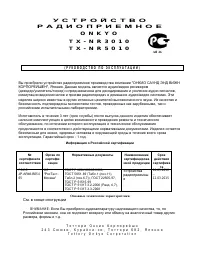 Onkyo TX-NR3010
Manual
Onkyo TX-NR3010
Manual
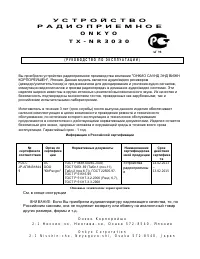 Onkyo TX-NR3030
Manual
Onkyo TX-NR3030
Manual
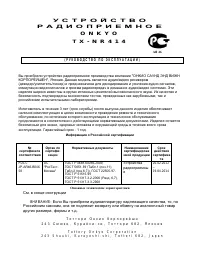 Onkyo TX-NR414
Manual
Onkyo TX-NR414
Manual
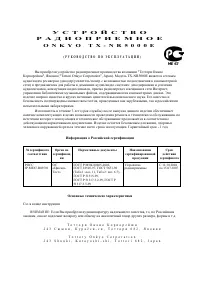 Onkyo TX-NR5000E
Manual
Onkyo TX-NR5000E
Manual
 Onkyo TX-NR5007
Manual
Onkyo TX-NR5007
Manual
 Onkyo TX-NR5008
Manual
Onkyo TX-NR5008
Manual
 Onkyo TX-NR5009
Manual
Onkyo TX-NR5009
Manual
 Onkyo TX-NR515
Manual
Onkyo TX-NR515
Manual
 Onkyo TX-NR525
Manual
Onkyo TX-NR525
Manual
 Onkyo TX-NR535
Manual
Onkyo TX-NR535
Manual
 Onkyo TX-NR579
Manual
Onkyo TX-NR579
Manual