Page 2 - AM/FM Radio Receiving Function; When the signal from an FM radio station is weak; : Press TUNING MODE again on the main
AM/FM Radio Receiving Function 2 AM/FM Radio Receiving Function Choosing the Radio Station ■ Tuning into stations automatically 1. Press AM or FM on the unit to select either "AM" or "FM". 2. Press TUNING MODE, so that the "AUTO" indicator on the display lights. 3. Press TUNI...
Page 3 - Selecting a Preset Radio Station
AM/FM Radio Receiving Function 3 3. Repeatedly press PRESET to select a number between 1 and 40 while the preset number is flashing (about 8 seconds). 4. Press MEMORY again to register. The preset number stops flashing. Repeat this procedure for all of your favorite AM/FM radio stations. ■ Selec...
Page 4 - Operation; : You can set up by viewing the guidance; Playback
AM/FM Radio Receiving Function/Playing Content from a USB Storage Device 4 3. Press ENTER to search for the selected type of radio station. 4. When the desired radio station is found, the station name on the display flashes. Then, press ENTER again. "Not Found" is displayed if none is foun...
Page 5 - Using Remote Controller for Playing Music Files; Using Remote Controller for; Summary of Operation on Remote Controller
Using Remote Controller for Playing Music Files 5 Using Remote Controller for Playing Music Files Summary of Operation on Remote Controller The remote controller of this unit allows you to operate and/or play music files stored on USB storage devices, as well as on Bluetooth-enabled devices. Avail...
Page 6 - Using the Listening Modes; Selecting the Listening Mode; Press RCV on the remote controller.; MUSIC; You can select a listening mode suitable for music.; GAME; You can select a listening mode suitable for video games.; STEREO
Using the Listening Modes 6 Using the Listening Modes Selecting the Listening Mode The listening modes allow you to select the best sound effect for your input source. 1. Press RCV on the remote controller. Always press RCV first to change the remote controller to RECEIVER mode (the mode to operat...
Page 7 - PLII Movie; : Use this mode with any 2 ch music source.; PLII Game; : Use this mode with any 2 ch game source.
7 Using the Listening Modes Contents of the Listening Modes Selectable listening modes will differ depending on the number of input source channels and the actual speaker configuration. Listening modes available when headphones are connected are: Mono, Direct, and Stereo. Lists in alphabetic order (...
Page 8 - : Use this mode with any 2 ch music
Using the Listening Modes 8 Input source: 5.1 ch, 7.1 ch Speaker configuration: 3.1 ch, 5.1 ch This listening mode can be selected only if your Blu-ray Disc/DVD player is digitally connected to the unit or the player's output setting is bitstream. ■ DTS Neo:6 This mode expands any 2 ch source ...
Page 9 - Advanced Settings; Setup Procedure; To save changes and finish the setting
Advanced Settings 9 Advanced Settings Setup Procedure This unit allows you to configure advanced settings, such as to reassign the input jacks and input selector, or configure various speaker settings.To configure advanced settings, select "Setup" in the Home menu. Operation : You can set ...
Page 14 - Listening Angle
Advanced Settings 14 Setting item Default Value Setting Details Center Width (PLII Center Width) 3 Configure the settings to use for playing any 2 ch digital source such as Dolby Digital, or 2-ch analog/PCM source in the Dolby Pro Logic II Music listening mode. Allows you to configure the width of t...
Page 16 - Off
Advanced Settings 16 11. HDMI Setup Setting Item Default Value Setting Details HDMI CEC (RIHD) Off Setting to "On" enables the input selection link and other link functions with HDMI connected CEC compliant device."On": To enable this function."Off": When not using this funct...
Page 19 - Operating Other Components Using Remote Controller; Operating Other Components; Functions of Remote Mode Button; Programming Remote Control Codes; Look up the; Remapping the Colored Buttons
Operating Other Components Using Remote Controller 19 Operating Other Components Using Remote Controller Functions of Remote Mode Button REMOTE MODE button on the remote controller has ability to control your other AV components, including those made by other manufacturers, by programming the specif...
Page 20 - Resetting the REMOTE MODE Buttons; To reset the remote controller to its factory defaults; TV operation
Operating Other Components Using Remote Controller 20 ■ Resetting the REMOTE MODE Buttons You can reset a REMOTE MODE button to its default remote control code. Note that only one REMOTE MODE button can be reset in this procedure. 1. Press HOME for 3 or more seconds while holding down the REMOTE MOD...
Page 21 - Satellite receiver/Cable receiver operation
Operating Other Components Using Remote Controller 21 5 8 9 F 67 5 TOP MENU 6 / / / , ENTER 7 SETUP 8 MENU 9 RETURN F AUDIO ( ¼ ) G H I J G , , , , , , H A (Red), B (Green), C (Yellow), D (Blue) I Number 1 to 9, 0, +10 ( ¼ ) J CLR, DISPLAY ¼ ¼ Not CEC-compatible. VCR/PVR operation Press the REMOTE M...
Page 22 - CD player operation
Operating Other Components Using Remote Controller 22 G H I J G , , , , , , H A (Red), B (Green), C (Yellow), D (Blue) I Number 1 to 9, 0, +10 J CLR, DISPLAY CD player operation Press the REMOTE MODE button programmed with the remote control code for the relevant AV component to switch the remote co...
Page 23 - Connecting and Operating Onkyo RI Components; Connecting and Operating; Summary of RI function; System On/Auto Power On; : Starting playback on a; Direct Change; : When playback is started on a component; Remote Controller Operation; Some components may not support all RI functions.; RI connection and settings; The remote indicator lights.; Input selector on the RI Dock
Connecting and Operating Onkyo RI Components 23 Connecting and Operating Onkyo RI Components Summary of RI function Connecting an Onkyo component with RI jack such as the separately sold RI Dock to the unit by using an RI cable and an analog audio (RCA) cable enables the following RI functions: Syst...
Page 24 - Connecting and Operating Onkyo RI Components/Firmware Update; iPod/iPhone Operation; Before Operation; Firmware Update; Summary of Firmware Update; Disclaimer
Connecting and Operating Onkyo RI Components/Firmware Update 24 iPod/iPhone Operation The RI Dock allows you to use the AV receiver's remote controller to operate and play music on your iPod/iPhone. Moreover, it also allows you to view videos on your iPod/iPhone on the screen of your TV, as well as ...
Page 25 - Updating the Firmware via USB; Before Start; Update; ⁄41⁄41⁄41⁄4
Firmware Update 25 Updating the Firmware via USB Before Start : Media inserted in a USB card reader may not be used for this function. USB storage devices with security function are not supported. USB hubs and USB devices with hub function are not supported. Do not connect these devices to the...
Page 26 - Firmware Update/Troubleshooting; ⁄41⁄4; Troubleshooting
Firmware Update/Troubleshooting 26 10. Press ON/STANDBY on the unit to place the unit to standby. This is the end of the firmware update and you now have the latest firmware installed. Do not use RECEIVER on the remote controller. ■ If an Error Message is Displayed When an error occurs, " ¼ - ...
Page 27 - Audio
Troubleshooting 27 Audio ■ There is no sound, or it is very quiet Make sure that the proper input source is selected. Make sure that connecting plugs are pushed in all the way. Make sure that the inputs and outputs of all components are connected properly. Make sure that the polarity of the ...
Page 28 - Tuner
Troubleshooting 28 and your TV must be connected to COMPONENT VIDEO OUT terminal. If the video source is connected to a composite video input, your TV must be connected to the MONITOR OUT V terminal. If the video source is connected to an HDMI input, you must assign that input to an input select...
Page 29 - Zone Function; Bluetooth; While Zone 2 is selected, the RI functions do not work.
Troubleshooting 29 Try resetting your iPod/iPhone. Depending on your iPod/iPhone model and generation, some buttons may not work as expected. ■ The unit unexpectedly selects my iPod/iPhone as the input source Always pause iPod/iPhone playback before selecting a different input source. If playb...
Page 30 - These functions do not work when Zone 2 is turned on.
Troubleshooting 30 ■ The functions System On/Auto Power On and Direct Change do not work for components connected via RI These functions do not work when Zone 2 is turned on. ■ The display is dark Make sure that Dimmer function is not working. Press DIMMER button and change the brightness level ...
Page 31 - Reference Information; About HDMI; Supported Audio Formats of this Unit
Reference Information 31 Reference Information Linked Operation with CEC-compatible Components The AV receiver is compatible with the following components (as of January 2014). TV (Random order) : Toshiba TV sets Sharp TV sets Players/Recorders (Random order) : Onkyo and Integra RIHD-compatibl...
Page 32 - About Copyright Protection; USB Storage Device Requirements; FAT16 or FAT32 file system format.; Supported Audio Formats for USB Playback; WAV files contain uncompressed PCM digital audio.
Reference Information 32 About Copyright Protection : The AV receiver supports Revision 1.4 of the HDCP (High-bandwidth Digital Content Protection) ( ¼ 2), a copy-protection system for digital video signals. Other components connected to the AV receiver via HDMI must also support HDCP. *1 DVI (Digit...
Page 33 - Remote Control Code List
Reference Information 33 Remote Control Code List ■ Television (A to E) A.R. Systems 10037, 10556 Accent 10037 Acoustic Solutions 11667, 11585, 11037 Action 10650 Addison 10653, 11150 AEG 11037 Aiko 10037 Aim 10037 Akai 10037, 12676, 10208, 10714, 10556, 12414, 13183, 10178 Akiba 10037 Akito 10037 A...
Page 35 - Pacific
Reference Information 35 Konnig 10037 Korpel 10037 Kosmos 10037 Kunlun 10208 Kupperbusch 12676 L&S Electronic 10714 Lavis 11037 Lecson 10037 Lenco 10037, 11037 Leyco 10037 LG 11840, 11860, 11423, 12731, 12182, 12358, 12362, 10178, 12424, 10037, 10714, 10017, 10556, 10698 LiesenKotter 10037 Lifet...
Page 36 - Profitronic
Reference Information 36 Panasonic 11636, 11291, 11480, 11650, 10650, 13825, 12170, 10037, 10208, 10508 Panavideo 13825 Panavision 10037 Panda 10208, 10508, 10698 Penney 10178 Perdio 10037 Perfekt 10037 Philco 13426, 12414, 10037, 10178 Philips 10037, 12800, 10556, 11887, 11867, 11506, 12372, 12680,...
Page 37 - TV DVD Combination
Reference Information 37 Supreme 10000 Svasa 10208 Sylvania 10171, 11864, 11394 Symphonic 10171, 11394 Synco 11755, 10000, 10178, 11826 Sysline 10037 ■ Television (T to Z) Tacico 10178, 11150 Tai Yi 11150 Talent 10178 Tashiko 10650, 11150 Tatung 10037, 11150 TCL 12434, 13183, 13426, 12414, 10698 TCM...
Page 38 - DVD
Reference Information 38 Grandin 30713 Grundig 30539 Hitachi 12676, 11037, 30713, 32966 Insignia 12049 JVC 12271, 11774 LG 11423 Linsar 12676, 32966 Logik 11037, 30713 Luxor 11037, 30713 Magnavox 12372 Matsui 11037, 12676, 30713 Medion 12676, 32966 Mitsubishi 34004 OK. 13434 OKI 12676, 32966 Orava 1...
Page 40 - VCR
Reference Information 40 Soundwave 30713 Spectra 30872 SR Standard 30831 Strong 30713 Sunkai 30770 Sunstech 30831, 32139, 32966 Supratech 32139 Sylvania 30675, 30630 Symphonic 30675 Sytech 30831 Tandberg 30713 Targa 30741 Tascam 31818 Tatung 30770 TBoston 32139 Tchibo 30741 TCM 30741 Teac 30571, 306...
Page 45 - Goldfield
Reference Information 45 First Cable Of Missouri 01376, 01877, 01982 FirstMile 01376, 01877, 01982 Flint Cable TV 01376, 01877, 01982 Florida Cable 01376 Foothills Rural Telephone Cooperative 01877 Forsyth CableNet 01376, 01877, 01982 Fort Jennings Communications 02586 Fort Towson Cable 01376, 01877...
Page 50 - Scientific Atlanta
Reference Information 50 Regional Cable TV 01376, 01877, 01982 Reinbeck Telecommunications 01376, 01877, 01982 Reservation Telephone 01376, 01998, 02345 Reserve Long Distance 01376, 01877, 01982 Resnet Communications 01376, 01877, 01982 Resort Cable 01376 Reveille Broadband 01376, 01877, 01982 Reyno...
Page 51 - Somerfield Cable TV
Reference Information 51 SkyPix 01481, 01998, 03028 Sleepy Eye Telephone 02345Small Town Cable 01376, 01877, 01982 Smile Content 02437 Smithville 02586 Sogetel 01998 Somerfield Cable TV 01376, 01877, 01982 Source Cable 01376 South Benton Cablevision 01376, 01877, 01982 South Central Communications 0...
Page 52 - Waitsfield Cable
Reference Information 52 Throckmorton Cablevision 01376, 01877, 01982 TiftNet 01376, 01877, 01982 Time Warner 01877, 01376, 02187 Tip-Top Communications 01376, 01877, 01982 TiVo 03265 Tobacco Valley Communications 01376, 01877, 01982 Tongue River Cable TV 01376, 01877, 01982 Total Cable Service 0137...
Page 53 - Woodsfield Municipal; Satellite Set top Box
Reference Information 53 West Alabama TV Cable 01376, 01877, 01982 West Carolina Telephone 03028 West Central Telephone 01376, 01877, 01982 West Lake Cablevision 01376, 01877, 01982 West River Cable Television 01376, 01877, 01982 WesTel Systems 01376, 01877, 01982 Western Broadband 01376, 01877, 019...
Page 56 - CD
Reference Information 56 PopBox 02260 Popcorn Hour 02260 Ricavision 01272 Roku 03061 Sony 02713, 01272 Stack 9 01272 Systemax 01272 Tagar Systems 01272 Toshiba 01272 Touch 01272 Trust 01272 VIA Technologies 01272 Viewsonic 01272 Voodoo 01272 Western Digital 02558 Woxter 02709 Xbox 01805, 01272 ZT Gr...
Page 57 - IPTV
Reference Information 57 Blue Ridge Communications 01877 Bright House 01877, 01376 Buckeye Cable System 01376, 01877, 02187 Cable Axion Digitel 01376 Cable One 01376, 01877 Cablecom 01582 Cablevision 01877, 01376 Cablevision du Nord 01376 CCAP 01877 Charter 01376, 01877, 02187 Cincinnati Bell 01877,...
Page 58 - IPTV PVR Combination
Reference Information 58 Lakeland Cablevision 01481, 01998 Lemonweir Valley Telephone 01481, 01998 Liberty Communications 02586 Lonsdale Video Ventures 01481, 01998 Lumos Networks 01998, 03028 Manawa Telecom 02586 Manti Telecom 01481, 01998 Matanuska Telephone Association 01481, 02586 Meo 02401 MHTC...
Page 59 - PVR
Reference Information 59 Vodafone 02401 ■ PVR DirecTV 20739 Humax 20739 Panasonic 20616 Philips 20739 RCN 20739 ReplayTV 20616 Sonic Blue 20616 Sony 20636 TiVo 20739, 20636
Page 60 - Liegnitzerstrasse 6, 82194 Groebenzell, GERMANY; The Americas
D1406-0 SN 29401843PDF_EN (C) Copyright 2014 Onkyo Corporation Japan. All rights reserved. * 2 9 4 0 1 8 4 3 * Kitahama Chuo Bldg, 2-2-22 Kitahama, Chuo-ku, OSAKA 541-0041, JAPAN http://www.onkyo.com/ 18 Park Way, Upper Saddle River, N.J. 07458, U.S.A.For Dealer, Service, Order and all other Busines...


 Onkyo M5010
User Manual
Onkyo M5010
User Manual
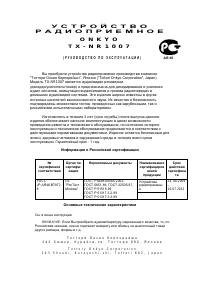 Onkyo TX-NR1007
Manual
Onkyo TX-NR1007
Manual
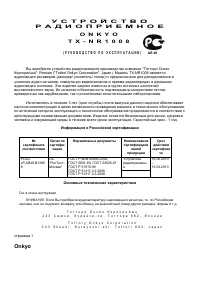 Onkyo TX-NR1008
Manual
Onkyo TX-NR1008
Manual
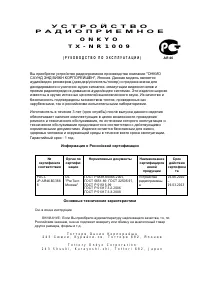 Onkyo TX-NR1009
Manual
Onkyo TX-NR1009
Manual
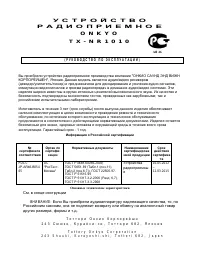 Onkyo TX-NR1010
Manual
Onkyo TX-NR1010
Manual
 Onkyo TX-NR1030
Manual
Onkyo TX-NR1030
Manual
 Onkyo TX-NR3007
Manual
Onkyo TX-NR3007
Manual
 Onkyo TX-NR3008
Manual
Onkyo TX-NR3008
Manual
 Onkyo TX-NR3009
Manual
Onkyo TX-NR3009
Manual
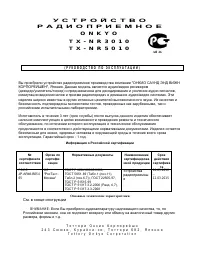 Onkyo TX-NR3010
Manual
Onkyo TX-NR3010
Manual
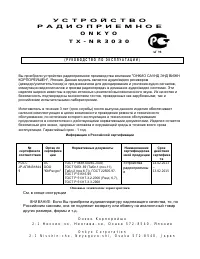 Onkyo TX-NR3030
Manual
Onkyo TX-NR3030
Manual
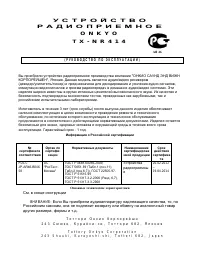 Onkyo TX-NR414
Manual
Onkyo TX-NR414
Manual
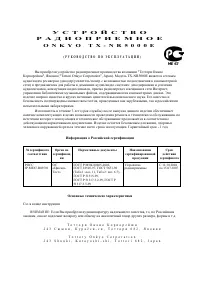 Onkyo TX-NR5000E
Manual
Onkyo TX-NR5000E
Manual
 Onkyo TX-NR5007
Manual
Onkyo TX-NR5007
Manual
 Onkyo TX-NR5008
Manual
Onkyo TX-NR5008
Manual
 Onkyo TX-NR5009
Manual
Onkyo TX-NR5009
Manual
 Onkyo TX-NR515
Manual
Onkyo TX-NR515
Manual
 Onkyo TX-NR525
Manual
Onkyo TX-NR525
Manual
 Onkyo TX-NR535
Manual
Onkyo TX-NR535
Manual
 Onkyo TX-NR579
Manual
Onkyo TX-NR579
Manual