Page 2 - Important Safety Instructions; WARNING; AVIS
En 2 WARNING: TO REDUCE THE RISK OF FIRE OR ELECTRIC SHOCK, DO NOT EXPOSE THIS APPARATUS TO RAIN OR MOISTURE. CAUTION: TO REDUCE THE RISK OF ELECTRIC SHOCK, DO NOT REMOVE COVER (OR BACK). NO USER-SERVICEABLE PARTS INSIDE. REFER SERVICING TO QUALIFIED SERVICE PERSONNEL. Important Safety Instructions ...
Page 3 - Precautions
En 3 1. Recording Copyright —Unless it’s for personal use only, recording copyrighted material is illegal without the permission of the copyright holder. 2. AC Fuse —The AC fuse inside the unit is not user-serviceable. If you cannot turn on the unit, contact your Onkyo dealer. 3. Care —Occasionally ...
Page 4 - About this Manual; For British models; Declaration of Conformity
En 4 12. Region Codes —The BD/DVD standard uses region codes to control how discs can be played around the world, the world being divided into three regions (BD) or six regions (DVD). This unit will only play BD/ DVD discs that match its region code, which can be found on its rear panel. 13. About t...
Page 5 - Contents; Introduction
En 5 Contents Introduction Important Safety Instructions. . . . . . . . . . . . . . . 2Precautions . . . . . . . . . . . . . . . . . . . . . . . . . . . . . 3Contents . . . . . . . . . . . . . . . . . . . . . . . . . . . . . . . . 5Getting Started . . . . . . . . . . . . . . . . . . . . . . . . . . ...
Page 6 - Getting Started; Symbols Used in this Manual; Note; Caution; Supplied Accessories
En 6 Getting Started Symbols Used in this Manual Note Indicates special notes and operating features. Caution Indicates cautions for preventing possible damage from abuse. A section whose title has one of the following symbols are applicable only to the disc represented by the symbol. Indicates the ...
Page 7 - About Media Types; Types of Discs/Media Formats that; NOTE
En 7 About Media Types Blu-ray Disc Blu-ray Disc is the ultimate next generation optical media format, offering the following key features: • Largest capacity (25 GB single layer – 50 GB dual layer) - with over 5 times the amount of content possible with current DVDs, particularly well suited for hi...
Page 8 - Discs with unusual shapes cannot be played.; The following Audio CD*; File formats that are not compatible.
En 8 Discs that Cannot Be Used with This Player The following discs cannot be played back or will not play back properly on this Player. If such a disc is mistakenly played back, speaker damage may occur. Never attempt to play back these discs. CDG, Video CD, Photo CD, CD-ROM, CD-TEXT, SVCD, SACD, P...
Page 9 - About the MP3 le format; Playing the MP3 le format; File and folder requirements; ABOUT DivX VIDEO
En 9 You may experience one or more of the following symptoms when playing les. • It may take some time to play les depending on the number of folders, number of les and volume of data involved. • EXIF information will not be displayed. EXIF stands for Exchangeable Image File Format, and is a standa...
Page 10 - About Disc Contents; BD Video; Title, Chapter and Track
En 10 About Disc Contents BD Video Enjoy BD-speci c functions including BONUSVIEW (BD-ROM Pro le 1 Version 1.1), such as picture in picture, and BD-LIVE (Page 24).For the BD video discs compatible with BONUSVIEW/BD-LIVE, you can enjoy additional contents by copying the data from the discs or downloa...
Page 11 - Important Information; Disc Precautions; Proper Disc Storage; When condensation forms:
En 11 Important Information Disc Precautions Be Careful of Scratches and Dust • BD, DVD and CD discs are sensitive to dust, ngerprints and especially scratches. A scratched disc may not be able to be played back. Handle discs with care and store them in a safe place. Proper Disc Storage Place the di...
Page 12 - License and Copyright; Trademarks and Licenses
En 12 License and Copyright Audio-visual material may consist of copyrighted works which must not be recorded without the authority of the owner of the copyright. Refer to relevant laws in your country. • “This item incorporates copy protection technology that is protected by U.S. patents and other ...
Page 13 - Major Components
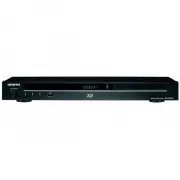
En 13 Major Components 4 3 2 1 5 6 7 1 2 3 4 5 Main unit (Front) Main unit (Rear) 1 ON/STANDBY (p.20) 2 (pause) (p.28) 3 (stop) (p.22) 4 (play) (p.22) 5 USB (front) terminal (p.28) 6 Remote control sensor (p.19) 7 (open/close) (p.22) 1 ETHERNET terminal (p.18) 2 USB (rear) terminal (p.24) 3 HDMI OUT...
Page 14 - Keylock function; LOCK; Remote Control Unit
En 14 1 (on/standby) (p.20) 2 OPEN/CLOSE (p.22) 3 AUDIO (p.35), SUBTITLE (p.35) 4 Number buttons (p.38) 5 REPEAT (p.34) 6 (rewind) (p.33) 7 (forward) (p.33) 8 (pause) (p.33) 9 (play) (p.22) F HOME (p.20) G Cursor buttons ( / / / ), ENTER (p.39) H POP UP MENU/MENU (p.24) I A (Red), B (Green), C (Yell...
Page 15 - Connecting to a TV/projector; After connecting
En 15 Connecting to a TV/projector You can enjoy high quality digital picture and sound using an HDMI cable. (Only TVs/projectors with an HDMI terminal can be connected to this player.)Make sure to use a certi ed HDMI cable. 1. Be sure to turn off this Player and the TV/projector before making any c...
Page 16 - Connecting to an ampli er/AV receiver; HDMI connection
En 16 Connecting to an ampli er/AV receiver You can connect this player to an ampli er/AV receiver to enjoy digital surround sound. With this player, the audio connection can be made using either one of the following methods depending on the capabilities of the ampli er/AV receiver you connect. • HD...
Page 17 - Digital audio connection
En 17 Digital audio connection You can connect an ampli er/AV receiver using an optical digital audio cable (commercially available). * Commercially available Optical digital cable* Ampli er/AV receiver NOTE • When using OPTICAL DIGITAL AUDIO OUT, 5.1ch Digital Output is available. (7.1ch Digital Ou...
Page 18 - Broadband Internet Connection
En 18 Broadband Internet Connection By connecting this player to the Internet, you can enjoy a variety of content on your TV using BD-LIVE functions, home networks and also perform software updates. In this player, the Internet connection can be made using the following methods. NOTE • Be sure to tu...
Page 19 - Before Starting Playback; Loading the Batteries in the; and; Connecting the Power Cord
En 19 Before Starting Playback Loading the Batteries in the Remote Control 1 Hold in the tab on the battery cover and pull the cover towards the direction of the arrow. 2 Load the two “AA” size batteries (R-06 size, UM/SUM-3). Place batteries with their terminals corresponding to the and indications...
Page 20 - Turning the Power On; Turning the power on; Entering standby; Language Setting
En 20 Turning the Power On After all of the necessary connections are complete, Turn on your TV and switch to the appropriate AV input (Refer to your TV’s operation manual). (This may be labeled HDMI/EXT/AUX etc.) ON/STANDBY Turning the power on Press on the remote control or on the Player to turn o...
Page 21 - ONKYO AV Receiver; Button; Using HDMI Control; Direct Change; Using 3D
En 21 NOTE: • When you turn on this player for the rst time after purchase, the language setting screen will be displayed. • To select the DVD disc language, such as subtitle language, etc., see page 23. Operating ONKYO AV Receiver Using the Remote Control The Universal Remote Control may operate th...
Page 22 - To stop playback
En 22 Loading a Disc ON/STANDBY (open/close) 1 Press on the remote control or on the Player to turn on the power. 2 Press OPEN/CLOSE to open the disc tray. 3 Load a disc on the disc tray. • Insert the disc with the label face up. • In case of disc recorded on both sides, face down the side to play b...
Page 23 - Displaying the disc information; Using the disc menu
En 23 Displaying the disc information Press DISPLAY during playback. • Each time you press DISPLAY , the display switches as follows. BD-VIDEO 00 : 00 : 12 1 / 11 0 / 1 1 03 / : 12 : 28 00 : 00 : 1203 / : 12 : 28 1 3 2 4 4 Disc Information screen A No Display Disc Information screen B 1 Type of disc...
Page 24 - Using the pop-up menu; Example; Press; Enjoying BONUSVIEW or BD-LIVE
En 24 Using the pop-up menu 1 Press POP UP MENU/MENU during playback. • The pop up menu screen is displayed. • The menu contents displayed vary depending on the disc. For details on how to see and operate the pop up menu, refer to the manual for the disc. Example Pop-up menu Previous page Next page ...
Page 25 - Virtual Package
En 25 Virtual Package For BD-Video discs compatible with Virtual Package, data is copied from the discs or Internet to local storage. It is automatically copied to the local storage prior to playback. You can enjoy a variety of additional functions including secondary video, secondary audio, subtitl...
Page 26 - Playback by selecting a title; About Title List; Playback by selecting a chapter
En 26 Playback by selecting a title 1 Load a recorded disc. • The Title List screen is displayed. Example: Thumbnail screen 21/5 Fri 9:30 AM 110 Min. Program 1 Program 1 Program 2 Program 3 Program 4 Program 5 Program 6 By Chapter Playlist Functions D C B Title Name A Select Enter Return Exit • If t...
Page 27 - Playback by selecting a Playlist; Audio CD Playback; Playback from the beginning
En 27 Playback by selecting a Playlist 1 Press C (Yellow) while the Title List screen is displayed. • The Playlist screen is displayed. Example: Thumbnail screen 21/5 Fri 9:30 AM 110 Min. Program 1 Program 1 Program 2 Program 3 Program 4 By Chapter Playlis t Functions D C B Title Name A Select Enter...
Page 28 - Playback by selecting a track
En 28 Playback by selecting a track 1 Press / to select the track, then press ENTER during playback or when playback is stopped. • Playback of the selected track will begin. 2 Press to stop playback. Operation procedure for the “Functions” menu 1 Press D (Blue) (Functions) when the CD screen is disp...
Page 30 - Buttons
En 30 4 Press / to select a folder or le. • When you select a folder, press ENTER to open it, and then press / to select a le in the folder. • To set slide show speed/repeat playback, press D (Blue) (Slide Show Menu). Slide Show Menu Slide Show Speed Setting of slide show playback speed Repeat Mode ...
Page 31 - Accessing UPnP* servers; About a home network
En 31 Accessing UPnP* servers The player can browse and play movies, music and photos stored on your UPnP compatible media servers connected within your home network. * UPnP: Universal Plug and Play About a home network This Player can display and play movies, photos and music content from your UPnP...
Page 32 - Playback by selecting a le list
En 32 Playback by selecting a le list 1 Press / to select Video/Music/Picture, then press or ENTER. 2 Press / to select “Home Network” in the sub window. Sub Window 3 Press ENTER or . • The player automatically scans and displays UPnP servers within your local network. 4 Press / to select a UPnP ser...
Page 33 - Playback Functions; Skipping to the Next or the Start of
En 33 Playback Functions NOTE • Some operations in the following playback functions cannot be performed depending on the speci cations of the disc. Fast Forward/Reverse (Search) The Fast Forward/Reverse function is enabled when or is pressed during playback. Example: When is pressed • The search spe...
Page 34 - Repeat Playback of a Title or; On Title Repeat
En 34 Slow Playback (Forward/Reverse) The Slow Playback (Forward/Reverse) function is enabled when / or / is pressed for more than 2 seconds during pause.Press to return to normal playback. NOTE • This doesn’t work for audio CDs. • You cannot perform Slow Playback between titles. At the end of the t...
Page 35 - Displaying the Audio Information; Switching Subtitles
En 35 Partial Repeat Playback (Repeat Playback of a Specifi ed Part) 1 Press REPEAT during playback. 2 Press / to select “Scene Selection”, then press ENTER. • “Set Start Point” displays. Set Start Point Scene Selection Playback Chapter Playback Title 3 Press ENTER at the scene where you want to set ...
Page 36 - Switching the Angle; Displaying the Angle Mark
En 36 Switching the Angle If multiple angles are recorded, you can switch between them. 1 Press FUNCTION during playback. • The Function Control screen is displayed on the TV. 2 Press / to select the Angle Number column, then press ENTER. BD-VIDEO 0 0 : 2 0 : 3 0 1 / 35 5 / 2 2 English 1 DTS 1 Off 3...
Page 37 - Settings During Playback; Function Control
En 37 Settings During Playback Function Control This allows you to adjust various settings at once, like subtitles, angle settings and the title selection for Direct Playback. You can adjust the video and audio to suit your preferences. The operations are the same for BD and DVD. Function Control sc...
Page 38 - Functions which can be set
En 38 Functions which can be set Title/Track Number (Direct Title/Track Skip) • Shows the title number being played back (or track number when playing back an audio CD). You can skip to the start of the title (or track). • To skip to the start of a selected title (or track), press the Number buttons...
Page 39 - SETTINGS; Common operations
En 39 SETTINGS Common operations The “menu” enables various audio/visual settings and adjustments on the functions using the remote control unit. You need to call up the On Screen Display to perform settings for this player. The following is the explanation for the basic operations of the “menu”. Ex...
Page 40 - Audio Video Settings; HDMI Video Out; Secondary Audio; Dynamic Range Control
En 40 Audio Video Settings HDMI Video Out This sets the resolution of the video output for the HDMI terminal of this player.Normally set to “Auto” (factory preset value). ` Item Auto*, 1080p, 1080i, 720p, 576/480p NOTE • When the BD player is connected to a 1080p 24 Hz compatible TV and the “HDMI Vi...
Page 41 - SUPER PICTURE; Smart Settings; Auto Power Off; HDMI Control; Playback Setting; Parental Control; Angle Mark Display
En 41 SUPER PICTURE This enhances the quality of video streaming images with pixel by pixel processing technology. ` Item On*, Off Smart Settings Auto Power Off This sets the Player so that power is automatically shut off if playback is stopped and you do not perform any operations for about 10 minu...
Page 42 - PIN Code Setting; BD Internet Access; D mode; CAUTION; D Notice; On Screen Language; System Reset
En 42 PIN Code Setting This sets the PIN code for setting or changing the Parental Control Level. ` Item Yes : Enter the 4-digit number. No NOTE • When you forget the PIN code, you can reset the current PIN code using “System Reset” under “Settings”. (see page 42) • You can also set the new PIN code...
Page 43 - Communication Setup
En 43 Communication Setup This allows you to perform and/or change the communication settings and select the type of Internet connection from Cable. This setting is required to use BD-LIVE functions, home networks and software updates that connect to the Internet. NOTE • Make sure that the LAN cable...
Page 44 - USB Memory Management
En 44 The operation procedure for inputting numbers manually NOTE • Numeric characters such as IP address can be entered on the input screen either by selecting each of the characters in the “Numeric” mode or using the Number buttons on the remote control. IP Address Netmask Gateway 123 1. Press ENT...
Page 45 - Software Update Settings; Auto Update from Network; Setup
En 45 5. Press / to select “Erase” or “Format”, then press ENTER . Erase : Deletes only BD-VIDEO data written on the USB memory device such as BD-LIVE data. Format : Be aware that all data including BD- VIDEO data and software update data will be deleted. • If you want to delete only the unneeded so...
Page 46 - Update process; Manual Update from Network
En 46 Update process 1. When this player is turned on, the Internet connection starts automatically. • “Accessing...” blinks on the screen. • The current version of this unit software and the latest version of the update le on the network are displayed when latest version of rmware has been found.To...
Page 49 - About Output of Audio Formats; About DivX le; DivX Plus HD MKV
En 49 About Output of Audio Formats Audio format Maximum number of channels HDMI DIGITAL OUT PCM Bitstream PCM Bitstream Dolby TrueHD 7.1ch (48 kHz/96 kHz) 7.1ch *3 7.1ch *4 2ch *2 5.1ch *1/*3 5.1ch (192 kHz) 5.1ch *3 5.1ch *4 2ch *2 5.1ch *1/*3 Dolby Digital PLUS 7.1ch (48 kHz) 7.1ch 7.1ch *4 2ch *...
Page 50 - Troubleshooting
En 50 Troubleshooting The following problems do not always suggest a defect or malfunction of this Player.Refer to the problems and lists of possible solutions below before calling for service. Power Problem Possible causes and solutions The Player power cannot be turned on. • Is the power cord rmly...
Page 54 - On-screen Error Messages; Error message
En 54 On-screen Error Messages The following messages appear on the TV screen in case of an error during operation. Error message Possible Error Suggested Solution Cannot play. • The disc cannot be played back with this Player. • Check the disc, and load it correctly. Incompatible disc. • If you loa...
Page 55 - Speci cations; Signal System; General
En 55 Speci cations Signal System PAL/NTSC HDMI Resolution 576p/480p, 720p, 1080i, 1080p, 1080p 24 Hz Audio Format LPCM, Dolby Digital, Dolby Digital Plus, Dolby True HD, DTS, DTS-HD Support Deep Colour / x.v.Colour (JPEG only) Connector A Type Audio Output (Digital) Optical General Power Supply AC ...
Page 56 - Glossary
En 56 Glossary AVCHD (Page 7) AVCHD (Advanced Video Codec High De nition) refers to a recording format (speci cation) for digital video cameras which can record to a disc such as 8 cm DVD disc and play back digital high de nition images. BDAV (Page 7) BDAV (Blu-ray Disc Audio/Visual, BD-AV) refers t...
Page 58 - Progressive format
En 58 Multi Angle (Page 36) This is a feature of DVD and BD video discs. In some discs, the same scene is shot from different angles, and these are stored in a single disc so you can enjoy playback from each angle. (This function can be enjoyed if the disc is recorded with multiple angles.) Multi Au...
Page 59 - About Software License; Information on the Software
En 59 About Software License Information on the Software License for This Product Software composition The software included in this product is comprised of various software components whose individual copyrights are held by third parties. Software developed by third parties and open source software...