Page 2 - Keys; Menu; Earpiece
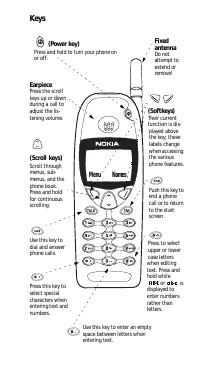
Keys (Scroll keys) Scroll t hrough menus, sub-menus, and t he phone book. Press and hold for cont inuous scrolling. (Power key) Press and hold t o t urn your phone on or of f. (Softkeys) Their current funct ion is dis- played above t he key; t hese labels change when accessing t he various phone fea...
Page 3 - Indicators and Icons; Silent
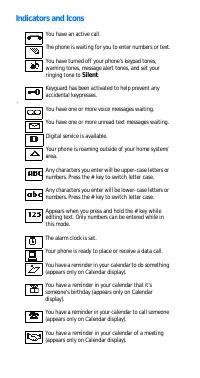
Indicators and Icons You have an act ive call. The phone is wait ing for you t o ent er numbers or t ext . You have t urned off your phone’s keypad t ones, warning t ones, message alert t ones, and set your ringing t one t o Silent . Keyguard has been act ivat ed t o help prevent any accident al key...
Page 4 - Table of Contents
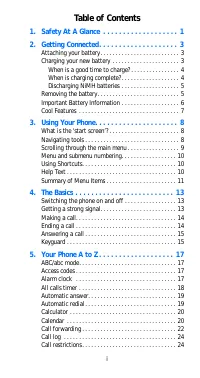
i Table of Contents 1. Safety At A Glance . . . . . . . . . . . . . . . . . . . 1 2. Getting Connected. . . . . . . . . . . . . . . . . . . . 3 At t aching your bat t ery. . . . . . . . . . . . . . . . . . . . . . . . . . 3Charging your new bat t ery . . . . . . . . . . . . . . . . . . . . . . 3 Whe...
Page 5 - ii
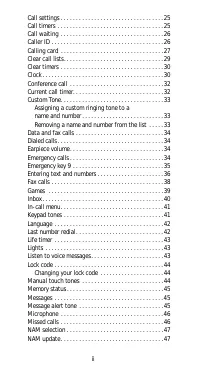
ii Call set t ings . . . . . . . . . . . . . . . . . . . . . . . . . . . . . . . . . . 25Call t imers . . . . . . . . . . . . . . . . . . . . . . . . . . . . . . . . . . . 25Call wait ing . . . . . . . . . . . . . . . . . . . . . . . . . . . . . . . . . . 26Caller ID . . . . . . . . . . . . . . . . ...
Page 6 - iii
iii Net work feat ure set t ing. . . . . . . . . . . . . . . . . . . . . . . . 48Net work services. . . . . . . . . . . . . . . . . . . . . . . . . . . . . . 49One- t ouch dialing . . . . . . . . . . . . . . . . . . . . . . . . . . . . 49Paging . . . . . . . . . . . . . . . . . . . . . . . . . . . ....
Page 7 - iv
iv Text messages and paging . . . . . . . . . . . . . . . . . . . . . . 67 Reading t ext messages . . . . . . . . . . . . . . . . . . . . . . . 68Erasing a t ext message . . . . . . . . . . . . . . . . . . . . . . . 69Erasing all t ext messages . . . . . . . . . . . . . . . . . . . . . 69Receiving a...
Page 8 - . Saf et y At A Glance
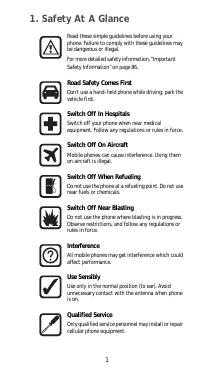
1 1 . Saf et y At A Glance Read t hese simple guidelines bef ore using your phone. Failure t o comply wit h t hese guidelines may be dangerous or illegal. For more det ailed safet y inf ormat ion, “Import ant Safet y Inf ormat ion” on page 86. Road Safety Comes First Don’t use a hand- held phone whi...
Page 9 - Accessories and Batteries; FCC/ Industry Canada Notice
2 Accessories and Batteries Use only approved accessories and bat t eries. Do not connect incompat ible product s. FCC/ Industry Canada Notice Your phone may cause TV or radio int erference (e.g. when using a t elephone in close proximit y t o receiving equipment ). The FCC/Indust ry Canada can requ...
Page 10 - Get t ing Connect ed; Attaching your battery; Charging your new battery
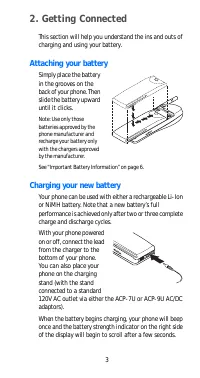
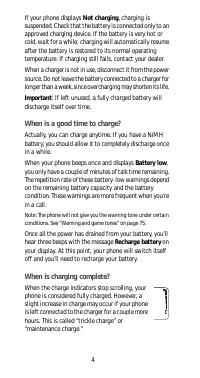
3 2. Get t ing Connect ed This sect ion will help you underst and t he ins and out s of charging and using your bat t ery. Attaching your battery Simply place t he bat t ery in t he grooves on t he back of your phone. Then slide t he bat t ery upward unt il it clicks. Not e: Use only t hose bat t er...
Page 12 - Removing the battery
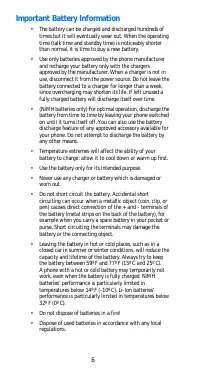
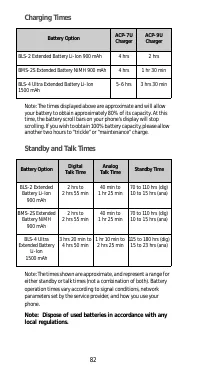
5 Charging t imes depend on t he t ype of bat t ery and charger used. For approximat e charging and operat ing t imes, see “Bat t eries” on page 81. Can you make calls while charging? Yes, you can. But your bat t ery may not charge while a call is in progress (depending on which charger you are usin...
Page 13 - Important Battery Information
6 Important Battery Information • The bat t ery can be charged and discharged hundreds of t imes but it will event ually wear out . When t he operat ing t ime (t alk t ime and st andby t ime) is not iceably short er t han normal, it is t ime t o buy a new bat t ery. • Use only bat t eries approved b...
Page 14 - Cool Features; Or
7 Cool Features All t he feat ures in your phone are cool. It ’s just t hat some are cooler t han ot hers! For example, did you know t hat you can lock t he keys on your phone t o prevent accident al key presses and phone calls? Or t hat you can call someone wit h t he t ouch of a single but t on? Y...
Page 15 - Using Your Phone; What is the ‘start screen’?; Anyt ime you want t o get t o t he st art screen, press; CAUTION: If you press; when t he phone is; Navigating tools; Softkeys
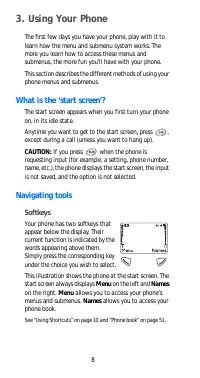
8 3. Using Your Phone The first few days you have your phone, play wit h it t o learn how t he menu and submenu syst em works. The more you learn how t o access t hese menus and submenus, t he more fun you’ll have wit h your phone. This sect ion describes t he different met hods of using your phone ...
Page 16 - Scroll key; Scroll bar; Scrolling through the main menu
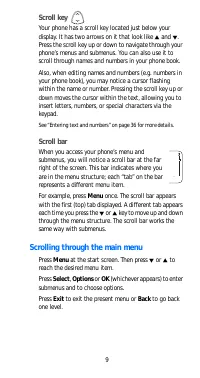
9 Scroll key Your phone has a scroll key locat ed just below your display. It has t wo arrows on it t hat look like V and W . Press t he scroll key up or down t o navigat e t hrough your phone’s menus and submenus. You can also use it t o scroll t hrough names and numbers in your phone book. Also, w...
Page 17 - Menu and submenu numbering; Using Shortcuts
10 Menu and submenu numbering When you scroll t o a menu or submenu, t he menu number and/or submenu number appears on t he display above t he scroll bar. If you become familiar wit h t hese numbers, you can use t hem as short cut s for accessing different menus. For example, when you scroll t o Men...
Page 18 - Summary of Menu Items; Call log
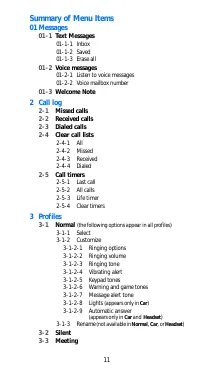
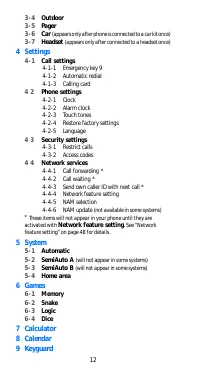
11 Summary of Menu Items 01 Messages 01- 1 Text Messages 01- 1- 1 Inbox01- 1- 2 Saved01- 1- 3 Erase all 01- 2 Voice messages 01- 2- 1 Listen t o voice messages01- 2- 2 Voice mailbox number 01- 3 Welcome Note 2 Call log 2- 1 Missed calls 2- 2 Received calls 2- 3 Dialed calls 2- 4 Clear call lists 2- ...
Page 19 - Settings; System
12 3- 4 Outdoor 3- 5 Pager 3- 6 Car (appears only after phone is connected t o a car kit once) 3- 7 Headset (appears only af ter connect ed to a headset once) 4 Settings 4- 1 Call settings 4- 1- 1 Emergency key 9 4- 1- 2 Automatic redial 4- 1- 3 Calling card 4 2 Phone settings 4- 2- 1 Clock 4- 2- 2 ...
Page 20 - Switching the phone on and off; Press and hold t he; Switching off with the; Quickly press t he; Getting a strong signal
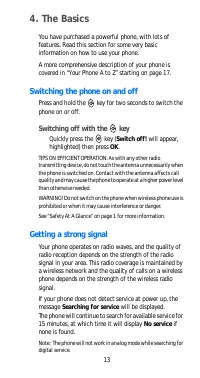
13 4 . The Basics You have purchased a powerful phone, wit h lot s of feat ures. Read t his sect ion for some very basic informat ion on how t o use your phone. A more comprehensive descript ion of your phone is covered in “Your Phone A t o Z” st art ing on page 17. Switching the phone on and off Pr...
Page 21 - Checking signal strength; Making a call; Editing a number on display; Emergency calls; Ending a call
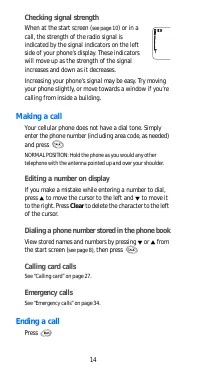
14 Checking signal strength When at t he st art screen ( see page 10 ) or in a call, t he st rengt h of t he radio signal is indicat ed by t he signal indicat ors on t he left side of your phone’s display. These indicat ors will move up as t he st rengt h of t he signal increases and down as it decr...
Page 22 - Activating Keyguard; Keys locked; Deactivating Keyguard; OK
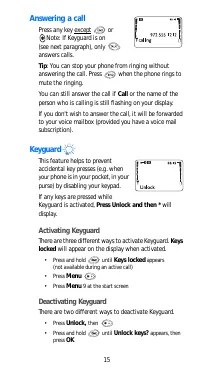
15 Answering a call Press any key except or Not e: If Keyguard is on (see next paragraph), only answers calls. Tip: You can st op your phone from ringing wit hout answering t he call. Press when t he phone rings t o mut e t he ringing. You can st ill answer t he call if Call or t he name of t he per...
Page 23 - Answering a call with Keyguard active; Only t he; Some notes about Keyguard; Ending a Call; Press
16 Answering a call with Keyguard active Only t he key will answer t he call. Aft er you end t he call, Keyguard aut omat ically becomes act ive again. Some notes about Keyguard • Calls may be possible t o t he emergency number programmed int o your phone (e.g. 911 or ot her official emergency numbe...
Page 24 - t o; Access codes; Setting the alarm clock
17 5. Your Phone A t o Z ABC/ abc mode This allows you to enter upper and lower case alphanumeric charact ers int o your phone. This is necessary for ent ering names and numbers int o your phone book, as well as edit ing any exist ing alphanumeric charact ers. See “Ent ering t ext and numbers” on pa...
Page 25 - When the alarm goes off; Press Stop t o shut off t he alarm.; Snoozing; Press Snooze; If you turn off the phone; All calls timer
18 3. Press OK Not e: St ep 4 appears only if you have selected am/pm format ; see “Select ing t ime f ormat ” on page 31 for more informat ion. 4. Select eit her am or pm and press OK When the alarm goes off Press Stop t o shut off t he alarm. Snoozing Press Snooze The alarm will go off again in 10...
Page 26 - Automatic answer; Activating automatic answer; Car; Automatic redial; Activating automatic redial
19 Automatic answer This is a set t ing found in your phone’s profile set t ings, under t he Car and Headset profiles ( see page 55 ). When t his feat ure is t urned on, your phone answers incoming voice calls aft er one ring. Not e: Car and Headset profiles will not appear in your phone unt il you ...
Page 27 - Calculator; Using the calculator; To subt ract , press; Press Options. Wit h Equals; highlight ed; press OK; Add; Calendar
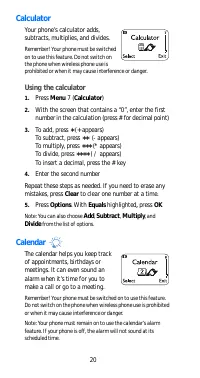
20 Calculator Your phone’s calculat or adds, subt ract s, mult iplies, and divides. Remember! Your phone must be swit ched on t o use t his f eat ure. Do not swit ch on t he phone when wireless phone use is prohibit ed or when it may cause int erference or danger. Using the calculator 1. Press Menu ...
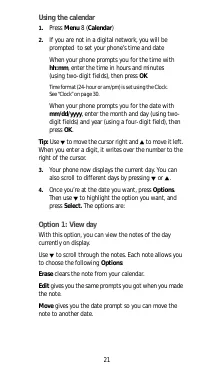
Page 28 - Using the calendar; Erase clears t he not e from your calendar.
21 Using the calendar 1. Press Menu 8 (Calendar) 2. If you are not in a digit al net work, you will be prompt ed t o set your phone’s t ime and dat e When your phone prompt s you for t he t ime wit h hh:mm, ent er t he t ime in hours and minut es (using t wo- digit fields), t hen press OK Time forma...
Page 29 - Postpone; Option 3: Erase notes; t o scroll t hrough t he not es. Calendar; Option 5: Go to date; Ent er t he dat e you wish t o go t o.; Option 6: Set the date; Call forwarding
22 Option 2: Make note Wit h t his opt ion, you’ll need t o choose Reminder, Call, Meet ing, or Birthday. Your phone will prompt you for more informat ion depending on which one you choose. You can also set an alarm for any calendar not e. See “Ent ering t ext and numbers” on page 36 for help wit h ...
Page 30 - Press Select; Call forwarding options; Forward all calls forwards all incoming calls.
23 Not e: Before you can act ivat e t his feat ure, you should f irst st ore t he feat ure code given t o you by your service provider. Ot herwise, t his feat ure may not appear in t he menu or funct ion properly. However, you can use t he f eat ure code manually, if you choose, by including t he f ...
Page 31 - Call log; Using call log; press Select or OK; while t he number is on t he display.; Call log options; Save allows you to save the number int o your phone book.; Call restrictions
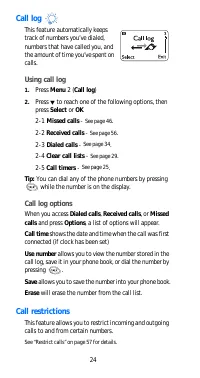
24 Call log This feat ure aut omat ically keeps t rack of numbers you’ve dialed, numbers t hat have called you, and t he amount of t ime you’ve spent on calls. Using call log 1. Press Menu 2 (Call log) 2. Press W t o reach one of t he following opt ions, t hen press Select or OK 2- 1 Missed calls - ...
Page 32 - Call settings; Using call settings; press Select; Call timers; Scroll repeat edly t o access t he following opt ions; Last call displays call durat ion of last call.
25 Call settings This feat ure allows you t o access and act ivat e some of your phone’s feat ures. Using call settings 1. Press Menu 4- 1 (Settings - Call set tings) 2. Press W t o reach one of t he following opt ions, t hen press Select 4- 1- 1 Emergency key 9 - See page 35 . 4- 1- 2 Aut omatic re...
Page 33 - Call waiting; Answering an incoming call with call waiting; Caller ID
26 Call waiting If you have subscribed t o call wait ing, your phone will beep during a call t o let you know you have an incoming call. Your phone may also display t he incoming caller’s ident ificat ion See “Call forwarding” on page 22 for det ails on caller ID. Answering an incoming call with cal...
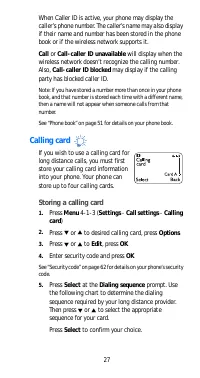
Page 34 - Calling card; Storing a calling card
27 When Caller ID is act ive, your phone may display t he caller’s phone number. The caller’s name may also display if t heir name and number has been st ored in t he phone book or if t he wireless net work support s it . Call or Call- caller ID unavailable will display when t he wireless net work d...
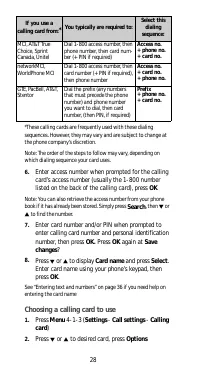
Page 35 - Search; Choosing a calling card to use
28 *These calling cards are frequent ly used wit h t hese dialing sequences. However, t hey may vary and are subject t o change at t he phone company’s discret ion. Not e: The order of t he st eps t o follow may vary, depending on which dialing sequence your card uses. 6. Ent er access number when p...
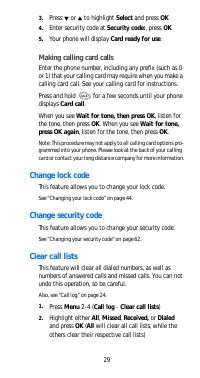
Page 36 - Making calling card calls; Change lock code; Change security code; Clear call lists
29 3. Press W or V t o highlight Select and press OK 4. Ent er securit y code at Security code:, press OK 5. Your phone will display Card ready for use Making calling card calls Ent er t he phone number, including any prefix (such as 0 or 1) t hat your calling card may require when you make a callin...
Page 37 - Clear timers; Careful; Clock; Setting your own time
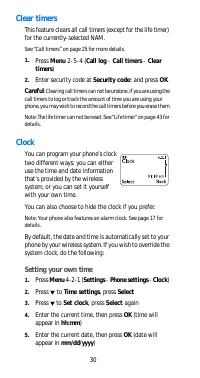
30 Clear timers This feature clears all call timers (except for the life t imer) for t he currently- selected NAM. See “Call t imers” on page 25 for more det ails. 1. Press Menu 2- 5- 4 (Call log - Call timers - Clear t imers) 2. Ent er securit y code at Securit y code: and press OK Careful : Cleari...
Page 39 - Conference call; Making a conference call; Activating the current call timer
32 Conference call This feat ure allows you t o add a t hird part y t o a call. Not e: This feat ure may not be available in all wireless syst ems. See your service provider for det ails and availabilit y. Making a conference call 1. While in a call, ent er t he second phone number and press Not e: ...
Page 40 - Customize profiles; This feat ure allows you t o cust omize individual profiles.; Custom Tone; Scroll t o Cust om t one, t hen press Select; Removing a name and number from the list
33 Not e: As wit h all call t imers, t he act ual t ime invoiced f or calls by your service provider may vary, depending upon it ems such as net work feat ures, rounding off for billing, and t axes. Customize profiles This feat ure allows you t o cust omize individual profiles. See “Profiles” on pag...
Page 41 - Dialed calls options; Earpiece volume
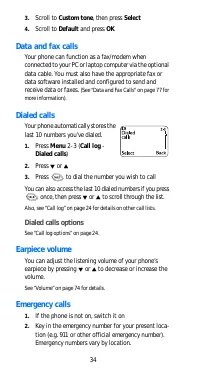
34 3. Scroll t o Cust om t one, t hen press Select 4. Scroll t o Default and press OK Data and fax calls Your phone can funct ion as a fax/modem when connect ed t o your PC or lapt op comput er via t he opt ional dat a cable. You must also have t he appropriat e fax or dat a soft ware inst alled and...
Page 42 - Emergency key 9; Activating Emergency key 9
35 3. Press IMPORTANT! This phone, like any cellular phone, operat es using radio signals, cellular and landline net works, as well as user- programmed funct ions which can not guarant ee connect ion in all condit ions. Therefore, you should never rely solely upon any cellular phone for essent ial c...
Page 43 - Entering text and numbers; ABC mode; Key
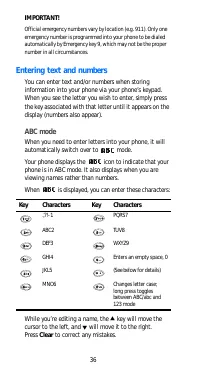
36 IMPORTANT! Of ficial emergency numbers vary by locat ion (e.g. 911). Only one emergency number is programmed int o your phone t o be dialed aut omat ically by Emergency key 9, which may not be t he proper number in all circumst ances. Entering text and numbers You can ent er t ext and/or numbers ...
Page 45 - Special Characters (for storing and calling numbers); Send or; Erase options for your phone book
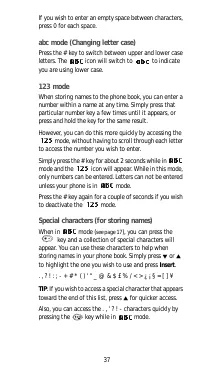
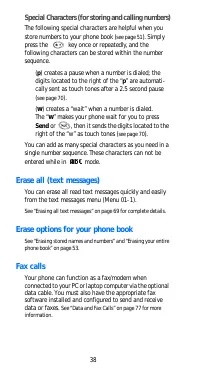
38 Special Characters (for storing and calling numbers) The following special charact ers are helpful when you st ore numbers t o your phone book ( see page 51 ). Simply press t he key once or repeat edly, and t he following charact ers can be st ored wit hin t he number sequence. (p) creat es a pau...
Page 46 - Games; Memory; key t o jump left over revealed pict ures; Snake
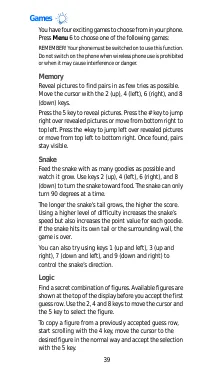
39 Games You have four exciting games to choose from in your phone. Press Menu 6 to choose one of the following games: REMEMBER! Your phone must be swit ched on t o use t his funct ion. Do not swit ch on t he phone when wireless phone use is prohibit ed or when it may cause int erference or danger. ...
Page 47 - Dice; Game options; New game st art s a new game.; Instructions will describe how t he game is played.; Inbox
40 Once you t hink you have t he right combinat ion, press t he * key. The result is present ed as a set of marks over t he row. A correct figure in t he right place gives a full mark; a correct figure in t he wrong place gives a half mark. The game ends when all t he figures are correct and in t he...
Page 48 - Keyguard; Keypad tones; ). It set s t he volume of t he t one you hear when; Setting the keypad tones; Your phone list s each profile. Use; t o highlight t he; profile you want and press Options.
41 In- call menu While you’re in a call, you may not ice t hat Options appears on your display. Pressing t his key will access you t o t he in- call menu, which allows you access t o cert ain feat ures while you have a call act ive. When you access t he in- call menu, you may not ice t he following ...
Page 49 - Keypad tones and press Select; Language; Choosing a language for your phone; Last call timer; Last number redial; Letter case
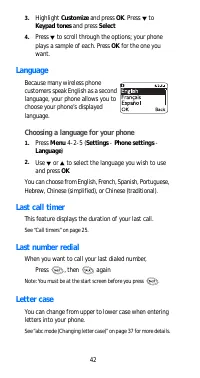
42 3. Highlight Customize and press OK. Press W t o Keypad tones and press Select 4. Press W t o scroll t hrough t he opt ions; your phone plays a sample of each. Press OK for t he one you want . Language Because many wireless phone cust omers speak English as a second language, your phone allows yo...
Page 50 - Listen to voice messages
43 Life timer The life t imer displays t he approximat e t ot al t ime of all calls dialed and received wit h your phone (in hours and minut es only). The life t imer can not be reset and is used in conjunct ion wit h your phone’s warrant y. Press Menu 2- 5- 3 (Call log - Call timers - Life timer) t...
Page 51 - Lock code; Changing your lock code; Manual touch tones; Setting manual touch tones
44 Lock code You’ll need t he lock code t o act ivat e and deact ivat e Phone Lock ( see page 53 ), or t o change your lock code. The default lock code is 1234. If you ent er an incorrect lock code five t imes in a row, your phone will prompt you for t he securit y code ( see page 62 ). Changing you...
Page 52 - Using messages; Message alert tone
45 Memory status This feat ure allows you t o see how many free and in- use memory locat ions are in your direct ory. Also, see “Phone book” on page 51. Press Names, scroll t o Options and press Select. Then scroll t o Memory status and press Select again. Messages This feat ure allows you t o acces...
Page 53 - Microphone; Muting and unmuting your phone; Missed calls; If the display says ‘Missed call’; Press List. To call back t he displayed number, press; Missed call options; Checking the missed calls list anytime; will not t reat t he forwarded calls as missed calls.
46 Microphone You can mut e and unmut e your phone’s microphone while a call is in progress. During a call, your phone’s soft keys change from Names and Menu t o Options and Mut e. Muting and unmuting your phone You can mut e t he phone’s microphone during a call; simply press Mut e. To unmut e t he...
Page 54 - NAM selection; ). The first phone number displayed wit h t his menu; Selecting the NAM for your phone; Use; NAM update
47 NAM selection The Number Assignment Module (NAM) is t he phone’s st orage locat ion cont aining t he assigned phone number(s) and ot her syst em informat ion. This informat ion is ent ered by your service provider when programming your phone when your phone is first act ivat ed. In most syst ems,...
Page 55 - Network feature setting; own caller ID wit h next call (; Storing feature codes
48 'Lock' prevents the service provider from chang-ing the lock code. 'Unlock' allows the provider to change the code and restrict others from activating the phone. If t his happens, select t he appropriate selection for your phone. If you don’t want your service provider t o change your lock code, ...
Page 56 - t o t he service t hat t he code applies t o and press; Select; required, based on number of subopt ions); t o Activate or Cancel, t hen press OK; Network services
49 2. At Feature code:, ent er t he feat ure code or deact i-vat ion code received from your dealer (e.g. ∗ 74, ∗ 740, et c.), press OK 3. W t o t he service t hat t he code applies t o and press Select 4. W t o subopt ion, t hen Select (Repeat st ep as required, based on number of subopt ions) (Use...
Page 57 - Assigning one- touch dial locations; Scroll t o select desired name and press Select; Repeat as necessary; Calling a number using one- touch dialing; if you; Changing numbers in one- touch dial list; Scroll t o Change, t hen press Select; Erasing one- touch dial locations
50 Assigning one- touch dial locations 1. Press Names, scroll t o 1- touch dialing and press Select 2. Scroll t o next available empt y locat ion, (empty) will appear, t hen press Assign 3. Scroll t o select desired name and press Select 4. Repeat as necessary Calling a number using one- touch diali...
Page 58 - Paging; You can receive pages wit h your phone.; Phone book; Things to know about the phone book:; St ored numbers may be up t o 32 digit s long.; Accessing the phone book; Press Names, scroll t o desired submenu and press Select.; About the submenus; Search allows you t o search for a specific name.
51 Paging You can receive pages wit h your phone. See “Text messages and paging” on page 67. Phone book You can st ore up t o 200 numbers and associat ed names in your phone’s memory. These numbers are right at your fingert ips for easy dialing. Things to know about the phone book: St ored numbers m...
Page 59 - Own Number displays your own phone number.; Storing a name and number; Changing a number stored with a name
52 Erase all let s you erase every name and number in your phone book. You can erase one name and number at a t ime by pressing Details, t hen Options when viewing a name already in t he phone book. Own Number displays your own phone number. Storing a name and number 1. Press Names 2. Scroll t o Add...
Page 60 - Recalling numbers by name; Erasing stored names and numbers; Phone lock
53 Recalling numbers by name At t he st art screen, press Names (or just press W or V ). Then press t he number on t he keypad wit h t he corresponding first let t er of t he name you wish t o call. Keep pressing t o get t o t he next let t er on t hat key. You can also recall numbers by name by pre...
Page 61 - Activating and deactivating phone lock; Answering a call with phone lock on; Press any key except; Phone settings; Using phone settings
54 Names or Menu (Call not allowed will be displayed if you at t empt t o place a call while phone is locked). Once your lock code has been accept ed, your phone will funct ion normally. Activating and deactivating phone lock Press Menu 4- 3- 2- 1 (Settings - Securit y set t ings - Access codes - Ph...
Page 62 - Profiles; Normal; Accessing profiles; Select act ivat es t he profile.
55 Profiles You can adjust and cust omize your phone t o what ever environment you find yourself in (e.g. shopping, a movie, et c.). Each profile uses it s predefined set t ings t o det ermine your phone’s ringing volume, ringing t one, message alert t one, keypad t ones, warning t ones, et c., for ...
Page 63 - Renaming profiles; Scroll t o desired profile, t hen press Options; Received calls; t o scroll t he numbers.
56 Customize allows you t o customize a profile by changing it s set tings. When you reach one of the fol-lowing set tings wit hin a profile, press Select. Once you make your choice wit hin t hat set ting, press OK. • Ringing options • Ringing volume • Ringing tone • Vibrating alert • Keypad tones •...
Page 64 - Received calls options; Restore factory settings; Restoring factory settings; Restrict calls; Restricting incoming and outgoing calls; Edit allows you to edit an exist ing out going call restriction.
57 Received calls options See “Call log options” on page 24 . Restore factory settings You can reset t he set t ings of many of your phone’s feat ures t o fact ory default s (as in a new phone). Restoring factory settings Press Menu 4- 2- 4 (Settings - Phone settings - Restore fact ory set t ings), ...
Page 65 - Erase will erase any exist ing out going call rest rict ions.; Adding outgoing and incoming call restrictions; Ent er t he securit y code and press OK; t o Add restriction t o creat e an
58 Erase will erase any exist ing out going call rest rict ions. Not e: When calls are rest rict ed, calls may be possible t o t he emergency number programmed int o your phone (e.g. 911 or ot her official emergency numbers). However, Emergency key 9 may not operat e depending on t he t ype of rest ...
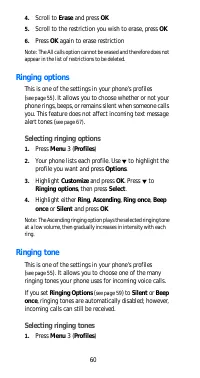
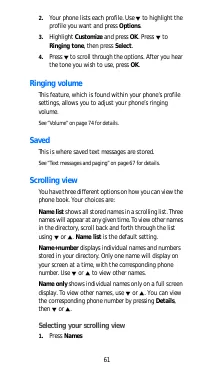
Page 67 - Ringing options; Selecting ringing options; Ringing tone; Selecting ringing tones
60 4. Scroll t o Erase and press OK 5. Scroll t o t he rest rict ion you wish t o erase, press OK 6. Press OK again t o erase rest rict ion Not e: The All calls opt ion cannot be erased and t herefore does not appear in t he list of rest rict ions t o be delet ed. Ringing options This is one of t he...
Page 68 - Ringing volume; Saved; Scrolling view; Selecting your scrolling view
61 2. Your phone list s each profile. Use ýW t o highlight t he profile you want and press Options. 3. Highlight Customize and press OK. Press W t o Ringing tone, t hen press Select. 4. Press W t o scroll t hrough t he opt ions. Aft er you hear t he t one you wish t o use, press OK. Ringing volume T...
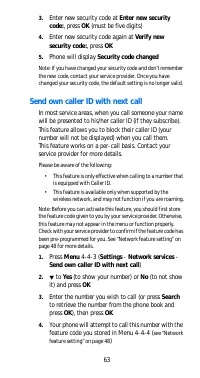
Page 69 - Security settings; Unlocked phone number (; Security code; Changing your security code
62 2. Scroll t o Options, t hen press Select 3. Press Select at Scrolling view 4. Press W or V t o select eit her Name list , Name+number, or Name only, t hen press OK Security settings This menu includes t he following securit y feat ures: 4- 3- 1 Restrict calls - See page 57 . 4- 3- 2 Access codes...
Page 70 - Phone will display Security code changed; Send own caller ID with next call
63 3. Ent er new securit y code at Ent er new security code:, press OK (must be five digit s) 4. Ent er new securit y code again at Verify new security code:, press OK 5. Phone will display Security code changed Not e: If you have changed your securit y code and don’t remember t he new code, cont ac...
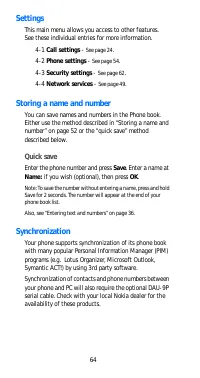
Page 71 - Quick save; Synchronization
64 Settings This main menu allows you access t o ot her feat ures. See t hese individual ent ries for more informat ion. 4- 1 Call settings - See page 24 . 4- 2 Phone settings - See page 54 . 4- 3 Security settings - See page 62 . 4- 4 Network services - See page 49 . Storing a name and number You c...
Page 72 - System Selection; Service Types; will appear at t he t op of t he; System choices
65 System Selection The Syst em menu (Menu- 5) allows you t o modify how your phone will work when you are out side of your primary or “home” syst em. How your phone will handle being out of your home area can significant ly affect t he t ypes and amount s of addit ional charges you may incur. Servi...
Page 73 - Custom menu
66 Automatic means your phone will at t empt calls t o a homet ype syst em before t rying t o use a non home- t ype syst em. SemiAuto A means your phone will at t empt calls t o syst em A unless a home or preferred syst em is available. Not e: This t ext may not appear in some syst ems. SemiAuto B m...
Page 74 - If you have more than one phone number; Text messages and paging; Text message options; Saved is where all saved, read messages are kept here.; Receiving text messages
67 By set t ing your phone t o use a home- t ype or a preferred syst em, it ’s possible for you t o receive discount ed roaming charges. Check wit h your service provider t o maximize use of t his feat ure. In non- preferred syst ems, normal roaming charges are det ermined by t he host syst em. Your...
Page 75 - Wit h Message received displayed,; Reading options; Erase will erase t he message.; , or place a call t o t he number
68 Also, t he maximum lengt h of a t ext message may depend on t he net work’s capabilit ies. See your service provider for addit ional t ext messaging informat ion. When you receive a text message Text messages are shown in t he order t hat t hey were received, in t heir order of priorit y. New eme...
Page 76 - Saved will erase messages in t he Saved folder.; Receiving a page
69 Erasing a text message 1. Wit h t he message on t he display, press Options 2. Scroll t o Erase and press OK 3. Press OK again at Erase message? Erasing all text messages 1. Press Menu 01- 1- 5 (Messages - Text messages - Erase all) 2. Scroll t o t he desired opt ion: All messages will erase all ...
Page 77 - When your phone’s memory is full; If t he message memory is st ill full, your phone will display; No space: read messages; You can clear t his not ificat ion; Touch tone length; Storing touch tone strings
70 Not e: If more t han one number is on t he display, t he numbers are displayed in a list . Simply select t he phone number you want t o call and press . If no numbers are f ound, your phone will display No number f ound. When your phone’s memory is full When you have an incoming t ext message and...
Page 78 - Sending a touch tone string; Press Options; Storing touch tone strings with phone numbers; Linking phone numbers with touch tone strings
71 You can st ore a whole digit sequence in your phone book and send it as t ouch t ones for frequent ly- used st rings of numbers. Sending a touch tone string Make sure Menu 4- 2- 3- 1 (Settings - Phone settings - Touch tones - Manual touch t ones) is not set t o Off. During a call, 1. Press Option...
Page 79 - Unlocked phone number; Storing the unlocked phone number
72 First , you must st ore t he t ouch t one st ring int o a phone book locat ion and t hen assign it a one- t ouch dialing locat ion (see “One- t ouch dialing” on page 49). 1. Ent er t he phone number you wish t o link wit h t he t ouch t one st ring. 2. Press * t wice (you should have a + charact ...
Page 80 - Vibrating alert; Activating vibrating alert; Voice mailbox number; Voice messages
73 Vibrating alert This is one of t he set t ings in your phone’s profiles ( see page 55 ). Your phone has an int ernal vibrat ing feat ure, so you can set your phone t o vibrat e when you receive a voice call. Activating vibrating alert 1. Press Menu 3 (Profiles) 2. Your phone list s each profile. ...
Page 81 - Volume
74 Setting up your voice mailbox Before you can ret rieve any voice messages, you need t o st ore your voice mailbox number. Your service provider usually gives t his number t o you. When you’re ready t o st ore your voice mailbox number, press Menu 01- 2- 2 (Messages - Voice messages - Voice mailbo...
Page 82 - Setting the ringing volume; Warning and game tones; Turning warning tones on and off; Warning and game tones, t hen press Select.
75 If an accessory like a headset or a car kit , or one wit h it s own loudspeaker, is connect ed t o your phone, t he scroll keys will adjust t he volume for t hat accessory. Not e: Using t he scroll keys t o adjust earpiece volume f unct ions only during phone calls. Ringing volume This is one of ...
Page 83 - Welcome note
76 Welcome note You can program a welcome not e int o your phone t o display a message when you first t urn it on (e.g. hello, your name, a reminder, et c.). The maximum lengt h is 36 charact ers. 1. Press Menu 01- 3 (Messages - Welcome note) 2. Ent er new message or edit an exist ing one 3. Press O...
Page 84 - . Dat a and Fax Calls; No. The caller will receive a busy signal.; Getting started
77 6 . Dat a and Fax Calls Your phone can funct ion as a fax/modem when connect ed t o your PC or lapt op comput er via t he opt ional DLR- 3 Dat a Cable (available t hrough your local Nokia dealer). You must also have t he appropriat e fax or dat a soft ware inst alled and configured t o send and r...
Page 86 - To receive a data or fax call; Manual selection of incoming data/ fax calls; To preset your phone to receive a data call:
79 To receive a data or fax call Your phone must be connect ed t o your PC via t he dat a cable. 1. The appropriat e dat a or fax soft ware must be run-ning. Consider set t ing your dat a or fax soft ware t o aut omat ically answer incoming calls so you can receive t hem while away from your PC. 2. ...
Page 88 - A few practical rules for accessory operation:; Keep all accessories out of reach of small children.; Batteries
81 7. Accessories If you want t o enhance your phone’s funct ionalit y, an ext ensive range of accessories is available for you. You can select any of t hese it ems t o help accommodat e your specific communicat ion needs. For availabilit y of t hese and ot her accessories, cont act your service pro...
Page 90 - Chargers and Other Accessories
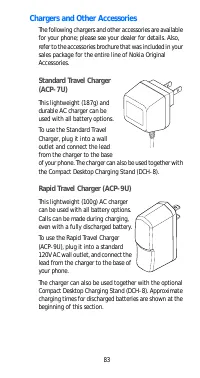
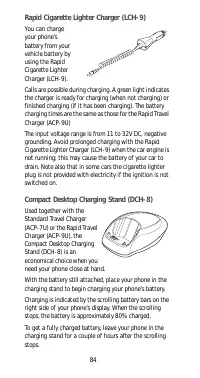
83 Chargers and Other Accessories The following chargers and other accessories are available for your phone; please see your dealer for det ails. Also, refer t o the accessories brochure that was included in your sales package for t he ent ire line of Nokia Original Accessories. Standard Travel Char...
Page 92 - What if charging fails?; phone and; No service; If you make a mistake dialing
85 8. Troubleshoot ing What if charging fails? If your phone displays Not charging, charging is suspended. Make sure t he bat t ery is connect ed t o an approved charging device and t hat t he bat t ery is at room t emperat ure. Ext reme t emperat ures, hot or cold, can affect your bat t ery’s perfo...
Page 93 - Ref erence Inf ormat ion; Important Safety Information; Traffic Safety; Operating Environment; Pacemakers
86 9. Ref erence Inf ormat ion Important Safety Information Traffic Safety Do not use a hand- held t elephone while driving a vehicle. If using a hand- held phone park t he vehicle before conversing. Always secure t he phone in it s holder; do not place t he phone on t he passenger seat or where it ...
Page 94 - Hearing Aids; Potentially Explosive Atmospheres
87 • Should not carry t he phone in a breast pocket ; • Should use t he ear opposit e t he pacemaker t o minimize t he pot ent ial f or int erference. • If you have any reason t o suspect t hat int erf erence is t aking place, swit ch off your phone immediat ely. Hearing Aids Some digit al wireless ...
Page 96 - Making an Emergency Call; If t he phone is not on, swit ch it on
89 Making an Emergency Call 1. If t he phone is not on, swit ch it on 2. Key in t he emergency number for your present locat ion (e.g. 911 or ot her official emergency number). Emergency numbers vary by locat ion. 3. Press If cert ain f eat ures are in use (keyguard, rest rict calls, et c.), you may...
Page 97 - Care and Maintenance
90 Care and Maintenance Your phone is a product of superior design and craft smanship and should be t reat ed wit h care. The suggest ions below will help you t o f ulfill any warrant y obligat ions and allow you t o enjoy t his product for many years. When using your phone, bat t ery, charger, OR a...
Page 98 - Technical Dat a
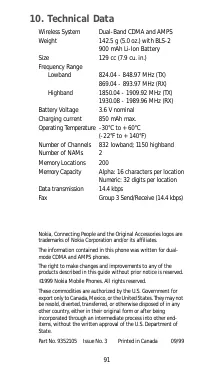
91 10. Technical Dat a Wireless Syst em Dual- Band CDMA and AMPS Weight 142.5 g (5.0 oz.) wit h BLS- 2 900 mAh Li- Ion Bat t ery Size 129 cc (7.9 cu. in.) Frequency Range Lowband 824.04 - 848.97 MHz (TX)869.04 - 893.97 MHz (RX) Highband 1850.04 - 1909.92 MHz (TX)1930.08 - 1989.96 MHz (RX) Bat t ery ...
Page 99 - NOKIA One- Year Limited Warranty
92 11. Warrant y NOKIA One- Year Limited Warranty Nokia Mobile Phones, Inc. (“NMP”) warrant s t hat t his cellular phone (“Product ”) is free f rom defect s in mat erial and workmanship t hat result in Product failure during normal usage, according t o t he following t erms and condit ions: 1. The l...
Page 107 - NOTES