Page 2 - Legal information; Export controls
The wireless phone described in this guide is approved for use in AMPS 800, CDMA 800, and CDMA 1900 networks. Legal information Part No. 9353074, Issue 2 Printed in Canada xx/xx Copyright © 2000–2001 Nokia Inc. All rights reserved. Nokia Connecting People and the original accessories logos are trade...
Page 3 - Contents
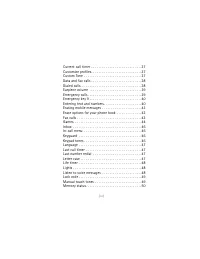
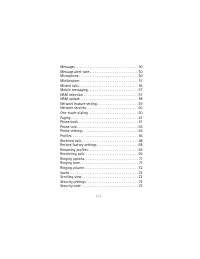
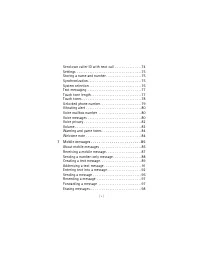
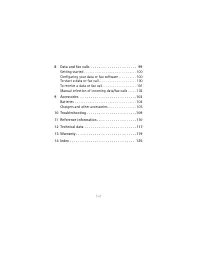
[ i ] Contents 1 Safety at a glance . . . . . . . . . . . . . . . . . . . . . . . . 1 Using this Guide . . . . . . . . . . . . . . . . . . . . . . . . . . . . . . 3Disclaimer . . . . . . . . . . . . . . . . . . . . . . . . . . . . . . . . . . . 3contacting nokia . . . . . . . . . . . . . . . . . . ....
Page 9 - Safety at a glance
[ 1 ] Safety at a glance 1 1 Safety at a glance Read these simple guidelines before using your phone. Failure to comply with these guidelines may be dangerous or illegal. Note: For more detailed safety information, see “Important safety information” on page 110. • ROAD SAFETY COMES FIRST Don’t use a...
Page 11 - • USING THIS GUIDE
[ 3 ] Safety at a glance 1 • USING THIS GUIDE A number of features included in this guide are called Network Services. They are special services provided by wireless service providers. Before you can take advantage of any of these Network Services, you must subscribe to the service(s) from your home...
Page 13 - Getting connected; • ATTACHING YOUR BATTERY
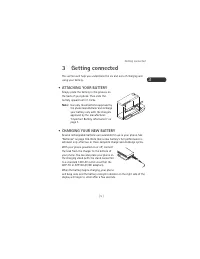
[ 5 ] Getting connected 3 3 Getting connected This section will help you understand the ins and outs of charging and using your battery. • ATTACHING YOUR BATTERY Simply place the battery in the grooves on the back of your phone. Then slide the battery upward until it clicks. Note: Use only those bat...
Page 14 - When is a good time to charge?; When is charging complete?
3 [ 6 ] If your phone displays Not charging , charging is suspended. Check that the battery is connected only to an approved charging device. If the battery is very hot or cold, wait for a while; charging will automatically resume after the battery is restored to its normal operating temperature. If...
Page 15 - Can you make calls while charging?; • IMPORTANT BATTERY INFORMATION
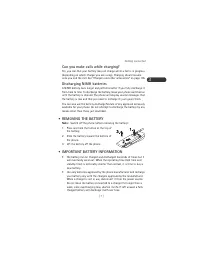
[ 7 ] Getting connected 3 Can you make calls while charging? Yes, you can. But your battery may not charge while a call is in progress (depending on which charger you are using). Charging should resume once you end the call. See “Chargers and other accessories” on page 105. Discharging NiMH batterie...
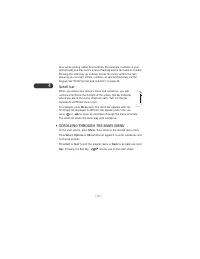
Page 17 - Using your phone; • WHAT IS THE ‘START SCREEN’?; Scroll keys
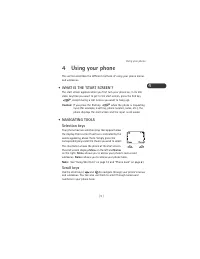
[ 9 ] Using your phone 4 4 Using your phone This section describes the different methods of using your phone menus and submenus. • WHAT IS THE ‘START SCREEN’? The start screen appears when you first turn your phone on, in its idle state. Anytime you want to get to the start screen, press the End key...
Page 19 - • INDICATORS AND ICONS
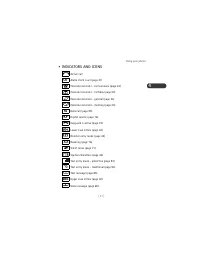
[ 11 ] Using your phone 4 • INDICATORS AND ICONS Active call Alarm clock is set (page 21) Calendar reminder - call someone (page 24) Calendar reminder - birthday (page 24) Calendar reminder - general (page 24) Calendar reminder - meeting (page 24) Data call (page 99) Digital service (page 76) Keygua...
Page 21 - • SUMMARY OF MENU ITEMS AND SHORTCUTS
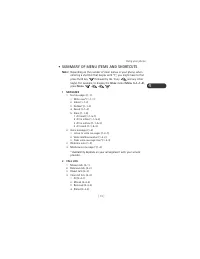
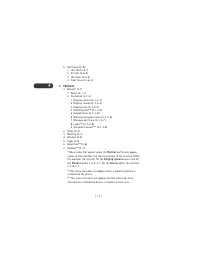
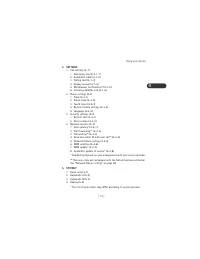
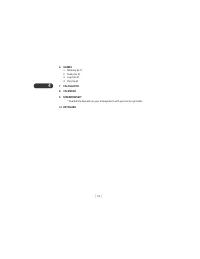
[ 13 ] Using your phone 4 • SUMMARY OF MENU ITEMS AND SHORTCUTS Note: Depending on the number of main menus in your phone, when entering a shortcut that begins with “1”, you might have to first press the 0 key followed by the 1 key and any other key(s). For example, to display the Inbox menu ( Menu ...
Page 25 - The basics; • SWITCHING THE PHONE ON AND OFF; Switching off with the Power key; • GETTING A STRONG SIGNAL
[ 17 ] The basics 5 5 The basics You have purchased a powerful phone, with lots of features. Read this section for some very basic information on how to use your phone. A more comprehensive description of your phone is covered in “Your phone A to Z” starting on page 21. • SWITCHING THE PHONE ON AND ...
Page 26 - Checking signal strength; Dialing a phone number stored in the phone book
5 [ 18 ] If your phone does not detect service at power up, the message Searching for service will be displayed. The phone will continue to search for available service for 15 minutes, at which time it will display No service if none is found. The phone will periodically continue to search for servi...
Page 27 - Emergency calls; • KEYGUARD; Activating keyguard
[ 19 ] The basics 5 Emergency calls See “Emergency calls” on page 39. • ENDING A CALL Press the End key . To clear any characters from the display, press the End key again. • ANSWERING A CALL Press any key except the End key or the Power key . Note: This assumes that Anykey answer ( Menu 4-1-4 ) is ...
Page 29 - Your phone A to Z; • ACCESS CODES; Setting the alarm clock
[ 21 ] Your phone A to Z 6 6 Your phone A to Z • ABC/abc MODE This allows you to enter upper and lower case alphanumeric characters into your phone. This is necessary for entering names and numbers into your phone book, as well as editing any existing alphanumeric characters. See “Entering text and ...
Page 31 - • ANYKEY ANSWER
[ 23 ] Your phone A to Z 6 • ANYKEY ANSWER This feature allows you to answer an incoming call by pressing any key except the End key or the Power key . The default setting for this feature is On . To enable or disable Anykey answer, press Menu 4-1-4 . • AUTOMATIC ANSWER This is a setting found in yo...
Page 32 - • CALENDAR
6 [ 24 ] • CALCULATOR Your phone’s calculator adds, subtracts, multiplies, and divides. Using the calculator 1 Press Menu 7 ( Calculator ). 2 A zero ( 0 ) appears on the screen. Enter the first number in the equation (to insert a decimal point, press the Pound key ). 3 To add , press the Star key on...
Page 33 - View day notes
[ 25 ] Your phone A to Z 6 phone’s time and date. When your phone prompts you for the time with hh:mm , enter the time in hours and minutes (using two-digit fields), then press OK . Note: Time format (24-hour or am/pm) is set using the Clock. See “Clock” on page 34. When your phone prompts you for t...
Page 35 - Call forwarding options
[ 27 ] Your phone A to Z 6 However, you can use the feature code manually, if you choose, by including the feature code in front of the phone number to which you wish to forward your calls (for example, *72 555 1212). If the code you store is not correct, the Call forwarding feature will not work. 1...
Page 37 - Using call settings
[ 29 ] Your phone A to Z 6 Using call settings 1 Press Menu 4-1 ( Settings - Call settings ). 2 Scroll to one of the following options, then press Select . • Emergency key 9 : See page 40. • Automatic redial : See page 23. • Calling card : See page 31. • Anykey answer : See page 23. • Minibrowser co...
Page 39 - • CALLER ID; • CALLING CARD
[ 31 ] Your phone A to Z 6 • CALLER ID This is a network service that helps identify incoming calls. Contact your service provider for details. When Caller ID is active, your phone may display the caller’s phone number. The caller’s name may also display if their name and number has been stored in t...
Page 40 - Storing calling card information in your phone
6 [ 32 ] NOTES ABOUT NUMBERS IN DIALING SEQUENCES • Access no. : This is usually a 1-800 number that is listed on the back of the calling card. • Phone no. : The phone number of the party you are calling. • Card no. : The unique number for your card. The card may also specify that you enter a PIN nu...
Page 41 - Choosing a calling card to use
[ 33 ] Your phone A to Z 6 Choosing a calling card to use 1 Press Menu 4-1-3 ( Settings - Call settings - Calling card ). 2 Scroll to the desired card, then press Options . 3 Scroll to highlight Select and press OK . 4 Enter security code (page 73), then press OK . 5 Your phone will display Card rea...
Page 43 - Manually setting the clock
[ 35 ] Your phone A to Z 6 Manually setting the clock 1 Press Menu 4-2-1 ( Settings - Phone settings - Clock ). 2 Scroll to Time settings , then press Select . 3 Scroll to Set clock , then press Select . 4 Enter the current time. For example, to enter 7:30, enter 0730 . Press OK . 5 Scroll to am or ...
Page 45 - • CURRENT CALL TIMER; • CUSTOMIZE PROFILES
[ 37 ] Your phone A to Z 6 4 Enter name and press OK , or just scroll through the phone book. 5 Press the Talk key . • CURRENT CALL TIMER This feature displays the running elapsed time on your screen while a call is active. Once the call has ended, simply press any key to clear the display (the disp...
Page 47 - Dialed calls options
[ 39 ] Your phone A to Z 6 You can also access the last 10 dialed numbers if you press the Talk key once, then scroll through the list. Also, see “Call log” on page 27 for details on other call lists. Dialed calls options See “Call log options” on page 28. • EARPIECE VOLUME During a call, you can ad...
Page 48 - • ENTERING TEXT AND NUMBERS
6 [ 40 ] Remember, to make or receive any calls, the phone must be switched on and in a service area with adequate cellular signal strength. Emergency calls may not be possible on all cellular phone networks or when certain network services and/or phone features are in use. Check with local cellular...
Page 49 - ABC mode
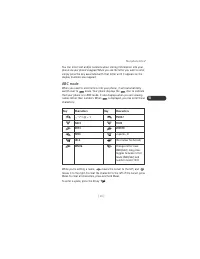
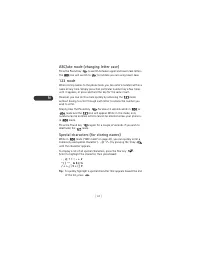
[ 41 ] Your phone A to Z 6 You can enter text and/or numbers when storing information into your phone via your phone’s keypad. When you see the letter you wish to enter, simply press the key associated with that letter until it appears on the display (numbers also appear). ABC mode When you need to ...
Page 51 - Special characters (for storing and calling numbers); • ERASING MOBILE MESSAGES; • ERASE OPTIONS FOR YOUR PHONE BOOK
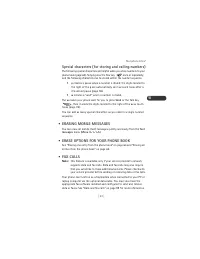
[ 43 ] Your phone A to Z 6 Special characters (for storing and calling numbers) The following special characters are helpful when you store numbers to your phone book (page 62). Simply press the Star key once or repeatedly, and the following characters can be stored within the number sequence. • p c...
Page 52 - • GAMES; Memory
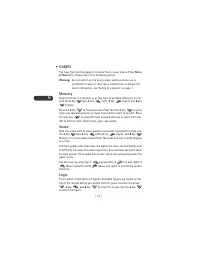
6 [ 44 ] • GAMES You have four exciting games to choose from in your phone. Press Menu 6 ( Games ) to choose one of the following games: Warning: Do not switch on the phone when wireless phone use is prohibited or when it may cause interference or danger. For more information, see “Safety at a glanc...
Page 53 - Dice
[ 45 ] Your phone A to Z 6 To copy a figure from a previously accepted guess row, start scrolling with the 4 key , move the cursor to the desired figure in the normal way and accept the selection with the 5 key . Once you think you have the right combination, press the Star key . The result is prese...
Page 55 - Setting the keypad tones
[ 47 ] Your phone A to Z 6 Setting the keypad tones 1 Press Menu 3 ( Profiles ). 2 Your phone lists each profile. Scroll to the profile you want and press Options . 3 Highlight Customize and press OK . Scroll to Keypad tones and press Select . 4 Scroll through the options; your phone plays a sample ...
Page 57 - • LOCK CODE
[ 49 ] Your phone A to Z 6 • LOCK CODE You’ll need the lock code to activate and deactivate Phone lock (page 65), or to change your lock code. The default lock code is 1234 (or the last four digits of your phone number, depending on your service provider). If you enter an incorrect lock code five ti...
Page 59 - Muting and unmuting your phone
[ 51 ] Your phone A to Z 6 Muting and unmuting your phone You can mute the phone’s microphone during a call; simply press Mute . To unmute the microphone, press Unmute . If these texts are not available, press Options , scroll to Mute or End mute , then press Select . Muting and unmuting also affect...
Page 61 - About web page content
[ 53 ] Your phone A to Z 6 • Home : Return to the Home page. • Bookmark page : Set a bookmark for the current page. • Show URL : Show the web address (Uniform Resource Locator) for the current page. • Restart : Return to the Home page and delete all stored pages. • Version : Show the version of Mini...
Page 62 - Links; Bookmarks
6 [ 54 ] ACTIVATE AN ITEM (FOR EXAMPLE, A LINK) • Press the appropriate number key on your phone’s keypad (if the item on the page is numbered). • OR, scroll to the item, then press the appropriate selection key (for example, to activate a link). SELECTION KEYS To navigate to different screens or se...
Page 63 - Receiving messages via the Minibrowser
[ 55 ] Your phone A to Z 6 SET A BOOKMARK 1 Go to the page for which you want to set a bookmark. 2 Press and release the Power key . The Minibrowser menu appears. 3 Scroll to Bookmark page , then press Select . (A message may appear asking you to confirm this action.) GO TO A BOOKMARKED PAGE 1 From ...
Page 65 - Checking the missed calls list anytime; • MOBILE MESSAGING
[ 57 ] Your phone A to Z 6 Checking the missed calls list anytime Press Menu 2-1 ( Call log - Missed calls ), then scroll through the list. When the Forward if not answered option in the Call forwarding feature (page 26) is selected, your phone will not treat the forwarded calls as missed calls. Not...
Page 66 - • NAM UPDATE; Automatic NAM update; Manual NAM update
6 [ 58 ] • NAM UPDATE The Number Assignment Module (NAM) in your phone contains your assigned phone number(s) and other system information that your service provider entered during activation. The NAM update feature allows you to easily activate or reactivate your phone without having to go to your ...
Page 67 - • NETWORK FEATURE SETTING
[ 59 ] Your phone A to Z 6 If you wish to do neither and want to return to the start screen, press and hold the End key . Note: This feature may not be available in all systems. Please contact your service provider for details about the availability of this feature. • NETWORK FEATURE SETTING Call fo...
Page 71 - Accessing the phone book
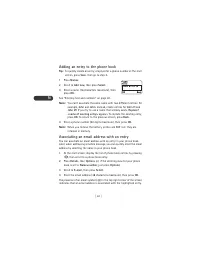
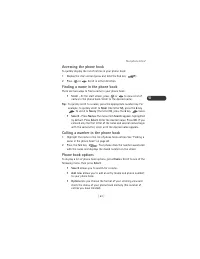
[ 63 ] Your phone A to Z 6 Accessing the phone book To quickly display the list of entries in your phone book: 1 Display the start screen (press and hold the End key ). 2 Press or . Scroll in either direction. Finding a name in the phone book There are two ways to find a name in your phone book: • S...
Page 73 - Erasing all entries from the phone book
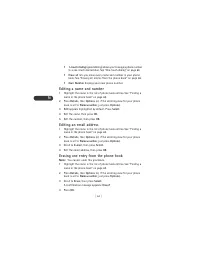
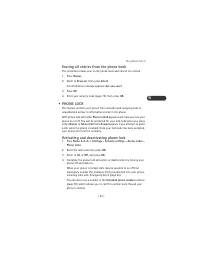
[ 65 ] Your phone A to Z 6 Erasing all entries from the phone book This procedure erases your entire phone book and cannot be undone. 1 Press Names . 2 Scroll to Erase all , then press Select . A confirmation message appears: Are you sure? 3 Press OK . 4 Enter your security code (page 73), then pres...
Page 74 - Answering a call with phone lock on; • PHONE SETTINGS; • PROFILES
6 [ 66 ] Answering a call with phone lock on • Press any key except the End key and the Power key . Note: This assumes that Anykey answer ( Menu 4-1-4 ) is set to On . • PHONE SETTINGS Phone settings give you access to other phone features such as the alarm clock and the language your phone uses. Us...
Page 75 - Selecting a profile
[ 67 ] Your phone A to Z 6 Selecting a profile 1 Quickly press the Power key to view a list of the available profiles. 2 Scroll to the profile and press OK . When you select a profile other than Normal , it will appear on the start screen. These steps allow you to select a profile, but you cannot cu...
Page 77 - • RENAMING PROFILES
[ 69 ] Your phone A to Z 6 Your phone book, timers, language selection, security code, and lock codes are not reset. However, any profiles you have modified are reset when you restore default settings. Plus, if you are using your phone’s clock (as opposed to the clock provided by the network), the c...
Page 79 - Erasing a call restriction
[ 71 ] Your phone A to Z 6 Erasing a call restriction 1 Press Menu 4-3-1 ( Settings - Security settings - Restrict calls ). 2 Scroll to Restrict outgoing calls or Restrict incoming calls and press Select . 3 Enter the security code (page 73) and press OK . 4 Scroll to Erase and press OK . 5 Scroll t...
Page 81 - Selecting the scrolling view
[ 73 ] Your phone A to Z 6 Selecting the scrolling view 1 Press Names . 2 Scroll to Options , then press Select . 3 Press Select at Scrolling view . 4 Scroll to Name list , Name+number , or Name only , then press OK . • SECURITY SETTINGS This menu includes the following security features: • Restrict...
Page 83 - • SETTINGS
[ 75 ] Your phone A to Z 6 3 Enter the number you want to call (or press Search to retrieve the number from the phone book), then press OK . 4 Press OK again. Your phone will try to call this number with the feature code you stored in Menu 4-4-5 (see “Network feature setting” on page 59). • SETTINGS...
Page 84 - • SYSTEM SELECTION; Service types
6 [ 76 ] Synchronization of contacts and phone numbers between your phone and personal computer also requires the optional DAU-9P serial cable. Check with your local Nokia dealer for the availability of these products. • SYSTEM SELECTION The System menu ( Menu 5 ) allows you to customize the way you...
Page 85 - System choices
[ 77 ] Your phone A to Z 6 System choices If you have more than one phone number (NAM), your choice affects only the currently selected number. See “NAM selection” on page 57. Note: System choices may differ, depending on service provider. • Home area : Your phone cannot roam. This means you can mak...
Page 87 - • UNLOCKED PHONE NUMBER
[ 79 ] Your phone A to Z 6 When you dial this number, your phone first dials the phone number, then waits (because of the w character) for you to press Send . Your phone then sends your password. If you include a p character instead of a w , your phone pauses for 2.5 seconds and then automatically s...
Page 89 - Setting up your voice mailbox
[ 81 ] Your phone A to Z 6 Setting up your voice mailbox Before you can retrieve any voice messages, you need to store your voice mailbox number. Your service provider usually gives this number to you. 1 Press Menu 0-1-2-2 ( Messages - Voice messages - Voice mailbox number ). 2 Enter your voice mail...
Page 91 - • VOLUME
[ 83 ] Your phone A to Z 6 2 Scroll to On , then press OK . During a call, if voice privacy is lost, your phone sounds two short beeps. • VOLUME You can adjust the ringing volume and earpiece volume with your phone. Earpiece volume While in a phone call, you can adjust the listening volume for your ...
Page 93 - Mobile messages; • ABOUT MOBILE MESSAGES
[ 85 ] Mobile messages 7 7 Mobile messages Before you can send or receive mobile messages, you may need to subscribe to the mobile messaging service offered by your service provider. Also, some networks may not support mobile messaging. • ABOUT MOBILE MESSAGES A mobile message is a message in the fo...
Page 94 - Types of mobile messages; Parts of a mobile text message
7 [ 86 ] delete messages from one of the other folders. The network will resend the message later. • If the message is an emergency message (sent only by a network operator), in addition to the messages mentioned above, other messages in the Inbox, Outbox, and Saved folders could be automatically de...
Page 95 - Message delivery notification
[ 87 ] Mobile messages 7 Message delivery notification When you send a message, you can request to be notified when the recipient receives the message. This notification is called a delivery note. See “Sending a message” on page 96. • RECEIVING A MOBILE MESSAGE When you receive a mobile message, the...
Page 96 - • SENDING A NUMBER-ONLY MESSAGE
7 [ 88 ] Reply allows you to send a message back to the sender. For more information about replying to a message, see “Replying to a message” on page 90. Save sends the message to the Saved folder. Use number allows you to quickly call or save a phone number if it was included in the message. If mor...
Page 97 - • CREATING A TEXT MESSAGE
[ 89 ] Mobile messages 7 Use the following guidelines when addressing your message and specifying a callback number: • Use Add number to specify a recipient’s phone number. The maximum number of characters allowed in a phone number is 32. • When prompted to enter a recipient’s phone number, you can ...
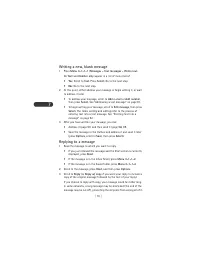
Page 98 - Writing a new, blank message; Replying to a message
7 [ 90 ] Writing a new, blank message 1 Press Menu 0-1-1-1 ( Messages - Text messages - Write new ). Do Text and Number only appear in a list of menu items? • Yes : Scroll to Text . Press Select . Go to the next step. • No : Go to the next step. 2 At this point, either address your message or begin ...
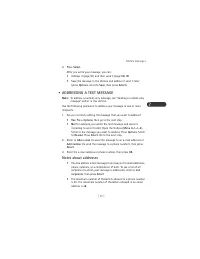
Page 99 - • ADDRESSING A TEXT MESSAGE; Notes about addresses
[ 91 ] Mobile messages 7 4 Press Select . After you write your message, you can: • Address it (page 91) and then send it (page 96) OR • Save the message in the Outbox and address it send it later (press Options , scroll to Save , then press Select ). • ADDRESSING A TEXT MESSAGE Note: To address a nu...
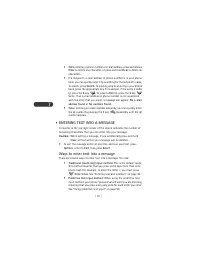
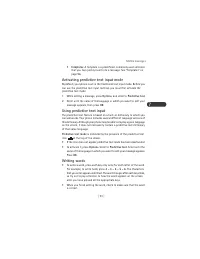
Page 101 - Activating predictive text input mode
[ 93 ] Mobile messages 7 • Templates : A template is a predefined, commonly used sentence that you can quickly insert into a message. See “Templates” on page 96. Activating predictive text input mode By default, your phone is set in the traditional text input mode. Before you can use the predictive ...
Page 102 - Writing compound words; Deleting characters
7 [ 94 ] If the word is correct, enter a space (press the 0 key ) and write the next word. If the word is incorrect and is underlined, press the Star key repeatedly until the desired word appears. OR, press Options , scroll to Matches , then press Select . Your phone shows a list of words. Choose a ...
Page 103 - Entering numbers
[ 95 ] Mobile messages 7 If predictive text mode is active, if you don’t wait at least 1.5 seconds between key presses, the text input mode will also be switched between traditional and predictive text. If predictive text mode is active when you create a new message, the first letter of the first wo...
Page 105 - • RESENDING A MESSAGE
[ 97 ] Mobile messages 7 • Delivery note : When the recipient receives your message, the network will send you a delivery note. If you address the message to more than one recipient, you will receive a separate delivery note for each recipient. • Callback no. : Allows you to enter a phone number at ...
Page 107 - Data and fax calls
[ 99 ] Data and fax calls 8 8 Data and fax calls Note: This feature is available only if your service provider’s network supports data and fax calls. Data and fax calls may also require that you subscribe to these additional services. Please check with your service provider before sending or receivi...
Page 109 - • TO RECEIVE A DATA OR FAX CALL
[ 101 ] Data and fax calls 8 1 Initiate a data or fax call using your data or fax software configured for your phone. 2 When trying to connect to the network, the phone displays Connecting... Once connected, the text Data call (or Fax call ) remains on the display for the duration of the data or fax...
Page 110 - • MANUAL SELECTION OF INCOMING DATA/FAX CALLS
8 [ 102 ] • MANUAL SELECTION OF INCOMING DATA/FAX CALLS Certain service providers require that you preset your phone to receive the incoming data or fax call, rather than having the phone automatically detect the call type. Note: Check with your service provider to see if “pre-arrangement” of data a...
Page 111 - Accessories
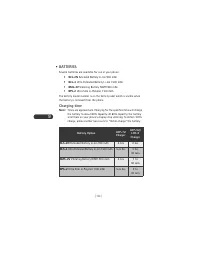
[ 103 ] Accessories 9 9 Accessories If you want to enhance your phone’s functionality, an extensive range of accessories is available for you. You can select any of these items to help accommodate your specific communication needs. For availability of these and other accessories, contact your servic...
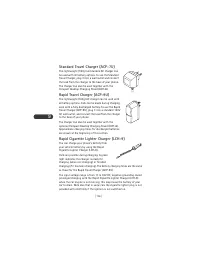
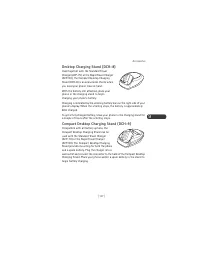
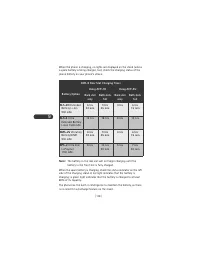
Page 113 - Standby and talk times; • CHARGERS AND OTHER ACCESSORIES
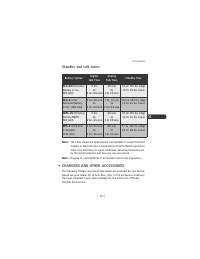
[ 105 ] Accessories 9 Standby and talk times Note: The times shown are approximate, and represent a range for either standby or talk times (not a combination of both). Battery operation times vary according to signal conditions, network parameters set by the service provider, and how you use your ph...
Page 117 - 0 Troubleshooting
[ 109 ] Troubleshooting 10 10 Troubleshooting WHAT IF CHARGING FAILS? If your phone displays Not charging , charging is suspended. Make sure the battery is connected to an approved charging device and that the battery is at room temperature. Extreme temperatures, hot or cold, can affect your battery...
Page 118 - 1 Reference information; Important safety information
11 [ 110 ] 11 Reference information Important safety information TRAFFIC SAFETY Do not use a hand-held telephone while driving a vehicle. If using a hand-held phone park the vehicle before conversing. Always secure the phone in its holder; do not place the phone on the passenger seat or where it can...
Page 120 - Vehicles
11 [ 112 ] POSTED FACILITIES Switch your phone off in any facility where posted notices so require. POTENTIALLY EXPLOSIVE ATMOSPHERES Switch off your phone when in any area with a potentially explosive atmosphere and obey all signs and instructions. Sparks in such areas could cause an explosion or f...
Page 124 - Care and maintenance
11 [ 116 ] Care and maintenance Your phone is a product of superior design and craftsmanship and should be treated with care. The suggestions below will help you to fulfill any warranty obligations and allow you to enjoy this product for many years. When using your phone, battery, charger, OR any ac...
Page 125 - 2 Technical data
[ 117 ] Technical data 12 12 Technical data Weight <variable> 140.4 g (4.95 oz.) with BPS-2 Ultra Slim Li-Polymer Battery (1100mAh) Size 136 cc (8.3 cu. in.) Frequency Range <variable> Lowband Highband 824.04 - 848.97 MHz (TX)869.04 - 893.97 MHz (RX)1850.04 - 1909.92 MHz (TX)1930.08 - 19...
Page 127 - NOKIA One-Year Limited Warranty
[ 119 ] Warranty 13 13 Warranty NOKIA One-Year Limited Warranty Nokia Inc. (“Nokia”) warrants that this cellular phone (“Product”) is free from defects in material and workmanship that result in Product failure during normal usage, according to the following terms and conditions: 1. The limited warr...
Page 133 - Numerics
14 [ 125 ] Index 14 Index Numerics 123 mode 42 1-touch dialing 60 A ABC mode 41 access codes 21 lock code 49 security code 73 accessories 103 batteries 104 addressing a text message 91 notes about 91 alarm clock 21 setting 21 snooze 22 using when phone is off 22 am/pm format 35 analog network 77 ans...