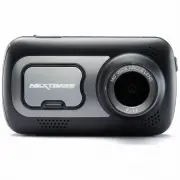
Page 2 - Introduction to your Dash Cam; mirror so it is not a distraction to the driver.
Introduction to your Dash Cam This range of Nextbase™ Dash Cams has been designed specifically with ease of use in mind;it is recommended NOT to change the default settings, which have been carefully selected to give thebest performance for day to day use. Please check the firmware version of the Da...
Page 3 - Table of Contents
03 Table of Contents EMERGENCY SOS - FLOW DIAGRAM EMERGENCY SOS FREQUENTLY ASKED QUESTIONS CONNECT APPS (MYNEXTBASE CONNECT™ & ALEXA™) VIDEO MODE / FOLDER SELECTION / PHOTO PLAYBACK MODE - VIDEO PLAYBACK MODE - VIDEO EDITING PLAYBACK MODE - PROTECT & DELETE MYNEXTBASE CONNECT™ MYNEXTBASE PLA...
Page 4 - CHOKING; Precautions; of an accident.
04 WARNING: CAUTION: LCD: CHOKING HAZARD: Do not expose this product to rain, moisture or water under any circumstances,doing so may result in the risk of electric shock or fire. To reduce the risk of electric shock, do not perform any servicing other thanthat contained in the instruction manual unl...
Page 5 - Product Warnings; Distraction Warning; Lithium-ion batteries are used in most NextbaseTM; Magnet Warnings
Product Warnings Failure to heed the following warnings could result in an accident or collision resulting in death orserious injury. Distraction Warning This device is intended to enhance the situational awareness when used properly. If used improperly, you could become distracted by the display, w...
Page 6 - Usage Precautions; applicable local laws and regulations.; Notices; this device may not cause interference, and
06 Usage Precautions Failure to heed the following precautions could result in personal injury or property damage, or negativelyimpact the device functionality. Battery Precaution - Do not immerse or expose the Dash Cam or batteries to rain, water or other liquids. - Do not leave the device exposed ...
Page 8 - A full list of certifications can be found at; FCC - Supplier’s Declaration of Conformity Statement
08 SUPPLIER'S DECLARATION OF CONFORMITY(47 CFR Section 2.906). We; Tank Design(The responsible party, who must be located in the United States) Hereby, Declare that the essential requirements set out in the 47 CFR Sections 2.906 of FCC,have been fully fulfilled on our product with indication below: ...
Page 9 - GW; Product Specification; Caerphilly, United Kingdom; Declaration of Conformity
09 3 522 GW Amazon, Alexa and all related logos are trademarks of Amazon.com Inc or its affiliates The Bluetooth™ word mark and logos are registered trademarks owned by Bluetooth SIG. Windows is a registered trademark of Microsoft Corporation in the United States and other countries. Android is a tr...
Page 10 - Product appearance may differ slightly to that shown above.; Package Contents
10 Product appearance may differ slightly to that shown above. Nextbase 522GW Dash Cam Click & GoPowered Mounts:Suction and Adhesive Car Power Cable (4m) USB Connection Cable 522 Quick Start Guide Package Contents Please check the contents of your Nextbase™ Dash Cam product. Product Features Tha...
Page 11 - Camera Parts and Controls; See below to identify the parts and controls of your Dash Cam
11 1 2 4 5 6 LEDs Top: Blue - The Blue LED will be on while the Dash Cam is charging. It will turn off when charging is complete, even if the Dash Cam is still plugged in.Bottom: Red - The Red LED is permanently on while the Dash Cam is active. It will flash while recording. Protect Button Press whi...
Page 13 - In Vehicle Installation
13 1. Insert MicroSD Card Insert a suitable MicroSD card (Class 10, U3, minimum 48/Mbps) in to the Dash Cam, taking care that the gold contacts are facing towards the LCD screen side of the Dash Cam. Push the memory card until it clicks into place. Note: - Use the edge of a small coin (or similar ob...
Page 16 - Adjusting the Dash Cam
9 Adjusting the Dash Cam With the mount attached to the windscreen, ensure that objects on the Dash Cam display are level and adjust as required. Ensure that the road ahead is at the centre of the image, in the central third of the display. If too much of the sky is visible it may risk underexposing...
Page 17 - Notes On Positioning Your Dash Cam; to the left of this page.; Accessories; Nextbase Accessories Manual; Positioning Your Dash Cam
17 Notes On Positioning Your Dash Cam - Do NOT mount the Dash Cam in front of the driver, as depicted by the red area in the illustration to the left of this page. - When installing the Dash Cam in a vehicle, always place the device securely against the windscreen and where possible conceal the powe...
Page 18 - Adjust the Polarising Filter; Polarising Filter
18 The above diagram is for illustration purposes only. Gently rotate the front bezel to adjustthe filter. Rotate the filter until the windscreenreflection can no longer be seen on the DashCam display (see below). Once the reflection can no longer be seen,operate the Dash Cam normally. Please note; ...
Page 19 - Changing Mount Attachments; Removing Adhesive Residue
19 Changing Mount Attachments Follow the instructions below to switch between mounts attachments; 3M adhesive or suction. To attacheach mount, align the pins on the mount with the holes on the adhesive/suction attachment and slidefirmly to the right until you hear the pieces click into place. To rem...
Page 20 - First Time Use
First Time Use To ensure the set up of this Dash Cam is as quick and simple as possible, there is an easy to follow‘ First Time Use ’ menu. This menu is used to set your preferred Language, Country (inc. Time Zone) and Speed Units. This menu will appear when: 1. The Dash Cam is first turned on. 2. Th...
Page 21 - First Time Use - Screens; Select Time Zone
First Time Use - Screens Options: English (UK), English (US), Dansk, Deutsch, EspanolFrancais, Italiano, Nederlands, Norsk, Suomi, Svenska 17 Select Time Zone GMT / UTC Select a Location to designateyour Time Zone.Selecting Other allows you tochoose a Time Zone manually. EUR: UK & Ireland, Belgi...
Page 22 - App Features; iOS App Store; Google Play Store
App Features To enable Alexa, EmergencySOS and more, you Dash Camneeds to be linked to yourphone. SKIP App Features Install MyNextbase Connect on your phone to begin. nxtb.se/app GET IT ON Google Play Download on the App Store iOS App Store Connecting Scan the QR Code (on iOS use your camera;for And...
Page 23 - Menus; Video Settings
23 Resolution Change your Dash Cam’s recording resolution Options: 1440P @ 30FPS (frames per second), 1080P @ 60FPS, 1080P @ 30FPS Default: 1440P @ 30FPS The resolution of an attached Rear Facing Camera is dictated by the chosen resolution of theFront Facing camera. The resolution of the Rear Camera...
Page 24 - Setup Settings
Screen Saver Turn on the screen saver function to shut down the screen after 30 seconds without any interaction.With the screen off, recording will continue as normal. Touch the display to re-open the screen.You can also choose for the Screen Saver to show your current speed (GPS signal required). O...
Page 26 - Emergency SOS; Driver Assistance
Driver Assistance Emergency SOS See next page (page 27) Reversing Camera With a rear-facing camera connected (Rear View, Cabin View, Rear Window), tapping the RearView Display on the screen will make it full screen (tap again to minimise). With the ReversingCamera function activated, when the Rear V...
Page 27 - ”. Once turned ON, the Emergency SOS icon will appear; In the event of an incident; On and Off; Press to cancel the countdown. On phone “; Driver Assistance - Emergency SOS
Driver Assistance Emergency SOS Your Nextbase™ Dash Camera and MyNextbase Connect App features life-saving crash detection andemergency alerting technology. It is designed to automatically and directly connect you to the nearestAmbulance Service in the event of an accident when you are unable to cal...
Page 28 - Emergency
Emergency SOS (cont.) The below diagram illustrates how the user’s smart-phone and Dash Cam operate in the event of an incident. 28 High G-Sensor Activity (Crash) registers on Dash Cam Emergency SOS Function Triggered 10 second countdown (waiting for crash to end) 10 second countdown (waiting for cr...
Page 29 - Emergency SOS Frequently Asked Questions; Question; Can I set it off inadvertently?
Emergency SOS Frequently Asked Questions The below points are there to answer any further questions you might have about the Emergency SOS system. Question Response If I crash, will you notify the Police? No. The MyNextbase Connect™ app automatically sends your location, medical and vehicle details ...
Page 30 - Alexa; Select to turn Alexa Voice Control ON and OFF.; Privacy Mode; MyNextbase Connect; Setup Phone
Connect Apps Apple App Store Google Play Store This page describes the steps required to connect your Dash Cam to the MyNextbase Connect™ App.For more information about using the App, see page 35 (MyNextbase Connect™). MyNextbase Paired Devices Setup Phone MyNextbase Connect Install MyNextbase Conne...
Page 31 - Folder Selection Screen; Protected; Playback Mode - Photo
Settings Select to open the Dash Cam’s Menu system. Playback Select to view recorded videos (protected and unprotected) and photos. Record Select to Start recording. Time & Date Shows the current time and date. This can be edited in the Setup Menu. Active Functions Bar Audio Recording, Bluetooth...
Page 32 - Playback Mode - Video; Shows the length of the current recording.
Playback Mode - Video The key below explains the various information displayed on the screen when your Dash Cam is inPlayback Mode (Protected/Unprotected Video). Protect Icon If present, the file is protected; if not present, the file is unprotected. Recording Length Shows the length of the current ...
Page 33 - Directions; before; Playback Mode - Video Editing
Directions Once in Edit Mode, you will see a white timeline bar with a green indicator and red indicator at either end.A white ball indicates how far through playback of the current file you are.While paused, press the ‘Trim Start’ button (top left) to move the green indicator bar to the current poi...
Page 35 - Connect to Dash Cam; Connect Dash Cam; Home Screen; un; Minimum requirements:
35 MyNextbase Connect MyNextbase Connect™ is an easy-to-use app that will enable you to effortlesslymanage and share your videos. In addition to this, there are features on theDash Cam that can only be used in conjunction with the app; for example, theEmergency SOS function and Alexa™ Voice Control....
Page 36 - MyNextbase Player can be downloaded for free from the ‘; MyNextbase Player - Playback Software
MyNextbase Player Add Video Update Dash Cam Snapshot File List Edit Video Share Video Help Settings Add Video Remove Save 0 mph 0 miles 0 0 avg north 0 max 0 º N 0 º 0 º 0 º N 0 º 0 º 0 º E 15 30 45 60 75 90 105 120 135 150 00:00 165 180 00:00 ACCEL BRAKE L E F T R IG H T E NE SE X: 0 Y: 0 Z: 0 For ...
Page 37 - MyNextbase Player - Editing Videos
To use MyNextbase Player to edit your recorded files, you need to ensure that the file you wish to edit is ™ currently playing in the Playback Window. You can do this by double clicking the file as it appears in the FileList window. When the file is playing, click on the ‘Edit’ button to begin the 6 ste...
Page 38 - MyNextbase CloudTM; Share Video’
MyNextbase Cloud™ 35 MyNextbase Cloud™ is our free online video sharing service where you can safely and securely store your Dash Cam files. Upload your file to the Nextbase™ Server using the ‘ Share Video’ function on either MyNextbase Player™, or the MyNextbase Connect™ app. Please note that uploa...
Page 39 - ’ and the ‘Amazon Alexa’ app; Setup; Below are a selection of example phrases to get started:; News and Information; Alexa and Voice Control
Amazon, Alexa and all related logos are trademarks of Amazon.com, Inc. or its affiliates.Certain Alexa functionality is dependent on smart home technology. Your Dash Cam can be connected to your Alexa™ account to enable voice control options. You can startand stop recording, ask about traffic on you...
Page 40 - PC Connection; Access Files
40 PC Connection Use the supplied USB cable to connect the Dash Cam directly to your PC via the socket; do NOT connect the USB cable to the Powered Mount. Once connected the Dash Cam will turn on with three options available; ‘ Access Files ’, ‘ Power On ’, and ‘ Update Firmware ’, as described belo...
Page 41 - Firmware Update Information; How to Check your Dash Cam’s current Firmware Version; There are a number of ways for you to update your firmware version.
Firmware Update Information How to Check your Dash Cam’s current Firmware Version Within the Setup Menu, on page 4, select ‘System Info’. Here you will find information relating to yourDash Cam, including what firmware version is currently active (i.e R05.3) Ways to Update Firmware on your Dash Cam ...
Page 42 - TV Connection
HDMI HDMI HDMI TV Connection The Dash Cam can be connected to external video equipment such as a television or monitor toallow you to view your videos on a larger screen. You can connect your Dash Cam to any televisionor monitor using an HD-Out cable. Please note that not all televisions/monitors wi...
Page 43 - Nextbase SD Cards; to purchase online from
43 Nextbase SD Cards ™ For best results, we recommend using our Nextbase branded SD cards with your Dash Cam, available ™ to purchase online from , or your nearest retailer. nextbase.com We recommend formatting your SD Card every 2 weeks to ensure that there is enough space to recordand store new fo...
Page 44 - Frequently Asked Questions; Ensure that ‘Audio’ setting is turned ON within the Video Menu.
44 Problem Solution No power to my Dash Cam but it works upon my computer. The cigarette power cable is not working. Inspect the fuse in the Car Power Cable plug. Replacement fuse = 2A 32mm type. If the fuse is found to be blown, inspect the power cable for damage which may have caused the fuse to b...
Page 46 - CE Mark Information (Conformité Europénne); only; Software License Agreement
CE Mark Information (Conformité Europénne) The CE (Conformité Européenne) mark is a symbol (below) printed on products to indicates it’sconformity with health, safety, and environmental protection standards for products sold withinEurope. It is used on many products across many industries (for examp...
Page 47 - Limited Warranty; to obtain warranty service.; Online Auction Purchases of Non-New Goods
47 Limited Warranty This limited warranty gives you specific legal rights, and you may have other legal rights, which vary fromstate to state (or by country or province). Nextbase™ does not exclude, limit or suspend other legal rightsyou may have under the laws of your state (or country or province)...
Page 48 - MyNextbase.com CloudTM; Nextbase Services and Software; MyNextbase Cloud; Dash Cams; Rear View Cameras
48 Dash Cam Services Compatibility More Nextbase Products ™ MyNextbase.com Cloud™ Access your footageanywhere in the worldusing the free onlineweb portal(internet connectionrequired). MyNextbase Connect™ The new Nextbase App totransfer, view, and edit footageon your smart-phone or tablet. MyNextbase...
Page 49 - Dash Cam Functions
49 Dash Cam Functions Nextbase Cloud ™ Storage Nextbase Module Cam Compatible (Rear Cam, Rear Facing Cam) Nextbase Emergency Response MyNextbase Player ™ MyNextbase Connect ™