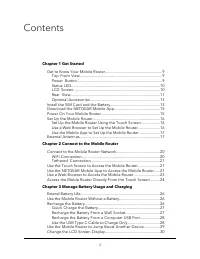
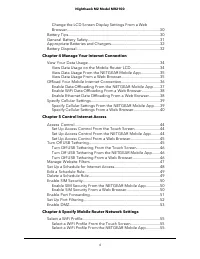
Page 3 - Contents
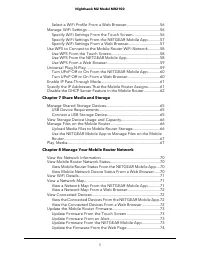
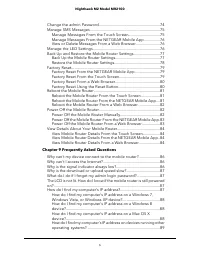
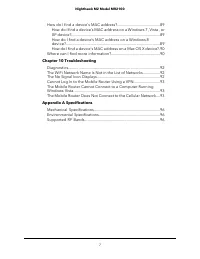
Contents Chapter 1 Get Started Get to Know Your Mobile Router........................................................9 Top Front View.................................................................................9Power Button............................................................................
Page 8 - Get Started
1 Get Started This chapter provides an overview of the M2 Next Generation Gigabit LTE Mobile RouterModel MR2100 and instructions for how to set up your mobile router and connect tothe Internet. The chapter covers the following topics: • Get to Know Your Mobile Router on page 9 • Install the SIM Card...
Page 9 - Get to Know Your Mobile Router; Top Front View; Power Button
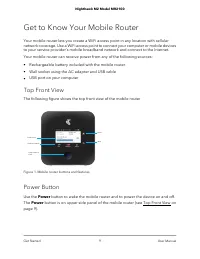
Get to Know Your Mobile Router Your mobile router lets you create a WiFi access point in any location with cellularnetwork coverage. Use a WiFi access point to connect your computer or mobile devicesto your service provider’s mobile broadband network and connect to the Internet. Your mobile router c...
Page 10 - Status LED; LCD Screen
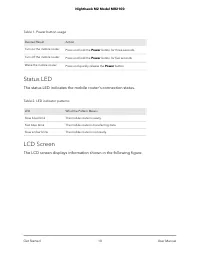
Table 1. Power button usage Action Desired Result Press and hold the Power button for three seconds. Turn on the mobile router. Press and hold the Power button for five seconds. Turn off the mobile router. Press and quickly release the Power button. Wake the mobile router. Status LED The status LED ...
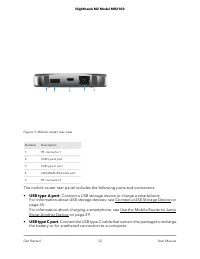
Page 11 - Rear View
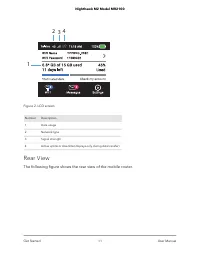
3 2 1 4 Figure 2. LCD screen Description Number Data usage 1 Network type 2 Signal strength 3 Active uplink or downlink (displays only during data transfer) 4 Rear View The following figure shows the rear view of the mobile router. User Manual 11 Get Started Nighthawk M2 Model MR2100
Page 13 - Optional Accessories; Install the SIM Card and the Battery
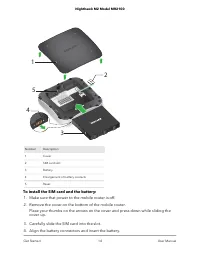
For more information about recharging the battery, see Recharge the Battery Froma Wall Socket on page 27 and Recharge the Battery From a Computer USB Port onpage 28.A tethered connection to a computer lets you access the mobile router from a webbrowser without a WiFi connection. See Tethered Connect...
Page 15 - Download the NETGEAR Mobile App; Power On Your Mobile Router
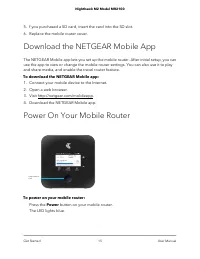
5. f you purchased a SD card, insert the card into the SD slot. 6. Replace the mobile router cover. Download the NETGEAR Mobile App The NETGEAR Mobile app lets you set up the mobile router. After initial setup, you canuse the app to view or change the mobile router settings. You can also use it to p...
Page 16 - Set Up the Mobile Router; Set Up the Mobile Router Using the Touch Screen
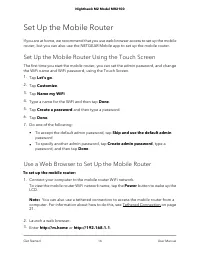
Set Up the Mobile Router If you are at home, we recommend that you use web browser access to set up the mobilerouter, but you can also use the NETGEAR Mobile app to set up the mobile router. Set Up the Mobile Router Using the Touch Screen The first time you start the mobile router, you can set the a...
Page 17 - Use the Mobile App to Set Up the Mobile Router; External Antennas
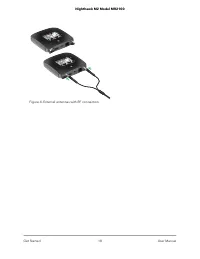
You are prompted to change the password for the admin user name and to changethe WiFi name and WiFi password. Note: The default password for the admin user name is admin. We strongly recommend that you change this password to a more secure password. 4. Follow the onscreen instructions to set up your...
Page 19 - Connect to the Mobile Router
2 Connect to the Mobile Router This chapter covers the following topics: • Connect to the Mobile Router Network on page 20 • Use the NETGEAR Mobile App to Access the Mobile Router on page 21 • Use a Web Browser to Access the Router on page 23 19
Page 20 - Connect to the Mobile Router Network; WiFi Connection
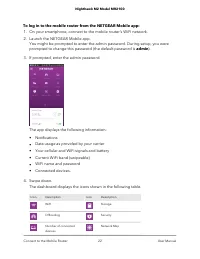
Connect to the Mobile Router Network You can connect your computers and mobile devices to the mobile router WiFi network.You can also connect a computer to the mobile router through a tethered connectionusing the USB cable that came in the package with the mobile router. Note: If you set up your com...
Page 21 - Tethered Connection
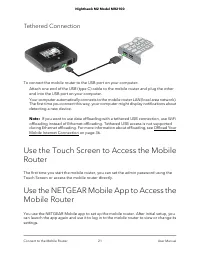
Tethered Connection To connect the mobile router to the USB port on your computer: Attach one end of the USB (type C) cable to the mobile router and plug the otherend into the USB port on your computer.Your computer automatically connects to the mobile router LAN (local area network).The first time ...
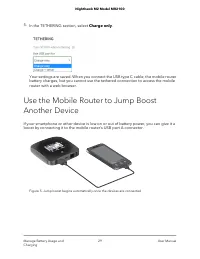
Page 28 - Recharge the Battery From a Computer USB Port; Use the USB Type C Cable to Charge Only
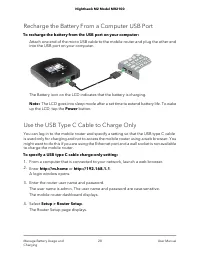
Recharge the Battery From a Computer USB Port To recharge the battery from the USB port on your computer: Attach one end of the micro USB cable to the mobile router and plug the other endinto the USB port on your computer. The Battery icon on the LCD indicates that the battery is charging. Note: The...
Page 30 - Change the LCD Screen Display; Battery Tips
Change the LCD Screen Display You can change the brightness and the time-out for the LCD. Change the LCD Screen Display Settings From a WebBrowser To change the display screen settings: 1. From a computer that is connected to your network, launch a web browser. 2. Enter http://m.home or http://192.1...
Page 31 - General Battery Safety
• If a battery exhibits significantly shorter runtime or discharge capacity compared towhen it was new, it reached the end of its reasonable lifetime. Consider replacingit. • If a battery does not charge or exhibits excessive charging time, it is possible that itreached the end of its life and might...
Page 32 - Appropriate Batteries and Chargers; Battery Disposal
• When the battery is outside the device, do not allow the battery to come in contactwith metal objects, such as coins, buttons, jewelry, or tools. • Do not disassemble or modify batteries. Do not use a battery for anything other thanits intended purpose. Appropriate Batteries and Chargers Observe t...
Page 33 - Manage Your Internet Connection
4 Manage Your Internet Connection This chapter explains how to manage your mobile router Internet connection. The chapter covers the following topics: • View Your Data Usage on page 34 • Offload Your Mobile Internet Connection on page 36 • Specify Cellular Settings on page 39 33
Page 34 - View Your Data Usage; View Data Usage on the Mobile Router LCD
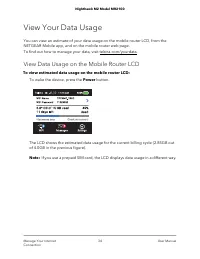
View Your Data Usage You can view an estimate of your data usage on the mobile router LCD, from theNETGEAR Mobile app, and on the mobile router web page. To find out how to manage your data, visit telstra.com/yourdata. View Data Usage on the Mobile Router LCD To view estimated data usage on the mobi...
Page 35 - View Data Usage From the NETGEAR Mobile App; View Data Usage From a Web Browser
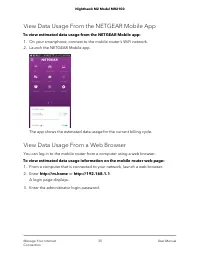
View Data Usage From the NETGEAR Mobile App To view estimated data usage from the NETGEAR Mobile app: 1. On your smartphone, connect to the mobile router’s WiFi network. 2. Launch the NETGEAR Mobile app. The app shows the estimated data usage for the current billing cycle. View Data Usage From a Web...
Page 36 - Offload Your Mobile Internet Connection
The password is case-sensitive. The mobile router dashboard displays the estimated data usage in the right pane. 4. To view more details, click the CHECK MY ACCOUNT link. Offload Your Mobile Internet Connection Data offloading lets you transfer the mobile router’s Internet connection from mobilebroa...
Page 37 - Enable Data Offloading From the NETGEAR Mobile App
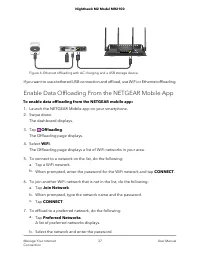
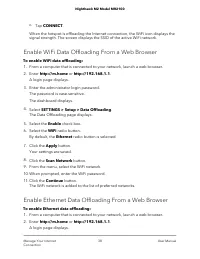
Figure 6. Ethernet offloading with AC charging and a USB storage device If you want to use a tethered USB connection and offload, use WiFi or Ethernet offloading. Enable Data Offloading From the NETGEAR Mobile App To enable data offloading from the NETGEAR mobile app: 1. Launch the NETGEAR Mobile ap...
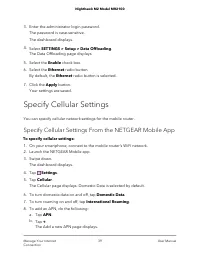
Page 39 - Specify Cellular Settings; Specify Cellular Settings From the NETGEAR Mobile App
3. Enter the administrator login password. The password is case-sensitive. The dashboard displays. 4. Select SETTINGS > Setup > Data Offloading . The Data Offloading page displays. 5. Select the Enable check box. 6. Select the Ethernet radio button. By default, the Ethernet radio button is sel...
Page 40 - Specify Cellular Settings From a Web Browser
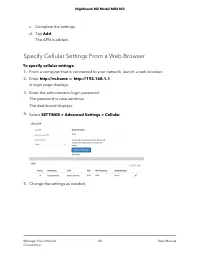
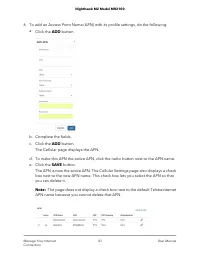
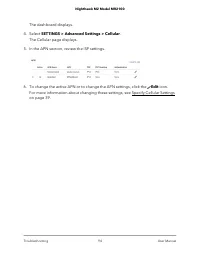
c. Complete the settings. d. Tap Add . The APN is added. Specify Cellular Settings From a Web Browser To specify cellular settings: 1. From a computer that is connected to your network, launch a web browser. 2. Enter http://m.home or http://192.168.1.1 . A login page displays. 3. Enter the administr...
Page 43 - Control Internet Access
5 Control Internet Access The router comes with a built-in firewall that helps protect your home network fromunwanted intrusions from the Internet. This chapter includes the following sections: • Set Up Parental Controls on page ? • Access Control on page 44 • Turn Off USB Tethering on page 45 • Man...
Page 44 - Access Control; Set Up Access Control From the Touch Screen
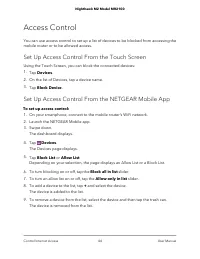
Access Control You can use access control to set up a list of devices to be blocked from accessing themobile router or to be allowed access. Set Up Access Control From the Touch Screen Using the Touch Screen, you can block the connected devices: 1. Tap Devices . 2. On the list of Devices, tap a devi...
Page 45 - Set Up Access Control From a Web Browser; Turn Off USB Tethering
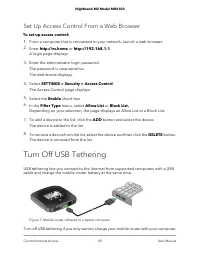
Set Up Access Control From a Web Browser To set up access control: 1. From a computer that is connected to your network, launch a web browser. 2. Enter http://m.home or http://192.168.1.1 . A login page displays. 3. Enter the administrator login password. The password is case-sensitive. The dashboar...
Page 47 - Manage Website Filters
4. Select SETTINGS > Setup > Router Setup . The Router Setup page displays. 5. In the Use USB port for section, select Charge only . 6. Click the Apply button. Your settings are saved. Manage Website Filters You can set up a filter to block or allow access to websites that you specify. You can...
Page 48 - Set Up a Schedule for Internet Access
9. To remove a website from the list, select its check box and then click the DELETE button.The website is removed from the list. 10. To create a list of unrestricted devices, do the following: a. In the Unrestricted Devices section, click the ADD button. b. Select the device. The device is added to...
Page 49 - Edit a Schedule Rule; Delete a Schedule Rule
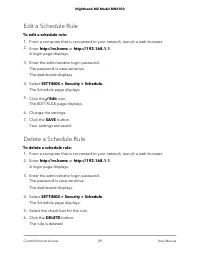
Edit a Schedule Rule To edit a schedule rule: 1. From a computer that is connected to your network, launch a web browser. 2. Enter http://m.home or http://192.168.1.1 . A login page displays. 3. Enter the administrator login password. The password is case-sensitive. The dashboard displays. 4. Select...
Page 50 - Enable SIM Security; Enable SIM Security From the NETGEAR Mobile App
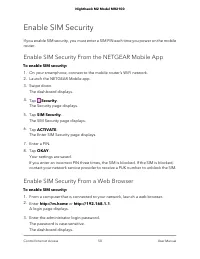
Enable SIM Security If you enable SIM security, you must enter a SIM PIN each time you power on the mobilerouter. Enable SIM Security From the NETGEAR Mobile App To enable SIM security: 1. On your smartphone, connect to the mobile router’s WiFi network. 2. Launch the NETGEAR Mobile app. 3. Swipe dow...
Page 51 - Enable Port Forwarding
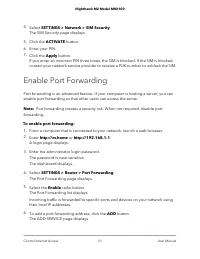
4. Select SETTINGS > Network > SIM Security . The SIM Security page displays. 5. Click the ACTIVATE button. 6. Enter your PIN. 7. Click the Apply button. If you enter an incorrect PIN three times, the SIM is blocked. If the SIM is blocked,contact your network service provider to receive a PUK ...
Page 52 - Set Up Port Filtering
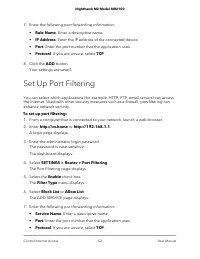
7. Enter the following port forwarding information: • Rule Name . Enter a descriptive name. • IP Address . Enter the IP address of the connected device. • Port . Enter the port number that the application uses. • Protocol . If you are unsure, select TCP . 8. Click the ADD button. Your settings are s...
Page 53 - Enable DMZ
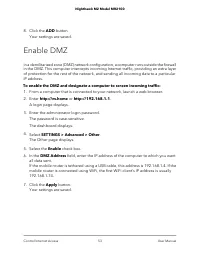
8. Click the ADD button. Your settings are saved. Enable DMZ In a demilitarized zone (DMZ) network configuration, a computer runs outside the firewallin the DMZ. This computer intercepts incoming Internet traffic, providing an extra layerof protection for the rest of the network, and sending all inc...
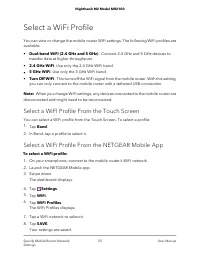
Page 55 - Select a WiFi Profile; Select a WiFI Profile From the Touch Screen
Select a WiFi Profile You can view or change the mobile router WiFi settings. The following WiFi profiles areavailable: • Dual-band WiFi (2.4 GHz and 5 GHz) . Connect 2.4 GHz and 5 GHz devices to transfer data at higher throughputs. • 2.4 GHz WiFi . Use only the 2.4 GHz WiFi band. • 5 GHz WiFi . Use...
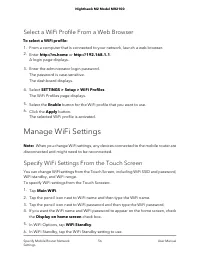
Page 56 - Select a WiFi Profile From a Web Browser; Manage WiFi Settings; Specify WiFi Settings From the Touch Screen
Select a WiFi Profile From a Web Browser To select a WiFi profile: 1. From a computer that is connected to your network, launch a web browser. 2. Enter http://m.home or http://192.168.1.1 . A login page displays. 3. Enter the administrator login password. The password is case-sensitive. The dashboar...
Page 57 - Specify WiFi Settings From the NETGEAR Mobile App; Specify WiFi Settings From a Web Browser
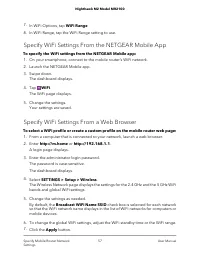
7. In WiFi Options, tap WiFi Range 8. In WiFi Range, tap the WiFi Range setting to use. Specify WiFi Settings From the NETGEAR Mobile App To specify the WiFi settings from the NETGEAR Mobile app: 1. On your smartphone, connect to the mobile router’s WiFi network. 2. Launch the NETGEAR Mobile app. 3....
Page 58 - Use WPS From the Touch Screen
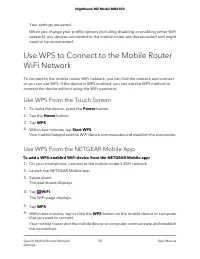
Your settings are saved. When you change your profile options (including disabling or enabling either WiFinetwork), any devices connected to the mobile router are disconnected and mightneed to be reconnected. Use WPS to Connect to the Mobile RouterWiFi Network To connect to the mobile router WiFi ne...
Page 59 - Use WPS From a Web Browser
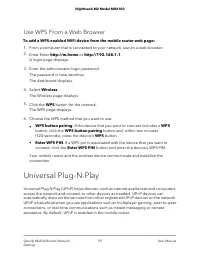
Use WPS From a Web Browser To add a WPS-enabled WiFi device from the mobile router web page: 1. From a computer that is connected to your network, launch a web browser. 2. Enter Enter http://m.home or http://192.168.1.1 . A login page displays. 3. Enter the administrator login password. The password...
Page 61 - Enable IP Pass-Through Mode
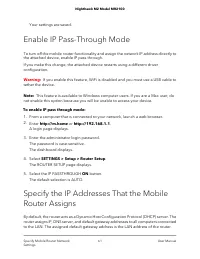
Your settings are saved. Enable IP Pass-Through Mode To turn off the mobile router functionality and assign the network IP address directly tothe attached device, enable IP pass-through. If you make this change, the attached device restarts using a different driverconfiguration. Warning: If you enab...
Page 64 - Share Media and Storage
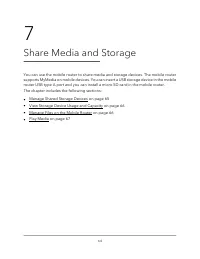
7 Share Media and Storage You can use the mobile router to share media and storage devices. The mobile routersupports MyMedia on mobile devices. You can insert a USB storage device in the mobilerouter USB type A port and you can install a micro SD card in the mobile router. The chapter includes the ...
Page 65 - Manage Shared Storage Devices; USB Device Requirements; Connect a USB Storage Device
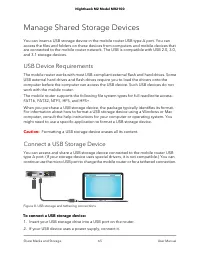
Manage Shared Storage Devices You can insert a USB storage device in the mobile router USB type A port. You canaccess the files and folders on these devices from computers and mobile devices thatare connected to the mobile router network. The USB is compatible with USB 2.0, 3.0,and 3.1 storage devic...
Page 66 - View Storage Device Usage and Capacity; Manage Files on the Mobile Router; Upload Media Files to Mobile Router Storage
You must use the power supply when you connect the USB device to the router. When you connect the USB device to the router USB port, it might take up to twominutes before it is ready for sharing. View Storage Device Usage and Capacity You can view the storage capacity for a USB storage device attach...
Page 67 - Play Media
4. Enter the administrator login password. The password is case-sensitive. The dashboard displays. 5. Click the MyMedia tab. 6. Drag and drop your files on to the page. Use the NETGEAR Mobile App to Manage Files on theMobile Router To use the NETGEAR mobile app to manage files on the mobile router: ...
Page 70 - View the Network Information; View Mobile Router Network Status; View Mobile Router Status From the NETGEAR Mobile App; View Mobile Network Device Status From a Web Browser
View the Network Information To view the device information: 1. From a computer that is connected to your network, launch a web browser. 2. Enter http://m.home or http://192.168.1.1 . A login page displays. 3. Enter the administrator login password. The password is case-sensitive. The dashboard disp...
Page 71 - View WiFi Details; View a Network Map; View a Network Map From the NETGEAR Mobile App
A login page displays. 3. Enter the administrator login password. The password is case-sensitive. The dashboard displays. 4. Select Settings > Nighthawk M2 Status >Device . The Network Status page displays. View WiFi Details To view WiFi status: 1. From a computer that is connected to your net...
Page 72 - View a Network Map From a Web Browser; View Connected Devices; View the Connected Devices From a Web Browser
The network map displays. View a Network Map From a Web Browser To view a network map: 1. From a computer that is connected to your network, launch a web browser. 2. Enter http://m.home or http://192.168.1.1 . A login page displays. 3. Enter the administrator login password. The password is case-sen...
Page 73 - Update the Mobile Router Firmware; Update Firmware From the Touch Screen
3. Enter the administrator login password. The password is case-sensitive. A list of devices connected to the WiFi network displays on the dashboard.If you notice a WiFi device that you do not recognize, you can block that device fromconnecting to your WiFi network. Update the Mobile Router Firmware...
Page 74 - Update the Firmware From the Web Page; Change the admin Password
4. Tap Settings 5. Tap Firmware . The Firmware page displays. 6. Tap CHECK FOR UPDATE . The mobile router checks for firmware updates. If an updated is available, it isautomatically downloaded. 7. Tap INSTALL UPDATE . After the update install completes, a success message displays. Update the Firmwar...
Page 75 - Manage SMS Messages; Manage Messages From the Touch Screen
To change admin password: 1. From a computer that is connected to your network, launch a web browser. 2. Enter http://m.home or http://192.168.1.1 . A login page displays. 3. Enter the administrator login password. The password is case-sensitive. The dashboard displays. 4. Select SETTINGS > Admin...
Page 76 - Manage Messages From the NETGEAR Mobile App; View or Delete Messages From a Web Browser; Manage the LED Settings
Manage Messages From the NETGEAR Mobile App To manage SMS messages from the NETGEAR Mobile app: 1. On your smartphone, connect to the mobile router’s WiFi network. 2. Launch the NETGEAR Mobile app. 3. Swipe down. The dashboard displays. 4. Tap Messages . The Messages page displays. 5. To read the fu...
Page 77 - Back Up the Mobile Router Settings
To turn the LED blinking on or off: 1. From a computer that is connected to your network, launch a web browser. 2. Enter http://m.home or http://192.168.1.1 . A login page displays. 3. Enter the administrator login password. The password is case-sensitive. The dashboard displays. 4. In the upper rig...
Page 78 - Restore the Mobile Router Settings
4. Select SETTINGS > Administration > Backup . 5. Click the BACKUP Settings button. By default, the file (export.cfg) is saved to your Downloads folder. Restore the Mobile Router Settings To restore mobile router settings: 1. From a computer that is connected to your network, launch a web brow...
Page 79 - Factory Reset; Factory Reset From the NETGEAR Mobile App
6. Click the Open button. Your mobile router is restored with the imported file settings. Factory Reset You can return the mobile router to its factory settings. Factory Reset From the NETGEAR Mobile App To reset the mobile router and return it to its factory settings: 1. On your smartphone, connect...
Page 81 - Reboot the Mobile Router; Reboot the Mobile Router From the Touch Screen; Reboot the Mobile Router From the NETGEAR Mobile App
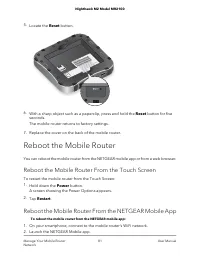
5. Locate the Reset button. 6. With a sharp object such as a paperclip, press and hold the Reset button for five seconds.The mobile router returns to factory settings. 7. Replace the cover on the back of the mobile router. Reboot the Mobile Router You can reboot the mobile router from the NETGEAR mo...
Page 82 - Reboot the Mobile Router From a Web Browser; Power Off the Mobile Router; Power Off the Mobile Router Manually
3. Swipe down. The dashboard displays. 4. Tap Power . The Power Options page displays. 5. Tap REBOOT DEVICE . The mobile router reboots. Reboot the Mobile Router From a Web Browser To reboot the mobile router from a web browser: 1. From a computer that is connected to your network, launch a web brow...
Page 83 - Power Off the Mobile Router From a Web Browser
Power Off the Mobile Router From the NETGEAR MobileApp Power off the mobile router from the NETGEAR Mobile app: 1. On your smartphone, connect to the mobile router’s WiFi network. 2. Launch the NETGEAR Mobile app. 3. Swipe down. The dashboard displays. 4. Tap Power . The Power Options page displays....
Page 84 - View Details About Your Mobile Router; View Mobile Router Details From the Touch Screen; View Mobile Router Details From a Web Browser
View Details About Your Mobile Router You can view details about your device such as the model number, software version,and IMEI (International Mobile Equipment Identity). View Mobile Router Details From the Touch Screen To view mobile router details from the Touch Screen, select Settings>more>...
Page 85 - Frequently Asked Questions
9 Frequently Asked Questions This chapter provides answers to common questions about your mobile router. (Alsosee Troubleshooting on page 91.) The chapter covers the following topics: • Why can’t my device connect to the mobile router? on page 86 • Why can’t I access the Internet? on page 86 • Why i...
Page 86 - Why can’t I access the Internet?; Why is the signal indicator always low?
Why can’t my device connect to the mobilerouter? If you are experiencing problems connecting to the mobile router, try the followingsuggestions: • If you are using the NETGEAR Mobile app and it does not find the mobile router,make sure that your smartphone is connected to the mobile router’s WiFi ne...
Page 87 - Why is the download or upload speed slow?; How do I find my computer’s IP address?
Why is the download or upload speed slow? Data transfer speed depends on signal strength and interfering radio sources likeelectrical generators or other mobile router WiFi devices. Review the followingpossibilities: • Check your signal strength and network type (for example, LTE 4G is generally fas...
Page 89 - How do I find a device’s MAC address?
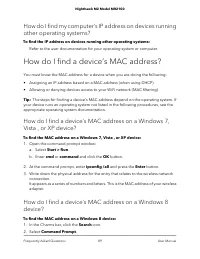
How do I find my computer’s IP address on devices runningother operating systems? To find the IP address on devices running other operating systems: Refer to the user documentation for your operating system or computer. How do I find a device’s MAC address? You must know the MAC address for a device...
Page 90 - Where can I find more information?
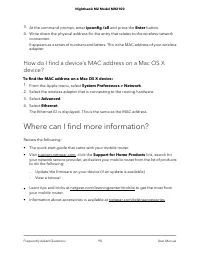
3. At the command prompt, enter ipconfig /all and press the Enter button. 4. Write down the physical address for the entry that relates to the wireless network connection.It appears as a series of numbers and letters. This is the MAC address of your wirelessadapter. How do I find a device’s MAC addr...
Page 91 - Troubleshooting
10 Troubleshooting This chapter provides suggestions for troubleshooting problems that might arise whenyou are using your mobile router. The chapter covers the following topics: • Diagnostics on page 92 • The WiFi Network Name Is Not in the List of Networks on page 92 • The No Signal Icon Displays o...
Page 92 - Diagnostics; The No Signal Icon Displays
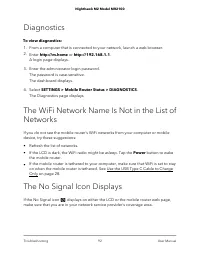
Diagnostics To view diagnostics: 1. From a computer that is connected to your network, launch a web browser. 2. Enter http://m.home or http://192.168.1.1 . A login page displays. 3. Enter the administrator login password. The password is case-sensitive. The dashboard displays. 4. Select SETTINGS >...
Page 95 - Specifications
A Specifications This appendix covers the following topics: • Mechanical Specifications on page 96 • Environmental Specifications on page 96 • Supported RF Bands on page 96 95
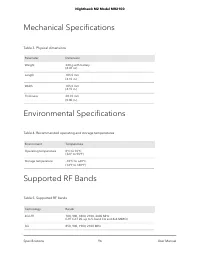
Page 96 - Mechanical Specifications; Environmental Specifications; Supported RF Bands
Mechanical Specifications Table 3. Physical dimensions Dimension Parameter 240 g with battery(8.47 oz) Weight 105.5 mm(4.15 in.) Length 105.5 mm(4.15 in.) Width 20.35 mm(0.80 in.) Thickness Environmental Specifications Table 4. Recommended operating and storage temperatures Temperature Environment 0...