Page 3 - Table of Contents
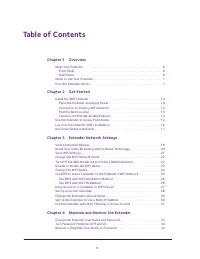
3 Table of Contents Chapter 1 Overview Meet Your Extender . . . . . . . . . . . . . . . . . . . . . . . . . . . . . . . . . . . . . . . . . . . . . . . . . . 6 Front Panel . . . . . . . . . . . . . . . . . . . . . . . . . . . . . . . . . . . . . . . . . . . . . . . . . . . . . . . . 6Side Panels . ....
Page 4 - Chapter 5
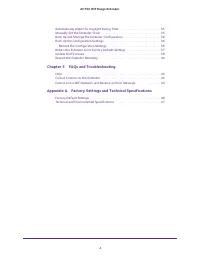
4 AC750 WiF Range Extender Automatically Adjust for Daylight Saving Time. . . . . . . . . . . . . . . . . . . . . . . . . . . 35Manually Set the Extender Clock . . . . . . . . . . . . . . . . . . . . . . . . . . . . . . . . . . . . . . 35Back Up and Manage the Extender Configuration . . . . . . . . ...
Page 5 - Overview
5 1 1. Overview The WiFi Range Extender boosts your existing network range and speed, delivering dual-band WiFi. You can also use the extender in access point mode as a WiFi access point and create a new WiFi hotspot by using a wired Ethernet connection. This chapter covers the following topics: • M...
Page 6 - Meet Your Extender; Front Panel
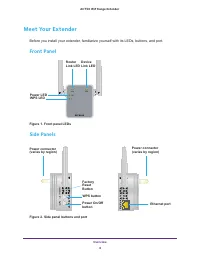
Overview 6 AC750 WiF Range Extender Meet Your Extender Before you install your extender, familiarize yourself with its LEDs, buttons, and port. Front Panel Power LED WPS LED Router Link LED Device Link LED Figure 1. Front panel LEDs Side Panels FactoryResetButton WPS button Power On/Off Power connec...
Page 7 - When to Use Your Extender
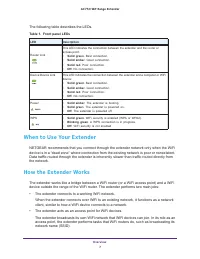
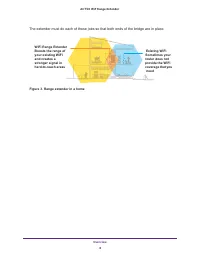
Overview 7 AC750 WiF Range Extender The following table describes the LEDs. Table 1. Front panel LEDs LED Description This LED indicates the connection between the extender and the router or access point: • Solid green . Best connection. • Solid amber . Good connection. • Solid red . Poor connection...
Page 9 - Get Started
9 2 2. Get Started This chapter covers the following topics: • Install the WiFi Extender • Use the Extender in Access Point Mode • Log In to the Extender After Installation • Run Smart Setup Installation
Page 10 - Install the WiFi Extender; Place the Extender and Apply Power; Connect to an Existing WiFi Network; Connect with WPS
Get Started 10 AC750 WiF Range Extender Install the WiFi Extender Place the extender, apply power, and connect it to your WiFi network. Note: You can also use the extender as a WiFi access point and create a new WiFi hotspot by using a wired Ethernet connection. See Use the Extender in Access Point ...
Page 11 - Connect with Web Browser Setup
Get Started 11 AC750 WiF Range Extender 2. Within two minutes, press the WPS button on your router or access point. The WPS LED on the extender lights solid green, the Router Link LED lights, and the extender connects to your existing WiFi network. If the Router Link LED does not light, try again. I...
Page 13 - Find the Best Location
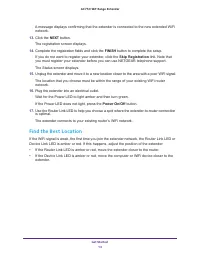
Get Started 13 AC750 WiF Range Extender A message displays confirming that the extender is connected to the new extended WiFi network. 13. Click the NEXT button. The registration screen displays. 14. Complete the registration fields and click the FINISH button to complete the setup. If you do not wa...
Page 14 - Connect an Ethernet-Enabled Device; Use the Extender in Access Point Mode
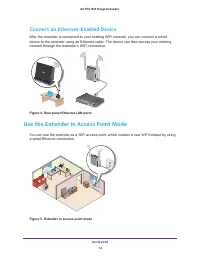
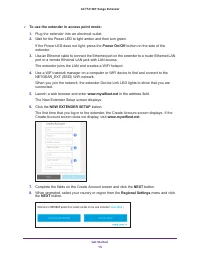
Get Started 14 AC750 WiF Range Extender Connect an Ethernet-Enabled Device After the extender is connected to your existing WiFi network, you can connect a wired device to the extender using an Ethernet cable. The device can then access your existing network through the extender’s WiFi connection. F...
Page 16 - Log In to the Extender After Installation
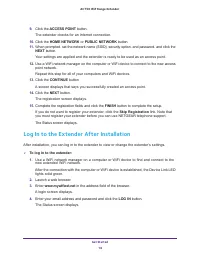
Get Started 16 AC750 WiF Range Extender 9. Click the ACCESS POINT button. The extender checks for an Internet connection. 10. Click the HOME NETWORK or PUBLIC NETWORK button. 11. When prompted, set the network name (SSID), security option, and password, and click the NEXT button. Your settings are a...
Page 17 - Run Smart Setup Installation
Get Started 17 AC750 WiF Range Extender Run Smart Setup Installation You can use Smart Setup to change the extender settings. This is an easy way to connect the extender to a different router or to change the extender WiFi network name (SSID) or WiFi password. To run Smart Setup: 1. Use a WiFi net...
Page 18 - Extender Network Settings
18 3 3. Extender Network Settings This chapter covers the following topics: • View Connected Devices • Boost Your Video Streaming with FastLane Technology • View WiFi Settings • Change the WiFi Network Name • Turn Off the SSID Broadcast to Create a Hidden Network • Disable or Enable the WiFi Radios ...
Page 19 - View Connected Devices
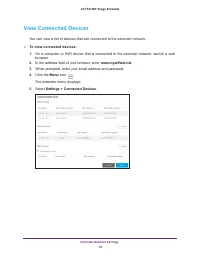
Extender Network Settings 19 AC750 WiF Range Extender View Connected Devices You can view a list of devices that are connected to the extender network. To view connected devices: 1. On a computer or WiFi device that is connected to the extender network, launch a web browser. 2. In the address fiel...
Page 20 - Boost Your Video Streaming with FastLane Technology
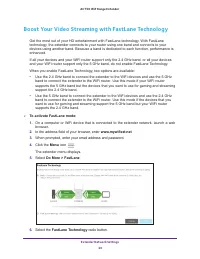
Extender Network Settings 20 AC750 WiF Range Extender Boost Your Video Streaming with FastLane Technology Get the most out of your HD entertainment with FastLane technology. With FastLane technology, the extender connects to your router using one band and connects to your devices using another band....
Page 21 - View WiFi Settings
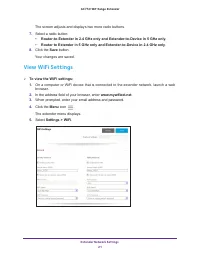
Extender Network Settings 21 AC750 WiF Range Extender The screen adjusts and displays two more radio buttons. 7. Select a radio button: • Router-to-Extender in 2.4 GHz only and Extender-to-Device in 5 GHz only . • Router to Extender in 5 GHz only and Extender-to-Device in 2.4 GHz only . 8. Click the...
Page 22 - Change the WiFi Network Name; Turn Off the SSID Broadcast to Create a Hidden Network
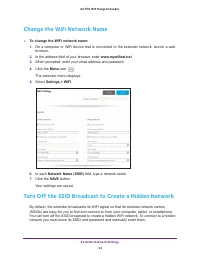
Extender Network Settings 22 AC750 WiF Range Extender Change the WiFi Network Name To change the WiFi network name: 1. On a computer or WiFi device that is connected to the extender network, launch a web browser. 2. In the address field of your browser, enter www.mywifiext.net . 3. When prompted, ...
Page 23 - Disable or Enable the WiFi Radios
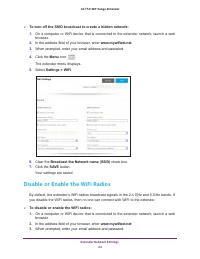
Extender Network Settings 23 AC750 WiF Range Extender To turn off the SSID broadcast to create a hidden network: 1. On a computer or WiFi device that is connected to the extender network, launch a web browser. 2. In the address field of your browser, enter www.mywifiext.net . 3. When prompted, ent...
Page 24 - Change the WiFi Speed
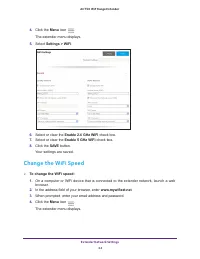
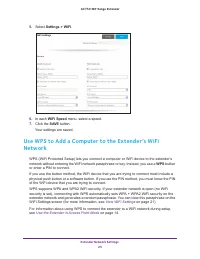
Extender Network Settings 24 AC750 WiF Range Extender 4. Click the Menu icon . The extender menu displays. 5. Select Settings > WiFi . 6. Select or clear the Enable 2.4 GHz WiFi check box. 7. Select or clear the Enable 5 GHz WiFi check box. 8. Click the SAVE button. Your settings are saved. Chang...
Page 26 - Use WPS with the Push Button Method; Use WPS with the PIN Method
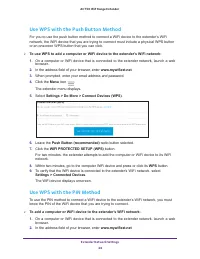
Extender Network Settings 26 AC750 WiF Range Extender Use WPS with the Push Button Method For you to use the push button method to connect a WiFi device to the extender’s WiFi network, the WiFi device that you are trying to connect must include a physical WPS button or an onscreen WPS button that yo...
Page 27 - Deny Access to a Computer or WiFi Device
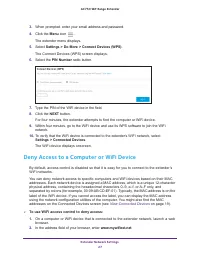
Extender Network Settings 27 AC750 WiF Range Extender 3. When prompted, enter your email address and password. 4. Click the Menu icon . The extender menu displays. 5. Select Settings > Do More > Connect Devices (WPS) . The Connect Devices (WPS) screen displays. 6. Select the PIN Number radio b...
Page 28 - Set Up an Access Schedule
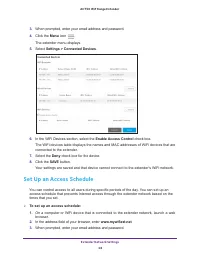
Extender Network Settings 28 AC750 WiF Range Extender 3. When prompted, enter your email address and password. 4. Click the Menu icon . The extender menu displays. 5. Select Settings > Connected Devices . 6. In the WiFi Devices section, select the Enable Access Control check box. The WiFi devices...
Page 29 - Change the Extender’s Device Name
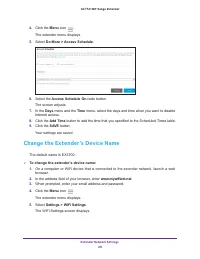
Extender Network Settings 29 AC750 WiF Range Extender 4. Click the Menu icon . The extender menu displays. 5. Select Do More > Access Schedule . 6. Select the Access Schedule On radio button. The screen adjusts. 7. In the Days menu and the Time menu, select the days and time when you want to disa...
Page 30 - Set Up the Extender to Use a Static IP Address
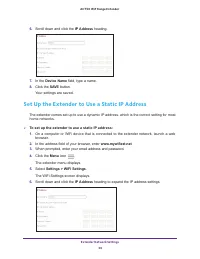
Extender Network Settings 30 AC750 WiF Range Extender 6. Scroll down and click the IP Address heading. 7. In the Device Name field, type a name. 8. Click the SAVE button. Your settings are saved. Set Up the Extender to Use a Static IP Address The extender comes set up to use a dynamic IP address, wh...
Page 31 - Use the Extender with MAC Filtering or Access Control
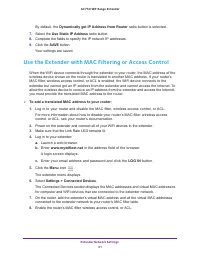
Extender Network Settings 31 AC750 WiF Range Extender By default, the Dynamically get IP Address from Router radio button is selected. 7. Select the Use Static IP Address radio button. 8. Complete the fields to specify the IP network IP addresses. 9. Click the SAVE button. Your settings are saved. U...
Page 32 - Maintain and Monitor the Extender
32 4 4. Maintain and Monitor the Extender This chapter covers the following topics: • Change the Extender User Name and Password • Turn Password Protection Off and On • Recover a Forgotten User Name or Password • Automatically Adjust for Daylight Saving Time • Manually Set the Extender Clock • Back ...
Page 33 - Change the Extender User Name and Password
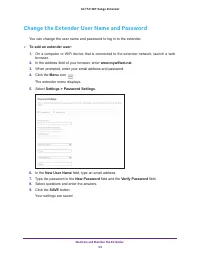
Maintain and Monitor the Extender 33 AC750 WiF Range Extender Change the Extender User Name and Password You can change the user name and password to log in to the extender. To add an extender user: 1. On a computer or WiFi device that is connected to the extender network, launch a web browser. 2....
Page 34 - Turn Password Protection Off and On
Maintain and Monitor the Extender 34 AC750 WiF Range Extender Turn Password Protection Off and On NETGEAR recommends that you leave password protection on to help keep your network secure. You can turn password protection off and on. To turn password protection off or on: 1. On a computer or WiFi ...
Page 35 - Automatically Adjust for Daylight Saving Time
Maintain and Monitor the Extender 35 AC750 WiF Range Extender A login screen displays. 7. Log in to the extender. Automatically Adjust for Daylight Saving Time To set up the extender to automatically adjust for daylight saving time: 1. On a computer or WiFi device that is connected to the extender...
Page 36 - Back Up and Manage the Extender Configuration; Restore the Configuration Settings
Maintain and Monitor the Extender 36 AC750 WiF Range Extender Back Up and Manage the Extender Configuration When the extender works correctly after initial setup, NETGEAR recommends that you back up the extender configuration settings. After you have back up the settings, if you change the extender ...
Page 37 - Return the Extender to Its Factory Default Settings
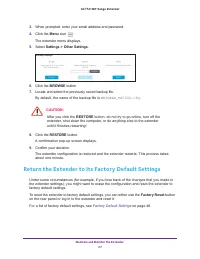
Maintain and Monitor the Extender 37 AC750 WiF Range Extender 3. When prompted, enter your email address and password. 4. Click the Menu icon . The extender menu displays. 5. Select Settings > Other Settings . 6. Click the BROWSE button. 7. Locate and select the previously saved backup file. By d...
Page 39 - Update the Firmware
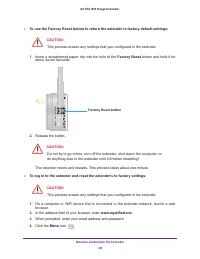
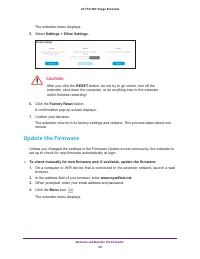
Maintain and Monitor the Extender 39 AC750 WiF Range Extender The extender menu displays. 5. Select Settings > Other Settings . CAUTION: After you click the RESET button, do not try to go online, turn off the extender, shut down the computer, or do anything else to the extender until it finishes ...
Page 40 - Restart the Extender Remotely
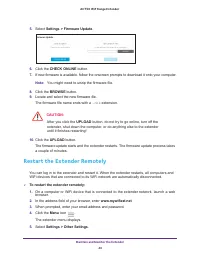
Maintain and Monitor the Extender 40 AC750 WiF Range Extender 5. Select Settings > Firmware Update . 6. Click the CHECK ONLINE button. 7. If new firmware is available, follow the onscreen prompts to download it onto your computer. Note: You might need to unzip the firmware file. 8. Click the BROW...
Page 42 - FAQs and Troubleshooting
42 5 5. FAQs and Troubleshooting This chapter covers the following topics: • FAQs • Cannot Connect to the Extender • Cannot Join a WiFi Network and Receive an Error Message
Page 43 - FAQs
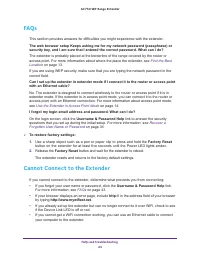
FAQs and Troubleshooting 43 AC750 WiF Range Extender FAQs This section provides answers for difficulties you might experience with the extender. The web browser setup Keeps asking me for my network password (passphrase) or security key, and I am sure that I entered the correct password. What can I d...
Page 44 - Cannot Join a WiFi Network and Receive an Error Message
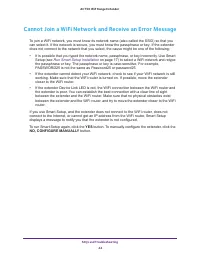
FAQs and Troubleshooting 44 AC750 WiF Range Extender Cannot Join a WiFi Network and Receive an Error Message To join a WiFi network, you must know its network name (also called the SSID) so that you can select it. If the network is secure, you must know the passphrase or key. If the extender does no...
Page 47 - Technical and Environmental Specifications
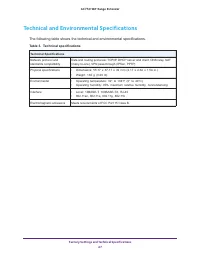
Factory Settings and Technical Specifications 47 AC750 WiF Range Extender Technical and Environmental Specifications The following table shows the technical and environmental specifications. Table 3. Technical specifications Technical Specifications Network protocol and standards compatibility Data ...