Page 2 - Information on USB Wireless LAN:; Corporation in the United States and/or other countries.; NOTES; to result from using the Projector.
© NEC Display Solutions, Ltd. 20081st edition, March 2008 Information on USB Wireless LAN: The NP905/NP901W series projectors distributed in some areas and countries do not come standard with the USB Wireless LAN Unit.If you purchase the projector without the USB Wireless LAN Unit installed and need...
Page 3 - Important Information; Safety Cautions; Precautions; TO PREVENT FIRE OR SHOCK, DO NOT EXPOSE THIS UNIT TO RAIN OR MOISTURE.; WARNING TO CALIFORNIA RESIDENTS:; Wash hands after handling.; CAUTION
i Important Information Safety Cautions Precautions Please read this manual carefully before using your NEC NP905/NP901W projector and keep the manual handy for future reference. CAUTION To turn off main power, be sure to remove the plug from power outlet.The power outlet socket should be installed ...
Page 4 - ii
ii Important Information EU-wide legislation as implemented in each Member State requires that used electrical and electronic products carrying the mark (left) must be disposed of separately from normal household waste. This in-cludes projectors and their electrical accessories or lamps. When you di...
Page 5 - iii; WARNING; Important Safeguards; • Do not place the projector in the following conditions:; Place the projector in a horizontal position
iii Important Information RF Interference (for USA only) WARNING The Federal Communications Commission does not allow any modifications or changes to the unit EXCEPT those specified by NEC Display Solutions of America, Inc. in this manual. Failure to comply with this government regulation could void...
Page 6 - iv; fits this requirement before attempting to use your projector.
iv Important Information Fire and Shock Precautions • Ensure that there is sufficient ventilation and that vents are unobstructed to prevent the build-up of heat inside your projector. Allow at least 4 inches (10cm) of space between your projector and a wall. • Do not try to touch the ventilation ou...
Page 7 - Lamp Replacement; [ThE LAmp hAS REAChED ThE END OF ITS USABLE LIFE.; A Lamp Characteristic
v Lamp Replacement • To replace the lamp, follow all instructions provided on page 125 . • Be sure to replace the lamp when the message [ThE LAmp hAS REAChED ThE END OF ITS USABLE LIFE. pLEASE REpLACE ThE LAmp.] appears. If you continue to use the lamp after the lamp has reached the end of its usabl...
Page 8 - Cautions on Usage
vi Important Information About High Altitude mode • Set [FAN MODE] to [HIGH ALTITUDE] when using the projector at altitudes approximately 5500 feet/1600 me- ters or higher. Using the projector at altitudes approximately 5500 feet/1600 meters or higher without setting to [HIGH ALTI-TUDE] can cause th...
Page 9 - vii; FCC Compliance
vii FCC Compliance This device complies with Part 15 of the FCC Rules. Operation is subject to the following two conditions:(1) this device may not cause harmful interference and (2) this device must accept any interference received, including interference that may cause undesired operation. This eq...
Page 10 - viii; Usage restrictions in North America; The following channels can be used indoors only.; Regulatory Statement:; Cautions on security when using wireless LAN products; • Contents of transmissions may be intercepted
viii Usage restrictions in North America The following channels can be used indoors only. • In the United States and Canada: 36, 40, 44, and 48 channels• In Mexico: 149, 153, 157, 161, and 165 channels The other channels can be used both indoors and outdoors. This Class B digital apparatus complies ...
Page 11 - ix; Table of Contents
ix Table of Contents Important Information ............................................................................................i 1. Introduction .......................................................................................................... 1 What’s in the Box?.....................
Page 12 - Convenient Features; Using the Projector to Operate Your Computer via a Network
x Table of Contents 4. Convenient Features ..................................................................................... 33 Turning Off the Image and Sound ............................................................................... 33 Freezing a Picture .................................
Page 13 - xi
xi Table of Contents 6. Using On-Screen Menu ................................................................................ 70 Using the Menus.......................................................................................................... 70 Using ADVANCED menu and BASIC menu ............
Page 14 - xii
xii Table of Contents 8. Appendix ............................................................................................................. 128 Troubleshooting ......................................................................................................... 128 Indicator Messages ........
Page 15 - For North America only
1 1. Introduction What’s in the Box? Make sure your box contains everything listed. If any pieces are missing, contact your dealer.Please save the original box and packing materials if you ever need to ship your Projector. OFF COM PUT ER VID EO ABC DEF JKL GHI MNO TUV PQR S WXY Z .@ / S-V IDEO VIE...
Page 16 - Introduction to the Projector; Congratulations on Your Purchase of the Projector; • LCD projector with high resolution and high brightness
2 1. Introduction Introduction to the Projector This section introduces you to the NP905/NP901W projector and describes key features and controls. Congratulations on Your Purchase of the Projector The NP905 is a sophisticated XGA projector that produces an enhanced display. The NP901W is a WXGA pr...
Page 17 - About this user’s manual
About this user’s manual The fastest way to get started is to take your time and do everything right the first time. Take a few minutes now to review the user’s manual. This may save you time later on. At the beginning of each section of the manual you’ll find an overview. If the section doesn’t app...
Page 18 - Part Names of the Projector; * This security slot supports the MicroSaver® Security System.; Rear; page
4 1. Introduction AC IN VIDEO IN AUDIO IN USB LAN AUDIO IN HDM I IN AUDIO IN COM PUTE R / COM PONE NT 2 I N COM PUTE R / COM PONE NT 1 I N PC CO NTRO L MONIT OR O UT AUDIO OUT S-VID EO IN AUDIO IN L/M ONO L/MO NO R R USB LAMP STATU S SOUR CE AUTO ADJU ST 3D RE FORM SELEC T (LA N) US B USB LAM P STA ...
Page 19 - • When carrying the projector by the carrying handle, make sure the
5 1. Introduction Bottom Carrying the Projector Always carry your projector by the handle.Ensure that the power cable and any other cables connecting to video sources are disconnected before moving the projector.When moving the projector or when it is not in use, cover the lens with the lens cap. Ph...
Page 20 - Top Features
1. Introduction Top Features 1. pOWER Button ( ) ( → page 22 , 1 ) NOTE: To turn on the projector, press and hold this button for a minimum of two seconds. To turn off the projector, press this button twice. 2. pOWER Indicator ( → page 22 , 1 , 128 ) . STATUS Indicator ( → page 128 ) 4. LAmp Indicat...
Page 21 - Terminal Panel Features
7 1. Introduction Terminal Panel Features 1. COmpUTER 1 IN/COmpONENT 1 IN Connector (mini D-Sub 15 pin) ( → page 12 , 1 ) AUDIO IN (Stereo mini Jack) ( → page 12 , 1 ) 2. COmpUTER 2 IN/COmpONENT 2 IN Connector (mini D-Sub 15 pin) ( → page 12 , 1 ) AUDIO IN (Stereo mini Jack) ( → page 12 , 1 ) . hDmI...
Page 22 - Part Names of the Remote Control
8 1. Introduction Part Names of the Remote Control 1. Infrared Transmitter 2. pOWER ON Button ( → page 22 ) NOTE: To turn on the projector, press and hold the POWER ON button for a minimum of two seconds. . pOWER OFF Button ( → page 1 ) NOTE: To turn off the projector, press the POWER OFF but-ton ...
Page 23 - You can determine which remote sensor on
9 1. Introduction Battery Installation 1 P r e s s t h e c a t c h a n d r e -move the battery cover. 2 Install new ones (AA). Ensure that you have the batteries’ po-larity (+/–) aligned correctly. Slip the cover back over the bat-teries until it snaps into place. NOTE: Do not mix different types of...
Page 24 - Installation and Connections; Setting Up the Screen and the Projector; Selecting a Location; Set up a screen and the projector.
10 300" 240" 200" 150" 120" 100" 60" 80" 40" 1 2 This section describes how to set up your projector and how to connect PCs, video and audio sources. 2. Installation and Connections Setting Up the Screen and the Projector NP905 The further your projector is from...
Page 26 - Making Connections; Connecting Your PC or Macintosh Computer
12 W IR E L E S S W IR E L E S S USB ( LAN ) VIDEO IN AUDIO IN USB LAN AUDIO IN HDMI IN AUDIO IN COMPUTER / COMPONENT 2 IN COMPUTER / COMPONENT 1 IN PC CONTROL MONITOR OUT AUDIO OUT S-VIDEO IN AUDIO IN L/MONO L/MONO R R PHONE COMPUTER/COMPONENT 2 IN COMPUTER/COMPONENT 1 IN PHONE PHONE AUDIO IN AUDIO...
Page 27 - the projector cabinet.
1 2. Installation and Connections NOTE: An image may not be displayed correctly when a Video or S-Video source is played back via a commercially available scan converter. This is because the projector will process a video signal as a computer signal at the default setting. In that case, do the follo...
Page 29 - For users of audio video equipment with an HDMI connector:
15 AUDIO IN L R AUDIO OUT L R VIDEO OUT HDMI OUT S-VIDEO VIDEO W IR E L E S S W IR E L E S S USB ( LAN ) VIDEO IN AUDIO IN USB LAN AUDIO IN HDMI IN AUDIO IN COMPUTER / COMPONENT 2 IN COMPUTER / COMPONENT 1 IN PC CONTROL MONITOR OUT AUDIO OUT S-VIDEO IN AUDIO IN L/MONO L/MONO R R HDMI Output HDMI HD ...
Page 32 - picture transmission feature (Using WindowsVista); picture transmission feature (Using User Supportware 5 CD-ROm)
18 2. Installation and Connections Connecting to a Network The NP905/NP901W comes standard with a LAN port (RJ-45) which provides a LAN connection using a LAN cable. The USB Wireless LAN Unit also provides a wireless LAN connection. To use a LAN connection, you are required to assign an IP address t...
Page 33 - NOTE: Use a Category 5 or higher LAN cable.
19 2. Installation and Connections Example of LAN connection (A) Example of wired LAN connection LAN W IR E L E S S W IR E L E S S USB ( LAN ) VIDEO IN AUDIO IN USB LAN AUDIO IN HDMI IN AUDIO IN COMPUTER / COMPONENT 2 IN COMPUTER / COMPONENT 1 IN PC CONTROL MONITOR OUT AUDIO OUT S-VIDEO IN AUDIO IN ...
Page 34 - The Ad Hoc mode complies with IEEE802.11 standard.
20 2. Installation and Connections To enable direct communication (i.e., peer-to-peer) between personal computers and projectors, you need to select the Ad Hoc mode.From the menu, select [SETUP] → [INSTALLATION(2)] → [NETWORK SETTINGS] → [WIRELESS] → [AD- VANCED] → [CONNECTION] → [NETWORK TYPE] → [A...
Page 35 - About Direct power Off
21 VIDEO IN AUDIO IN USB LAN AUDIO IN HDM I IN AUDIO IN COM PUTE R / COM PONE NT 2 I N COM PUTE R / COM PONE NT 1 I N PC C ONTR OL MON ITOR OUT AUDIO OUT S-VID EO IN AUDIO IN L/MO NO L/MO NO R R AC IN USB LAM P STAT US SOUR CE AUTO ADJU ST 3D RE FORM SELEC T (LA N) US B W IR E L E S S W IR E L E S S...
Page 36 - Turning on the Projector; sition. Failure to do so may cause damage to the projector.
22 VIDEO IN AUDIO IN USB LAN AUDIO IN HDM I IN AUDIO IN COM PUTE R / COM PONE NT 2 I N COM PUTE R / COM PONE NT 1 I N PC C ONTR OL MON ITOR OUT AUDIO OUT S-VID EO IN AUDIO IN L/M ONO L/M ON O R R AC IN USB LAM P STAT US SOUR CE AUTO ADJU ST 3D RE FORM SELEC T (LA N) US B W IR E L E S S W IR E L E S ...
Page 37 - Note on Startup screen (Menu Language Select screen); To select a menu language, follow these steps:; button to select one of the 21 lan-
2 ENTER MAGNIFY VOLUME PICTURE LAMP MODE ASPECT AV-MUTE 3D REFORM FREEZE ID SET LENS SHIFT FOCUS /ZOOM HELP PAGE MENU L-CLICK R-CLICK EXIT 0 CLEAR UP DOWN ID ID MAGNIFY VOLUME PICTURE LAMP MODE ASPECT AV-MUTE 3D REFORM FREEZE ID SET LENS SHIFT FOCUS /ZOOM HELP PAGE MENU L-CLICK R-CLICK EXIT 0 CLEAR ...
Page 38 - Selecting a Source; Selecting the computer or video source
24 USB LAMP STATUS SOURCE AUTO ADJUST 3D REFORM SELECT 3. Projecting an Image (Basic Operation) Selecting a Source Selecting the computer or video source Detecting the Signal Automatically Press and hold the SOURCE button for a minimum of 1 second, the projector will search for the next available ...
Page 39 - Adjusting the Picture Size and Position; Correcting Keystone Distortion” on page
25 3. Projecting an Image (Basic Operation) Use the adjustable tilt foot lever, the zoom lever or the focus ring to adjust the picture size and position. Adjusting the Picture Size and Position NOTE*: See “ Correcting Keystone Distortion” on page 28 for Keystone. * In the above drawings, cables ...
Page 40 - • Rotate the focus ring to make focus adjustment.; Finely adjusting the size of an image (Zoom lever); • Rotate the zoom lever to adjust the image size on the screen.
2 3. Projecting an Image (Basic Operation) Adjusting the focus (Focus ring) • Rotate the focus ring to make focus adjustment. Finely adjusting the size of an image (Zoom lever) • Rotate the zoom lever to adjust the image size on the screen. VIDEO IN AUDIO IN USB LAN AUDIO IN HDM I IN AUDIO IN COM PU...
Page 41 - Adjusting the Tilt Foot; Lift the front edge of the projector.
27 USB LAM P STA TUS SOU RCE AUT O A DJU ST 3D REF OR M SELECT 1 2 Adjusting the Tilt Foot 1. Lift the front edge of the projector. CAUTION: Do not try to touch the ventilation outlet during Tilt Foot adjustment as it can become heated while the projector is turned on and during its cool down period...
Page 42 - Correcting Keystone Distortion; Auto Keystone Correction; the Keystone screen will be displayed on the screen.
28 Correcting Keystone Distortion When the projector is not exactly perpendicular to the screen, keystone distortion occurs. To overcome it, you can use the “Keystone” function, a digital technology that can adjust for keystone-type distortion, resulting in a crisp, square image.The following proc...
Page 44 - Optimizing an RGB Image Automatically; Adjusting the Image Using Auto Adjust; or; Adjusting Volume Up & Down
0 MAGNIFY VOLUME PICTURE LAMP MODE ASPECT AV-MUTE 3D REFORM FREEZE ID SET LENS SHIFT FOCUS /ZOOM HELP PAGE MENU L-CLICK R-CLICK EXIT 0 CLEAR ENTER UP DOWN ID ID OFF ON COMPUTER VIDEO S-VIDEO VIEWER NETWORK HDMI PIP MENU EXIT COMPONENT AUTO ADJ. 1 3 2 4 6 5 7 9 8 0 CLEAR POWER ID 1 2 3 USB LAMP STATU...
Page 45 - Turning off the Projector; To turn off the projector:; Press the POWER button on the projector cabinet or the; • Do not unplug the power cable from the wall outlet or projec-
1 OFF ON COMPUTER VIDEO S-VIDEO VIEWER NETWORK HDMI PIP MENU EXIT COMPONENT AUTO ADJ. 1 3 2 4 6 5 7 9 8 0 CLEAR POWER ID 1 2 3 USB LAMP STATUS SOURCE AUTO ADJUST 3D REFORM SELECT Turning off the Projector To turn off the projector: 3. Projecting an Image (Basic Operation) 1. Press the POWER button...
Page 46 - After Use; Make sure that the main power is turned off.
2 3. Projecting an Image (Basic Operation) After Use preparation: Make sure that the main power is turned off. 1. Unplug the power cable. 2. Disconnect any other cables. 3. Retract adjustable tilt feet if extended. 4. Cover the lens with the lens cap. 5. Put the projector and accessories in the su...
Page 47 - Turning Off the Image and Sound; You can enlarge the area you want up to 400 percent.
MAGNIFY VOLUME PICTURE LAMP MODE ASPECT AV-MUTE 3D REFORM FREEZE ID SET LENS SHIFT FOCUS /ZOOM HELP PAGE MENU L-CLICK R-CLICK EXIT 0 ENTER UP DOWN ID ID 4. Convenient Features Turning Off the Image and Sound Press the AV-MUTE button to turn off the image and sound for a short period of time. Press...
Page 48 - Getting Integrated Help; Press the HELP button on the remote control.; Changing Lamp Mode
4 MAGNIFY VOLUME PICTURE LAMP MODE ASPECT AV-MUTE 3D REFORM FREEZE ID SET LENS SHIFT FOCUS /ZOOM HELP PAGE MENU L-CLICK R-CLICK EXIT ENTER UP DOWN ID ID 4. Convenient Features Getting Integrated Help You get the contents about Help in English, German and Japanese. 1. Press the HELP button on the r...
Page 49 - Operate the Menus using the USB mouse; Mouse Cursor; Using a USB Mouse; Menu items that can be operated with your USB mouse are:
5 Operate the Menus using the USB mouse Mouse Cursor When connecting a USB mouse to the projector, you get a mouse cursor on the screen.Unless you use your USB mouse within 10 seconds, the mouse cursor disappears. Adjusting and Setting Display You can select a menu item and click with the left mouse...
Page 50 - Using the Supplied Remote Mouse Receiver; Connecting the remote mouse receiver to your computer; When operating a computer via the remote mouse receiver; When connecting using the USB port
4. Convenient Features Using the Supplied Remote Mouse Receiver The remote mouse receiver enables you to operate your computer’s mouse functions from the remote control. It is a great convenience for your computer-generated presentations. Connecting the remote mouse receiver to your computer If yo...
Page 51 - You can operate your computer’s mouse from the remote control.
7 4. Convenient Features Operating your computer’s mouse from the remote control You can operate your computer’s mouse from the remote control. PAGE UP/DOWN Button ...................scrolls the viewing area of the window or to move to the previous or next slide in Power- Point on your computer. SEL...
Page 52 - Correcting Horizontal and Vertical Keystone Distortion (Cor-; Cornerstone; the Cornerstone adjustment screen is displayed.
8 Correcting Horizontal and Vertical Keystone Distortion (Cor- nerstone) Use the 3D Reform feature to correct keystone (trapezoidal) distortion to make the top or bottom and the left or right side of the screen longer or shorter so that the projected image is rectangular. 4. Convenient Features Pr...
Page 53 - Press the SELECT; button to select another icon which points in the direction.
9 8. Press the ENTER button. 4. Convenient Features 10. Press the SELECT or button to highlight the [OK] and press the ENTER button. This completes the Cornerstone correction.Selecting [CANCEL] will return to the adjustment screen without saving changes (Step 3).Selecting [RESET] will return to ...
Page 54 - • Image is projected in Wide (Zoom lever to the maximum); The adjustable ranges for D Reform are as follows:; HORIZONTAL
40 4. Convenient Features * The following are conditions under which the maximum angle is achieved: • Image is projected in Wide (Zoom lever to the maximum) NOTE: • Even when the projector is turned on, the last used correction values are applied.• Turning on the projector will reset the previous co...
Page 55 - Displaying Two Pictures at the Same Time; Selecting the PIP or SIDE BY SIDE Mode [MODE]
41 4. Convenient Features 9 Displaying Two Pictures at the Same Time The projector has a feature that allows you to view two different signals simultaneously. You have two modes: PIP mode and Side by Side mode. From the menu you can select [SETUP] → [BASIC] → [PIP/SIDE By SIDE]. The [PIP/SIDE BY SID...
Page 56 - Press the PIP button on the remote control.
42 4. Convenient Features Viewing Two pictures 1. Press the PIP button on the remote control. the PiP/side BY side sOUrCe screen will be displayed. 2. Use the SELECT or button to select the source and press the ENTER button. the PiP screen or side BY side screen will be displayed, depending on w...
Page 57 - Preventing Unauthorized Use of the Projector; Press the SELECT
4 4. Convenient Features Preventing Unauthorized Use of the Projector Assigning a keyword prevents the projector from being used by unauthorized individuals. Turning on the Security function by assigning a keyword for the first time 1. Press the MENU button. The menu will be displayed. 2. Press th...
Page 59 - BS: Delete the character before the cursor or highlight.
45 4. Convenient Features 8. Enter an alphanumeric keyword using the Software keyboard. For example, to enter “1234”, follow the steps 8-1 to 8-4 below. NOTE: • When using your USB mouse, click each number or alphabet. BS: Delete the character before the cursor or highlight. : Confirm the keyword an...
Page 61 - Disabling the Security; the menu will be displayed.
47 Disabling the Security 1. Press the MENU button. the menu will be displayed. NOTE: Immediately after the projector has been turned on and the “Projector is locked! Enter your keyword.” message is dis-played at the bottom of the screen, pressing the MENU button will display the Keyword entry will ...
Page 62 - Limiting Access Level to Available Menu Items; ADVANCED account can access the ADVANCED menu.; Logging On; Enter the registered password if you have it.; Logging Off
48 4. Convenient Features Limiting Access Level to Available Menu Items The Account function allows you to manage available menu items by user level. The projector has two menu modes: the ADVANCED menu and the BASIC menu. ADVANCED menu .. This is the menu that contains all the available menus and ...
Page 63 - the account will be made available.
49 4. Convenient Features Creating or Adding a User 1. From the menu, select [SETUP] → [INSTALLATION (2)] → [SECURITy SETTINGS]. 2. Select [ACCOUNT]-[SETTINGS]. the [aCCOUnt] setting screen will be displayed. 3. Select [CREATE]. the [aCCOUnt] create screen will be displayed. 4. Enter a user name, us...
Page 64 - Select a user name you wish to delete.
50 4. Convenient Features Editing a User (Changing Account Settings) 1. From the menu, select [SETUP] → [INSTALLATION (2)] → [SECURITy SETTINGS]. NOTE: A user with an ADMINISTRATOR account is recommended to change the account settings. 2. Select [ACCOUNT]-[SETTINGS]. the [aCCOUnt] setting screen wil...
Page 65 - Operation Using an HTTP Browser; Overview; work. Should this happen, consult your network administrator.; Preparation Before Use; is specified for the address or the entry column of the URL.
51 4. Convenient Features L Operation Using an HTTP Browser Overview The use of HTTP server functions will allow control of the projector from a web browser without the installation of special software. Please be sure to use “Microsoft Internet Explorer 4.x” or a higher version for the web browser. ...
Page 68 - Projecting Your Computer’s Screen Image from the Projector; Operation Environment; Applicable OS; Setting the projector to Network projector Input mode; netWOrK screen will be displayed. go to step 3.
54 M Projecting Your Computer’s Screen Image from the Projector via a Network [NETWORK PROJECTOR] A Windows Vista-based computer can be operated using the projector over a network. The projector supports the Network Projector function and the Remote Desktop function of Windows Vista. By selecting th...
Page 70 - the message “do you keep this screen setting?” is displayed.; projecting the Image with Network projector
5 4. Convenient Features Changing the resolution of Windows Vista screen to the information on [DISpLAY RESOLUTION] in the NETWORK pROJECTOR screen. 1. Click [Start] from the desktop of Windows Vista.2. Click [Control Panel].3. Click [Adjust screen resolution] displayed under [Appearance and Persona...
Page 71 - Reference: If the projector cannot be found at Step 5, click [; Exiting the Network projector Operation; the network Projector function is stopped.
57 4. Convenient Features 5. Click [ → Search for a projector (recommended)]. in the “available projectors” box, your projector model name is displayed. 6. Click your projector model name. the message “enter the password for the projector that you selected.” is displayed at the bottom of the window....
Page 72 - jected to the screen via network.
58 4. Convenient Features N Using the Projector to Operate Your Computer via a Network [REMOTE DESKTOP] • By selecting the PC connected to the same network as that of the projector, the PC screen image can be pro- jected to the screen via network. Then, by operating the keyboard connected to the pro...
Page 74 - the system goes back to the desktop.; Starting the Remote Desktop
0 4. Convenient Features 4. Click [View status] displayed in blue on the right of [Local Area Connection] in the window. the [local area Connection status] window appears. 5. Click [Details...]. Write down the value for “iPv4 iP address” (xxx.xxx.xxx.xxx) displayed. 6. Click [Close].7. Click [X] at ...
Page 76 - the remote desktop function is stopped.
2 4. Convenient Features Exiting the Remote Desktop 1. Operate the keyboard to click [Start] from the desktop screen projected by the projector. 2. Click [X] on the right of the start menu. the remote desktop function is stopped. 3. Press the SOURCE button of the projector to select an input termina...
Page 77 - Making the Most out of the Viewer Function; Features; and MPG; Saving data to a USB memory device; There are two ways to save your data to a USB memory device.; Using Ulead Photo Explorer 8.0
5. Using the Viewer Making the Most out of the Viewer Function Features The Viewer feature allows you to view slides or movie files stored on a USB memory on the projector. Even if no computer is available, presentations can be conducted simply with the projector. This feature is convenient for ho...
Page 78 - Operating the Viewer Function from the Projector (playback); Operating Viewer Menu; Slide and Thumbnail
4 5. Using the Viewer Operating the Viewer Function from the Projector (playback) This section describes the operation for showing slides created or movie files. Projecting slides (Viewer) Preparation: Store JPEG or BMP files (JPEG, BMP, non-interlaced GIF or non-interlaced PNG files) in a USB mem...
Page 79 - Projecting a movie file; Preparation: Store MPG files in a USB memory inserted into your PC.; To display a movie file:; may return to the thumbnail screen.; The Control Bar
5 Projecting a movie file Preparation: Store MPG files in a USB memory inserted into your PC. To display a movie file: 1. Press the SOURCE button to select [VIEWER]. Viewer screen will be displayed. (a slide will be displayed at the factory default.) 2. Select a movie file icon from [THUMBNAILS] scr...
Page 80 - recognized as slides within one directory is about 250.; Thumbnail screen
5. Using the Viewer Highlight ................................... Indicates the selected folder or drive.List of folders ............................ Indicates folders contained on a USB memory.Information ............................... Indicates information of the selected file or folder. Folder: ...
Page 81 - Setting Option for Viewer; Specifies interval time between 5 and 300 seconds.
7 5. Using the Viewer Setting Option for Viewer PLAY MODE: MANUAL ................ Views a slide manually when the Viewer source is selected.AUTO ..................... Plays back slides automatically when the Viewer source is selected. INTERVAL: Specifies interval time between 5 and 300 seconds. STA...
Page 82 - THUMBNAILS menu; The THUMBNAILS menu includes the following commands:; Exiting Viewer; display the main menu and select the input from the [SOURCE] submenu.
8 5. Using the Viewer THUMBNAILS menu The THUMBNAILS menu will appear when you press the MENU button on the remote control or the projector cabinet. To close the THUMBNAILS menu, press the EXIT button. The THUMBNAILS menu includes the following commands: PLAy .................. Plays back automatica...
Page 83 - Changing Background Logo; Use the SELECT
9 5. Using the Viewer Changing Background Logo You can change the default background logo using the Viewer feature. NOTE: File size must be 256KB or less. Maximum file resolution is 1024 x 768 for NP905 and 1280 x 800 for NP901W. File for-mats other than JPEG, BMP, non-interlaced GIF or non-interl...
Page 84 - Using the Menus; NOTE: The commands such as
70 Using the Menus 1. Press the MENU button on the remote control or the projector cabinet to display the menu. NOTE: The commands such as , ENTER, EXIT in the bottom show available buttons for your operation. 2. Press the SELECT buttons on the remote control or the projector cabinet to disp...
Page 85 - Using ADVANCED menu and BASIC menu; Entering alphanumeric characters by using Software Keyboard; example: to enter “C”, press the seleCt; When using the mouse:; Point to a character and click it.
71 6. Using On-Screen Menu Using ADVANCED menu and BASIC menu The projector has two menu modes: the ADVANCED menu and the BASIC menu. ADVANCED menu .. This is the menu that contains all the available menus and commands. Users with an ADMINISTRAOR or ADVANCED account can access the ADVANCED menu. BAS...
Page 86 - Menu tree; Menu
72 Menu tree 6. Using On-Screen Menu Basic menu items are indicated by shaded area. Factory default settings are indi-cated by the gray shaded area. Menu Item SOURCE COMPUTER 1, COMPUTER 2, HDMI, VIDEO, S-VIDEO, VIEWER, NETWORK, ENTRy LIST ADJUST PICTURE MODE STANDARD, PROFESSIONAL PRESET 1 to 7 D...
Page 87 - POSITION is not available with NP901W.
7 6. Using On-Screen Menu Menu Item SETUP INSTALLATION (1) ORIENTATION DESKTOP FRONT, CEILING REAR, DESKTOP REAR, CEILING FRONT SCREEN SCREEN TyPE: 4:3 SCREEN, WIDE SCREEN* 1 / POSITION* 2 GEOMETRICCORRECTION OFF, 1, 2, 3 MULTI-SCREEN COMP. MODE, CONTRAST, BRIGHTNESS INSTALLATION (2) NETWORK SETTING...
Page 88 - Menu Elements; control to display help.
74 Menu Elements slide bar solid triangle highlight tab radio button Check box Cancel button OK button menu windows or dialog boxes typically have the following elements: Highlight ................ Indicates the selected menu or item. Solid triangle ......... Indicates further choices are availabl...
Page 95 - This allows you to manually adjust CLOCK and PHASE.
81 6. Using On-Screen Menu [IMAGE OPTIONS] Adjusting Clock and phase [CLOCK/phASE] This allows you to manually adjust CLOCK and PHASE. CLOCK ................... Use this item to fine tune the computer image or to remove any vertical banding that might appear. This function adjusts the clock frequenc...
Page 96 - Adjusts the image location horizontally and vertically.
82 6. Using On-Screen Menu Adjusting horizontal/Vertical position [hORIZONTAL/VERTICAL pOSITION] Adjusts the image location horizontally and vertically. Selecting Overscan percentage [OVERSCAN] Select overscan percentage (0%, 5% and 10%) for signal. Projected image Overscaned by 10% NOTE: When [NATI...
Page 97 - RGB; For VIDEO; VIDEO
8 6. Using On-Screen Menu Selecting Aspect Ratio [ASpECT RATIO] Screen Type 4:3 SCREEN (VIDEO) Screen Type WIDE SCREEN (VIDEO) RGB Aspect Ratio allows you to select the best Aspect mode to display your source image.When screen type 4:3 SCREEN is selected for the source, the following selections will...
Page 100 - Turning On or Off the D Dimensional Separation [D Y/C SEpARATION]
8 6. Using On-Screen Menu Turning On or Off the D Dimensional Separation [D Y/C SEpARATION] When projecting an image from a VIDEO input, set to ON to project the highest quality image. OFF ........................ Turns off the 3 dimensional separation feature.ON ......................... Turns on t...
Page 105 - Setting a new program timer; On the PROGRAM TIMER screen, use the SELECT
91 6. Using On-Screen Menu Setting a new program timer 1. On the PROGRAM TIMER screen, use the SELECT or button to select [SETTINGS] and press the EN- TER button. the [PrOgraM list] screen will be displayed. NOTE: When the Program Timer is turned on, the [PROGRAM LIST] cannot be edited. 2. Selec...
Page 106 - Activating the program timer; LECT
92 6. Using On-Screen Menu 4. Select [OK] and press the ENTER button. this will complete the settings. You will be returned to the [PrOgraM list] screen. NOTE:• Up to 30 different timer settings can be programmed.• When [PROGRAM TIMER] is turned on, the [STANDBY MODE] setting is ignored.• The Progra...
Page 107 - Deleting the programs
9 6. Using On-Screen Menu Deleting the programs 1. On the [PROGRAM LIST] screen, select a program number you want to delete and press the SELECT button. 2. Press the SELECT button to select [DELETE]. 3. Press the ENTER button. the confirmation screen will be displayed. 4. Select [yES] and press ...
Page 109 - Selecting menu Display Time [mENU DISpLAY TImE]; Selecting Interval Time for Filter message [FILTER mESSAGE]
95 6. Using On-Screen Menu [MENU] Selecting menu Color [COLOR SELECT] You can choose between two options for menu color: color and monochrome. Turning On / Off Source Display, message and Time [SOURCE DISpLAY], [mESSAGE DISpLAY], [TImE DISpLAY], [ID DISpLAY] SOURCE DISPLAy ........... This option tu...
Page 110 - Selecting projector Orientation [ORIENTATION]; DESKTOP FRONT
9 6. Using On-Screen Menu [INSTALLATION(1)] Selecting projector Orientation [ORIENTATION] This reorients your image for your type of projection. The options are: desktop front projection, ceiling rear projec-tion, desktop rear projection, and ceiling front projection. DESKTOP FRONT CEILING REAR DESK...
Page 111 - Selecting Aspect Ratio and position for Screen [SCREEN]; Using Geometric Correction [GEOmETRIC CORRECTION]
97 Selecting Aspect Ratio and position for Screen [SCREEN] SCREEN TyPE ....... Select one of two options: 4:3 SCREEN or WIDE SCREEN for the screen to be used. See also [ASPECT RATIO].( → page 83 ) POSITION .............. This feature allows you to adjust the vertical position of the image when WIDE ...
Page 112 - Adjusting; Display the white screen on the computer screen.
98 6. Using On-Screen Menu Using Multi-Screen Compensation [MULTI-SCREEN COMP.] This feature allows you to match images projected from multiple projectors that are placed in parallel. MODE .................... OFF: Turns off this function to return to the normal brightness. ON: Turns on this functio...
Page 113 - Important; the USB Wireless LAN Unit.; hints on how to Set Up LAN Connection
99 6. Using On-Screen Menu [INSTALLATION(2)] [NETWORK SETTINGS] This feature allows you to set various setting items when the projector is used on your network. Important • Consult with your network administrator about these settings.• The NP905/NP901W series projectors distributed in some areas and...
Page 115 - Using Software Keyboard
101 [pROJECTOR NAmE] Specify a unique projector name. Press to display the software keyboard and type in. Up to 16 alphanumeric characters, signs and symbols can be used. After entering a name, select [OK] and press the ENTER button. NOTE: The [PROJECTOR NAME] will not be affected even when [RESET] ...
Page 116 - and type in 12 numeric characters.
102 6. Using On-Screen Menu [WIRED] Profiles (for LAN port [RJ-45]):Up to two settings for the LAN port (RJ-45) can be stored in memory of the projector.Select [PROFILE 1] or [PROFILE 2] and then do settings for [DHCP] and the other options. After doing this, select [OK] and press the ENTER button. ...
Page 119 - SECURITY TYpE; Select encryption mode for secure transmission.
105 [SECURITY] (required for wireless only) SECURITY TYpE Select encryption mode for secure transmission. When [WEP] or [DISABLE] is selected in [SECURITY TYPE]: Select this option whether using the WEP (Wired Equivalent Privacy) key for encryption or not. To use encryp-tion, specify WEP key. DISABL...
Page 120 - Using Software Keyboard to enter an encryption key; The software keyboard will be displayed.
10 6. Using On-Screen Menu Using Software Keyboard to enter an encryption key 1. Select one of [KEy 1], [KEy 2], [KEy 3] and [KEy 4] and press the ENTER button. The software keyboard will be displayed. 2. Use the SELECT button to select one key and press the ENTER button. 3. After finishing ent...
Page 122 - This option turns on or off the Control Panel Lock function.
108 6. Using On-Screen Menu Selecting Communication Speed [CommuniCation Speed] This feature sets the baud rate of the PC Control port (D-Sub 9 Pin). It supports data rates from 4800 to 38400 bps. The default is 38400 bps. Select the appropriate baud rate for your equipment to be connected (dependin...
Page 123 - ACCOUNT LOCK; See page
109 The Software keyboard appears. Use the Software keyboard to type a password on the [ENTER PASS- WORD] screen and press the ENTER button. The [CONFIRM PASSWORD] screen will be displayed. 2. Type the same password again and press the ENTER button. your password will be assigned. [DELETE] To delete...
Page 125 - To register a USB memory device as a protect key.; NOTE: Please make a note of your keyword.
111 To register a USB memory device as a protect key. preparation: Insert the USB memory device into the USB port (type A) of the projector. 1. Use the SELECT or button to select [USE PROTECT KEy] and press the ENTER button. 2. Use the SELECT or button to select [READ] and press the ENTER bu...
Page 126 - To delete USB memory data you registered.; If you’ve lost your registered USB memory, proceed as follows:; pieces can be registered.
112 • the security disable mode is maintained until the main power is turned off (by setting the main power switch to “O” or unplugging the power cord). in the following cases you will be asked to check the protect key or input the keyword:(1) When [OK] is selected at an image for which security is ...
Page 127 - Turning On or Off Remote Sensor [REmOTE SENSOR]
11 Setting a password for pJLink [pJLink] This option allows you to set a password when you use the PJLink feature. Password: Enter a password (up to 32 characters)To set and delete a password, repeat steps described in [BACKGROUND LOCK]. NOTE: Do not forget your password. However, if you forget you...
Page 128 - Using the Remote Control to change IDs; Press the ID SET button on the remote control.
114 Setting ID to the projector [CONTROL ID] You can operate multiple projectors separately and independently with the same single remote control. To do so, you have to assign an ID number to each projector. CONTROL ID NUMBER ....... Select a number from 1 to 254 you wish to assign to your projector...
Page 129 - you can manually optimize the RGB image.; Enabling power management [AUTO pOWER OFF]
115 6. Using On-Screen Menu [OPTIONS] Setting Auto Adjust [AUTO ADJUST] This feature sets the Auto Adjust mode so that the RGB image can be automatically or manually adjusted for noise and stability. You can automatically make adjustment in two ways: [NORMAL] and [FINE]. OFF ...........................
Page 133 - This page shows information on settings for the LAN port (RJ-45)
119 6. Using On-Screen Menu [WIRED LAN] This page shows information on settings for the LAN port (RJ-45) IP ADDRESS .......... Indicates the IP address of the projector when the LAN port (RJ-45) is used.SUBNET MASK ...... Indicates the subnet mask of the projector when the LAN port (RJ-45) is used.G...
Page 134 - communicating on your wireless LAN.
120 6. Using On-Screen Menu [WIRELESS LAN (2)] This page shows information on settings for WEP key for encryption. SSID ...................... Indicates the identifier (SSID) for your wireless LAN.NETWORK TyPE .... Indicates that [EASy CONNECTION], [INFRASTRUCTURE] or [AD HOC] is selected for your c...
Page 135 - Returning to Factory Default; NOTE: Locked signals in Entry List cannot be reset.; Clearing Lamp hour meter [CLEAR LAmp hOURS]; Resets the lamp clock back to zero.; Resetting the Filter Usage hours [CLEAR FILTER hOURS]; Resets the filter usage back to zero.
121 6. Using On-Screen Menu Menu Descriptions & Functions [RESET] Returning to Factory Default The Reset feature allows you to change adjustments and settings to the factory preset for sources by the following methods: [CURRENT SIGNAL] Resets the adjustments for the current signal to the facto...
Page 136 - Cleaning or Replacing the Filter; Vacuum the filter-through the filter cover.
122 7. Maintenance This section describes the simple maintenance procedures you should follow to clean the filters and replace the lamp. Cleaning or Replacing the Filter The air-filter sponge keeps dust and dirt from getting inside the projector and should be frequently cleaned. If the filter is d...
Page 137 - Replace the lamp before replacing the filters.; • Slip the filter cover back until it snaps into place.
12 To replace the filter (sponge): CAUTION • Replace both filters at the same time.• Before replacing the filters, remove dust and dirt from the projector cabinet.• The projector contains high-precision parts. Keep out dust and dirt during filter replacement.• Do not wash the filter with water. Wate...
Page 138 - Cleaning the Cabinet and the Lens; detergents or solvents such as alcohol or thinner.
124 7. Maintenance USB LAM P STA TUS SOU RCE AUTO AD JUST 3D REFO RM SEL ECT USB LAM P STA TUS SOU RCE AUT O A DJU ST 3D REFO RM SEL ECT Cleaning the Cabinet and the Lens 1. Turn off the projector before cleaning.2. Clean the cabinet periodically with a damp cloth. If heavily soiled, use a mild de...
Page 139 - Replacing the Lamp; ceive an electric shock.
125 Replacing the Lamp When the lamp reaches the end of its life, the LAMP indicator in the cabinet will blink red. Even though the lamp may still be working, replace the lamp to maintain the optimal projector performance. After replacing the lamp, be sure to clear the lamp hour meter. ( → page 12...
Page 140 - condition. The two screws are not removable.
12 7. Maintenance 3. Loosen the two screws securing the lamp housing until the phillips screwdriver goes into a freewheeling condition. The two screws are not removable. NOTE: There is an interlock on this case to prevent the risk of electrical shock. Do not attempt to circumvent this interlock. AUD...
Page 141 - [CLEAR LAMP HOURS] to reset the lamp life remaining and lamp; Note for US Residents
127 7. Maintenance 7. Connect the supplied power cable, turn on the Main Power switch and turn on the projector.8. Finally, select the menu → [RESET] → [CLEAR LAMP HOURS] to reset the lamp life remaining and lamp usage hours. NOTE: When you continue to use the projector for another 600 hours after t...
Page 142 - Troubleshooting; Indicator Messages; Power Indicator
128 8. Appendix Troubleshooting This section helps you resolve problems you may encounter while setting up or using the projector. Indicator Messages Power Indicator Indicator Condition projector Condition Note Off The main power is off. – Blinking light Green 0.5 sec On, 0.5 sec Off The projector...
Page 143 - For more information contact your dealer.
129 8. Appendix Common Problems & Solutions ( → “Power/Status/Lamp Indicator” on page 128 ) problem Check These Items Does not turn on • Check that the power cable is plugged in and that the power button on the projector cabinet or the remote control is on. ( → page 21 , 22 ) • Ensure that the l...
Page 144 - If there is no picture, or the picture is not displayed correctly.; • Mirroring on a PowerBook
10 8. Appendix If there is no picture, or the picture is not displayed correctly. • Power on process for the projector and the PC. Be sure to connect the projector and notebook PC while the projector is in standby mode and before turning on the power to the notebook PC.In most cases the output signa...
Page 145 - Specifications; Model Number; Optical
11 8. Appendix Specifications This section provides technical information about the projector’s performance. Model Number NP905/NP901W Optical NP905 NP901W LCD Panel 0.63 inch LCD with Micro Lens Array(Aspect Ratio 4:3) 0.56 inch LCD with Micro Lens Array(Aspect Ratio 16:10) Resolution 1024 x 768 ...
Page 147 - For other countries except United States, Canada and Mexico
1 IEEE802.11g Center Frequency Range/ Operating channels 2412 to 2462 MHz 1 to 11 channels Transmission method OFDM method (Orthogonal Frequency Division Multiplexing method) Data Rates 54/48/36/24/18/12/9/6 (Mbps) Interface USB 2.0 (connected to USB wireless LAN port on the projector) Dimensions Wi...
Page 149 - Cabinet Dimensions
15 8. Appendix Cabinet Dimensions Unit: mm (inch) W IR E L E S S W IR E L E S S USB LAMP STATUS SOURCE AUTO ADJUST 3D REFORM SELECT VIDEO IN AUDIO IN USB LAN AUDIO IN HDMI IN AUDIO IN COMPUTER / COMPONENT 2 IN COMPUTER / COMPONENT 1 IN PC CONTROL MONITOR OUT AUDIO OUT S-VIDEO IN AUDIO IN L/MONO L/...
Page 150 - Screen Size and Projection Distance; Distance Chart; NOTE: The values in the tables are design values and may vary.
1 Screen Size and Projection Distance Throw Distance and Screen Size (NP905/NP901W) The following shows the proper relative positions of the projector and screen. Refer to the table to determine the position of installation. 8. Appendix D B C Projector bottom 2.85"/72.3 mm lens center screen b...
Page 151 - Using the Chart
17 Np905 This section should be used when considering the distance to the screen and the screen size. Available projection distances are 0.73 m/29 inches for 21" screen to 10.8 m/424 inches for 300" screen, according to the chart. Using the Chart Example for 100" screen:The projection di...
Page 153 - Mini D-Sub 15 Pin Connector; Pin Assignments of D-Sub COMPUTER 1/2 Input Connector; YCbCr Signal
19 Mini D-Sub 15 Pin Connector Pin Assignments of D-Sub COMPUTER 1/2 Input Connector Signal LevelVideo signal : 0.7Vp-p (Analog)Sync signal : TTL level 11 15 12 14 13 6 5 4 3 2 1 10 7 9 8 8. Appendix pin No. RGB Signal (Analog) YCbCr Signal 1 Red Cr 2 Green or Sync on Green Y 3 Blue Cb 4 Ground 5 ...
Page 154 - Compatible Input Signal List; D: Images above flagged with “D” are supported by digital signal.
140 8. Appendix Compatible Input Signal List Signal Resolution Frequency H. Refresh Rate ( Dots ) ( kHz ) ( Hz ) D: Images above flagged with “D” are supported by digital signal. NOTE: • An image with higher or lower resolution than the projector’s native resolution (NP905: 1024 x 768 / NP901W: 12...
Page 155 - PC Control Codes and Cable Connection; PC Control Codes
141 8. Appendix PC Control Codes and Cable Connection PC Control Codes Function Code Data POWER ON 02H 00H 00H 00H 00H 02H POWER OFF 02H 01H 00H 00H 00H 03H INPUT SELECT COMPUTER 1 02H 03H 00H 00H 02H 01H 01H 09H INPUT SELECT COMPUTER 2 02H 03H 00H 00H 02H 01H 02H 0AH INPUT SELECT HDMI 02H 03H 00H...
Page 156 - Cable Connection; Communication Protocol
142 8. Appendix NOTE 1: Pins 1, 4, 6 and 9 are no used. NOTE 2: Jumper “Request to Send” and “Clear to Send” together on both ends of the cable to simplify cable connection. NOTE 3: For long cable runs it is recommended to set communication speed within projector menus to 9600 bps. 1 5 2 4 3 6 7 9 8...
Page 157 - Removing and Attaching the USB Wireless LAN Unit; frame) to discharge the static electricity from your body.; Removing the USB Wireless LAN Unit; power switch of the projector.; Place the projector on a soft cloth and turn over the projector.
14 8. Appendix Removing and Attaching the USB Wireless LAN Unit Insert the optional USB Wireless LAN Unit into the USB Wireless LAN Unit port on the rear panel of the projector. Important • Do not insert other USB devices into the USB Wireless LAN unit port.• Do not insert the USB Wireless LAN uni...
Page 158 - Loosen the holder screw and then remove the screw and the holder.; Slowly pull out the USB Wireless LAN Unit or dummy case.; Reattach the holder if you do not use the USB Wireless LAN Unit.; Inserting the USB Wireless LAN Unit
144 8. Appendix 3. Loosen the holder screw and then remove the screw and the holder. VIDEO I N AUDI O IN USB LAN COM PUTER / COM PONENT 1 IN MONITO R OUT S-VIDE O IN AUDI O IN L/M ON O L/M ON O R R W IR E L E S S W IR E L E S S 4. Slowly pull out the USB Wireless LAN Unit or dummy case. VIDEO IN AUD...
Page 159 - Secure the holder with the screw to the projector.
145 8. Appendix 2. Place the projector on a soft cloth and turn over the projector. VID EO IN AUD IO I N USB LAN AUD IO IN HDM I IN AUD IO IN COM PUT ER / COM PON ENT 2 IN COM PUT ER / COM PON ENT 1 IN PC CON TRO L MO NIT OR OUT AUD IO OUT S-V IDE O IN AUD IO I N L/M ON O L/M ON O R R W IR E L E S S...
Page 160 - Troubleshooting Check List; Frequency of occurrence; always; power
14 No image is displayed from your PC or video equipment to the projector. Still no image even though you connect the projector to the PC first, then start the PC.Enabling your notebook PC’s signal output to the projector. • A combination of function keys will enable/disable the external display. Us...
Page 161 - Installation environment
147 In the space below please describe your problem in detail. Information on application and environment where your projector is used projector Model number:Serial No.:Date of purchase:Lamp operating time (hours):Lamp Mode: Normal Eco Information on input signal: Horizontal synch frequency [ ] ...
Page 162 - TravelCare Guide; TravelCare - a service for international travelers; Term of warranty; List of TravelCare Outlets
148 8. Appendix TravelCare Guide TravelCare - a service for international travelers This product is eligible for “TravelCare”, NEC’s unique international warranty.Please note that TravelCare coverage differs in part from coverage under the warranty included with the product. Services offered with ...
Page 164 - Application Sheet for TravelCare Service Program
150 8. Appendix TO: NEC or NEC’s Authorized Service Station: Fm: (Company & Name with signature) Dear Sir (s), I would like to apply your TravelCare Service Program based on attached registration and qualification sheet and agree with your following conditions, and also the Service fee will be c...
Page 165 - Condition of your TravelCare Service Program
151 8. Appendix 5. Loan Service Charges and Conditions: Upon acceptance of this NEC Projector, Customer agrees to assume liability for this loan unit. The current cost of use of this loan unit is $200.00 USD for 12 calen-dar days.If Customer does not return the unit within the 12 calendar days, Cus-...


 NEC L51W
Manual
NEC L51W
Manual
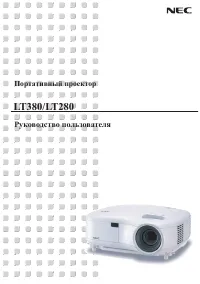 NEC LT280
Manual
NEC LT280
Manual
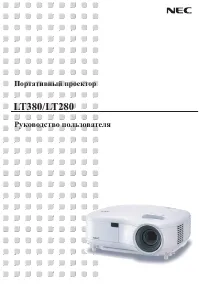 NEC LT380
Manual
NEC LT380
Manual
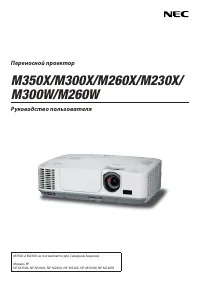 NEC M230X
Manual
NEC M230X
Manual
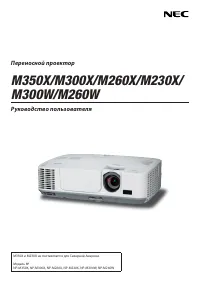 NEC M260W
Manual
NEC M260W
Manual
 NEC M271X
Manual
NEC M271X
Manual
 NEC M282X
Manual
NEC M282X
Manual
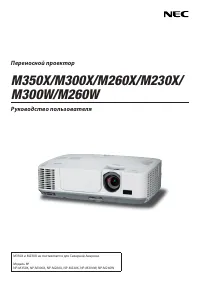 NEC M300X
Manual
NEC M300X
Manual
 NEC M302WS
Manual
NEC M302WS
Manual
 NEC M311W
Manual
NEC M311W
Manual
 NEC M322H
Manual
NEC M322H
Manual
 NEC M322X
Manual
NEC M322X
Manual
 NEC M332XS
Manual
NEC M332XS
Manual
 NEC M350X
Manual
NEC M350X
Manual
 NEC M352WS
Manual
NEC M352WS
Manual
 NEC M361X
Manual
NEC M361X
Manual
 NEC M362W
Manual
NEC M362W
Manual
 NEC M402W
Manual
NEC M402W
Manual
 NEC M402X
Manual
NEC M402X
Manual
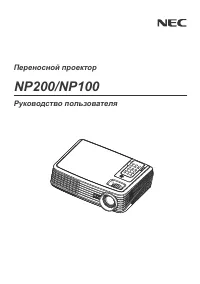 NEC NP100
Manual
NEC NP100
Manual