Page 2 - ENGLISH; TABLE OF CONTENTS; PRODUCT FEATURES
2 TABLE OF CONTENTS ENGLISH TABLE OF CONTENTS 4 PRODUCT FEATURES 5 IMPORTANT SAFETY INSTRUCTIONS 8 COMPONENTS 8 Refrigerator Exterior 9 Refrigerator Interior 10 INSTALLATION 10 Installation Overview 10 Specifications11 - LCD Display11 - Modem FCC / IC Certification12 Unpacking Your Refrigerator12 Ch...
Page 3 - MAINTENANCE
3 TABLE OF CONTENTS ENGLISH 39 SMART REFRIGERATOR DISPLAY SCREEN 39 Before Use 39 - Smart Refrigerator Display Screen39 - Touch Button Function39 - Necessary Installation Parts40 - Note Before Using41 - Downloading The Smart Phone Application 41 - Turning the Touch Screen ON or OFF. 42 Home Screen 4...
Page 5 - IMPORTANT SAFETY INSTRUCTIONS; READ ALL INSTRUCTIONS BEFORE USING THE APPLIANCE.; read and obey; WARNING; Power; Installation
5 IMPORTANT SAFETY INSTRUCTIONS ENGLISH IMPORTANT SAFETY INSTRUCTIONS READ ALL INSTRUCTIONS BEFORE USING THE APPLIANCE. This guide contains many important safety messages. Always read and obey all safety messages. WARNING You can be killed or seriously injured if you do not follow instructions. CAUT...
Page 7 - CAUTION; Maintenance; Warning when setting the Wi-Fi network; SAVE THESE INSTUCTIONS
7 IMPORTANT SAFETY INSTRUCTIONS ENGLISH CAUTION Installation The refrigerator must be properly installed in accordance with the Installer Instructions that y were taped to the front of the refrigerator.Be careful when you unpack and install the refrigerator. Immediately dispose of packing y material...
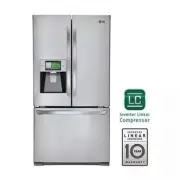
Page 8 - COMPONENTS; Refrigerator Exterior; LCD Display; Freezer; Ez Handle
8 COMPONENTS ENGLISH COMPONENTS Use this page to become more familiar with the parts and features of your refrigerator. Page references are included for your convenience.*The appearance and specifications of the actual product may differ depending on the model. Refrigerator Exterior Filtered Water a...
Page 9 - Refrigerator Interior
9 COMPONENTS ENGLISH Refrigerator Interior Water filter Purifies water. NOTE The filter should be replaced every 6 months. Please refer to the “Replacing the filter” section in this manual for details. * This function may not be available, depending on the model. Indoor Ice Bin Ice cubes are automat...
Page 10 - INSTALLATION; Installation Overview; Bottom-freezer refrigerator model
10 INSTALLATION ENGLISH INSTALLATION Installation Overview Please read the following installation instructions first after purchasing this product or transporting it to another location. 1 Unpacking your refrigerator 2 Choosing the proper location 3 Disassembling/Assembling 4 Connecting the water su...
Page 11 - DSSS
11 INSTALLATION ENGLISH WLAN (Wi-Fi) ZigBee Model LGHA-WNA1105 LGHA-ZNA1105 Frequency Range 2412 ~ 2462 MHz 2405 ~ 2475 MHz RF Max Power 802.11b(22.88 dBm)/802.11g(21.65dBm)/802.11n(20.67dBm) 18.91dBm Channel 11 15 Modulation type CCK/DSSS/OFDM DSSS Processor Telechips (Cortex) ROM 4GB RAM 512MB LCD...
Page 12 - Choosing the Proper Location; Unpacking Your Refrigerator; Flooring
12 INSTALLATION ENGLISH Choosing the Proper Location Select a place where a water supply can y be easily connected for the automatic icemaker. Unpacking Your Refrigerator WARNING Use two or more people to move and y install the refrigerator. Failure to do so can result in back or other injury.Your r...
Page 13 - Ambient Temperature; Assembling the Handles
13 INSTALLATION ENGLISH Ambient Temperature Install this appliance in an area where the temperature is between 55°F (13°C) and 110°F (43°C). If the temperature around the appliance is too low or high, cooling ability may be adversely affected. Measuring the Clearances Too small of a distance from ad...
Page 14 - Removing the Handles
14 INSTALLATION ENGLISH Removing/Assembling the Freezer Drawer Handle Removing the Handles 1 Loosen the set screws located on the lower side of the handle with a 1 / 8 in. Allen wrench and remove the handle. 2 Loosen the mounting fasteners that connect to the freezer drawer and handle using a 1 / 4 ...
Page 17 - Assembling the Right Refrigerator Door
17 INSTALLATION ENGLISH Install the right-side door first. 1 Make sure that the plastic sleeve is inserted in the bottom of the door. Lower the door onto the middle hinge pin as shown in the figure. 2 Fit the hinge over the hinge lever latch and slot it into place. Rotate the lever counterclockwise ...
Page 19 - Removing the Freezer Drawers
19 INSTALLATION ENGLISH CAUTION Use two or more people to remove and y install the freezer drawer. Failure to do so can result in back or other injury. Do not hold the handle when removing y or replacing the drawer. The handle may come off and it could cause personal injury. Be careful of sharp hing...
Page 21 - Assembling the Freezer Drawers
21 INSTALLATION ENGLISH 3 Lower the door into final position and tighten the screws located on both sides. 4 Insert drawer into the frame, and push drawer back into place until you hear a click. 5 Insert the lower basket in the rail assembly. (Images in the figure below may differ from the actual dr...
Page 22 - Connecting the Water Line; Before You Begin; If you use your refrigerator before connecting; Water Pressure; What You Will Need
22 INSTALLATION ENGLISH CAUTION Wear eye protection during installation to prevent injury. Connecting the Water Line Before You Begin This water line installation is not covered by the refrigerator warranty. Follow these instructions carefully to minimize the risk of expensive water damage. Water ha...
Page 23 - adapter; Water Line Installation Instructions
23 INSTALLATION ENGLISH NOTE A self piercing saddle type water valve should not be used. NOTE The hookup line cannot be white, plastic tubing. Licensed plumbers must use only copper tubing NDA tubing #49595 or 49599 or Cross Link Polyethylene (PEX) tubing. If your existing copper water line has a y ...
Page 24 - NOTE: Do not overtighten clamp or; Before making the connection
24 INSTALLATION ENGLISH NOTE Be sure there is sufficient extra tubing (about 8 feet coiled into 3 turns of about 10 in. diameter) to allow the refrigerator to move out from the wall after installation. 4 FASTEN THE SHUTOFF VALVEFasten the shutoff valve to the cold water pipe with the pipe clamp. Pip...
Page 25 - ON; Turning on the Power
25 INSTALLATION ENGLISH 10 TURN THE WATER ON AT THE SHUTOFF VALVETighten any connections that leak. 11 PLUG IN THE REFRIGERATORArrange the coil of tubing so that it does not vibrate against the back of the refrigerator or against the wall. Push the refrigerator back to the wall. 12 START THE ICEMAKE...
Page 26 - Leveling and Door Alignment; Leveling
26 INSTALLATION ENGLISH Leveling and Door Alignment Leveling After installing, plug the refrigerator’s power cord into a 3-prong grounded outlet and push the refrigerator into the final position. Your refrigerator has two front leveling legs—one on the right and one on the left. Adjust the legs to a...
Page 27 - HOW TO USE; Before use
27 HOW TO USE ENGLISH HOW TO USE Before use Clean the refrigerator. Clean your refrigerator thoroughly and wipe off all dust that accumulated during shipping. NOTE Remove adhesive residue by wiping it off with your thumb or dish detergent. CAUTION Do not scratch the refrigerator with a sharp object ...
Page 28 - Control Panel
28 HOW TO USE ENGLISH NOTE The displayed temperature is the target temperature, and not the actual temperature of the refrigerator. The actual refrigerator temperature depends on the food inside the refrigerator. Control Panel * Depending on the model, some of the following functions may not be avai...
Page 29 - Ice Plus; Power Saving
29 HOW TO USE ENGLISH Ice Plus Ice Plus This function increases both ice making and freezing capabilities. When you touch the ‘ON’ button, this y function will automatically shut off after 24 hours.You can stop this function manually by y touching the ‘OFF’ button. Eco Friendly Eco Friendly The Eco ...
Page 30 - Detaching the In-Door Ice Bin; Assembling the In-Door Ice Bin
30 HOW TO USE ENGLISH Ice-detecting sensor CAUTION When handling the ice bin, keep hands away from the icemaker tray area to avoid personal injury. In-Door Ice Bin * Depending on the model, some of the following functions may not be available. Detaching the In-Door Ice Bin 1 Gently pull the handle t...
Page 31 - Automatic Icemaker
31 HOW TO USE ENGLISH Automatic Icemaker * Depending on the model, some of the following functions may not be available. Ice is made in the automatic icemaker and sent to the dispenser. The icemaker will produce 70~210 cubes in a 24-hour period, depending on freezer compartment temperature, room tem...
Page 32 - Normal Sounds You May Hear; Preparing For Vacation; OFF
32 HOW TO USE ENGLISH Automatic Icemaker (continued) The first ice and water dispensed may y include particles or odor from the water supply line or the water tank.Throw away the first few batches of ice. y This is also necessary if the refrigerator has not been used for a long time.Never store beve...
Page 33 - Ice and Water Dispenser; Using the Dispenser; Incorrect Way
33 HOW TO USE ENGLISH Ice and Water Dispenser * Depending on the model, some of the following functions may not be available. CAUTION Keep children away from the dispenser. Children may play with or damage the controls. Dispenser Dispenser switch Stand Water/Ice Select switch Using the Dispenser To ...
Page 34 - Storing Food; Food Preservation Location
34 HOW TO USE ENGLISH Storing Food Food Preservation Location Each compartment inside the refrigerator is designed to store different types of food. Store your food in the optimal space to enjoy the freshest taste. Vegetable storage (Crisper) Preserves vegetables and fruit. Ice storage bin If a larg...
Page 35 - Food Storage Tips; Food; Storing Frozen Food; Freezing
35 HOW TO USE ENGLISH Food Storage Tips * The following tips may not be applicable depending on the model. Wrap or store food in the refrigerator in airtight and moisture-proof material unless otherwise noted. This prevents food odor and taste transfer throughout the refrigerator. For dated products...
Page 36 - Humidity Controlled Crisper; HIGH; Glide’N’Serve; Select
36 HOW TO USE ENGLISH Humidity Controlled Crisper and Glide’N’Serve Humidity Controlled Crisper * Depending on the model, some of the following functions may not be available. The crispers provide fresher tasting fruit and vegetables by letting you easily control humidity inside the drawer. You can ...
Page 37 - To Remove the Glass
37 HOW TO USE ENGLISH Detaching and Assembling the Storage Bins Glide’N’Serve and Humidity Controlled Crisper To remove the Humidity Controlled Crisper and the Glide’N’Server, pull out the Crisper and Glide’N’Server to full extension, lift the front up, and pull straight out. To install, slightly ti...
Page 38 - Detaching the Shelf
38 HOW TO USE ENGLISH Adjusting the Refrigerator Shelves The shelves in your refrigerator are adjustable to meet your individual storage needs. Your model may have glass or wire shelves. Adjusting the shelves to fit different heights of items will make finding the exact item you want easier. Doing s...
Page 39 - SMART REFRIGERATOR DISPLAY SCREEN; Before Use; Smart Refrigerator Display Dcreen; Touch Button Function; Necessary Installation Parts
39 SMART REFRIGERATOR DISPLAY SCREEN ENGLISH SMART REFRIGERATOR DISPLAY SCREEN Before Use 1. Smart Refrigerator Display Dcreen Utilize the many new features, such as Food Manager, Note Pad and Weather application, on the LCD display. Display screen buttons are touch activated. y The touch screen wil...
Page 41 - Downloading the Smart Phone Application; Reset switch
41 SMART REFRIGERATOR DISPLAY SCREEN ENGLISH 5. Downloading the Smart Phone Application Download the application from the Android smart phone market. Search for ‘LG Smart Refrigerator’ in the search section of the market. The application can also be downloaded from the Apple App Store. Search for ‘L...
Page 42 - Home Screen
42 SMART REFRIGERATOR DISPLAY SCREEN ENGLISH Home Screen - The Home screen shows Widgets, Function Icons, Date/Time, Wi-Fi, Energy Saving, Zigbee.- If you wish to change the order and position of Homescreen widget, use Settings > Edit Homescreen. Function Icons This is composed of 9 icons. Voice ...
Page 43 - Basic Buttons; Home Button
43 SMART REFRIGERATOR DISPLAY SCREEN ENGLISH Basic Buttons - When a function icon is touched, the basic buttons ( ) will display on the top left corner. Home Button Touch the Home button to return to the Home screen. Back Button Touch the Back button to return to the previous screen. CAUTION The tou...
Page 44 - Food Manager
44 SMART REFRIGERATOR DISPLAY SCREEN ENGLISH Food Manager - Touch the Food Manager button at the bottom of the Home screen. - In Food Manager, you can search for food items with the Add New Food button or magnify lens button to search using the keypad. Touch for Food Manager using Keypad. - You can ...
Page 45 - Food Manager by Category
45 SMART REFRIGERATOR DISPLAY SCREEN ENGLISH Food Manager by Category The Category tab in the Food Manager screen allows you to easily select food items to add to your refrigerator or freezer by category. - Select the Food Manager button on the Home Screen. - Select the Refrigerator or Freezer butto...
Page 46 - Frequently used Items
46 SMART REFRIGERATOR DISPLAY SCREEN ENGLISH Frequently used Items The Frequent tab contains up to 20 of your most frequently used food items. - Select the Food Manager button on the Home Screen. - Select the Add New button. - Select the Frequent tab. - Select the food item(s) that you would like to...
Page 47 - Food Manager Using Keypad
47 SMART REFRIGERATOR DISPLAY SCREEN ENGLISH Food Manager Using Keypad Search for food items using the keypad. - Select the Food Manager button from the Home screen. - Select the . - Using the keypad, type in the name of the food that you are searching for. - Touch the magnifying glass button. - Sel...
Page 49 - Function Menu
49 SMART REFRIGERATOR DISPLAY SCREEN ENGLISH - After selecting the items that you would like to change the expiration date for, touch the Change Expire Date button. - All of the selected items will appear in the display (scroll down to view them). - Use the calendar button to change the expiration d...
Page 51 - Send Food List to Phone
51 SMART REFRIGERATOR DISPLAY SCREEN ENGLISH From the Home screen, touch the Food Manager button. - Touch the phone icon. - Touch the Send to Phone button. - The refrigerator list will now be sent to the Smart Phone that is registered with the refrigerator. 1) Send 1) Send Send Food List to Phone Th...
Page 53 - Recipes; Food in Refrigerator:
53 SMART REFRIGERATOR DISPLAY SCREEN ENGLISH Recipes - The Recipes function can be accessed either by selecting the Recipes icon from the bottom of the home page or by touching the Recipes widget on the home screen. - In the Recipes section there are several options for finding recipes:- Search for ...
Page 54 - Recipes Search
54 SMART REFRIGERATOR DISPLAY SCREEN ENGLISH Recipes Search - There are four different ways to search for recipes: By Course, Ingredient, Cuisine, or Total Time. - 1 Select the desired search method. - 2 Once you have selected your preferred search method, a new screen will appear on the left side w...
Page 55 - Food in Refrigerator
55 SMART REFRIGERATOR DISPLAY SCREEN ENGLISH Food in Refrigerator This feature will recommend recipes to you based on items you have available in your refrigerator. 1 Touch the Food in the Refrigerator button. 2 Select the items in the refrigerator that you would like to see recipes for, or touch th...
Page 56 - LG Smart Range Recipes
56 SMART REFRIGERATOR DISPLAY SCREEN ENGLISH LG Smart Range Recipes - You can send the selected recipe to your LG Oven. - 1 Click LG Smart Range Recipes. - 2 Once you have selected your preferred search method, a new screen will appear on the left side with a list of categories. Select the category ...
Page 57 - Grocery; Add New Food
57 SMART REFRIGERATOR DISPLAY SCREEN ENGLISH Grocery - Touch the Grocery icon at the bottom of the Home Screen.- The Grocery function allows you to make a grocery list on your refrigerator and send the list to your Smart Phone. - User can put the item to buy in the list and manage the shopping baske...
Page 59 - To Add Food to the Grocery List
59 SMART REFRIGERATOR DISPLAY SCREEN ENGLISH - Navigate to the grocery list. - Touch the magnifying glass button. - Type in the name of the food that you are searching for. - Touch the magnifying glass button to search. - Select the desired food item from the search list. If the food item does not s...
Page 60 - Phone; To Delete Groceries from the List
60 SMART REFRIGERATOR DISPLAY SCREEN ENGLISH CAUTION You will not be able to load the grocery y list to your smart phone if the refrigerator has not been registered. Phone To send or load the grocery list to your Smart Phone:- Navigate to the grocery list.- Touch the phone button. - Navigate to the ...
Page 63 - Memo
63 SMART REFRIGERATOR DISPLAY SCREEN ENGLISH Memo - Touch the Memo icon on the bottom of the Home Screen or the Memo widget.- The concept of post-it is expanded for text input and it also supports drawing memo and voice memo. Add memo by typing Register to home screen widget Add memo by drawing Dele...
Page 64 - Creating a Memo
64 SMART REFRIGERATOR DISPLAY SCREEN ENGLISH 1) Typing a memo 1) Typing a memo Creating a Memo Create a new memo by either typing a message or drawing a picture. 2 7 5 3 4 6 1 Touch the Memo( ) button on the Home screen. 2 Touch the keypad button. 3 Touch the blank screen that says “Enter text here....
Page 67 - Delete a Memo
67 SMART REFRIGERATOR DISPLAY SCREEN ENGLISH Delete a Memo 1 Touch the Memo( ) button from the Home screen. 2 Select the memo that you would like to delete. 3 Touch the Delete button. 4 Touch the OK button. 2 4 3
Page 68 - Save Memo to Home Screen
68 SMART REFRIGERATOR DISPLAY SCREEN ENGLISH Save Memo to Home Screen - Touch the Memo( ) button on the Home screen. - Touch the memo that you would like to save to the Home Screen. - Touch the Post to Homescreen button. - View the Memo by navigating to the Home Screen next to the weather widget. - ...
Page 69 - Google Calendar; Log In to your Google Account
69 SMART REFRIGERATOR DISPLAY SCREEN ENGLISH Google Calendar - Sign into your Google account to access Google Calendar from your refrigerator. Log In to your Google Account - If logging in for the first time, touch the Google Calendar button on the Home Screen. - Enter your gmail account name and pa...
Page 71 - View Events
71 SMART REFRIGERATOR DISPLAY SCREEN ENGLISH - Customize your event. Touch the Title box and a Keypad will display. Type in the name of your event. Touch Done. - Enter the start and end date by selecting the the date and time buttons. Adjust the date/time by using the +/- buttons on the display. - T...
Page 72 - Photo Album
72 SMART REFRIGERATOR DISPLAY SCREEN ENGLISH Photo Album - Import (load) pictures to your refrigerator from an SD card or Smart Phone. View the pictures as a slide show, on the Home screen or in a Photo Album. Uploading photos to the album Uploading photos to the album - This should appear in the be...
Page 75 - View Photos
75 SMART REFRIGERATOR DISPLAY SCREEN ENGLISH View Photos - From the Home screen, touch the Photo Album( ) button. - If you turn the picture, you can see the next picture. - Touch button to rotate the picture. - 1 Photos can be selected one by one. Or by touching “Select All” all photos can be select...
Page 76 - Saving Photo to Home Screen
76 SMART REFRIGERATOR DISPLAY SCREEN ENGLISH Saving Photo to Home Screen - Select picture to register to Home Screen.- Touch Post to Homescreen button to register to Home Screen. Deleting Photo from Home Screen - If you want to delete a picture from Home Screen, touch Delete to Homescreen.
Page 77 - REF Manager; Smart Saving; Demand Response Functionality
77 SMART REFRIGERATOR DISPLAY SCREEN ENGLISH REF Manager - The Ref Manager is where you would go to change the refrigerator/freezer settings or to activate certain features. - Temperature Settings- Touch the up and down arrows in either the Refrigerator or Freezer sections to change the temperature ...
Page 80 - Delay Defrost Capability
80 SMART REFRIGERATOR DISPLAY SCREEN ENGLISH Delay Defrost Capability - The Smart Saving feature will lower energy usage at 6:00am-10:00am and 3:00pm-7:00pm daily as default. To change the time period, select the Smart Saving event below to customized time period. 1 Enter Smart Saving( ) and Turn on...
Page 81 - Settings; REF Information
81 SMART REFRIGERATOR DISPLAY SCREEN ENGLISH Settings - Touch the Settings button to view or modify the display settings: REF Information, Smart Diagnosis, Wi-Fi, Date & Time, Brightness, Volume, Zigbee, Update, Edit Homescreen, Screen Saver, Freshness Tracker Alert, Log In, Factory Reset. REF I...
Page 82 - Smart Diagnosis
82 SMART REFRIGERATOR DISPLAY SCREEN ENGLISH Smart Diagnosis - Should you experience any problems with your appliance, it has the capability of transmitting troubleshooting information via phone or Wi-Fi. - Select the method of Smart Diagnosis that you would like to use. - Touch the Wi-Fi Diagnosis ...
Page 85 - Select your time zone; To manually set the date and time
85 SMART REFRIGERATOR DISPLAY SCREEN ENGLISH Date & Time Select your time zone - Touch the Date & Time button from the Settings screen. - Touch the Set Time Zone button.- Scroll through the time zones by swiping the Select Time Zone screen up or down. - Touch the desired time zone button. To...
Page 86 - Brightness; Volume
86 SMART REFRIGERATOR DISPLAY SCREEN ENGLISH Brightness Touch the Brightness button from the Settings screen. Move the scroll bar left (darker) or right y (brighter) to control the brightness of the display screen. Volume Touch the Volume button from the Settings screen. Move the scroll bar left (so...
Page 88 - Update
88 SMART REFRIGERATOR DISPLAY SCREEN ENGLISH Update Once the user registration is complete, the firmware and recipes will automatically update through the network. - Once you are registered, touch the Update button from the Settings screen. - Firmware and recipe updates are automatically checked. Up...
Page 89 - Edit Homescreen; Screen Saver
89 SMART REFRIGERATOR DISPLAY SCREEN ENGLISH Edit Homescreen Widgets can be added or removed from the Home screen. Check the widgets that you would like to appear on the Home Screen. Uncheck the ones that you would like left off. Drag and drop a widget to change the order. To do this: - Touch and ho...
Page 90 - Log In
90 SMART REFRIGERATOR DISPLAY SCREEN ENGLISH Log In - You can register(log in) the product with the ID/PW subscribed/registered to home page(http://us.smartthinq.com) 1 Touch the Log In button from the Settings screen. 2 3 Touch the User ID box. A keypad will display. - Enter your User ID using the ...
Page 91 - Factory Reset
91 SMART REFRIGERATOR DISPLAY SCREEN ENGLISH Factory Reset The Factory Reset erases all custom settings linked to the registered account. Data stored in the Food manager, Favorite Recipes, Grocery, Memo, Calendar, Photo Album and User Log In will be deleted.
Page 93 - Using the Widgets
93 SMART REFRIGERATOR DISPLAY SCREEN ENGLISH Using the Widgets - A widget is a mini application that can be accessed without using a web browser.- There are nine widgets that are loaded to the display: REF Manager, Smart Saving, Weather, Freshness Tracker, Daily Water, Photo Album, Recipes, Memo and...
Page 97 - Cleaning
97 MAINTENANCE ENGLISH MAINTENANCE Cleaning Both the refrigerator and freezer sections defrost automatically; however, clean both y sections about once a month to prevent odors. Wipe up spills immediately. y Always unplug the refrigeration before cleaning. y General Cleaning Tips General Cleaning Ti...
Page 98 - Install a New Air Filter.; Replacing the Fresh Air Filter; Remove the Old Filter; Replacing the Water Filter; Before Replacing the Water Filter:
98 MAINTENANCE ENGLISH 2 Install a New Air Filter. Place the new filter inside of the cover with the side that says “Front” facing outward. Turn the filter cover to the right to attach to the refrigerator wall. After changing the filter, push and hold the Air Filter button for three seconds to reset...
Page 99 - Replacing the water
99 MAINTENANCE ENGLISH 3 After the water filter is replaced, dispense 2.5 gallons of water (flush for approximately 5 minutes) to remove trapped air and contaminates from the system. Do not dispense the entire 2.5 gallon amount continuously. Depress and release the dispenser pad for cycles of 30 sec...
Page 100 - Performance Data Sheet
100 MAINTENANCE ENGLISH Performance Data Sheet Model: LG ADQ36006101-S Use Replacement Cartridge: ADQ36006101 The concentration of the indicated substances in water entering the system was reduced to a concentration less than or equal to the permissible limit for water leaving the system as specifie...
Page 101 - Application Guidelines/Water Supply Parameters
101 MAINTENANCE ENGLISH It is essential that the manufacturer’s recommended installation, maintenance and filter replacement requirements be carried out for the product to perform as advertised. Replacement Cartridge: ADQ36006101For estimated costs of replacement elements please call USA 1-800-243-0...
Page 103 - SMART DIAGNOSIS
103 SMART DIAGNOSIS ENGLISH 3 Hold the mouthpiece of your phone in front of the speaker that is located on the right hinge of the refrigerator door, when instructed to do so by the call center. 4 Touch the Start button while continuing to hold your phone to the speaker. 5 Keep the phone in place unt...
Page 105 - TROUBLESHOOTING; Problem
105 TROUBLESHOOTING ENGLISH TROUBLESHOOTING Review the Troubleshooting section before calling for service; doing so will save you both time and money. Problem Possible Causes Solutions Refrigerator and Freezer section are not cooling. The refrigerator control is set to OFF (some models). Turn the co...
Page 115 - WARRANTY; WARRANTY PERIOD
115 WARRANTY ENGLISH Should your LG Refrigerator (“Product”) fail due to a defect in materials or workmanship under normal home use, during the warranty period set forth below, LG will at its option repair or replace the product. This limited warranty is valid only to the original retail purchaser o...
Page 116 - THIS LIMITED WARRANTY DOES NOT COVER:
116 WARRANTY ENGLISH For complete warranty details and customer assistance, please call or visit our website: Call 1-800-243-0000 (24 hours a day, 365 days a year) and select the appropriate option from the menu, or visit our website at http://www.lg.com Or by mail: LG Customer Information Center: P...
Page 118 - All costs associated with the above excluded circumstances
118 WARRANTY ENGLISH For complete warranty details and customer assistance, please call or visit our website: Call 1-888-542-2623 (24 hours a day, 365 days a year) and select the appropriate option from the menu, or visit our website at http://www.lg.com Write your warranty information below: ______...
Page 119 - OPEN SOURCE SOFTWARE NOTICE; Open Source Software Notice
119 OPEN SOURCE SOFTWARE NOTICE ENGLISH Open Source Software Notice To obtain the source code under GPL, LGPL, MPL and other open source licenses, that is contained in this product, please visit http://opensource.lge.com . In addition to the source code, all referred license terms, warranty disclaim...
Page 121 - For inquires or comments,; Register your product Online!
1-800-243-0000 1-888-865-3026 1-888-542-2623 USA, Consumer User USA, Commercial User CANADA For inquires or comments, visit www.lg.com or call; www.lg.com Register your product Online! LG Customer Information Center


 LG DoorCooling+ GC-B247SEDC
User Manual
LG DoorCooling+ GC-B247SEDC
User Manual
 LG DoorCooling+ GC-B247SMDC
User Manual
LG DoorCooling+ GC-B247SMDC
User Manual
 LG GA-B379PLQA
User Manual
LG GA-B379PLQA
User Manual
 LG GA-B379PVCA
User Manual
LG GA-B379PVCA
User Manual
 LG GA-B409UCA
User Manual
LG GA-B409UCA
User Manual
 LG GA-B419SEUL
Manual
LG GA-B419SEUL
Manual
 LG GA-B419SLUL
Manual
LG GA-B419SLUL
Manual
 LG GA-B419SMHL
Manual
LG GA-B419SMHL
Manual
 LG GA-B419SQGL
Manual
LG GA-B419SQGL
Manual
 LG GA-B419SQUL
Manual
LG GA-B419SQUL
Manual
 LG GA-B419SWJL
Manual
LG GA-B419SWJL
Manual
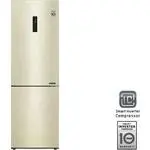 LG GA-B459CESL
User Manual
LG GA-B459CESL
User Manual
 LG GA-B459CLSL
User Manual
LG GA-B459CLSL
User Manual
 LG GA-B459CLWL
User Manual
LG GA-B459CLWL
User Manual
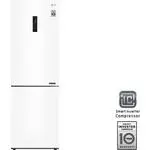 LG GA-B459CQSL
User Manual
LG GA-B459CQSL
User Manual
 LG GA-B509
User Manual
LG GA-B509
User Manual
 LG GA-B509CESL
User Manual
LG GA-B509CESL
User Manual