LG 55SL5B-B - Manuals
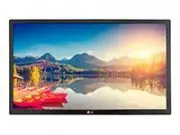
User Manual LG 55SL5B-B
Summary
2 TABLE OF CONTENTS ENGLISH TABLE OF CONTENTS 3 IMPORTANT PRECAUTIONS 3 Electrical Power Related Precautions 4 Precautions in installing the Product 4 Precautions in Moving the Product 5 Precautions in Using/ 5 Cleaning the Product 5 On Disposal (Only, Hg lamp used LCD Monitor) 6 LICENSES 7 ASSEMBLY...
3 IMPORTANT PRECAUTIONS ENGLISH IMPORTANT PRECAUTIONS Please read these safety precautions carefully before using the product. WARNING WARNING Failure to follow those warnings may result in death, serious injury or damage to the product or other property. Electrical Power Related Precautions • Use o...
4 IMPORTANT PRECAUTIONS ENGLISH Precautions in installing the Product • Keep away from heat sources like eaters or open flames. ► ► Electrical shock, fire, malfunction or deformation may occur. • Keep the packing anti-moisture material or vinyl packing out of the reach of children. ► ► Anti-moisture...
5 IMPORTANT PRECAUTIONS ENGLISH WARNING Precautions in Using/ Cleaning the Product • Do not attempt to disassemble, repair or modify the product yourself . ► ► Fire or electric shock can occur. ► ► Contact LG Customer Service for repair. • When cleaning the product, unplug the power cord and scrub g...
6 LICENSES ENGLISH LICENSES Supported licenses may differ by model. For more information of the licenses, visit www.lg.com. The terms HDMI and HDMI High-Definition Multimedia Interface, and the HDMI logo are trademarks or registered trademarks of HDMI Licensing LLC in the United States and other cou...
7 ASSEMBLY AND PREPARATION ENGLISH ASSEMBLY AND PREPARATION • Always use genuine components to ensure safety and product performance. • The product warranty will not cover damage or injury caused by the use of counterfeit components. • The accessories provided with your product may vary depending on...
8 ASSEMBLY AND PREPARATION ENGLISH Optional Accessories Without prior notice, optional accessories are subject to change to improve the performance of the product, and new accessories may be added. The illustrations in this manual may differ from the actual product and accessories. • Cable holder/ca...
9 ASSEMBLY AND PREPARATION ENGLISH Wi-Fi Dongle kit AN-WF500 Screws Media Player kit CD (Owner's Manual)/ Cards Media Player MP500/ MP700 NOTE • Optional accessories are available for some models. If necessary, please purchase them separately. ( It may not be supported depending on the model.)
10 ASSEMBLY AND PREPARATION ENGLISH IR&LIGHT SENSOR LA N SPEAKER OUT RS-232C IN RS-232C OUT EXT IR IN AUDIO OUT AUDIO IN DVI-D IN LA N USB 1 5 V 1.0 A USB 2 5 V 1.0 A RGB IN Parts and Buttons Connection Panel Buttons Buttons Description INPUT Changes the input source. MENU Accesses the main menu...
12 ASSEMBLY AND PREPARATION ENGLISH 2 Use the screws to secure the stand to the back of the product as shown below. Connecting the Stand - For certain models only.- The image may be different according to the model 3 Use the screws to secure the stand to the back of the product as shown below. 1 Pla...
13 ASSEMBLY AND PREPARATION ENGLISH Connecting the Speakers - For certain models only. (Only for **SE3B/**SL5B model) - The image may be different according to the model. 1 Connect an input signal cable before installing the speakers. 1 Connect an input signal cable before installing the speakers. 3...
14 ASSEMBLY AND PREPARATION ENGLISH NOTE Using the IR Receiver - The image may be different according to the model. This allows a remote control sensor to be placed in a custom location. Then that display can control other displays via an RS-232C cable. Install the IR receiver towards the front of t...
15 ASSEMBLY AND PREPARATION ENGLISH Portrait Layout When installing in a portrait layout, rotate the monitor counterclockwise 90 degrees (when facing the screen). (This is not available for all models.)The Kensington security system connector is located at the back of the monitor. For more informati...
16 ASSEMBLY AND PREPARATION ENGLISH 1 Lay a clean cloth on the floor, and then put the monitor on it with the screen face down. Using a screwdriver, remove the screw that secures the LG Logo Bracket to the bottom rear of the monitor. 2 After removing the screw, remove the LG Logo. When re-attaching ...
17 ASSEMBLY AND PREPARATION ENGLISH • Disconnect the power cord before moving or installing the monitor to avoid risk of electric shock. • If you install the monitor on a ceiling or slanted wall, it may fall and result in injury. Use an authorized LG wall mount and contact your local dealer or quali...
18 ASSEMBLY AND PREPARATION ENGLISH Securing the monitor to a wall (optional) Procedure may differ depending on the model. 1 Insert and tighten the eyebolts, or brackets and bolts on the back of the monitor. - If there are already bolts inserted in the eyebolts’ position, remove the other bolts firs...
19 REMOTE CONTROL ENGLISH ID BACK TILE ON OFF EXIT REMOTE CONTROL The descriptions in this manual are based on the buttons on the remote control. Please read this manual carefully to use the monitor correctly.To install batteries, open the battery cover, place batteries (1.5 V AAA) matching and term...
21 REMOTE CONTROL ENGLISH Displaying the Device Name Connected to an Input Port Display which devices are connected to which external input ports. 1 Access the Input list screen and press the red (input label) button on the remote control. 2 You can assign an input label for every input except USB. ...
22 REMOTE CONTROL ENGLISH Using Picture ID Picture ID is used to change the settings of a specific display using a single IR receiver for multi-vision. The set receiving the IR signal communicates with another set via an RS-232C connection. Each set is identified by a Set ID. If you assign the Pictu...
23 MAKING CONNECTIONS ENGLISH MAKING CONNECTIONS Connecting to a PC The illustrations may differ from the actual accessories. Some of the cables are not provided.This monitor supports the Plug & Play* feature.* Plug & Play: a feature that enables a PC to recognize devices attached by the use...
25 MAKING CONNECTIONS ENGLISH SPEAKER OUT RS-232C IN RS-232C OUT EXT IR IN AUDIO OUT AUDIO IN DVI-D IN LA N 03 Network HDMI OUT SPEAKER OUT RS-232C IN RS-232C OUT EXT IR IN AUDIO OUT AUDIO IN DVI IN RGB IN LA N USB 1 USB 2 ฒખ Network HDMI USB 1 5 V 1.0 A USB 2 5 V 1.0 A RGB IN External Device Connec...
28 USING THE MONITOR ENGLISH Using the Input List 1 Press INPUT to access the Input List . 2 Press the navigation buttons to scroll to one of the input mode and press OK . USING THE MONITOR • You can also change the image size by accessing the main menus. • The Just Scan mode operates when a video s...
29 USING THE MONITOR ENGLISH ► y 16:9 This selection will allow you to adjust the picture horizontally, in linear proportion, to fill the entire screen (useful for viewing 4:3 formatted DVDs). ► y Just Scan This Selection will allow you view the picture of best quality without loss of original pictu...
30 ENTERTAINMENT ENGLISH ENTERTAINMENT Using the Network Connecting to a Network For wired network connections, connect the display to a local area network (LAN) via the LAN port as shown on the following diagram. Then, set up the network settings. For wireless network con-nections, connect the Wi-F...
32 ENTERTAINMENT ENGLISH Tips for Wireless Network Setting ► y Wireless networks can be subject to interfer-ence from other devices operating at a fre-quency of 2.4 GHz (wireless phones, Bluetooth devices, or microwave ovens). There may also be interference from devices with a frequency of 5 GHz, sa...
33 ENTERTAINMENT ENGLISH Tips for using USB storage devices ► y Only a USB storage device is recognizable. ► y If the USB storage device is connected through a USB hub, the device is not recognizable. ► y A USB storage device using an automatic rec-ognition program may not be recognized. ► y A USB s...
34 ENTERTAINMENT ENGLISH Browsing Files Browse files saved in a USB storage device. 1 Press SETTINGS to access the main menu. 2 Press the search button to scroll to MY MEDIA and press OK . 3 Press the Search button to go to the Movie List , Photo List , Music List , or Content List that you want, an...
36 ENTERTAINMENT ENGLISH Viewing Movies Plays movie files saved in the USB storage device. 1 Press SETTINGS to access the main menu. 2 Press the navigation button to scroll to MY MEDIA and press OK . 3 Press the navigation button to scroll to Movie List and press OK . 4 Press the navigation buttons ...
39 ENTERTAINMENT ENGLISH Viewing Photos View image files saved in the USB storage device. 1 Press SETTINGS to access the main menu. 2 Press the navigation button to scroll to MY MEDIA and press OK . 3 Press the navigation button to scroll to Photo List and press OK . 4 Press the navigation buttons t...
41 ENTERTAINMENT ENGLISH Listening to Music Plays music files saved in the USB storage device. 1 Press SETTINGS to access the main menu. 2 Press the navigation button to scroll to MY MEDIA and press OK . 3 Press the navigation button to scroll to Music List and press OK . 4 Press the navigation butt...
42 ENTERTAINMENT ENGLISH Time elapsed/ Duration 002. B02.mp3 00:31 / 04:04 file name ► y A damaged or corrupted music file does not play but displays 00:00 in playtime. ► y A music downloaded from a paid service with copyright protection does not start but displays inappropriate informa-tion in play...
43 ENTERTAINMENT ENGLISH Viewing the Contents List Plays back the stored files using the Export option in SuperSign Manager . 1 Press SETTINGS to access the main menu. 2 Press the navigation button to scroll to MY MEDIA and press OK . 3 Press the navigation button to scroll to Contents List and pres...
44 CUSTOMIZING SETTINGS ENGLISH CUSTOMIZING SETTINGS Accessing Main Menus 1 Press S ETTINGS to access the main menus. 2 Press the navigation buttons to scroll to one of the following menus and press OK . 3 Press the navigation buttons to scroll to the setting or option you want and press OK . 4 When...
45 CUSTOMIZING SETTINGS ENGLISH PICTURE Settings 1 Press S ETTINGS to access the main menus. 2 Press the navigation buttons to scroll to PICTURE and press OK . 3 Press the navigation buttons to scroll to the setting or option you want and press OK . - To return to the previous level, press BACK . 4 ...
46 CUSTOMIZING SETTINGS ENGLISH Basic image options Setting Description Backlight Adjusts the brightness of the screen by controlling the LCD backlight. If you decrease the brightness level, the screen becomes darker and the power consumption will be reduced without any video signal loss. Contrast I...
47 CUSTOMIZING SETTINGS ENGLISH Setting Description Dynamic Contrast Adjusts the contrast to the optimal level according to the brightness of the image. (Function works in the following mode - HDMI-DTV) Color Gamut Selects the range of colours that can be expressed. Edge Enhancer Shows clearer and d...
48 CUSTOMIZING SETTINGS ENGLISH AUDIO Settings 1 Press S ETTINGS to access the main menus. 2 Press the navigation buttons to scroll to AUDIO and press OK . 3 Press the navigation buttons to scroll to the setting or option you want and press OK . - To return to the previous level, press BACK . 4 When...
49 CUSTOMIZING SETTINGS ENGLISH TIME Settings 1 Press S ETTINGS to access the main menus. 2 Press the navigation buttons to scroll to TIME and press OK . 3 Press the navigation buttons to scroll to the setting or option you want and press OK . - To return to the previous level, press BACK . 4 When y...
50 CUSTOMIZING SETTINGS ENGLISH OPTION Settings 1 Press S ETTINGS to access the main menus. 2 Press the navigation buttons to scroll to OPTION and press OK . 3 Press the navigation buttons to scroll to the setting or option you want and press OK . - To return to the previous level, press BACK . 4 Wh...
51 CUSTOMIZING SETTINGS ENGLISH SETTINGS Description Contents Schedule Creates simple schedules and sets playback using files in My Media. LevelAdd Schedule Creates a contents schedule.- Media: Select the file to which you want to apply the contents schedule. - Select [Create] to register the conten...
52 CUSTOMIZING SETTINGS ENGLISH Tile Mode This monitor can be tiled with additional monitors to create a large tiled display . Tile Mode - Natural mode When active, the part of the image that would normally be displayed in the gap between the monitors is omitted. ID 1 ID 2 ID 5 ID 6 ID 3 ID 7 ID 9 I...
53 CUSTOMIZING SETTINGS ENGLISH NETWORK Settings 1 Press S ETTINGS to access the main menus. 2 Press the navigation buttons to scroll to NETWORK and press OK . 3 Press the navigation buttons to scroll to the setting or option you want and press OK . - To return to the previous level, press BACK . 4 ...
54 TROUBLESHOOTING ENGLISH TROUBLESHOOTING No image is displayed Problem Action Is the product power cord connected? ► y Check if the power cord is correctly plugged into the power outlet . Does the Out of range message appear? ► y The signal from the PC (video card) is out of the vertical or horizo...
55 TROUBLESHOOTING ENGLISH After-image appears on the product. Problem Action After-image appears when the product is turned off. ► y If you use a fixed image for a long time, the pixels may be damaged. Use the screen-saver function. ► y When a dark image is displayed on the screen after an image wi...
56 PRODUCT SPECIFICATIONS ENGLISH PRODUCT SPECIFICATIONS The product specifications below may be changed without prior notice due to upgrade of product functions.“ ” refers to alternating current (AC), and “ ” refers to direct current (DC). LCD Panel Screen Type LCD (Liquid Crystal Display) Panel. V...
62 PRODUCT SPECIFICATIONS ENGLISH Product Dimensions The illustrations in this manual may differ from the actual product and accessories.Please see Mounting on a wall section for screw sizes. The product specifications below may be changed without prior notice due to upgrade of product functions. (U...
67 PRODUCT SPECIFICATIONS ENGLISH ► y PC resolutions available as the input label option in RGB and HDMI / DVI-D input modes : 640 x 480 / 60 Hz, 1280 x 720 / 60 Hz, 1920 x 1080 / 60 Hz and DTV resolutions : 480p, 720p, 1080p. ► y Vertical frequency: To enable the user to watch the product display, ...
68 IR CODES ENGLISH IR CODES ► y All models do not support the HDMI/USB function. ► y Some key codes are not supported depending on the model. Code (Hexa) Function Note 08 Power R/C BUTTON 0B INPUT R/C BUTTON C4 MONITOR ON R/C BUTTON C5 MONITOR OFF R/C BUTTON 95 ENERGY SAVING ( ) R/C BUTTON DC 3D R/...
70 TO CONTROL MULTIPLE PRODUCTS ENGLISH TO CONTROL MULTIPLE PRODUCTS ► y Use this method to connect several products to a single PC. You can control several products at a time by connecting them to a single PC. ► y In the Option menu, Set ID must be between 1 and 255 (or from 1 to 1,000) without bei...
71 TO CONTROL MULTIPLE PRODUCTS ENGLISH Communication Parameter • Baud Rate 9600 BPS • Data Length 8 bit • Parity Bit None • Stop Bit 1 bit • Flow Control None • Communication Code ASCII code • Use a crossed (reverse) cable RS-232C Configurations 8-Wire Configurations (Standard RS-232C cable) PC RS-...
72 TO CONTROL MULTIPLE PRODUCTS ENGLISH Command Reference List COMMAND DATA (Hexadecimal) 1 2 01 Power k a 00 to 01 02 Select input x b See [Select input] 03 Aspect ratio k c See [Aspect ratio] 04 Energy saving j q See [Energy saving] 05 Picture mode d x See [Picture mode] 06 Contrast k g 00 to 64 0...
74 TO CONTROL MULTIPLE PRODUCTS ENGLISH Transmission / Receiving Protocol Transmission [Command1][Command2][ ][Set ID][ ][Data][Cr] * [Command1] Identifies the factory setting and the user setting modes. * [Command2] Controls monitors. * [Set ID] Used for selecting a set you want to control. A Set I...
USER GUIDE LG Digital Signage (MONITOR SIGNAGE) www.lg.com Please read this manual carefully before operating your set and retain it for future reference. L15
ENGLISH 2 TABLE OF CONTENTS USING THE MONITOR ...................3 -Using the Input List .........................................................3 -Adjusting Aspect Ratio ..................................................3 ENTERTAINMENT .........................5 -Using the Network ...................
ENGLISH 8 Network Status 1 Press to access the main menus. 2 Press the navigation buttons to scroll to NETWORK and press . 3 Press the navigation buttons to select Network Status . 4 Press to check the network status. 5 When you are finished, press . Option Description Setting Return to the network ...
ENGLISH 34 PICTURE ID Settings • Only applies to certain models. is used to change the settings of a specific set (display) using a single IR receiver for multi-vision. Communication is possible between a monitor with an IR receiver and other monitors using RS-232C cables. Each monitor is identified...
INSTALLATION MANUAL LG Digital Signage (MONITOR SIGNAGE) www.lg.com Please read this manual carefully before operating your set and retain it for future reference. L15
ENGLISH 2 TABLE OF CONTENTS ACCESSING INSTALLATION MENU ........................................................4 INSTALLATION MENU ..................5 -LG Digital Signage Setup menu ................................5 Signage Mode OperationPower On StatusKey OperationIR Operation / Local Key Operatio...
ENGLISH 5 INSTALLATION MENU NOTE • Default values may differ by region. LG Digital Signage Setup menu • Use this menu to configure the Digital Signage after in stallation. LG Digital Signage Setup Signage Mode Operation • Power On Status • Key Operation• IR Operation• Local Key Operation• Limited Mo...
ENGLISH 26 ISM Method If a still image is displayed on the screen for an extended period of time, image sticking can occur. The ISM method is a feature that prevents image sticking. LG Digital Signage SetupUSB CloningPassword ChangeSet ID SetupConfiguration SetupLock ModeExternal Speaker / Audio out...
LG Professional Displays Manuals
-
LG 10HQ701G-BP
User Manual
-
LG 10SM3TB-B
User Manual
-
LG 110UM5J-B
User Manual
-
LG 110UM5K-B
User Manual
-
LG 14HK701G-W
User Manual
-
LG 14HK701G-WP
User Manual
-
LG 14HQ701G-BP
User Manual
-
LG 14HQ901G-BP
User Manual
-
LG 15LN766A0UB
User Manual
-
LG 15LS766A0UA
User Manual
-
LG 15LS766F0UA
User Manual
-
LG 15LT766A0UA
User Manual
-
LG 15LU766A
User Manual
-
LG 17HK700G-WP
User Manual
-
LG 17HK701G-WP
User Manual
-
LG 17HQ701G-BP
User Manual
-
LG 19HK312C-B
User Manual
-
LG 21HK512D
User Manual
-
LG 21HK512D-B
User Manual
-
LG 21HQ513D-B
User Manual








