LG 26LG3DDH - Manuals
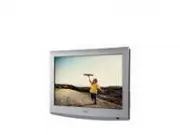
LG 26LG3DDH Professional Display – User Manual, Manual in PDF format online.
Manuals:
User Manual LG 26LG3DDH
Manual LG 26LG3DDH
Summary
2 206-4096 MODEL and SERIAL NUMBERThe model and serial numbers of this TV are located on the back of the cabinet. For future reference, LG suggests that you record those numbers here: Model No._________________Serial No. _______________ WARNING: TO REDUCE THE RISK OF ELECTRIC SHOCK DO NOT REMOVE COV...
3 206-4096 IMPORTANT SAFETY INSTRUCTIONS 1. Read these instructions.2. Keep these instructions.3. Heed all warnings.4. Follow all instructions.5. Do not use this apparatus near water.6. Clean only with dry cloth. 7. Do not block any ventilation openings. Install in accordance with the manufacturer’s...
4 206-4096 IMPORTANT SAFETY INSTRUCTIONS (Continued from previous page) 20. Grounding Ensure that you connect the earth ground wire to pre-vent possible electric shock (i.e., a TV with a three-prong grounded AC plug must be connected to a three-prong grounded AC outlet). If grounding methods are not...
5 206-4096 Safety Warnings . . . . . . . . . . . . . . . . . . . . . . . . . . . . . . . 2 Important Safety Instructions . . . . . . . . . . . . . . . . . . . 3 – 4 Table of Contents . . . . . . . . . . . . . . . . . . . . . . . . . . . . . . 5 TV Overview / Setup Checklist. . . . . . . . . . . . . ...
6 206-4096 TV Overview / Setup Checklist Installation and Setup Checklist __ Unpack TV and all accessories.__ Install batteries in remote control.__ Install TV on VESA mount or stand. Note: It may be advisable to make all cable connections before installing on VESA mount or stand, as appropriate. Ha...
7 206-4096 General Guidelines: Choosing a Location for Installing a VESA Standard Mount To the right are some examples of VESA standard mounts. Since there are numerous types of stands and mounts available, only a few are shown here. Refer to the instruc-tions provided with the TV stand that will be...
8 206-4096 Rear Connections Panel . . . . . . . . . HDMI/DVI IN AV IN 1 COMPONENT IN USB IN SERVICE ONLY VIDEO AUDIO R-AUDIO-L (MONO) VIDEO R L RGB IN (PC) RS-232C IN (SERVICE ONLY) UPDATE RESET AUDIO IN (RGB/DVI) REMOTE CONTROL OUT SPEAKER OUT 8 P B Y P R PILLOW SPEAKER PILLOW SPEAKER NORMAL SPEAKE...
9 206-4096 Side Connections Panel / RF Antenna & MPI Connections AV IN 2 VIDEO H/P L/ MONO -A UDIO - R Headphone Output Connect headphone to this port. Antenna or CATV ANTENNA IN MP I (Headphone Output for 22LG3DCH and 22LG3DDH) VIDEO IN Connect to video output port on external device (see Refer...
10 206-4096 MPI Card Slot ANTENNA /CABLE MPI RF CABLE RF cable needs to be disconnected to remove current card. The MPI card is equipped with an RF jack for antenna/cable signal source connection. The slot is also available for installing a PPV card. Note: (LG3DDH TVs only) Turn the TV On. If the Ex...
11 206-4096 1 2 3 4 5 6 3 1 5 2 4 6 TV ON/OFF OPEN CHAN UP/DATA IN COMMON AUDIO OUT CHAN DOWN 3 TVON/OFF CHANDOWN CHANUP (MALEPLUG) VOLUME CONTROL SPKR 5 1 4 6 2 Pillow Speaker Setup Set up pillow speaker after Commercial Mode Setup and Cloning procedures are complete. Connect a Pillow Speaker to th...
12 206-4096 Installer Overview This is the Commercial Mode Setup Guide only. Installer Menu / Commercial Mode Setup To set up a Master TV, you will need to know how to enter the TV Installer Menu and make changes to the default values as required. If necessary, familiarize yourself with the Installe...
13 206-4096 SAP * Analog Mode: Selects MTS sound (Mono, Stereo, or SAP). DTV Mode: Changes the audio language, if additional languages are available. INFO Displays channel information. INFO feature is not functional for Aux sources. CC Selects a closed caption option, unless the Channel Banks Setup ...
14 206-4096 HOSPITAL PTC INSTALLER MENU 000 INSTALLER SEQ 000 UPN 000-000-000-000 FPGA E0F1 PTC V1.00.000 CPU V3.06.00 Commercial Mode Setup for Master TV This section provides an overview of manual TV configuration. On LG3DDH TVs, these steps are automated in an Express Setup Script (see pages 16 –...
15 206-4096 Commercial Mode Setup for Master TV (Cont.) 028 CH. OVERIDE 000 After verifying the TV Setup, set Installer Menu item 028 CH. OVERIDE to 000.* DIGITAL 19-3 WXYZ MONO STEREO SAP Custom Text Label “WXYZ” created in 2-5-4 + MENU (Add Channel Label) Mode. (Continued from previous page) 3. Ru...
16 206-4096 1. Upon launching, the Installer Menu Wizard prompts you to select a preferred Menu Mode. Use the Up/Down arrow keys on the Installer Remote to select/highlight Express Script in order to proceed with the Installer Menu Wizard. Then, press OK (Enter) on the Installer Remote. The remainin...
18 206-4096 Installer Menu HOSPITAL PTC INSTALLER MENU 000 INSTALLER SEQ 000 UPN 000-000-000-000 FPGA E0F1 PTC V1.00.000 CPU V3.06.00 Menu Item Function Value Range Default Value Brief Description of Function and Comments 000 INSTALLER SEQ 0 ~ 3 0 Leave default set to 0. 001 POWER MANAGE 0 ~ 7 0 Set...
20 206-4096 Detailed Descriptions of Installer Menu Items 000 - INSTALLER SEQUENCE Specifi es entry sequence to the Installer Menu. 0 = 9876 1 = 4321 2 = 1478 3 = 3698 001 - POWER MANAGE (Power Management) Determines hours of no activity before automatic shutoff. The Power Management function is for...
23 206-4096 078 - UPN MSB (UPN Most Signi fi cant Byte) User programmable number, most signifi cant byte readable by MPI command. Not linked to serial number. 079 - UPN MSB-1 (UPN Most Signi fi cant Byte-1) User programmable number, most signifi cant byte-1 readable by MPI command. Not linked to ser...
24 206-4096 TV Setup Menus Overview AUDIO Auto Volume : Off Clear Voice II : On · Level Balance : Sound Mode : Standard · Infinite Sound :Off · Treble · Bass 0 0 50 50 CHANNEL PICTURE AUDIO TIME OPTION LOCK PICTURE Aspect Ratio : 16:9 Picture Mode : Vivid · Backlight · Contrast · Brightness · Sharpn...
25 206-4096 Editing/Adding Channel Icons and/or Labels If there is no pre-assigned icon, you can make a custom channel label of up to seven (7) characters to help identify a channel or network. If desired, channel labels can also be added in addition to a pre-assigned icon. You may also add labels f...
26 206-4096 Channel Banks Overview Channel Banks Note: Disable all Aux sources in the Installer Menu that will not be made available to the end user. Channel banks enable institution administrators to control access to patient in-room TV programming. A channel bank can be enabled for a patient for a...
27 206-4096 Channel Banks Setup Channel Banks Setup Menu CHANNEL PREVIEW - BANK 1 CH 011-001 NORMAL-ADDED Enter -> Change CC -> VCHIP Menu, Ch. Preview -> Exit IDs currently selected channel bank. IDs currently selected channel. IDs channel status in selected bank. Channel Status Options • ...
28 206-4096 Channel Banks Setup (Cont.) Use the channel banks to format the channel lineup programming package options for the end user. Each channel bank is capable of storing broadcast digital and analog channels. Example: Typical Channel Banks After Auto Tuning BANK Purpose Channel Number 1 2 3 4...
29 206-4096 Date _____________ Installer _____________________________________ Page ___ of ____ Location ______________________________________________________________________ Channel Banks Worksheet BANK Purpose Channel Number 1 2 3 4 5 6 7 8 9 10 11 12 13 14 15 16 17 18 19 20 21 22 23 24 25 1 2 3 ...
30 206-4096 There are three options for cloning a Master TV Setup: • Using a USB memory device • Using a TLL-1100A clone programmer • Using a LT2002 clone programmer Each option is described in further detail on the pages that follow. As you perform cloning proce-dures, be sure to complete each task...
31 206-4096 Cloning Procedures Learning / Teaching a Master TV Setup using a USB Memory Device Learn Setup from Master TV 1. Ensure the Master TV is set up completely and in Pass-through Mode. 2. Plug the USB memory device into the USB IN port on the Master TV. 3. Press MENU to display the TV setup ...
32 206-4096 Cloning Procedures (Cont.) Learning / Teaching a Master TV Setup using a TLL-1100A Clone Programmer Learn Setup from Master TV 1. Ensure the Master TV is set up completely and in Pass-through Mode. 2. If an analog channel is not available, direct tune the TV to an Aux source, or select a...
34 206-4096 THE CLONE HAS CONTROL OF THE TV THE CLONE IS VERSION XXTHE TV IS VERSION XXTHE SW IS REVISION XX CLONE CLOCK = XX:XXTV CLOCK = XX:XX - PRESS ANY KEY TO CONTINUE. - DISCONNECT CLONE WHEN DONE. CLONE SELECTION MENU (1) LEARN FROM TV(2) TEACH TO TV(3) SET CLONE CLOCK FROM TV(4) SET TV CLOCK...
36 206-4096 Reference: Upgrading TV/PTC Software using a USB Memory Device Checking the Software Versions Note: This function is not accessible while the TV is in FTG or PPV Mode. You can check the software versions of the TV by accessing the Installer Menu with the Installer Remote: Press MENU repe...
37 206-4096 Reference: Power Consumption Settings Installer Menu item 099 BACK LIGHTING set as shown below. (LG3DCH: Default value is 200; LG3DDH: Default value is 100.) 22LG3DCH/22LG3DDH Item 099 Back Lighting (Static) Picture Lumin. (cd/m2) Power Consumption (Watts) Percent Savings Item 099 Back L...
38 206-4096 Reference: TV Camport Auto Sense Operation (26/32LG3DCH and 26/32LG3DDH TVs Only) The Camport Auto Sense function is enabled when:1. Installer Menu item 34 CAMPORT EN is set to 1 AND2. Installer Menu item 40 AUTO CAMPORT is enabled (1). Selectable : Can be accessed with INPUT key, direct...
39 206-4096 Reference: TV Aux Input Configuration DIRECT ACCESS Tuning TV ENABLE MPI DATA START AUX SOURCE ASSIGN- MENT Installer Menu MPI DATA STATUS TYPE 0x41 SOURCES ENABLED (R/W) DATA STATUS TYPE 0xD2 CURRENT AV SOURCE (R) DATA STATUS TYPE 0x0D AUX SOURCE (R) OLD_ OCV = 0 OLD_ OCV = 1 Source Inp...
40 206-4096 Troubleshooting General Troubleshooting (Some Quick and Easy Tips for Resolving Problems) Software Problems Cannot direct enter channel number or “No Signal” appears. Channel not included in channel line-up in TV controller (PTC). After 2-5-5 + MENU (Commercial Mode Setup) or Express Scr...
41 206-4096 Controller Quick Check STATUS LED on PTC Board blinking? Plug into AC Power outlet. TV connected to AC Power? Bad TV Yes No No Yes Cycle the power by removing and reconnecting the AC Power cord. Then, observe POWER LED on front of TV. POWER LED lit? * No Yes Press POWER on Installer Remo...
42 206-4096 Press POWER on Installer Remote. TV responded? Bad TV Yes No TV stopped responding or continued to respond? TV is in Commercial Mode. Stopped responding TV is not in Commercial Mode. Call Technical Support for assistance. Continuedto respond Leave the TV set ON. Go to Installer Menu by p...
43 206-4096 Warning: Do not connect a clone programmer to a PPV card installed in the Master or Target TVs, as this will damage the clone programmer and the PPV card. Reset Clone Programmer After Static Shock After replacing exhausted batteries (LT2002 only), or if the clone programmer behaves stran...
44 206-4096 Channel Banks Setup Menu CHANNEL PREVIEW - BANK 1 CH 011-001 NORMAL-ADDED Enter -> Change CC -> VCHIP Menu, Ch. Preview -> Exit Symptom Cause Solution Cannot change channel status in menu. Installer Menu item 028 CH. OVERIDE is set to 000 and/or Channel Access was denied in Expr...
45 206-4096 75 OHM RF CABLE The wire that comes from an off-air antenna or cable service provider. The end looks like a hex-shaped nut with a wire through the middle. It screws onto the Antenna/Cable threaded jack on the back of the TV. 300 TO 75 OHM ADAPTER A small device that connects a 2-wire 300...
46 206-4096 Document Revision History / Notes Notes Document Revision History Date Description May 2008 Revision A: New Document June 2008 Revision B: Installer Menu updates July 2008 Revision C: Channel Banks and Installer Menu updates June 2010 Revision D: Introduction of LG3DDH and Installer Menu...
206-4096 Revision G © Copyright 2011, LG Electronics U.S.A., Inc. Marketed and Distributed in the United States by LG Electronics U.S.A., Inc. 1000 Sylvan Avenue, Englewood Cliffs, NJ 07632 For Customer Support/Service, please call: 1-888-865-3026 www.LGsolutions.com
LG Professional Displays Manuals
-
LG 10HQ701G-BP
User Manual
-
LG 10SM3TB-B
User Manual
-
LG 110UM5J-B
User Manual
-
LG 110UM5K-B
User Manual
-
LG 14HK701G-W
User Manual
-
LG 14HK701G-WP
User Manual
-
LG 14HQ701G-BP
User Manual
-
LG 14HQ901G-BP
User Manual
-
LG 15LN766A0UB
User Manual
-
LG 15LS766A0UA
User Manual
-
LG 15LS766F0UA
User Manual
-
LG 15LT766A0UA
User Manual
-
LG 15LU766A
User Manual
-
LG 17HK700G-WP
User Manual
-
LG 17HK701G-WP
User Manual
-
LG 17HQ701G-BP
User Manual
-
LG 19HK312C-B
User Manual
-
LG 21HK512D
User Manual
-
LG 21HK512D-B
User Manual
-
LG 21HQ513D-B
User Manual