LG 16MR70 - Manuals
User Manual LG 16MR70


Summary
1 ENGLISH Important Safety Precautions Important Safety Precautions �������������������������������������������������������� 1Checking the Components �������������������������������������������������������������� 2Product Tour��������������������������������������������������������������������������...
2 Checking the Components ENGLISH Checking the Components The components shown below are provided when you purchase the product. Check the components before use. y Some of its components may look different in shape and color from the pictures in certain models. y To clean the product, use a dedicate...
3 ENGLISH Using Folio Cover Using Folio Cover You can fold back the folio cover to protect the monitor screen and use it as a stand. With a folio cover ! CAUTION y When you are moving the product, make sure to keep the folio cover on it to protect the screen. 1 Put the folio cover on the monitor scr...
LG Laptops Manuals
-
 LG 11TC50Q-E
User Manual
LG 11TC50Q-E
User Manual
-
 LG 13U70P-G
User Manual
LG 13U70P-G
User Manual
-
 LG 14T90P-K
User Manual
LG 14T90P-K
User Manual
-
 LG 14T90Q-K
User Manual
LG 14T90Q-K
User Manual
-
 LG 14T90R-K
User Manual
LG 14T90R-K
User Manual
-
 LG 14T90S-G
User Manual
LG 14T90S-G
User Manual
-
 LG 14U70Q-N
User Manual
LG 14U70Q-N
User Manual
-
 LG 14U70R-N
User Manual
LG 14U70R-N
User Manual
-
 LG 14UT70Q-G
User Manual
LG 14UT70Q-G
User Manual
-
 LG 14Z90N-N
User Manual
LG 14Z90N-N
User Manual
-
 LG 14Z90N-U
User Manual
LG 14Z90N-U
User Manual
-
 LG 14Z90P-K
User Manual
LG 14Z90P-K
User Manual
-
 LG 14Z90P-N
User Manual
LG 14Z90P-N
User Manual
-
 LG 14Z90Q-K
User Manual
LG 14Z90Q-K
User Manual
-
 LG 14Z90R-K
User Manual
LG 14Z90R-K
User Manual
-
 LG 14Z90R-N
User Manual
LG 14Z90R-N
User Manual
-
 LG 14Z90R-Q
User Manual
LG 14Z90R-Q
User Manual
-
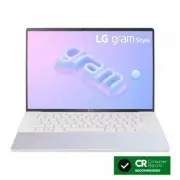 LG 14Z90RS-K
User Manual
LG 14Z90RS-K
User Manual
-
LG 14Z90S-G
User Manual
-
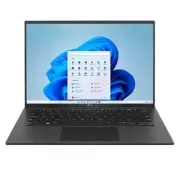 LG 14ZB90Q-G
User Manual
LG 14ZB90Q-G
User Manual