Page 2 - Instruction / Safety Information; Using; LG Easy Guide, LG TroubleShooting; LG Electronics Inc. provides; LG Easy Guide; Guide) to users for their easy and convenient use of the product.; ENGLISH
2 Instruction / Safety Information Instruction / Safety Information Using LG Easy Guide, LG TroubleShooting LG Electronics Inc. provides LG Easy Guide (User's Guide) and LG TroubleShooting (Troubleshooting Guide) to users for their easy and convenient use of the product. • Select the Start button [ ...
Page 3 - Information/Precautions Before Using; Safety Precaution Notations
Instruction / Safety Information 3 Information/Precautions Before Using Before reading LG Easy Guide , first check the following information. • This LG Easy Guide has been written for the Windows 11 operating system. • The screen and menu configurations may differ from this manual depending on the s...
Page 4 - TIP
4 Instruction / Safety Information TIP Indicates that the following information is added to help the user utilize the machine moreconveniently. OPTION The Option symbol indicates that the concerned device is not included in the product packageand thus has to be purchased separately, or the device ma...
Page 5 - Open Source Software Notice Information
Instruction / Safety Information 5 LG Easy Guide may contain undetectable errors despite our dedicated efforts to provide users with reliable information. We ask for your understanding. The illustrated figures in LG Easy Guide may differ in appearance with the actual products. Unauthorized reproduct...
Page 6 - RAM Capacity; Symbols
6 Instruction / Safety Information Manufacturer Hard drive manufacturers use a decimal definition of 1 KB = 1,000 Bytes. 100 GB Storage Device (HDD, SSD, eMMC): 100,000 MB / 1,000 Bytes = 100 GB Windows Windows use the binary definition of 1 KB = 1,024 Bytes. 100 GB Storage Device (HDD, SSD, eMMC): ...
Page 7 - Important Safety Precautions
Instruction / Safety Information 7 Important Safety Precautions Please use the machine in the proper environment to extend the machine's lifespan. Use the machinein a safe and stable place. The warranty does not cover any damage resulting from reckless use or use in undesirableenvironments. ENGLISH
Page 8 - Product Installation/Usage Precautions
8 Instruction / Safety Information Product Installation/Usage Precautions CAUTION Place the machine in a safe place so it does not fall. • If dropped, the machine may be damaged or cause an injury. Use the product in a clean, dust-free environment. • Otherwise, the system may not function properly. ...
Page 10 - It may overheat the battery.; Please use parts certified by LG Electronics Inc.; Otherwise, a fire or product damage may occur.; If there is a problem with peripheral devices, contact the device; Handle devices and parts of the machine with care.; The product may get damaged.
10 Instruction / Safety Information Turn off the PC if you are not going to use it for an extended period of time. • It may overheat the battery. Make sure that the memory cover is securely closed before turning on the PC. • Do not use the machine when the memory cover is open. It may damage themach...
Page 11 - WARNING
Instruction / Safety Information 11 WARNING Dispose of the desiccating agent and plastic wrap properly. • The desiccating agent and plastic wrap may cause suffocation. Do not use the machine in damp places like a laundry room or bathroom. • Moisture may cause a glitch or electric shock. • Please use...
Page 13 - Product Storage/Transportation Precautions
Instruction / Safety Information 13 If you dissemble the PC, connect the power after reassembly is done. • There is a risk of electric shock or product damage, if you touch thedisassembled PC. Do not put in metal items such as coins, hair pin or other irons or inflammables such as paper or matches. ...
Page 14 - During air travel, follow the directions of flight attendants.; Using the PC during flight may cause an aircraft accident.
14 Instruction / Safety Information WARNING During air travel, follow the directions of flight attendants. • Using the PC during flight may cause an aircraft accident. When leaving the machine in a car, avoid exposure to direct sunlight. • The product may get deformed or catch on fire due to a tempe...
Page 15 - Battery and AC Adapter Precautions; Charge the battery only with the provided instrument.; Otherwise, the battery may be damaged presenting a risk of fire.; Do not throw or disassemble the battery.; The resulting damage may cause an injury, explosion, or fire.; Use batteries certified and acknowledged by LG Electronics Inc.; Keep the battery away from heat.; Otherwise, an explosion or fire may occur.; Do not dispose of a spent or backup (standby) battery arbitrarily.
Instruction / Safety Information 15 Battery and AC Adapter Precautions WARNING When the PC is not used for an extended period of time, keep the battery level at about 50 %. • Do not leave the product with discharged battery for an extended period oftime. It may damage the battery. Charge the battery...
Page 16 - and contact the local service center.; It may explode or cause a fire.; Keep the battery out of the reach of children or pets.; It may explode or cause a fire.; Do not put the battery in water.; Otherwise, the battery may be damaged or explode.; Read the battery usage precautions carefully before use.
16 Instruction / Safety Information • It may explode or cause a fire. • Disposal methods may differ by country and region. Dispose of spent batteriesin accordance with the laws and safety rules of the country and region youreside in. If you find leakage or smell bad odor from the battery, remove the...
Page 17 - If a contact failure occurs, it may cause product damage or fire.
Instruction / Safety Information 17 Connect the power plug properly by pushing it to the end. • If a contact failure occurs, it may cause product damage or fire. Do not bend the power cable for AC adapter too much or get stamped by a sharp object. • The wires inside the cable may break and cause ele...
Page 18 - Always keep the AC adapter and power outlet clean.; It may cause a fire or an electric shock.; Disconnect the PC completely before cleaning it.; Otherwise, an electric shock or impairment may occur.
18 Instruction / Safety Information Always keep the AC adapter and power outlet clean. • A fire may occur. Keep children and pets from damaging the power cord. • It may cause a fire or an electric shock. Disconnect the PC completely before cleaning it. • Otherwise, an electric shock or impairment ma...
Page 19 - The PC is infected with a virus, tainting the data irrecoverably.; We do not refund or replace a product that malfunctions due to the
Instruction / Safety Information 19 • External shocks are inflicted on the machine while disassembling or installing it. • The machine is reset (i.e. restarted) or turned on again after a power outagewhile the storage device is operating. • The PC is infected with a virus, tainting the data irrecove...
Page 20 - ENERGY STAR; ENERGY STAR; Power Management Options
20 Instruction / Safety Information ENERGY STAR ® ENERGY STAR ® ENERGY STAR ® Specifications • LG Electronics Inc. participates in ENERGY STAR ® and the energy efficiency of this product complies with the specifications of ENERGY STAR ® . • ENERGY STAR ® is a set of regulations that encourages manuf...
Page 21 - Turn off the display:; Turns off the screen when you don't use the PC for a set period of time.; Put the computer to sleep:; Switches to the Sleep mode when you don't use the PC for a set
Instruction / Safety Information 21 • Turn off the display: Turns off the screen when you don't use the PC for a set period of time. • Put the computer to sleep: Switches to the Sleep mode when you don't use the PC for a set period of time. ENGLISH
Page 22 - Regulatory Notices
22 Instruction / Safety Information Regulatory Notices ENGLISH
Page 57 - Product Specifications; PC Specifications; The display resolution may differ by model.
Instruction / Safety Information 57 Product Specifications PC Specifications Display 15.6 inch IPS LCD The display resolution may differ by model. CPU Intel ® Core ™ i7 / i5 / i3 or Intel ® Pentium ® processor The CPU differs depending on model type and cannot be replaced by the user. GPU NVIDIA ® G...
Page 58 - Power Supply and Environments
58 Instruction / Safety Information Power Supply and Environments AC Adapter (Free Voltage) Power Rating: 120.0 W Input: AC 100 V to 240 V, 2.0 A, 50/60 Hz Output: DC 19.0 V, 6.32 A Battery Lithium Ion battery Charging Hours: 3.0 hours Charging hours may be longer if the battery is not used for a lo...
Page 59 - Using Windows 11; Starting; Screen Layout; Windows; It can show and switch running apps or add/switch a new desktop.; Microsoft Edge: Microsoft Edge
Using Windows 11 59 Using Windows 11 Starting Windows 11 Screen Layout The taskbar in Windows 11 has been changed so you can use Windows quickly and easily. 1 Start Button: It can run apps installed on your PC or use user accounts, power menu, etc. 2 Search: It can use apps, documents, and web searc...
Page 60 - Start Screen; Apps pinned on the Start screen:; It shows the apps pinned on the Start screen.
60 Using Windows 11 Start Screen If you select the Start button [ ] on the taskbar, the Start screen will appear. TIP Press the [ ] key or [Ctrl] + [Esc] on the keyboard to display the Start screen. 1 All apps: It shows all the apps installed on your PC. 2 Apps pinned on the Start screen: It shows t...
Page 61 - Desktop Apps and Windows Apps
Using Windows 11 61 Desktop Apps and Windows Apps The Desktop apps remain unchanged from the previous Windows apps, but Windows apps have beenchanged to include various functions. The Windows apps provide easy-to-use menus according to the window size and a variety ofconvenient functions such as Upd...
Page 62 - Using Apps; Running and Exiting Apps
62 Using Windows 11 Using Apps Running and Exiting Apps Run apps that were not pinned to the Start screen or apps that were installed on the system using thefollowing method. 1 Select the Start button [ ] > [All apps]. TIP Press the [ ] key or [Ctrl] + [Esc] on the keyboard to display the Start s...
Page 63 - Select and run an app.
Using Windows 11 63 2 Select and run an app. 3 To close the app, select the Close button [ ] at the top of the app screen. Deleting Apps It can delete apps pinned to the Start Screen or delete desired apps in [All apps] . TIP The basic Windows apps that are required may not be deleted. If you are de...
Page 64 - Select the Start button [
64 Using Windows 11 1 Select the Start button [ ] and right-click the app you want to delete from the Start screen or [All apps] to select [Uninstall] . TIP Press the [ ] key or [Ctrl] + [Esc] on the keyboard to display the Start screen. 2 When prompted to confirm the deletion, select [Uninstall] to...
Page 66 - The app is added to the Start Screen or taskbar.
66 Using Windows 11 3 The app is added to the Start Screen or taskbar. ENGLISH
Page 67 - Toggling and Adding Apps/Desktops; In
Using Windows 11 67 Toggling and Adding Apps/Desktops In Windows 11 , you can toggle the running apps easily and quickly, and add desktops to use them like multiple PCs. TIP For an app that does not allow multitasking, you may be switched to the desktop where the appwas executed, or you may have an ...
Page 69 - The screen is toggled to the selected app or desktop.; Shortcut Keys
Using Windows 11 69 4 The screen is toggled to the selected app or desktop. Using Shortcut Keys Use the shortcut keys to quickly toggle between apps and desktops. Shortcut Keys Description [Alt] + [Tab] Hold down the [Alt] key and press the [Tab] key to view the running apps in the preview. Press [T...
Page 70 - Splitting the App Screen; Snap Layout
70 Using Windows 11 Splitting the App Screen In Windows 11 , you can easily adjust window sizes and split windows if necessary. TIP Some apps that cannot adjust the window size do not support the screen split. Split Screen with Snap Layout 1 If you move the mouse cursor to the Maximize button at the...
Page 72 - Full Screen
72 Using Windows 11 Full Screen 1 Drag and drop an app to the top end of the screen to change the app to the full screen size. 2 Drag and drop the app again to a different location to return to its original size. ENGLISH
Page 73 - Screen Split into Two
Using Windows 11 73 Screen Split into Two 1 Drag and drop an app to the right end or left end to reduce the size by half according to theguideline. ENGLISH
Page 74 - Select a running app displayed in the preview on the split screen.
74 Using Windows 11 2 Select a running app displayed in the preview on the split screen. 3 Drag and drop the app again to a different location to return to its original size. ENGLISH
Page 75 - Screen Split into Four
Using Windows 11 75 Screen Split into Four 1 Drag and drop an app to the left corner to reduce the app to 1/4 size of the screen according tothe guideline. 2 Select a running app displayed in the preview on the split screen. ENGLISH
Page 76 - You can use this method to place up to four apps on the screen.
76 Using Windows 11 3 You can use this method to place up to four apps on the screen. 4 Drag and drop the app again to a different location to return to its original size. ENGLISH
Page 77 - Using the Store; Microsoft Store; Microsoft
Using Windows 11 77 Using the Store You can purchase a variety of apps or get free apps from Microsoft Store . TIP If a local account is being used, a window to switch to a Microsoft account appears while using Windows Store. Follow the instructions on the screen to switch the local account to a Mic...
Page 78 - Unlocking the Screen
78 Using Windows 11 Unlocking the Screen If the PC is not used for an extended period, it goes into a locked state. When the PC is used again, a lock screen appears for security purposes and may be unlocked by usingthe following method. 1 Press any key in the keyboard or left-click the mouse on the ...
Page 79 - Setting the PC; Using the; Setting; Menu
Using Windows 11 79 Setting the PC Windows 11 supports various functions so that the user can change the PC setting easily and quickly. Using the Setting Menu 1 Select the Start button [ ] > [Settings] . ENGLISH
Page 80 - When the; Settings; screen appears, select and change the settings as needed.; Quick Settings; allows users to change the PC settings quickly and easily.
80 Using Windows 11 2 When the Settings screen appears, select and change the settings as needed. Using the Quick Settings Quick Settings allows users to change the PC settings quickly and easily. 1 Select [Quick Settings] on the right side of the taskbar. ENGLISH
Page 81 - Select the desired setting from
Using Windows 11 81 2 Select the desired setting from [Quick Settings] and change. TIP Selecting the [ ] icon allows you to add/remove the Quick Settings menu. Select the [ ] icon to run the [Settings] menu. ENGLISH
Page 82 - Windows Shutdown Option
82 Using Windows 11 Windows Shutdown Option In Windows 11 , you can use the Windows shutdown option by following these steps: 1 Select the Start button [ ] > [Power] and select the desired Windows shutdown option. TIP Press the [ ] key or [Ctrl] + [Esc] on the keyboard to display the Start screen...
Page 83 - Using the PC; Using an AC Adapter and a Battery; Connect the AC adapter to power and charge the product.; This product has a built-in battery pack.; Using an AC Adapter; An AC adapter of 100 V to 240 V can be used.
Using the PC 83 Using the PC Using an AC Adapter and a Battery Connect the AC adapter to power and charge the product. TIP The power cable and the AC adapter type may differ per model type and country and thereis no difference in functionality. This product has a built-in battery pack. The internal ...
Page 84 - CAUTION; Do not leave a liquid container on the PC.
84 Using the PC 2 Connect the AC adapter to the PC. AC Adapter Power Cable 3 Adjust the LCD to the most comfortable angle. 4 Press the PC's power button to turn on the system. CAUTION Do not leave a liquid container on the PC. • The system may be short-circuited and damaged. ENGLISH
Page 85 - Please use an AC adapter certified by LG Electronics Inc.; Checking the Battery State
Using the PC 85 WARNING Please use an AC adapter certified by LG Electronics Inc. • Uncertified batteries may explode. • It may cause a problem in battery charging or system operation. When you use an AC adapter, follow the below directions. • 140 °F or more high-humidity spaces, for example, inside...
Page 86 - Uncertified batteries may explode.
86 Using the PC 2 Open the LCD and check the charging state.When the AC adapter lamp is blinking, charge it fully with the AC adapter before using it. CAUTION Use batteries certified and acknowledged by LG Electronics Inc. • Uncertified batteries may explode. ENGLISH
Page 88 - If you use the system at a low temperature, refer to the following:
88 Using the PC TIP When the PC is not to be used for a long period of time, refer to the following: • Check the battery charge level on a regular basis and keep it at 50 %. This allows you toextend the battery life. • If the battery is left fully charged for an extended period of time, the battery ...
Page 89 - Operation Status Lamps
Using the PC 89 Operation Status Lamps 1 Power Lamp • On: The system is on and running by the AC adapter or battery. • Off: When the system is turned off or in Hibernate mode • Blinking: The system is in the standby mode. 2 AC Adapter Lamp • On: The AC adapter is connected. • Off: The AC adapter is ...
Page 90 - Keyboard
90 Using the PC Keyboard The keyboard allows the user to input data or give commands. The keyboard may differ in appearance and color depending on your country. CAUTION • Spilling a watery substance like coffee or juice on the keyboard may cause a fault,malfunction, or electric shock. • Some keys ma...
Page 91 - Caps
Using the PC 91 Fn + F9 Switching to Reader Mode Fn + F10 Mute Fn + F11 Turns down the volume. Fn + F12 Turns up the volume. Fn + Prt Sc Works as the Scroll Lock [Scr Lk] key. Fn + Ctrl Works as the [Pop-up Window] key. Fn + ◀ Works as the [Home] key. Fn + ▶ Works as the [End] key. Fn + ▲ Works as t...
Page 92 - OPTION; Keyboard Backlight
92 Using the PC Keyboard Backlight You can set the Keyboard Backlight function to use the product in a dark environment. The figures herein are subject to change without prior notice. OPTION This only applies to the products that have the Keyboard Backlight function. Configuring Keyboard Backlight T...
Page 93 - In the
Using the PC 93 3 In the [Keyboard Backlight] option, set the keyboard lighting and off time. ENGLISH
Page 94 - Adjusting Screen Brightness and Volume; Function
94 Using the PC Adjusting Screen Brightness and Volume LG PC allows you to use the hot keys to easily adjust the screen brightness and volume. TIP According to the model type, a button for volume control (mute, volume up / down, DTS, etc.)may be available. Function Hot Keys Description ScreenBright-...
Page 95 - Hearing Protection Feature
Using the PC 95 Hearing Protection Feature The product is equipped with a hearing protection feature to protect your ears from pressurized soundwhile using earphones or headphones. The feature is set to off by default and can be manually turned on as follows: 1 Select the Start button [ ] > [All ...
Page 96 - Set
96 Using the PC 3 Set [Ear Protection] to [On] to activate the hearing protection feature. TIP A warning message will be displayed if the volume is high while this feature is on. ENGLISH
Page 97 - Using the Touchpad; Touchpad
Using the PC 97 Using the Touchpad The built-in touchpad provides the same functionality as an external mouse. You can use the touchpadand USB mouse simultaneously. 1 Touchpad • Moves the cursor. 2 Left button • Use to select or execute programs. 3 Right button • Functions as the right button of a m...
Page 98 - Precautions for Using the Touchpad; Moving the Cursor (Pointer) on the Screen
98 Using the PC TIP The scroll function is provided as a gesture. Please refer to the Touchpad Gesture section of thisdocument. Precautions for Using the Touchpad • If you are using a touchpad, use the area marked with a red line shown below. Touching anedge or border of the touchpad may not work. (...
Page 100 - Notes on Using the Touchpad; Right button; Recycle Bin
100 Using the PC CAUTION Notes on Using the Touchpad • Do not use a sharp object such as a pen on the pad nor peel the cover. It may cause animpairment. • Do not place more than one finger, and do not use while wearing a glove or when thehand is wet. The Touchpad will not work properly. Oil or dirt ...
Page 101 - Drag; ClickLock
Using the PC 101 1 Drag • Glide one finger on the pad with another finger pressing and holding the left button. 2 Drop • Release the left button to drop it into the Recycle Bin . (By using this, you can drop a file into the Recycle Bin at will.) ClickLock When activated, this feature allows you to d...
Page 103 - Check
Using the PC 103 3 Check [Turn on ClickLock] and select [Settings] . 4 Set the duration of ClickLock operation. ENGLISH
Page 104 - Move on the touchpad to use the drag/scroll feature.; The touchpad gesture feature may not be supported in some models.
104 Using the PC 5 Press the left button of the touchpad and release it to change the button into the pressed state. 6 Move on the touchpad to use the drag/scroll feature. 7 Press the left mouse button to turn off the ClickLock. Touchpad Gesture The touchpad gesture feature allows you to use Windows...
Page 106 - Setting Touchpad
106 Using the PC Setting Touchpad You can change the touchpad features or enable/disable the gesture feature. The figures herein may differ by language selection and are subject to change without priornotice. 1 Select the Start button [ ] > [Settings] . TIP Press the [ ] key or [Ctrl] + [Esc] on ...
Page 107 - Change the settings as needed on the
Using the PC 107 3 Change the settings as needed on the [Touchpad] item. ENGLISH
Page 108 - Connecting to External Display; Connecting to the HDMI Port; In some models, DTS Audio may not work when you use HDMI.
108 Using the PC Connecting to External Display Connecting to the HDMI Port HDMI is a multimedia interface that can integrate and transmit video and audio signals. In some models, DTS Audio may not work when you use HDMI. TIP Ensure the monitor power is off before connecting the external monitor to ...
Page 110 - Connecting to Wireless Display
110 Using the PC Connecting to Wireless Display The wireless display feature connects the PC screen and sound to a display (TV, projector, etc.). OPTION • To use the wireless display feature, the display device must support this feature. • To connect to the display device that does not support wirel...
Page 111 - Select an available device and connect the device.
Using the PC 111 2 Select [Connect] under the [System] > [Display] > [Multiple displays] > [Connect to wirelessdisplay] menu. 3 If the device search screen appears, it will search for nearby wireless display devices. 4 Select an available device and connect the device. ENGLISH
Page 113 - Alternate Mode
Using the PC 113 Using the USB-C ™ (Thunderbolt ™ ) Port The USB-C ™ port mounted on this product supports USB 4.0 Gen 3x2 standards. With the USB-C ™ port, you can connect USB devices, charge external devices, and output the display screen. TIP The names of USB versions have changed from USB 3.0 (o...
Page 114 - Charging External Device
114 Using the PC Charging External Device You can connect an external device to the USB-C ™ port to charge it. • The external devices that use the USB-C ™ port can be charged at 10 W (5 V / 2 A), 15 W (5 V / 3 A), and 18 W (9 V / 2 A). • A USB device compatible with USB PD (Power Delivery) supports ...
Page 116 - Input the user name and password to connect to the other PC.
116 Using the PC 5 A while later, an icon of the connected computer appears on the desktops of the two notebookPCs. 6 Double-click the connected computer icon to open the authentication screen. 7 Input the user name and password to connect to the other PC. TIP If there is no shared folder in the con...
Page 117 - Bluetooth; . It can also establish a network and exchange data
Using the PC 117 Bluetooth Bluetooth allows the user to access wirelessly various devices such as camera, cell phone, headset,printer, and GPS receiver that support Bluetooth . It can also establish a network and exchange data with other Bluetooth -enabled PC or smartphone. OPTION The Bluetooth devi...
Page 119 - Select the; to search for Bluetooth devices automatically.
Using the PC 119 3 Select the Bluetooth to search for Bluetooth devices automatically. 4 After selecting the device you want to connect, complete the Bluetooth connection as guided. ENGLISH
Page 120 - Wired LAN; Using Wired LAN
120 Using the PC Wired LAN LAN is the network environment that users can connect to by using a cable to connect to theirinternet providers or the company's network. Using Wired LAN LAN is installed with an automatic IP (DHCP) as default value. Please refer to the following instructions for details o...
Page 123 - Wireless LAN; Airplane Mode; Using the Wireless LAN
Using the PC 123 Wireless LAN The wireless network (Wireless LAN) is the network environment that connects a PC with the internetprovider or company network through an Access Point (wireless or regular router). Turning On/Off Airplane Mode Prior to using the wireless LAN, press [Fn] + [F6] to turn o...
Page 124 - Select; Manage Wi-Fi Connections
124 Using the PC 2 Select Manage Wi-Fi Connections [ ] to search for near Access Point. TIP When Wi-Fi is turned off, set [Wi-Fi] to On. ENGLISH
Page 125 - Select the Access Point you want to connect to and press [Connect].
Using the PC 125 3 Select the Access Point you want to connect to and press [Connect]. 4 If a connection is established, [Connected] appears below the Access Point name. 5 Click the Web Browser icon to check whether the internet is operating normally. ENGLISH
Page 126 - Using a Wired/Wireless Router; Connecting a Wireless or Regular Router; The number of LAN ports can vary for each router model.
126 Using the PC Using a Wired/Wireless Router A wireless / regular router connects several PCs and mobile devices to one internet line and enablesthe use of internet and the network. A wireless / regular router has to be bought separately. Refer to the manual provided by themanufacturer for instruc...
Page 127 - Slot; Checking Available Memory Card; This model supports Micro SD memory cards.; Mounting and Using Memory Card; Micro SD; Make sure that the insertion direction of the; Micro SD; memory card is correct and push it until it is
Using the PC 127 Micro SD Slot Checking Available Memory Card This model supports Micro SD memory cards. • Directly applicable memory cards Mounting and Using Memory Card This product supports one Micro SD slot. Make sure that the insertion direction of the Micro SD memory card is correct and push i...
Page 128 - To safely remove a memory card:; Click; Safely Remove Hardware and other Media; icon on the right side of the taskbar.; Remove Multi-Card USB Device; to safely remove hardware.
128 Using the PC TIP • When the memory card is formatted, the data stored in the memory card will be deleted.Check whether there are important data before formatting the memory stick. • To format a memory card, right-click the memory card drive and select Format. When theFormat window appears, press...
Page 129 - Using Software; LG Control Center; LG Control Center; Running; LG Control Center
Using Software 129 Using Software LG Control Center LG Control Center allows you to easily change the settings of your PC according to your needs. TIP The menus displayed in LG Control Center and its supported functions may differ depending on the model. Please update the program to the latest versi...
Page 130 - charging function, battery status and battery life; System Settings; Screen
130 Using Software 3 System Settings: Sets the device settings such as the screen brightness, sound, and external display. 4 Power Management: Sets the USB-C ™ charging function, battery status and battery life extension function. 5 Windows Security: Sets User Account Control settings and Firewall s...
Page 131 - Power Management
Using Software 131 1 Screen: Allows you to adjust the system brightness. (This function is not supported in a model that does not provide the brightness settings in Windows.) 2 Sound: Allows you to adjust the volume of the sound or use the mute function. 3 Touchpad: Allows you to set whether to use ...
Page 132 - Windows Security Screen; User Account Control Settings:; Allows you to change the User Account Control settings in; FAQ
132 Using Software Windows Security Screen You can change the User Account Control and firewall settings in Windows. 1 User Account Control Settings: Allows you to change the User Account Control settings in Windows. 2 Firewall: Turns on/off the Windows firewall. (It may not work if other vaccine so...
Page 133 - LG Update Center; LG Update Center; LG Update Center
Using Software 133 LG Update Center LG Update Center allows you to install various PC drivers, applications easily. TIP It may not work properly depending on user preferences (security tools, etc.) and the networkstatus. You can use the LG Update Center to quickly install the latest drivers, or rein...
Page 134 - Displays and installs all required items for the system.; Notification Setting:; Sets up notifications for online updates for installed items.
134 Using Software 4 All List: Displays and installs all required items for the system. 5 Notification Setting: Sets up notifications for online updates for installed items. Required Update You can install essential updates and drivers that are necessary for the system. 1 Select the [Required Update...
Page 135 - Required Update
Using Software 135 2 When the Required Update list appears, select the updates to install and press the [Installation] button. TIP All items are selected by default. All List You can install all updates and drivers that can be installed in the system. ENGLISH
Page 137 - Select the updates to install and press the [Installation] button.
Using Software 137 2 Select the updates to install and press the [Installation] button. TIP All items are selected by default. Notification Setting You can check the critical updates to set whether to display the notifications for update installation. TIP The Auto Update Search function is set to [O...
Page 139 - to automatically install; Q: The server connection status is not displayed in the program.; Check if your PC is properly connected to the wired or wireless LAN.; Q: I want to hide the update notifications.
Using Software 139 3 Set the [Cycle]. 4 Select [Notification List Setup] menu to turn on/off the notification for each item. FAQ Q: Is there a way that I can install the drivers and applications easily? • You can select [Required Update] or [All List] menu in LG Update Center to automatically instal...
Page 140 - LG Reader Mode
140 Using Software LG Reader Mode LG Reader Mode prevents the users from eyestrain and helps them to read the PC screen comfortably by displaying the screen just like a printed paper. Using LG Reader Mode CAUTION Using the Reader Mode and the Night light at the same time can cause color distortion. ...
Page 141 - If you select the; Reader Mode; reader mode
Using Software 141 1 Press the [ ] icon on the taskbar. 2 If you select the [Reader Mode On] menu item, the PC screen switches to Reader Mode . TIP Select [Reader Mode Off] to turn off the reader mode . ENGLISH
Page 142 - Advanced Settings; ] on the right of the taskbar and select the; The
142 Using Software Using Advanced Settings 1 Click the icon [ ] on the right of the taskbar and select the [Advanced Settings] menu item. TIP The [Advanced Settings] menu is activated when Reader Mode is on. 2 The [Advanced Settings] windows appears. ENGLISH
Page 143 - System brightness can be adjusted.; brightness, contrast and gamma; Settings are reset to the default settings.
Using Software 143 a System Brightness: System brightness can be adjusted. b Color Adjustment: Color and its brightness, contrast and gamma can be adjusted. c Reset: Settings are reset to the default settings. ENGLISH
Page 144 - DTS:X Ultra may not be applied depending on the model.; Internal Speakers; Mode, and it works in; Headphones; Mode when the earphone is
144 Using Software DTS:X Ultra DTS:X Ultra provides rich, sonorous sound when you listen to music, watch videos or play games in the PC. DTS:X Ultra may not be applied depending on the model. The figures herein are subject to change without prior notice. Running DTS:X Ultra 1 Select the Start button...
Page 145 - Provides an optimized environment for music playback.
Using Software 145 2 Automatic: Provides an environment that is automatically optimized for the running application. 3 Music: Provides an optimized environment for music playback. 4 Voice: Provides an optimized environment for voice playback. 5 Movies: Provides an optimized environment for movie pla...
Page 146 - Virtoo by LG
146 Using Software Virtoo by LG Virtoo by LG is software that allows you to connect your smartphone and PC to check your phone ’ s notifications, make phone calls, send and receive text messages, use media, use mirroring, etc. on yourPC. TIP If Virtoo by LG is not installed, connect to the Microsoft...
Page 147 - Once; the
Using Software 147 2 Once Virtoo by LG is executed, agree to the terms and conditions and the privacy policy and click the [Get Started] button. ENGLISH
Page 149 - Follow the instructions to connect your smartphone and PC.; Android
Using Software 149 4 Follow the instructions to connect your smartphone and PC. • Android • iPhone ENGLISH
Page 150 - or
150 Using Software 5 When an identical PIN Code appears on both PC and smartphone, tap the [Register] or [Pair] button on the smartphone. ENGLISH
Page 151 - button to finish the connection.
Using Software 151 6 On the PC, click the [Next] button to finish the connection. Displaying Notification Messages When your smartphone receives a notification, phone call, text message, app notification message, oremail, a notification message is displayed on the PC screen. ENGLISH
Page 153 - Tour; phone call to the contacts.
Using Software 153 Virtoo by LG Tour 1 Notifications: You can check your phone's notifications on the Virtoo by LG app screen. 2 Phone: Allows you to browse the contacts stored in your smartphone and send text or make a phone call to the contacts. 3 Messages: Allows you to send and receive text mess...
Page 154 - Storing PC Files on Your Smartphone
154 Using Software TIP You can adjust the window size of the Virtoo by LG app on the PC. Sharing Media Files (Photos, Videos, Music, Docs) TIP Only one file can be transferred at a time and it may take a while if the file is big. If you want to use the Share Media/File function on your iPhone, you n...
Page 155 - Drag and drop the files to share from your PC to the Media screen.; Storing Smartphone Files on Your PC
Using Software 155 1 Drag and drop the files to share from your PC to the Media screen. TIP Android: Files sent to the smartphone are classified according to file types and stored in [Internal Storage] > [Virtoo by LG] > Images / Videos / Audio / Other folder. iPhone: Files sent to the smartph...
Page 156 - Select file to share from the Media screen.
156 Using Software 1 Select file to share from the Media screen. 2 Once the files are ready to be sent, a green circle [ ] appears above the selected files. ENGLISH
Page 157 - File Sharing with Mirroring
Using Software 157 3 You can check the files that are ready to be sent, or drag and save them to a desired location onthe PC. File Sharing with Mirroring The mirroring must be enabled to use the file sharing feature. TIP Only Android smartphones support the file sharing feature through mirroring. On...
Page 158 - Drag the files to share to the mirroring screen from your PC.
158 Using Software 1 Drag the files to share to the mirroring screen from your PC. 2 Click the [Copy to Phone] button to store the file(s) on your smartphone or click another app iconto share the file(s) on the app. Storing Smartphone Files on Your PC ENGLISH
Page 160 - Update; App Store; , search for and update the
160 Using Software 2 Tap the [Copy to PC] button to transfer them to your PC. Virtoo by LG Update Some functions may not work properly if the version of an app installed on your PC or mobile device(Android or iPhone) is out of date. You can update your PC and mobile device as below: Please initializ...
Page 161 - LG Power Manager; manage the battery efficiently.; LG Power Manager; is provided with the UWP app and it can be downloaded again on the; The figures herein are subject to change without prior notice.; LG Power Manager
Using Software 161 LG Power Manager LG Power Manager allows you to configure the power settings according to the usage environment to manage the battery efficiently. TIP LG Power Manager is provided with the UWP app and it can be downloaded again on the Microsoft Store if it is deleted. If you want ...
Page 162 - Battery Management Settings:
162 Using Software 1 Help button: Displays the Help menu. 2 Minimize/Maximize/Exit button: Allows you to minimize or maximize the window or exit the program. 3 Battery Status: Displays the battery level and battery usage status including power connection. 4 Battery Management Settings: Allows you to...
Page 163 - is set to run automatically when running Windows.
Using Software 163 TIP LG Power Manager is set to run automatically when running Windows. You can change the Autorun settings by right-clicking the [ ] icon on the right side of the taskbar and selecting the [Run automatically when starting the Windows] menu. ENGLISH
Page 164 - Set custom Hot Keys; helps users quickly access the desired app or website.; Set Custom Hot Keys; is available only if; LG On Screen Display 3; may be installed through; Set Custom Hot Keys; ] icon in the lower right corner of the task bar to run
164 Using Software Set custom Hot Keys Set Custom Hot Keys helps users quickly access the desired app or website. TIP Set Custom Hot Keys is available only if LG On Screen Display 3 is installed. LG On Screen Display 3 may be installed through LG Update Center . Some abnormal program files (exe) and...
Page 165 - Setting Hot Keys
Using Software 165 Setting Hot Keys TIP Hot Keys can be set from 1 to 5. ENGLISH
Page 166 - On the Hot Keys Settings List, tap the navigation icon [
166 Using Software 1 On the Hot Keys Settings List, tap the navigation icon [ ] or Internet icon [ ] to register the desired app or Internet address. TIP After selecting the app-running file, right-click the mouse and use the [Show more options]> [Set functions to use with user Hot Keys] menu to ...
Page 170 - Restoring the System; Restoring the System; If the system has an error, you can use Windows
170 Restoring the System Restoring the System Restoring the System If the system has an error, you can use Windows ’ recovery function to recover or restore the system to its initial pre-purchase state. CAUTION If you have deleted the restoration data in the protected area of the disk, or have arbit...
Page 171 - Select the options you want to proceed with the recovery.
Restoring the System 171 2 Select [Reset PC] in [System] > [Recovery] > [Reset this PC]. 3 Select the options you want to proceed with the recovery. ENGLISH
Page 172 - Keep My Files
172 Restoring the System Keep My Files It removes the apps and their settings without loss of personal files. 1 Select [Keep my files]. ENGLISH
Page 173 - Select How to Reinstall Windows.; from; Cloud Server and
Restoring the System 173 2 Select How to Reinstall Windows. TIP If the PC is not connected to the Internet, the screen for selecting Windows installationmethod does not appear. [Cloud download] is a menu for downloading Windows from Microsoft Cloud Server and reinstalling it. The required time may v...
Page 178 - Setup and Upgrade; Installing the Driver; to install the Driver
178 Setup and Upgrade Setup and Upgrade Installing the Driver The figures herein may differ by language selection and are subject to change without priornotice. Using LG Update Center to install the Driver 1 Select the Start button [ ] > [All apps] > [LG Software] and run [LG Update Center] . ...
Page 179 - How to Download; You can install
Setup and Upgrade 179 How to Download LG Update Center You can install LG Update Center by downloading it from the LG Electronics Website (www.lg.com). ENGLISH
Page 180 - Starting System Setup
180 Setup and Upgrade Starting System Setup System setup means storing the hardware configuration information of the PC in the flash memory.Through system setup, the PC retrieves various information including current date and time, memorycapacity, and hard disk capacity and type. You setup the syste...
Page 181 - In a few moments, the system setup screen appears.
Setup and Upgrade 181 1 Reboot the system and press [F2]. 2 In a few moments, the system setup screen appears. ENGLISH
Page 182 - Keys Used in System Setup; Keys
182 Setup and Upgrade Keys Used in System Setup Keys Function Enter Selects the current item. Esc To deselect the current item or to move to the previous screen. ▲ , ▼ , ◄ , ► (Arrow keys) Moves the cursor up, down, left, and right. F5, F6 Increases or decreases the item value. F10 Saves the new set...
Page 183 - Setting the Password; Set Supervisor Password; After opening the system setup screen, use the arrow keys to move to; Security; using the arrow keys, and
Setup and Upgrade 183 Setting the Password This process is to set a password so that other people cannot use the PC or change the settings. The user can set a password while booting the system or setting up the system. The model in the example can differ from actual models and is subject to change f...
Page 184 - Supervisor Password; , you are authorized to set all items in the System Setup and; Power on Password; . In case other people also use the PC, it is recommended to set; Set User Password
184 Setup and Upgrade 3 When the Password Setting screen appears, enter a password and press the [Enter] key. Thepassword should not exceed 20 characters and should consist of English letters (A - Z), numbers(0 - 9), and special characters or a combination of them. 4 When a pop-up window appears, pr...
Page 186 - protects the system by requesting
186 Setup and Upgrade 4 When a pop-up window appears, press the [Enter] key. 5 To save the changes in the system setup, press [F10]. 6 When a pop-up window appears, select [Yes] and press the [Enter] key. The PC will restart. TIP • [User Password] allows limited access to the items in the System Set...
Page 188 - Set PCIE SSD Password / SATA SSD Password
188 Setup and Upgrade Set PCIE SSD Password / SATA SSD Password TIP Some models installed with PCIE SSD may not support the password settings. Depending on the model, the menu name may be displayed as PCIE SSD Password , SATA SSD Password , etc. For models equipped with two PCIE SSD devices installe...
Page 189 - If you forget your SSD Password, you cannot restore the SSD.; Please note that the replacement of SSD due to a forgotten; SSD Password; is not covered
Setup and Upgrade 189 3 When the Password Setting screen appears, enter a password and press the [Enter] key. The password should not exceed 20 characters and should consist of English letters (A - Z), numbers(0 - 9), and special characters or a combination of them. 4 When a pop-up window appears, p...
Page 190 - Changing or Deleting the Password; Changing the Password
190 Setup and Upgrade Changing or Deleting the Password You can delete or change the password only after entering the current password. The model in the example can differ from actual models and is subject to change for performanceimprovements, without prior notice. Changing the Password 1 Execute S...
Page 191 - After moving
Setup and Upgrade 191 2 After moving [Security] by using the arrow keys from the setup start screen, click [Set Supervisor Password] and press [Enter]. 3 When the Password setting change screen appears, enter the current password in the [Enter Old Password] field. ENGLISH
Page 192 - and in
192 Setup and Upgrade 4 Press the [Enter] key in [Enter New Password] and in [Enter New Password Again] . 5 When a pop-up window appears, press the [Enter] key. 6 To save the changes in the system setup, press [F10]. 7 When a pop-up window appears, select [Yes] and press the [Enter] key. The PC will...
Page 193 - Deleting the Password (Set PCIE SSD Password / SATA SSD Password)
Setup and Upgrade 193 Deleting the Password (Set PCIE SSD Password / SATA SSD Password) 1 Execute System Setup, enter the password, and press [Enter]. 2 After moving [Security] by using the arrow keys from the setup start screen, click [Set PCIE SSD Password] and press [Enter]. TIP Depending on the ...
Page 196 - Restoring the Factory Default Settings
196 Setup and Upgrade Restoring the Factory Default Settings If you have changed the system setup by mistake, you can restore the default settings. The model in the example can differ from actual models and is subject to change for performanceimprovements, without prior notice. 1 After opening the s...
Page 198 - Changing the Boot Order
198 Setup and Upgrade Changing the Boot Order The user can change the boot order according to his or her needs, or select a boot device The model in the example can differ from actual models and is subject to change for performanceimprovements, without prior notice. TIP To use the system setup (F2),...
Page 199 - Go to
Setup and Upgrade 199 3 Go to [Boot Type Order] and press [F5] or [F6] to change the booting order. 4 Press the [F10] key, and when a pop-up window appears, select [Yes] and press the [Enter] key. 5 The changes are saved and the system reboots. ENGLISH
Page 200 - Selecting a Booting Device to Use
200 Setup and Upgrade Selecting a Booting Device to Use 1 Reboot the system and press [F10]. 2 When the Select Booting Device screen appears, select the device. ENGLISH
Page 201 - Boots using the selected device.
Setup and Upgrade 201 3 Boots using the selected device. ENGLISH
Page 202 - Setting Auto Scaling; The Windows; Auto Scaling; some icons and texts larger.
202 Setup and Upgrade Setting Auto Scaling The Windows Auto Scaling feature for user's convenience may partially blur the screen or display some icons and texts larger. Refer to the following information to change the DPI scaling to suit your needs. 1 Select the Start button [ ] > [Settings] . TI...
Page 203 - Changing the
Setup and Upgrade 203 3 Changing the [Scale] item value changes the auto scaling settings. TIP After changing the Auto Scaling settings, some apps must be shut down and restarted forthe scaling and layout to take effect. ENGLISH
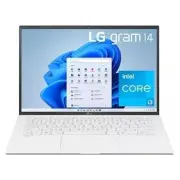


 LG 11TC50Q-E
User Manual
LG 11TC50Q-E
User Manual
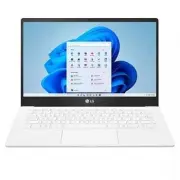 LG 13U70P-G
User Manual
LG 13U70P-G
User Manual
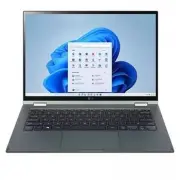 LG 14T90P-K
User Manual
LG 14T90P-K
User Manual
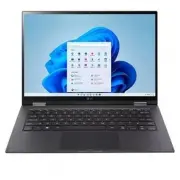 LG 14T90Q-K
User Manual
LG 14T90Q-K
User Manual
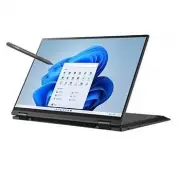 LG 14T90R-K
User Manual
LG 14T90R-K
User Manual
 LG 14T90S-G
User Manual
LG 14T90S-G
User Manual
 LG 14U70Q-N
User Manual
LG 14U70Q-N
User Manual
 LG 14U70R-N
User Manual
LG 14U70R-N
User Manual
 LG 14UT70Q-G
User Manual
LG 14UT70Q-G
User Manual
 LG 14Z90N-N
User Manual
LG 14Z90N-N
User Manual
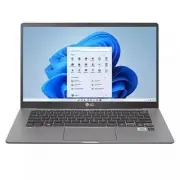 LG 14Z90N-U
User Manual
LG 14Z90N-U
User Manual
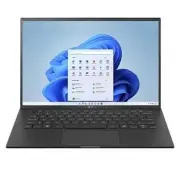 LG 14Z90P-K
User Manual
LG 14Z90P-K
User Manual
 LG 14Z90P-N
User Manual
LG 14Z90P-N
User Manual
 LG 14Z90Q-K
User Manual
LG 14Z90Q-K
User Manual
 LG 14Z90R-K
User Manual
LG 14Z90R-K
User Manual
 LG 14Z90R-N
User Manual
LG 14Z90R-N
User Manual
 LG 14Z90R-Q
User Manual
LG 14Z90R-Q
User Manual
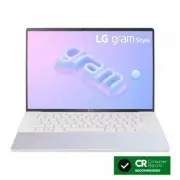 LG 14Z90RS-K
User Manual
LG 14Z90RS-K
User Manual
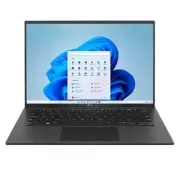 LG 14ZB90Q-G
User Manual
LG 14ZB90Q-G
User Manual