Page 2 - Specifications
2 Table of Contents Package Contents Specifications Safety Information Getting to Know Smart Your Air Purifier Controls & Display Getting Started Using Your Smart Air Purifier About the Filter Levoit Replacement Filters Care & Maintenance Troubleshooting Warranty Information Customer Support...
Page 3 - S A F E T Y I N F O R M AT I O N; General Safety; R E A D A N D S AV E T H E S E
3 S A F E T Y I N F O R M AT I O N • Only use your air purifier as described in this manual. • Do not use without removing the plastic wrap from the filter. The air purifier will not filter air, and may overheat, causing a fire hazard. • Do not use the air purifier outdoors. • Keep the air purifier ...
Page 5 - G E T T I N G T O K N O W Y O U R S M A R T A I R P U R I F I E R
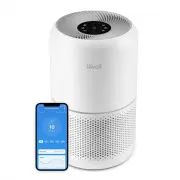
5 G E T T I N G T O K N O W Y O U R S M A R T A I R P U R I F I E R A. Fan Speed Indicators B. Fan Speed Button C. On/Off Button D. Sleep Mode Button E. Timer Button F. Timer Indicator G. Wi-Fi® Indicator H. Auto Mode Button I. Air Quality Indicator Rings J. Display Off Button / Display Lock Button ...
Page 6 - C O N T R O L S & D I S P L AY
6 C O N T R O L S & D I S P L AY On/Off Button • Turns the air purifier on/off. • Press and hold to configure the air purifier. See the VeSync in-app instructions for more information. • Press and hold to reset the air purifier and disconnect from Wi-Fi (see page 8). Fan Speed Button • Cycles th...
Page 7 - G E T T I N G S TA R T E D
7 3. Replace the filter cover and twist clockwise to lock. [Figure 1.3] Figure 1.3 Figure 1.4 15 in / 38 cm cover should snap shut 15 in / 38 cm G E T T I N G S TA R T E D 1. Flip the air purifier over. Twist the filter cover counterclockwise and remove it. [Figure 1.1] Figure 1.1 Figure 1.2 handle ...
Page 8 - VeSync App Setup
8 U S I N G Y O U R S M A R T A I R P U R I F I E R 1. Plug in and tap to turn on the air purifier. The fan will start on level I. 2. Optionally, tap to change fan speed between I, II, and III. Note: • The indicators are not buttons and cannot be used to change the fan speed. • The fan speed indicat...
Page 9 - Memory Function
9 Sleep Mode operates quietly by using a fan speed lower than fan speed 1. 1. Tap to turn Sleep Mode on/off. 2. Sleep Mode will turn off the display after 3 seconds if no other buttons are pressed. Auto Mode uses AirSight Plus, a smart laser dust sensor inside the air purifier, to adjust the fan spe...
Page 10 - Timer
10 You can set a timer for 1–12 hours. 1. Tap repeatedly to select a time in 1-hour increments. When you’ve chosen your time, the display will flash 3 times, and the timer will start automatically. When the air purifier is on, you can lock the display to prevent settings from being accidentally chan...
Page 11 - VeSync App Functions
11 The VeSync app allows you to access additional smart air purifier functions, including those listed below. As the app develops, more features may become available. Remote Control • Change any air purifier settings through the app, even while Display Lock is on. Timer Function • Set a timer betwee...
Page 12 - A B O U T T H E F I LT E R; Humidity
12 A B O U T T H E F I LT E R The air purifier uses a 3-stage filtration system to purify air. A. Pre-Filter • Captures large particles such as dust, lint, fibers, hair, and pet fur. • Maximizes the filter’s life by protecting it. B. H13 True HEPA Filter • Captures at least 99.97% of airborne partic...
Page 13 - L E V O I T R E P L A C E M E N T F I LT E R S
13 Your air purifier comes with a Levoit True HEPA 3-Stage Original Filter. You can also choose a replacement filter with additional capabilities. Choose the filter best suited to the environment of your home. Traps fine particles such as dust, pollen, and pet dander while adsorbing common household...
Page 14 - C A R E & M A I N T E N A N C E; Cleaning the Filter
14 Resetting the Check Filter Indicator Reset the Check Filter Indicator when: A. lights up red. 1. Replace the filter (see page 15). 2. Turn on the air purifier. 3. Press and hold for 3 seconds. 4. will turn off when successfully reset. B. The filter was changed before lit up. 1. Press and hold for...
Page 15 - Replacing the Filter
15 1. Unplug the air purifier. Flip the air purifier over and remove the filter cover (see Getting Started , page 7). 2. Remove the old filter. 3. Clean out any remaining dust or hair inside the air purifier using a vacuum hose. Do not use water or liquids to clean the air purifier. [Figure 3.2] 4. ...
Page 16 - T R O U B L E S H O O T I N G
16 Problem Possible Solution Air purifier will not turn on or respond to button controls. Plug in the air purifier. Check to see if the power cord is damaged. If it is, stop using the air purifier and contact Customer Support (see page 21). Plug the air purifier into a different outlet. The air puri...
Page 18 - V E S Y N C A P P T R O U B L E S H O O T I N G
18 If your problem is not listed, please contact Customer Support (see page 21) . V E S Y N C A P P T R O U B L E S H O O T I N G AT T R I B U T I O N S My air purifier isn’t connecting to the VeSync app. • During the setup process, you must be on a secure 2.4GHz Wi-Fi network. Confirm that the netw...
Page 20 - W A R R A N T Y I N F O R M AT I O N
20 Product Name Levoit PlasmaPro 300S True HEPA Smart Air Purifier Model LAP-C302S-WUSB For your own reference, we strongly recommend that you record your order ID and date of purchase. Date of Purchase Order ID W A R R A N T Y I N F O R M AT I O N Terms & Policy Arovast Corporation (“Arovast”) ...
Page 21 - C U S T O M E R S U P P O R T; Support Hours
21 C U S T O M E R S U P P O R T If you have any questions or concerns about your new product, please contact our helpful Customer Support Team. Distributed by Arovast Corporation 1202 N. Miller St., Suite A Anaheim, CA 92806 Email: [email protected] Toll-Free: (888) 726-8520 Mon–Fri, 9:00 am–5:00 p...
Page 22 - N O T E S