Page 2 - Read this first; Safety and Warranty Guide
Read this first Before using this documentation and the product it supports, ensure that you read and understand the following: • Safety and Warranty Guide • Generic Safety and Compliance Notices • Setup Guide First Edition (July 2021) © Copyright Lenovo 2021. LIMITED AND RESTRICTED RIGHTS NOTICE: I...
Page 3 - Contents
Contents About this documentation . . . . . . . . iii Chapter 1. Meet your computer . . . . . 1 Overview . . . . . . . . . . . . . . . . . . 1Rear . . . . . . . . . . . . . . . . . . . . 2Rear . . . . . . . . . . . . . . . . . . . . 3Features and specifications . . . . . . . . . . . 4USB specificati...
Page 4 - ii
Page 5 - About this documentation; Generic Safety and Compliance Notices; iii
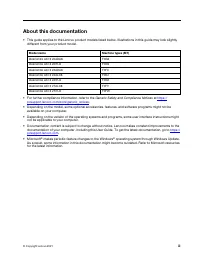
About this documentation • This guide applies to the Lenovo product models listed below. Illustrations in this guide may look slightly different from your product model. Model name Machine types (MT) IdeaCentre AIO 3 22ADA6 F0G6 IdeaCentre AIO 3 22ITL6 F0G5 IdeaCentre AIO 3 24ADA6 F0FX IdeaCentre AI...
Page 6 - iv
Page 7 - Chapter 1. Meet your computer; Overview; Related topics; • “USB specifications” on page 4.
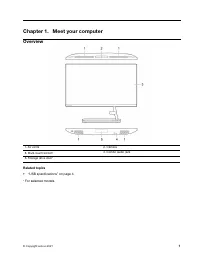
Chapter 1. Meet your computer Overview 1. Air vents 2. Camera 3. Multi-touch screen* 4. Combo audio jack 5. Storage drive door* Related topics • “USB specifications” on page 4. * For selected models © Copyright Lenovo 2021 1
Page 8 - Rear
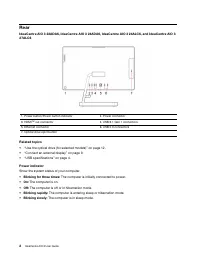
Rear IdeaCentre AIO 3 22ADA6, IdeaCentre AIO 3 24ADA6, IdeaCentre AIO 3 24ALC6, and IdeaCentre AIO 3 27ALC6 1. Power button/Power button indicator 2. Power connector 3. HDMI TM out connector 4. USB 3.1 Gen 1 connectors 5. Ethernet connector 6. USB 2.0 connectors 7. Optical drive eject button Related...
Page 10 - Features and specifications; For detailed specifications of your computer, go to; USB specifications
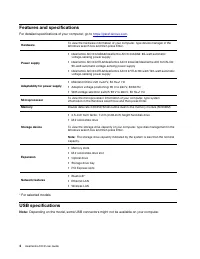
Features and specifications For detailed specifications of your computer, go to https://psref.lenovo.com . Hardware To view the hardware information of your computer, type device manager in the Windows search box and then press Enter. Power supply • IdeaCentre AIO 3 22ADA6/IdeaCentre AIO 3 24ADA6: 6...
Page 11 - Statement on USB transfer rate
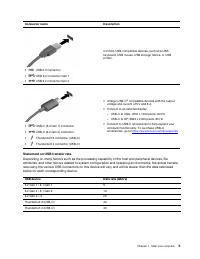
Connector name Description • USB 2.0 connector • USB 3.2 connector Gen 1 • USB 3.2 connector Gen 2 Connect USB-compatible devices, such as a USB keyboard, USB mouse, USB storage device, or USB printer. • USB-C (3.2 Gen 1) connector • USB-C (3.2 Gen 2) connector • Thunderbolt 3 connector (USB-C) • Th...
Page 12 - Operating environment; Temperature; • Storage or transportation:; Relative humidity
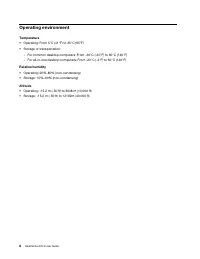
Operating environment Temperature • Operating: From 5°C (41°F) to 35°C (95°F) • Storage or transportation: – For common desktop computers: From -40°C (-40°F) to 60°C (140°F) – For all-in-one desktop computers: From -20°C (-4°F) to 60°C (140°F) Relative humidity • Operating: 20%-80% (non-condensing) ...
Page 13 - Chapter 2. Get started with your computer; Adjust the computer stand (for selected models); For full-function monitor stand; Work with Windows
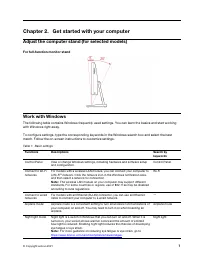
Chapter 2. Get started with your computer Adjust the computer stand (for selected models) For full-function monitor stand Work with Windows The following table contains Windows frequently used settings. You can learn the basics and start working with Windows right away. To configure settings, type t...
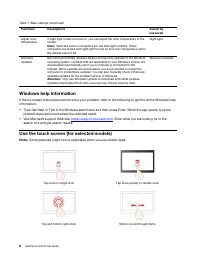
Page 14 - Windows help information; problem description and select the matched result.; Use the touch screen (for selected models); Some gestures might not be applicable when you use certain apps.
Table 1. Basic settings (continued) Functions Descriptions Search by keywords Adjust color temperature If night light mode is turned on, you can adjust the color temperature of the screen. Note: Selected Lenovo computers are low blue light certified. These computers are tested with night light turne...
Page 15 - Maintenance tips; • Turn off the computer before cleaning the touch screen.; Connect an external display; Connect a wireless display; Press the; Windows; and
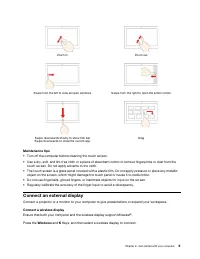
Zoom in Zoom out Swipe from the left to view all open windows Swipe from the right to open the action center Swipe downwards shortly to show title bar Swipe downwards to close the current app Drag Maintenance tips • Turn off the computer before cleaning the touch screen. • Use a dry, soft, and lint-...
Page 16 - Change display settings
Change display settings To change display settings, type display settings in the Windows search box and then press Enter. 10 IdeaCentre AIO 3 User Guide
Page 17 - Chapter 3. Explore your computer; Lenovo Vantage; Access Lenovo Vantage; User Guide; Set the power plan
Chapter 3. Explore your computer Lenovo Vantage The preinstalled Lenovo Vantage is a customized one-stop solution to help you maintain your computer with automated updates and fixes, configure hardware settings, and get personalized support. Access Lenovo Vantage Type Lenovo Vantage in the search bo...
Page 18 - Know the type of your optical drive; • Open Windows Media Player.
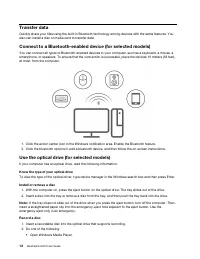
Transfer data Quickly share your files using the built-in Bluetooth technology among devices with the same features. You also can install a disc or media card to transfer data. Connect to a Bluetooth-enabled device (for selected models) You can connect all types of Bluetooth-enabled devices to your ...
Page 19 - Purchase accessories; To shop at Lenovo, go to
• Double-click the ISO file. 3. Follow the on-screen instructions. Purchase accessories Lenovo has a number of hardware accessories and upgrades to help expand the capabilities of your computer. Options include memory modules, storage devices, network cards, power adapters, keyboards, mice, and more...
Page 21 - Chapter 4. CRU replacement; CRU list; Prerequisite
Chapter 4. CRU replacement Customer Replaceable Units (CRUs) are parts that can be upgraded or replaced by the customer. Lenovo computers contain the following types of CRUs: • Self-service CRUs: Refer to parts that can be installed or replaced easily by customer themselves or by trained service tec...
Page 22 - Computer stand; Before you start, read; Replacement procedure
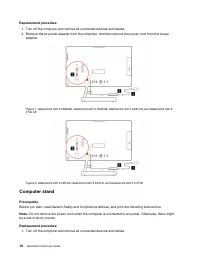
Replacement procedure 1. Turn off the computer and remove all connected devices and cables. 2. Remove the ac power adapter from the computer, and then remove the power cord from the power adapter. Figure 1. IdeaCentre AIO 3 22ADA6, IdeaCentre AIO 3 24ADA6, IdeaCentre AIO 3 24ALC6, and IdeaCentre AIO...
Page 23 - Storage drive
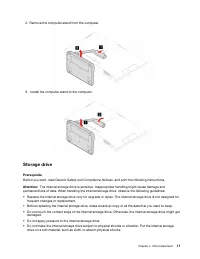
2. Remove the computer stand from the computer. 3. Install the computer stand to the computer. Storage drive Prerequisite Before you start, read Generic Safety and Compliance Notices , and print the following instructions. Attention: The internal storage drive is sensitive. Inappropriate handling mi...
Page 24 - Removal steps; Remove the computer stand. See “Computer stand” on page 16.
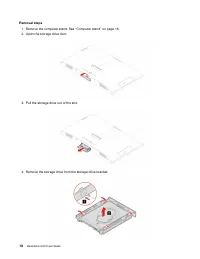
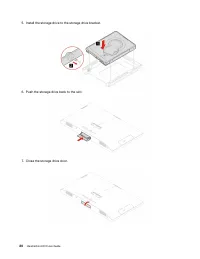
Removal steps 1. Remove the computer stand. See “Computer stand” on page 16. 2. Open the storage drive door. 3. Pull the storage drive out of the slot. 4. Remove the storage drive from the storage drive bracket. 18 IdeaCentre AIO 3 User Guide
Page 27 - Chapter 5. Help and support; Frequently asked questions
Chapter 5. Help and support Frequently asked questions How do I partition my storage drive? Refer to https://support.lenovo.com/solutions/ht503851 What should I do if my computer stops responding. Press and hold the power button until the computer turns off. Then restart the computer. What should I ...
Page 29 - Telephone numbers
Call Lenovo If you have tried to correct the problem yourself and still need help, you can call Lenovo Customer Support Center. Before you contact Lenovo Prepare the following before you contact Lenovo: 1. Record the problem symptoms and details: • What is the problem? Is it continuous or intermitte...
Page 30 - Purchase additional services
• Configuration of UEFI BIOS as part of an installation or upgrade• Changes, modifications, or upgrades to device drivers• Installation and maintenance of network operating systems (NOS)• Installation and maintenance of programs For the terms and conditions of the Lenovo Limited Warranty that apply ...
Page 31 - Appendix A. Notices and trademarks; Notices
Appendix A. Notices and trademarks Notices Lenovo may not offer the products, services, or features discussed in this document in all countries. Consult your local Lenovo representative for information on the products and services currently available in your area. Any reference to a Lenovo product, ...
Page 32 - Trademarks
Any performance data contained herein was determined in a controlled environment. Therefore, the result obtained in other operating environments may vary significantly. Some measurements may have been made on development-level systems and there is no guarantee that these measurements will be the sam...