Page 2 - TABLE OF CONTENTS; CHAPTER 1 BEFORE USING YOUR PHONE
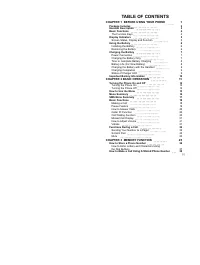
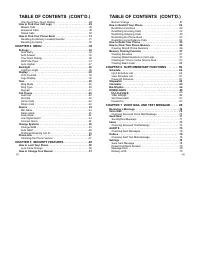
[ i] TABLE OF CONTENTS CHAPTER 1 BEFORE USING YOUR PHONE 1 Package Includes 2 Handset Description 3 Basic Functions 4 The Function Keys 4 Display Indicators 5 Screen Status, Display and Function 5 Using the Battery 6 Installing the Battery 6 Removing the Battery 6 Charging the Battery 7 Power Connec...
Page 4 - CHAPTER 1; BEFORE USING YOUR PHONE; CHAPTER 8 MAKING AN EMERGENCY CALL
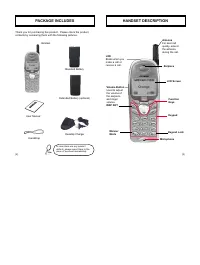
Please read this chapter before using this product. u Package Includes v Handset Description w Basic Functions x Display Indicators y Using the Battery z Charging the Battery { Important Battery Information CHAPTER 1 BEFORE USING YOUR PHONE [1] [iv] TABLE OF CONTENTS (CONT’D.) Auto Erase . . . . . ....
Page 6 - THE FUNCTION KEYS; SCREEN STATUS, DISPLAY AND FUNCTION
[4] [5] DISPLAY INDICATORS BASIC FUNCTIONS This key is used to make or receive a call. This key is used to terminate a call or exit thecurrent menu. This key is used to turn thehandset on or off. These keys (also called as the Navigationkeys) are used to scroll through the contentsof the menu. (Soft...
Page 7 - USING THE BATTERY; INSTALLING THE BATTERY; CHARGING THE BATTERY; POWER CONNECTION
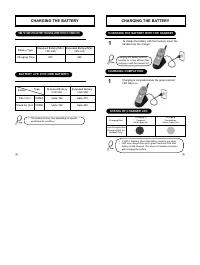
[6] [7] USING THE BATTERY u Insert the bottom of the battery into the groove at the bottom of the handset. Then v press in the top of the battery until it clicks in. INSTALLING THE BATTERY REMOVING THE BATTERY Push the tab u with one hand and lift the top of the battery v to separate. The battery mu...
Page 8 - STATUS OF CHARGER LED; CHARGING THE BATTERY WITH THE HANDSET
[9] [8] CHARGING THE BATTERY STATUS OF CHARGER LED Front Charging Slot (Charging Slot for Handset Only) Charging Slot Charging in Progress (Red Color On) Charging Completion (Green Color On) CHARGING THE BATTERY To charge the battery with the handset, insert thehandset into the charger. 1 Charging t...
Page 9 - CHAPTER 2; BASIC OPERATION; IMPORTANT BATTERY INFORMATION
[10] [11] u Turning the Phone On and Off v How to Use the Menu w Menu Summary x Basic Functions y Functions During a Call CHAPTER 2 BASIC OPERATION Use only batteries and chargers approved by the phone manufacturer. When a charger is not in use, disconnect it from the power source. Donot leave the b...
Page 10 - TURNING THE PHONE ON
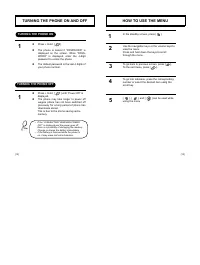
[13] [12] HOW TO USE THE MENU In the standby screen, press [ ]. Use the navigation keys or the volume keys toview the menu.Press and hold down the keys to scrollthrough the menu. To go back to previous screen, press [ ], To the exit menu, press [ ]. To go into submenu, press the correspondingnumber ...
Page 12 - SERVICE; MESSAGES; MENU SUMMARY
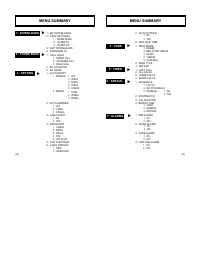
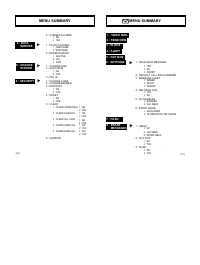
[16] [17] 1 : YES2 : NO MENU SUMMARY 8 : DATA SERVICE u 5 : CONNECT ALARM 1 : FLOW CONTROL 2 : RECEIVE MODE 1 : CHANGE NAM 2 : AUTO NAM 3 : PRL ID 1 : CHANGE CODE 2 : CHANGE BANNER3 : RESTRICT 4 : RESET 5 : CLEAR 6 : VERSION 1 : CLEAR PHONE BOOK 2 : CLEAR SCHEDULE 3 : CLEAR CALL LOGS 4 : CLEAR HOME ...
Page 13 - MAKING A CALL; BASIC FUNCTIONS; PAUSE FEATURE
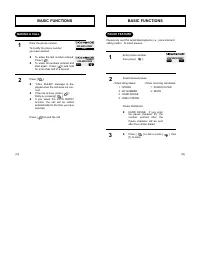
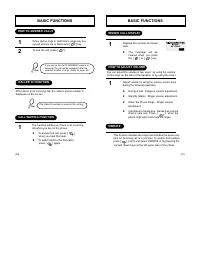
[18] [19] BASIC FUNCTIONS Enter the phone number. To modify the phone number you have entered: l To erase the last number entered:Press [ ]. l To erase all numbers entered andstart again: Press [ ] and holdfor more than half of a second. Press [ ]. l “CALL FAILED” message is dis-played when the call...
Page 15 - SENDING YOUR NUMBER TO A PAGER; FUNCTIONS DURING A CALL; MUTE
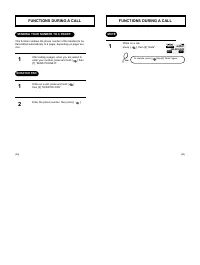
[23] FUNCTIONS DURING A CALL After calling a pager, when you are asked toenter your number, press and hold [ ] then [1] “SEND PHONE #”. While on a call, press and hold [ ], then [2] “SCRATCH PAD”. Enter the phone number, then press [ ]. 1 SENDING YOUR NUMBER TO A PAGER This function enables the phon...
Page 16 - CHAPTER 3; MEMORY FUNCTION
CHAPTER 3 MEMORY FUNCTION u How to Store a Phone Number v How to Make a Call Using a Stored Phone Number w How to Find Your Call Logs x How to Find Your Phone Book [24] [25]
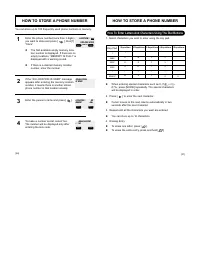
Page 17 - How To Enter Letters And Characters Using The Dial Buttons; HOW TO STORE A PHONE NUMBER
HOW TO STORE A PHONE NUMBER How To Enter Letters And Characters Using The Dial Buttons Key Pad 1 2ABC 3DEF 4GHI : 9WXYZ 1 Repetition 1 A D G : W 2 Repetitions B E H : X 3 Repetitions C F I : Y 4 Repetitions 2 3 4 : Z 5 Repetitions : 9 1. Select characters you wish to enter using the key pad. HOW TO ...
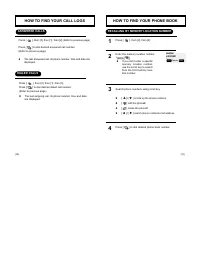
Page 19 - HOW TO FIND YOUR PHONE BOOK; RECALLING BY MEMORY LOCATION NUMBER; HOW TO FIND YOUR CALL LOGS; ANSWERED CALLS
HOW TO FIND YOUR PHONE BOOK Press [ ], then [2], then [2]. Enter the memory location number.+ Search phone numbers using scroll key. l [ ]/[ ] scrolls up the phone numbers. l [ ] edit the phone#. l [ ] erase the phone#. l [ ]/[ ] search phone number/e-mail address. Press [ ] to dial desired phone bo...
Page 20 - CHAPTER 4; RECALLING BY NAME
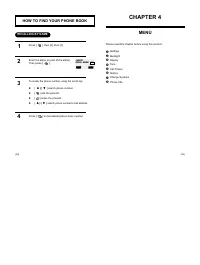
Please read this chapter before using this product. u Settings v Backlight w Display x Tone y Call Timers z Alarms { Change Systems | Phone Info CHAPTER 4 MENU HOW TO FIND YOUR PHONE BOOK Press [ ], then [2], then [3]. Enter the alpha (or part of the alpha).Then press [ ]. To locate the phone number...
Page 21 - AUTO ANSWER; SETTINGS; INTERVAL
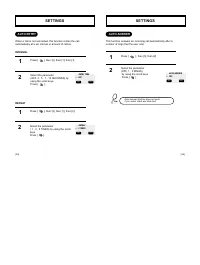
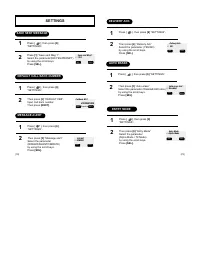
SETTINGS Press [ ], then [3], then [2]. Select the parameter (OFF, 1 , 3 RINGS) by using the scroll keys. Press [ ]. 1 2 This function answers an incoming call automatically after anumber of rings that the user sets. AUTO ANSWER AUTO ANSWER OFF SEL PREV AUTO RETRY SETTINGS Press [ ], then [3], then ...
Page 22 - WAP IDLE TIMER
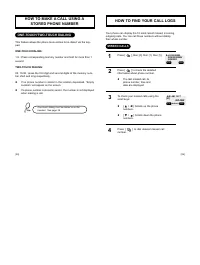
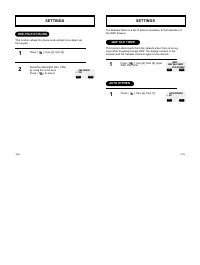
ONE-TOUCH DIALING SETTINGS Press [ ], then [3], then [3]. Select the parameter (NO, YES) by using the scroll keys. Press [ ] to select. 1 2 This function allows the phone book entries to be dialed viathe keypad. ONE-TOUCH? YES SETTINGS Press [ ], then [3], then [8], input WAP Idle Timer. 1 WAP IDLE ...
Page 23 - LIGHTING LENGTH; DISPLAY; LOGO DISPLAY
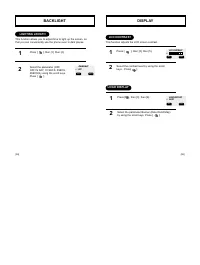
BACKLIGHT Press [ ], then [3], then [4]. Select the parameter (OFF, OFF IN DAY, 10 SECS, 5SECS, 3SECS)by using the scroll keys. Press [ ]. 1 2 LIGHTING LENGTH This function allows you to adjust time to light up the screen, sothat you can conveniently use the phone even in dark places. BACKLIGHT OFF ...
Page 24 - RING MODE; KEYPAD; TONE
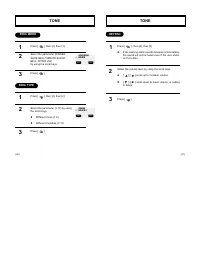
TONE Press [ ], then [4], then [2]. Select the parameter (1-13) by usingthe scroll keys. l Different tones (1-6). l Different melodies (7-13). Press [ ]. Press [ ], then [4], then [1]. Select the parameter (RINGER,SLIDE BELL,VIBRATE,SILENT,BELL AFTER VIB) by using the scroll keys. Press [ ]. 1 2 RIN...
Page 26 - ALARMS; FADE ALARM; CHANGE SYSTEMS; CHANGE NAM
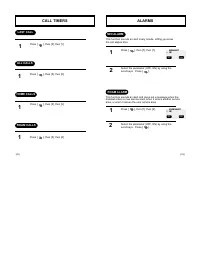
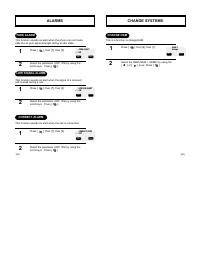
ALARMS Press [ ], then [7], then [3]. Select the parameter (OFF, ON) by using thescroll keys. Press [ ]. 1 2 FADE ALARM This function sounds an alert when the phone can not makecalls due to poor signal strength during an idle state. FADE ALERT ON SEL PREV Press [ ], then [7], then [4]. Select the pa...
Page 27 - AUTO NAM; PREFERRED ROAMING LIST ID; CHECKING THE PHONE VERSION; PHONE INFO
CHANGE SYSTEMS Press [ ], then [9], then [2]. 1 AUTO NAM This is a function to activate AUTO NAM. AUTO NAM? NO SEL PREV Press [ ], then [9], then [3]. 1 PREFERRED ROAMING LIST ID This function identifies the current Preferred Roaming List ID. PRL ID 0 OK PREV Press [ ], then [0], then enter [PASSWOR...
Page 28 - CHAPTER 5; SECURITY FEATURES
u How to Lock Your Phone v How to Change Your Banner w How to Restrict Your Phone x How to Reset Your Phone y How to Clear Your Phone Memory z Memory Clearing Function CHAPTER 5 SECURITY FEATURES [49] [48]
Page 29 - HOW TO LOCK YOUR PHONE; LOCK CODE CHANGE; HOW TO CHANGE YOUR BANNER; BANNER CHANGE
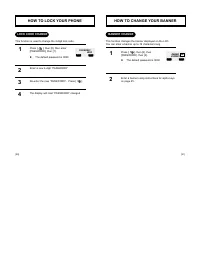
HOW TO LOCK YOUR PHONE Press [ ], then [0], then enter [PASSWORD], then [1] . l The default password is 0000 Enter a new 4-digit “PASSWORD”. Re-enter the new “PASSWORD”. Press [ ]. The display will read “PASSWORD” changed. 1 LOCK CODE CHANGE 2 3 4 This function is used to change the 4-digit lock cod...
Page 30 - RESTRICTION FUNCTIONS; RESTRICTING INCOMING CALLS; RESTRICTING OUTGOING CALLS; RESTRICTING THE PHONE BOOK
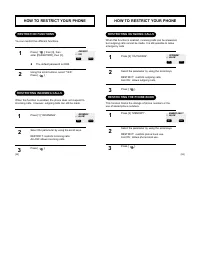
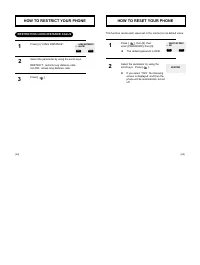
HOW TO RESTRICT YOUR PHONE Press [ ], then [0], then enter [PASSWORD], then [3]. l The default password is 0000. Using the scroll buttons, select “YES”.Press [ ]. 1 RESTRICTION FUNCTIONS You can restrict five different functions. 2 RESTRICTING INCOMING CALLS Press [1] “INCOMING”. Select the paramete...
Page 31 - RESTRICTING LONG DISTANCE CALLS; HOW TO RESET YOUR PHONE
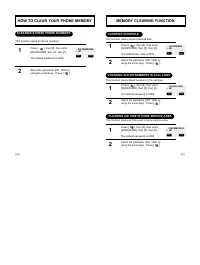
HOW TO RESTRICT YOUR PHONE RESTRICTING LONG DISTANCE CALLS Press [4] “LONG DISTANCE”. Select the parameter by using the scroll keys. RESTRICT: restricts long distance calls.ALLOW: allows long distance calls. Press [ ]. 1 2 3 LONG DISTANCE? ALLOW SEL PREV [55] [54] Press [ ], then [0], then enter [PA...
Page 32 - HOW TO CLEAR YOUR PHONE MEMORY; CLEARING STORED PHONE NUMBERS; CLEARING SCHEDULE; MEMORY CLEARING FUNCTION; CLEARING DIALED NUMBERS IN CALL LOGS
HOW TO CLEAR YOUR PHONE MEMORY Press [ ], then [0], then enter [PASSWORD], then [5], then [1]. The default password is 0000. Select the parameter (NO, YES) byusing the scroll keys. Press [ ]. 1 2 CLEARING STORED PHONE NUMBERS This function clears all stored numbers. CLR PHONE BOOK NO SEL PREV [57] [...
Page 33 - CLEARING ROAM CALLS; CHAPTER 6; SUPPLEMENTARY FUNCTIONS
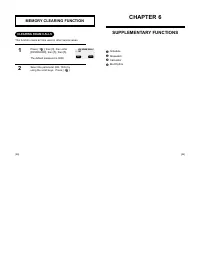
MEMORY CLEARING FUNCTION Press [ ], then [0], then enter [PASSWORD], then [5], then [5]. The default password is 0000. Select the parameter (NO, YES) byusing the scroll keys. Press [ ]. 1 2 CLEARING ROAM CALLS This function clears air time used in other service areas. CLR ROAM CALLS NO SEL PREV [59]...
Page 34 - VIEW SCHEDULE LIST; SCHEDULE
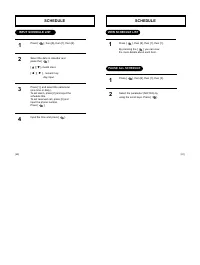
[61] [60] SCHEDULE VIEW SCHEDULE LIST Press [ ], then [6], then [1], then [1]. By pressing the [ ] you can viewthe more details about each item. 1 PAUSE ALL SCHEDULE Press [ ], then [6], then [1], then [3]. Select the parameter (NO,YES) byusing the scroll keys. Press [ ]. 1 2 INPUT SCHEDULE LIST Pre...
Page 35 - CALCULATOR; STOPWATCH
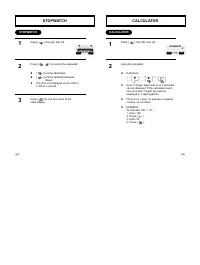
[63] [62] CALCULATOR CALCULATOR Press [ ], then [6], then [3]. 1 Using the calculator. l Definitions: : [ ], : [ ], : [ ] : [ ], : [ ], : [ ] l Up to 7 integer digits and up to 2 decimals can be displayed. If the calculated resulthas more than 7 digits, the result isdisplayed in 7 digit logarithm. l...
Page 36 - DOWNLOADS; MY DOWNLOADS
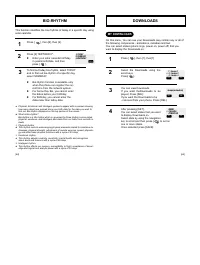
[65] [64] BIO-RHYTHM Press [ ], then [6], then [4]. Press [3] “BIRTHDAY?”. l Enter your solar calendar birthdayin year/month/date, and then press [ ]. To find out today bio-rhythm, select TODAYand to find out bio-rhythm of a specific day,select SOMEDAY. l Bio-rhythm function is available onlywhen th...
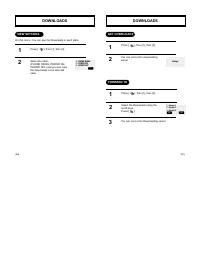
Page 37 - VIEW SETTINGS; GET DOWNLOADS; FORWARD TO
[67] [66] DOWNLOADS Press [ ], then [1], then [2]. Select the state,(PHONE RINGS, POWER ON,POWER OFF) and you can viewthe Downloads in the selectedstate. 1 2 VIEW SETTINGS On this menu, You can see the Downloads in each state. 1 : PHONE RINGS2 : POWER ON3 : POWER OFF PREV DOWNLOADS Press [ ], then [...
Page 38 - VOICE MAIL AND TEXT MESSAGE; CHAPTER 7
VOICE MAIL AND TEXT MESSAGE This chapter describes convenient functions that allow you to checkvoice mail and send and receive text messages with the handset. u Voice Mail v Send New(Sending message) w Inbox(Checking Received Message) x Alerts (Checking Alert Messages) y Outbox(Checking Sent Message...
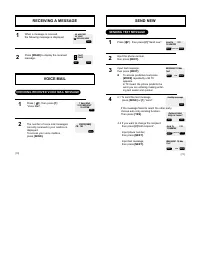
Page 39 - CHECKING RECEIVED VOICE MAIL MESSAGE; SEND NEW; SENDING TEXT MESSAGE
RECEIVING A MESSAGE When a message is received, the following message is displayed. Press [READ] to display the received message. 1 2 : Test1: Test2 XX NEW TEXTXX VOICE XXX-XXXX-XXXX CNCL VOICE MAIL Press [ ], then press [1] “Voice Mail”. The number of voice mail messagescurrently received in your m...
Page 40 - CHECKING RECEIVED TEXT MESSAGE
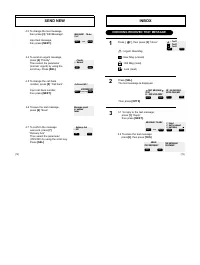
4.3 To change the text message, then press [3] “Edit Message”. Input text message,then press [NEXT] . MESSAGE? T9 abcTest MODE NEXT 4.4 To send an urgent message, press [4] “Priority”. Then select the parameter(normal/ urgent) by using the scroll key. Press [SEL] . Priority Normal PREV SEL 4/160 4.5...
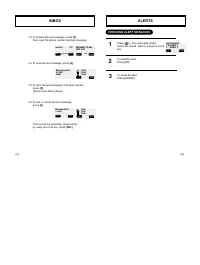
Page 41 - INBOX; ALERTS; CHECKING ALERT MESSAGES
3.6 To lock or unlock the text message, press [6] . Then select the parameter (lock/unlock)by using the scroll key, press [SEL] . INBOX 3.3 To forward the text message, press [3] , then input the phone number and text message. Send To 123 MODE MESSAGE? T9 AbcSMS Test1 MODE Message saved in ‘filed’fo...
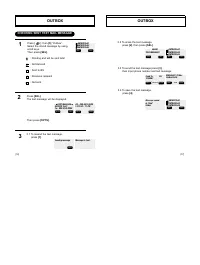
Page 42 - CHECKING SENT TEXT MAIL MESSAGE; OUTBOX
[77] [76] Press [SEL] . The text message will be displayed. Then press [OPTS] . Press [ ], then [5] “Outbox”. Select the stored message by usingscroll keys. Then press [SEL] . : Pending and will be sent later : Not deliverd : Sent to BS : Receives recipient : Not sent OUTBOX 1 CHECKING SENT TEXT MAI...
Page 43 - SAVE SENT MESSAGE; DEFAULT CALL BACK NUMBER; MESSAGE ALERT
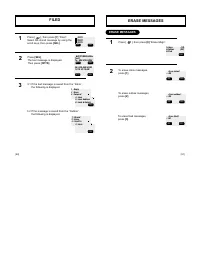
[78] [79] Press [ ], then press [6] “SETTINGS” . Press [1] “Save sent Msg ?”. Select the parameter(NO/YES/PROMPT)by using the scroll keys.Press [SEL]. SETTINGS 1 2 Press [ ], then press [6] “SETTINGS” . Then press [2] “DEFAULT CB#”. Input Call back number.Then press [NEXT] . 1 2 SAVE SENT MESSAGE DE...
Page 44 - FILED; ERASE MESSAGES
[81] [80] Press [ ], then press [7] “Filed”. Select the stored message by using thescroll keys, then press [SEL] . 1 FILED Press [SEL] , The text message is displayed. Then press [OPTS] . 2 TEXT MESSAGE Test1To : XXX-XXX-XXXX CB: XXX-XXX-XXXX12/19 01:10 AM PREV PREV OPTS PREV PREV OPTS :TEST1:TEST2:...
Page 45 - USING STANDARD TEXT INPUT; PREDICTIVE TEXT; KEY
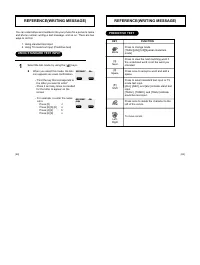
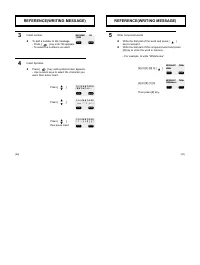
[83] [82] USING STANDARD TEXT INPUT MESSAGE? Abc MODE STO MESSAGE? AbcJohn MODE STO REFERENCE(WRITING MESSAGE) You can enter letters and numbers into your phone for a person’s nameand phone number, writing a text message, and so on. There are twoways to do this: 1. Using standard text input2. Using ...
Page 46 - John
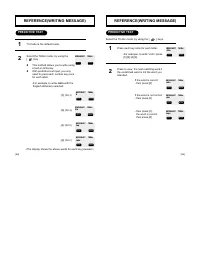
[85] [84] PREDICTIVE TEXT MESSAGE? T9Abc MODE STO MESSAGE? T9AbcK MODE STO MESSAGE? T9AbcKm MODE STO MESSAGE? T9AbcLog MODE STO MESSAGE? T9AbcJohn MODE STO 1 2 T9 mode is the default mode. Select the T9Abc mode, by using the [ ] key. l This method allows you to write usinga built-in dictionary. l Wi...
Page 48 - CHAPTER 8; MAKING AN EMERGENCY CALL
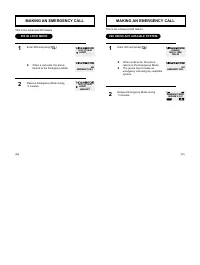
Page 49 - 00 USING ANY AVAILBLE SYSTEM
Enter 000 and press[ ]. l When a call ends, the phone returns to the Emergency Mode. l The phone tries to make an emergency call using any available system. Reserve Emergency Mode during 5 minutes. 1 2 000 USING ANY AVAILBLE SYSTEM This is the enhanced 000 feature. EMERGENCY MODE MON FEB 5 2:22 HYON...
Page 50 - WAP BROWSER; CHAPTER 9
WAP BROWSER CHAPTER 9 This chapter describes convenient functions that allow you to accessWAP with the handset. u Start Wap Browser v Browser Menu [93] [92]
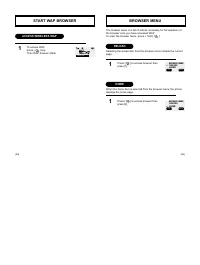
Page 51 - ACCESS WIRELESS WAP; START WAP BROWSER; RELOAD
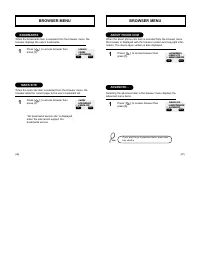
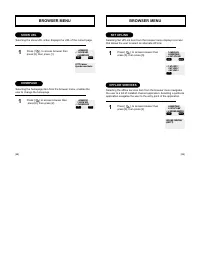
[95] [94] To access WAP, press [ ] key.Then WAP browser starts. 1 ACCESS WIRELESS WAP START WAP BROWSER Press [ ] to access browser then press [1]. Press [ ] to access browser then press [2] 1 1 RELOAD HOME BROWSER MENU BROWSER MENU 1:RELOAD 2:HOME BACK OK BROWSER MENU 1:RELOAD 2:HOME BACK OK The br...
Page 53 - OFFLINE SERVICES
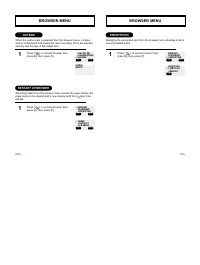
Press [ ], to access browser then press [6], then press [1]. Press [ ],to access browser then press [6], then press [2]. 1 1 SHOW URL HOMEPAGE BROWSER MENU ADVANCED 1:SHOW URL 2:HOMEPAGE BACK OK HTTP://www.Hyundai.com/index ADVANCED 1:SHOW URL 2:HOMEPAGE BACK OK Selecting the show URL action display...
Page 55 - DATA SERVICE
DATA SERVICE u Flow control v Receive Mode w Ability of Wireless Data Communication CHAPTER 10 [103] [102]
Page 56 - RECEIVE MODE; FLOW CONTROL
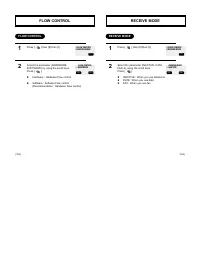
RECEIVE MODE RECEIVE MODE Press [ ] then [8] then [1]. Select the parameter (HARDWARE,SOFTWARE) by using the scroll keys.Press [ ]. l Hardware : Hardware Flow control l Software : Software Flow control (Recommendation : Hardware Flow control) 1 2 FLOW CONTROL FLOW CONTROL 1:FLOW CONTROL2:RECEIVE MOD...
Page 57 - SAFETY; ABILITY OF WIRELESS DATA COMMUNICATION
SAFETY u Safety Information for Wireless Handheld Phones CHAPTER 11 ABILITY OF WIRELESS DATA COMMUNICATION ABILITY OF WIRELESS DATA COMMUNICATION If you use the data communication, or install a program provided bysame line office or phone connected network program of windows95/98 then, you can use P...
Page 58 - DRIVING SAFETY; EXPOSURE TO RADIO FREQUENCY SIGNALS
SAFETY INFORMATION FOR WIRELESS HANDHELD PHONES SAFETY INFORMATION FOR WIRELESS HANDHELD PHONES DRIVING SAFETY Talking on the phone while driving can be dis Hacting. is tjis correct fortest. When, if using your phone while driving please: l Give full attention to driving. Driving safely is your firs...
Page 59 - Other Medical Devices; Pacemakers; Hearing Aids; ELECTRONIC DEVICES
SAFETY INFORMATION FOR WIRELESS HANDHELD PHONES SAFETY INFORMATION FOR WIRELESS HANDHELD PHONES Other Medical Devices If you use any other personal medical device, consult the manufacturerof your device to determine if they are adequately shielded from externalRF energy Your physician may be able to...
Page 60 - PRECAUTIONS; Aircraft; OTHER SAFETY GUIDELINES
SAFETY INFORMATION FOR WIRELESS HANDHELD PHONES SAFETY INFORMATION FOR WIRELESS HANDHELD PHONES Your Handheld Portable Telephone is a high quality piece of equipment.Before operating the equipment, read all instructions and cautionarymarkings on (1) AC Adaptor (2) Battery and (3) Product Using Batte...
Page 61 - WARNING; WARRANTY
SAFETY INFORMATION FOR WIRELESS HANDHELD PHONES The following offenses may result in proseation, imprisonment, or both: l Using the unit to give false distress calls. l Wiretapping or otherwise intercepting a telephone call, unless thatperson has first obtained the consent of the parties participati...
Page 62 - NSW
12 MONTH LIMITED WARRANTY HYUNDA COMMUNICATIONS CORP.(the Company). war-rants to the original retail purchaser of this HYUNDAI PortableCellular Telephone, that should this product or any part thereof(except the items listed below), under normal use andconditions, be proven defective in material or w...
Page 63 - 2 MONTH LIMITED WARRANTY
12 MONTH LIMITED WARRANTY No person or representative is authorized to assume for theCompany any liability other than expressed herein in connection with the sale of this product. Some states do not allow limitations on how long an implied warranty lasts or the exclusion or limitation of incidental ...