Page 2 - Product Overview; writes on the paper, which brings you a real shock experience.
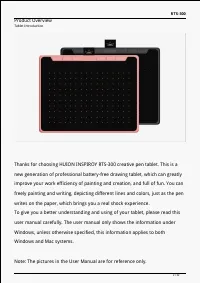
RTS-300 Product Overview Tablet Introduction Thanks for choosing HUION INSPIROY RTS-300 creative pen tablet. This is a new generation of professional battery-free drawing tablet, which can greatly improve your work efficiency of painting and creation, and full of fun. You can freely painting and wri...
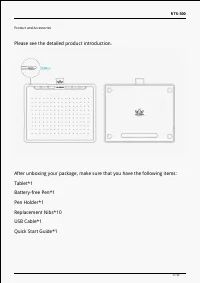
Page 3 - Please see the detailed product introduction.
RTS-300 Product and Accessories Please see the detailed product introduction. After unboxing your package, make sure that you have the following items: Tablet*1 Battery-free Pen*1 Pen Holder*1 Replacement Nibs*10 USB Cable*1 Quick Start Guide*1 3 / 32
Page 4 - Product Connection; Please download the Pen Driver from our website:
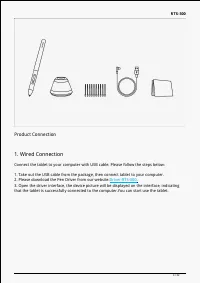
RTS-300 Product Connection 1. Wired Connection Connect the tablet to your computer with USB cable. Please follow the steps below: 1. Take out the USB cable from the package, then connect tablet to your computer. 2. Please download the Pen Driver from our website: Driver-RTS-300 . 3. Open the driver ...
Page 5 - Android connection; Please follow the steps below:
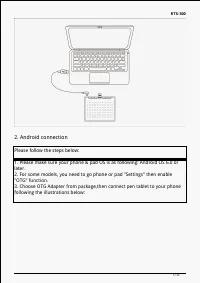
RTS-300 2. Android connection Please follow the steps below: 1. Please make sure your phone & pad OS is as following: Android OS 6.0 or later. 2. For some models, you need to go phone or pad "Settings" then enable "OTG" function. 3. Choose OTG Adapter from package,then connect pe...
Page 6 - Driver and Setting; Please download the driver from our website:; ,ChromeOS 88 or later
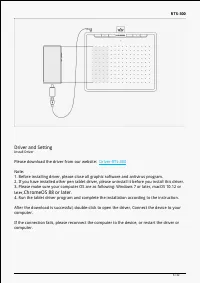
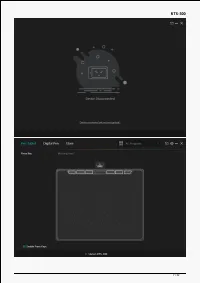
RTS-300 Driver and Setting Install Driver Please download the driver from our website: Driver-RTS-300 Note: 1. Before installing driver, please close all graphic software and antivirus program. 2. If you have installed other pen tablet driver, please uninstall it before you install this driver. 3. P...
Page 8 - See Section
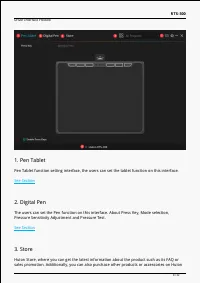
RTS-300 Driver Interface Preview 1. Pen Tablet Pen Tablet function setting interface, the users can set the tablet function on this interface. See Section 2. Digital Pen The users can set the Pen function on this interface. About Press Key, Mode selection, Pressure Sensitivity Adjustment and Pressur...
Page 9 - Switch between Devices; Press Key; then set the function.
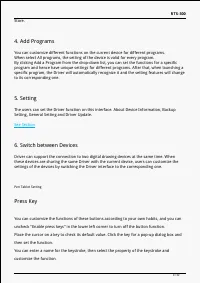
RTS-300 Store. 4. Add Programs You can customize different functions on the current device for different programs. When select All programs, the setting of the device is valid for every program. By clicking Add a Program from the drop-down list, you can set the functions for a specific program and h...
Page 13 - System Application
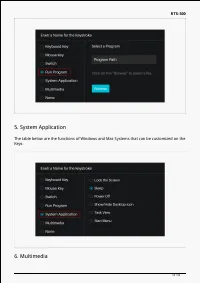
RTS-300 5. System Application The table below are the functions of Windows and Mac Systems that can be customized on the Keys. 6. Multimedia 13 / 32
Page 14 - When select None, the keys will have no function.; Working Area; and cursor movement on the monitor screen.; Working Area Setting; Define the tablet area that will be mapped to the screen area.
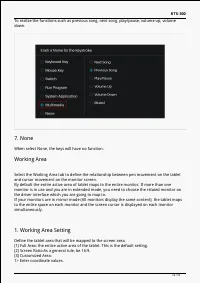
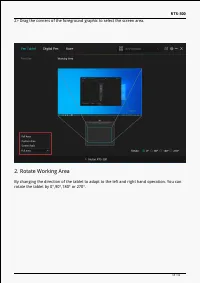
RTS-300 To realize the functions such as previous song, next song, play/pause, volume up, volume down. 7. None When select None, the keys will have no function. Working Area Select the Working Area tab to define the relationship between pen movement on the tablet and cursor movement on the monitor s...
Page 15 - Rotate Working Area
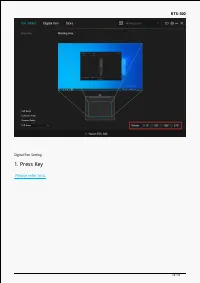
RTS-300 2> Drag the corners of the foreground graphic to select the screen area. 2. Rotate Working Area By changing the direction of the tablet to adapt to the left and right hand operation. You can rotate the tablet by 0°,90°,180° or 270°. 15 / 32
Page 17 - movement, but cannot complete the specified action.
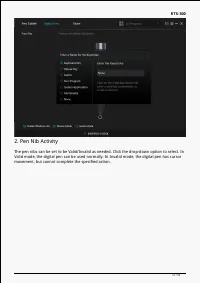
RTS-300 2. Pen Nib Activity The pen nibs can be set to be Valid/Invalid as needed. Click the drop-down option to select. In Valid mode, the digital pen can be used normally. In Invalid mode, the digital pen has cursor movement, but cannot complete the specified action. 17 / 32
Page 18 - Enable Windows ink
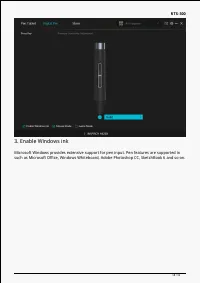
RTS-300 3. Enable Windows ink Microsoft Windows provides extensive support for pen input. Pen features are supported in such as Microsoft Office, Windows Whiteboard, Adobe Photoshop CC, SketchBook 6 and so on. 18 / 32
Page 19 - is not recommended for non-OSU game users.
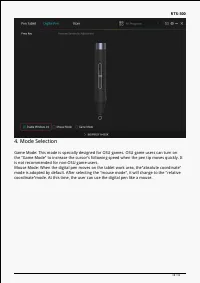
RTS-300 4. Mode Selection Game Mode: This mode is specially designed for OSU games. OSU game users can turn on the "Game Mode" to increase the cursor's following speed when the pen tip moves quickly. It is not recommended for non-OSU game users. Mouse Mode: When the digital pen moves on the ...
Page 20 - Pressure Sensitivity Adjustment
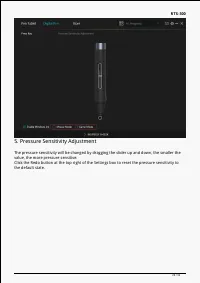
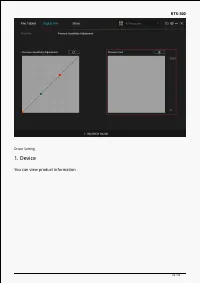
RTS-300 5. Pressure Sensitivity Adjustment The pressure sensitivity will be changed by dragging the slider up and down, the smaller the value, the more pressure sensitive. Click the Redo button at the top right of the Settings box to reset the pressure sensitivity to the default state. 20 / 32
Page 21 - the Clear button to clear all the ink.
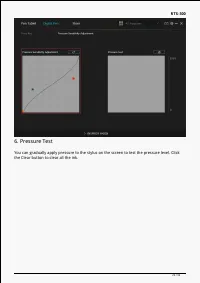
RTS-300 6. Pressure Test You can gradually apply pressure to the stylus on the screen to test the pressure level. Click the Clear button to clear all the ink. 21 / 32
Page 22 - You can view product information.
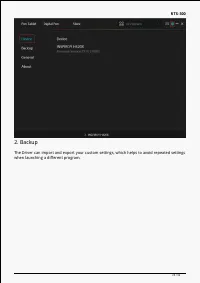
RTS-300 Driver Setting 1. Device You can view product information. 22 / 32
Page 23 - when launching a different program.
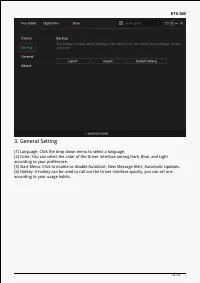
RTS-300 2. Backup The Driver can import and export your custom settings, which helps to avoid repeated settings when launching a different program. 23 / 32
Page 26 - Digital Pen Basic Operation; Note: Picture shown is for illustration purposes only.; Hold the Pen; switch while drawing or positioning with the pen.
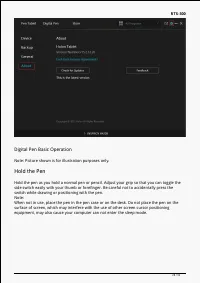
RTS-300 Digital Pen Basic Operation Note: Picture shown is for illustration purposes only. Hold the Pen Hold the pen as you hold a normal pen or pencil. Adjust your grip so that you can toggle the side switch easily with your thumb or forefinger. Be careful not to accidentally press the switch while...
Page 27 - Position the cursor; will move to the new position accordingly.
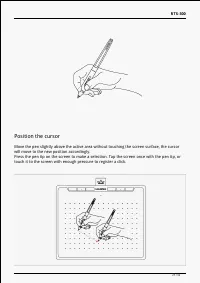
RTS-300 Position the cursor Move the pen slightly above the active area without touching the screen surface, the cursor will move to the new position accordingly. Press the pen tip on the screen to make a selection. Tap the screen once with the pen tip, or touch it to the screen with enough pressure...
Page 28 - Click; on the screen and double-click to open it.; Move
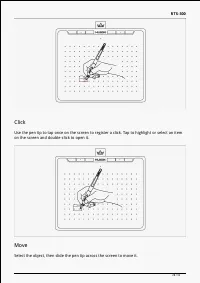
RTS-300 Click Use the pen tip to tap once on the screen to register a click. Tap to highlight or select an item on the screen and double-click to open it. Move Select the object, then slide the pen tip across the screen to move it. 28 / 32
Page 30 - Specifications; Appearance
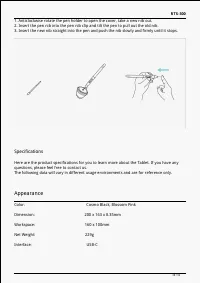
RTS-300 1. Anticlockwise rotate the pen holder to open the cover, take a new nib out. 2. Insert the pen nib into the pen nib clip and tilt the pen to pull out the old nib. 3. Insert the new nib straight into the pen and push the nib slowly and firmly until it stops. Specifications Here are the produ...
Page 31 - Troubleshooting Solutions; There is no pressure in the graphics software but the cursor moves.
RTS-300 Technical Specifications Digital Pen: PW400 Pen Technology: Battery-Free Electromagnetic Resonance Pen Resolution: 5080 LPI Pressure Sensitivity: 8192 Levels Sensing Height: 10mm Report Rate: >300PPS Accuracy: ±0.3mm OS Compatibility Windows 7 or later macOS 10.12 or later Android 6.0 or lat...