Page 2 - Contents
2 Contents Important Safety Instructions 3 Safety 3Warning 4 What’s in the Box 7 Identifying the Parts 8 Main Unit 8 Wireless Subwoofer 8 Remote Control 9 Preparations 9 Prepare the Remote Control 9 Replace the Remote Control Battery 9 Placement and Mounting 10 Wall Mounting (if using option-B) 10 C...
Page 3 - Important Safety Instructions; C A U T I O N
3 third prong is provided for your safety. If the provided plug does not fit into your outlet, consult an electrician for replacement of the obsolete outlet. 10 Protect the power cord from being walked on or pinched particularly at plugs, convenience receptacles, and the point where they exit from t...
Page 4 - Warning
4 Caution: - Use of controls or adjustments or performance of procedures other than those described herein, may result in hazardous radiation exposure or other unsafe operation. - To reduce the risk of fire or electric shock, do not expose this apparatus to rain or moisture. The apparatus must not b...
Page 5 - Supported input audio formats; Format
5 Supported input audio formats The audio formats supported by this system are as follows. Format Function OPTICAL COAXIAL HDMI ARC HDMI IN 1 HDMI IN 2 HDMI eARC LPCM 2ch ● ● ● ● ● LPCM 5.1ch -- -- -- ● ● LPCM 7.1ch -- -- -- ● ● Dolby Atmos - Dolby TrueHD -- -- -- ● ● Dolby Atmos - Dolby Digital Plu...
Page 6 - Supported HDMI video formats; Resolution
6 Supported HDMI video formats The video formats supported by this system are as follows. Resolution Frame rate 3D Color space Color depth [HDMI Signal Format] setting 4K 4096 x 2160p 3) 3840 x 2160p 50/59.94/60 Hz - RGB 4:4:4 YCbCr 4:4:4 8 bits [enhanced format] 1) - YCbCr 4:2:2 8/10/12 bits - YCbC...
Page 7 - What’s in the Box
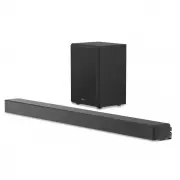
7 What’s in the Box * Power cord quantity and plug type vary by regions. • Images, illustrations and drawings shown on this User Manual are for reference only. Actual product may vary in appearance. • Design and specifications are subject to change without notice. AC power Cord x 2 Main Unit Remote ...
Page 8 - Identifying the Parts; Main Unit
8 9 8 10 11 12 6 4 5 1 2 3 13 7 1 2 3 Identifying the Parts Main Unit 1 ( ON/OFF ) button Switch the unit between ON and Standby mode. 2 ( SOURCE ) button Select the play function. 3 VOL+/VOL- buttons Increase/decrease the volume level. 4 Display Window Show the current status. 5 Remote Control Sens...
Page 9 - Remote Control; Preparations; Prepare the Remote Control
9 Remote Control 1 Switch the unit between ON and STANDBY mode. 2 (SOURCE) Select the play function. 3 SURR Adjust the surround ON/OFF. 4 (BT) Select the Bluetooth mode. Press and hold the (BT) button to activate the pairing function in Bluetooth mode or disconnect the existing paired Bluetooth devi...
Page 11 - Connections; Dolby Atmos®; Use the HDMI Socket
11 Connections Dolby Atmos® Dolby Atmos® gives you immersive listening e x p e r i e n c e b y d e l i v e r i n g s o u n d i n t h r e e dimensional space, and all the richness, clarity, and power of Dolby sound. For more information, please visit dolby.com/technologies/dolby-atmos DTS: X DTS: X T...
Page 12 - Risk of produc t damage!; Manual pairing
12 Use the OPTICAL Socket - Connect an OPTICAL cable (not included) to the TV’s OPTICAL OUT socket and the OPTICAL socket on the unit. OPTICAL COAXIAL COAXIAL OPTICAL HDMI IN Blu-ray Player / DVD Player / Recorder / Set-top Box... HDMI OUT HDMI OUT TV eARC/ARC HDMI IN 1 HDMI IN 2 HDMI ARC HDMI eARC/...
Page 13 - Use the Hisense EzPlay Function; Basic Operation; Select Modes
13 device) around your location. Remove these conflicts or strong interferences and repeat the above procedures. • The subwoofer should be within 6m (18 feet) of the soundbar in an open area. • If the main unit is not connected with the subwoofer and it is in On mode, the POWER Indicator will flash....
Page 14 - Adjust the Bass/Treble Level
14 • The selected mode will show on the display. Display Mode ARC HDMI IN 1HDMI IN 2OPTICALCOAXIALBluetooth Connected Connection USB Adjust the Bass/Treble Level • Press the BASS +/- buttons on the remote control to adjust bass level (bass +5 / bass -5). • Press the TREBLE +/- buttons on the remote ...
Page 15 - Pair Bluetooth-enabled Devices
15 OPTICAL / COAXIAL / HDMI / ARC Operation 1 Ensure that the unit is connected to the TV or audio device. 2 Press the (SOURCE) repeatedly on the unit or on the remote control to select the OPTICAL , COAXIAL, HDMI 1, HDMI 2, HDMI ARC mode. 3 Operate your audio device directly for playback features. ...
Page 16 - Listen to Music from Bluetooth Device; USB Operation; Setup Menu
16 • If no other Bluetooth device pairs with this player within two minutes, the player will recover its previous connection. • The player will also be disconnected when your device is moved beyond the operational range. • If you want to reconnect your device to this player, place it within the oper...
Page 17 - Troubleshooting
17 Troubleshooting To keep the warranty valid, never try to repair the system yourself. If you encounter problems when using this unit, check the following points before requesting service. I can’t find the Bluetooth name of this unit on my Bluetooth device for Bluetooth pairing • Ensure the Bluetoo...
Page 18 - Specifications; Model Name
18 Specifications Model Name U5120G Soundbar Power Supply AC100-240V~ 50/60Hz Power Consumption 80 W / < 0.5 W (StandBy) USB port for playback USB Compatibility USB Playback support / file formats 5V 500mA Hi-Speed USB (2.0) / FAT32 / FAT16 32G (max) , WAV/WMA/MP3/FLAC/DSD/ALAC TYPE-C for the Don...