Page 2 - CONTENTS
2 CONTENTS ------------------------------------------------------------------------------------------------ 4 SET-UP AND SAFETY 6 GENERAL INFORMATION 6 Special features of your television 6 Receiving digital stations 6 What is Common Interface? 7 CONNECTION/PREPARATION 7 Connecting the antenna and t...
Page 3 - GLISH; USING EXTERNAL DEVICES
EN GLISH 3 CONTENTS ------------------------------------------------------------------------------------------------ 37 USING EXTERNAL DEVICES 37 DVD player, DVD recorder, video recorder or set-top box 37 High definition – HD ready 37 Connecting a DVD player, DVD recorder, video recorder or set-top b...
Page 6 - GENERAL INFORMATION
6 Special features of your television Your television set enables you to receive and watch digital stations(via DVB-T), including in High Definition (HD).At present, reception for these digital television stations in High Defi-nition is only possible in some countries in Europe. This television can re...
Page 7 - CONNECTION/PREPARATION; Connecting the antenna and the mains cable; ANT IN
EN GLISH 7 CONNECTION/PREPARATION ---------------------- Connecting the antenna and the mains cable 1 Plug the cable of the rooftop or indoor antenna (passive or active indoor antenna with its own power supply for digital tele-vision stations) into the antenna socket » ANT IN « on the tele - vision ...
Page 8 - Inserting batteries in the remote control; Open the battery compartment by removing the lid.
Inserting batteries in the remote control 1 Open the battery compartment by removing the lid. 2 Insert the batteries (3 x 1.5 V micro for example R03 or AAA).Observe the polarity (marked on the base of the battery com-partment). 3 Close the battery compartment. Note: If the television no longer reac...
Page 9 - OVERVIEW; Connections on the television
OVERVIEW ---------------------------------------------------------------------------------------------- 9 EN GLISH Connections on the television USB USB socket for external data media. L R Audio signal input for camcorder. S-VHS Video signal input for S-Video camcorder. Video Video signal input for ...
Page 10 - Controls on the television; The sensor button »; Λ V
OVERVIEW ---------------------------------------------------------------------------------------------- 10 Controls on the television Note: The sensor button » 8 « is always lit. The symbols of the other sensor buttons light up briefly if you brush your hand over the control panel. To operate,briefly ...
Page 11 - The remote control; AV; OK
The remote control 8 Switches off the television set (stand-by). 1...0 Switches the television on from standby modeSelects channels directly. AV Opens the pre-selection for AV channels and theUSB input.Then select with » V « or » Λ «. ? Displays the number and name of a station;reveals answers in tel...
Page 13 - SETTINGS; Searching for television stations; Note
SETTINGS ---------------------------------------------------------------------------------------------------- Searching for television stations The television has an automatic tuning function, which first searchesfor digital TV channels and then analogue ones.You start the search and can then sort th...
Page 14 - Changing stored channels for digital stations; Opening the channel list
SETTINGS ---------------------------------------------------------------------------------------------------- Changing stored channels for digital stations You can change the order of the channels found as required, deletechannels you do not need and block access to certain presets(parental control)...
Page 16 - Picture settings
16 SETTINGS ---------------------------------------------------------------------------------------------------- Picture settings 1 Open the menu with » i «. – The »PICTURE« menu is displayed. 2 Select »Picture Mode«, »Brightness«, »Contrast«, »Colour«,»Sharpness« or »Colour Temperature« with » V « ...
Page 17 - Audio settings
EN GLISH 17 SETTINGS ---------------------------------------------------------------------------------------------------- Audio settings 1 Open the menu with » i «. – The »PICTURE« menu is displayed. 2 Select the »SOUND« menu with » – « or » + « and confirm with » G «. Note: Additional operations are...
Page 18 - Equaliser; TruSurround XT, SRS and the
18 SRS TruSurround XT* SRS TruSurround XT is a patented audio technology, which is inte-grated in the television set and only requires the built-in speakers toproduce a Surround Sound effect. 1 Select the »Sound Mode« line with » V « or » Λ «. 2 Select the setting »SRS« with » – « or » + «. Equaliser...
Page 19 - TruBass and Dialog Clarity
EN GLISH 19 TruBass and Dialog Clarity The »TruBass« setting gives you an increased bass effect. »Dialog Clarity« recognises dialogue sections in audio recordingsand improves dialogue reproduction. The two functions can be found on the second page of the»SOUND« menu. Note: The »SRS« setting must be s...
Page 20 - Basic functions; TELEVISION OPERATION
20 Basic functions Switching on and off 1 Press » 8 «, » 1… 0 « or » V « or » Λ « to switch on the device from standby mode. 2 Press the » 8 « button to switch the television to standby mode. Selecting channels 1 Use » 1… 0 « to select channels directly. 2 Press » V « or » Λ « to move up and down cha...
Page 21 - Displaying information; Zoom function; SCAN
EN GLISH 21 Displaying information 1 Press » ? « to display the information. – The display disappears automatically after a short while. Freeze-frame If you wish to view a particular scene for longer, you can freeze theframe of the current programme. 1 Press » 3 « (yellow). 2 To quit this function, ...
Page 23 - Changing the picture format; Select the picture format with »; »AUTOMATIC« format
EN GLISH 23 Changing the picture format The television automatically switches to the 16:9 format if this format is detected via the Euro-AV socket. 1 Select the picture format with » E «. The selected picture format, for example »16:9«, appears on the screen.– You can choose between the following pi...
Page 24 - Skipping the waiting time; TELETEXT MODE
24 TOP text or FLOF text mode 1 Press » TXT « to switch to teletext mode. 2 You can directly select teletext pages with » 1. . . 0 «. To return to page 100, press » i «. Note: At the bottom of the screen, you will see an information line con-sisting of a red, green and, depending on the station, yel...
Page 25 - Page stop; PAT
EN GLISH 25 Page stop A multiple page may contain several sub-pages, which are auto-matically scrolled by the transmitting station. 1 Stop the sub-pages with » P «. 2 Press » P « to quit the function. Calling up a sub-page directly If the selected teletext page contains further pages, the number of ...
Page 26 - CONVENIENCE FUNCTIONS; Convenience functions; Changing the menu language
26 CONVENIENCE FUNCTIONS ------------------------------ Convenience functions 1 Open the menu with » i «. – The »PICTURE« menu is displayed. 2 Select »OPTIONS« with » – « or » + « and press » G « to confirm. Note: Additional operations are explained in the following sections. Changing the menu langua...
Page 27 - Game mode; COMPONENT INPUT VIDEO IN Y Pb Pr; Selecting the audio signal for digital output; Parental control; Lock the system
EN GLISH 27 * “Dolby”and the double-D symbol are trademarks of Dolby Laboratories. Manufactured under license from Dolby Laboratories. CONVENIENCE FUNCTIONS ------------------------------ Game mode This function is only available for preset channels »HDMI1«,»HDMI2«, »HDMI3«, »YPBPR« or »PC«. Use thi...
Page 29 - Timer functions
EN GLISH 29 Timer functions 1 Open the menu with » i «. – The »PICTURE« menu is displayed. 2 Select the »TIMER« menu with » – « or » + « and press » G « to confirm. Notes: The correct time is shown in »Clock«. Additional operations are explained in the following sections. Switch-off timer In the »Off T...
Page 30 - Setting the time zone
30 Enter the switch-off time (Sleep Timer) In the »Sleep Timer« menu you can enter a time for the television toswitch off. After this time has elapsed, the television switches tostandby mode. 1 Select »Sleep Timer« with » V « or » Λ «. 2 Select the switch-off time with » – « or » + «. Note: Switch off t...
Page 31 - The file formats; MP4 video data
EN GLISH 31 The file formats Your television can be operated via the USB input with the followingfile formats: MP4 video data The MP4 process was designed to compress video files.An MP4 video is an encoder/decoder, based on the MPEG-4 com-pression system, which is used to decrypt and display compressed...
Page 32 - Connecting external data media; «. Connect the device and then switch the television on again.
32 Connecting external data media Before connecting the data medium, switch the television to stand-bywith » 8 «. Connect the device and then switch the television on again. Before connecting the data medium, the television must first beswitched to standby, otherwise files can be damaged. 1 Connect th...
Page 33 - The file browser; The main menu of the file browser
EN GLISH 33 The file browser The file browser displays the data (AVI., JPEG, MP3, MP4 or WMAdata) that the external data medium offers. If a data medium contains different file formats, you can deactivatedata you do not need for the playback using a filter function (AllSupported, Text, Movie, Music, Photo...
Page 34 - Settings in the USB setup menu; Opening the USB setup menu; Playback – Basic functions
34 USB-MODE ---------------------------------------------------------------------------------------------- Settings in the USB setup menu Opening the USB setup menu 1 Open the menu with » i «. – The »PICTURE« menu is displayed. 2 Select the »USB SETUP« menu with » – « or » + «. Note: Additional oper...
Page 35 - Additional playback functions; Play selected tracks
EN GLISH 35 USB-MODE ---------------------------------------------------------------------------------------------- 5 Select the track or picture with » V « or » Λ « and start play by pressing » «. – You can view information on the film by pressing » z « (red). – For playing MP3 or WMA data, informat...
Page 36 - PIP
36 USB-MODE ---------------------------------------------------------------------------------------------- Forward search (only MP4 video files) You can select different speeds (2-fold, 4-fold, 8-fold and 16-foldforwards and backwards). 1 Select the playback speed during playback by pressing » m « or ...
Page 37 - High definition – HD ready; HDMI; With a digital audio/video signal; Connect the »
EN GLISH 37 DVD player, DVD recorder, video recorder or set-top box Note: Which television socket(s) you connect your external devices todepends on the sockets the external device is equipped with andthe signals which are available. Note that with many external devices the resolution of the videosig...
Page 39 - Headphones; Connecting the headphones
EN GLISH 39 Using a video recorder, DVD player or set-top box 1 Switch on the video recorder, DVD player or set-top box and se-lect the function you wish to use. 2 Press » AV «, select the input signal channel with » Λ « or » V « (»SCART«, »AV«, »S-Video«, »HDMI1«, »HDMI2«, »HDMI3« or »YPBPR«) and p...
Page 40 - Decoder or satellite receiver; Connecting a decoder or satellite receiver; Using a decoder or satellite receiver; Activating the preset for a decoder; SCART; Decoder
40 Decoder or satellite receiver In order for the television to receive encoded programs from a privately operated station, a decoder is needed. Connecting a decoder or satellite receiver 1 Connect the » SCART « socket on the television set and the ap- propriate socket on the decoder using a EURO-AV...
Page 41 - Camcorder; Connecting the camcorder; Video; Operating with a camcorder
EN GLISH 41 Camcorder Connecting the camcorder 1 Connect the yellow socket » Video « on the television and the corresponding socket on the camcorder (VHS, Video 8) with acinch cable (picture signal); orconnect the » S-VHS « socket (picture signal) on the television and the corresponding socket on th...
Page 42 - Connecting a PC; PC AUDIO IN; Selecting the channel position for the PC; Settings for the PC; PC MONITOR MODE
42 Connecting a PC 1 Connect the socket » PC-IN VGA « on the television to the corre- sponding socket on the PC using a VGA cable. 2 Connect the socket » PC AUDIO IN « on the television to the corresponding socket on the PC using a cinch cable (audio signal). Note: Adjust your PC to the monitor (for...
Page 43 - Inserting the CA module; CI; Access control for CA module and smart card; OPERATION WITH COMMON INTERFACE
EN GLISH 43 Inserting the CA module Note: Switch off the appliance before inserting the CA module in the» CI « slot. 1 Insert the smart card into the CA module. 2 Insert the CA module with the smart card into the » CI « slot on the television. Note: To see which CA module is in the Common Interface s...
Page 44 - SPECIAL SETTINGS; Tuning digital television stations
44 SPECIAL SETTINGS ------------------------------------------------------------------ Tuning digital television stations This search deletes all television stations included in the channel list! Tuning all digital television stations using thesearch 1 Open the menu with » i «. – The »PICTURE« menu ...
Page 45 - Tuning analogue television stations; Switching the television to analogue channels; Re-tuning all analogue television channels
EN GLISH 45 SPECIAL SETTINGS ------------------------------------------------------------------ Tuning analogue television stations This setting is only necessary if you cannot receive any digital stationsand you have not carried out an analogue search during initial setup.The television station can...
Page 46 - Fine tuning analogue television stations
46 SPECIAL SETTINGS ------------------------------------------------------------------ Tuning the analogue television channels byentering the channel numbers 1 Open the menu with » i «. – The »PICTURE« menu appears. 2 Select the »CHANNEL SETUP« menu with » – « or » + «. 3 Select »Analogue Manual Tun...
Page 47 - Changing stored channels for analogue stations; Select channel lists
EN GLISH 47 SPECIAL SETTINGS ------------------------------------------------------------------ Changing stored channels for analogue stations If channels were stored with the automatic channel search duringthe tuning of the television channels, you can delete them. You canalso store stations in a d...
Page 49 - Displaying signal information; INFORMATION
EN GLISH 49 Displaying signal information (only for digital television channels) 1 Open the menu with » i «. – The »PICTURE« menu appears. 2 Select the menu »CHANNEL SETUP« with » – « or » + «. 3 Select »Signal Information« with » V « or » Λ « and press » G « to confirm.– You will see information on ...
Page 50 - Dismantling the stand of the unit; Unscrew the four screws (
50 INFORMATION ------------------------------------------------------------------------------ Dismantling the stand of the unit If you want to attach your television to the wall with a wall bracket,you need to dismantle the stand. 1 Place the television carefully front down on a table on top of asui...
Page 51 - Technical changes and errors reserved.; Technical data
EN GLISH 51 INFORMATION ------------------------------------------------------------------------------ Technical changes and errors reserved. Technical data Operating voltage: 230V, 50 Hz Power consumption: in operation 170 W (Vision 37)in operation 210 W (Vision 42)in standby < 1.2 W Sound outpu...
Page 52 - Troubleshooting; Fault
52 Troubleshooting If the remedies given below do not work, please consult an autho-rised GRUNDIG dealer. Please bear in mind that malfunctions canalso be caused by external devices such as video recorders or satel-lite receivers. NOTE: This is a Class A product. During operation the device can caus...
Page 53 - Additional Information for units sold in the UK.
EN GLISH 53 Additional Information for units sold in the UK. Units sold in the UK are suitable for operation from a 240V ac, 50Hzmains supply.The range of multi-system receivers is built to work in most Europeancountries. However, the mains plug and socket system for the UK differsfrom many European ...


 Grundig GEBM19300BC
Manual
Grundig GEBM19300BC
Manual
 Grundig GEBD19401BHI
Manual
Grundig GEBD19401BHI
Manual
 Grundig GEBM19400BCH
Manual
Grundig GEBM19400BCH
Manual
 Grundig GEBD19300B
Manual
Grundig GEBD19300B
Manual
 Grundig GEBM19300BP
Manual
Grundig GEBM19300BP
Manual
 Grundig GEBM19400BPHI
Manual
Grundig GEBM19400BPHI
Manual
 Grundig GEDM12300B
Manual
Grundig GEDM12300B
Manual
 Grundig GEBD19301B
Manual
Grundig GEBD19301B
Manual
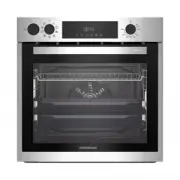 Grundig GEBD11300X
Manual
Grundig GEBD11300X
Manual
 Grundig GEBM11300XC
Manual
Grundig GEBM11300XC
Manual
 Grundig GEBM11301XC
Manual
Grundig GEBM11301XC
Manual
 Grundig GIEI638980IF
Manual
Grundig GIEI638980IF
Manual
 Grundig GIEI624470PF
Manual
Grundig GIEI624470PF
Manual
 Grundig GIEI938980I
Manual
Grundig GIEI938980I
Manual
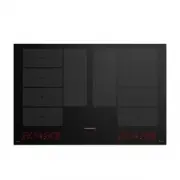 Grundig GIEI838980INH
Manual
Grundig GIEI838980INH
Manual
 Grundig GIEV613420E
Manual
Grundig GIEV613420E
Manual
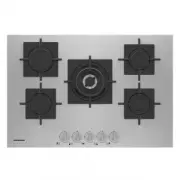 Grundig GIGF7235220X
Manual
Grundig GIGF7235220X
Manual
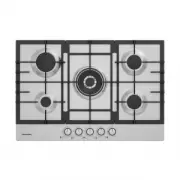 Grundig GIGA7235250X
Manual
Grundig GIGA7235250X
Manual
 Grundig GIGF6234120X
Manual
Grundig GIGF6234120X
Manual
 Grundig GIGA6234250X
Manual
Grundig GIGA6234250X
Manual