Page 2 - CONTENTS; OVERVIEW
CONTENTS ------------------------------------------------------------------------------------------------ 2 4 SONOCLOCK 890 WEB 4 Special features 4 Packing contents 4 CE declaration 5 SET-UP AND SAFETY 6 Environmental Note 7 OVERVIEW 7 Controls 10 The remote control 12 CONNECTION AND PREPARATION 12...
Page 4 - Special features; Packing contents; CE declaration
4 SONOCLOCK 890 WEB ------------------------------------------------ Special features Your device provides you with access to numerous internet radiostations via a router. You can connect the device to the internet usinga LAN cable or WLAN.For Internet operation a DSL connection and DSL flat rate are...
Page 6 - Environmental Note
6 SET-UP AND SAFETY ------------------------------------------------------------ Thunderstorms are a danger to all electrical devices. Even if the de-vice is switched off, it can be damaged by a lightning strike to themains. Always remove the mains adapter during a thunderstorm. If malfunctions occur...
Page 7 - Controls; The front of the device
EN GLISH 7 OVERVIEW ---------------------------------------------------------------------------------------------- Controls The front of the device ON/OFF Switches the device in and out of standbymode. e 1 I 6 In radio mode: station button 1/6.In music archive mode: starts playback of atrack. II 2 I...
Page 9 - The back of the device
EN GLISH 9 OVERVIEW ---------------------------------------------------------------------------------------------- The back of the device U Headphone jack for connecting a stereoheadphone set with a jack plug (3.5 mm).The loudspeaker of the device is automaticallyswitched off. AUX IN Audio signal inp...
Page 10 - The remote control
10 OVERVIEW ---------------------------------------------------------------------------------------------- The remote control 8 Switches the device to standby mode and fromstandby mode to the last input source selected. M Switches between the Internet radio, musicarchive, DAB, FM and Aux input sourc...
Page 12 - Connecting the power cord; Connecting an external device; CONNECTION AND PREPARATION
12 Connecting the power cord Note: Check that the mains voltage on the type plate (on the back ofthe device) corresponds to your local mains supply. If this is notthe case, contact your specialist dealer. 1 Plug the power cord into the wall socket. Caution: The device is connected to the mains with ...
Page 13 - Connecting the headphones; Inserting batteries in the remote control
EN GLISH 13 CONNECTION AND PREPARATION ---- Connecting the headphones 1 Insert the headphone plug (3.5 mm) into the » U « socket on the device.– The loudspeaker of the device is switched off. Important : Excessive volume levels when using headphones or earphonescan damage your hearing. Note: You can ...
Page 14 - LAN connection to the Internet
14 LAN connection to the Internet Note: Switch the device off before you connect it to the internet. 1 Connect the Ethernet socket of the modem/router to the » LAN « socket of the device using a standard network cable (Twistedpair,RJ45 plug).– The data throughput level is 10/100 MBIT. Note: The lines...
Page 15 - CONNECTION/PREPARATION; WLAN connection to the Internet
EN GLISH 15 CONNECTION/PREPARATION ---------------------- WLAN connection to the Internet Note: The quality of the radio signal depends on the distance betweenthe device and your modem/router.The substance of the building at the installation site can also affectthis. Note: The lines represent the fun...
Page 17 - SETTINGS; Menu navigation
EN GLISH 17 SETTINGS ---------------------------------------------------------------------------------------------------- Menu navigation When you first switch on the device, the display will show theGrundig logo, followed by the main menu. In the main menu, you can select the »Internet Radio«, »Musi...
Page 19 - Setting the time zone; Registering the device with the WLAN router
EN GLISH 19 SETTINGS ---------------------------------------------------------------------------------------------------- Setting the time zone This setting allows you to set a time zone for the location of thenetwork update. 1 In the »Time setup« menu, press » Λ « or » V « to select the »Set Time Z...
Page 22 - Searching for and saving DAB stations; Automatic station search
22 SETTINGS ---------------------------------------------------------------------------------------------------- Searching for and saving DAB stations Your device has a DAB (Digital Audio Broadcasting) receiver unitwhich enables crystal-clear radio reception in CD quality, i.e. withouthissing or cra...
Page 23 - Manual station search; Sorting channels; Saving DAB radio stations on presets
EN GLISH 23 SETTINGS ---------------------------------------------------------------------------------------------------- Manual station search If the automatic station search is not successful, you can search forDAB stations manually. 1 Press » « to open the DAB menu. 2 Press » Λ « or » V « to sele...
Page 25 - Searching for and saving FM stations; Setting the search mode
EN GLISH 25 SETTINGS ---------------------------------------------------------------------------------------------------- Searching for and saving FM stations Setting the search mode There are two different automatic station search modes. 1 Press » « to open the FM menu. 2 Press » Λ « or » V « to sel...
Page 27 - GENERAL FUNCTIONS; Switching on and off
EN GLISH 27 GENERAL FUNCTIONS ---------------------------------------------------- Switching on and off 1 Switch on the device from standby with » ON/OFF «. – The last input source used is automatically selected. 2 Switch the device to standby with » ON/OFF «. – Display: the current time and date. No...
Page 28 - Listening with headphones or earphones
28 GENERAL FUNCTIONS ---------------------------------------------------- Listening with headphones or earphones 1 Insert the headphone plug (3.5 mm) into the » U « socket on the back of the device.– The loudspeaker of the device is switched off. Important : Prolonged listening with the head phones o...
Page 29 - Selecting the Internet radio input source; INTERNET OPERATION
EN GLISH 29 Selecting the Internet radio input source 1 Press » M « to select the »Internet Radio« input source. or 1 Press » MENU « to open the menu of the current source. 2 Press » Λ « or » V « to select the »Main menu« option and press » OK « to confirm. 3 Press » Λ « or » V « to select the »Inter...
Page 30 - Searching for Internet radio stations by country
30 INTERNET OPERATION -------------------------------------------------- Selecting Internet radio stations according tosearch criteria Searching for Internet radio stations according togenres 1 Press » Λ « or » V « to select the »Stations« option and press » OK « to confirm. 2 Press » Λ « or » V « to...
Page 31 - Searching for Internet radio stations by name
EN GLISH 31 Searching for Internet radio stations by name 1 Press » Λ « or » V « to select the »Station« option and press » OK « to confirm. 2 Press » Λ « or » V « to select the »Search stations« option and press » OK « to confirm. – You are prompted to enter the station name. Notes: Use buttons » Λ «...
Page 32 - Saving Internet radio stations to presets
32 Selecting Internet radio stations which the Internetprovider has added recently 1 Press » Λ « or » V « to select the »Stations« option and press » OK « to confirm. 2 Press » Λ « or » V « to select the »New stations« option and press » OK « to confirm. 3 Select your radio station using » Λ « or » V ...
Page 33 - Selecting manually added Internet radio stations
EN GLISH 33 INTERNET OPERATION -------------------------------------------------- Selecting Internet radio stations for thefavourites list You can find out how to create a list of favourite Internet radiostations in the chapter on special functions on pages 45 to 47. 1 Press » Λ « or » V « to select ...
Page 34 - Selecting podcasts; Displaying Internet station information
34 Selecting podcasts Podcasts are radio programmes that are available irrespective ofbroadcasting times. You could think of podcasts as audio files. Theysometimes consist of a series of episodes that can be downloadedautomatically through a feed. 1 Press » MENU « to open the Internet menu. 2 Press »...
Page 35 - Selecting the music archive input source; MUSIC ARCHIVE
EN GLISH 35 Audio streaming ... This function enables you to play back tracks from a music archivein MP3 and WMA format on the device.The music archive can be stored on a computer or an external harddrive. ... using the “Shared folders” function If you wish to use the “Shared folders” function, you ...
Page 36 - MUSIK ARCHIVE; Navigating the music archive menu; Playback functions
36 MUSIK ARCHIVE -------------------------------------------------------------------------- Navigating the music archive menu 1 In the music archive menu, press » Λ « or » V « to select the »Browse« option and press » OK « to confirm. Note: You can only select the »Browse« option by pressing the » « ...
Page 37 - Selecting the DAB input source; DAB OPERATION
EN GLISH 37 Selecting the DAB input source 1 Press » M « to select the »DAB« input source. or 1 Press » MENU « to open the menu of the current source. 2 Press » Λ « or » V « to select the »Main menu« option and press » OK « to confirm. 3 Press » Λ « or » V « to select the »DAB« input source and press...
Page 38 - Displaying DAB station information
38 Displaying DAB station information 1 To display information on the current DAB station, press » i « repeatedly.– The following displays remain on: Station name.The bit rate e.g. »128 kbps«. The name of the current station’s DAB ensemble (multiplex). – The following displays appear in sequence: Th...
Page 39 - Selecting the FM input source; FM MODE
EN GLISH 39 Selecting the FM input source 1 Press » M « to select the »FM« input source. or 1 Press » MENU « to open the menu of the current source. 2 Press » Λ « or » V « to select the »Main menu« option and press » OK « to confirm. 3 Press » Λ « or » V « to select the »FM« input source and press » ...
Page 40 - Displaying RDS station information
40 FM MODE -------------------------------------------------------------------------------------------------- Displaying RDS station information If the DVD receiver receives an RDS station, the station nameappears in the display (»[No name]« appears in the display if noinformation is available). The...
Page 41 - Setting the switch-on timer; TIMER MODE
EN GLISH 41 Your device has three timer modes:– The switch-on timer, which switches the device on at two set times and wakes you with an alarm or music. – The sleep-timer, which switches the device off at a time you set.– The reminder timer (NAP), reminding you by sounding the signal tone at a preset...
Page 43 - Sleep timer; Setting the sleep timer; Ending the sleep timer prematurely
EN GLISH 43 TIMER MODE ---------------------------------------------------------------------------------------- 6 Press » Λ « or » V « to select the »On« option and press » OK « to switch it to »Off«.– The alarm function is deactivated. or Press » Λ « or » V « to select the »Off« option and press » OK...
Page 44 - Reminder timer; Setting the reminder timer; Ending the reminder timer prematurely
44 Reminder timer Setting the reminder timer 1 In the main menu, press » Λ « or » V « to select the »System - einstellung« option and press » OK « to confirm. 2 Press » Λ « or » V « to select the »Nap« option and press » OK « to confirm. 3 Select a reminder time (settings: »No Nap« or 1 to 300 minutes...
Page 45 - SPECIAL SETTINGS; Registering on the GRUNDIG homepage; Creating lists of favourites; Preparation
EN GLISH 45 SPECIAL SETTINGS ------------------------------------------------------------------ Registering on the GRUNDIG homepage You need to perform a one-time registration of your device on theGRUNDIG page “GRUNDIG INTERNET RADIO TUNINGSERVICE” stating the MAC address of your device. You can sea...
Page 46 - Selecting radio stations with the search function
46 Selecting radio stations with the search function 1 In the “Search” field, enter the name of the desired provider(station name and radio programme) and then click the » « button.– If the radio station is available, it is displayed. Notes: You can start listening to the radio station by pressing th...
Page 47 - Selecting a radio station from the genres on offer
EN GLISH 47 SPECIAL SETTINGS ------------------------------------------------------------------ Selecting a radio station from the genres on offer 1 Select the desired genre in the “Music“ genre.– A list of the radio stations of the selected style is displayed. Note: Instead of the search criterion “...
Page 49 - Calling information
EN GLISH 49 SPECIAL SETTINGS ------------------------------------------------------------------ Calling information You can call up information on your device and the network in use.Settings cannot be made in this menu. 1 Press » MENU « to open the menu of the current source. 2 Press » Λ « or » V « ...
Page 53 - INFORMATION; Technical data; System
EN GLISH 53 INFORMATION ------------------------------------------------------------------------------ Technical data This device is noise-suppressed according to the applicable EU directives.This product fulfils the European directives 2006/95/EC, 2004/108/ECand 1999/5/EC.This device conforms to the...
Page 54 - Troubleshooting; General faults
54 Troubleshooting Not every kind of sound interference is caused by a defect in yourdevice. Cables that have accidentally been disconnected and flatbatteries for the remote control will impair functioning. If the follow-ing measures do not resolve the problem satisfactorily, please visitwww.grundig....
Page 55 - Messages from the device
EN GLISH 55 INFORMATION ------------------------------------------------------------------------------ Messages from the device Streaming problems Message Connection failed Please wait Network error Possible cause/remedy – WLAN network is deactivated; switch on the WLAN network.– Range problem: move...
Page 57 - Glossary
EN GLISH 57 INFORMATION ------------------------------------------------------------------------------ Glossary Boot loader version Boot loader is a software application that is loaded by the firmwareof a device from a boot-capable medium and then executed. Theboot loader then loads further parts of ...
Page 59 - Router
EN GLISH 59 INFORMATION ------------------------------------------------------------------------------ Router A router is a network component that links several computernetworks.The router analyses (on the basis of layer 3 information) the networkpackages of a protocol it receives and forwards it to...


 Grundig GEBM19300BC
Manual
Grundig GEBM19300BC
Manual
 Grundig GEBD19401BHI
Manual
Grundig GEBD19401BHI
Manual
 Grundig GEBM19400BCH
Manual
Grundig GEBM19400BCH
Manual
 Grundig GEBD19300B
Manual
Grundig GEBD19300B
Manual
 Grundig GEBM19300BP
Manual
Grundig GEBM19300BP
Manual
 Grundig GEBM19400BPHI
Manual
Grundig GEBM19400BPHI
Manual
 Grundig GEDM12300B
Manual
Grundig GEDM12300B
Manual
 Grundig GEBD19301B
Manual
Grundig GEBD19301B
Manual
 Grundig GEBM11300XC
Manual
Grundig GEBM11300XC
Manual
 Grundig GEBM11301XC
Manual
Grundig GEBM11301XC
Manual
 Grundig GIEI638980IF
Manual
Grundig GIEI638980IF
Manual
 Grundig GIEI624470PF
Manual
Grundig GIEI624470PF
Manual
 Grundig GIEI938980I
Manual
Grundig GIEI938980I
Manual
 Grundig GIEV613420E
Manual
Grundig GIEV613420E
Manual
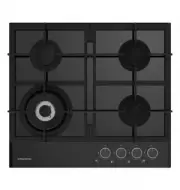 Grundig GIGL6234250
Manual
Grundig GIGL6234250
Manual
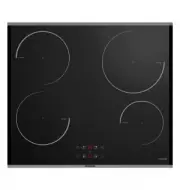 Grundig GIEI623410MX
Manual
Grundig GIEI623410MX
Manual
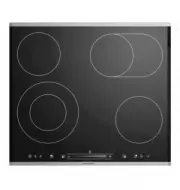 Grundig GIEV624430X
Manual
Grundig GIEV624430X
Manual
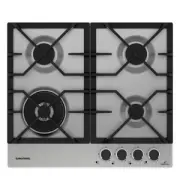 Grundig GIGA6234260XE
Manual
Grundig GIGA6234260XE
Manual
 Grundig GIEI627474PN
Manual
Grundig GIEI627474PN
Manual
 Grundig S450DLX
Manual
Grundig S450DLX
Manual