Page 2 - CONTENTS; Overview
2 CONTENTS ________________________________________________________________________ 4 Scenos UMS 4400 DVD 4 Special features of your DVD Micro System 4 Packing contents 5 Set-up and safety 6-14 Overview 6-7 The front of the DVD Micro System 8-9 The displays of the DVD Micro System 10 The back of the...
Page 3 - ENGLISH
CONTENTS __________________________________________________________________________________ ENGLISH 3 29-34 Disc mode 29 Playback functions 29 Selecting titles or chapters 30 Selecting titles or chapters (in DVD mode) 30 Playback with PBC (playback control) (in Video CD mode) 31 Playback with progre...
Page 6 - The front of the DVD Micro System; Press briefly: switches the DVD Micro System to standby; ECO; Infrared receiver for the remote control.; OVERVIEW
6 The front of the DVD Micro System ON/OFF Press briefly: switches the DVD Micro System to standby ECO and back on again with the last source signal selected.Hold down: switches the DVD Micro System from standby toeco mode. The DVD Micro System is only fully disconnected from themains after the plug...
Page 7 - FM TUNER; Selects TV as external input source.; DVD; Adjusts the volume of the system.
ENGLISH 7 OVERVIEW __________________________________________________________________________________ FM TUNER Selects the TUNER input source (FM). Switches the DVDMicro System from standby with TUNER (FM) selected asthe input source. AM TUNER Selects the TUNER input source (AM). TV Selects TV as ex...
Page 8 - The displays of the DVD Micro System; DVD S VCD MP3
8 OVERVIEW __________________________________________________________________________________ The displays of the DVD Micro System 0000:00.00 Displays the disc format, various functions and settings as wellas the name or frequency of the radio station. kHz In combination with the frequency display f...
Page 9 - II
ENGLISH 9 OVERVIEW __________________________________________________________________________________ RANDOM Plays back the tracks or chapters in random order. REPEAT In disc mode: a track or chapter is repeated. REPEAT ALB In MP3 mode: a directory is played back repeatedly. REPEAT TIT In DVD mode: ...
Page 10 - Die Rückseite des DVD Micro Systems; Connection socket for the FM antenna.
10 OVERVIEW __________________________________________________________________________________ Die Rückseite des DVD Micro Systems FM ANT Connection socket for the FM antenna. AM ANT Connection socket for the AM frame antenna supplied. COAXIAL OUT Coaxial audio signal output for connecting an extern...
Page 11 - STANDBY; If the knob is turned all the way to »; SUBWOOFER IN
ENGLISH 11 OVERVIEW __________________________________________________________________________________ Operating controls and connections of thesubwoofer STANDBY Operating indicator (on front of device). Lights up greenduring operation, and red in stand-by. – VOLUME + Controller for regulating the b...
Page 12 - The remote control; TV; In television mode (»; SETUP; Calls up the DVD settings according to the menu of the DVD.; GOTO; Ń Ľ
12 The remote control ON/OFF ECO Press briefly: switches the DVD Micro System to standby andback on again with the last source signal selected.Hold down: switches the DVD Micro System from standby toeco mode. DISC/RANDOM Selects DISC as the input source. Switches the DVD Micro System on from standby...
Page 13 - ľ ı; In disc mode: selects the previous or next track, the previous; Switches the PBC (Play Back Control) function on and off in
ENGLISH 13 OVERVIEW __________________________________________________________________________________ ľ ı Move the cursor left and right in the set-up menu (on the TVscreen). DEMO/OK In standby, switches the demo program on and off. Activates the selected setting and confirms entries in the set-upm...
Page 14 - REPEAT; Switches the system to and from mute mode.
14 OVERVIEW __________________________________________________________________________________ REPEAT In DVD mode: for repeating a chapter or title.In CD mode: for repeating a track, a file (MP3), all tracks orall files (MP3). TIMER Press briefly: switches the switch-on timer on and off.Press and ho...
Page 15 - CONNECTION AND PREPARATION; Connection diagram for the loudspeakers; Subwoofer
ENGLISH 15 CONNECTION AND PREPARATION _______ Connection diagram for the loudspeakers Setting up the loudspeakers If possible, set up the front loudspeakers in line with the TV set, angled slightlytowards the listener. The listener and the speakers should form an equilateral triangle. You thus achie...
Page 16 - Connecting the loudspeakers; Connecting the front loudspeakers; SPEAKERS IMPEDANCE 8; Connecting the active subwoofer; SUBWOOFER; Connecting a television, a flat screen or a projector; EURO AV
16 CONNECTION AND PREPARATION _______________________________________ Connecting the loudspeakers Note: To connect the loudspeakers, switch off the DVD Micro System and discon-nect the mains.When you connect the loudspeaker cables, do not let frayed ends protrude,as this can cause short circuits. No...
Page 17 - Connecting using a cinch cable; Connecting external devices digitally; Connecting an external 5.1 CH receiver
ENGLISH 17 CONNECTION AND PREPARATION _______________________________________ Connection using a Y/C (S-Video) cable and a cinch cable 1 Plug a standard Y/C cable into the » S-VIDEO OUT « socket on the DVD receiver and the corresponding socket (S-VIDEO IN) on the television, flat screen or projector...
Page 18 - Connecting the antennas; FM ANT; Connecting the power cord; Insert the plug of the DVD Micro System (»; Inserting batteries in the remote control; Close the battery compartment.
18 Connecting the antennas 1 Plug the antenna cable of the rooftop antenna into the FM antenna socket» FM ANT «. Note: If no rooftop antenna is available, use the auxiliary antenna supplied. Thisantenna provides reasonably good reception of local FM (VHF) stations. Do not shorten the auxiliary anten...
Page 19 - Additional information for units sold in the UK.
ENGLISH 19 CONNECTION AND PREPARATION _______________________________________ Additional information for units sold in the UK. Units sold in the UK are suitable for operation from a 240V ac, 50Hz mains supply.The range of multi-system receivers is built to work in most European countries. However, t...
Page 20 - SETTINGS; Setting the time; SYNC ON; General information; Switching on; HOUR
20 SETTINGS ____________________________________________________________________________ Setting the time When the DVD Micro System is connected to the mains for the first time, a demoprogram runs in the display. This can be interrupted with » DEMO/OK «. After- wards the clock flashes to indicate th...
Page 21 - Selecting the menu language; Navigating in the set-up menu; Setting the video functions; Setting the picture format; OK
ENGLISH 21 SETTINGS ____________________________________________________________________________________ Selecting the menu language The set-up menu is the control centre of your DVD Micro System. It is called up indisc mode when the device is stopped by pressing » SETUP «. Eight languages are avail...
Page 22 - Setting the colour norm for the television; Setting the sound format on the loudspeakers; Activating digital audio signal outputs
22 SETTINGS ____________________________________________________________________________________ Setting the colour norm for the television 1 Select the » PREFERENCES « menu item with » Ń « or » Ľ « and confirm with » DEMO/OK «. 2 Select » TV TYPE « with » Ń « or » Ľ «. 3 Use » ı « to move to the ri...
Page 23 - Multiple channel settings
ENGLISH 23 SETTINGS ____________________________________________________________________________________ 2 Select » AUDIO OUT « with » Ń « or » Ľ «. 3 Use » ı « to move to the right column. – » ANALOG «: the coaxial output is deactivated. » ANALOG « is the default setting. – » SPDIF/RAW «: the coaxi...
Page 24 - Setting and storing radio stations; SEARCH
24 SETTINGS ____________________________________________________________________________________ Setting and storing radio stations Up to 20 radio stations in the FM range and up to 10 stations in the AM rangecan be stored. You can see the displays for this on the DVD Micro system. 1 Press » ON/OFF ...
Page 25 - GENERAL FUNCTIONS; Switching on and off; Selecting the input source; Inserting a disc; TUNER FM
ENGLISH 25 GENERAL FUNCTIONS _________________________________________ Switching on and off 1 Switch on the DVD Micro System from standby or eco mode with » ON/OFF ECO Ǽ «. – The system switches on with the most recently selected input source. 2 Switch the DVD Micro System to standby with » ON/OFF E...
Page 26 - Muting; FLAT; General information on disc playback; CLASSIC
26 GENERAL FUNCTIONS _____________________________________________________________ Muting With this function the DVD Micro System mutes the connected loudspeakers. 1 Press » d « on the remote control to switch it on mute. – Display on the DVD Micro System » MUTING « flashes. 2 Briefly press » d « on...
Page 27 - DISC FEATURES; Disc formats; You can recognise a DVD by the logo on the label.
ENGLISH 27 DISC FEATURES __________________________________________________________ Disc formats Your DVD Micro System can play DVD R/DVD RW in DVD video format andCD-R and CD-RW in CD-DA Format or MP3/WMA format. Due to difference in quality of the recording media and the quality of the record-ing ...
Page 28 - S-VCDs can contain different dubbed languages and subtitles.; Audio CD features
28 DISC FEATURES __________________________________________________________________________ You can control and direct playback of the VCD/S-VCD using the menu of theDVD Micro System on the television screen. S-VCDs can contain different dubbed languages and subtitles. PBC (playback control) PBC is ...
Page 29 - DISC MODE; Playback functions; Playing back the disc
ENGLISH 29 DISC MODE ______________________________________________________________________ Playback functions In DVD mode, playback sometimes starts automatically after the disc has beenscanned. Sometimes a menu appears on the screen where you can start discplayback.A menu also appears on the scree...
Page 30 - MENU; PBC OFF; PLAY PAUSE
30 DISC MODE _________________________________________________________________________________ Selecting titles or chapters (in DVD mode) ... ... using the DVD menu If a DVD contains several titles or chapters, you can select these in the DVDmenu, if the DVD itself offers this function. 1 Call up th...
Page 31 - layback with progressive scan (in DVD mode); COMPONENT
ENGLISH 31 layback with progressive scan (in DVD mode) This function results in the transmission of video signals in a high frequencyrange. The function is only active if the video output has been set to » COMPONENT « in the set-up menu. Before you first switch on the device, please check whether yo...
Page 32 - Additional playback functions; Fast search; Slow motion
32 DISC MODE _________________________________________________________________________________ ... In audio CD mode 1 Press » DISPLAY/DIM « repeatedly on the remote control. – You will receive information concerning: – The elapsed playing time of the current track– The remaining playing time of the ...
Page 33 - ZOOM OFF; Switching the dubbed language or the audio format; SUBTITLE
ENGLISH 33 DISC MODE _________________________________________________________________________________ Enlarging the picture (zoom) This function allows you to enlarge various picture sections. The picture enlarge-ments are selected in the following order: ZOOM1.5 – ZOOM2 – ZOOM3 –ZOOM OFF. 1 During...
Page 34 - Selecting and playing scenes; Setting bookmarks; GO TO
34 DISC-MODE _________________________________________________________________________________ Zero setting (GO TO) ... ... in DVD mode This function enables you to select titles or chapters on the DVD when it isstopped or during playback. 1 Call up this function with » GOTO « on the remote control....
Page 35 - Playing back tracks or titles in random order
ENGLISH 35 DISC-MODE _________________________________________________________________________________ Playing back tracks or titles in random order If the disc is supporting it, you can play back tracks or titles in random order. 1 When the device is stopped, call up the function by pressing» DISC/...
Page 36 - Deleting a program; PROGRAM; PROGRAM OFF
36 DISC-MODE _________________________________________________________________________________ Creating a track memory – playing back tracks inselected order You can store and then play back up to 99 tracks in a particular order from theinserted disc. A track may be stored more than once. The DVD Mi...
Page 37 - TUNER MODE; Selecting the tuner input source; FM; Calling up stored radio stations; RDS station service; ENERGY; ENERGY
ENGLISH 37 TUNER MODE ________________________________________________________________ Selecting the tuner input source 1 Select the input source with » FM TUNER AM « on the DVD Micro System or with » TV AM/FM « on the remote control. – The most recently selected radio station is played (Last Statio...
Page 38 - Switching RDS information on and off; Switching RDS time synchronisation on and off; INFO OFF; NEWS; EARCHING PROGRAMM T
38 TUNER MODE _____________________________________________________________________________ Switching RDS information on and off The RDS information can be switched on and off. 1 To call up this function, press » RDS/P.SCAN « twice. – Display: » INFO OFF « or » INFO ON «. 2 Press » PROGRAM « to swit...
Page 39 - DISC; VOL; ON; OFF; TIMER OK
ENGLISH 39 TIMER-MODE __________________________________________________________________ Your DVD Micro System has two timer modes:– The switch-on timer which switches the DVD Micro System on and off at set times and wakes you in disc or tuner mode. – The sleep-timer, which switches the DVD Micro Sy...
Page 40 - Activating and deactivating the switch-on timer; Sleep timer; Setting the sleep timer; SLEEP; SLEEP OFF; SLEEP; ANTENNE
40 TIMER-MODE ______________________________________________________________________________ Activating and deactivating the switch-on timer 1 Press » TIMER « to activate. – Display: » TIMER «. 2 Press » TIMER « again to deactivate. – Display: » TIMER « disappears from the display. Sleep timer Setti...
Page 41 - CHILD LOCK; Changing the child lock settings; Changing the parental lock access code; PREFERENCES
ENGLISH 41 CHILD LOCK ____________________________________________________________________ Some DVDs have may contain parental guidance warnings concerning agerestrictions. The set-up menu enables you to define eight levels of age restrictionsfor the child lock. » 1 « is the default setting. If the ...
Page 42 - ADDITIONAL SETTINGS; Setting the picture mode
42 ADDITIONAL SETTINGS _______________________________________ Like the basic settings, you can make additional settings in the set-up menu. Setting the picture mode This setting controls contrast and sharpness depending on the medium inserted. 1 Select the » GENERAL SETUP « menu item with » Ń « or ...
Page 43 - Language settings; Setting the preferred dubbing language
ENGLISH 43 ADDITIONAL SETTINGS ____________________________________________________________ Language settings The preference settings in the set-up menu are not available during playback. To make these settings, playback must be ended first. The default setting is» ENGLISH «. Setting the preferred d...
Page 44 - Amplifier; INFORMATION; Technical data
44 General information Mains voltage: 230V ~, 50/60 Hz Maximum power consumption: Operating: ≤ 60 W (DVD Micro System) Operating: ≤ 85 W (Subwoofer) Standby: ≤ 6 W (DVD Micro System) Eco mode: ≤ 1 W (DVD Micro System) Standby: ≤ 5 W (Subwoofer) Ambient temperature: +10°C to +35°C Amplifier Output: N...
Page 45 - Cleaning discs; static spray for vinyl records.; General instructions for laser devices; Your system is a CLASS 1 LASER PRODUCT. This means that the laser is; Loudspeakers
ENGLISH 45 Cleaning discs Wipe the dirty disc with a cloth from the centre outwards in a straight line. Do not use any solvents such as benzene, thinners, conventional cleaner or anti- static spray for vinyl records. General instructions for laser devices Your system is a CLASS 1 LASER PRODUCT. This...
Page 46 - Rectifying minor problems
46 INFORMATION __________________________________________________________________________ Rectifying minor problems Not every picture or sound problem is caused by a defect in your DVD Micro System. Defects can also be causedby leads having been accidentally pulled out, damaged discs and worn out ba...


 Grundig GEBM19300BC
Manual
Grundig GEBM19300BC
Manual
 Grundig GEBD19401BHI
Manual
Grundig GEBD19401BHI
Manual
 Grundig GEBM19400BCH
Manual
Grundig GEBM19400BCH
Manual
 Grundig GEBD19300B
Manual
Grundig GEBD19300B
Manual
 Grundig GEBM19300BP
Manual
Grundig GEBM19300BP
Manual
 Grundig GEBM19400BPHI
Manual
Grundig GEBM19400BPHI
Manual
 Grundig GEDM12300B
Manual
Grundig GEDM12300B
Manual
 Grundig GEBD19301B
Manual
Grundig GEBD19301B
Manual
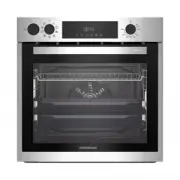 Grundig GEBD11300X
Manual
Grundig GEBD11300X
Manual
 Grundig GEBM11300XC
Manual
Grundig GEBM11300XC
Manual
 Grundig GEBM11301XC
Manual
Grundig GEBM11301XC
Manual
 Grundig GIEI638980IF
Manual
Grundig GIEI638980IF
Manual
 Grundig GIEI624470PF
Manual
Grundig GIEI624470PF
Manual
 Grundig GIEI938980I
Manual
Grundig GIEI938980I
Manual
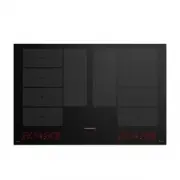 Grundig GIEI838980INH
Manual
Grundig GIEI838980INH
Manual
 Grundig GIEV613420E
Manual
Grundig GIEV613420E
Manual
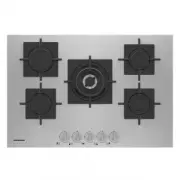 Grundig GIGF7235220X
Manual
Grundig GIGF7235220X
Manual
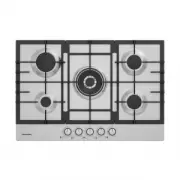 Grundig GIGA7235250X
Manual
Grundig GIGA7235250X
Manual
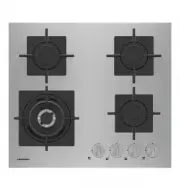 Grundig GIGF6234120X
Manual
Grundig GIGF6234120X
Manual
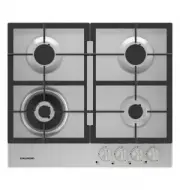 Grundig GIGA6234250X
Manual
Grundig GIGA6234250X
Manual