Page 2 - This TV incorporates High-Definition Multimedia Interface (HDMI
This TV incorporates High-Definition Multimedia Interface (HDMI TM ) technology. HDMI, the HDMI logo and High-Definition Multimedia Interface are trademarks or registered trademarks of HDMI Licensing LLC. DISPOSAL OF WASTE ELECTRONIC EQUIPMENT BY PRIVATE HOUSEHOLDS WITHIN THE EUROPEAN UNION This sign ...
Page 3 - ENGLISHENGLISH; War nings and Precautions; CAUTION; ▪ Never overload wall outlets and extensions.
ENGLISHENGLISH 1 Warnings and Precautions War nings and Precautions To reduce the risk of fire or electric shock, do not expose this equipment to rain or moisture. This symbol is intended to alert the user to avoid the risk of electric shock. This equipment must not be disassembled by anyone except q...
Page 5 - Outdoor; Antenna discharge unit; Ground clamps; Power service grounding; If an outdoor antenna is connected, follow the precautions below:
ENGLISHENGLISH 3 Warnings and Precautions Outdoor Antenna Safety Instructions Antenna lead-in wire Antenna discharge unit Grounding conductors Ground clamps Power service grounding Ground clamps Electric service equipment If an outdoor antenna is connected, follow the precautions below: EXAMPLE OF O...
Page 6 - CONTENTS
4 CONTENTS Warnings and Precautions Important Safety Instructions ....................................................................................... 1 Antenna Safety Instructions ......................................................................................... 3 Chapter 1 Introducing th...
Page 7 - ENGLISH; High Definition Multimedia Interface (HDMI); Key Features
ENGLISH 5 Chapter 1 Introducing the LCD TV Various Audio/Video terminals for external equipment connection ▪ 2 set of composite A/V input terminals▪ 1 set of component Video input terminals▪ 1 VGA/ Audio input terminal▪ 2 HDMI/Auido input terminals▪ 1 sets of Audio(L/R) output terminals▪ 1 Headphone...
Page 8 - Package Contents
6 Chapter 1 Introducing the LCD TV Make sure all of the following contents are included. If you are missing any items, please return this product to the original place of purchase. LCD TV Make sure all of the following contents are included. Power Cord These items are all you need to set up and oper...
Page 9 - Follow the instructions below to install the TV stand:; Setting Up Your LCD TV; How to install the TV Stand
ENGLISH 7 Chapter 1 Introducing the LCD TV Follow the instructions below to install the TV stand: Open the box, and make sure all necessary parts are in the box. The package contains: Setting Up Your LCD TV How to install the TV Stand LCD TV Stand Speaker Screws (10)/ Screwdriver Cover an even stabl...
Page 10 - to the right and
8 Chapter 1 Introducing the LCD TV The left and right sides on the rear of TV have an output jack to used in the outside speakers. If you prefer to mount your LCD TV on a wall instead of attaching it to the stand, please reference the instructions included in the wall mounting kit(not included). Hol...
Page 12 - How to setup the TV; Step2; in the battery compartment.
10 Chapter 1 Introducing the LCD TV How to setup the TV Do not use caustic cleaners (porcelain, stainless steel, toilet, or oven cleaner etc.) on the remote, as it may suffer damage. Use a supplied antenna cable to connect the VHF/UHF signal to the LCD TV’s ANT. terminal (refer to page 17). Connect ...
Page 13 - Your LCD TV; Front/Right Side View and Controls; Right Side View; The LED light indicates when the LCD TV is activated.
ENGLISH 11 Chapter 1 Introducing the LCD TV /I CH CH VOL . - VOL .+ MENU SOURCE / I Your LCD TV VOL +/- Adjusts the volume up and down. Selects the main-menu item and change values for items when in the OSD mode. CH ▲▼ Scans up and down through channels. Selects sub-menu item when in the OSD mode. F...
Page 14 - Rear View and Jacks; TV CABLE; Connects RF input from VHF/UHF antenna or cable.; VGA IN; Connects to the AC power cord.; AUDIO OUT
HDMI 1 IN HDMI 2 IN L R L R L R L R L R AUDIO IN AUDIO IN VGA/PC IN VIDEO2 IN VIDEO AUDIO IN AUDIO IN COMPONENT IN AUDIO OUT TV CABLE VHF/UHF IN Y Pb Pr 12 Chapter 1 Introducing the LCD TV Rear View and Jacks TV CABLE Connects RF input from VHF/UHF antenna or cable. VGA IN Connects the PC, or other ...
Page 15 - Your Remote Control; FREEZE
ENGLISH 13 Chapter 1 Introducing the LCD TV OK POWER EXIT MENU S.MODE P.MODE FAV.CH SLEEP SWAP PIP FREEZE P.SIZE 1 2 3 4 5 6 7 8 9 JUMP ENT 0 VOL. CH. INFO SOURCE Your Remote Control POWER Turns the LCD TV on and off. SWAP Swaps between the main and sub window in PIP/POP mode. FREEZE Pressing FREEZE...
Page 16 - Displays the OSD menu on the screen.
14 Chapter 2 Installing the LCD TV OK POWER EXIT MENU S.MODE P.MODE FAV.CH SLEEP SWAP PIP FREEZE P.SIZE 1 2 3 4 5 6 7 8 9 JUMP ENT 0 VOL. CH. INFO SOURCE 20 18 19 21 22 23 Effective range:The remote can control the LCD TV from up to 5m away, if pointed directly at the receiver. EXIT Exits the OSD me...
Page 17 - Antenna Connection; Connecting a TV Cable or an Antenna
ENGLISH 15 Chapter 2 Installing the LCD TV Chapter 2 Installing the LCD TV Refer to the owner’s manual of any external equipment to be connected.When connecting any external equipment, do not connect any AC power cords to wall outlets until all other connections are completed. Antenna Connection The...
Page 19 - Cable TV Line
ENGLISH 17 Chapter 2 Installing the LCD TV AI NB O U T Cable TV Line 2 set signal splitter(not included) RF switch(not included) Cable TV converter/descrambler(not included) Cable TV (CATV) Connection ■ The RF switch (not included) is required to provide two inputs (A and B). Setting the RF switch t...
Page 20 - Press the button on the remote to turn on the LCD TV.; Fuse
18 Chapter 2 Installing the LCD TV Use a supplied antenna cable to connect the TV signal to the LCD TV’s TV CABLE terminal. Connect the AC power cord at the back of the TV and connect the power cord to wall outlet. TV CABLE VHF/UHF IN TV CABLE VHF/UHF IN VHF/UHF IN Press the button on the remote to ...
Page 22 - Rear of TV; Press the button on the remote to turn on the LCD TV.; button on the remote to select; VIDEO2; Connecting a VCR
HDMI 1 IN HDMI 2 IN L R L R L R L R L R AUDIO IN AUDIO IN VGA/PC IN VIDEO2 IN VIDEO AUDIO IN AUDIO IN COMPONENT IN AUDIO OUT TV CABLE VHF/UHF IN Y Pb Pr Rear of TV AV Cable AUD A A O IN DI 20 Chapter 2 Installing the LCD TV Use a composite cable to connect the VCR’s composite video/audio jacks to th...
Page 23 - Right Side; Connecting a Video Camera or Game Console; Use a composite cable to connect the
HDMI 1 IN HDMI 2 IN L R L R L R L R L R AUDIO IN AUDIO IN VGA/PC IN VIDEO2 IN VIDEO AUDIO IN AUDIO IN COMPONENT IN AUDIO OUT TV CABLE VHF/UHF IN Y Pb Pr Rear of TV or AV Cable AU A D A O IN DIO Right Side ENGLISH 21 Chapter 2 Installing the LCD TV R L AUD I O V I D E O Connecting a Video Camera or G...
Page 24 - Connecting a DVD Player; TV’s VIDEO2 IN jacks.
Rear of TV HDMI 1 IN HDMI 2 IN L R L R L R L R L R AUDIO IN AUDIO IN VGA/PC IN VIDEO2 IN VIDEO AUDIO IN AUDIO IN COMPONENT IN AUDIO OUT TV CABLE VHF/UHF IN Y Pb Pr 22 Chapter 2 Installing the LCD TV DVD PLAYER Connecting a DVD Player A B UD AU O IN DIO Pr Pb Pr Pb A/V Cable COMPONENT/AUDIO Cable MET...
Page 25 - Press the
ENGLISH 23 Chapter 2 Installing the LCD TV For best picture quality, if your equipment has component video output, use a component cable instead of a composite video. Connect all AC power sources, before turning on the power switch of the LCD TV or other connected equipment. Press the button on the ...
Page 26 - Connecting a Digital TV Cable Box or Digital Satellite Receiver; button on
24 Chapter 2 Installing the LCD TV Rear of TV HDMI 1 IN HDMI 2 IN L R L R L R L R L R AUDIO IN AUDIO IN VGA/PC IN VIDEO2 IN VIDEO AUDIO IN AUDIO IN COMPONENT IN AUDIO OUT TV CABLE VHF/UHF IN Y Pb Pr Pr Pb Pr Pb Connecting a Digital TV Cable Box or Digital Satellite Receiver COMPONENT/AUDIO Cable Use...
Page 27 - Connecting an AV Equipment with HDMI Connector; VIDEO4; VIDEO5
ENGLISH 25 Chapter 2 Installing the LCD TV HDMI 1 IN HDMI 2 IN L R L R L R L R L R AUDIO IN AUDIO IN VGA/PC IN VIDEO2 IN VIDEO AUDIO IN AUDIO IN COMPONENT IN AUDIO OUT TV CABLE VHF/UHF IN Y Pb Pr Rear of TV Connecting an AV Equipment with HDMI Connector HDMI Cable AV EQUIPMENT Use a HDMI cable to co...
Page 28 - Connecting an AV Equipment with DVI Connector; AV equipment’s
26 Chapter 2 Installing the LCD TV HDMI 1 IN HDMI 2 IN L R L R L R L R L R AUDIO IN AUDIO IN VGA/PC IN VIDEO2 IN VIDEO AUDIO IN AUDIO IN COMPONENT IN AUDIO OUT TV CABLE VHF/UHF IN Y Pb Pr Rear of TV Connecting an AV Equipment with DVI Connector AV EQUIPMENT HDMI-to-DVI Cable AUDIO Cable DVI IN AUDIO...
Page 29 - button to automatically adjust the display settings to optimize; Connecting a PC; PC; Use an audio cable to connect the PC’s audio output jacks to LCD TV’s.; COMPUTER
Press the OK button to automatically adjust the display settings to optimize performance based on the VGA mode. ENGLISH 27 Chapter 3 Using the LCD TV HDMI 1 IN HDMI 2 IN L R L R L R L R L R AUDIO IN AUDIO IN VGA/PC IN VIDEO2 IN VIDEO AUDIO IN AUDIO IN COMPONENT IN AUDIO OUT TV CABLE VHF/UHF IN Y Pb ...
Page 30 - Connecting to Audio Receiver:; Connecting an Audio Receiver
Audio Receiver 28 Chapter 3 Using the LCD TV Connecting to Audio Receiver: Use an audio cable to connect the audio receiver’s audio LINE IN jacks to LCD TV’s AUDIO OUT jacks. Connect all AC power sources, before turning on the power switch of the LCD TV or other connected equipment. Press the button...
Page 31 - PIP; MAIN; SWAP; Sub
ENGLISH 29 Chapter 3 Using the LCD TV The PIP/POP feature allows simultaneous viewing of video from two sources (TV, VCR, DVD etc). Only one source’s audio is played at a time; the user may select which source’s audio is heard. Press the PIP button once to enter Picture-in-Picture mode. MAIN SUB Usi...
Page 33 - WIDE; button repeatedly to select the screen format; NORMAL; Widescreen Viewing; FULL
ENGLISH 31 Chapter 3 Using the LCD TV WIDE Stretches the image vertically and horizontally to fill the screen at 1:1.85 aspect ratio. Widescreen function allows viewing of 4:3/16:9 images in wide screen mode, cycling through the following wide screen settings. Press the P.SIZE button repeatedly to se...
Page 34 - Press switch on or off teletext display.; Using TELETEXT Functions
32 Chapter 3 Using the LCD TV The TELETEXT feature displays all sorts of information provided by the information system company on your screen, such as news, sports, travel offers, weather, film & theaterreviews, net issues etc. Press switch on or off teletext display. Press the CH▲▼ buttons to s...
Page 35 - Press the button to turn the LCD TV on.; MENU; button on the remote control, the on-screen menu will appear on the; Operating the Menu
ENGLISH 33 Chapter 3 Using the LCD TV Press the button to turn the LCD TV on. Press the MENU button on the remote control, the on-screen menu will appear on the screen. Use the ◄► buttons to select your main menu option. VIDEO MENU: AUDIO MENU: Operating the Menu Audio Select Exit Bass 50 Treble 50 ...
Page 36 - Use the
34 Chapter 3 Using the LCD TV Use the ▲▼ buttons to select an option of the sub-menu, and press the OK button. While in adjustment mode, and use the ◄► buttons to change the value of the item. Press the EXIT button to exit the menu. SETUP MENU: SETUP Select Exit Parental Language English Hotel Lock ...
Page 37 - Customizing the VIDEO Settings
Press the button to turn the LCD TV on. Press the MENU button on the remote control to display the Main menu, and use the ◄► buttons to select the VIDEO . Use the ▲▼ buttons to highlight an individual VIDEO option, use the ◄► buttons to change the setting, and press the MENU to exit the menu The VID...
Page 39 - Bass; Controls the relative intensity of lower-pitched sounds.; Treble; Controls the relative intensity of higher pitched sounds.; Balance; Customizing the AUDIO Settings
Press the button to turn the LCD TV on. Press the MENU button on the remote control to display the Main menu, and use the ◄► buttons to select the AUDIO . Use the ▲▼ buttons to highlight an individual AUDIO option, use the ◄► buttons to change the setting, and press the MENU to exit the menu The AUD...
Page 40 - Allows to setup the Parental Lock options.; Customizing the SETUP Settings
38 Chapter 3 Using the LCD TV Press the button to turn the LCD TV on. Press the MENU button on the remote control to display the Main menu, and use the ◄► buttons to select the SETUP . Use the ▲▼ buttons to highlight an individual SETUP option, use the ◄► buttons to change the setting, and press the...
Page 41 - Using the Parental Settings; Parental
ENGLISH 39 Chapter 3 Using the LCD TV The Parental blocking can be set up on the TV to block a Channel or a Video Source. Use the ▼ button to select the Parental , and press the OK to display the Parental menu. Using the Parental Settings Video Select Exit Channel Lock 1 Video Lock VIDEO5(YPbPr) Cha...
Page 42 - Customizing the TV Settings
40 Chapter 3 Using the LCD TV Press the button to turn the LCD TV on. Press the MENU button on the remote control to display the Main menu, and use the ◄► buttons to select the TV . Use the ▲▼ buttons to highlight an individual TV option, use the ◄► buttons to change the settings, and press the MENU...
Page 43 - buttons to enter the desired channels.
ENGLISH 41 Chapter 3 Using the LCD TV Program Edit Allows Swap/Insertion/addition/removal of channels on the channel list. Press the OK button to display the Program Edit menu: Program Edit PR Freq System Name Skip 1 49.75 I - - - On 2 - - - - - - - - - On 3 - - - - - - - - - On 4 - - - - - - - - - ...
Page 44 - Audio noise; TROUBLESHOOTING; Poor picture, sound OK; VIDEO
42 Specifications Before consulting service personnel, check the following chart for a possible cause of problem and for a possible solution. Audio noise Move any infrared equipment away from the TV. TV will not turn on Make sure the power cord is plugged in, then press the button on the remote. The...
Page 45 - ENGLISHENGLISHENGLISH; DISPLAY MODES; Ver tical
ENGLISHENGLISHENGLISH 43 Specifications DISPLAY MODES The screen resolution has been optimized during production for the display modes listed below.If the signal from the system equals the standard signal mode, the screen adjusts automatically. If thesignal from the system does not equal the standar...
Page 46 - Specifications are subject to change without notice.; SPECIFICATIONS; MODEL
44 Specifications Specifications are subject to change without notice. SPECIFICATIONS MODEL GLCD3201 GLCD3701 LCD Panel Panel Size 32” TFT LCD 37” TFT LCD Brightness 500 500 Contrast Ratio 1200:1 1000:1 Max. Resolution 1366x768 1366x768 Input Connector VIDEO/AUDIO(L/R) 2 2 YPbPr/AUDIO(L/R) 1 1 VGA/AU...


 Grundig GEBM19300BC
Manual
Grundig GEBM19300BC
Manual
 Grundig GEBD19401BHI
Manual
Grundig GEBD19401BHI
Manual
 Grundig GEBM19400BCH
Manual
Grundig GEBM19400BCH
Manual
 Grundig GEBD19300B
Manual
Grundig GEBD19300B
Manual
 Grundig GEBM19300BP
Manual
Grundig GEBM19300BP
Manual
 Grundig GEBM19400BPHI
Manual
Grundig GEBM19400BPHI
Manual
 Grundig GEDM12300B
Manual
Grundig GEDM12300B
Manual
 Grundig GEBD19301B
Manual
Grundig GEBD19301B
Manual
 Grundig GEBM11300XC
Manual
Grundig GEBM11300XC
Manual
 Grundig GEBM11301XC
Manual
Grundig GEBM11301XC
Manual
 Grundig GIEI638980IF
Manual
Grundig GIEI638980IF
Manual
 Grundig GIEI624470PF
Manual
Grundig GIEI624470PF
Manual
 Grundig GIEI938980I
Manual
Grundig GIEI938980I
Manual
 Grundig GIEV613420E
Manual
Grundig GIEV613420E
Manual
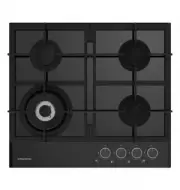 Grundig GIGL6234250
Manual
Grundig GIGL6234250
Manual
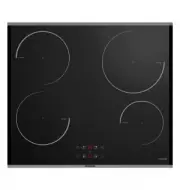 Grundig GIEI623410MX
Manual
Grundig GIEI623410MX
Manual
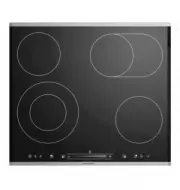 Grundig GIEV624430X
Manual
Grundig GIEV624430X
Manual
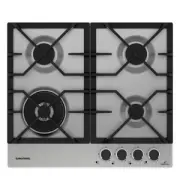 Grundig GIGA6234260XE
Manual
Grundig GIGA6234260XE
Manual
 Grundig GIEI627474PN
Manual
Grundig GIEI627474PN
Manual
 Grundig S450DLX
Manual
Grundig S450DLX
Manual