Page 2 - CONTENTS; Overview
2 CONTENTS ____________________________________________ 4 Cinemo DR 5400 DD 4 Special features of your home cinema system 4 Packing contents 4 Dolby Pro Logic II, Dolby Digital and DTS 5 Set-up and safety 6-11 Overview 6 The front of the DVD receiver 7 The displays of the DVD receiver 8 The back of ...
Page 4 - PTY SEARCH; Tele Pilot 60 A
4 Special features of your home cinema system Your DVD receiver provides you with perfect digital video playbackin studio quality. It also provides superb cinema-quality audio playback – in stereo orwith digital multi-channel sound – depending on the type of DVD orCD used. In addition to DVD video, ...
Page 5 - ENGLISH; Krieg im Balkan; DSP MODE SOURCE
ENGLISH 5 ° C 2h V O L U M E RCE D i g i t a l H o m e C i n e m a S y s t e m V O L U M E DSP MODE SOURCE S U R R O U N D ON/OFF C i n e m o ° C D i g i t a l H o m e C i n e m a S y s t e m V O L U M E DSP MODE SOURCE S U R R O U N D ON/OFF C i n e m o Krieg im Balkan D i g i t a l H o m e C i n e...
Page 6 - The front of the DVD receiver; Opens and closes the disc compartment.; I I; Starts and pauses disc playback.; DSP MODE; Control dial for volume control.; OVERVIEW
6 The front of the DVD receiver ON/OFF Switches the deactivated device into and out of standbymode.The device is only fully disconnected from the mains afterthe plug has been pulled out. • Standby indicator. Lights up when the DVD receiver is instandby mode. ə Opens and closes the disc compartment. ...
Page 7 - The displays of the DVD receiver
ENGLISH 7 OVERVIEW ____________________________________________ The displays of the DVD receiver 00 0:00:00 Displays various function conditions and settings, as wellas the name or frequency of the radio station. KHz In combination with the frequency display for AM (mediumwave) reception. MHz In com...
Page 8 - The back of the DVD receiver
8 The back of the DVD receiver ~AC IN Power cord. SPEAKER Terminals for connecting the supplied SW C RS LS R L loudspeaker cables for the subwoofer, centre speaker, right surround speaker, left surround speaker, right front speaker and left front speaker. SUB-WOOFER Analogue audio frequency (LFE) ou...
Page 9 - The remote control
ENGLISH 9 OVERVIEW ____________________________________________ 3 FM MODE 2 1 6 5 4 7 8 9 0 DISPL A-B PROG C L M RGB/ SV C D S / I PTY RDS SPK LEVEL DSP TOP MENU INFO/NEWS PTY PTY SEARCH Tele Pilot 60 A AM FM AUX DVD The remote control 9 Switches the DVD receiver to standby mode and fromstandby mode...
Page 10 - ductions of tracks or files (; RDS; In tuner mode – calls up RDS information.; TOP MENU
10 OVERVIEW ____________________________________________ 3 FM MODE 2 1 6 5 4 7 8 9 0 DISPL A-B PROG C L M RGB/ SV C D S / I PTY RDS SPK LEVEL DSP TOP MENU INFO/NEWS PTY PTY SEARCH Tele Pilot 60 A AM FM AUX DVD n Selects various camera angles for certain scenesor passages on the DVD during playback. ...
Page 11 - For setting the output level of the loudspeakers.
ENGLISH 11 OVERVIEW ____________________________________________ 3 FM MODE 2 1 6 5 4 7 8 9 0 DISPL A-B PROG C L M RGB/ SV C D S / I PTY RDS SPK LEVEL DSP TOP MENU INFO/NEWS PTY PTY SEARCH Tele Pilot 60 A AM FM AUX DVD I I Press once to pause playback (freeze frame). Pressrepeatedly to move forward f...
Page 12 - CONNECTION AND PREPARATION
12 Connection diagram for the loudspeakers Setting up the loudspeakers If possible, set up the front loudspeakers in line with the TV set,angled slightly towards the listener. The listener and the speakersshould form an equilateral triangle. This creates the best stereoeffect. The surround loudspeak...
Page 13 - Connecting the loudspeakers; Connecting the front loudspeakers; SPEAKER R; Connecting the central loudspeaker; SPEAKER RS; Connecting the subwoofer; SPEAKER SW; Connecting a television, flat screen or projector
ENGLISH 13 Connecting the loudspeakers Note: To connect the loudspeakers, switch off the DVD receiver and dis-connect the mains.When you connect the loudspeaker cables, do not let frayed endsprotrude, as this can cause short circuits. Note: Connect the coloured loudspeaker cable to the coloured term...
Page 14 - Connection using a video cinch cable; Connecting digital external devices
14 Connection using a EURO-AV (Scart) cable 1 Plug the EURO-AV cable supplied into the » SCART « socket of the DVD receiver and into the corresponding socket on the tele-vision, flat screen or projector. Connection using a Y/C (S-Video) cable 1 Plug a standard Y/C cable into the » MONITOR OUT S-VIDE...
Page 15 - Connecting the antennas; Connecting the power cord; Plug the power cord (»; Inserting batteries in the remote control; Close the battery compartment.
ENGLISH 15 Connecting the antennas 1 Plug the cable of the rooftop antenna into the FM antenna socket » FM 75 Ω «. Note: If no rooftop antenna is available, use the auxiliary antennasupplied. This antenna provides reasonably good reception oflocal FM (VHF) stations. Do not shorten the auxiliary ante...
Page 16 - Additional information for units sold in the UK.
16 Additional information for units sold in the UK. Units sold in the UK are suitable for operation from a 240V ac, 50Hz mainssupply.The range of multi-system receivers is built to work in most European coun-tries. However, the mains plug and socket system for the UK differs frommany European countr...
Page 17 - General information; Switching on; SETTINGS
ENGLISH 17 General information You can make the settings required for operating the system in theset-up menu which appears on the television screen. To do this,switch on the television and switch it to the channel on which theDVD is set. You can only make settings with the remote control indisc mode...
Page 18 - Setting the video functions; Setting the picture format
18 Setting the video functions Setting the picture format 1 Select the »Video« item in the main menu with » a « or » s « and press » OK « to confirm. 2 Select »TV Shape« by pressing » A « or » S « and press » OK « to confirm. 3 In the third column, press » A « or » S « to make the setting and press ...
Page 20 - Setting the loudspeaker configuration; DVD; Setting the distance to the listening position; OK
20 Setting the loudspeaker configuration Switching on 1 Press » DVD « on the remote control to switch on the DVD receiver from standby mode. Setting the distance to the listening position Ideally, all the speakers in a home cinema system, should be set upat equal distances from the listener. The cen...
Page 21 - Setting the volume level for the individual channels; SPK LEVEL
ENGLISH 21 Checking the volume with a test tone A test signal can be created for each connected speaker to checkthe volume level. »Off« is the default setting. 1 Select the »Setting« item in the main menu with » a « or » s « and press » OK « to confirm. 2 Select »Test Tone« with » A « or » S « and p...
Page 22 - Setting the audio functions; Setting digital audio signal output; Setting the dynamic range
22 SETTINGS ______________________________________________ Setting the audio functions Setting digital audio signal output You can make the setting for the optical output for connection to anexternal device here. 1 Select the »Audio« item in the main menu with » a « or » s « and press » OK « to conf...
Page 23 - Language settings; Setting the preferred subtitle language
ENGLISH 23 Setting a digital output for PCM signals This setting opens the digital output for PCM signals if you want toconnect an external audio device with a linear digital PCM input. 1 Select the »Audio« item in the main menu with » a « or » s « and press » OK « to confirm. 2 Select »Next page« w...
Page 24 - Setting the preferred disc menu language; Setting the parental lock
24 Setting the preferred disc menu language 1 Select the »Language« item in the main menu with » a « or » s « and press » OK « to confirm. 2 Select »DVD Menu« with » A « or » S « and press » OK « to confirm. 3 In the third column, press » A « or » S « to select the language and press » OK « to confi...
Page 25 - AM FM; FM
ENGLISH 25 SETTINGS ______________________________________________ Tuning and storing radio stations ... You can store up to 30 FM radio stations and 30 AM radio stations.You can see the displays for this in the DVD receiver. ... using the automatic station search (ASP) 1 Switch on the DVD receiver ...
Page 26 - SAVED; Restoring all default settings; Resetting the DVD receiver; RESET
26 3 Press » M « on the remote control to select the memory function. – Display: » SAVE TO -- «, » -- « for the preset position. Note: If no button is pressed within 5 seconds, the DVD receiver auto-matically quits the memory function. 4 Select the preset position by pressing » 5 « or » 6 « on the r...
Page 27 - Switching on and off; GENERAL FUNCTIONS
ENGLISH 27 Switching on and off 1 When the DVD is switched off, press » ON/OFF « to switch it to standby mode.– The standby indicator on the DVD receiver lights up red. 2 Press » 9 « on the remote control to switch on the home cinema system from standby mode.– The standby indicator on the DVD receiv...
Page 28 - VOLUME; Muting
28 Inserting a disc 1 Press » ə «. – The disc compartment opens.– Display on the DVD receiver: » OPEN «. 2 Insert the disc in the disc compartment with its label facingupwards. 3 Press » ə «. – The disc compartment closes again (display: » CLOSE «). The disc is scanned. – Display on the DVD receiver...
Page 29 - Selecting sound settings; DSP; ProLogic II
ENGLISH 29 Selecting sound settings You can choose between five different sound settings (LIVE HOUSE,HALL, CONCERT, STADIUM, THEATRE and DSP OFF). 1 Press » DSP « to call up the current sound setting. – Display on the DVD receiver: » LIVE HOUSE «, » HALL «, » CONCERT «, » STADIUM «, » THEATRE « or »...
Page 30 - General information on disc playback
30 Adjusting the brightness of the DVD receiver display You can change the brightness of the display in three levels. 1 To activate the function, press » O « on the remote control. – Display: » DIMMER MAX «, » DIMMER MID « or » DIMMER MIN «. 2 To set the brightness level, press » a « or » s « repeat...
Page 31 - Disc formats; DISC FEATURES
ENGLISH 31 Disc formats Your DVD receiver can play DVD R/DVD RW in DVD video format and CDR and CD RW in CD-DA Format or MP3/WMA format. The DVD receiversupports DVD video/audio. Due to difference in quality of the recording media and the quality of therecording itself, it can occasionally happen th...
Page 33 - Playback functions; Playing back the disc; Pausing and resuming playback; DISC MODE
ENGLISH 33 Playback functions In DVD mode, playback starts automatically after the disc has beenscanned. A menu may also appear on the screen where you canstart disc playback.A menu also appears on the screen with VCDs/S-VCDs where youcan control the playback of the disc interactively if you activat...
Page 35 - Playing back a JPEG picture CD; Rotating pictures; DSIC MODE
ENGLISH 35 5 To deactivate the PBC function, press » . « on the remote con- trol during playback.– » PBC OFF « appears briefly on the television screen. – Normal playback starts automatically. MP3/WMA CD playback 1 After the disc compartment closes and the MP3/WMA CD isscanned, the file browser appe...
Page 37 - DISPL; Additional playback functions; Fast search
ENGLISH 37 ... in audio CD mode 1 Press » DISPL « repeatedly on the remote control. – You will receive information concerning: – The elapsed playing time of the current track– The remaining playing time of the track– The current track– The total number of tracks on the CD ... in JPEG CD mode 1 Press...
Page 39 - displayed, and the current subtitle is displayed.; Shuffle On; Off
ENGLISH 39 Selecting and displaying subtitles If the DVD provides subtitles, they can be displayed on your TVscreen.When subtitles are available in several languages, you can selectyour preferred language. 1 Press » y « during playback. – Display: for example, » o 1/21 Eng« is briefly displayed, and...
Page 40 - Repeat functions
40 3 Using the numerical buttons » 1 … 0 « on the remote control, enter the title or chapter number and press » OK « to confirm. – Playback of the selected title or chapter begins. or 2 Press » A « or » S « on the remote control to select the time dis- play. 3 Enter the time with » 1 … 0 « and press...
Page 41 - Playing back a track memory; Deleting a track memory; PROG
ENGLISH 41 Creating a track memory – playing back titles or tracks in selected order You can store and then play back up to 12 titles or tracks in a par-ticular order from the disc. A track may be stored more than once.The DVD receiver must be in the stop position. When entering thesettings, if no b...
Page 42 - Tuner mode; Selecting the tuner input source; Switching between stereo and mono reception; STEREO; RDS station service; OTHER MODES
42 Tuner mode Selecting the tuner input source 1 Select the input source by pressing » AM FM « on the remote control or » FUNCTION « on the DVD receiver. – The most recently selected radio station is played (Last Station Memory). – Display on the DVD receiver: frequency band and frequency, or statio...
Page 43 - Calling up RDS information
ENGLISH 43 Searching for RDS stations 1 To search for an RDS station, press » m « or » , « repeatedly until » RDS « appears in the display indicating that an RDS station is being received.– After a short time the station name sometimes appears if the reception is sufficiently strong. Note: It may ta...
Page 44 - Sleep timer mode; Setting the sleep timer; Deactivating the sleep timer
44 Sleep timer mode Setting the sleep timer The sleep timer switches the system off at the set time. 1 To activate the function, keep pressing » O « on the remote control until » SLEEP OFF « appears in the display. 2 To set the switch-off time (» 10 «, » 20 «, » 30 «, » 60 « to » 150 «) press » a « ...
Page 45 - Technical data; INFORMATION; Amplifier
ENGLISH 45 Technical data This device is noise-suppressed according to the applicable EU directives.This product fulfils the European directives 89/336/EEC, 73/23/EEC and93/68/EEC.This device conforms to the safety regulation DIN EN 60065 (VDE 0860)and therefore the international safety regulation I...
Page 46 - LLoudspeakers; CLASS 1
46 General instructions for laser devices Your system is a CLASS 1 LASER PRODUCT. This means that the laser isdesigned in such a way as to ensure that the maximum permissible emissionvalue cannot be exceeded under any circumstances. Caution: If operating devices or methods other than those specified...
Page 47 - Rectifying minor problems
ENGLISH 47 INFORMATION ___________________________________ Rectifying minor problems Not every picture or sound problem is caused by a defect in your DVD receiver. Defects can also becaused by leads having been accidentally pulled out, damaged discs and worn out batteries in theremote control. If th...


 Grundig GEBM19300BC
Manual
Grundig GEBM19300BC
Manual
 Grundig GEBD19401BHI
Manual
Grundig GEBD19401BHI
Manual
 Grundig GEBM19400BCH
Manual
Grundig GEBM19400BCH
Manual
 Grundig GEBD19300B
Manual
Grundig GEBD19300B
Manual
 Grundig GEBM19300BP
Manual
Grundig GEBM19300BP
Manual
 Grundig GEBM19400BPHI
Manual
Grundig GEBM19400BPHI
Manual
 Grundig GEDM12300B
Manual
Grundig GEDM12300B
Manual
 Grundig GEBD19301B
Manual
Grundig GEBD19301B
Manual
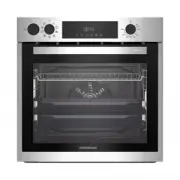 Grundig GEBD11300X
Manual
Grundig GEBD11300X
Manual
 Grundig GEBM11300XC
Manual
Grundig GEBM11300XC
Manual
 Grundig GEBM11301XC
Manual
Grundig GEBM11301XC
Manual
 Grundig GIEI638980IF
Manual
Grundig GIEI638980IF
Manual
 Grundig GIEI624470PF
Manual
Grundig GIEI624470PF
Manual
 Grundig GIEI938980I
Manual
Grundig GIEI938980I
Manual
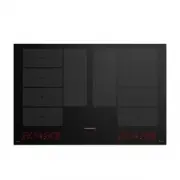 Grundig GIEI838980INH
Manual
Grundig GIEI838980INH
Manual
 Grundig GIEV613420E
Manual
Grundig GIEV613420E
Manual
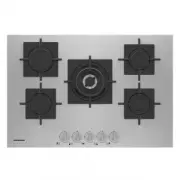 Grundig GIGF7235220X
Manual
Grundig GIGF7235220X
Manual
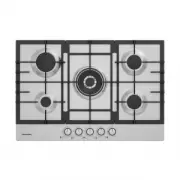 Grundig GIGA7235250X
Manual
Grundig GIGA7235250X
Manual
 Grundig GIGF6234120X
Manual
Grundig GIGF6234120X
Manual
 Grundig GIGA6234250X
Manual
Grundig GIGA6234250X
Manual