Page 2 - ENGLISH; Contents
ENGLISH 2 Contents ------------------------------------------------------------------------------------------------------------------------------------- 4 setupAnDsAFetY 6 GenerAlinFormAtion 6 Special features of your television set 7 Receiving digital channels 7 Important notes on enviro...
Page 4 - setupAnDsAFetY
ENGLISH 4 setupAnDsAFetY ------------------------------------------------------------------------------------------------------ Please note the following instructions when setting up the television set: 7 This television is designed to receive and dis- play video and audio signals. All other use...
Page 6 - specialfeaturesofyour; GenerAlinFormAtion
ENGLISH 6 specialfeaturesofyour televisionset 7 You can receive and watch digital TV chan- nels using your television set (via DVB-S, DVB-T and DVB-C) – including High Definition pro- grammes (HD). However, the reception of digi- tal TV channels in HD is currently limited to a few countries i...
Page 7 - receivingdigitalchannels
7 ENGLISH GenerAlinFormAtion --------------------------------------------------------------------------------- receivingdigitalchannels 7 You require a satellite antenna to receive digital satellite channels (DVB-S). Your TV supports SCR system (Satellite Chan- nel Router). If your antenna inst...
Page 8 - ConneCtionAnDprepArAtion; Connectingtheantennaandpowercord; sAtellite
ENGLISH 8 ConneCtionAnDprepArAtion ----------------------------------------------- Connectingtheantennaandpowercord 1 To receive digital satellite channels (DVB-S), connect the satellite antenna cable to the antenna socket » sAtellite « on the televi- sion set. And/or: 2a To receive terrest...
Page 9 - insertingbatteriesintothe; environmentalnote
9 ENGLISH insertingbatteriesintothe remotecontrol ConneCtionAnDprepArAtion ----------------------------------------------- 1 Open the battery compartment by removing the lid. 2 Insert the batteries (2 x 1.5 V micro, for example R03 or AAA). Observe the po- larity marked in the bottom of th...
Page 10 - overview; Connectionsonthetelevisionset
ENGLISH 10 overview ------------------------------------------------------------------------------------------------------------------------------------ Connectionsonthetelevisionset ACin Socket for the mains cable. Av1/s-vHs SCART socket (CVBS signal, RGB signal); Video and sound socket f...
Page 11 - Controlsonthetelevisionset
11 ENGLISH overview ------------------------------------------------------------------------------------------------------------------------------------ HDmi2(ArC) HDMI socket, audio/video input. HDmi3 HDMI socket, audio/video input. HDmi4 HDMI socket, audio/video input. usB2(HDD) USB socket ...
Page 12 - theremotecontrol–mainfunctions; oK
ENGLISH 12 overview ------------------------------------------------------------------------------------------------------------------------------------ theremotecontrol–mainfunctions Switches on and off (Standby). Opens menu for AV channels and USB input. Then select using » v «, » < «, »...
Page 13 - theremotecontrol–
13 ENGLISH overview ------------------------------------------------------------------------------------------------------------------------------------ theremotecontrol– Allfunctions @ Opens the Smart inter@ctive menu. (red) Selects pages in teletext; (green) Selects/activates vari...
Page 14 - settinGs; initialset-upandtuning; thevarioussettings; selectinglanguage,countryand
ENGLISH 14 settinGs ----------------------------------------------------------------------------------------------------------------------------------------- initialset-upandtuning televisionchannels The television set is equipped with automatic channel search, which searches for satellite c...
Page 15 - tuningthetelevisionchannels; easyinstallation; Advancedinstallation
15 ENGLISH tuningthetelevisionchannels fromsatellite(DvB-s) You have two options for tuning digital satellite channels. A The easy installation, which pre-configures all antenna settings for the satellite channels on Astra 19.2° East. B The advanced installation can be used if you wish to rec...
Page 17 - tuningterrestrialtelevision; tuningtelevisionchannelsfrom; menu
17 ENGLISH settinGs ----------------------------------------------------------------------------------------------------------------------------------------- tuningterrestrialtelevision channels(DvB-t) 1 In the »Source Setup« menu, in the »Connec- tion Type« line, select the option »Air« with ...
Page 18 - Changingtheprogramtablefor; selectingchannellists
ENGLISH 18 Changingtheprogramtablefor thedigitalchannels Channels which are found using the scan are saved in the »PROGRAM TABLE«.You can delete channels which are not required from the programe table, you can change the order of channels within the programe table and lock individual channel...
Page 20 - sortingchannelsinthefavouritelist; enterownnamesforthefavourites
ENGLISH 20 note: 7 Channels can also be deleted from the favourites lists. Select the channel to be deleted with » v «, » Λ «, » < « or » > « and press » oK « to delete it. 7 When deleting a channel from the favourites list, the order within the favourites list will be updated. 4 Quit the pro...
Page 21 - picturesettings
21 ENGLISH settinGs ----------------------------------------------------------------------------------------------------------------------------------------- picturesettings 1 Open the menu with » menu «. 2 Select the menu item »PICTURE SETTINGS« with » v « or » Λ « and press » oK « to confirm. ...
Page 22 - soundsettings; volume
ENGLISH 22 settinGs ----------------------------------------------------------------------------------------------------------------------------------------- soundsettings 1 Open the menu with » menu «. 2 Select the menu item »SOUND SETTINGS« with » v « or » Λ « and press » oK « to confirm. – Th...
Page 23 - soundeffects; equalizer; exitingthesetting; symbol are trademarks of
23 ENGLISH soundeffects This menu offers three preset sound effects (Music, Natural and Speech) and one setting to be created by you (User). 1 Select the line »Sound Preset« with » v « or » Λ «. 2 Select the sound effect »Music«, »Natural« or »Speech« by pressing » < « or » > «. note: 7 »User...
Page 24 - television-operAtion; Basicfunctions
ENGLISH 24 television-operAtion -------------------------------------------------------------------------------- Basicfunctions switchingonandoff 1 Press » io « on the device, to switch the televi- sion in standby mode. 2 Press » 8 «, » 1…0 « or » p+ « or » p- « to switch on the television f...
Page 25 - Audiosettings; Zoomfunction
25 ENGLISH Audiosettings Various audio settings are available. 1 Open the Tools menu with » tools «. 2 Select the menu item »Sound Preset« with » v « or » Λ «. 3 Select the audio setting »User«, »Music«, »Natural« or »Speech« by pressing » < « or » > «. – You can change the »User« audio sett...
Page 26 - Zappingfunction; electronictvguide; GuiDe
ENGLISH 26 television-operAtion -------------------------------------------------------------------------------- Zappingfunction This function remembers the channel you are currently watching while you switch over to other ones (zapping). 1 Press » 1…0 « or » p+ «, » p– « to select the channel t...
Page 27 - Changingthepictureformat; tools; »Auto«format
27 ENGLISH television-operAtion -------------------------------------------------------------------------------- Changingthepictureformat The television automatically switches to the 16:9 format if this format is detected via the SCART socket. 1 Open the Tools menu with » tools «. 2 Select the...
Page 28 - DFunCtion; importantinformationaboutthe
ENGLISH 28 3DFunCtion ------------------------------------------------------------------------------------------------------------------------- importantinformationaboutthe 3Dfunction 7 Keep a sufficient distance from the television. The optimum distance is three times the height of the scre...
Page 29 - watching3Dfilms; Dsettings
29 ENGLISH 3DFunCtion ------------------------------------------------------------------------------------------------------------------------- watching3Dfilms notes: 7 The 3D function is supported using the » DvB- t «, » DvB-C «, » DvB-s « and » DlnA « chan- nel sources or external devices con...
Page 30 - Adjusting2D→3Deffects; Frame Packing
ENGLISH 30 Adjusting2D→3Deffects When you change 2D broadcasting to 3D, you can adjust the most suitable effect depending on your personal preferences. 1 Select »Effect mode« with » v « or » Λ « and set it to »On« with » < « or » > «. – »3D Perspective« and »Depth« options are activated. ...
Page 31 - smArtinter@CtivetvAnDHomenetworK; whatissmartinter@ctivetv; wirednetworkconnection; lAn
31 ENGLISH smArtinter@CtivetvAnDHomenetworK whatissmartinter@ctivetv Smart Inter@ctive TV provides your television with internet services and pages when con- nected to internet.Through Interactive TV feature you can run many local and global internet applications. These applications incl...
Page 32 - wirednetworksettings
ENGLISH 32 wirednetworksettings There are two ways of making the wired network settings. A Automatic wired network connection, all connection settings (»IP Address«, »Net- mask«, »Gateway« and »DNS«) are ob- tained from modem automatically. B Manual wired network connection, all connection settin...
Page 33 - manualconnection
33 ENGLISH manualconnection Certain networks require Static IP address. If your network requires a Static IP address, you must enter the »IP Address«, »Netmask«, »Gateway« and »DNS« values manually. You can obtain your »IP Address«, »Netmask«, »Gateway« and »DNS« values from your Internet Service ...
Page 34 - wirelessnetworkconnection
ENGLISH 34 smArtinter@CtivetvAnDHomenetworK wirelessnetworkconnection 1 Television includes a built-in Wireless WiFi Adapter to connect it to wireless network. note: 7 Apart from the built-in WiFi adapter on TV, external WiFi adapter can be connected to » usB1 « and » usB2(HDD) « inputs. ...
Page 35 - wirelessnetworksettings
35 ENGLISH wirelessnetworksettings There are two ways of making the wireless net- work settings. A Automatic connection, »Apart from Access Point Selection, all data regarding the connection settings (»IP Ad- dress«, »Netmask«, »Gateway« and »DNS«) are obtained from modem automatically. B Manual ...
Page 37 - smartinter@ctivetvinternet; selectinginternetapplications
37 ENGLISH smartinter@ctivetvinternet applications Smart Inter@active TV applications provide inter- net services to your television. These applications are designed according to your television.With the Smart Inter@active TV feature you can access many local and global internet applica- tions....
Page 38 - playingandotheroptionsinthe; smartİnter@ctivebrowsermainmenu
ENGLISH 38 smArtinter@CtivetvAnDHomenetworK playingandotheroptionsinthe applications note: 7 Some applications do not support all playing options, and playing options may vary among different applications. 1 » 8 « starts playback in the applications. 2 » ! « pauses playback in the appl...
Page 39 - playbackthevideo,musicand; selecttheDigitalmediaserver
39 ENGLISH playbackthevideo,musicand imagefileswithhomenetwork connection With DLNA menu of your television, you can easily access Video, music and photo files on server; and thanks to DMR feature, you can au- tomatically start and stop media playing on de- vices with DMC feature. notes: ...
Page 40 - startplayback; vtunerinternetradio
ENGLISH 40 smArtinter@CtivetvAnDHomenetworK startplayback 1 In the content of the DMC device select the required folder with » v «, » Λ «, » < « or » > « and confirm with » oK «. – All titels appears. 2 Select the required title with » v «, » Λ «, » < « or » > «. 3 Start playbac...
Page 41 - usBreCorDinG; informationonrecordingand; GrunDiGhasnoinfluenceon
41 ENGLISH usBreCorDinG -------------------------------------------------------------------------------------------------------------- informationonrecordingand playingtelevisionprogrammes ■ Recording and playback of television pro- grammes is only possible with digital television channels ...
Page 42 - Connectingexternaldatamedia; selectingthemenu
ENGLISH 42 usBreCorDinG -------------------------------------------------------------------------------------------------------------- Connectingexternaldatamedia notes: 7 Before connecting the data medium, switch the television to standby with » 8 «. Connect the device and then switch the te...
Page 44 - ′′pausing”timeshift; one-touchprogrammerecording
ENGLISH 44 usBreCorDinG -------------------------------------------------------------------------------------------------------------- ″pausing”timeshift programmes You can pause the programme you are watch- ing. This is a useful function, for example if the telephone rings while you are watc...
Page 45 - recordingaprogrammefromthe; presettingprogrammestobe
45 ENGLISH recordingaprogrammefromthe channellist 1 Open the »CHANNEL LIST« with » oK «. 2 Select a television channel with » v «, » Λ «, » < « or » > « and press » oK « to confirm. 3 Press » menu « to exit the channel list. 4 Press » « to start recording. – Information on the recording...
Page 46 - editingrecordingdatainthe
ENGLISH 46 usBreCorDinG -------------------------------------------------------------------------------------------------------------- ...bymanualdataentry You can preset up to 25 programmes for timer recording. 1 Press » GuiDe « to display channel informa- tion. – The electronic TV guide app...
Page 47 - playback; selectingaprogrammefrom; playbackduringarecording; Deletingprogrammesinthe; list
47 ENGLISH playback The recorded programmes – whether started manually or using the timer function – are stored on the external data medium. You can open the archive on the external data medium by pressing » reC.list «. selectingaprogrammefrom thearchive 1 Open the »Recorded Event« menu with ...
Page 48 - usBoperAtion; Fileformats; videodata
ENGLISH 48 usBoperAtion --------------------------------------------------------------------------------------------------------------- Fileformats Your television can work with the following file formats using the USB sockets: videodata Special codecs for video compression and decompression pr...
Page 49 - Connectingexternal
49 ENGLISH usBoperAtion --------------------------------------------------------------------------------------------------------------- Connectingexternal datamedia Before connecting the data medium, switch the television to standby using » 8 «. Connect the device and then switch the televis...
Page 50 - thefilebrowser
ENGLISH 50 usBoperAtion --------------------------------------------------------------------------------------------------------------- thefilebrowser The file browser displays video, audio and picture files stored on external data media.If an external data medium contains files in different f...
Page 51 - Divx; Basicplaybackfunctions
51 ENGLISH Divx ® voD You must have your device registered in order to play the protected video that you will buy from DivX ® . 1 Select »DivX ® VOD« with » v « or » Λ « and confirm with » oK «. – Registration Code appears. 2 Visit “http://vod.divx.com” and register the device with the registratio...
Page 52 - Additionalplayback; selectingchaptersonDivx
ENGLISH 52 usBoperAtion --------------------------------------------------------------------------------------------------------------- notes: 7 Use » Λ « to select »Up Folder«, when you would like to return to the last folder. Use »Root« (and then press » oK «) to return to the main folder. 7 It...
Page 54 - toptextorFloFtextmode; txt; Additionalfunctions; teletextoperAtion
ENGLISH 54 toptextorFloFtextmode 1 Press » txt « to switch on teletext. 2 Select teletext pages directly with » 1...0 « or step by step with » v « and » Λ «. Return to teletext page 100 with » ? «. note: 7 At the bottom of the screen there is an info bar with red, green and – depending on the ...
Page 55 - Hbbtvoperation; Additionalfunctionsforvideo; Das Erste Mediathek
55 ENGLISH interACtiveportAl(HBBtv) -------------------------------------------------------------- whatisHbbtv? To put it simply, HbbTV provides next-generation interactive teletext with modern structured con-tent, high-definition pictures and video sequenc-es, and interactivity.To receive Hbb...
Page 56 - ConvenienCeFunCtions; openingthesettinGsmenu; languagesettings; Changingthemenulanguage
ENGLISH 56 ConvenienCeFunCtions ------------------------------------------------------------------------ openingthesettinGsmenu 1 Open the menu with » menu «. 2 Select the »SETTINGS« menu with » v « or » Λ « and press » oK « to confirm. – The »SETTINGS« menu appears. Menu English Subtitle Engl...
Page 57 - settingthedateandtime; Automaticsetting; timersettings; enteringtheswitch-offtime
57 ENGLISH ConvenienCeFunCtions ------------------------------------------------------------------------ settingthedateandtime Automaticsetting Your television set detects the difference in time to Greenwich Mean Time (GMT) automatically, as long as the channel selected transmits a time sign...
Page 58 - parentalcontrolsettings; Authorisingprogrammes
ENGLISH 58 6 Select the line »Volume« with » v « or » Λ « and use » < « or » > « to set the volume. 7 Select the line »Set Hour« with » v « or » Λ « and enter the time with » 1…0 «. 8 Save the data with » « (green). note: 7 You can abort the entry by pressing » « (red). 9 Press » menu «...
Page 59 - Changingthepincode; restoringthetelevisiontothe
59 ENGLISH ConvenienCeFunCtions ------------------------------------------------------------------------ Changingthepincode You can also enter a personal PIN code instead of the default code »1234«. Please take note of your own PIN code. 1 Select »Set PIN« with » v « or » Λ « and press » oK « ...
Page 60 - DiGilinK; HDmi; theDiGilinKfunctionsonyour; operAtionusinGexternAlDeviCes
ENGLISH 60 DiGilinK Your television is equipped with the DIGI LINK function.This function uses the CEC (Consumer Electronics Control) protocol. CEC allows external devices which are connect-ed to the » HDmi « sockets by an HDMI cable (e.g. DVD player) to be operated with a remote control.Prerequis...
Page 61 - Deviceoperation; switchingthedevicetostandby
61 ENGLISH operAtionusinGexternAlDeviCes ----------------------------- Deviceoperation You can decide whether external devices should react to your television's remote control. 1 Press » «, use » v «, » Λ «, » < « or » > « to select the preset »HDMI1« to »HDMI4« and press » oK « to confi...
Page 62 - HighdefinitionHDready; Connectionoptions
ENGLISH 62 operAtionusinGexternAlDeviCes ----------------------------- HighdefinitionHDready Connect the corre-sponding input sources (e.g. HDTV receiver or HD-DVD player) to the » HDmi « sockets (for digital HDTV sources). This ensures that you can view digital HDTV programmes, even if th...
Page 63 - Connectingexternaldevices; Component Y pb pr; Activatingadecoder
63 ENGLISH Connectingexternaldevices ...withdigitalaudio/videosignals 7 Suitable devices: Digital satellite receivers, Playstation, BluRay player, DVD player/ recorder, set-top box, notebook, PCs. 7 Video signal: Digital video; resolution: stand- ard 576p; HDTV 720p, 1080i, 1080p. 7 Audio sig...
Page 64 - DvDrecorder,videorecorder
ENGLISH 64 operAtionusinGexternAlDeviCes ----------------------------- ...withananaloguetvsignal 7 Suitable devices: Digital satellite receiver, DVD player/recorder, set-top box, camera recorder. 7 Video signal: CVBS. 7 Audio signal: stereo, analogue. 7 »AV2« preset. 1 Connect the » video ...
Page 65 - playingtheaudiosignalviathe; “Dolby” and the double-D logo are trademarks of
65 ENGLISH 3 Select the menu item »CEC« with » v « or » Λ « and confirm with » oK «. – The »HDMI CEC Device List« appears. 4 Start device search with » « (red) button. – Audio device connected to the » HDmi2 (ArC) « source shall be displayed in the list. notes: 7 If the audio system also has a p...
Page 66 - ConnectingapC; Audio; selectingpresetsforthepC; settingsforpCmode; operAtionAsApCmonitor
ENGLISH 66 ConnectingapC 1 Connect the » pC-in « socket on the television to the corresponding socket on the PC using a VGA cable (video signal). 2 Connect the » Audio « socket on the televi- sion to the corresponding socket on the PC using a suitable cable (audio signal). note: 7 Adjust your PC ...
Page 67 - operAtionwitHACommoninterFACe; whatisaCommoninterface?
67 ENGLISH operAtionwitHACommoninterFACe ------------------ whatisaCommoninterface? 7 Common Interface (CI) is an interface for DVB receivers. 7 Encrypted channels can only be viewed with a CA module suitable for the encryp- tion system and in conjunction with the corresponding smart card....
Page 68 - speCiAlsettinGs; searchingfordigitaltelevision
ENGLISH 68 speCiAlsettinGs ---------------------------------------------------------------------------------------------------------- searchingfordigitaltelevision channelsfromasatelliteauto- matically Satellite data changes frequently, new chan- nels are constantly being added. You shoul...
Page 69 - searchingfordigitaltelevision
69 ENGLISH speCiAlsettinGs ---------------------------------------------------------------------------------------------------------- searchingfordigitaltelevision channelsfromasatellitemanu- ally If you know the parameters of a new television channel, you can also search for it manually...
Page 70 - settingsformotorisedantennas
ENGLISH 70 »KB Frequency (MHz)«: Enter the user band frequency assigned to the user band with » 1...0 « buttons. »LNB Selection«: If more than one satellites are used in the current SCR system, select »1/2« to»2/2« for the satellite corresponding to the relevant positions using » < « or » > «...
Page 71 - usermode
71 ENGLISH speCiAlsettinGs ---------------------------------------------------------------------------------------------------------- usermode You can adjust the alignment of the satellite an- tenna to each individual satellite. These settings will be saved so that the antenna can later be easil...
Page 72 - searchingfortelevisionchan-
ENGLISH 72 searchingfortelevisionchan- nelsfromthecableprovider automatically 1 Open the menu with » menu «. 2 Select the line »SOURCE SETUP« with » v « or » Λ « and press » oK « to confirm. – The »SOURCE SETUP« menu appears. 3 Select the line »Source« with » v « or » Λ « and press » oK « t...
Page 73 - searchingfortelevisionchannels
73 ENGLISH speCiAlsettinGs ---------------------------------------------------------------------------------------------------------- searchingfortelevisionchannels fromthecableprovidermanu- ally 1 Open the menu with » menu «. 2 Select the line »SOURCE SETUP« with » v « or » Λ « and press...
Page 74 - Automaticserviceupdate; searchingfordigitalterrestrial
ENGLISH 74 speCiAlsettinGs ---------------------------------------------------------------------------------------------------------- 6 Select the line »Scan Typ« with » v « or » Λ « and set the option »DTV« with » < « or » > «. 7 Start the scan with » « (red). – All channel and favourite...
Page 75 - tuninganaloguetelevision; switchingthetelevisionto
75 ENGLISH speCiAlsettinGs ---------------------------------------------------------------------------------------------------------- 4 Select the line »Automatic Channel Search« with » v « or » Λ « and press » oK « to con- firm. Automativ Channel Search Source Automatic Service Update CA - Modul...
Page 76 - Changingstoredanalogue; selectingachannellist
ENGLISH 76 speCiAlsettinGs ---------------------------------------------------------------------------------------------------------- note: 7 If you wish to remedy other television channels, repeat steps 4 to 7 . 8 Press » menu « to end the setting. Changingstoredanalogue channels If channel...
Page 77 - Creatinglistsoffavourites; enteringchannelnames(8digit
77 ENGLISH Creatinglistsoffavourites You can select your favourite channels and save them in up to four favourites lists (Fav 1 to Fav 4). 1 In the »PROGRAME TABLE« menu, switch over to the list view with » « (yellow). 2 Select the preferred channel with » v « or » Λ «. 3 Use » < « or » &...
Page 78 - inFormAtion; Displayingsignalinformation
ENGLISH 78 inFormAtion --------------------------------------------------------------------------------------------------------------------- Displayingsignalinformation (for digital channels only) 1 Open the menu with » menu «. 2 Select the line »SOURCE SETUP« with » v « or » Λ « and press » oK ...
Page 79 - technicaldata; energyefficiencyclass:
79 ENGLISH inFormAtion --------------------------------------------------------------------------------------------------------------------- GrunDiG46vle8160sl technicaldata operatingvoltage: 220–240 V,~, 50–60 Hz powerconsumption: On mode 82 W Standby <0.50 W energyefficiencyclass: A...
Page 80 - serviceinformationfordealers; ForcustomersinFrance; Forcustomersinrussian; srDwithFHssmodulation; Forcustomersinukraine
ENGLISH 80 serviceinformationfordealers Only operate t he television with the power supply/power cord provided. The product complies with the following EU di- rectives:Power consumption values and classes are speci- fied according to the regulations 2009/642 and 2010/1062 and the standards EN620...
Page 81 - troubleshooting; or satellite receivers.; problem; DMS device cannot be found
81 ENGLISH inFormAtion --------------------------------------------------------------------------------------------------------------------- troubleshooting If the information provided below does not help, please consult an authorised GRUNDIG dealer. Please bear in mind that malfunctions can also ...
Page 82 - Internet connection speed low.
ENGLISH 82 problem possiblecause remedy Low image quality (pixel) in WLAN mode Signal is lost based on structural conditions. Place the modem so that the signal to the television is not interrupted. Internet connection speed low. Low Internet speed is a problem that is related with the speed of yo...


 Grundig GEBM19300BC
Manual
Grundig GEBM19300BC
Manual
 Grundig GEBD19401BHI
Manual
Grundig GEBD19401BHI
Manual
 Grundig GEBM19400BCH
Manual
Grundig GEBM19400BCH
Manual
 Grundig GEBD19300B
Manual
Grundig GEBD19300B
Manual
 Grundig GEBM19300BP
Manual
Grundig GEBM19300BP
Manual
 Grundig GEBM19400BPHI
Manual
Grundig GEBM19400BPHI
Manual
 Grundig GEDM12300B
Manual
Grundig GEDM12300B
Manual
 Grundig GEBD19301B
Manual
Grundig GEBD19301B
Manual
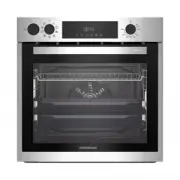 Grundig GEBD11300X
Manual
Grundig GEBD11300X
Manual
 Grundig GEBM11300XC
Manual
Grundig GEBM11300XC
Manual
 Grundig GEBM11301XC
Manual
Grundig GEBM11301XC
Manual
 Grundig GIEI638980IF
Manual
Grundig GIEI638980IF
Manual
 Grundig GIEI624470PF
Manual
Grundig GIEI624470PF
Manual
 Grundig GIEI938980I
Manual
Grundig GIEI938980I
Manual
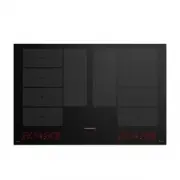 Grundig GIEI838980INH
Manual
Grundig GIEI838980INH
Manual
 Grundig GIEV613420E
Manual
Grundig GIEV613420E
Manual
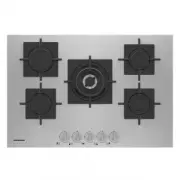 Grundig GIGF7235220X
Manual
Grundig GIGF7235220X
Manual
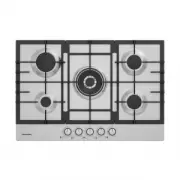 Grundig GIGA7235250X
Manual
Grundig GIGA7235250X
Manual
 Grundig GIGF6234120X
Manual
Grundig GIGF6234120X
Manual
 Grundig GIGA6234250X
Manual
Grundig GIGA6234250X
Manual