Page 2 - ENGLISH; Contents
ENGLISH 2 Contents ------------------------------------------------------------------------------------------------------------------------------------- 4 setupAnDsAFetY 6 GenerAlinFormAtion 6 Special features of your television set 7 Receiving digital channels 7 Important notes on enviro...
Page 3 - 4 operAtionAsApCmonitor
3 ENGLISH Contents ------------------------------------------------------------------------------------------------------------------------------------- 54 operAtionAsApCmonitor 54 Connecting a PC 54 Selecting presets for the PC 54 Settings for PC mode 55 operAtionwitHACommon interFACe...
Page 4 - setupAnDsAFetY
ENGLISH 4 setupAnDsAFetY ------------------------------------------------------------------------------------------------------ Please note the following instructions when setting up the television set: 7 This television is designed to receive and dis- play video and audio signals. All other use...
Page 6 - specialfeaturesofyour; GenerAlinFormAtion
ENGLISH 6 specialfeaturesofyour televisionset 7 You can receive and watch digital TV channels using your television set (via DVB-T and DVB-C) – including High Definition programmes (HD). How- ever, the reception of digital TV channels in HD is currently limited to a few countries in Europe. 7...
Page 7 - receivingdigitalchannels
7 ENGLISH GenerAlinFormAtion --------------------------------------------------------------------------------- receivingdigitalchannels 7 You require a digital roof antenna or indoor antenna (passive or active indoor antenna with its own power supply) to receive digital television channels (DVB...
Page 8 - ConneCtionAnDprepArAtion; Connectingtheantennaandpowercord; Antin
ENGLISH 8 ConneCtionAnDprepArAtion ----------------------------------------------- Connectingtheantennaandpowercord 1a To receive terrestrial digital broadcasters (DVB-T) connect the cable for the rooftop or indoor antenna (passive or active indoor antenna with its own power supply) to the ...
Page 9 - insertingbatteriesintothe; environmentalnote
9 ENGLISH insertingbatteriesintothe remotecontrol ConneCtionAnDprepArAtion ----------------------------------------------- 1 Open the battery compartment by removing the lid. 2 Insert the batteries (2 x 1.5 V micro, for example R03 or AAA). Observe the po- larity marked in the bottom of th...
Page 10 - overview; Connectionsonthetelevisionset
ENGLISH 10 overview ------------------------------------------------------------------------------------------------------------------------------------ Connectionsonthetelevisionset Av1 SCART socket (FBAS signal, RGB signal). AuDiooutlr Sockets for audio output. Component Ypbpr Sockets f...
Page 11 - Controlsonthetelevisionset
11 ENGLISH overview ------------------------------------------------------------------------------------------------------------------------------------ pCAudio Socket for audio input for a PC. pC-in VGA socket, video input for PC. Antin Antenna socket for a DVB-T, DVB-C and analogue antenna. HD...
Page 12 - theremotecontrol–mainfunctions; oK
ENGLISH 12 overview ------------------------------------------------------------------------------------------------------------------------------------ theremotecontrol–mainfunctions Switches on and off (Standby). Opens menu for AV channels and USB input. Then select using » v «, » < «, »...
Page 13 - theremotecontrol–
13 ENGLISH overview ------------------------------------------------------------------------------------------------------------------------------------ theremotecontrol– Allfunctions » « (red) Selects pages in teletext. » « (green) Selects/activates various functions » « (yello...
Page 14 - settinGs; initialset-upandtuning; thevarioussettings; selectinglanguage,countryand
ENGLISH 14 settinGs ----------------------------------------------------------------------------------------------------------------------------------------- initialset-upandtuning televisionchannels The television set is equipped with automatic channel search, which searches for terrestrial...
Page 15 - tuningterrestrialtelevision; tuningtelevisionchannelsfrom; menu
15 ENGLISH settinGs ----------------------------------------------------------------------------------------------------------------------------------------- tuningterrestrialtelevision channels(DvB-t) 1 In the »Source Setup« menu, in the »Connec- tion Type« line, select the option »Air« with ...
Page 16 - Changingtheprogramtablefor; selectingchannellists
ENGLISH 16 Changingtheprogramtablefor thedigitalchannels Channels which are found using the scan are saved in the »PROGRAM TABLE«.You can delete channels which are not required from the programe table, and lock individual channels (Parental control).You can also add channels to the favourite...
Page 17 - Creatinglistsoffavourites
17 ENGLISH settinGs ----------------------------------------------------------------------------------------------------------------------------------------- Creatinglistsoffavourites You can save your favourite channels in up to four favourites lists (FAV 1 to FAV 4). notes: 7 Favourites lists...
Page 18 - picturesettings
ENGLISH 18 settinGs ----------------------------------------------------------------------------------------------------------------------------------------- picturesettings 1 Open the menu with » menu «. 2 Select the menu item »PICTURE SETTINGS« with » v « or » Λ « and press » oK « to con- firm...
Page 19 - soundsettings; volume
19 ENGLISH settinGs ----------------------------------------------------------------------------------------------------------------------------------------- soundsettings 1 Open the menu with » menu «. 2 Select the menu item »SOUND SETTINGS« with » v « or » Λ « and press » oK « to con- firm. – ...
Page 20 - soundeffects; equalizer; exitingthesetting
ENGLISH 20 soundeffects This menu offers three preset sound effects (Music, Natural and Speech) and one setting to be created by you (User). 1 Select the line »Sound Preset« with » v « or » Λ «. 2 Select the sound effect »Music«, »Natural« or »Speech« by pressing » < « or » > «. note: 7 »User...
Page 21 - television-operAtion; Basicfunctions
21 ENGLISH television-operAtion -------------------------------------------------------------------------------- Basicfunctions switchingonandoff 1 Press » 8 «, » 1…0 « or » p+ « or » p- « to switch on the television from standby mode. 2 Press » 8 « to switch the television to standby. select...
Page 22 - Audiolanguage; Zoomfunction; electronictvguide
ENGLISH 22 Audiolanguage Various languages are available on digital tele- vision channels. This depends on the programme being broadcast. 1 Open the selection menu with » «. 2 Select the language by pressing » v « or » Λ « and press » oK « to confirm. subtitles Various subtitles are available on d...
Page 23 - Changingthepictureformat; »subtitle«format
23 ENGLISH television-operAtion -------------------------------------------------------------------------------- Changingthepictureformat The television automatically switches to the 16:9 format if this format is detected via the SCART socket. 1 Select the picture format with » «. – The pictur...
Page 24 - HomenetworK; networkconnection; wirednetworkconnection; lAn; wirednetworksettings
ENGLISH 24 HomenetworK ------------------------------------------------------------------------------------------------------------ networkconnection You can establish a wired or wireless connection between your television and the local network. wirednetworkconnection 1 Connect the output of e...
Page 25 - manualconnection
25 ENGLISH 7 Press » « (green) to make sure that the network connection is established with the current settings. – The messages »Testing ... Please waite« appears, after successfull announcement the messages »Connecting To Gateway: Successful« and then the MAC address. 8 Press » menu « to end t...
Page 26 - wirelessnetworkconnection; usB
ENGLISH 26 wirelessnetworkconnection 1 Connect Grundig WiFi USB dongle to the » usB « or » usBHDD « socket of your television in order to connect the television to a wireless network. HomenetworK --------------------------------------------------------------------------------------------------...
Page 27 - wirelessnetworksettings
27 ENGLISH HomenetworK ------------------------------------------------------------------------------------------------------------ wirelessnetworksettings There are two ways of making the wireless net- work settings. A Automatic connection, »Apart from Access Point Selection, all data regardin...
Page 29 - playbackthevideo,musicand; selecttheDigitalmediaserver
29 ENGLISH HomenetworK ------------------------------------------------------------------------------------------------------------ playbackthevideo,musicand imagefileswithhomenetwork connection You can easily access the Video, music and image files on the server through the DLNA menu o...
Page 30 - startplayback; vtunerinternetradio
ENGLISH 30 7 Only the formats with a DLNA certificate (»AAC_ADTS_320«, »LPCM«, »MP3«, »WMABASE« and »WMAFULL«) are supported from among the audio files played from DMS device. 7 Only the formats with a DLNA certificate (»JPEG_LRG«, »JPEG_MED« and »JPEG_ SM«) are supported from among the picture fil...
Page 31 - usBreCorDinG; informationonrecordingand; GrunDiGhasnoinfluenceon
31 ENGLISH usBreCorDinG -------------------------------------------------------------------------------------------------------------- informationonrecordingand playingtelevisionprogrammes ■ Recording and playback of television pro- grammes is only possible with digital television channels ...
Page 32 - Connectingexternaldatamedia; selectingthemenu
ENGLISH 32 usBreCorDinG -------------------------------------------------------------------------------------------------------------- Connectingexternaldatamedia notes: 7 Before connecting the data medium, switch the television to standby with » 8 «. Connect the device and then switch the te...
Page 33 - switchingonautomaticpreview; selectingexternaldatamedia; selectingapartitionontheexternal; testingtheexternaldatamedium
33 ENGLISH switchingonautomaticpreview If the automatic preview is switched on, a pre- view of the selected file appears in the file browser. 1 Select the line »Auto Preview« with » v « or » Λ «. 2 Switch on the function with » < « or » > « (»On«). 3 Press » menu « to end the setting. sele...
Page 34 - ′′pausing”timeshift; one-touchprogrammerecording
ENGLISH 34 usBreCorDinG -------------------------------------------------------------------------------------------------------------- ″pausing”timeshift programmes You can pause the programme you are watch- ing. This is a useful function, for example if the telephone rings while you are watc...
Page 35 - recordingaprogrammefromthe; presettingprogrammestobe; GuiDe
35 ENGLISH recordingaprogrammefromthe channellist 1 Open the »CHANNEL LIST« with » oK «. 2 Select a television channel with » v «, » Λ «, » < « or » > « and press » oK « to confirm. 3 Press » menu « to exit the channel list. 4 Press » « to start recording. – Information on the recording...
Page 36 - editingrecordingdatainthe
ENGLISH 36 usBreCorDinG -------------------------------------------------------------------------------------------------------------- ...bymanualdataentry You can preset up to 25 programmes for timer recording. 1 Press » GuiDe « to display channel informa- tion. – The electronic TV guide app...
Page 37 - playback; selectingaprogrammefrom; playbackduringarecording; Deletingprogrammesinthe; list
37 ENGLISH playback The recorded programmes – whether started manually or using the timer function – are stored on the external data medium. You can open the archive on the external data medium by pressing » reC.list «. selectingaprogrammefrom thearchive 1 Open the »Recorded Event« menu with ...
Page 38 - usBoperAtion; Fileformats; videodata
ENGLISH 38 usBoperAtion --------------------------------------------------------------------------------------------------------------- Fileformats Your television can work with the following file formats using the USB sockets: videodata Special codecs for video compression and decompression pr...
Page 39 - Connectingexternal
39 ENGLISH usBoperAtion --------------------------------------------------------------------------------------------------------------- Connectingexternal datamedia Before connecting the data medium, switch the television to standby using » 8 «. Connect the device and then switch the televis...
Page 40 - thefilebrowser
ENGLISH 40 usBoperAtion --------------------------------------------------------------------------------------------------------------- thefilebrowser The file browser displays video, audio and picture files stored on external data media.If an external data medium contains files in different f...
Page 41 - Basicplaybackfunctions
41 ENGLISH Basicplaybackfunctions 1 Select the data medium by pressing » «, use » v «, » Λ «, » < « or » > « to select the option »USB« and press » oK « to confirm. – The file browser appears. 2 Select the file format (video files, audio files, picture files) with » v « or » Λ «. 3 Switch ...
Page 42 - Additionalplayback
ENGLISH 42 usBoperAtion --------------------------------------------------------------------------------------------------------------- Additionalplayback functions Depending on the file format, the following additional functions are available: selectingchaptersonDivx®files (only video fil...
Page 43 - toptextorFloFtextmode; txt; Additionalfunctions; teletextoperAtion
43 ENGLISH toptextorFloFtextmode 1 Press » txt « to switch on teletext. 2 Select teletext pages directly with » 1...0 « or step by step with » v « and » Λ «. Return to teletext page 100 with » ? «. note: 7 At the bottom of the screen there is an info bar with red, green and – depending on the ...
Page 44 - languagesettings; Changingthemenulanguage; ConvenienCeFunCtions; openingthesettinGsmenu; Changingtheaudiolanguage
ENGLISH 44 note: 7 Additional operations are explained in the following sections. languagesettings Changingthemenulanguage 1 Select the line » menu « with » v « or » Λ « and press » oK « to confirm. – The »Select Menu Language« menu appears. 2 Select the menu language with » < «, » > «, ...
Page 45 - settingthedateandtime; timersettings; enteringtheswitch-offtime
45 ENGLISH ConvenienCeFunCtions ------------------------------------------------------------------------ settingthedateandtime Your television set detects the difference in time to Greenwich Mean Time (GMT) automatically, as long as the channel selected transmits a time signal. You can also s...
Page 46 - parentalcontrolsettings; Authorisingprogrammes
ENGLISH 46 6 Select the line »Volume« with » v « or » Λ « and use » < « or » > « to set the volume. 7 Select the line »Set Hour« with » v « or » Λ « and enter the time with » 1…0 «. 8 Save the data with » « (green). note: 7 You can abort the entry by pressing » « (red). 9 Press » menu...
Page 47 - Changingthepincode; updatingsoftware
47 ENGLISH ConvenienCeFunCtions ------------------------------------------------------------------------ Changingthepincode You can also enter a personal PIN code instead of the default code »1234«. Please take note of your own PIN code. 1 Select »Set PIN« with » v « or » Λ « and press » oK « ...
Page 48 - DiGilinK; HDmi; theDiGilinKfunctionsonyour; operAtionusinGexternAlDeviCes; CeC
ENGLISH 48 DiGilinK Your television is equipped with the DIGI LINK function.This function uses the CEC (Consumer Electronics Control) protocol. CEC allows external devices which are connect-ed to the » HDmi « sockets by an HDMI cable (e.g. DVD player) to be operated with a remote control.Prerequis...
Page 49 - Deviceoperation; switchingthedevicetostandby
49 ENGLISH operAtionusinGexternAlDeviCes ----------------------------- Deviceoperation You can decide whether external devices should react to your television's remote control. 1 Press » «, use » v «, » Λ «, » < « or » > « to select the preset »HDMI1« to »HDMI4« and press » oK « to confi...
Page 50 - HighdefinitionHDready
ENGLISH 50 operAtionusinGexternAlDeviCes ----------------------------- HighdefinitionHDready C o n n e c t t h e c o r -r e s p o n d i n g i n p u t sources (e.g. HDT V r e c e i v e r o r H D -DVD player) to the » HDmi « sockets (for digital HDTV sources). This ensures that you can view ...
Page 51 - Connectionoptions; Component Y pb pr
51 ENGLISH Connectionoptions 7 Which television socket(s) you connect your external devices to depends on the sockets the external device is equipped with and the signals which are available. 7 Please note: With many external devices, the resolution of the video signal must be adjusted to the inpu...
Page 52 - Activatingadecoder; DvDrecorder,videorecorder; Connectingtheheadphones
ENGLISH 52 operAtionusinGexternAlDeviCes ----------------------------- ...usingthesCArtsocket (FBAs/rGBsignal) 7 Suitable devices: Digital satellite receiver, DVD player/recorder, set-top box, games con-sole, video recorder, decoder. 7 Video signal: FBAS/RGB. 7 Audio signal: stereo, anal...
Page 53 - Avreceiver; playingtheaudiosignalviathe
53 ENGLISH 4 Set the preferred volume with » < « and » > «. 5 Press » menu « to end the setting. note: 7 Prolonged listening with headphones at loud volumes can damage your hearing. Hi-fisystem/Avreceiver Connectingthehi-fisystem/ Avreceiver 1 Connect the » optical out « socket on th...
Page 54 - ConnectingapC; pC Audio; selectingpresetsforthepC; settingsforpCmode; operAtionAsApCmonitor
ENGLISH 54 ConnectingapC 1 Connect the » pC-in « socket on the television to the corresponding socket on the PC using a VGA cable (video signal). 2 Connect the » pC Audio « socket on the tel- evision to the corresponding socket on the PC using a suitable cable (audio signal). note: 7 Adjust your...
Page 55 - operAtionwitHACommoninterFACe; whatisaCommoninterface?
55 ENGLISH operAtionwitHACommoninterFACe ------------------ whatisaCommoninterface? 7 Common Interface (CI) is an interface for DVB receivers. 7 Encrypted channels can only be viewed with a CA module suitable for the encryp- tion system and in conjunction with the corresponding smart card....
Page 56 - speCiAlsettinGs
ENGLISH 56 speCiAlsettinGs ---------------------------------------------------------------------------------------------------------- searchingfortelevisionchan- nelsfromthecableprovider automatically 1 Open the menu with » menu «. 2 Select the line »SOURCE SETUP« with » v « or » Λ « and ...
Page 57 - searchingfordigitalterrestrial
57 ENGLISH searchingfordigitalterrestrial tvchannelsautomatically 1 Open the menu with » menu «. 2 Select the line »SOURCE SETUP« with » v « or » Λ « and press » oK « to confirm. – The »SOURCE SETUP« menu appears. 3 Select the line »Source« with » v « or » Λ « and press » oK « to confirm. Sel...
Page 58 - tuninganaloguetelevision; switchingthetelevisionto
ENGLISH 58 speCiAlsettinGs ---------------------------------------------------------------------------------------------------------- tuninganaloguetelevision channels This setting is only necessary if you cannot re- ceive any digital channels and you have not car- ried out an analogue search...
Page 59 - tuningthetelevisionchannelsby
59 ENGLISH speCiAlsettinGs ---------------------------------------------------------------------------------------------------------- 7 If fine tuning is necessary, select the line »Fine Tuning« with » v « or » Λ « and use » < « or » > « to make the setting. 7 Press » « (blue) to save ...
Page 60 - Changingstoredanalogue; selectingachannellist; Deletingchannels
ENGLISH 60 speCiAlsettinGs ---------------------------------------------------------------------------------------------------------- Changingstoredanalogue channels If channels were stored with the automatic chan- nel search while tuning the television channels, you can delete them. You can ...
Page 61 - exitingthesettings
61 ENGLISH Creatinglistsoffavourites You can select your favourite channels and save them in up to four favourites lists (Fav 1 to Fav 4). 1 In the »PROGRAME TABLE« menu, switch over to the list view with » « (yellow). 2 Select the preferred channel with » v « or » Λ «. 3 Use » < « or » &...
Page 62 - inFormAtion; Displayingsignalinformation
ENGLISH 62 inFormAtion --------------------------------------------------------------------------------------------------------------------- Displayingsignalinformation (for digital channels only) 1 Open the menu with » menu «. 2 Select the line »SOURCE SETUP« with » v « or » Λ « and press » oK ...
Page 63 - technicaldata; energyefficiencyclass:; maximumpowerconsumption:
63 ENGLISH inFormAtion --------------------------------------------------------------------------------------------------------------------- GrunDiG32vle7130BFGrunDiG40vle7130BF technicaldata operatingvoltage: 220–240 V,~, 50–60 Hz powerconsumption: Operational 58 W (32 VLE) Operationa...
Page 64 - serviceinformationforretailers
ENGLISH 64 serviceinformationforretailers Only operate the television with the power supply/power cord provided. The product complies with the following EU directives: 2006/95/EC directive on electrical equipment for use within certain voltage limits. 2004/108/EC directive on electromagnetic com...
Page 65 - troubleshooting; or satellite receivers.; problem
65 ENGLISH inFormAtion --------------------------------------------------------------------------------------------------------------------- troubleshooting If the information provided below does not help, please consult an authorised GRUNDIG dealer. Please bear in mind that malfunctions can also ...


 Grundig GEBM19300BC
Manual
Grundig GEBM19300BC
Manual
 Grundig GEBD19401BHI
Manual
Grundig GEBD19401BHI
Manual
 Grundig GEBM19400BCH
Manual
Grundig GEBM19400BCH
Manual
 Grundig GEBD19300B
Manual
Grundig GEBD19300B
Manual
 Grundig GEBM19300BP
Manual
Grundig GEBM19300BP
Manual
 Grundig GEBM19400BPHI
Manual
Grundig GEBM19400BPHI
Manual
 Grundig GEDM12300B
Manual
Grundig GEDM12300B
Manual
 Grundig GEBD19301B
Manual
Grundig GEBD19301B
Manual
 Grundig GEBM11300XC
Manual
Grundig GEBM11300XC
Manual
 Grundig GEBM11301XC
Manual
Grundig GEBM11301XC
Manual
 Grundig GIEI638980IF
Manual
Grundig GIEI638980IF
Manual
 Grundig GIEI624470PF
Manual
Grundig GIEI624470PF
Manual
 Grundig GIEI938980I
Manual
Grundig GIEI938980I
Manual
 Grundig GIEV613420E
Manual
Grundig GIEV613420E
Manual
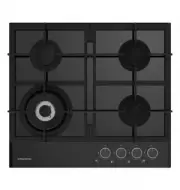 Grundig GIGL6234250
Manual
Grundig GIGL6234250
Manual
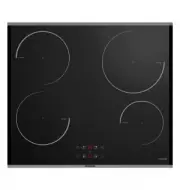 Grundig GIEI623410MX
Manual
Grundig GIEI623410MX
Manual
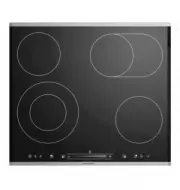 Grundig GIEV624430X
Manual
Grundig GIEV624430X
Manual
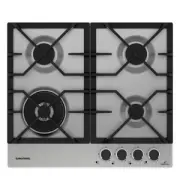 Grundig GIGA6234260XE
Manual
Grundig GIGA6234260XE
Manual
 Grundig GIEI627474PN
Manual
Grundig GIEI627474PN
Manual
 Grundig S450DLX
Manual
Grundig S450DLX
Manual